Last updated
Remove images from a PDF
Before you start
- Have the PDF on your phone or computer. The upload box tells you how big a file can be.
- This removes every picture at once: photos, logos and charts saved as pictures. The text stays.
- A scanned page is one big picture, so it comes back blank. To keep the pictures, save them first with Extract Images .
- You don't need an account.
Open your PDF
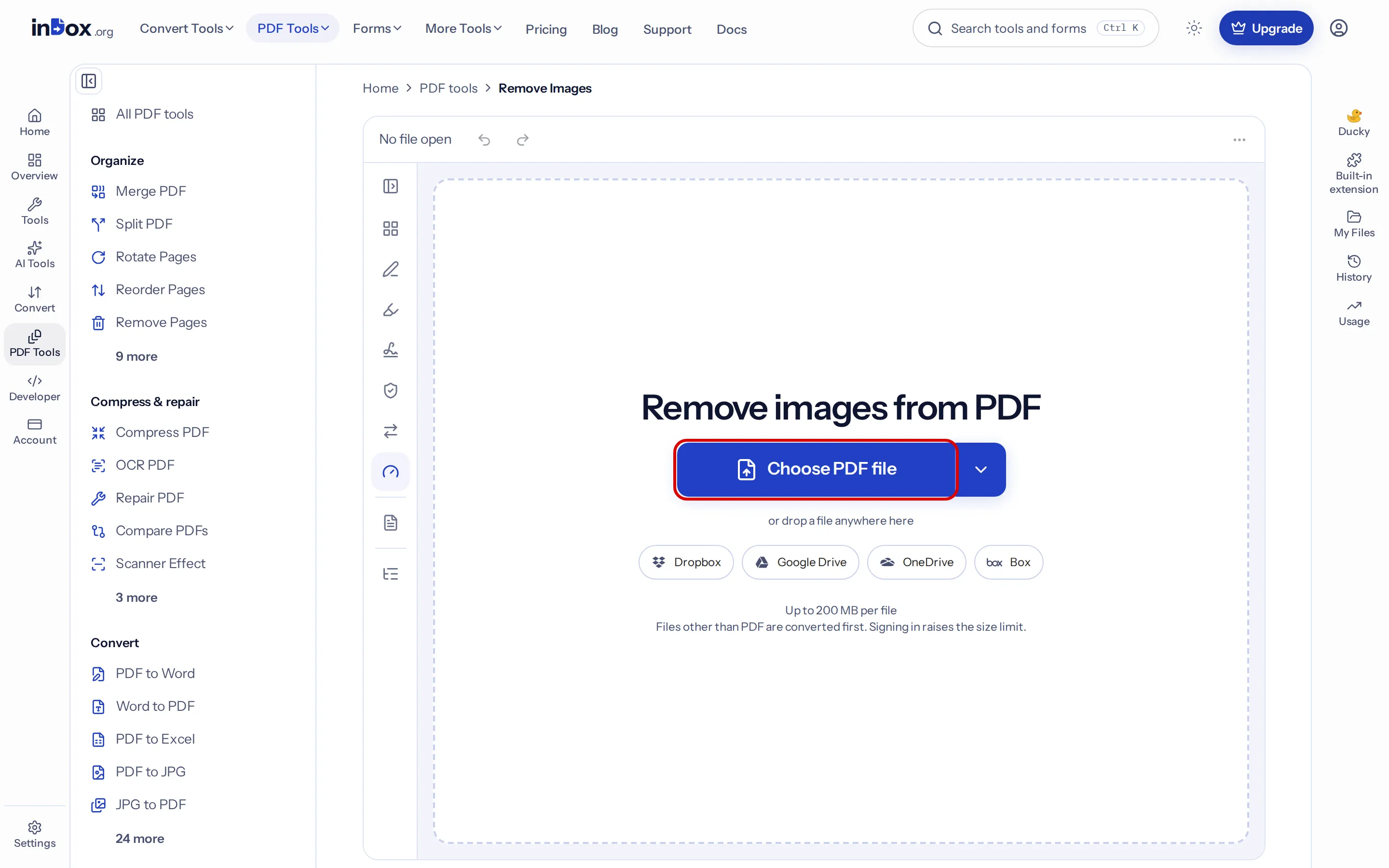
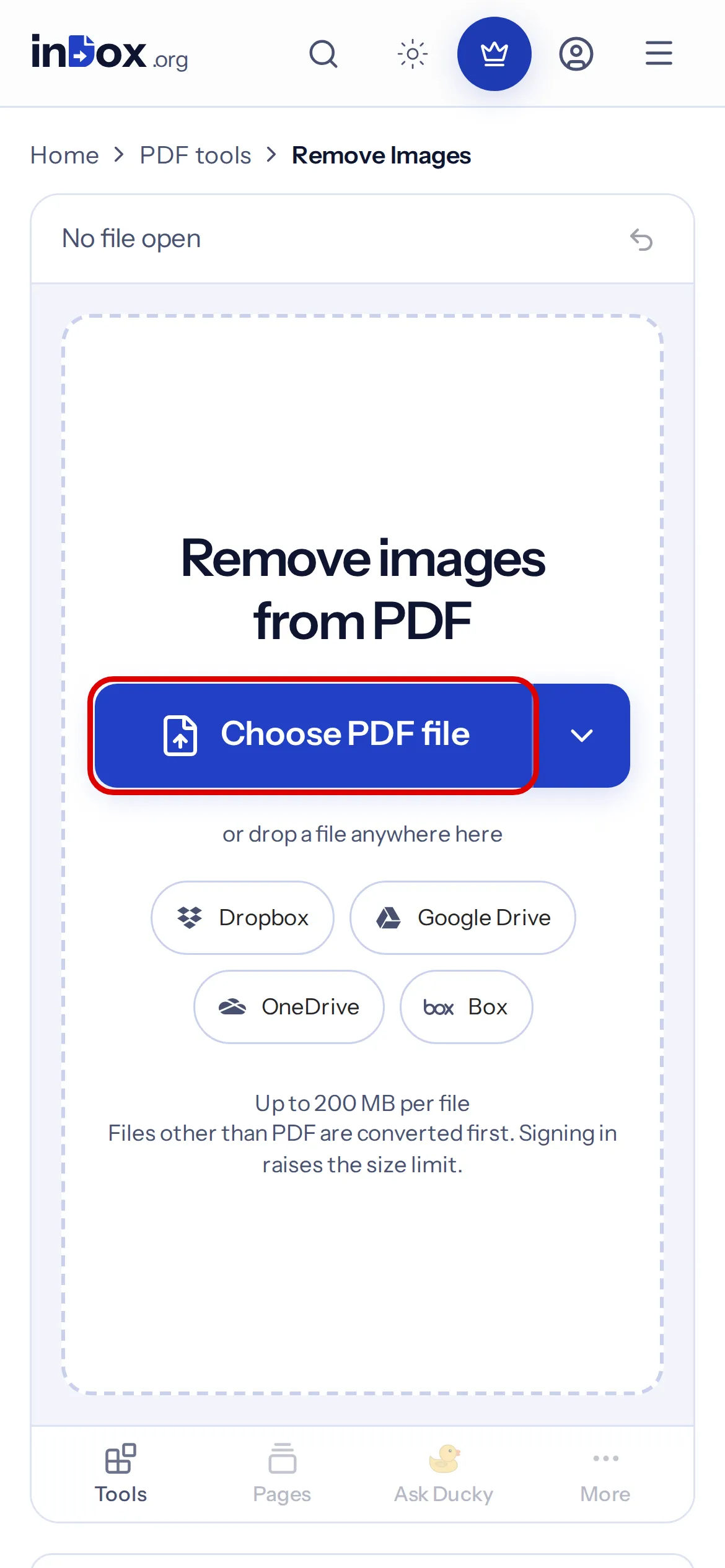
Go to the Remove Images page. In the middle of the page, select the blue Choose PDF file button. A box opens so you can pick a file from your device. You can also drag a file onto the page. The file opens with a panel called Remove Images. On a computer the panel is on the right. On a phone it slides up from the bottom.
Read what it does
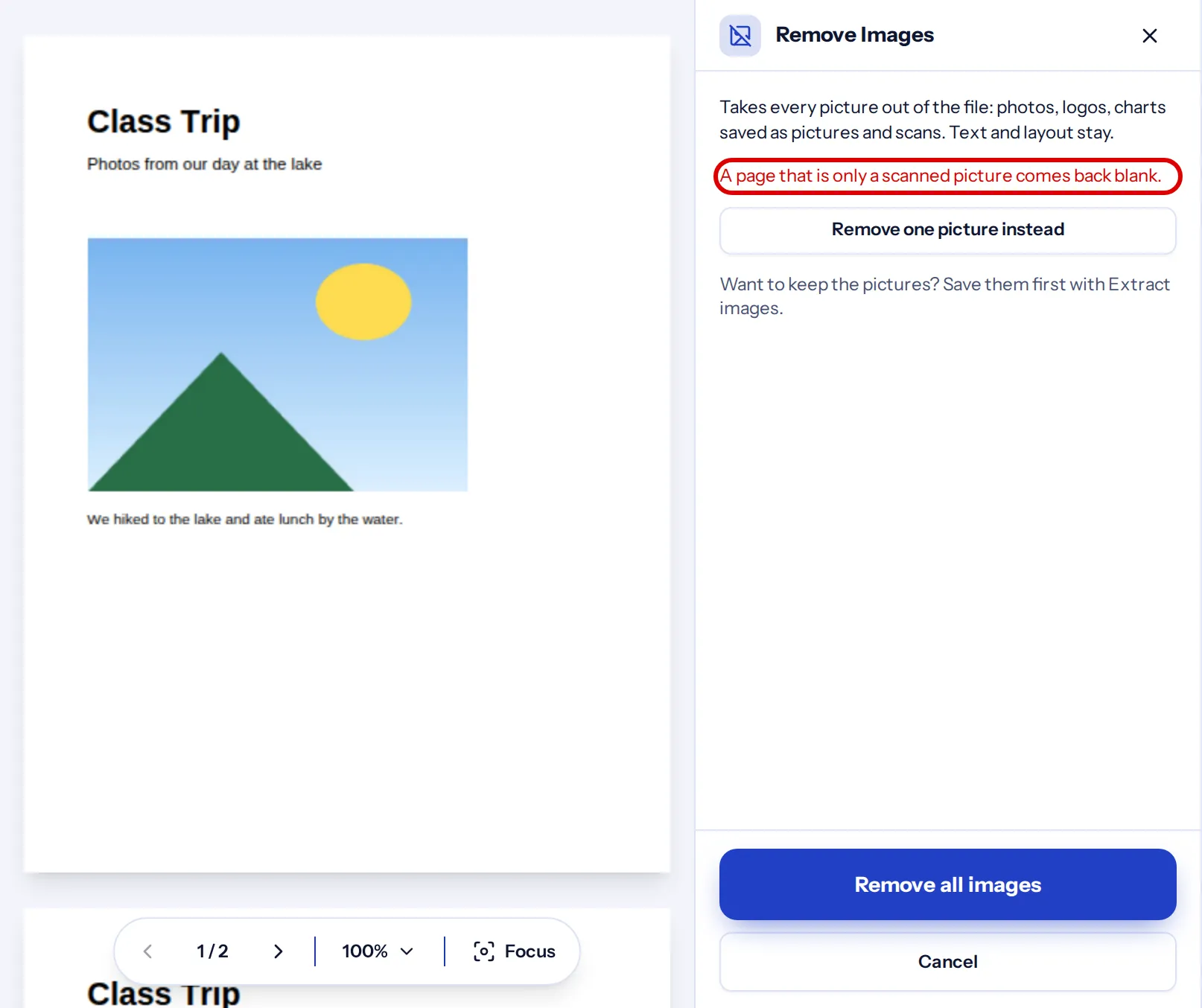
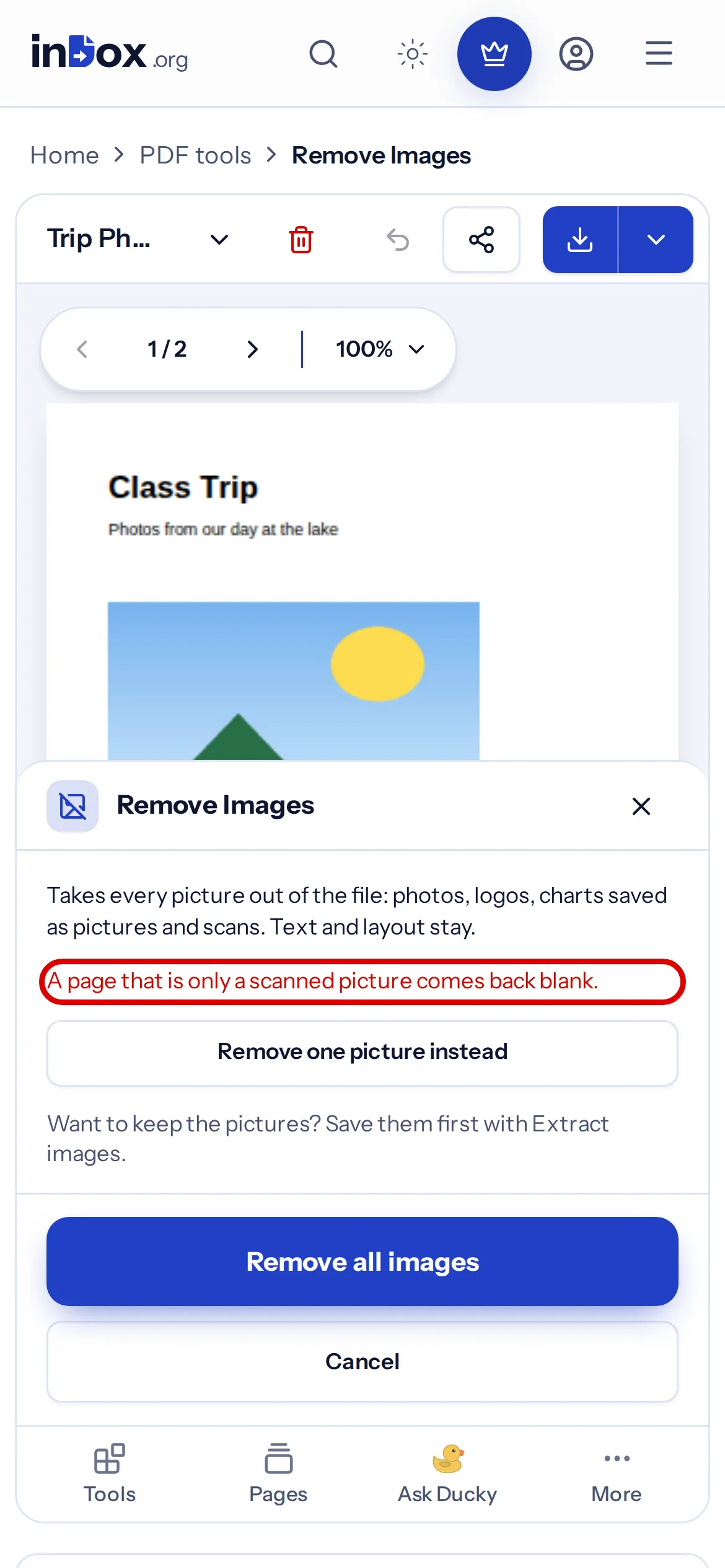
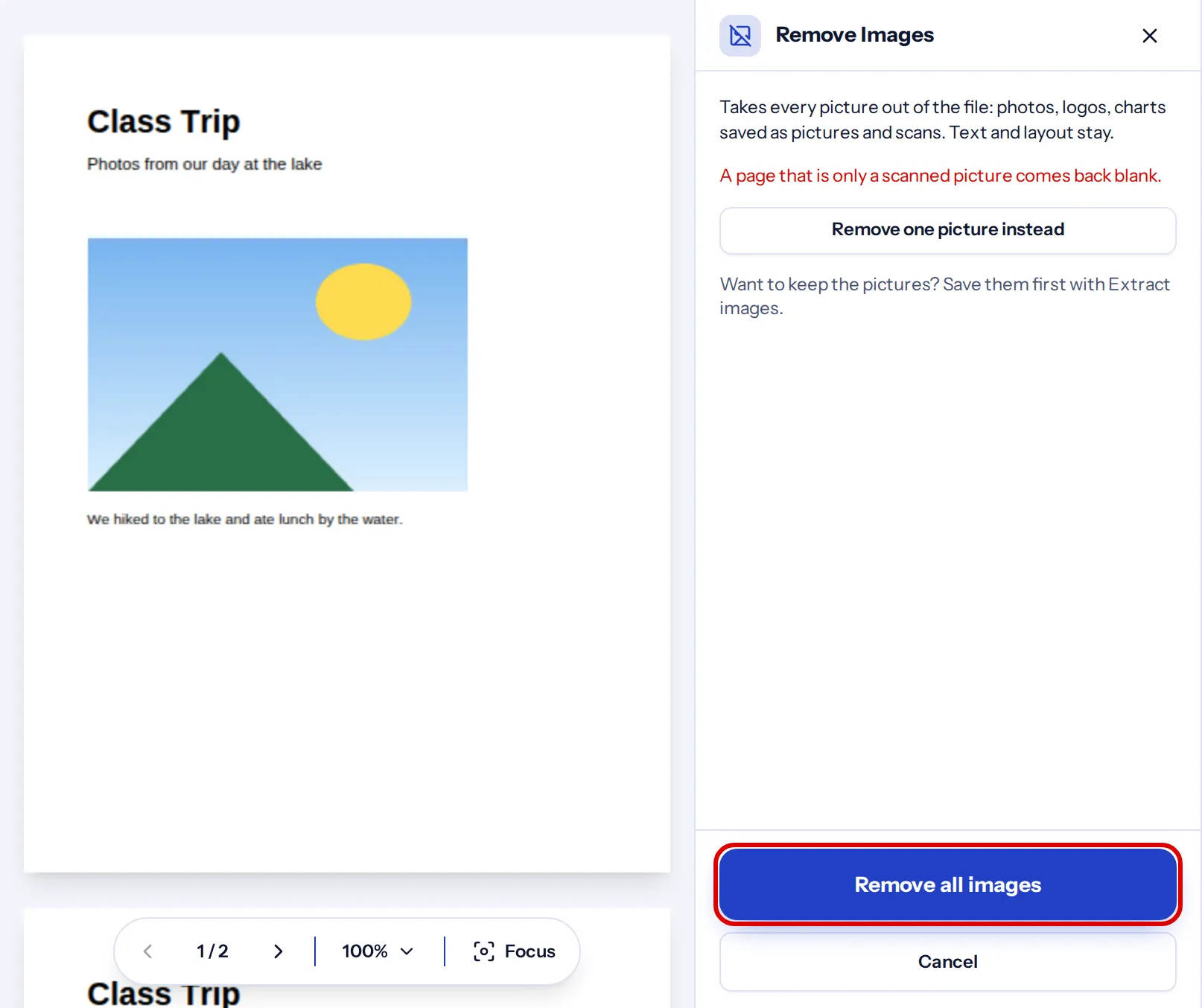
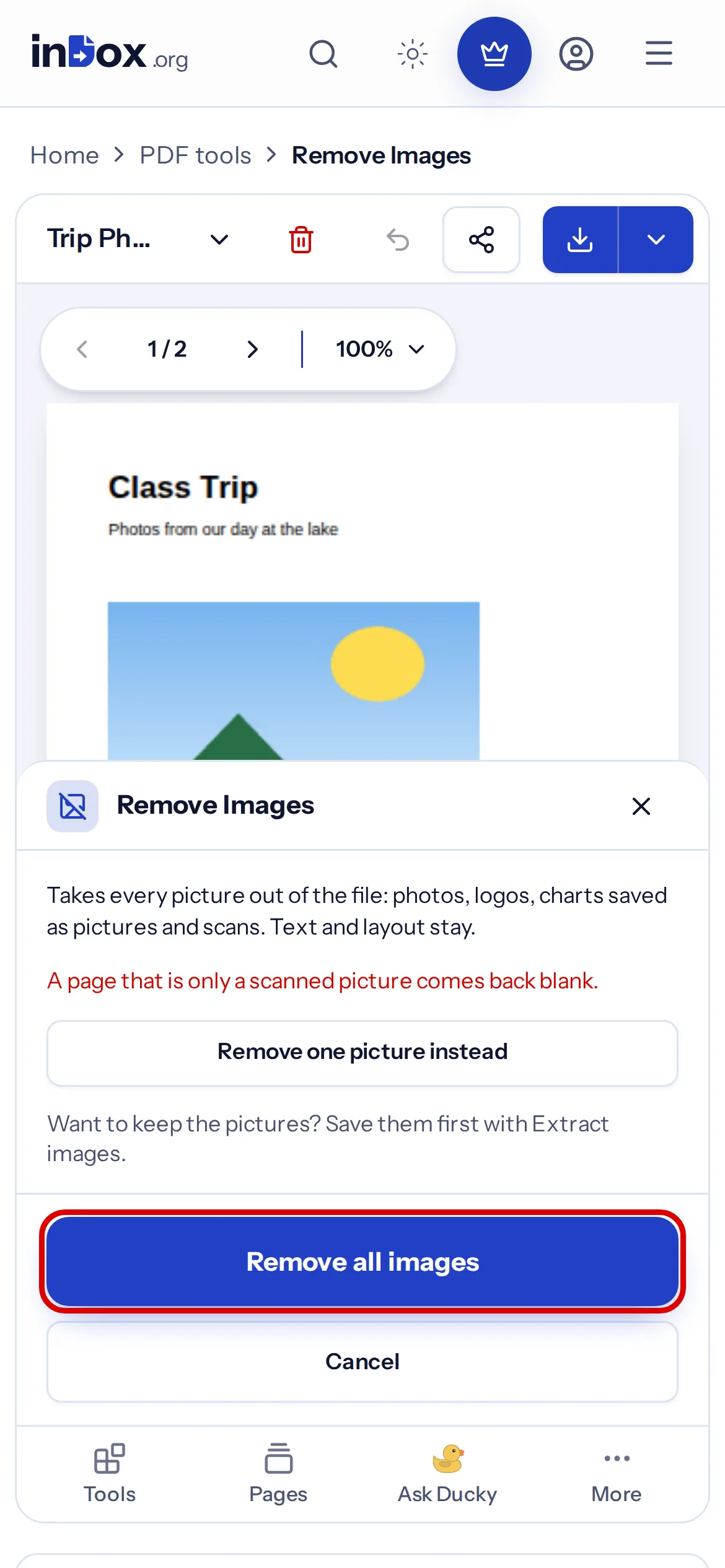
The panel says it takes every picture out of the file. Text and layout stay. A red line warns you: A page that is only a scanned picture comes back blank. A scan is a paper page turned into a picture by a scanner or a phone camera. Below it, the panel reminds you to save the pictures first with Extract images if you want to keep them.
Remove the images
Select the blue Remove all images button at the bottom of the panel. Wait a moment. There are no settings to change.
Download your PDF
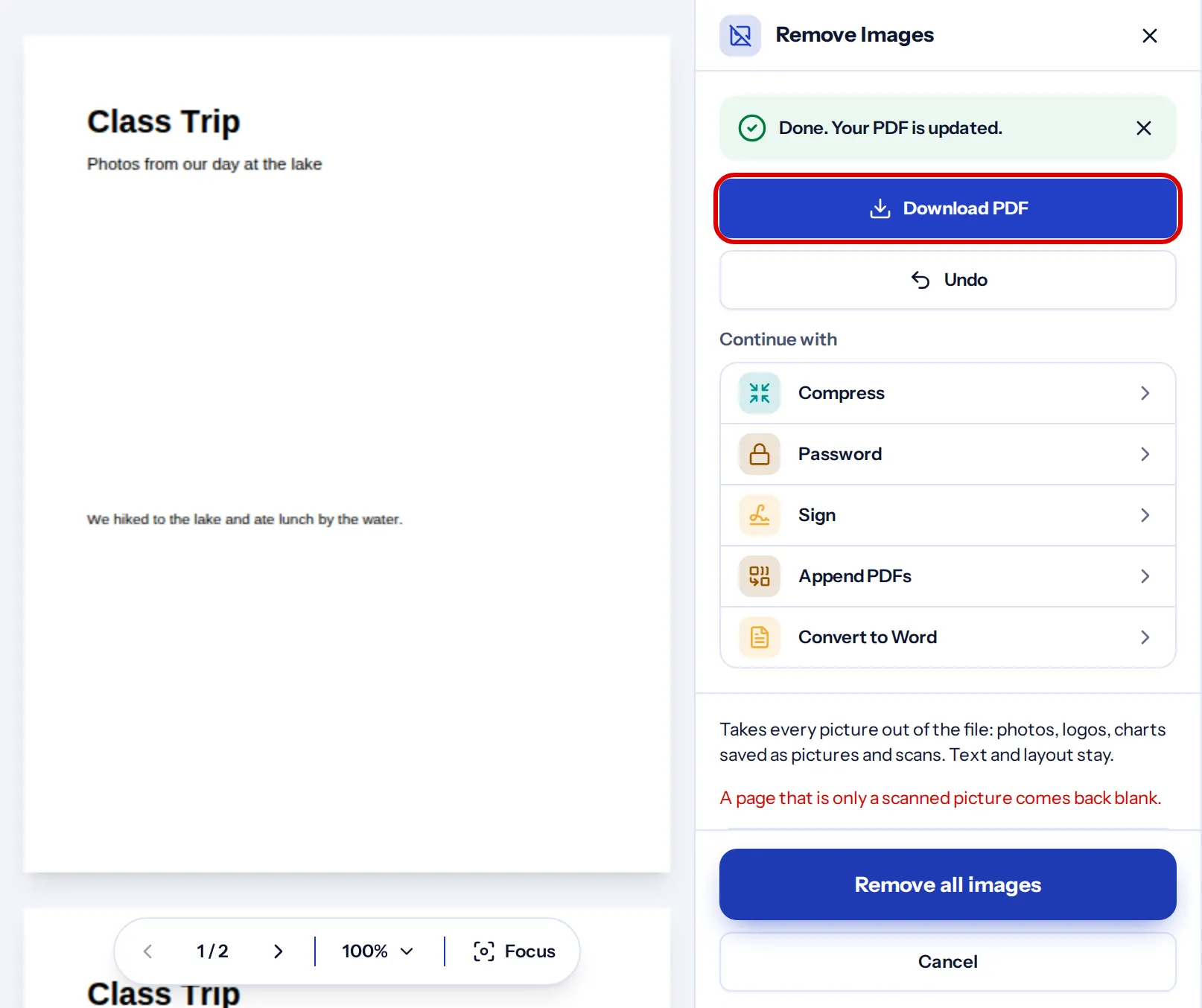
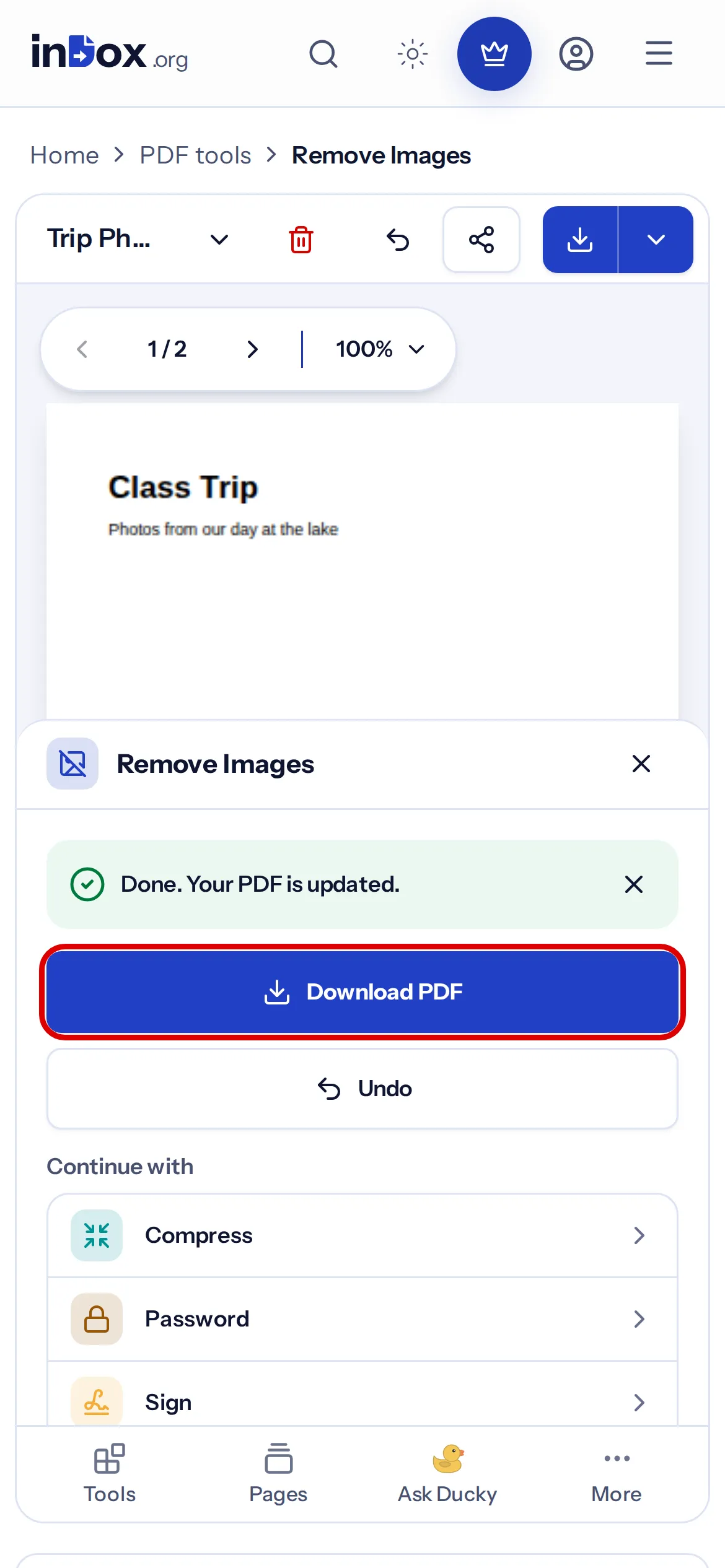
The panel says Done. Your PDF is updated. Look at the page on the left. The picture is gone and the text is still there. Select the blue Download PDF button. The new file is saved on your device. Its name is your file's name with -edited added.
Troubleshooting
| Problem | Cause | Fix |
|---|---|---|
| A page came back blank | The page was a scan, so it was one big picture and it was removed | Select Undo. Use the original file, or run Make searchable on it instead |
| You want the pictures back | The new PDF has no pictures | Select Undo next to Download PDF. Your file on your device was never changed |
| Nothing seems to change | The file had no pictures. A file that had none is unchanged | Check the page. If you see text only, there was nothing to remove |
| You only want to remove one picture | This tool removes all of them | Select Remove one picture instead in the panel. It opens the Edit text & images tool |