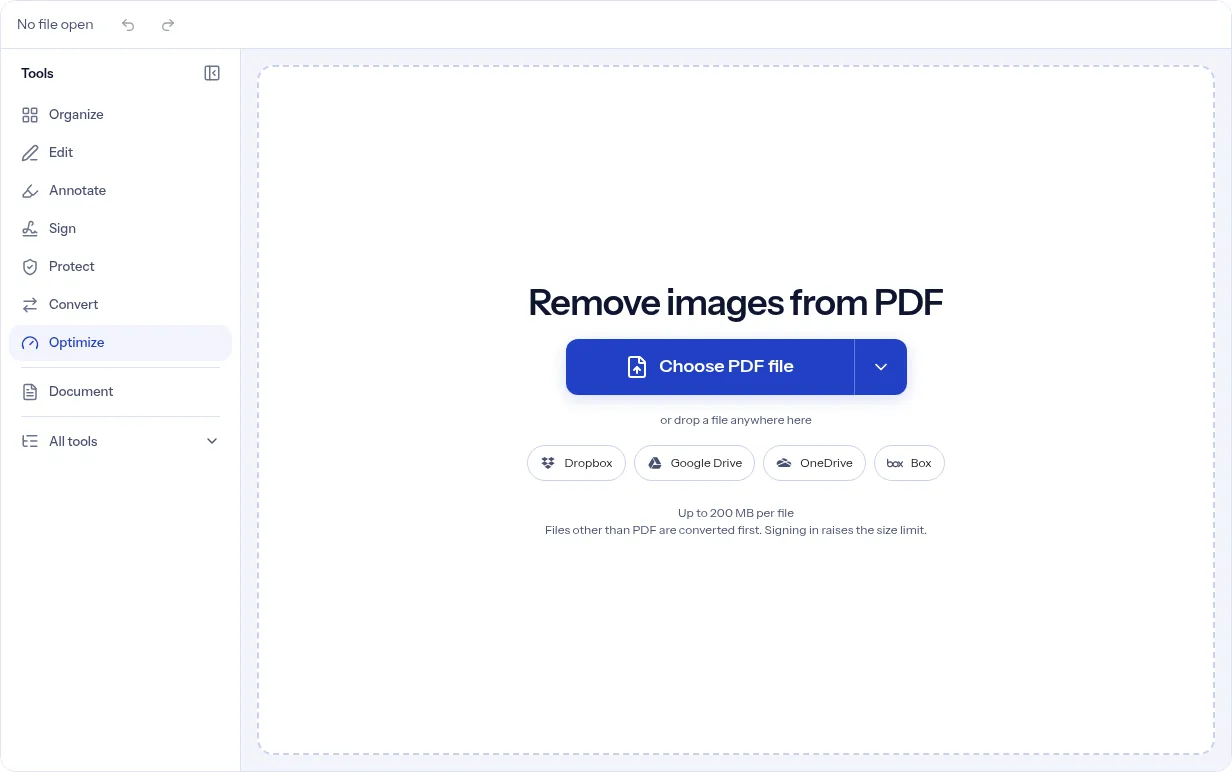
One button, no settings
Remove all images takes every picture out of the file. There are no options to set and no page range.
or drop a file anywhere here
Files other than PDF are converted first. Signing in raises the size limit.
To remove images from a PDF, open it here, press Remove all images and download the result: the pictures are stripped out and the text and the layout stay in place. It is for anyone who has one PDF and needs the words without the pictures: a lighter copy to email, a text-only copy to share, or a file cleaned up before editing. The panel has one button and no settings, and it is free to use. It takes out the pictures it finds, whether a photo, a logo, a chart that was saved as a picture or a scan. In our test the image objects were deleted from the file, not covered with a white box, and the measured run below shows how we checked. The panel warns you about the one case that surprises people: a page that is only a scanned picture comes back blank. If you want to keep the pictures, save them first with Extract images. Remove one picture instead opens the Edit text & images tool. That tool cannot delete one picture already in the PDF: it can cover it with a whiteout box, which hides it on the page while the image data stays in the file.
A three-page test PDF with a photo, a logo and a scanned page, made by us and run on indox.org
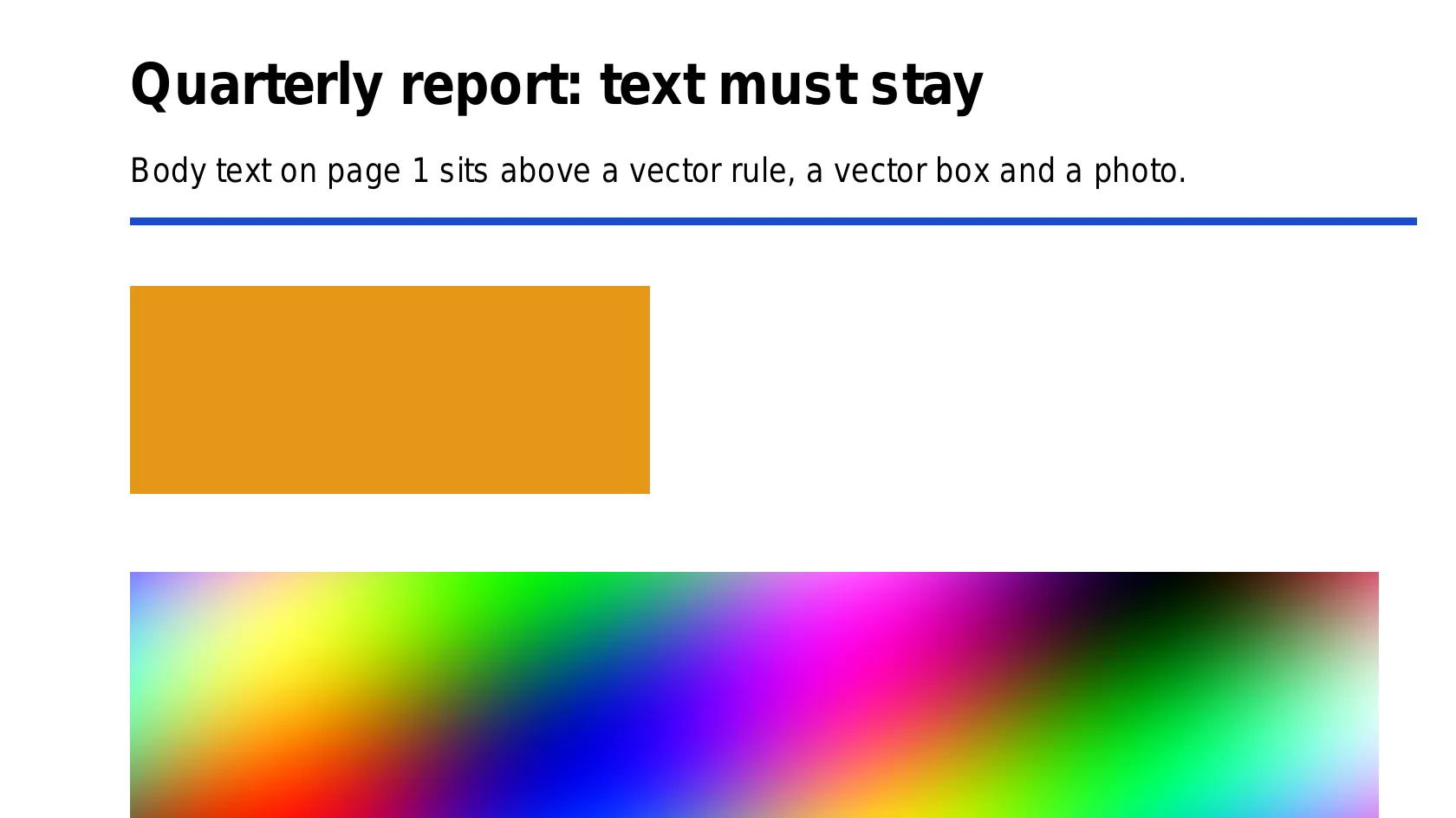
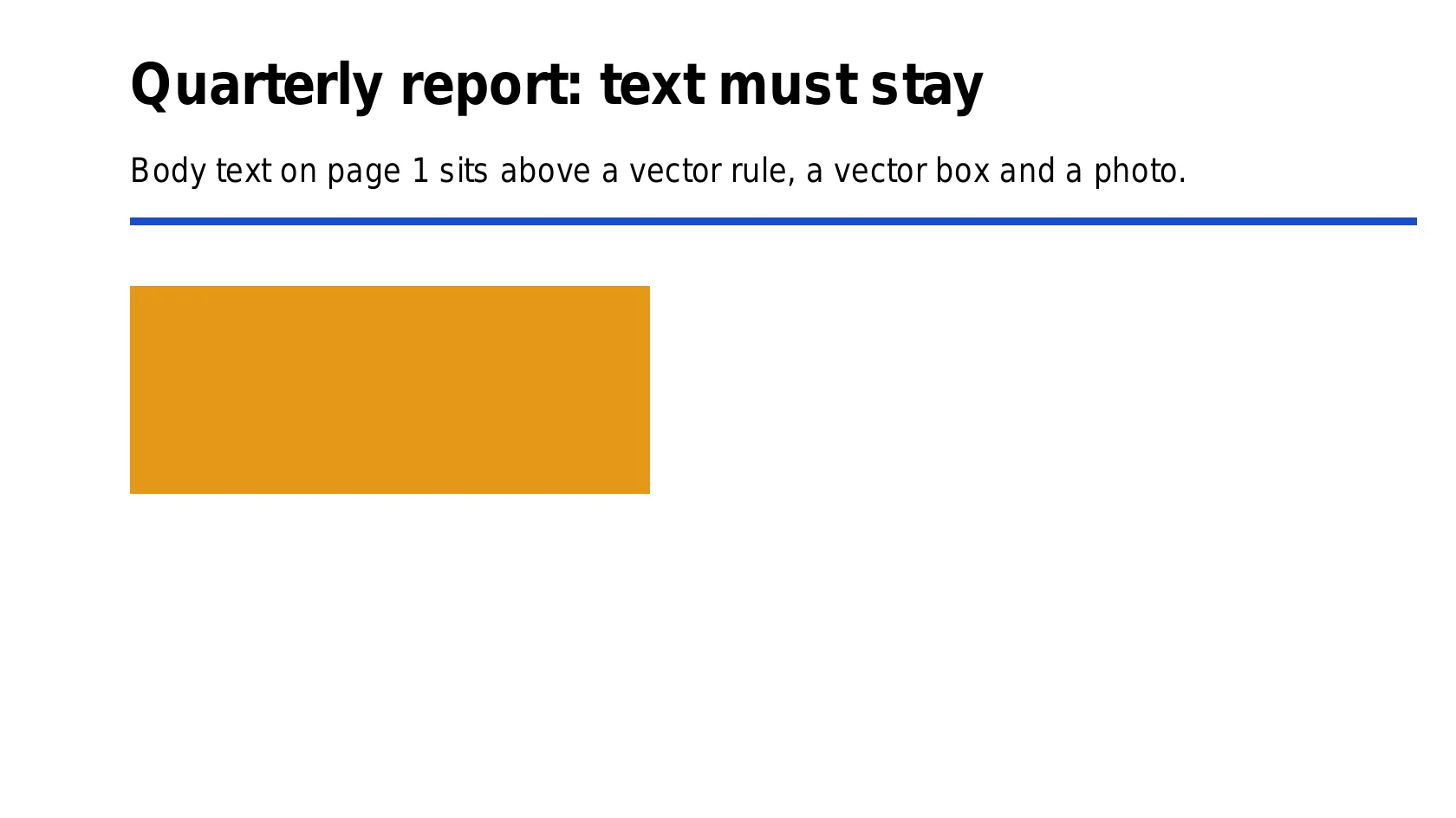
Remove all images takes every picture out of the file. There are no options to set and no page range.
A red note says a page that is only a scanned picture comes back blank. Read it before you run the panel on a scanned file.
Remove one picture instead opens the Edit text & images tool. That tool cannot delete one picture already in the PDF: it can cover it with a whiteout box, which hides it on the page while the image data stays in the file.
The panel suggests saving the pictures with Extract images before you remove them. The original comes back with Undo, too.
Drop the PDF into the upload area at the top of the page, or click to choose it: up to 200 MB when you are not signed in, or 200 MB with a signed-in account. It opens in the editor with the Remove images panel ready.
The panel lists what goes: photos, logos, charts saved as pictures and scans. Check the warning about scanned pages. To hide one picture and keep the rest, choose Remove one picture instead and cover it with whiteout.
Press Remove all images. The editor shows Images removed. A file that had none is unchanged. Then press Download PDF, or Undo to go back. In our test it took 4.0 seconds from the click to Done for a 3-page file.
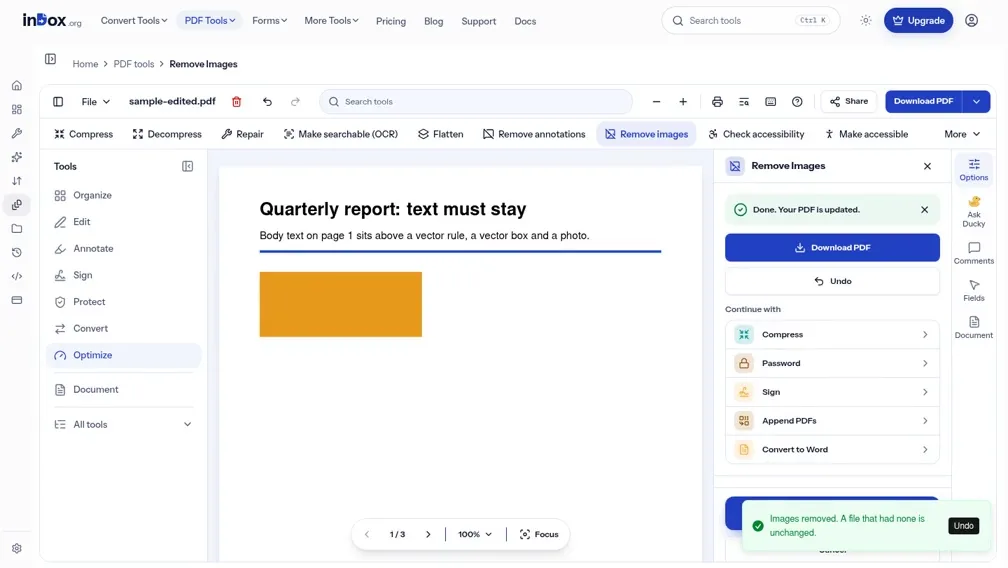
The tool removes the pictures it finds, says so, and warns about the case that surprises people most, the scanned page that comes back blank. This page also shows a run we measured on indox.org: image count before and after, file size, and whether the text survived, including a second test file where one kind of image was left behind. Alongside the button, the panel offers the two things you may have meant instead: covering one picture rather than removing all of them, and saving the pictures before they go. Text and layout stay, so the result is a lighter, text-only copy. In our test it ran without an account.
| What you see | Why | What to do |
|---|---|---|
| Some pictures are still there | Only images stored as image objects are removed, and an image written inline in the page content survived in our test. Artwork drawn from shapes is not an image | Check the result. Edit the source file, or cover a single picture with whiteout in Remove one picture instead. |
| A page came back blank | It was only a scanned picture | Press Undo. A scan has no text underneath, so there is nothing to keep. |
| You wanted to keep one logo and drop the rest | The panel removes all images | Edit the source file. Or cover the pictures you want gone with whiteout in Remove one picture instead, knowing their data stays in the file. |
| You need the pictures later | They are gone from the copy you download | Press Undo, save them with Extract Images, and run it again. |
| A viewer warns about an unknown object | After removing an image wrapped in a form object, the page still points at it, and a strict viewer such as poppler printed a syntax error in our test | The page still renders. Open it in another viewer, or print the page to a new PDF to clean it up. |
| The file is barely smaller | The file had few pictures, so the text and fonts are most of its weight | Use Compress PDF if the pictures are not the problem. |
| Method | What happens | Fits |
|---|---|---|
| Remove all images (this tool) | The image objects are deleted from the file and text and vector art stay. In our test pdfimages -list went from 6 rows to 0 | A text-only copy or a lighter file |
| Cover one picture | Remove one picture instead opens Edit text & images, where a whiteout box hides the picture; its data stays in the file | Hiding one logo or photo on the page, with the rest kept |
| Extract images first | Extract Images saves the pictures as files, then you remove them from the copy you share | You need the pictures and a text copy |
| Cover with a white box | The image data stays in the file, because a PDF page keeps its image objects until they are removed (ISO 32000-1) | Hiding a picture on screen, never for privacy |
| Compress | Compress PDF keeps the pictures and recompresses them (pypdf file-size guide) | A smaller file when the pictures are still needed |
A report full of photos can be hard to email. Removing the images leaves the text and a smaller file. In our test a 105,215 byte file became 1,991 bytes, and how much you save depends on how much of your file is pictures.
Sometimes a recipient only needs the words. Remove the images and send the text with its layout.
Pictures in the way of copy-editing or reflowing can be taken out first. Save them with Extract images if you want them back.
Facts checked on November 5, 2026
Open the PDF here, press Remove all images and download the result. The panel takes the pictures out of the file in one step, for free, on a computer or a phone.
Not as a deletion. This panel removes every picture. Remove one picture instead opens Edit text & images, where you can drag a whiteout box over one picture: it disappears from the page, but the image data stays in the file.
That page was only a scanned picture, so removing the image removed the page's content. The panel warns about this before you run it.
Yes. In our test the text on every page was identical afterwards. Nothing fills the space a picture took, though, so check how the pages look.
Yes. Save them first with Extract images, then remove them from the copy you keep.
Photos, logos, charts that were saved as pictures and scans. Vector artwork drawn from shapes is not an image and stays. An image written inline in the page content was not removed in our test.
Nothing changes, and the message says so: Images removed. A file that had none is unchanged.
Press Undo straight after the run. After you download, the downloaded copy has no images, so keep your original.
Deleted, in our test. After the run, pdfimages -list showed 0 rows where the original had 6, and a search of the file for image objects found none. A white box over a picture would leave the image data in the file.
In our test a 3-page, 105,215 byte file became 1,991 bytes, 98.1 percent smaller. That file was mostly pictures. A PDF that is mostly text will barely change, so the saving is not a promise.
The PDF is uploaded to indox's server over HTTPS, which deletes the images and returns a new file. If you are not signed in, the upload and the result are deleted 24 hours after the job ends. Your own copy is not changed. A signed-in account keeps them in its history instead.