Pick from a list, no typing
More details has a menu with six aspects. Choose one and press Show. You do not need to know any technical names.
or drop a file anywhere here
Files other than PDF are converted first. Signing in raises the size limit.
Sometimes you want one fact about a PDF and no edit: how big its pages are, whether it holds a form, whether it is encrypted or carries a script. This page is for people checking a file before they print it, fill it or open it somewhere else. It opens the Properties panel in the editor. Under More details you pick one aspect from a list and press Show. The six aspects are words, characters and images; page sizes; fonts; form fields; comments and links; and security. A separate Show the scripts button lists the scripts a file carries. The file does not change. We ran every aspect on our own sample on 5 November 2026, and this page says what came back. Page sizes, form fields, security and the script list matched the tools we checked against. Words, characters and images gave no word, character or image counts, fonts came back as internal names with no embedded flag, and no aspect reports image resolution. Those checks need another method, set out below. A file with a password has to be unlocked first.
analysis-sample.pdf, our own 2-page file with A4 and Letter pages, 108,577 bytes
More details has a menu with six aspects. Choose one and press Show. You do not need to know any technical names.
In our test this aspect returned the page count, the PDF version and the file size, and all three were correct. It returned no word, character or image counts.
Page sizes groups the pages by size and names the paper when one fits, such as A4 or Letter, with the size in points. Form fields gave the field count, which matched the command-line tools we compared against. Fonts came back as internal names such as F1 and F2.
Security told us whether the file is encrypted. Comments and links is in the list, but we did not run it in our test.
Show the scripts lists the scripts a PDF carries, with their code, without running them. In our test it matched what pdfinfo reported.
| You want to know | Pick in More details | What you get |
|---|---|---|
| How big the document is in pages and bytes | Words, characters and images | Page count, PDF version and file size in our test. No word, character or image counts. |
| The size of each page | Page sizes | Pages grouped by size, with a paper name such as A4 or Letter when one fits and the size in points. A4 and Letter matched pdfinfo in our test. |
| Which fonts the pages use | Fonts | Internal names such as F1, F2 and F3, with a count. No embedded flag. |
| Whether the PDF has a form | Form fields | The field count and whether the form uses XFA or has signatures. The count matched qpdf. |
| Comments, links and other markup | Comments and links | What markup the file carries. Not run in our test. |
| Whether the file is encrypted | Security | Whether the file is encrypted. On an unlocked file it showed nothing else. |
| Whether the file carries scripts | Show the scripts | How many scripts the file has and their code, listed without running them. |
Add the PDF in the upload area. In our test the page and the Properties panel were ready 1.1 seconds after the upload.
Choose words, characters and images, page sizes, fonts, form fields, comments and links, or security.
The answer appears in the panel. Pick another aspect to look at something else, or press Show the scripts to list any scripts the file carries.
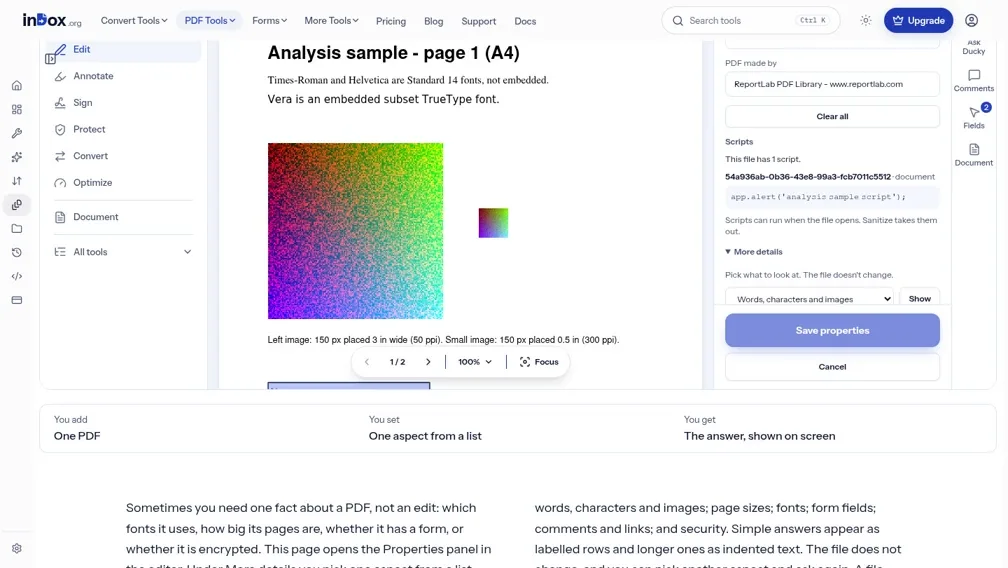
You choose one aspect from a plain list and read the result in the panel, instead of downloading a block of raw data and opening it somewhere else. It sits next to the file's title, author and page count, so the basics and the details are in one place. It reads facts from the file. It does not judge the document or edit it. It is not a print preflight either, and it does not flag a missing font or a low-resolution picture. This page names the command-line tools that do.
| What you see | Why | What to do |
|---|---|---|
| The panel says it couldn't read that | The read failed | Press Show again. If it still fails, check the file opens in a PDF reader. |
| The panel says the PDF is password-protected | Locked files cannot be analysed, and Security is not offered until the file is open | Enter the password, or use Unlock PDF, then open the panel again. |
| I wanted two aspects at once | One aspect per press of Show | Ask for each in turn. The earlier answer is replaced. |
| I wanted the creation date | Dates are not among the six aspects | Use PDF info for the file's basic properties. |
| Words, characters and images shows only pages, version and size | This aspect returned no counts in our test on 5 November 2026 | Do not rely on it for counts. Use PDF images to see the images in the file. |
| Fonts shows F1, F2 and F3 instead of font names | The panel lists the names the pages use internally | Run pdffonts to see real font names and the emb column. |
| I cannot tell if a font is embedded | No embedded flag is shown | Run pdffonts and read the emb column before sending the file to print. |
| I cannot find the resolution of a picture | No aspect reports image resolution | Run pdfimages -list and read x-ppi and y-ppi. |
| You want to know | Analyze PDF in indox | Command-line tool |
|---|---|---|
| Are fonts embedded? | Internal font names only, no embedded flag | pdffonts prints name, type, emb, sub and uni for each font |
| What resolution are the images? | Not reported by any aspect | pdfimages -list prints x-ppi and y-ppi for each image |
| How big is each page? | Page sizes: pages grouped by size, with a paper name when one fits | pdfinfo -box prints the size and the page boxes |
| Does it have form fields? | Form fields: the field count, XFA and signatures | qpdf --json includes the form fields |
| Is it encrypted? | Security: encrypted or not | qpdf --show-encryption describes the encryption |
| Does it carry JavaScript? | Show the scripts lists them with their code, or use Show JavaScript | pdfinfo reports whether JavaScript is present |
Page sizes shows each page's width and height, which is what a printer asks about. For embedded fonts and image resolution this panel is not enough, so run pdffonts and pdfimages -list as well.
See whether a PDF holds form fields before you try to fill it, or hand it to someone who will. In our test the field count was correct.
Security says whether the file is encrypted, and Show the scripts lists any script it carries without running it. Both matched our check in our test.
Facts checked on November 5, 2026
Add the PDF, open More details in the Properties panel, pick one of six aspects and press Show: words, characters and images; page sizes; fonts; form fields; comments and links; or security. Show the scripts lists the scripts in the file. In our test, words, characters and images returned only the page count, PDF version and file size.
Open the Properties panel and expand More details. Choose an aspect and press Show.
No. The panel says so itself: the file doesn't change. In our test the sample's checksum was the same after the runs.
No. The answer appears in the panel.
Yes, one at a time. Pick another aspect and press Show again.
The read failed. The panel asks you to try again. A file with a password shows a different message and has to be unlocked first.
This panel cannot tell you. In our test it listed fonts as F1, F2 and so on, with no embedded flag. The pdffonts command prints an emb column for each font.
This panel does not report it. pdfimages -list prints x-ppi and y-ppi for each image placement. In our sample it showed 50 and 300 for the same picture placed twice.
No. It reads facts stored in the file, such as page sizes, field counts and encryption. It does not read the text for meaning.
No. The analysis runs without signing in, within a daily free allowance and a 200 MB cap per file. Signing in raises the cap to 200 MB.
It is sent to indox over HTTPS and read on the server, and nothing in it changes. If you are not signed in, the upload is deleted 24 hours after the job finishes; with an account it stays in your history until you delete it.