Files other than PDF are converted first. Signing in raises the size limit.
You add
One PDF
You set
A level: Light, Recommended, Strong or your own from 1 to 9
You get
The smaller PDF, with Undo
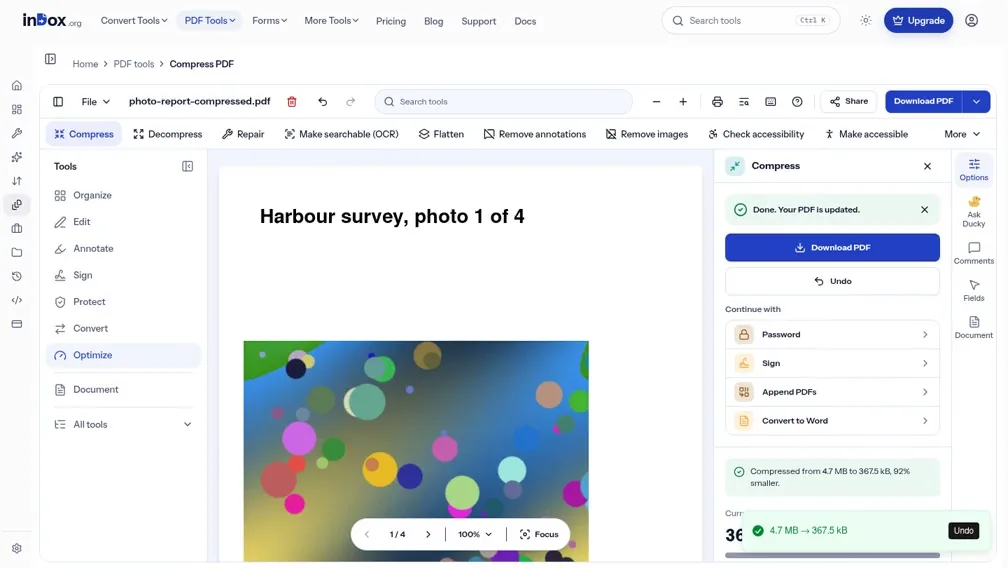
To compress a PDF, open it here, pick Light, Recommended or Strong and press Compress. Before you run, the panel shows the current size, how much of the file is images and an estimated size for each level. The smaller file then replaces the open one, a message shows the size before and after, and Undo brings the old file back. Recommended is selected when the panel opens. This page is for anyone whose PDF is refused by a mailbox, an upload form or a chat because it is too large. In our test on 4 November 2026, a 4.7 MB photo report came out at 367.5 kB with Recommended and its text stayed selectable. How much your file shrinks depends on what is inside it, and there is no box for a target size. The PDF is uploaded to indox's server for the job, and you can compress and download without an account, in the browser on a Mac, an iPhone, an Android phone or a PC.
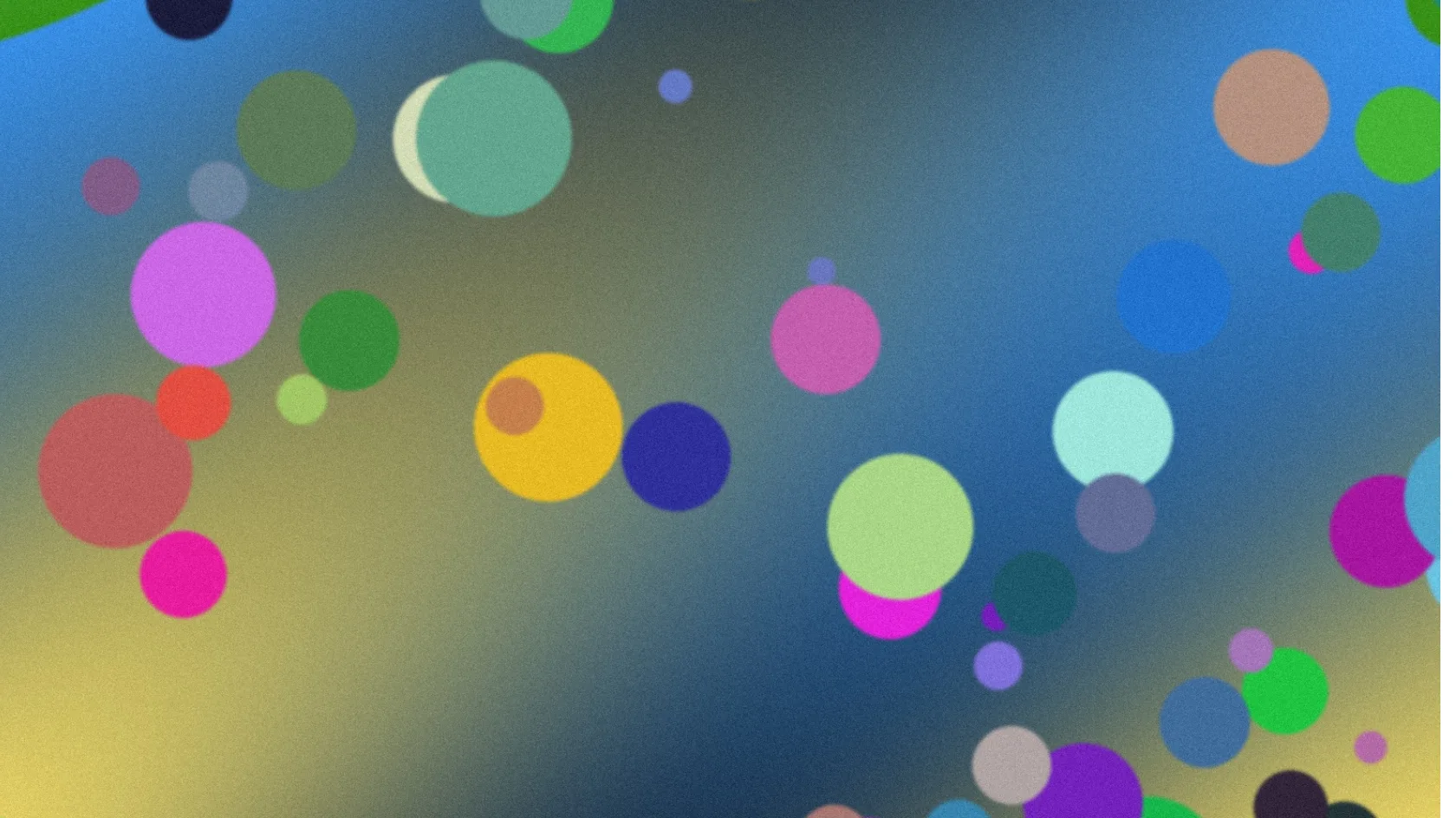
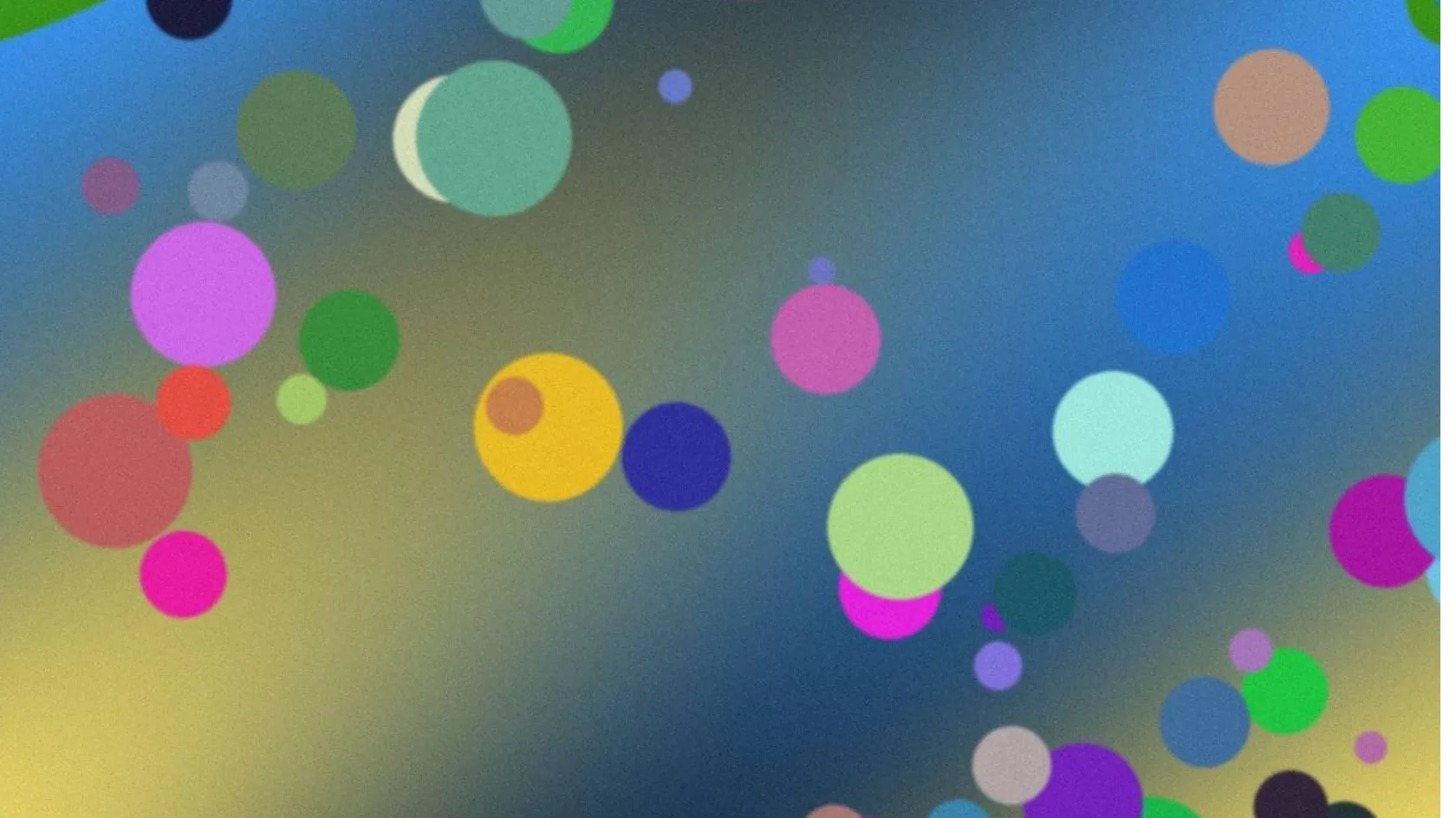
photo-report.pdf, our own 4-page A4 test PDF with four JPEG photos and selectable text, compressed on indox.org
Original4,890,627 bytes, 4 pages
4.7 MB
Recommended376,359 bytes, 92.3% smaller, text still selectable
367.5 kB
Strongpanel message in a second run, 99% smaller, file not downloaded
59 kB
OriginalRecommended
Measured on indox.org on 4 November 2026: the file we uploaded and the Recommended file we downloaded. Drag the handle to compare the same part of page 1. The Strong row is the message the panel showed in a second run, and we did not download that file.
What can you do when you compress a PDF?
Pick Light, Recommended or Strong
Light is labeled No quality loss, Recommended is Good quality for screen and email, and Strong is Much smaller, softer images. They run at levels 3, 5 and 8 on a scale of 1 to 9. Recommended is selected when the panel opens.
Set your own level
Choose Custom level and a slider from 1 to 9 appears, running from Higher quality to Smaller file. A line under it says what the level does to images: 1 to 3 leave them untouched, 4 and 5 resize large ones a little and save them as JPEG, 6 and 7 bring them to 150 dpi, 8 to 100 dpi and 9 to 72 dpi.
See what can shrink before you run
The panel reads the open file and says what share of it is images, which is the part compression can shrink most. A file that is mostly text and fonts gets a note to expect a small saving. Each level then shows an estimated size and the percentage it should save, or Little change.
See the size before and after
When a run finishes, a message shows the old size and the new size, and the panel reads Compressed from one size to the other with the percentage saved. In our test on 4 November 2026 the estimates were cautious: Recommended was estimated at about 706.5 kB and the result was 367.5 kB.
Undo the result
Compress swaps the smaller file into the editor, and the message has an Undo button. Your other edits are kept, and the copy on your device is never touched.
Make a scan searchable at the same time
Switch on Also make text searchable (OCR), tick the languages on the pages and the button becomes Compress and make searchable. It runs without an account. The text layer adds bytes, so if the file ends up larger the panel says the searchable text added more than compression saved.
Compress on a Mac, iPhone or Android
The tool works in a browser, so there is nothing to install on a Mac, an iPhone, an iPad or an Android phone.
What happens to your PDF
Stays
Your original file on your device, which is not touched
The text: in our test 24 of 24 occurrences of a test phrase were still found, so it stayed selectable
The page count and the fonts: 4 pages and Helvetica before and after
Changes
Image resolution: with Recommended the photos went from 1800 by 1200 to 1224 by 816 pixels, 305 to 207 dpi, and stayed JPEG
Sharpness: the photos look slightly softer, and Strong is labeled as softer still
File details: the PDF version changed from 1.3 to 1.6. Our code sets the Producer and Creator fields to the site's domain, so the program that made the original is not named in the copy
Size: not guaranteed. A text-only PDF has less to shrink, and the panel warns about one before you run
Which level for which job
You want to
Choose
Check after
Email a text-heavy report
ChooseRecommended
Check afterCompare the new size with the mailbox limit. Personal Gmail accounts allow 25 MB per message.
Keep a contract or invoice sharp
ChooseLight
Check afterCompare the two sizes. Light is labeled No quality loss, so the saving may be small.
Send a photo-heavy brochure or a scan over a slow connection
ChooseStrong
Check afterLook at photos, stamps and small print at 100%.
Get the smallest file the panel can make
ChooseCustom level at 9
Check afterRead the pages again. If the file is still too big, cut it with Split PDF.
How to reduce PDF file size in 4 steps
1
Add your PDF
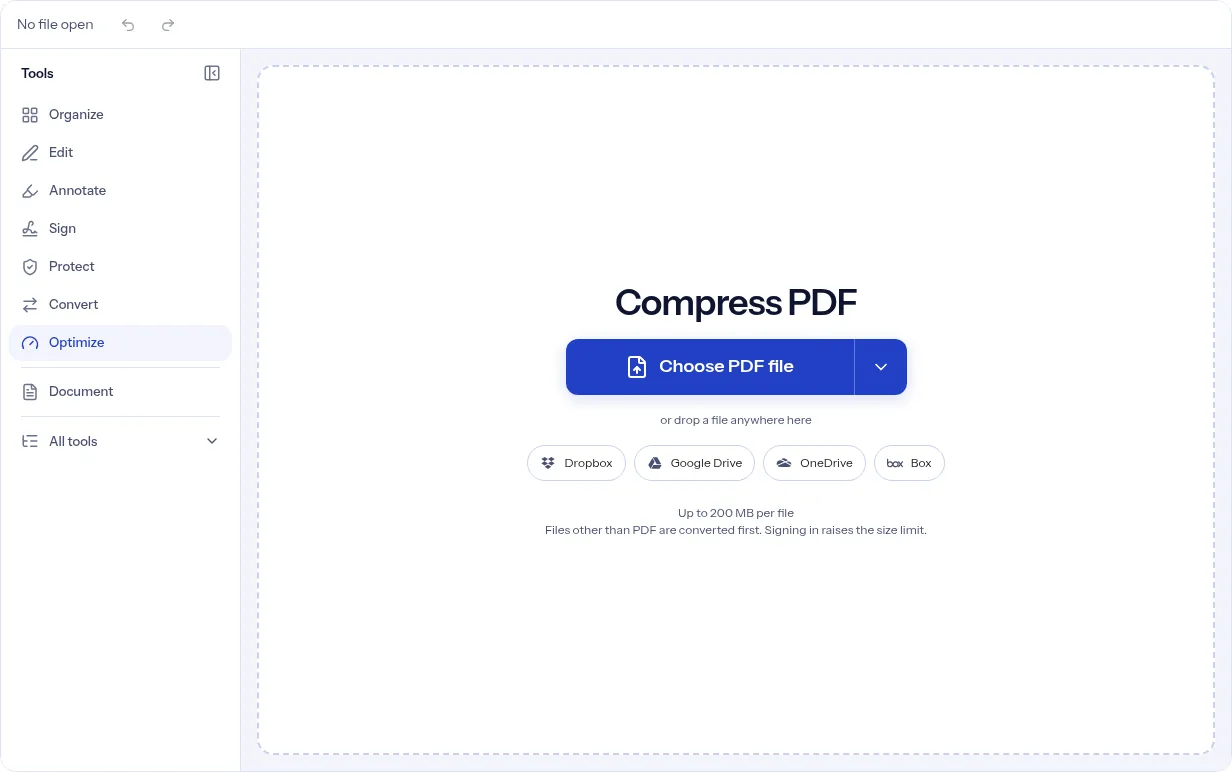
Put a PDF in the upload area by choosing a file, dropping it or using From URL. It opens in the editor with the Compress panel.
1 / 4
2
Choose a level
Pick Light, Recommended or Strong and read the estimate beside it. For your own number, choose Custom level and move the slider.
2 / 4
3
Press Compress
The button fills as a progress bar while the file goes up, is compressed and comes back, and those three steps are listed under it. Cancel stops the job and your file is not changed.
3 / 4
4
Check it and download
Wait for the message that shows both sizes. In our test on 4 November 2026 the status read Done for a moment before the compressed file replaced the open one, and a download in that moment saved the original. Compare the sizes and look over the pages. Press Undo if the result is not what you want, or choose Download PDF to save it.
4 / 4
Why compress a PDF with indox?
This PDF compressor gives you three presets and a slider from 1 to 9, and estimates every level from your file before you run. You see the size before and after on screen, and Undo is one press away if the result is worse than the original. Compressing, the OCR option and downloading need no account. A measured run further down shows the sizes, what stayed the same and what changed, with a before and after slider.
Three presets and a 1 to 9 slider
An estimated size for each level before you run
The size before and after, on screen
Undo after every run
No account to compress or download
A measured test run, shown on this page
What are the limits when you compress a PDF?
File size
A visitor who is not signed in can compress a PDF of up to 200 MB, within a daily free allowance. A signed-in account can upload up to 200 MB per file.
Where it runs
Your PDF is uploaded to indox's server, compressed there and sent back to the editor. If you are not signed in, the upload and the result are deleted 24 hours after the job finishes. A signed-in account keeps them in its history until you delete them, for at most 180 days, and you can choose 24 hours or 30 days instead. Either way indox keeps a record of the job, such as the file name and its status, not the file.
Limits worth knowing
You cannot type a target size. The panel estimates each level before you run, but in our test on 4 November 2026 the estimates were off: Recommended was estimated at about 706.5 kB and gave 367.5 kB, and Strong was estimated at about 326.2 kB and its message read 59 kB. For a smaller file, choose Strong or a higher Custom level.
Right after you press Compress, the status can read Done a moment before the compressed file replaces the open one. In our test on 4 November 2026 a Download PDF click in that window saved the original, byte for byte. Wait for the message with both sizes.
No level promises a smaller file. A PDF that is mostly text, or one that was already optimized, may barely change. A higher level is usually smaller, but on an image-heavy PDF levels 6 and 7 can come out larger than level 5.
Stronger levels lower image quality. Look at photos, stamps and small print before you send the result.
One PDF goes through at a time, and the level applies to the whole document. There are no per-image or per-page settings.
Compress needs a connection. The button is greyed out while you are offline or while a run is in progress.
The OCR option needs at least one language ticked, and the button stays greyed out until one is.
Our measured run on 4 November 2026 used one image-heavy PDF at Recommended, plus the message from one Strong run. Light, the Custom levels, a text-only PDF and the OCR option had no measured run, so the numbers on this page describe that run only.
When the result is not what you expected
What you see
Why
What to do
The file is barely smaller
WhyIt is mostly text, or it was already optimized
What to doTry Strong or Custom level at 9. To drop pages you do not need, use Remove Pages.
The panel says This level couldn't make the file any smaller
WhyThere was nothing left to save at that level, so the size stayed the same
What to doTry a higher level, or level 5 on an image-heavy file, or keep the original.
The file got bigger
WhyOCR was on, and the searchable text added more than compression saved
What to doPress Undo, then compress with Also make text searchable (OCR) switched off.
Download PDF saved the original file
WhyIn our test on 4 November 2026 the status read Done before the compressed file replaced the open one, and the download came from the old file
What to doWait for the message that shows both sizes, then choose Download PDF. Check that the size matches the message.
The result is smaller than the estimate
WhyThe estimates are cautious. In our test Recommended was estimated at about 706.5 kB and gave 367.5 kB
What to doRead the size in the message after the run, not the estimate.
A warning says Compression didn’t run, your file is unchanged
WhyThe compression step failed and the job finished with your file as it was
What to doPress Compress again. If the file may be damaged, try Repair PDF first.
Photos or scans look soft
WhyStrong and high Custom levels lower image quality
What to doPress Undo and pick Light or Recommended.
Compress and make searchable is greyed out
WhyNo OCR language is ticked, or you are offline
What to doTick at least one language, or reconnect.
The PDF is too large to open
WhyVisitors can upload up to 200 MB and signed-in accounts up to 200 MB
What to doSign in for the higher cap, or cut the file with Split PDF first.
Add your PDF, pick Light, Recommended or Strong in the Compress panel and press Compress. The smaller file replaces the open one, and Download PDF saves it. You can compress without an account.
How do I reduce PDF size for email?
Compress it with Recommended, then compare the new size with your mailbox limit. Personal Gmail accounts allow 25 MB per message, according to Google's help page. If the file is still too big, try Strong, or cut it into parts with Split PDF.
Does compressing a PDF reduce quality?
It can. In our test on 4 November 2026, Recommended re-encoded the four photos in a PDF from 1800 by 1200 to 1224 by 816 pixels, which is 305 to 207 dpi at the printed size, and the result looked only slightly softer in the before and after slider on this page. Text, page count and fonts did not change. Strong goes further: its label says softer images and it brings images down to 100 dpi, and we have no measured Strong file. Light is labeled No quality loss and leaves images untouched. To compress without losing quality, start with Light, compare the sizes, zoom in on the pages that matter and press Undo if you see a loss.
Does text stay selectable after compressing a PDF?
In our test on 4 November 2026, yes at Recommended. We compressed a four-page PDF with Helvetica text and four photos. Afterwards it still had 4 pages, 556 characters on each page, the same fonts, and a test phrase was found 24 times out of 24. We have no measured Strong file or scanned page. A scan has no text layer to keep unless OCR was run on it.
Why won't my PDF get smaller?
Some PDFs have little left to squeeze, such as a file that is mostly text or one that was already optimized. The panel warns before you run when a file is mostly text and fonts, and after a run that saved nothing it says This level couldn't make the file any smaller. Try Strong or Custom level at 9. On an image-heavy file, also try 5, since levels 6 and 7 can come out larger than 5.
Which level should I pick?
Start with Recommended, which is selected when the panel opens. Use Light when the pages must stay sharp and Strong when size matters most. Custom level gives you every number from 1 to 9, with a line that says what each one does to images.
How do I compress a scanned PDF?
A scan is a stack of page pictures, so the image setting decides the size. Strong gives the smallest file at lower image quality. Switch on Also make text searchable (OCR) if you want selectable text too, and tick the languages on the pages. OCR runs without an account, but the text layer adds bytes, so check the new size the panel shows.
Can I set a target size, or get a PDF under 2 MB?
No. The panel has levels and no size box, so a PDF under 2 MB or any other cap takes trial and error. Read the estimates, run the level closest to your cap, and read the real size in the message. In our test on 4 November 2026 one Recommended run took a 4.7 MB photo PDF to 367.5 kB, but a PDF that is mostly text may barely change. If level 9 is still over the cap, cut the file with Split PDF.
Can I compress a PDF on iPhone or Mac?
Yes. The tool works in your browser, so there is no app to install on a Mac, an iPhone, an iPad or an Android phone. Open this page, add the PDF and press Compress.
Do I need an account to compress a PDF?
No. Compressing, the OCR option and downloading work without signing in, within a daily free allowance. Signing in raises the size cap from 200 MB to 200 MB per file.
Where is my PDF processed, and how long is it kept?
Your PDF is uploaded to indox's server, compressed there and sent back to the editor. If you are not signed in, the upload and the compressed result are deleted 24 hours after the job finishes; with an account they stay in your history until you delete them. The copy on your device is never changed.