No file open

Tools

Compare two PDFs

or drop a file anywhere here

Dropbox
Google Drive
OneDrive
Box

Files other than PDF are converted first. Signing in raises the size limit.

You add
The open PDF, as the Original
You set
A second PDF to compare with
You get
A list of added and removed text, and a report

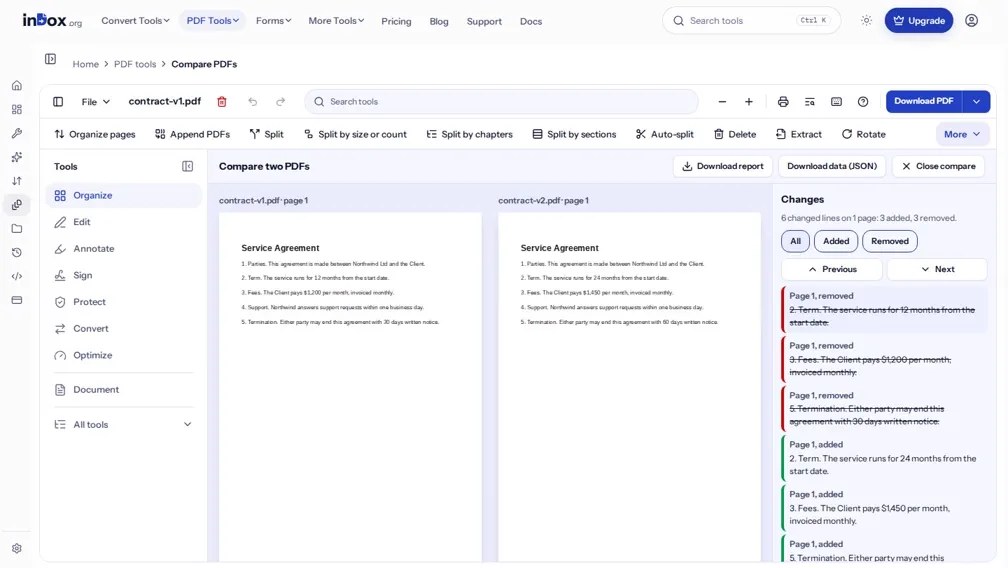
Comparing two PDFs means finding what changed between two versions of a document. This tool compares their text. The PDF you have open is the Original. You choose a second PDF with Choose a PDF, shown as Compare with, and press Compare files. indox reads the text of both files, matches each page to its counterpart by its text and shows the two side by side. The Changes list shows every run of words that was added or removed, with its page, a summary of how many changes there are on how many pages, and Previous and Next buttons that step through them and jump to their page. A page added to one version is listed on its own, so the pages after it still line up. It compares text only, not images or layout. Compare works on a tablet or a computer, and phones see a message instead. A comparison runs without an account.

What can you do when you compare two PDFs?

Check whether two versions match

When the files have no differences, the panel says No differences found between the two files. Otherwise a summary counts the changes and the pages they sit on, and how many were added and removed, so you know how much to read.
See added and removed lines

The Changes list shows each run of words that changed, with its page. Added text is found only in the second file, and removed text only in the Original. Filter the list with All, Added or Removed.

Step through the changes

Previous and Next move through the changes and jump to their page in both files. Pages are matched by their text, so when one version has an extra page it is listed on its own and the pages after it still line up. A note gives both page counts when they differ.

Save a report

Download report saves a readable web page of the changes. Download data (JSON) saves the raw data, which a script can read for an automated check of documents your software generates.

What comparing keeps and changes

Stays the same

  • Both PDFs. Neither one is edited.
  • The files on your device.

Changes

  • You get a readable report and the raw data, and no highlighted or merged PDF.
  • Text is read from each page and compared word by word.
  • Pages are matched by their text, so an inserted page is listed on its own and the pages after it still line up.
  • Images, fonts, colors and layout are not part of the comparison.
  • Compare is available on a tablet or a computer only.

How to compare two PDFs in 3 steps

  1. Open the original PDF

    Open the older version in the editor, or drop it on the upload box. It is the Original.

  2. Choose the PDF to compare with

    Press Choose a PDF and pick the second file. Its name appears under Compare with, and Choose another swaps it.

  3. Compare and review

    Press Compare files. The button fills with the job's progress, and Cancel stops it. When it finishes, read the two files side by side and use Previous and Next to step through the changes. Download the report if you need one.

Screenshot of Compare two PDFs: two versions of a service agreement side by side, with the Changes list of removed and added text on page 1

Why compare PDFs with indox?

The compare view shows both files side by side at the same page, with a Changes list that counts and filters every change. You do not have to read a raw file to find what changed, because Previous and Next jump straight to each change. A comparison runs without an account. The files travel over HTTPS, and for a visitor who is not signed in they are deleted 24 hours after the job finishes. This page is also plain about scope: the tool compares text and nothing else.

  • Two files side by side at the same page
  • Every change listed with its page
  • Previous and Next to step through changes
  • No account needed to compare
  • A readable report, plus the raw data as JSON
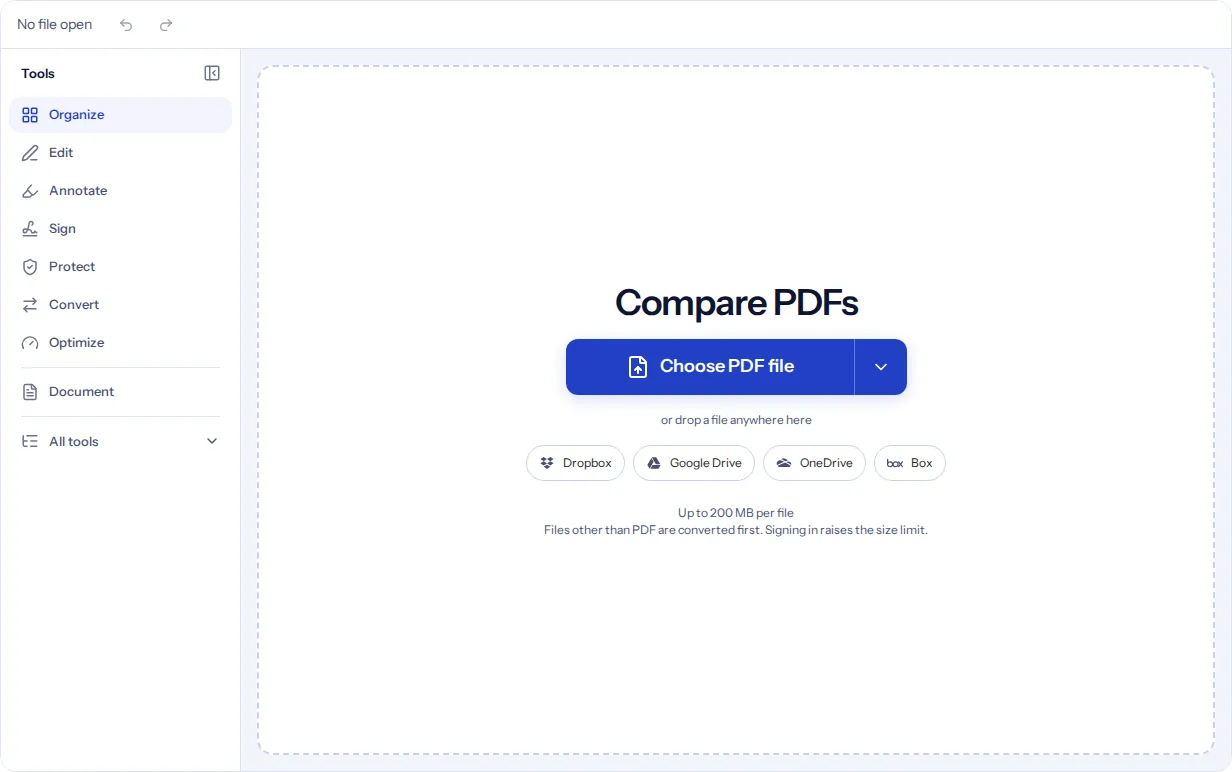
The indox Compare PDFs tool on indox.org, ready for your file

What are the limits when you compare PDFs?

File size
A visitor who is not signed in can upload PDFs of up to 200 MB each, within a daily free allowance. A signed-in account can upload up to 200 MB per file.
Where it runs
Both PDFs are read and compared on indox's server over HTTPS. If you are not signed in, the upload and the result are deleted 24 hours after the job finishes. A signed-in account keeps them in its history until you delete them, for at most 180 days, and you can choose 24 hours or 30 days instead. Either way indox keeps a record of the job, such as the file name and its status, not the file.

Limits worth knowing

  • Compare needs a tablet or a computer. Phones see a message asking you to open the file on a larger screen.
  • Only text is compared. Images, fonts, colors and layout are ignored. If the files have no text, such as scans, the panel tells you to run Make searchable on both first.
  • Pages are matched by their text. If two pages were rewritten so much that their text has little in common, they may be reported as one deleted and one inserted page instead of one changed page.
  • The report is a readable web page and the raw data is JSON. Neither is a marked-up PDF.
  • The compare page has no password box. Take the open password off with Unlock PDF before you compare a protected file.
  • Very long files have a page cap. A PDF over it is refused and the panel says Couldn't compare these files. Compare matching parts cut with Extract Pages instead.

When the report is not what you expected

What you seeWhyWhat to do
A rewritten page shows as one deleted and one inserted pagePages are matched by their text, and the two versions of that page have too little text in commonRead both pages side by side; the change is real, only its label differs.
The panel says there is no text to compareThe files are scans with no text layerRun OCR PDF on both files, then compare again.
One changed word shows as a removed and an added entryText is compared word by word, so a replaced word is a removal plus an additionRead the removed and added entries together.
The panel says it couldn’t compare the filesThe comparison could not finishTry again. If it fails again, run Repair PDF on each file.
The page asks for a passwordThe page has no password fieldRemove it with Unlock PDF first.

What do the free and paid plans add?

Free

  • All converters
  • Daily credit refresh
  • Email support

Basic

  • Access to all features
  • AI Extract
  • Priority conversions
  • Email support
Highest priority

Premium

  • Everything in Basic
  • Highest priority queue
  • Priority support

Pay-As-You-Go

  • No subscription
  • Credits never expire
  • Opt-in auto-refill
  • Access to all features
See prices

Who compares PDFs?

  • Contract and legal reviewers

    A counterparty sends back a revised agreement as a PDF. The Changes list shows the lines that changed, so you read those clauses first.

  • Editors and technical writers

    Two exports of the same manual should differ only where you edited. A comparison shows each page that changed and the wording on it.

  • Developers who generate PDFs

    An invoice or report template is rebuilt after a code change. The raw JSON data gives a simple pass or fail check against a known good file.

When to compare PDFs, and when to pick another tool

  • Checking which clauses changed between two drafts of a contract.
  • Confirming that a reissued policy or price list has the same wording as the last one.
  • Verifying that a regenerated report still produces the expected text.
  • Finding the edited pages in a long manual before a review meeting.
  • Both files are scans with no text layer. Run Make searchable on each one first, because the comparison reads text and nothing else.

Where can I read more?

Sources

Facts checked on October 16, 2026

Do it all with indox

Compare PDFs FAQs

How do I compare two PDF files for differences?

Open the first PDF here, press Choose a PDF and pick the second one, then press Compare files. The two files appear side by side and the Changes list shows every added and removed passage. Previous and Next jump to each one.

How do I give the tool the second PDF?

Press Choose a PDF and pick the second file from your device. It appears as Compare with. The PDF you have open is the Original.

Which file counts as the original?

The PDF you have open. Lines found only in the second file are listed as added, and lines found only in the Original are listed as removed.

What is in the report?

Download report saves a readable web page with both file names, the summary and each page's removed and added text. Download data (JSON) saves the raw result: whether the files are identical, both page counts, how many pages changed, were inserted or were deleted, and every change with its page and position.

Does the comparison include images and formatting?

No. It reads the text of each page and ignores pictures, fonts, colors and layout. A change that leaves the words the same will not appear in the report.

Can I compare scanned PDFs?

Only after Make searchable. A scan without a text layer has no text to read, and the panel tells you to run Make searchable on both files first.

What happens if one version has an extra page?

It is reported as an inserted page on its own. Pages are matched by their text, so the pages after it are still compared with their counterparts. A note above the list gives both page counts.

Can I compare PDFs without signing in?

Yes. Compare PDFs is free, and a comparison runs without an account within a daily free allowance and a 200 MB cap per file. Signing in raises the cap to 200 MB.

Are the two PDFs stored after the comparison?

If you are not signed in, the two PDFs and the comparison report are deleted from indox's server 24 hours after the job finishes. With an account they stay in your history until you delete them. The upload and the download both use HTTPS.