Remove a password you know
Type the password the file opens with and press Remove password. The copy opens without asking for it.
or drop a file anywhere here
Files other than PDF are converted first. Signing in raises the size limit.
Unlock PDF takes the password off a PDF so it opens without one. Add the file, type the password it has now in Current password, and press Remove password. If you already typed the password to open the file in the editor, the box starts filled with it. A warning under the box says that anyone who has the file will be able to open it. If the password is wrong, the panel says so, selects what you typed so you can retype it, and leaves your file unchanged. Some PDFs open without asking but still block printing, copying or editing. They have only an owner password. Leave the box empty for such a file and the button reads Remove restrictions: the copy then prints, copies and edits normally. This tool does not guess, crack or recover passwords. A file that asks for a password when it opens stays locked without that password. Unlock only files you own or have permission to change.
Two 3-page sample PDFs made by us with AES-256 encryption, unlocked on indox.org with the right password
Type the password the file opens with and press Remove password. The copy opens without asking for it.
If the PDF opens without a password but blocks printing, copying or editing, leave Current password empty. The button changes to Remove restrictions, and the copy comes back with those limits gone. A file that needs a password to open is refused this way.
If you typed the password to open the file in the editor, Current password is filled in for you. You can change it before you press the button.
A wrong password shows that it did not work, puts the cursor back in the box with your text selected, and leaves your file unchanged. Retype and press the button again.
When the job ends, a message says Password removed. This copy opens without one. Its Undo button puts back the locked version.
Drop the file on the upload area at the top of the page, or click to choose it.
Type the password in Current password. If the file opened without one and only blocks printing or copying, leave the box empty: the button then reads Remove restrictions.
Press Remove password or Remove restrictions. The button fills with the job's progress. When it says Done, the editor holds the unlocked copy: press Download PDF, or Undo to go back.
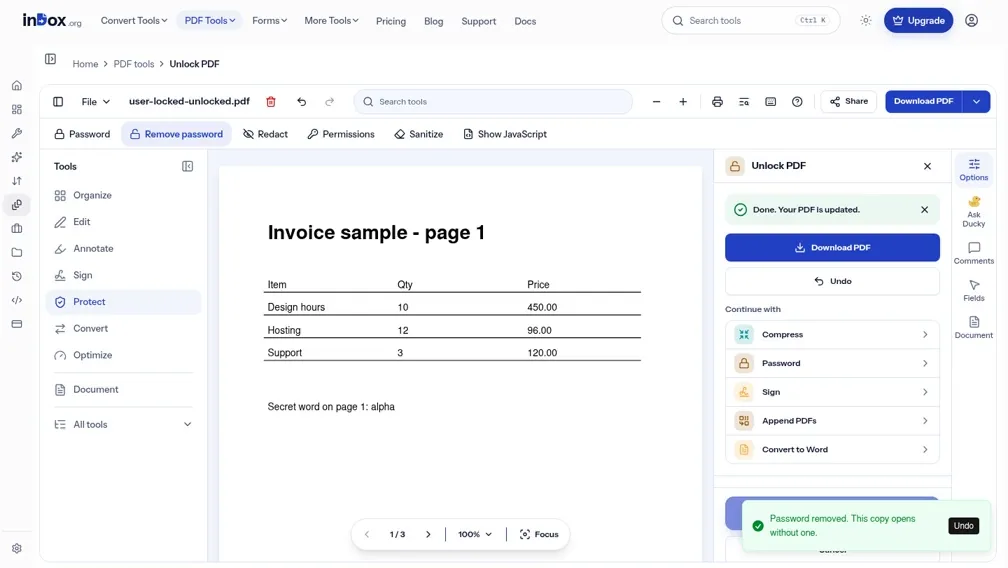
The panel does one thing and tells you what it will do before you press the button. It says it needs the password the file has now, warns that the unlocked copy opens for anyone, and handles a wrong password without touching your file. A file that only blocks printing or copying needs no password at all. You can unlock a file without signing in, within a daily free allowance.
| What you see | Why | What to do |
|---|---|---|
| The file opens with no prompt but you cannot print or copy | It has an owner password only | Leave Current password empty and press Remove restrictions. |
| An error appears about 6 seconds after you press Remove password, and the progress list shows Unlock PDF as failed | The password card accepts any text, and the password is only checked when the job runs on the server | Retype the password in Current password and press the button again. Your file is unchanged. |
| You do not remember the password | indox cannot recover or guess a password | Nothing can be unlocked without it. Ask whoever protected the file for the password. |
| The panel says the password did not work | The password you typed is not the one the file has | Check it and retype it. Your file is unchanged. |
| Remove password stays off | Current password is empty and the file needs a password to open | Type the password. |
| Remove restrictions fails and says the file needs a password | The file asks for a password when it opens, so its limits cannot be lifted without it | Type the password it opens with, then press Remove password. |
| You want the password back | The copy has none | Run Protect PDF on it. |
The first two rows follow the pypdf documentation for PdfWriter.encrypt. The result row is from our test on 5 November 2026; the other rows describe the current panel.
| Compared on | Open password (user) | Permissions password (owner) |
|---|---|---|
| What it does | Lets a viewer open and read the file, with the restrictions the file sets | Lets a viewer open the file without any of those restrictions |
| Asked when you open the file | Yes, the editor shows a password card | No. Our owner-only sample opened with no prompt |
| What Unlock PDF needs | The password the file has now | Nothing: leave the box empty and press Remove restrictions. The owner password works too |
| Result in our test | Unencrypted copy, 3 of 3 pages, identical text | Unencrypted copy, restrictions gone, 3 of 3 pages, identical text |
| If you do not have it | Nothing is unlocked | Remove restrictions still lifts the limits |
You protected a PDF long ago and now want a copy that opens without typing the password each time.
A colleague sent a PDF with a password and gave you the password. Unlock it before editing, merging or compressing it.
You opened a protected PDF in the editor and want to keep the result without a password.
Facts checked on November 5, 2026
For a file that asks for a password when it opens, that password, typed in Current password. For a file that opens freely but blocks printing or copying, nothing: leave the box empty and press Remove restrictions.
If the PDF opens without asking for a password and only blocks printing, copying or editing, leave Current password empty and press Remove restrictions. If it asks for a password to open, there is no way around it here: you need that password.
Open this page in Safari, Chrome or another browser, add the PDF and follow the same steps. Nothing has to be installed, and the unlocked copy downloads like any other file.
Not if the file asks for a password when it opens. indox cannot recover, guess or crack it, so ask whoever protected the file. A forgotten owner password is different, because Remove restrictions does not need it.
The panel says the password did not work, selects what you typed so you can retype it, and leaves your file unchanged.
If you typed the password to open the file in the editor, the box starts with it. You can change it.
No. The panel says this copy opens without one.
Yes. Undo brings back the locked version.
Yes. Page content and order do not change. In our test, a 3-page sample came back with 3 pages and identical text.
No sign-in is needed to get the unlocked copy. Signed out, each file can be up to 200 MB and counts against a daily free allowance. Signed out, the upload and the result are deleted 24 hours after the job finishes.
Nothing more than the file. Leave Current password empty; the button reads Remove restrictions, and the copy can then be printed, copied and edited. Typing the owner password works too: in our test that copy came back with no restrictions.
The file is rewritten, so its size changes (smaller in our test). Unlocking with a password also removes scripts, auto-run actions, XFA forms and media annotations. Page content, order and text stayed the same in our test.