No file open

Tools

Reorder PDF pages

or drop a file anywhere here

Dropbox
Google Drive
OneDrive
Box

Files other than PDF are converted first. Signing in raises the size limit.

You add
One PDF
You set
The new order, set by dragging or typing a place
You get
The PDF in that order

Reordering a PDF changes the sequence of its pages without changing what is on them. This tool opens the Organize grid, which shows a thumbnail of every page. Drag a page to a new spot and the other pages make way. Shift-click picks a run of pages, and dragging one picked page moves all of them. You can also pick pages, type a place in the Order section and press Move to send them there as one block, or use the one-click Reverse order, Odd pages, then even and Fix a two-sided scan. Every change can be undone, and nothing changes in the file until you press Apply changes. It is for anyone with one PDF whose pages are in the wrong sequence. It does not edit the text on the pages.

Our own 6-page A4 test PDF with 6 bookmarks and 1 link, 1,356,786 bytes, reordered on indox.org

PDFthe original, 6 pages
1,356,786 bytes
Reordered PDFfrom indox, 19.9% smaller, page pixels identical
1,086,271 bytes
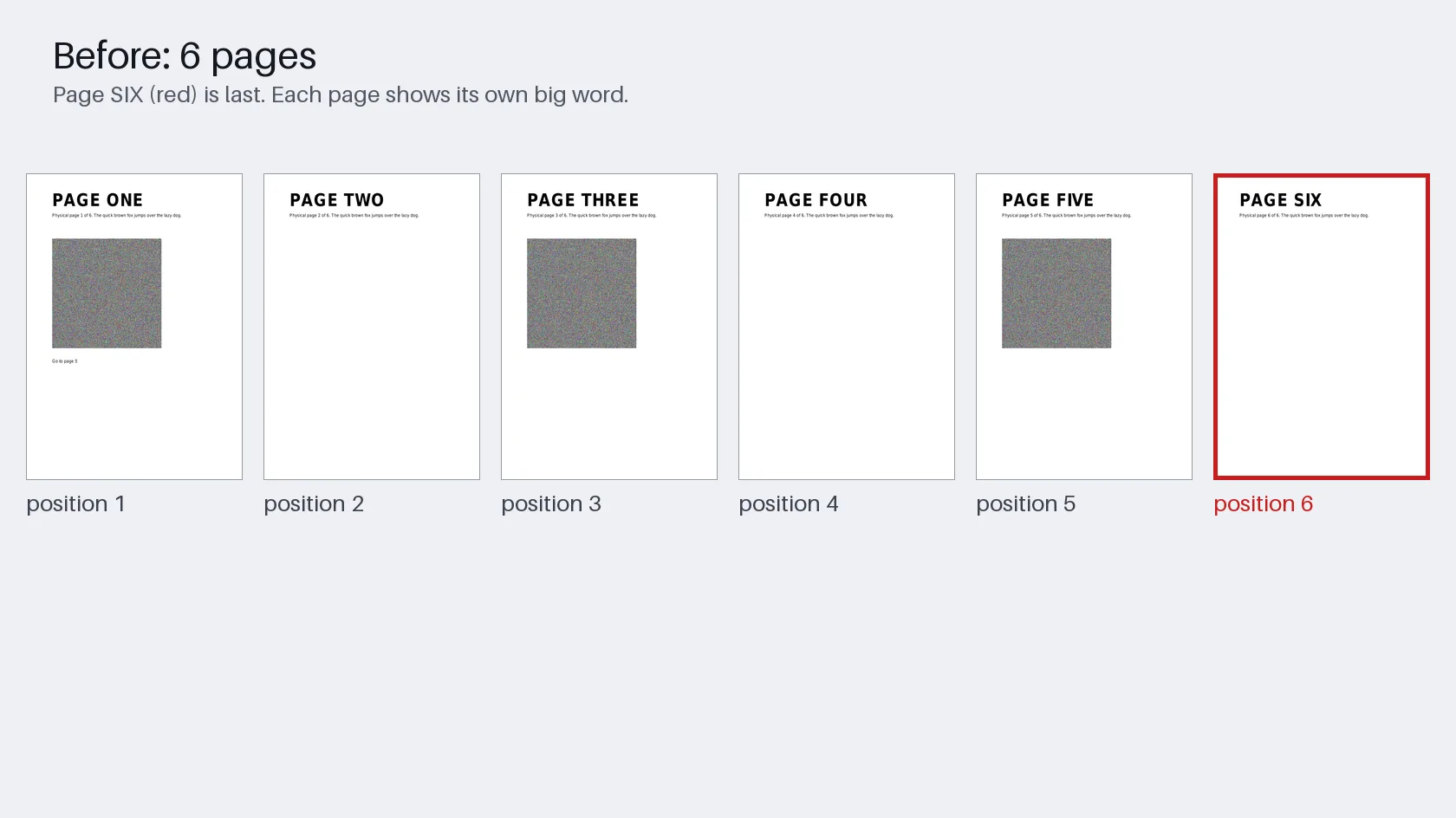
The six sample pages as thumbnails in their original order, PAGE ONE first and PAGE SIX last
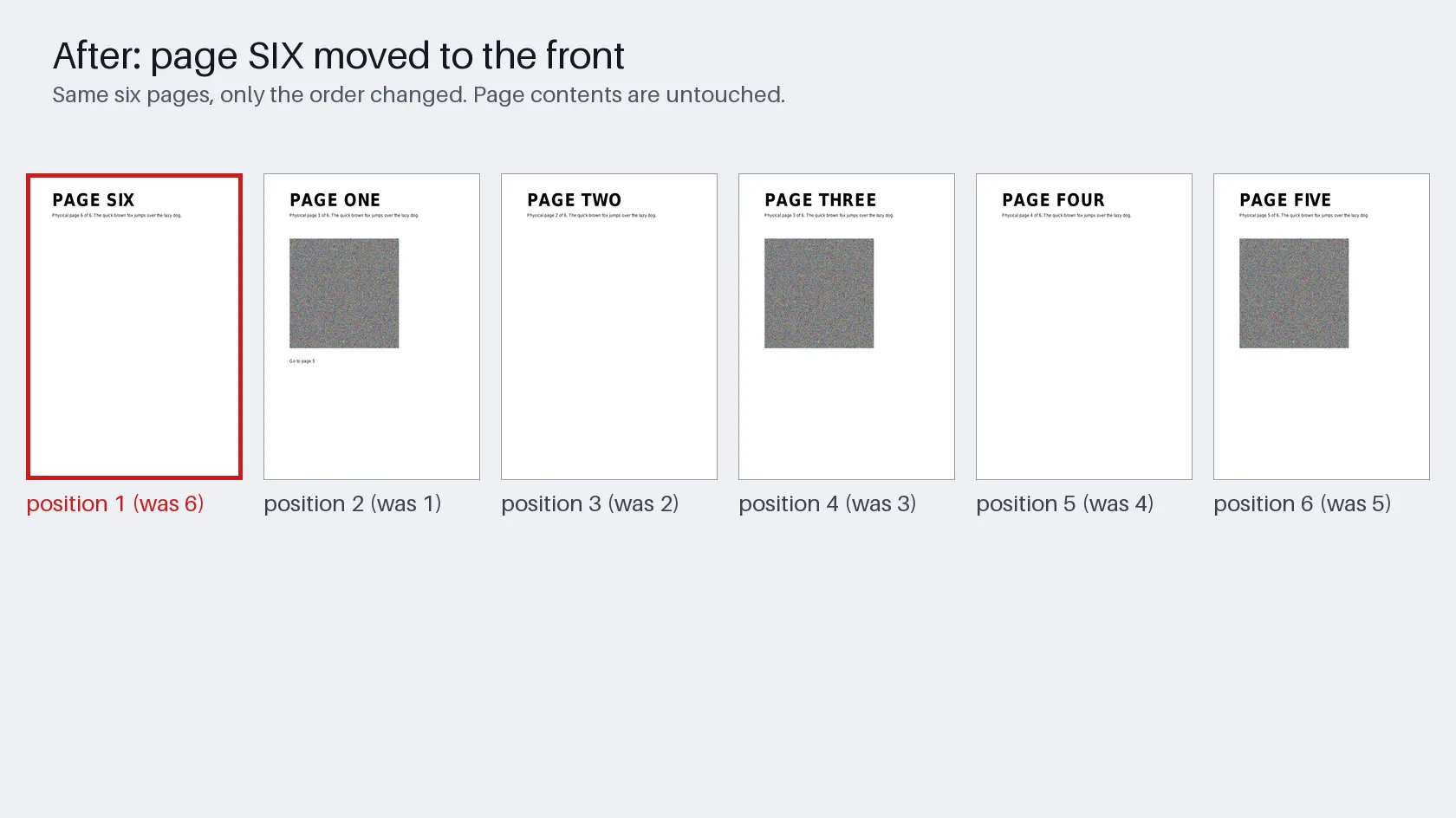
The six sample pages after the move, PAGE SIX first and PAGE ONE to PAGE FIVE after it
Measured on indox.org on 5 November 2026: we moved page 6 of our own sample to the front. The strip shows the page order before and after, and the page text confirms it: SIX, ONE, TWO, THREE, FOUR, FIVE. Drag the handle to compare.

What can you do when you reorder PDF pages?

Drag pages into place

Drag a thumbnail to a new spot. Dragging a picked page moves all the picked pages together, and Shift-click picks a run of pages. Keyboard reordering works too: press Space or Enter to pick up a page, move it with the arrow keys, then press Space or Enter to drop it.
Move pages to a typed place

Pick pages in the grid, type a place in the Order section and press Move. The picked pages go there as one block. The Select menu helps you pick: Select all, Odd pages, Even pages, Invert selection or Clear selection.

Reorder in one click

Reverse order flips the whole file, and Odd pages, then even puts the odd pages first. Fix a two-sided scan is for a scan of all the fronts, then all the backs from last to first. It puts the pages in reading order: 1, last, 2, second-to-last, and so on.

Undo, then apply when ready

Every change is one undo step, and nothing changes in the file until you press Apply changes. You can also turn pages left or right, add a blank page, duplicate a page, change the thumbnail size and restore removed pages from their list.

What reordering keeps and changes

Stays the same

  • The content of every page that stays, exactly as it was.
  • Text printed on the pages, such as page numbers, headers and footers. It is not rewritten.
  • The file on your device.
  • Bookmarks and internal links: in our test each one still led to its page after the move.
  • Fonts, the document title and the image on the pages: unchanged in our test.

Changes

  • The result has the pages in the order you set in the grid. A page you remove is not in the result, and removed pages are listed with a Restore button.
  • A page you duplicate, or a blank page you add, appears in the result too. Each can be undone.
  • A page you turn left or right is turned in the result.
  • Page labels such as i, ii, 1, 2 stay on their positions and do not move with the page.
  • File size: 1,356,786 bytes became 1,086,271 bytes in our test, with identical page pixels.
  • Nothing changes in the file until you press Apply changes.

Which reorder action to use

You wantUseWhat you get
One page moved to a new placeDrag it, or pick it, type the place and press MoveThe page lands at that place and the others shift around it.
The whole file reversedReverse orderThe last page comes first, down to the first page last.
The odd pages first, then the even pagesOdd pages, then evenAll odd pages in order, then all even pages in order.
A scan of all the fronts, then all the backs from last to firstFix a two-sided scanPages in reading order: 1, last, 2, second-to-last, and so on.

How to reorder PDF pages in 3 steps

  1. Upload the PDF

    Drop the file on the box at the top of the page, or click the box and choose it. One PDF goes in per job.

  2. Reorder the pages

    Drag pages in the grid, or pick pages, type a place in the Order section and press Move. Reverse order, Odd pages, then even and Fix a two-sided scan work in one click.

  3. Check it and apply

    Look through the grid to confirm the order, then press Apply changes. Undo any step you do not want.

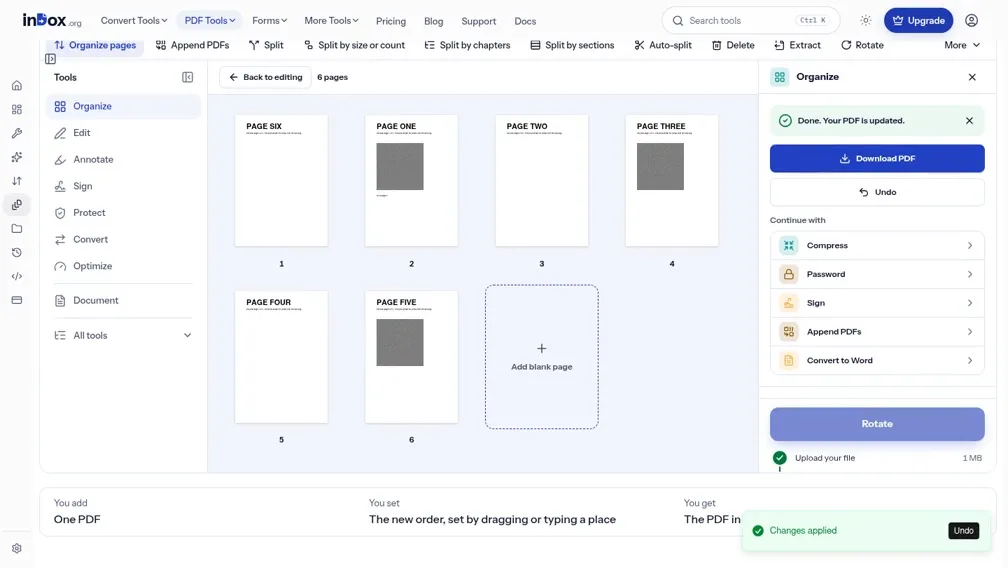
Screenshot of the Organize panel after Changes applied: the 6-page grid now starts with PAGE SIX, followed by PAGE ONE

Why reorder PDF pages with indox?

Dragging suits the job when you can see what has to move, and a typed place suits it when you already know. If page 7 belongs after page 2, drag it there, or pick it, type 3 and press Move. The grid shows every page as a thumbnail, so you check the order before anything is applied. Nothing changes in the file until you press Apply changes, and each change can be undone. Reordering a single file needs no sign-up. Apply changes sends the file to indox's server, which writes the new order; when you are not signed in it deletes your PDF and the result after 24 hours.

  • A grid of page thumbnails
  • Drag, or move picked pages to a typed place
  • One-click reverse, odd then even, and two-sided scan fix
  • Every change can be undone, nothing applies until you say so
  • No sign-up for a single file
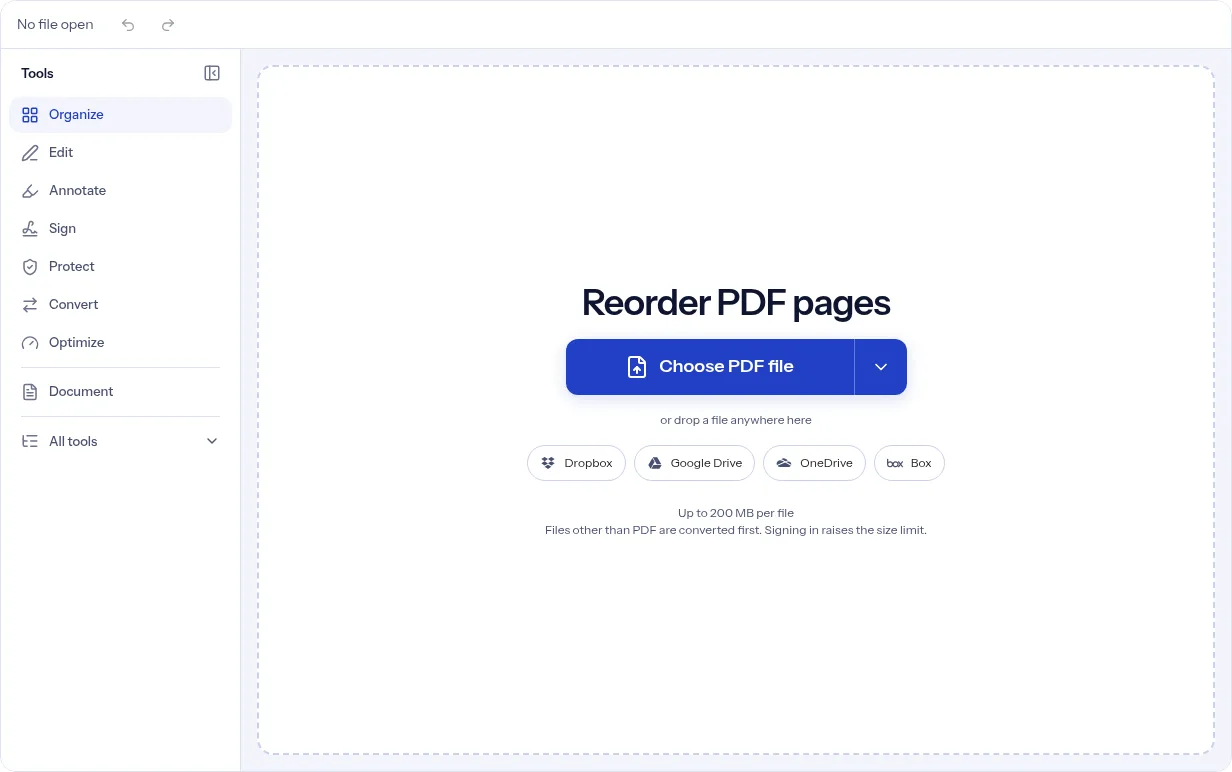
The indox Reorder PDF pages tool on indox.org, ready for your file

What are the limits when you reorder PDF pages?

File size
Not signed in, the PDF can be up to 200 MB, within a daily free allowance. A signed-in account can upload up to 200 MB per file.
Where it runs
Apply changes sends the PDF to indox's server with the new order, and the reordered copy comes back into the editor. If you are not signed in, your PDF and the reordered copy are deleted 24 hours after the job finishes. A signed-in account keeps them in its history until you delete them, for at most 180 days, or for 24 hours or 30 days if you choose that. Either way indox keeps a record of the job, such as the file name and its status, but not the file.

Limits worth knowing

  • Reordering moves whole pages. You cannot edit the text on a page here, and printed page numbers do not change.
  • Dragging a page across a long file takes time. For a long PDF, pick the pages and type the place in the Order section, or use Reverse order, Odd pages, then even or Fix a two-sided scan.
  • A page you remove stays out of the file once you apply. Until then, the list of removed pages has a Restore button for each one.
  • Text printed on the pages is not rewritten. A table of contents page and printed page numbers still show the old positions after the move.
  • The tool works on one file and cannot bring in pages from a second PDF. A password-protected PDF asks for its password when it opens, and Apply changes sends it with the job.
  • Page labels, such as i, ii, 1, 2, stay on their positions in the file and do not travel with the page you move. In our test they were unchanged after the move.
  • In our test a 6-page, 1,356,786-byte sample took 7.7 s from click to done, and the output was 1,086,271 bytes, 19.9% smaller, with identical page pixels. We did not look into why it shrank, and other files can behave differently.

When the new order is not what you expected

What you seeWhyWhat to do
The result has fewer pages than the originalPages you removed in the grid are left outOpen the list of removed pages and press Restore.
The moved pages landed in the wrong placeMove puts the picked pages at the place you typed, as one block in their current orderPress Undo and type a place from 1 to the page count.
The panel says to use a place from 1 to the page countThe place was zero or past the last pageType a whole number between 1 and the number of pages.
A page is on its sideThe page was scanned turnedPick the page and press Turn left or Turn right.
The file asks for a passwordIt is password-protectedEnter its password when the editor asks. Apply changes runs with it, or remove it for good with Unlock PDF.
Page labels such as i, ii, 1, 2 did not move with the pagesLabels stay with positions in the file, so they do not follow the pages. In our test they were unchangedCheck the labels in your viewer after the move and set them again if the order matters.

What do the free and paid plans add?

Free

  • All converters
  • Daily credit refresh
  • Email support

Basic

  • Access to all features
  • AI Extract
  • Priority conversions
  • Email support
Highest priority

Premium

  • Everything in Basic
  • Highest priority queue
  • Priority support

Pay-As-You-Go

  • No subscription
  • Credits never expire
  • Opt-in auto-refill
  • Access to all features
See prices

What moving pages did to bookmarks, links and labels

Measured on one sample of ours on 5 November 2026. A different file can behave differently.

Item in the PDFPage 6 moved to the frontReverse order
Bookmarks, Chapter 1 to Chapter 6All followed their pages: Chapter 6 opens position 1, Chapter 1 opens position 2Chapter 1 to Chapter 6 open positions 6 to 1
A link from PAGE ONE to PAGE FIVESits on position 2 and still opens PAGE FIVE, now position 6Sits on position 6 and opens PAGE FIVE, now position 2
Page labels i, ii, 1, 2, 3, 4Unchanged: labels stay on positionsUnchanged: labels stay on positions
Document title, fonts, imageTitle kept, fonts and image count unchangedSame as the first move
File size1,356,786 bytes became 1,086,271 bytes1,086,271 bytes

Who reorders PDF pages?

  • People who scan in batches

    A stack went through the scanner in the wrong sequence, or the cover sheet came out last. Drag it into place, or use Fix a two-sided scan when the backs came out from last to first.

  • Anyone assembling a report or application

    An appendix has to sit before the references, or a signed page belongs at the front. Drag it into place before you send the file.

  • Teachers and students

    Handout and assignment pages exported from different apps often land out of sequence. Put them in reading order before you print or submit.

When to reorder pages

  • The cover page ended up at the back of a scan.
  • Two pages were scanned in each other's place.
  • A short document was scanned back to front and needs reversing. Press Reverse order.
  • A signature page has to move to the end of a contract before it goes out.

Where can I read more?

Sources

Facts checked on November 5, 2026

Do it all with indox

Reorder PDF pages FAQs

Can I drag and drop pages to reorder them?

Yes. The grid shows a thumbnail of every page. Drag a page to a new spot, or Shift-click to pick a run of pages and drag one of them to move them all. Keyboard reordering works too.

How do I move pages to a specific place?

Pick the pages in the grid, type a place in the Order section and press Move. The picked pages go there as one block.

Do I have to move every page?

No. Move only the pages that are out of place, and the others keep their order around them.

How do I move a single page?

Drag its thumbnail to the new spot, or pick it, type the place and press Move. To bring page 5 of a five-page file to the front, pick it, type 1 and press Move.

How do I reverse the page order of a PDF?

Press Reverse order in the Order section. It flips the whole file in one step, and you can undo it.

Will printed page numbers update after I reorder?

No, a number printed on a page moves with that page and keeps its old value. Add page numbers after you reorder.

What if I get the order wrong?

Press Undo. Every change is one undo step, and nothing changes in the file until you press Apply changes.

How do I reorder PDF pages on a Mac, iPhone or iPad?

Open this page in Safari or Chrome, add the PDF and drag the thumbnails, or pick pages and type a place under Order. On a Mac the steps are the same as on Windows. The editor also has a phone and tablet layout, but our test ran on a desktop browser only, so we cannot say how dragging feels on a touch screen.

Do I need an account to reorder a PDF?

A single reorder needs no account. Signed out, a daily free allowance applies and the PDF can be up to 200 MB. Signing in raises that to 200 MB; a paid plan adds credits but does not change the size limit.

Do bookmarks, links and page labels still work after I reorder?

In our test they did, with one exception. We moved page 6 of a 6-page sample to the front, and all six bookmarks followed their pages and a link from page 1 to page 5 still opened page 5. Page labels such as i, ii, 1, 2 stayed on their positions, so they do not move with the page. See the table above.

Do the pages look different after I reorder them?

In our test every page rendered with identical pixels before and after the move. The output file was 19.9% smaller than the input, and we did not look into why.