Three named looks
Light scan keeps colour and stays clean and sharp. Office scan is grey, like a desk scanner. Rough copy is grey and grainy, like a photocopy. Office scan is selected when the panel opens.
or drop a file anywhere here
Files other than PDF are converted first. Signing in raises the size limit.
A scanned look is a page that seems to have been printed and fed through a scanner: a little soft, a little grainy, often grey. This page opens the Scanner effect panel with three looks. Light scan is in colour, clean and sharp. Office scan, the one selected when the panel opens, is grey like a desk scanner. Rough copy is grey and grainy like a photocopy. Tilt takes a whole number of degrees from -5 to 5. It suits mock-ups, handouts, course samples and mixed batches where digital and scanned pages should look alike. It does not suit a file that has to stay searchable or small, or one that must be a genuine scan. The panel states the cost: every page becomes an image, so the text can't be selected or searched and the file gets much bigger, and long files take a while. It also says that this only changes how the pages look and does not make the file a scanned paper original. We ran it on our own two-page sample on 5 November 2026 and report the numbers below, including a tilt result that did not match the label.
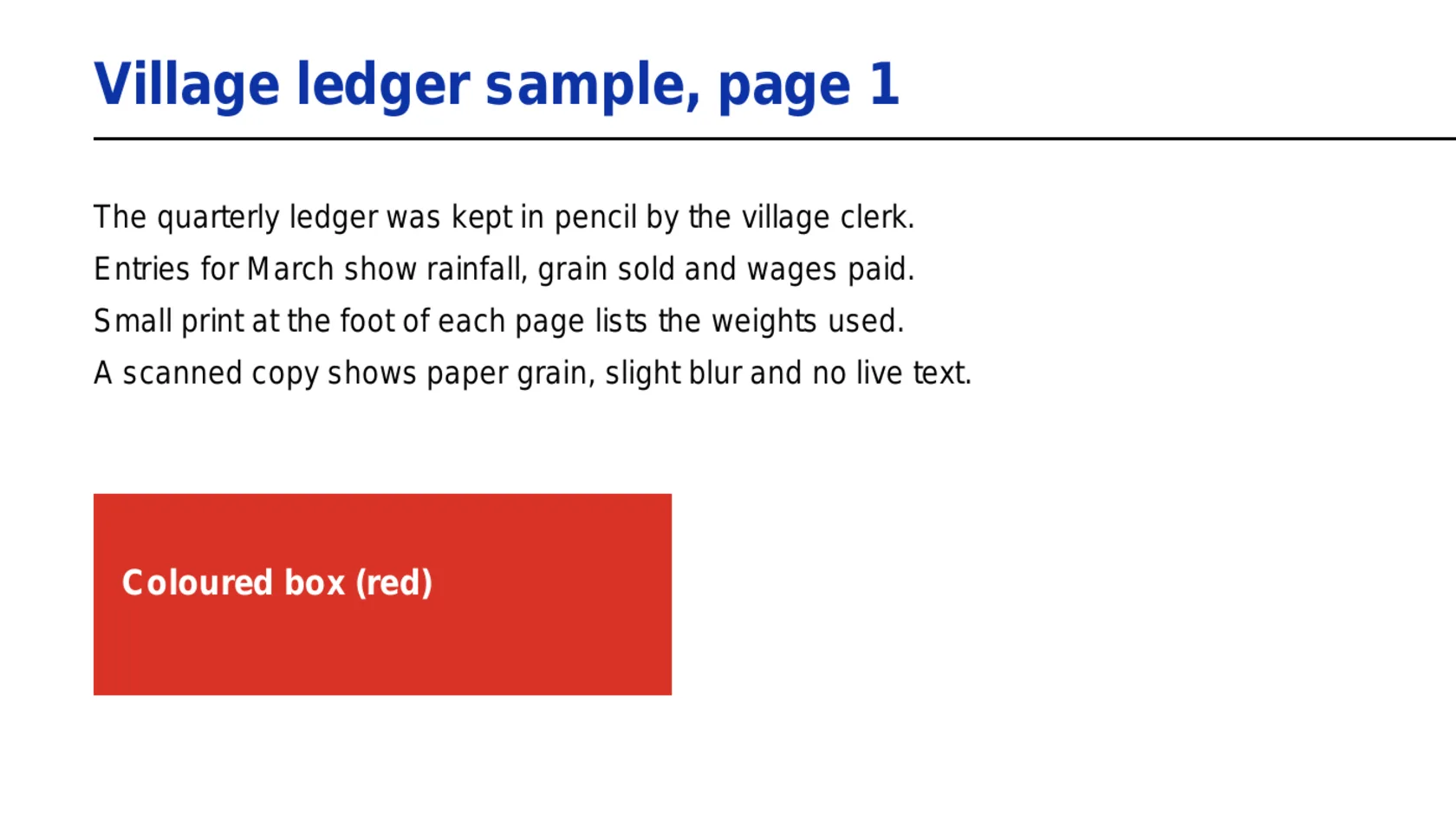
Our own two-page US Letter sample PDF with vector text, a blue title and a red box (CC0)
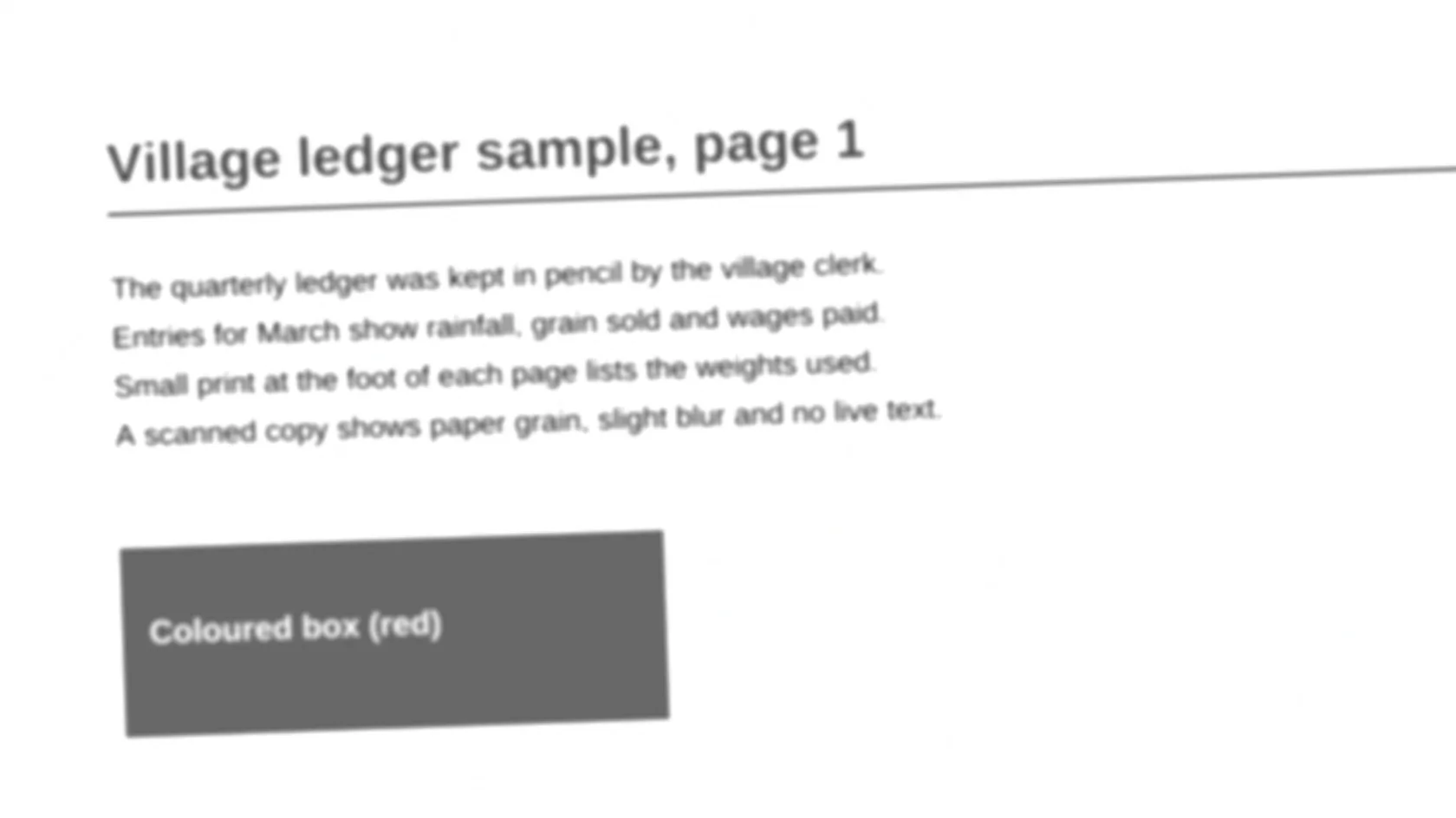
Light scan keeps colour and stays clean and sharp. Office scan is grey, like a desk scanner. Rough copy is grey and grainy, like a photocopy. Office scan is selected when the panel opens.
Type a whole number from -5 to 5 to turn the pages slightly, as if they went into the scanner a little crooked. Anything else shows an error and disables the button. In our test the angle that came out did not match the number typed, so check the pages before you download.
A red note says every page becomes an image, the text can't be selected or searched, the file gets much bigger and long files take a while.
The panel says the effect only changes how the pages look. It does not turn the file into a scanned paper original.
| You want | Pick | Keep in mind |
|---|---|---|
| A clean copy that still looks scanned | Light scan | It keeps colour. In our test the blue title and red box kept their hues. |
| The look of a desk scanner | Office scan | Grey, the default. In our test it also softened the page. |
| A rough, photocopied look | Rough copy | Grey and grainy. Small print may be hard to read. |
| Pages that look slightly crooked | Any look, with a Tilt other than 0 | Whole numbers from -5 to 5. In our test the angle that came out was not exactly the number typed. |
Drop the PDF into the upload area at the top of the page, or click to choose it. It opens in the editor with the Scanner effect panel ready.
Choose Light scan, Office scan or Rough copy. Leave Tilt at 0, or type a whole number from -5 to 5 for a crooked look.
Press Make it look scanned. Long files take a while: in our test a two-page sample reached Done after 11.8 seconds with Office scan. When the editor shows that the job is done, check the pages, then press Download PDF, or Undo to go back.
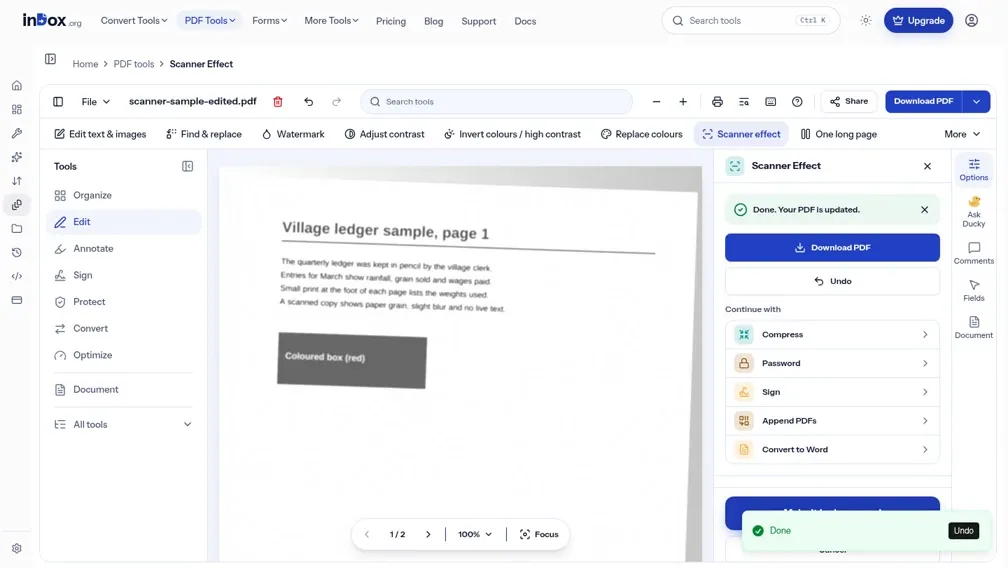
The three looks are named for what you will see, so you don't need to know about resolution or colour spaces. The effect is meant to be seen on screen and in print, and the panel states that pages become images and that the file does not become a real scan. The numbers on this page come from a run on indox.org on 5 November 2026 with a sample we made ourselves. Undo brings the original back, so you can try another look on the same file. One document runs without an account. Files move over HTTPS, and for a visitor who is not signed in the upload and the result are deleted 24 hours after the job finishes.
| What you see | Why | What to do |
|---|---|---|
| The text can't be selected or searched | The pages were turned into pictures | Run OCR PDF on the result to add a text layer back. |
| The file is much bigger than the original | Picture pages take more space than text and vector shapes | Shrink it with Compress PDF. |
| Small print is hard to read | Rough copy adds grain to the pages | Press Undo and use Light scan or Office scan. |
| The page is slightly rotated even with Tilt 0 | In our test the effect rotated the page by about 1.9 degrees at Tilt 0 and added a grey edge | Check the pages before you download, and press Undo if the result is not usable. |
| The wait is long | Every page is redrawn, and longer files take longer | Wait for the Done message before you download. |
| The button is disabled and Tilt is red | Tilt is not a whole number from -5 to 5 | Type a whole number from -5 to 5, or 0 for no extra tilt. |
| Couldn't apply that to this file | The PDF has more pages than the effect accepts, or the file could not be read | Cut it with Split PDF and run each part, or try Repair PDF first. |
A PDF page holds either text and shapes or a picture of a page (ISO 32000). The effect makes pictures; the rows add our measured numbers where we have them.
| You want | Use | What it does to the file |
|---|---|---|
| Pages that look scanned | Scanner effect (this page) | Draws every page as a picture. In our test the text count fell from 783 to 0 and the file grew from 2.9 KB to 1.55 MB with Office scan. |
| A scanned look that can still be searched | Scanner effect, then OCR PDF | OCR adds a text layer to the picture pages. We did not measure that step. |
| A smaller file after the effect | Scanner effect, then Compress PDF | Compression works on the picture data. We did not measure the saving. |
| A faint real scan that is easier to read | Adjust contrast | Changes the tone of existing pages and adds no scanned look. |
| Text that stays selectable | Leave the PDF as it is | A PDF with a text layer keeps its fonts and text, which the effect removes. |
Some forms and submissions are expected to arrive as a scan. A flat, grey look is closer to that than clean digital text. Use it only where that is honest and allowed.
A mock-up, a worksheet or a design sample can look like a paper handout that has been scanned.
Mixed digital and scanned pages look uneven together. Giving the digital ones a scanned look makes the set consistent.
Facts checked on November 5, 2026
Open the PDF here, keep Office scan or choose another look, press Make it look scanned and download. Add a Tilt if you want the pages slightly crooked.
Light scan is in colour, clean and sharp. Office scan is grey, like a desk scanner. Rough copy is grey and grainy, like a photocopy. In our test Light scan kept a blue title and a red box in colour, and Office scan made the red box mid grey.
Office scan and Rough copy turn the pages grey, like a desk scanner or a photocopier. They are greyscale, not pure black and white, so light tints become pale greys. Light scan keeps the colours.
It turns the pages by a whole number of degrees from -5 to 5, but only roughly. In our test Tilt 0 on Office scan still left the page rotated by about 1.9 degrees, and Tilt 5 on Light scan rotated it by about 3.3 degrees the other way. Check the pages before you download.
No. Every page becomes an image. In our test the sample went from 783 text characters to 0 and from two fonts to none. Run Make searchable (OCR) on the result to add a text layer.
No. The effect only changes how the pages look. It doesn't make the file a scanned paper original.
Pages stored as images take far more space than text and vector shapes. In our test a two-page sample of 2.9 KB became 1.55 MB with Office scan and 5.38 MB with Light scan, which is 532 and 1,846 times larger. Compress PDF may bring the size down.
Every page is redrawn. In our test the two-page sample reached Done after 11.8 seconds with Office scan and 18.6 seconds with Light scan. A long file takes longer than a short one.
No. The panel treats the whole document and has no page range.
Up to a point. The effect redraws every page as a picture, so it has a page cap, and a longer file is refused with Couldn't apply that to this file. Cut it with Split PDF, run the effect on each part and join them again with Merge PDF.
In our test the pictures came out at about 105 pixels per inch with Office scan and 161 to 165 with Light scan, on pages that stayed US Letter size. Text is softer than in the original, but a 7 point footnote was still legible at 100 dpi after Office scan.
Yes. The effect is applied on indox's server, so the file is sent over HTTPS. If you are not signed in, the upload and the result are deleted 24 hours after the job finishes; with an account they stay in your history until you delete them. One document runs without an account, up to 200 MB.