Two starting points for common scans
Faint scan darkens pale text (Contrast 1.8, Brightness 1.1 in the tool's code). Dark scan lightens a grey or dark page (Contrast 1.4, Brightness 1.3). Faint scan is selected when the panel opens.
or drop a file anywhere here
Files other than PDF are converted first. Signing in raises the size limit.
To darken a PDF, open it here, keep Faint scan, press Adjust contrast and download the result: pale text gets darker and the paper whiter. Dark scan does the opposite and lightens a grey or murky page. This page is for someone with a faded photocopy, pencil notes or a murky phone scan who wants a copy that is easier to read or print. Custom lets you type Contrast and Brightness yourself, each a number from 0.1 to 3, where 1 leaves it unchanged. Then pick a Quality: Draft for the smallest file, Standard, Sharp, or Print for the largest file. The panel states the trade-off before you run it: every page is redrawn as an image, so the text can't be selected or searched afterwards, and comments, form fields and bookmarks are removed. It suggests running Make searchable (OCR) afterwards to get the text back. If your PDF is typed text in a light gray rather than a scan, Replace colours darkens the text without turning pages into images. We ran it on our own sample and report what changed below, including how pale a very faint scan can stay.
Our own 2-page A4 sample (CC0): a faded scan and a page of pale text, 1.26 MB
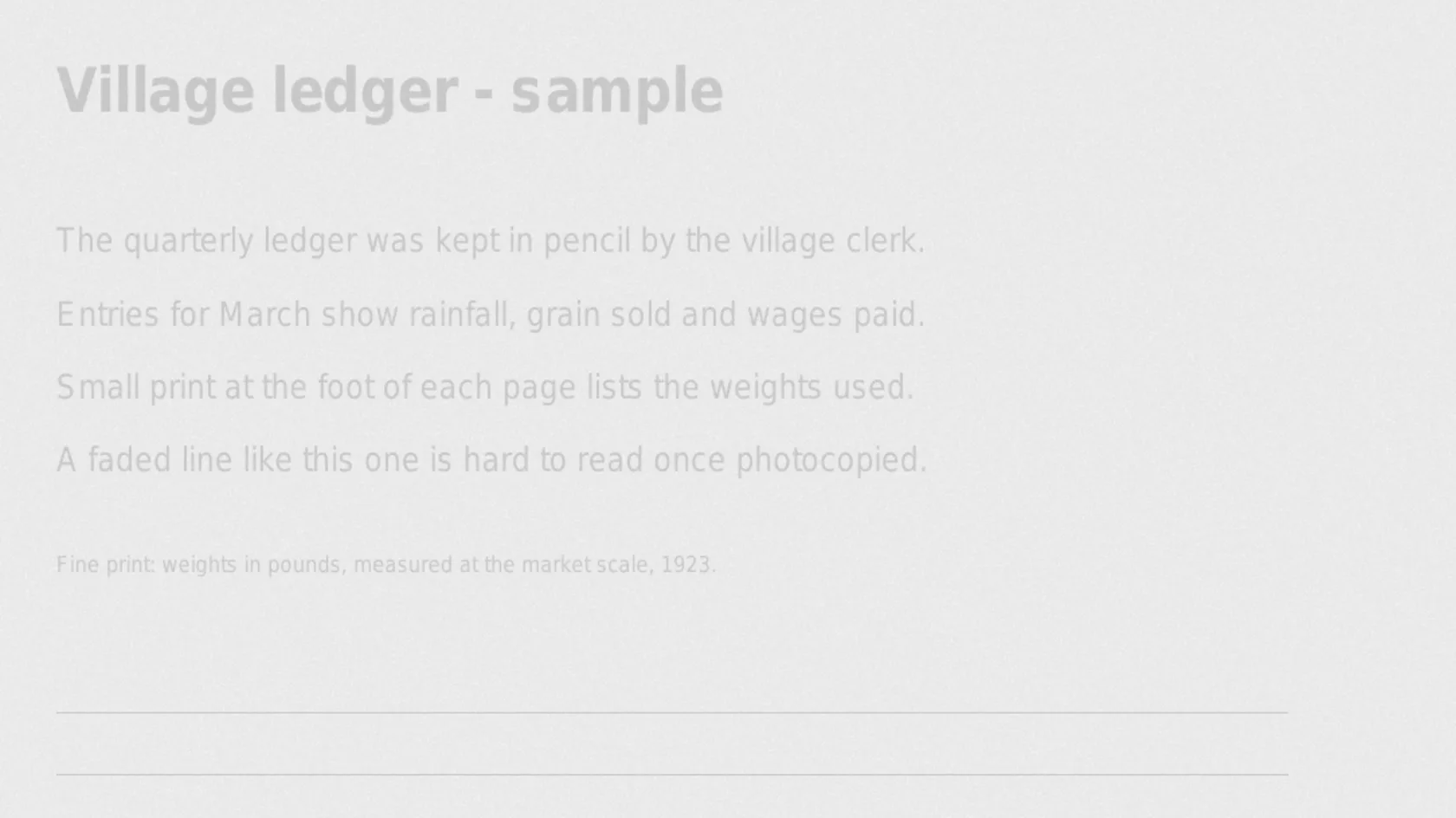
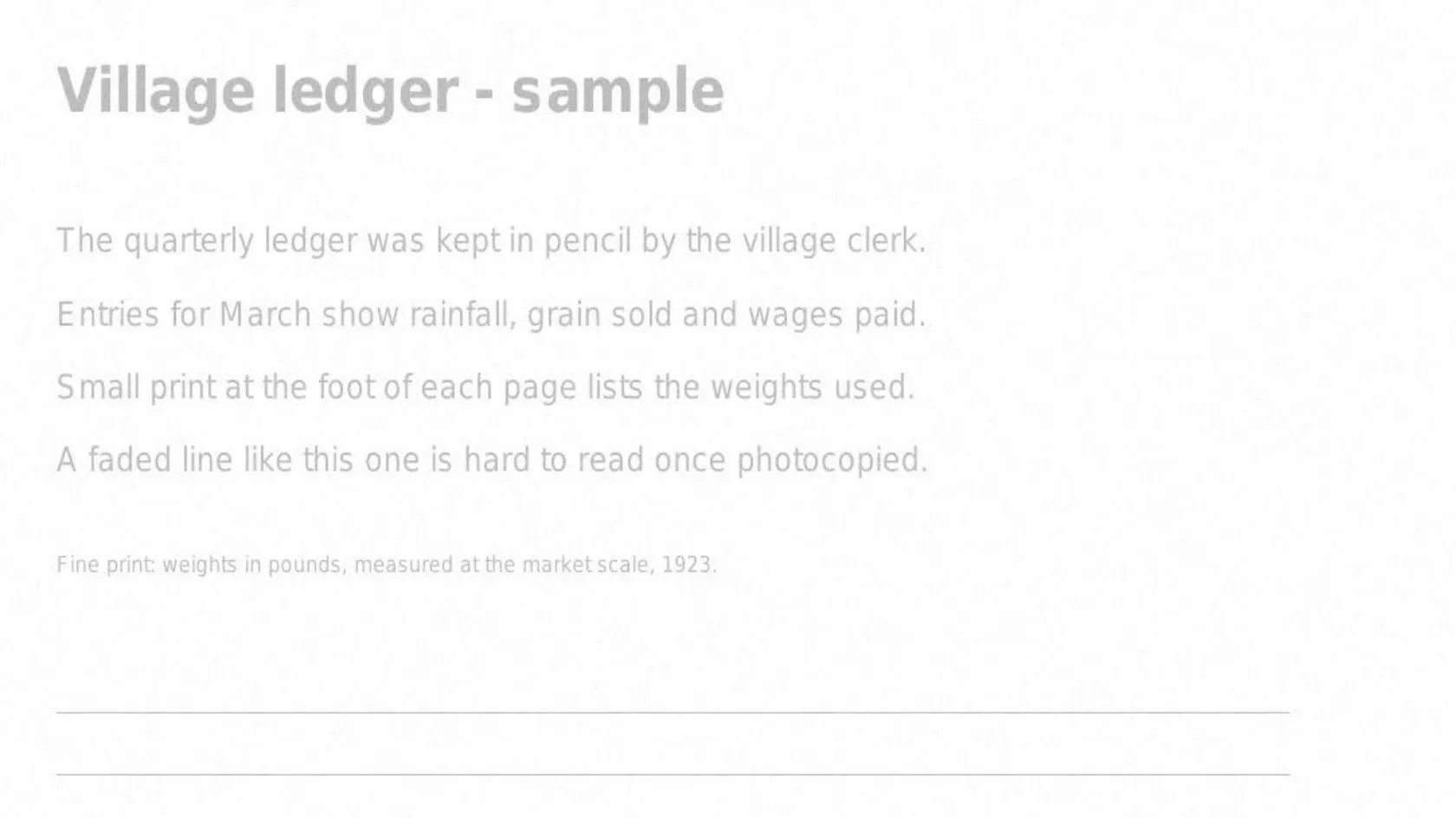
Faint scan darkens pale text (Contrast 1.8, Brightness 1.1 in the tool's code). Dark scan lightens a grey or dark page (Contrast 1.4, Brightness 1.3). Faint scan is selected when the panel opens.
Choose Custom to type Contrast and Brightness; it opens on 1.5 and 1. Each takes a number from 0.1 to 3, and 1 leaves it unchanged. A number outside the range shows an error and disables the button.
Draft makes the smallest file, then Standard, Sharp and Print, which makes the largest. In the tool's code they redraw pages at 100, 150, 200 and 300 dpi. Standard is selected when the panel opens.
A red note says every page is redrawn as an image and what that removes. It suggests Make searchable (OCR) afterwards.
| Problem | Try | Watch for |
|---|---|---|
| Gray text on a gray page | Faint scan, or raise Contrast and keep Brightness at 1 | Letters that thicken or merge in small print. A very faint scan can stay pale. |
| A murky or dark scan | Dark scan, or raise Brightness above 1 | Light areas turning plain white and losing fine lines. |
| Faint pencil or handwriting | Raise Contrast and lower Brightness a little | A background that turns gray. |
| A long file read only on screen | Lower the Quality, to Draft or Standard | Small print getting soft. |
| Light gray typed text, not a scan | Replace colours with a dark text color | The original text stays in the file under the new text. |
Drop the PDF into the upload area at the top of the page, or click to choose it: up to 200 MB when you are not signed in, or 200 MB with a signed-in account. It opens in the editor with the Adjust contrast panel ready.
Choose Faint scan, Dark scan or Custom. With Custom, type Contrast and Brightness between 0.1 and 3. Then pick a Quality, and read the note about what the redraw removes.
Press Adjust contrast. When the editor shows that the job is done, check that the pages are readable, then press Download PDF. Run Make searchable (OCR) if you need the text back.
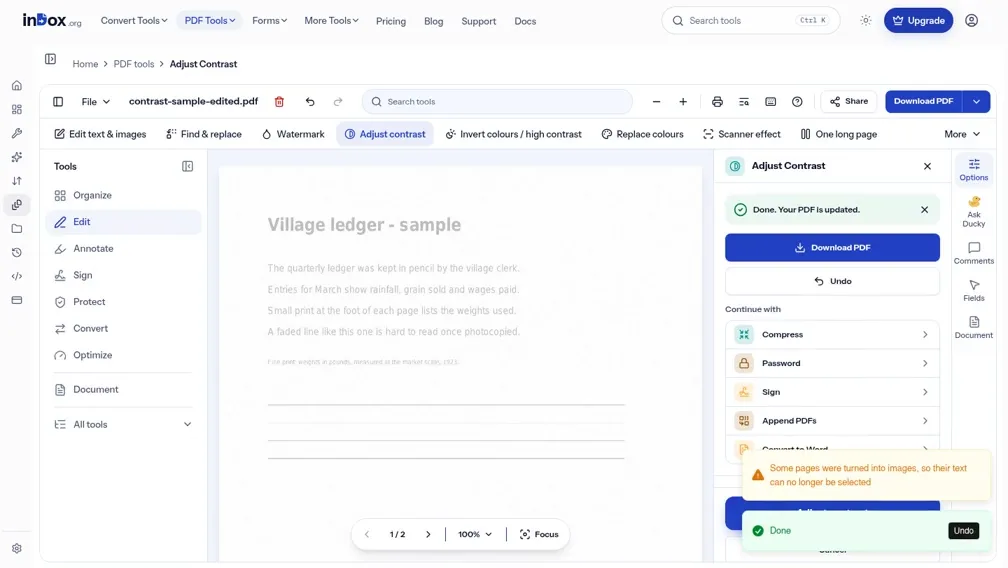
The panel is built around what you are fixing. Faint scan and Dark scan carry preset values, so most files need no typing at all, and Custom is there when they don't. Quality is named by what it costs, from Draft (smallest file) to Print (largest file), so you don't need to know what resolution means. The warning about the redraw comes before the run, and the next step, Make searchable (OCR), is named in the panel. In our test an anonymous run needed no sign-in. Files move over HTTPS.
| What you see | Why | What to do |
|---|---|---|
| You can't select or search the text | Every page is redrawn as an image | Run OCR PDF on the result to add a text layer. |
| Pages look harsh or washed out | The values are far from 1, which leaves a page as it is | Add the original file again and run it with values closer to 1. |
| Small print looks blurry | The Quality was too low for the page | Run the original again at Sharp or Print. |
| Faint text is still pale | A very faint scan only gains part of the gap between ink and paper | Try Custom with a higher Contrast and check the result. If the ink is barely there, rescan the paper. |
| The file is larger than you wanted | Print redraws pages at 300 dpi and made a file 3.3 times the size of Standard in our test | Run the original again at Standard or Draft. |
| Links and bookmarks are gone | Redrawing the pages as images removes them | Add them back in a PDF editor after the run, or keep the original for navigation. |
| The button is disabled and a number is marked red | Contrast or Brightness is outside 0.1 to 3 | Type a number from 0.1 to 3. 1 leaves it unchanged. |
| Method | The text afterwards | Best for |
|---|---|---|
| Adjust contrast (this page) | Every page is a picture. In our test the selectable text went to 0 characters. | A readable or printable copy of a faint or dark scan. |
| OCR PDF on the original | OCR adds a text layer behind the page picture. | Searching and copying text. A faint scan can give weaker recognition, so try contrast first and OCR the result. |
| Rescan at better settings | Whatever the scanner produces. | When you still have the paper and the source is very faint. A better source beats post-fixing. |
Pencil notes, old photocopies and thin print can sit close to the paper's gray. Faint scan darkens them for reading and printing.
A scan taken in poor light or from a toned page looks murky. Dark scan lightens it.
Custom lets you move contrast and brightness separately and check the result in the editor before you download.
Facts checked on November 5, 2026
Open the PDF here, keep Faint scan, press Adjust contrast and download. For a stronger or gentler result, choose Custom and type a Contrast above 1; a Brightness under 1 darkens the whole page.
Pick Faint scan with Print quality, which redraws pages at 300 dpi, then print the result. In our test a very faint scan got darker ink on whiter paper but stayed pale, so look at the result before you print many copies. The file is larger at Print: 533 KB against 164 KB at Standard for our sample.
Use Replace colours and set a dark Text color, such as black on a white Background. It draws the text again in that color and keeps it as text you can select, where this tool turns every page into a picture. Read that tool's limits: the original text stays in the file under the new text.
Both take a number from 0.1 to 3, and 1 leaves it unchanged. A Contrast above 1 pushes light and dark further apart. A Brightness above 1 lightens the page.
Faint scan darkens pale text. Dark scan lightens a grey or dark page. Custom lets you choose the values yourself.
Standard suits most files. Sharp or Print keeps small print crisp but makes a bigger file. Draft makes the smallest file and is for reading on a screen. In the tool's code they redraw at 100, 150, 200 and 300 dpi.
We did not run OCR on our result. OCR software reads the page picture, and Tesseract's documentation lists steps such as binarisation and noise removal as affecting the result, so a clearer picture can help. Run OCR PDF on the output and check the text.
No. Every page is redrawn as an image. Run Make searchable (OCR) on the result to add a text layer back.
No. In our test the sample's link and both bookmarks were removed. Comments and form fields are removed too, because the pages are redrawn as images.
No. The panel adjusts the whole document with one set of values.
A value outside 0.1 to 3 is refused, with a message, before anything runs. A long file at a high Quality can also be too big for one job, and a file over the size limit is refused at upload. Choose a lower Quality or split the file.
It depends on the file. In our test a 1.26 MB, 2-page sample came out at 164 KB at Standard and 533 KB at Print, because it was a large scan stored as an image. A file that was small text may grow.