Lock the form fields
Each typed answer, ticked box and chosen option is drawn into the page, and then the fields are removed. In our test the 8 fields of a sample form became 0, and the answers became ordinary page text.
or drop a file anywhere here
Files other than PDF are converted first. Signing in raises the size limit.
Flattening a PDF turns its form fields into ordinary page content, so the answers in them can no longer be typed over. This page is for anyone holding a filled or fillable PDF that must go out final, or that a court or grant portal will not accept while it still has fields. When you add a file, the panel reads it, says how many form fields and comments it has, and offers three ways. "Lock everything, keep text" is picked first when the file has fields or comments: fields, comments, stamps and signatures become part of the page and the text stays selectable. "Lock form fields only" draws each answer into the page and leaves comments and links as they are; it is the option we ran on 5 November 2026. "Make uneditable" turns each page into an image at the quality you pick. A digitally signed PDF needs your confirmation first, because flattening removes the signature. To type answers into a form and keep it fillable, use Fill PDF Form instead.
Our own 2-page sample form (8 fillable fields, 1 comment, invented answers, 12,403 B), flattened on indox.org
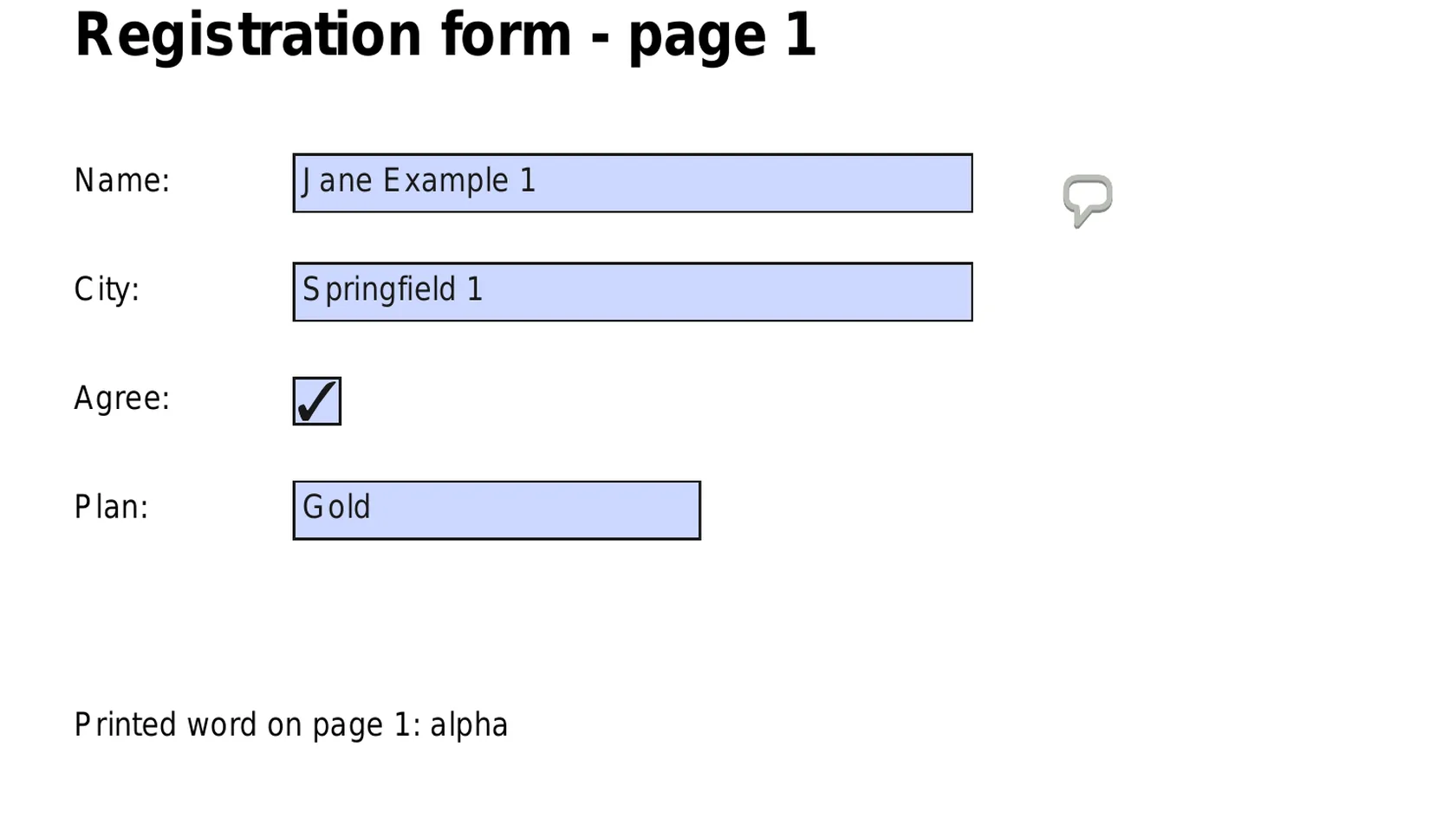
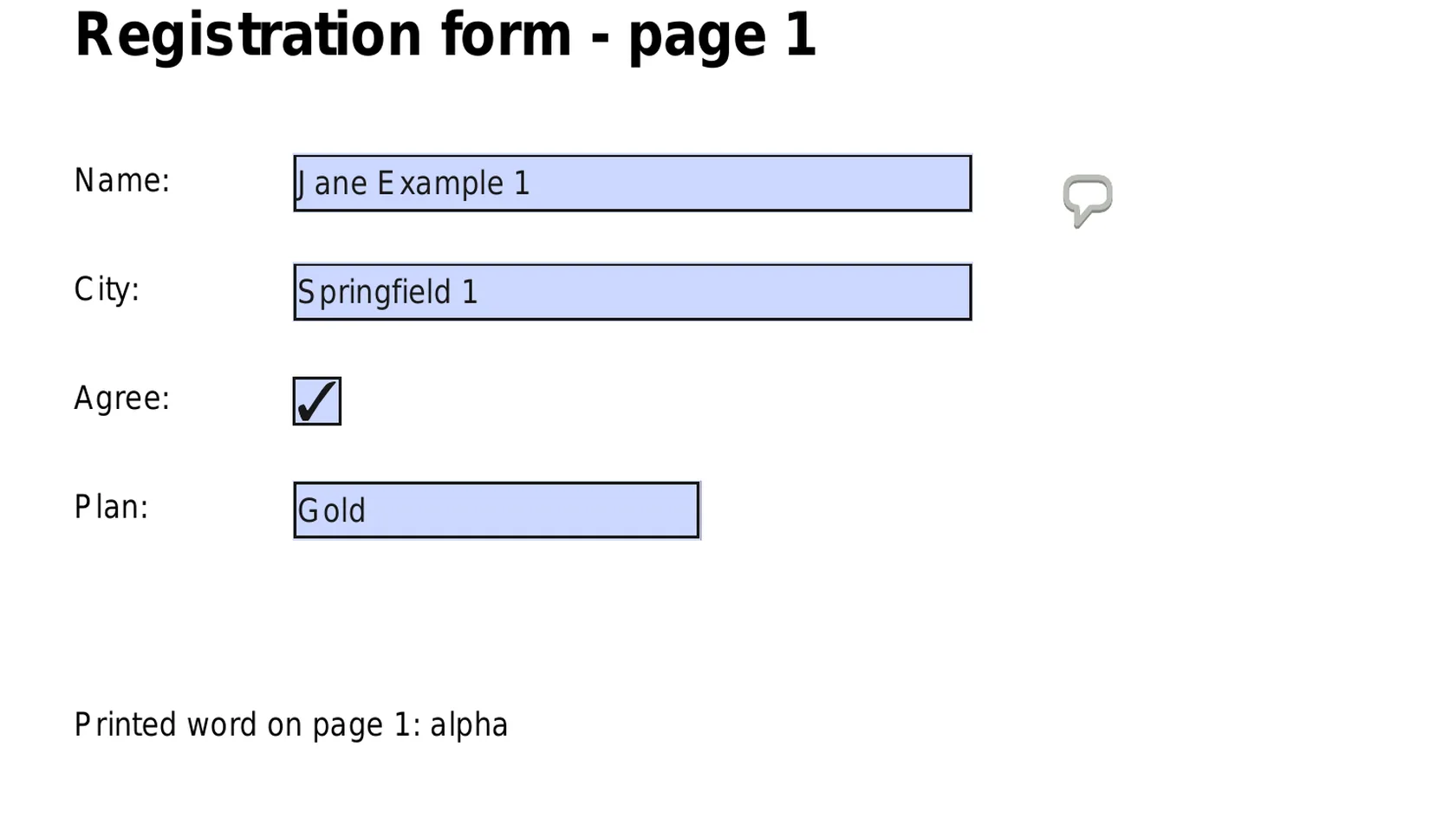
Each typed answer, ticked box and chosen option is drawn into the page, and then the fields are removed. In our test the 8 fields of a sample form became 0, and the answers became ordinary page text.
"Lock form fields only" leaves comments, highlights and links in the file. In our test the one comment on the sample stayed a comment.
"Lock everything, keep text" draws form fields, comments, stamps and signatures into the page in one step, so none of them can be moved or changed by clicking, while the page text stays selectable and searchable.
"Make uneditable" turns each page into an image, so its text can no longer be selected, copied or edited. Pick the image quality: 100 dpi gives the smallest file, 150 dpi is the balanced default, 200 dpi is sharper and 300 dpi is print quality with the largest file.
The panel reads your PDF first and says how many form fields and comments it has. It tells you when there is nothing to lock, and for a dynamic (XFA) form only "Make uneditable" is open. For a digitally signed PDF it asks you to tick the box to remove the signature and flatten, because the signature will be lost.
When the run ends, the panel says what it did, for example how many form fields it locked, and shows the file size before and after. Undo brings back the version from before you flattened.
Drop the PDF on the page or choose it from your device: up to 200 MB when you are not signed in, or 200 MB with a signed-in account. Finish filling in the form first, because a flattened field can't be edited.
"Lock everything, keep text" is picked first when the file has fields or comments. Choose "Lock form fields only" to keep the comments editable, or "Make uneditable" and an image quality to turn the pages into images. Click Flatten. If the tool warns that the PDF is digitally signed, confirm before it goes ahead.
Wait for "Done. Your PDF is updated." and the line that says what was locked, for example "Locked 8 form fields into the page." Click where a field used to be to check that nothing responds, then download the copy.
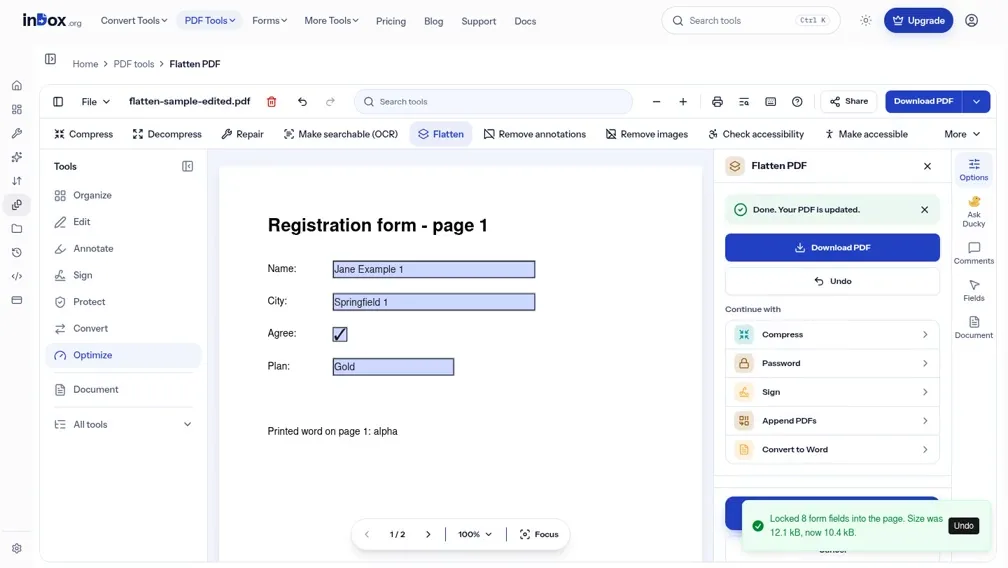
"Lock form fields only" fixes the answers and leaves the comments in the file, so it fits a form that is final while its review notes are still open; "Lock everything, keep text" and "Make uneditable" cover the cases where comments or selectable text must go too. The tool counts the form fields before it runs, warns you before it removes a digital signature and shows the file size before and after. If flattening fails, you see an error and your file is left as it was. You can flatten without an account, and the upload and the flattened copy travel over HTTPS. The page also states what our run found and what it did not cover.
| What you see | Why | What to do |
|---|---|---|
| Text can still be selected after "Make uneditable" | In our 5 November 2026 run this option left the text selectable. The current editor sends the setting that turns pages into images | Select some text in the result before you send it. If it is still selectable, do not rely on this file to hide text. |
| The text can be selected and copied after flattening | With the two Lock options, page text stays as text and the locked answers become text too | This is expected. Use "Make uneditable" when text must not be selectable. |
| "Lock form fields only" or "Lock everything, keep text" can't be picked | The PDF has no form fields or comments, or it is a dynamic (XFA) form | Check that you added the right file. The panel gives the reason under the option. |
| The PDF is no longer digitally signed | Flattening removes a digital signature | Flatten the file before it is signed, or send the signed original as it is. |
| Comments can still be moved or edited | "Lock form fields only" leaves comments in the file | Delete them with Remove Annotations if they should not be there. |
| You need to change an answer in the form | A flattened copy cannot become fillable again | Use Undo if you are still in the editor. Otherwise change the answer in the original with Fill PDF Form, then flatten once more. |
| The text in the fields sits slightly off | The answers are redrawn as they are locked | Compare the copy with your filled-in form before you send it. |
| Success shows while "Checking the file..." is still on screen | The panel showed both at once in our test | Wait for the panel to settle, then click where a field used to be before you download. |
| The tool shows an error | Flattening failed, and your file was left unchanged | Try Repair PDF, then flatten again. |
| Way | Use it when | What we know |
|---|---|---|
| Lock form fields only | The answers are final and the comments should stay | Tested here on 5 November 2026: 8 fields became 0, the answers became page text, the comment stayed. |
| Lock everything, keep text | Fields and comments should both become part of the page | Fields, comments, stamps and signatures are drawn into the page and text stays selectable. Not part of our 5 November 2026 run. |
| Make uneditable | Text must not be selectable or copyable | Turns each page into an image at 100 to 300 dpi. Our 5 November 2026 run left the text selectable; the current editor sends the image setting, and we have not run it again. |
| Remove Annotations | Comments and highlights should leave the file | We did not run it in this test. |
| Print to PDF | A court guide names it as the way to flatten | The Southern District of Florida bankruptcy court tip names it. We have not run it. |
| Protect PDF | The file should need a password to open | Flattening gives no password, so the two are separate jobs. |
A fillable PDF keeps each answer in a form field that sits on top of the page, and anyone who opens the file can click the field and change it. How the answer looks can also depend on the PDF reader, because a reader has to draw a field itself when the file does not say how. Flattening draws the answers into the page, so every reader shows them the same way and nobody can change them by clicking. It does not add a password or stop someone with a PDF editor from changing the page, and it removes any digital signature, so flatten first and sign last.
US federal courts such as the District of Arizona require PDF files to be flattened before filing in CM/ECF, and an unflattened form can fail with "Fillable forms must be flattened before attaching." Lock the form fields, then file the copy.
NIH asks applicants to flatten the PDFs they upload to eRA Commons for Just-in-Time Other Support and parts of the progress report (RPPR), and warns that a PDF that is not flattened may cause an error.
You completed an application or a claim form and want the answers to stay as you typed them. Flatten it before you send it, so the recipient sees the answers as part of the page in whatever PDF reader they use.
Facts checked on November 5, 2026
It means turning form fields into ordinary page content, so they can no longer be filled in or changed by clicking them. What the fields showed stays visible on the page.
To send a finished form whose answers should stay as typed, and to upload to portals that refuse fillable PDFs. US federal courts such as the District of Arizona require flattened PDFs in CM/ECF, and NIH asks for them in eRA Commons.
With the two Lock options, yes. In our test on 5 November 2026 with "Lock form fields only" the page text stayed selectable, and the locked answers became selectable text too, so it grew from 134 to 190 characters. With "Make uneditable", no: each page becomes an image.
That is what it is for: it sends each page to be turned into an image at 100, 150, 200 or 300 dpi, and a note after the run says the text is no longer selectable. In our run on 5 November 2026 it left the text selectable, with 0 images in the file; the current editor sends the image setting, and we have not run it again. Try to select text in the result before you rely on it.
With "Lock form fields only", yes. In our test the one comment on the sample stayed in the file as a comment. "Lock everything, keep text" draws comments and highlights into the page instead, and Remove Annotations deletes them.
No. It stops anyone changing the answers by clicking a field, but a PDF editor can still change what is on the page, and the file gets no password or encryption. Use Protect PDF to require a password to open it.
Flattening removes it, and it can't be added back. The tool warns you when the PDF is digitally signed and asks you to confirm before it goes ahead. If the signature has to stay valid, flatten first and sign last.
Not in our test. The 12,403-byte sample came out at 10,683 bytes, which is 13.9% smaller. Your file may differ, and the panel shows the size before and after.
Open it and click where a field used to be. If nothing responds, the field is gone. In our test we also checked the output with open tools and found no form data and 0 fields.
Some court guides name Print to PDF as a way to flatten a form, for example the Southern District of Florida bankruptcy court tip listed below. We have not run it, so we can't compare its output with ours.