Last updated
Extract images from a PDF
Before you start
- Have the PDF on your phone or computer. The upload box tells you how big a file can be.
- A ZIP is one file that holds many other files. You open it on your device to get the pictures.
- Only pictures stored in the PDF are saved. Text and drawings are not pictures.
- You don't need an account.
Open your PDF
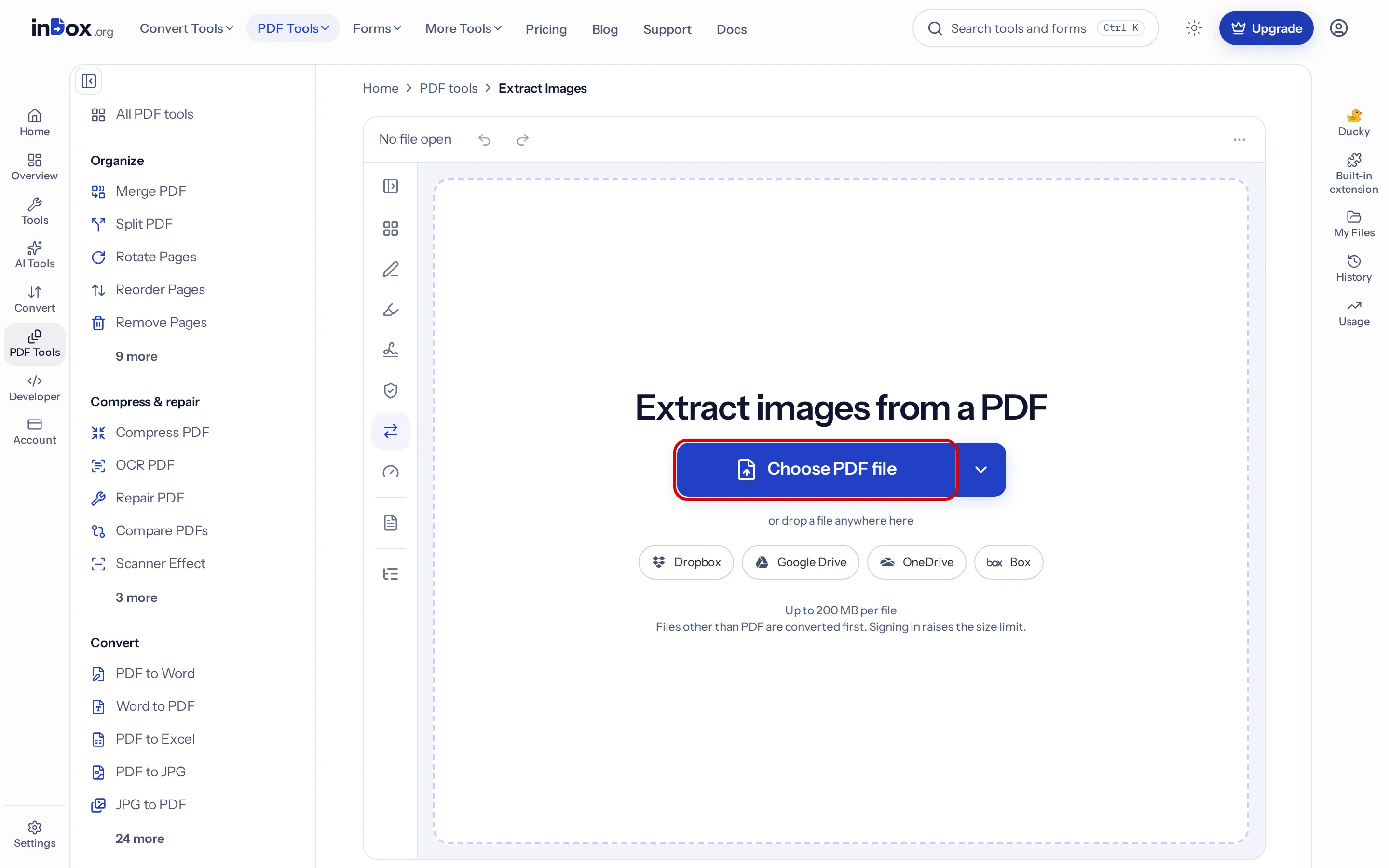
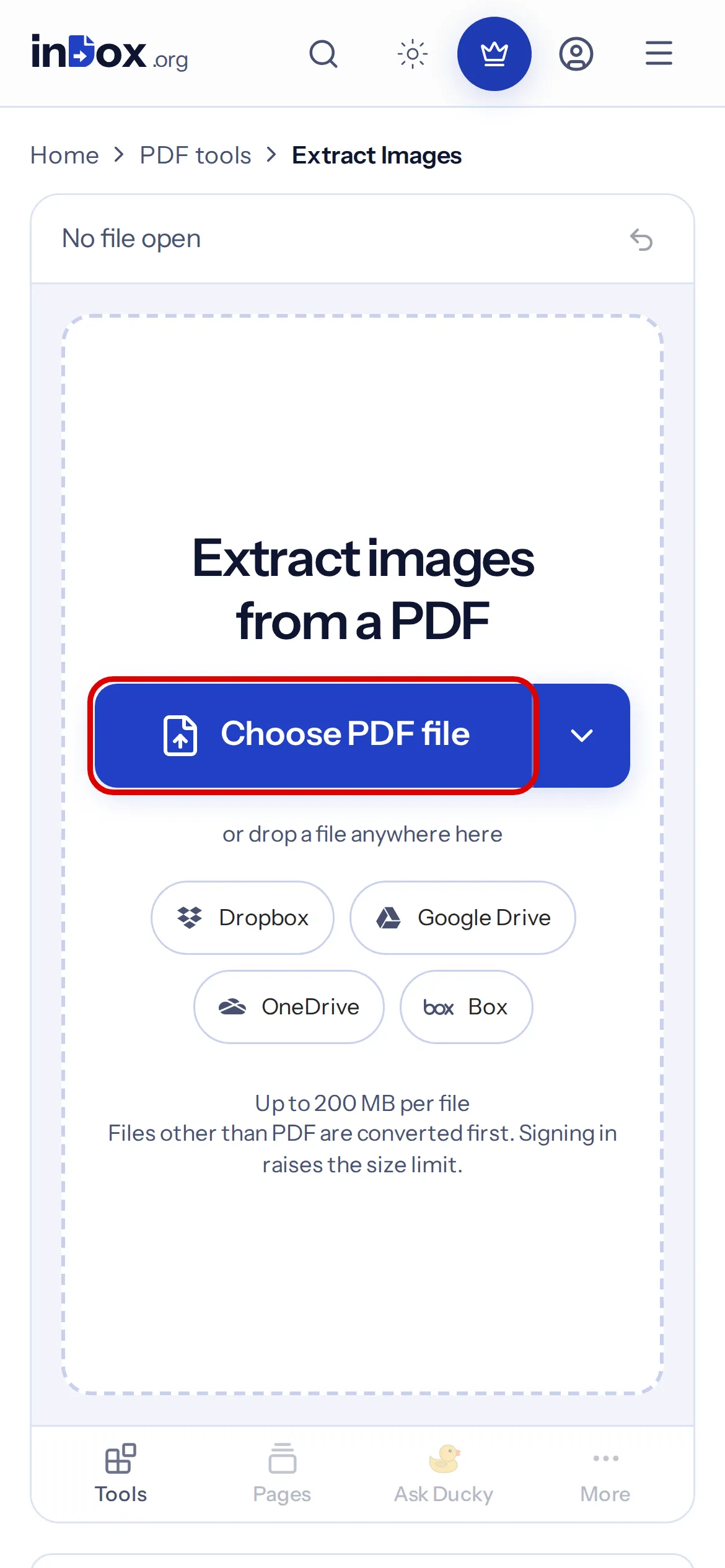
Go to the Extract Images page. In the middle of the page, select the blue Choose PDF file button. A box opens so you can pick a file from your device. You can also drag a file onto the page. The file opens with a panel called Extract Images. On a computer the panel is on the right. On a phone it slides up from the bottom.
Choose the pages
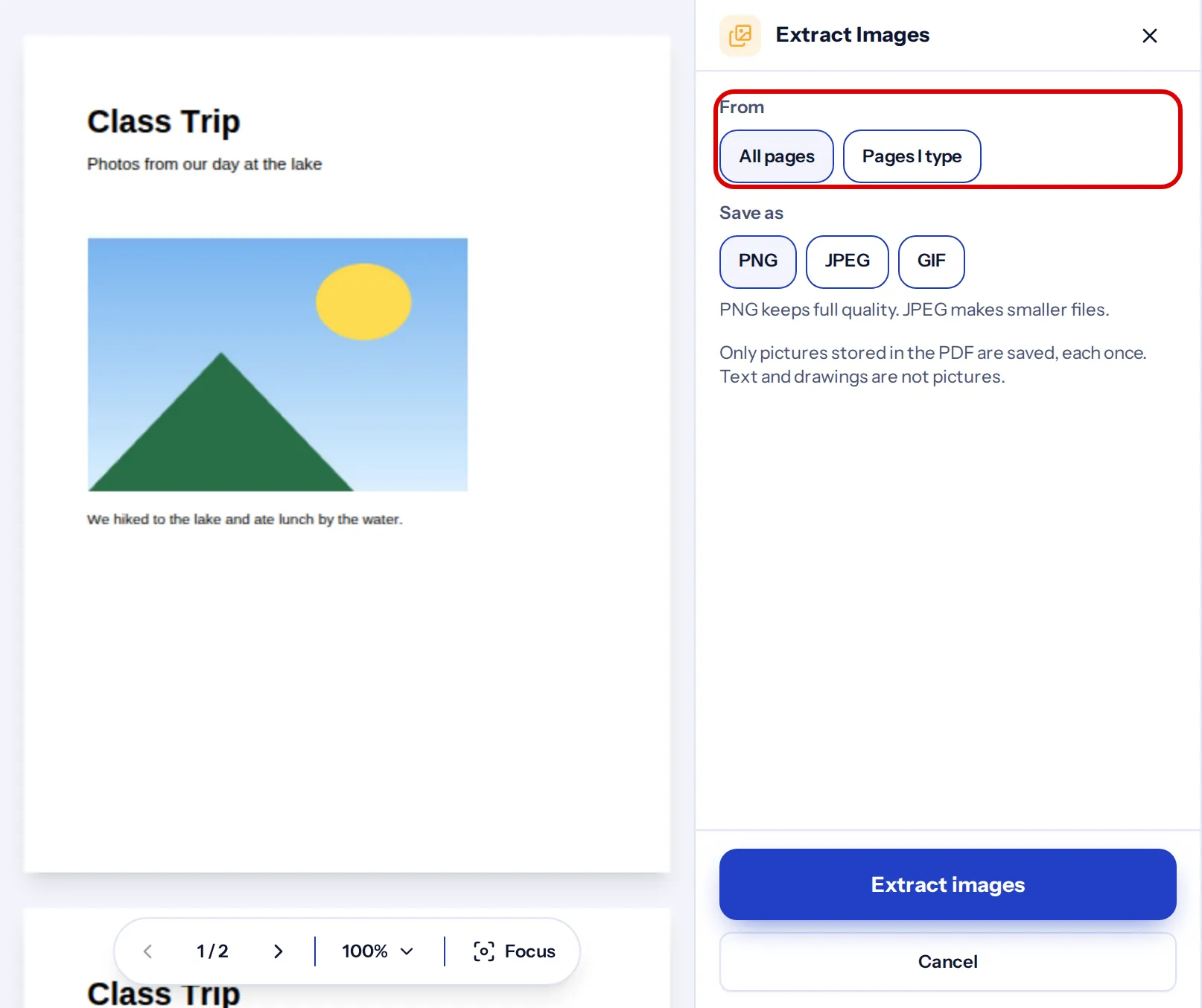
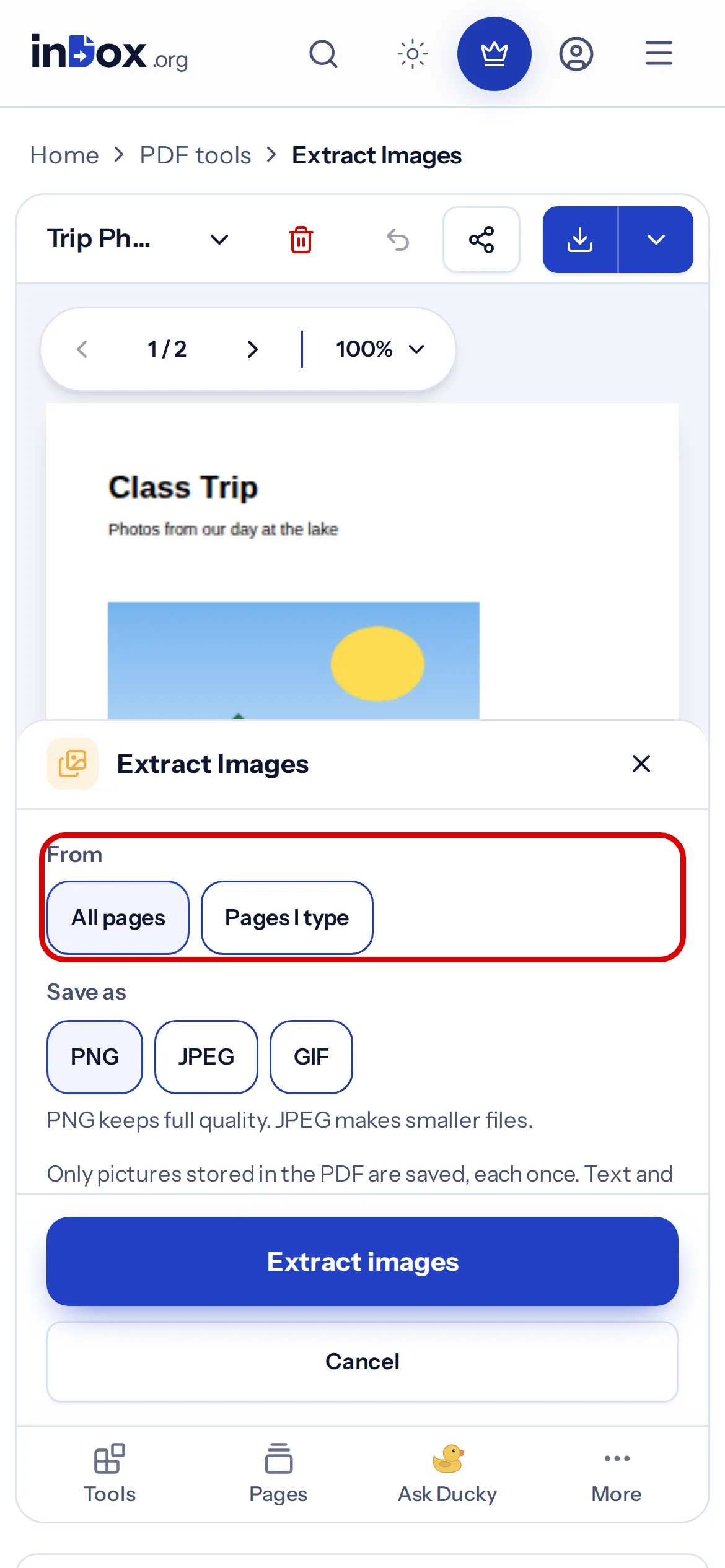
Under From, you see two buttons. All pages is picked at the start. To save the pictures from only some pages, select Pages I type. A box named Pages opens. Type the pages like 1-3, 7.
Choose the file type
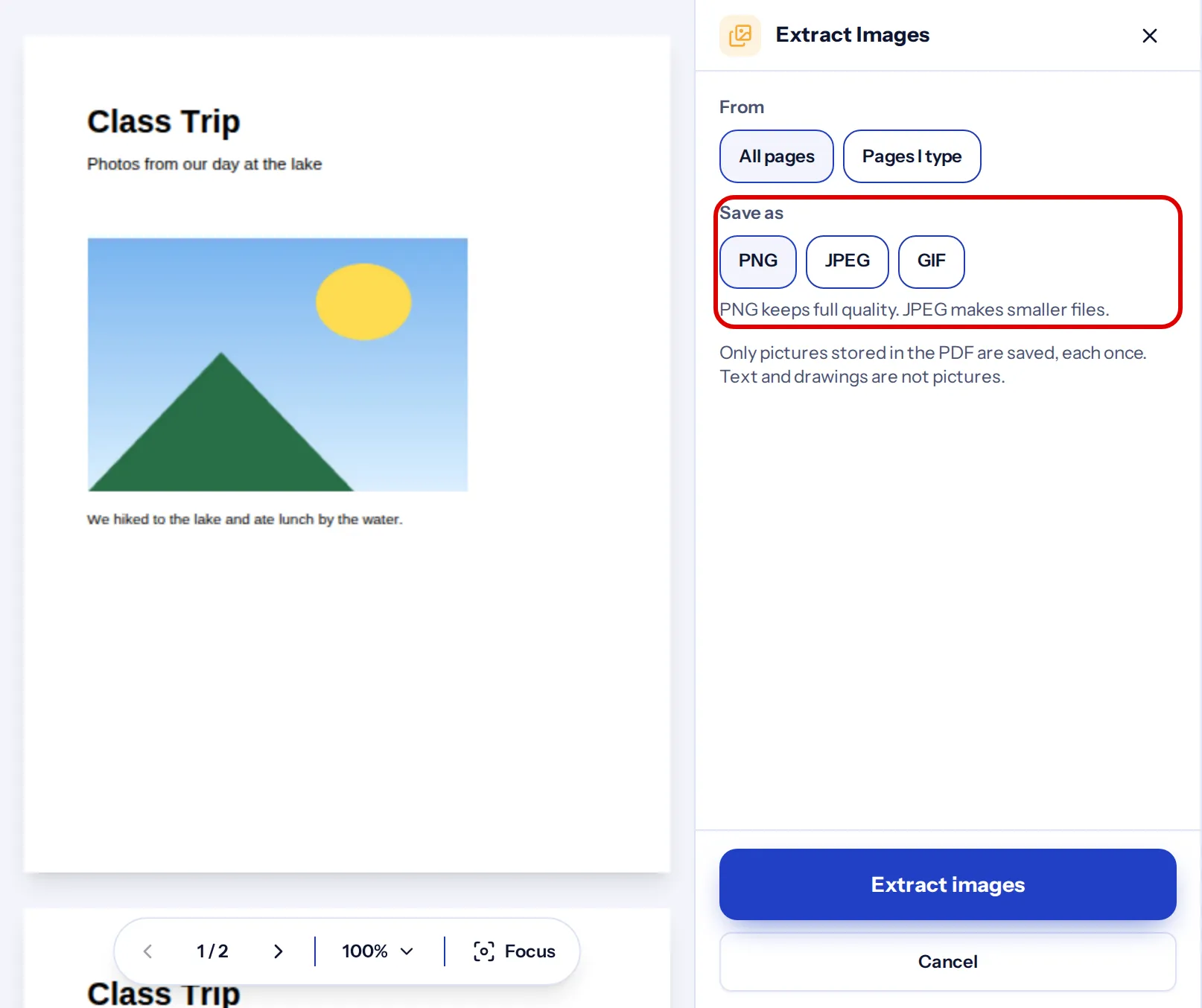
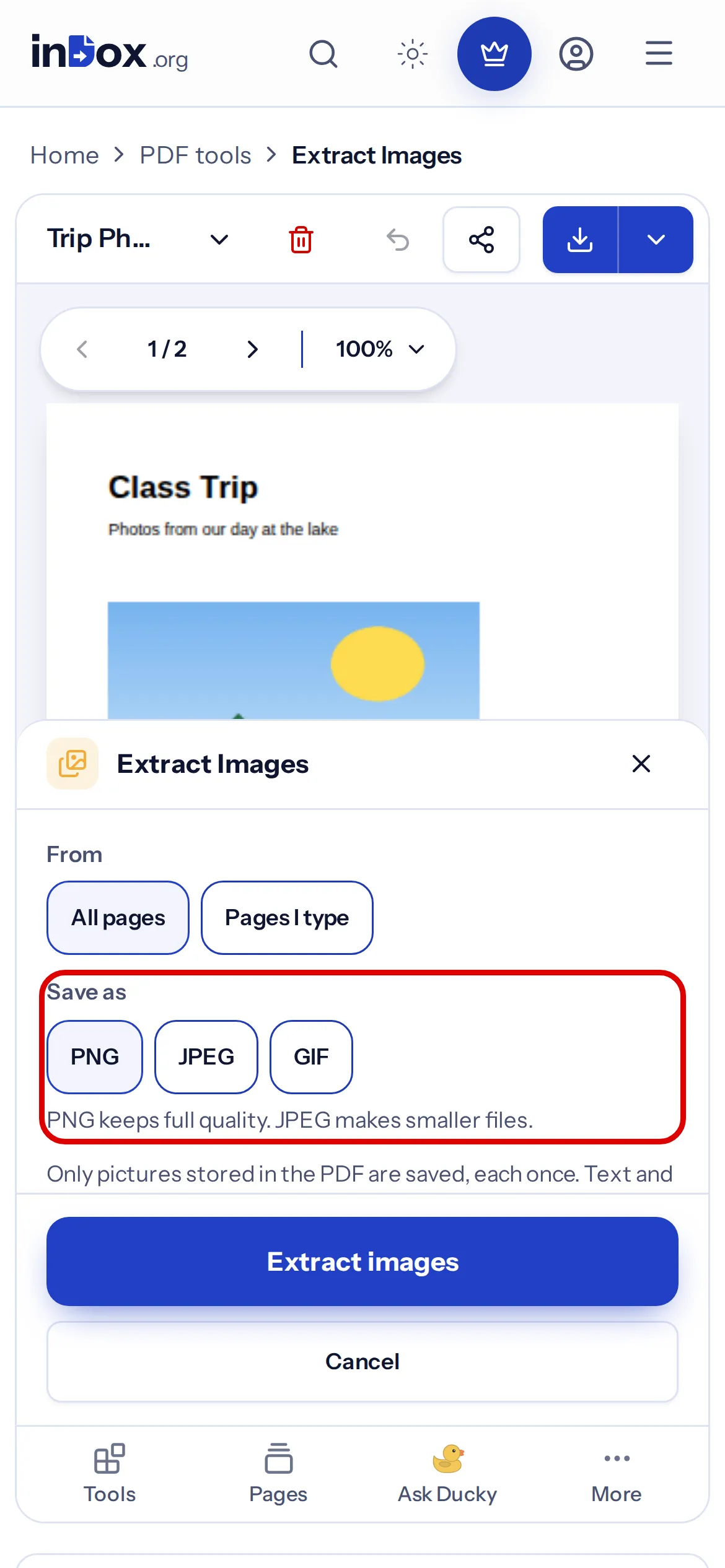
Under Save as, pick PNG, JPEG or GIF. PNG is picked at the start and keeps full quality. JPEG makes smaller files.
Extract the images
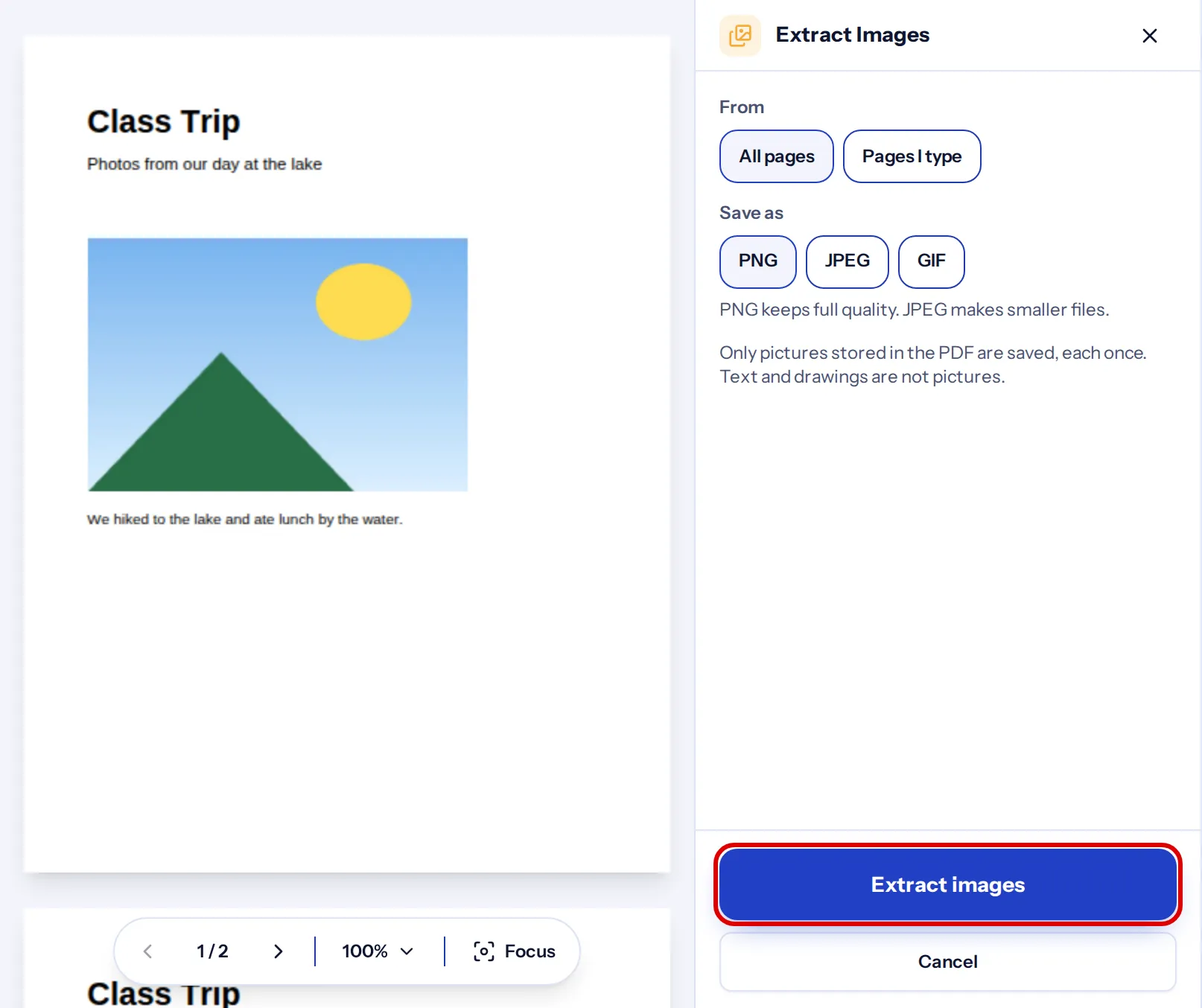
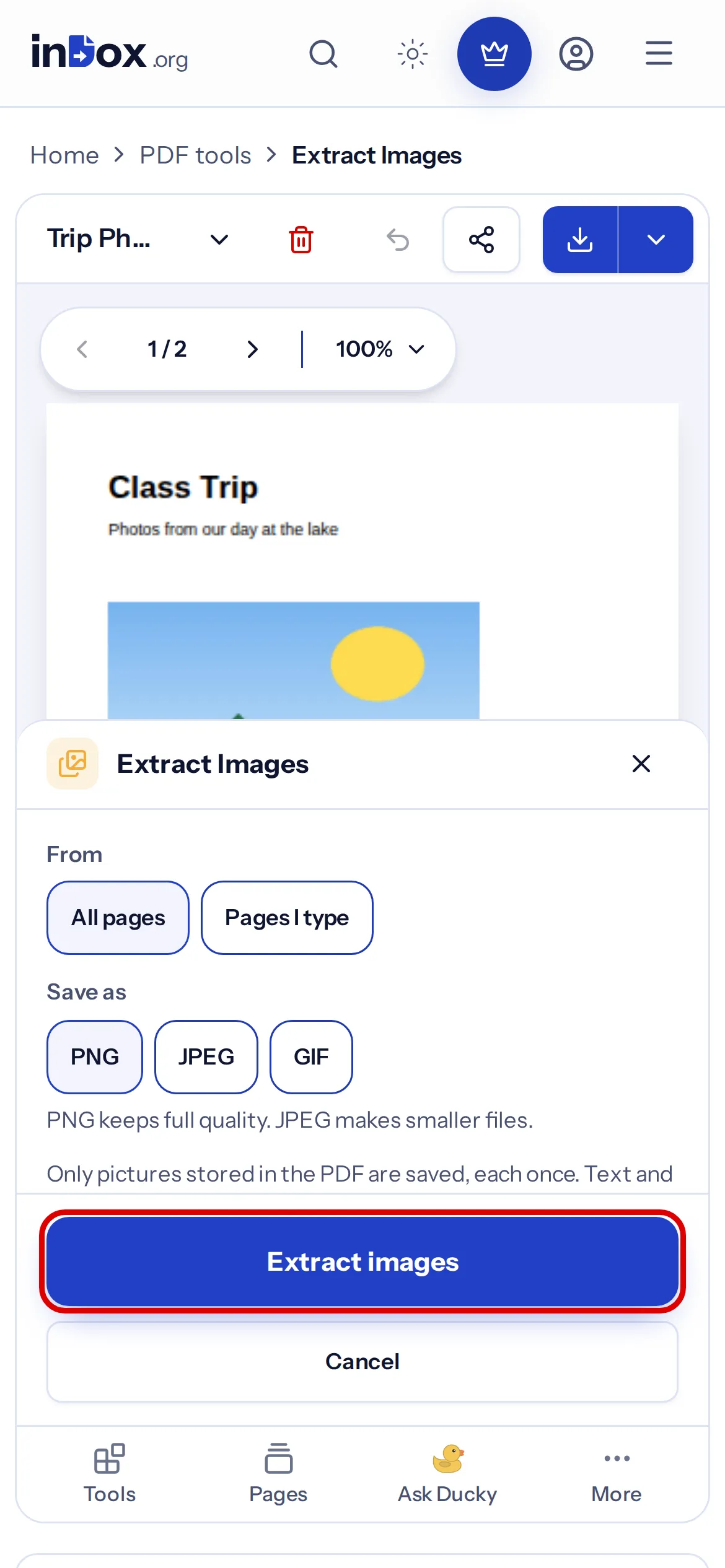
Select the blue Extract images button at the bottom of the panel. Wait a moment.
Save the ZIP
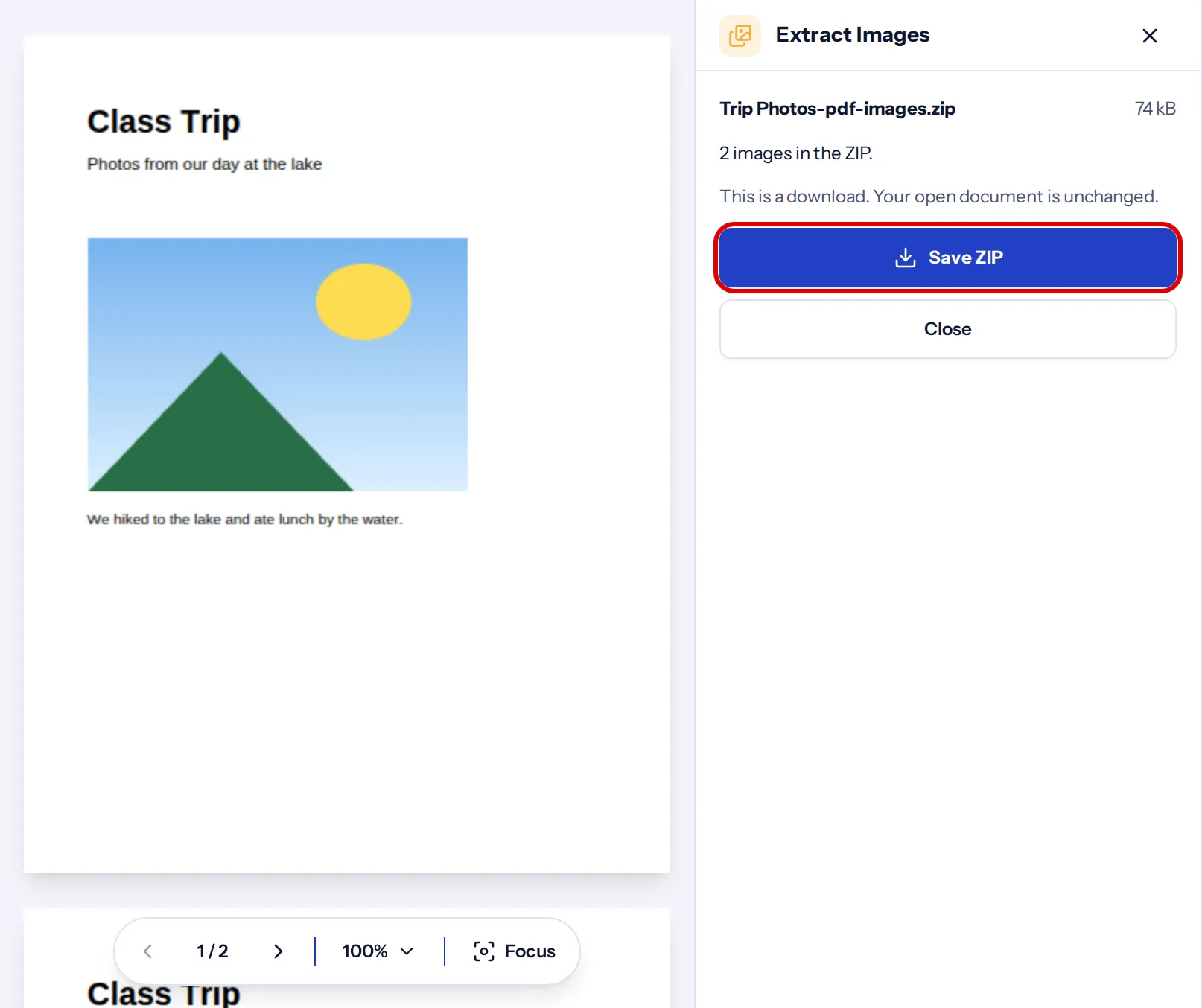
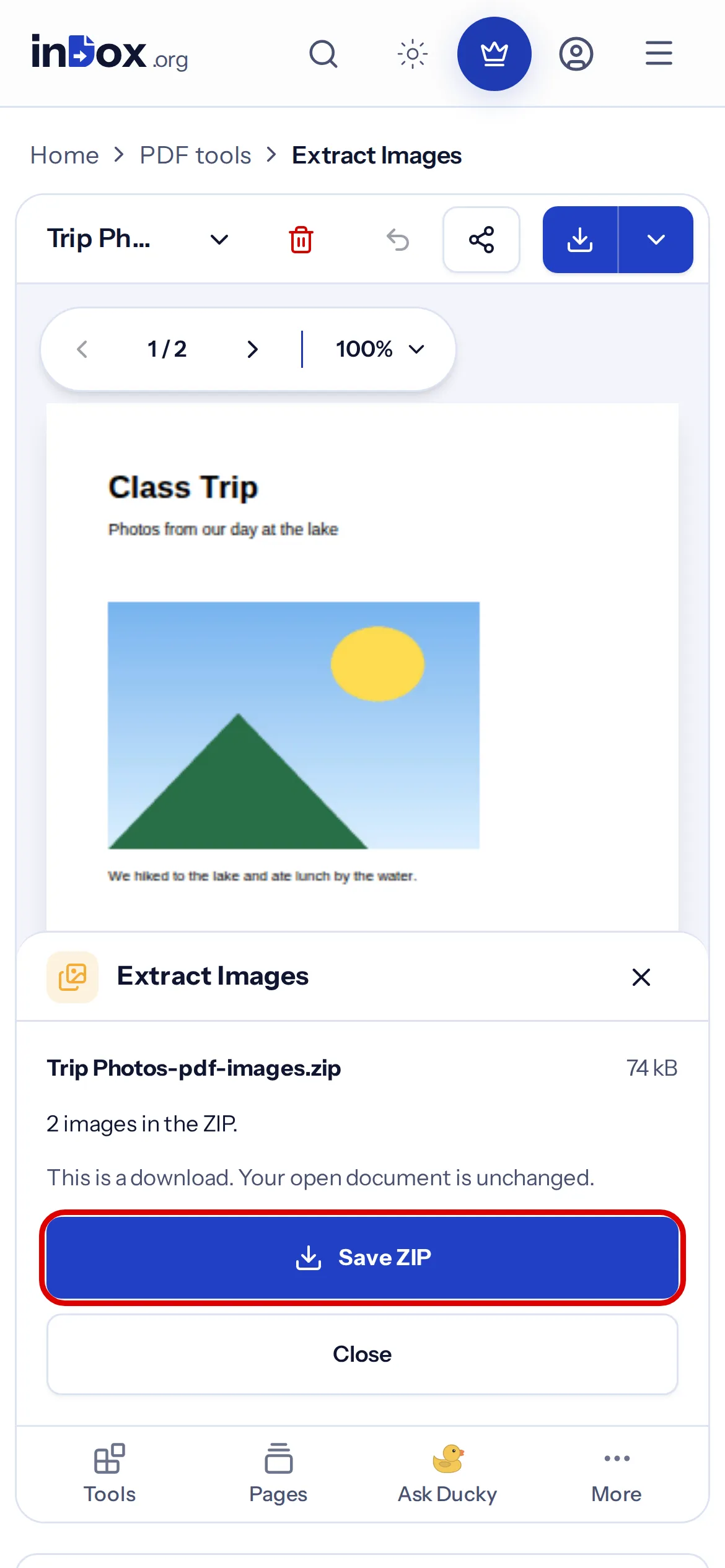
The panel shows the name of the ZIP, how big it is and how many pictures it holds, such as 2 images in the ZIP. A line says This is a download. Your open document is unchanged. Select the blue Save ZIP button. The ZIP is saved on your device. Its name ends in -pdf-images.zip. Open it to see the pictures.
Troubleshooting
| Problem | Cause | Fix |
|---|---|---|
| The panel says No images found. | The PDF may hold only text, or scanned pages | A scanned page is one picture of a whole page. Try Convert PDF to JPG to save each page as a picture |
| A page number is refused | The page numbers were not typed in the right way | Type pages like 1-3, 7. The panel says That page is past the last page. when a number is too big |
| You get fewer pictures than you expected | Each picture is saved once, even if it shows on many pages | Look inside the ZIP. A logo used on every page is saved one time |