Last updated
Delete conversions from your history
Goal: A conversion you no longer need is gone from your History.
Before you start
- You need an indox account. Sign in first.
- You need at least one conversion in History.
- The pictures show a made-up sample file.
Open History
On a computer, select History in the bar at the right edge of the screen. On a phone, select your round picture at the top right and then History.

Find the conversion
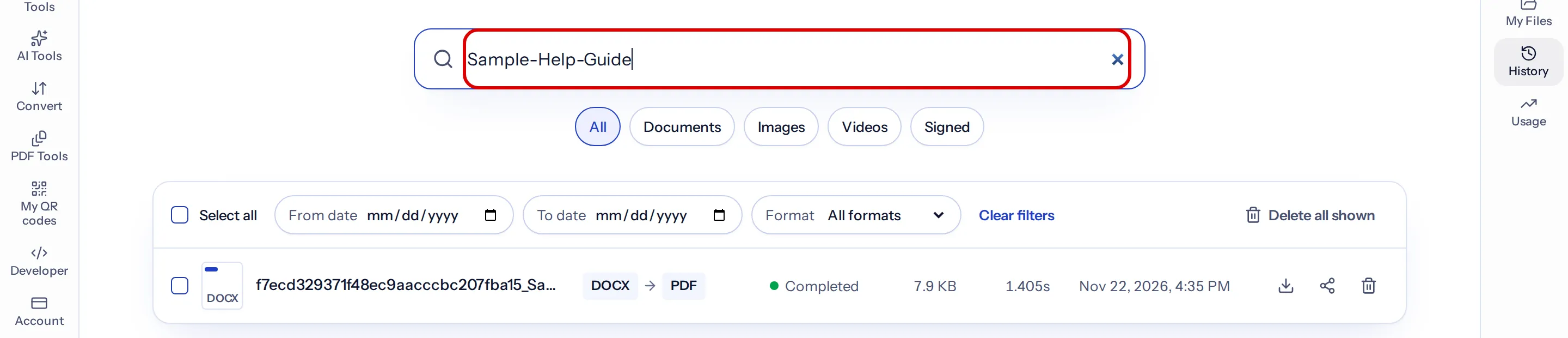
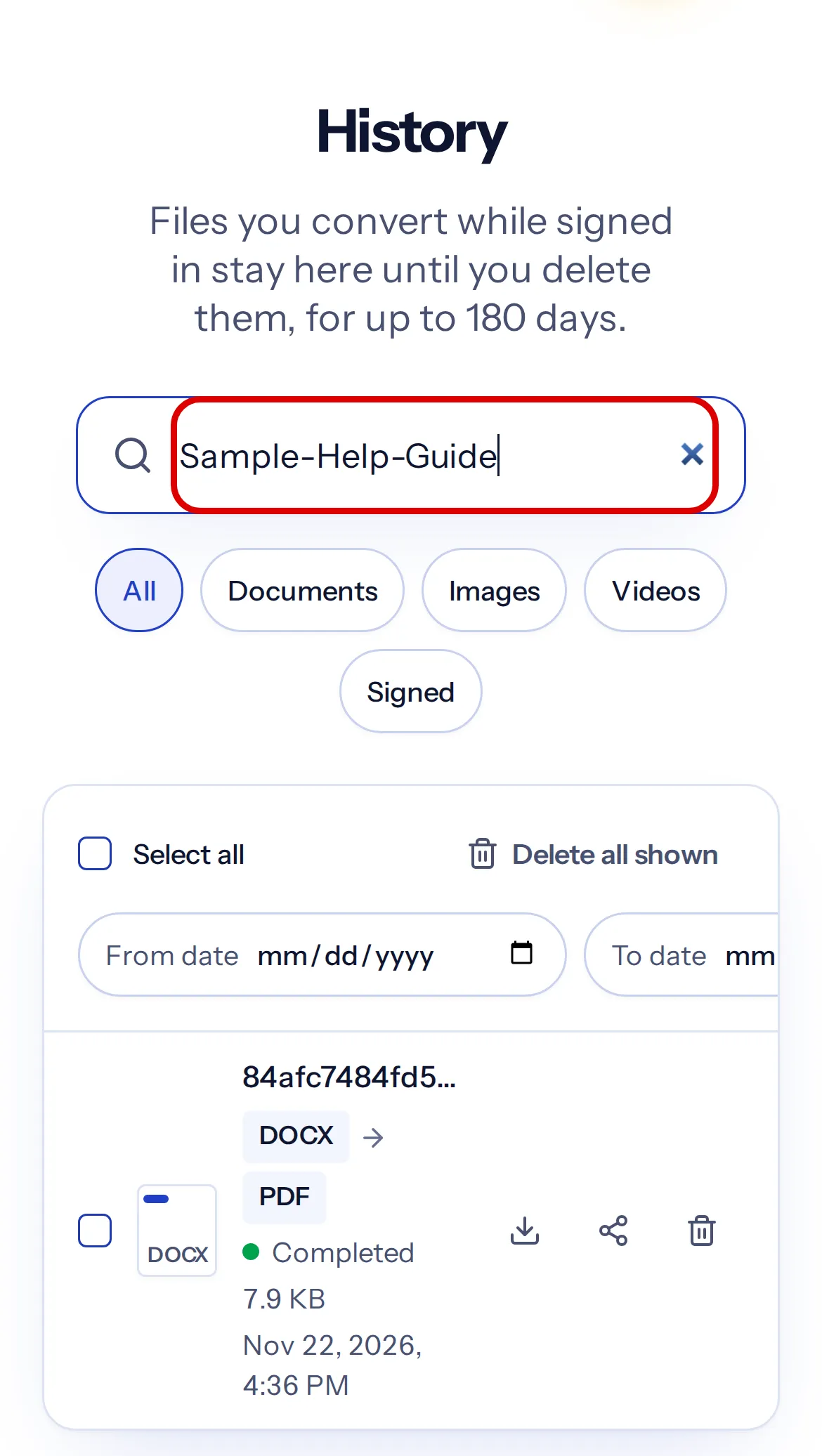
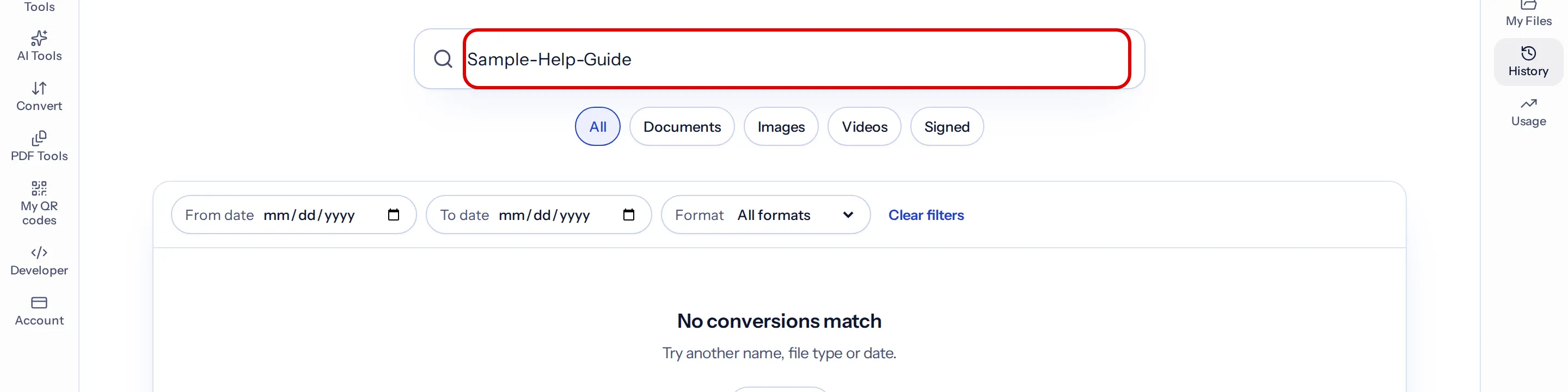
Select the Search by file name box and type part of the name. The list narrows to the conversions that match. You can also use the tabs All, Documents, Images, Videos and Signed.
Select the bin icon
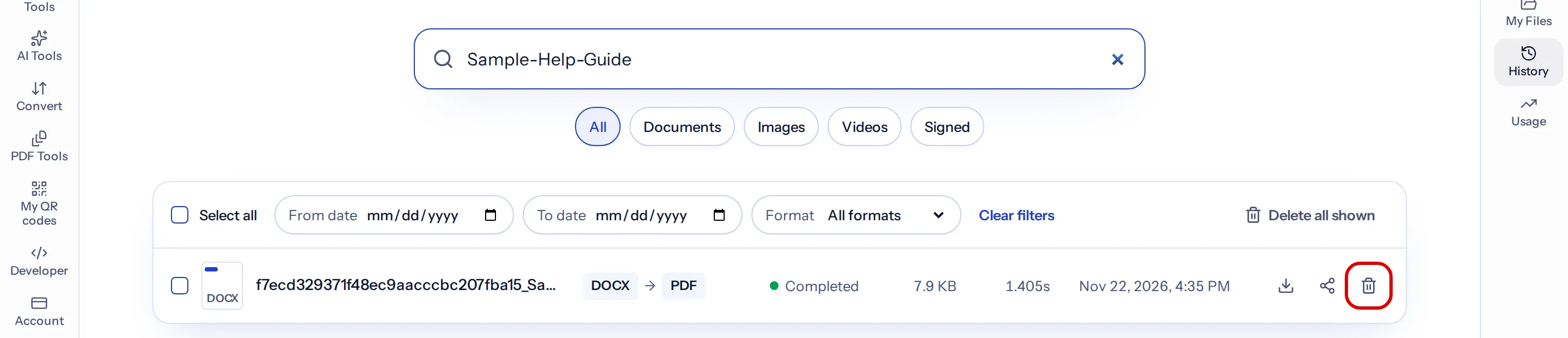
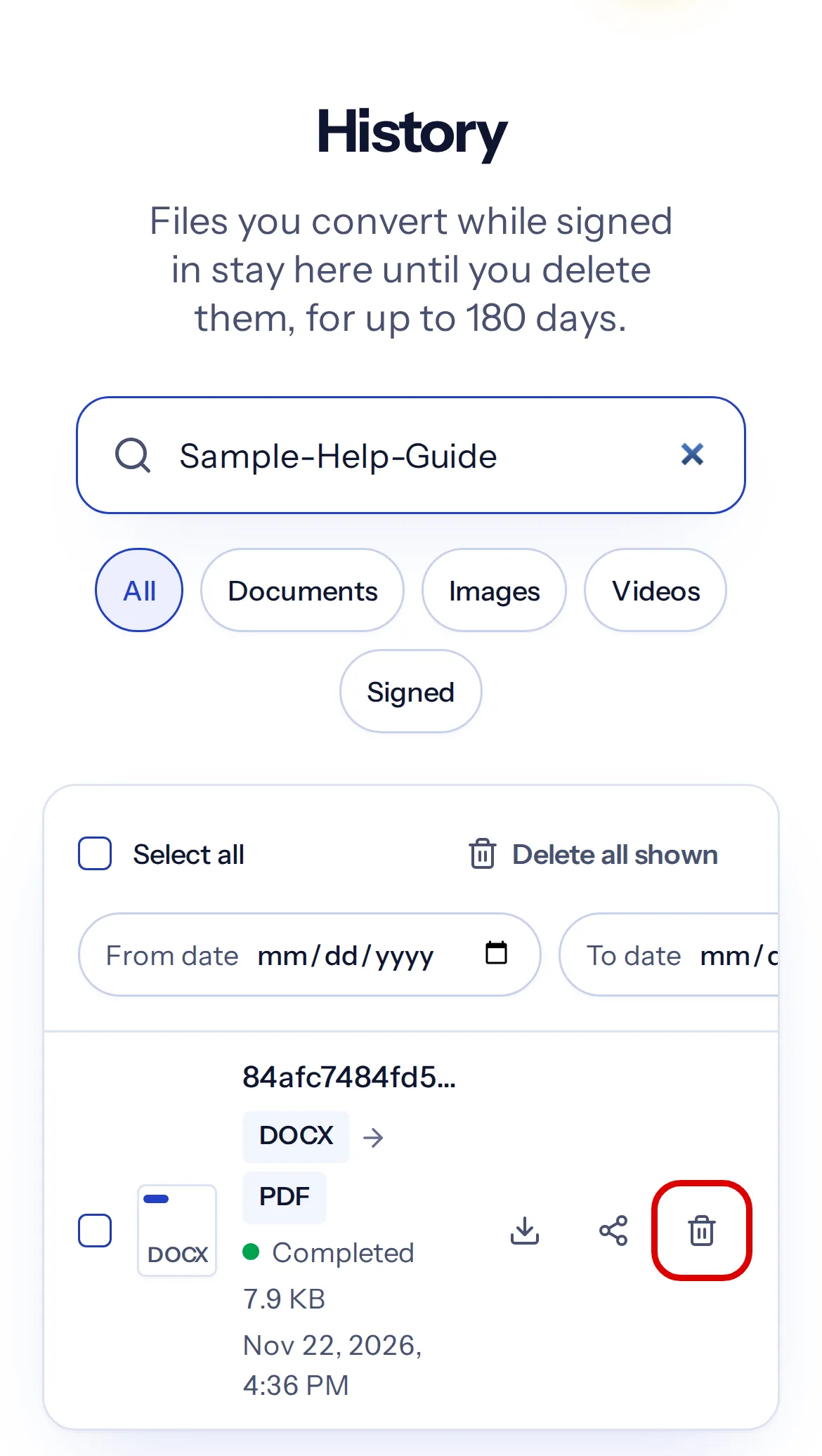
At the right end of the row are three icons: Download, Share and the bin, Delete conversion. Check the name, then select the bin. The bar above the list also has Delete all shown. Narrow the list with the search box before you use it.
Check it is gone
indox does not ask you to confirm. The row leaves the list at once. If you searched, the list says No conversions match.
Troubleshooting
| Problem | Cause | Fix |
|---|---|---|
| I deleted the wrong conversion | indox does not ask you to confirm | Convert the original file again |
| The list says No conversions match | The search, a tab or the dates leave nothing | Try another name, file type or date, or select Clear filters |