Last updated
Convert an audio file
Before you start
- Have the audio file on your device, such as an MP3. An MP3 is a small sound file that most players can open.
- You don't need an account.
Open an audio converter
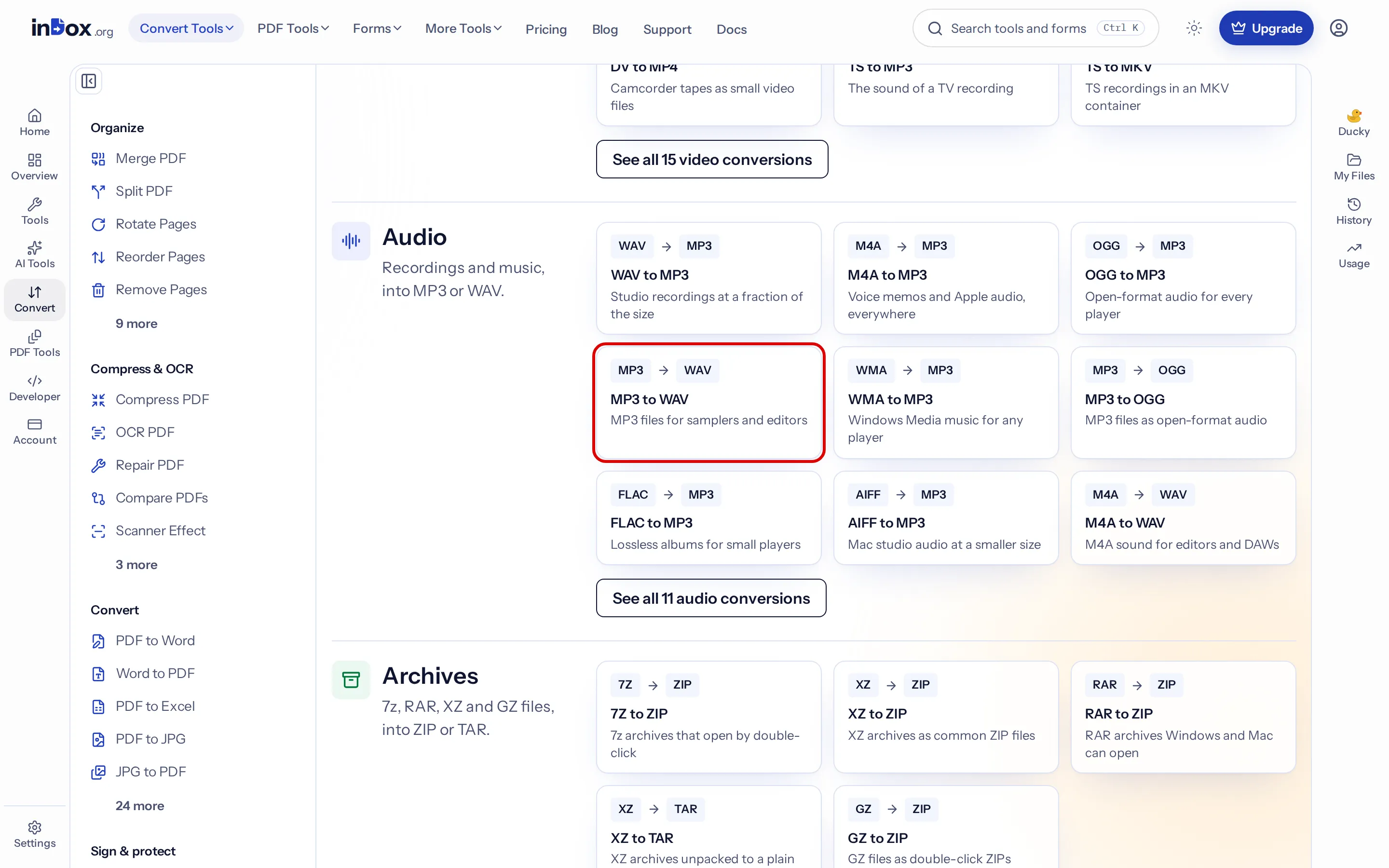
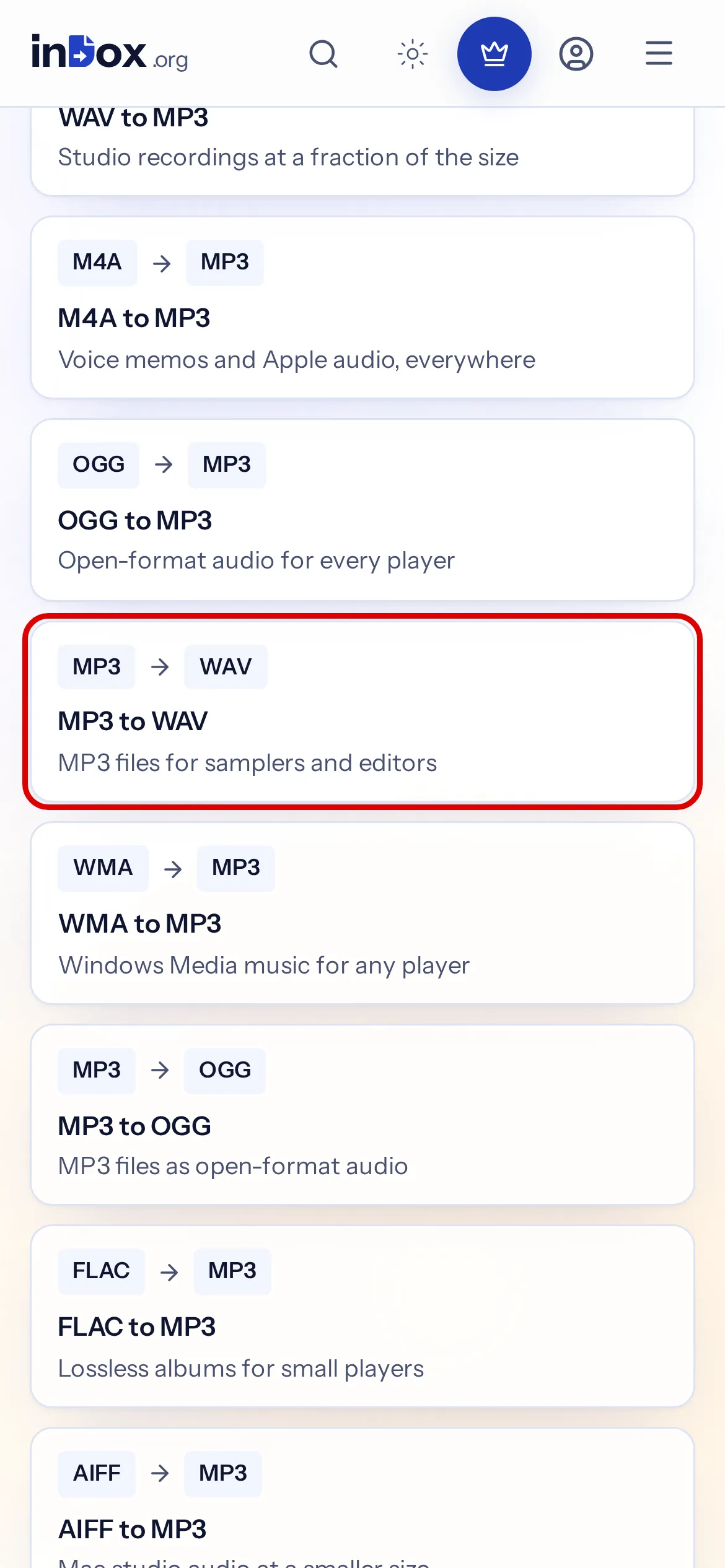
Go to the Conversions page . It is a long page of cards, grouped by kind of file. Scroll down to the Audio group and select the card that matches your file, such as MP3 to WAV. WAV is a sound format that music editors accept.
Choose your audio file
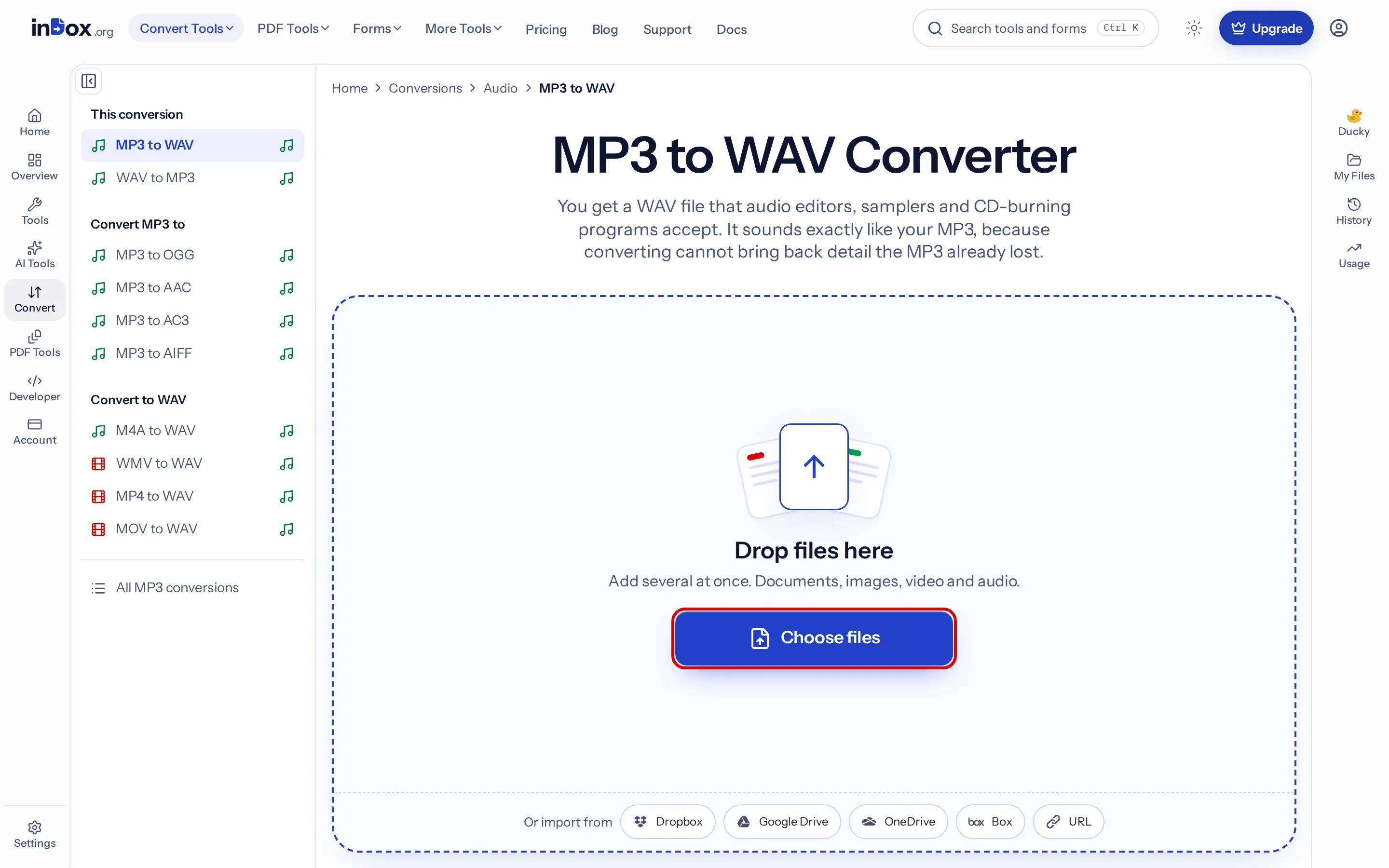
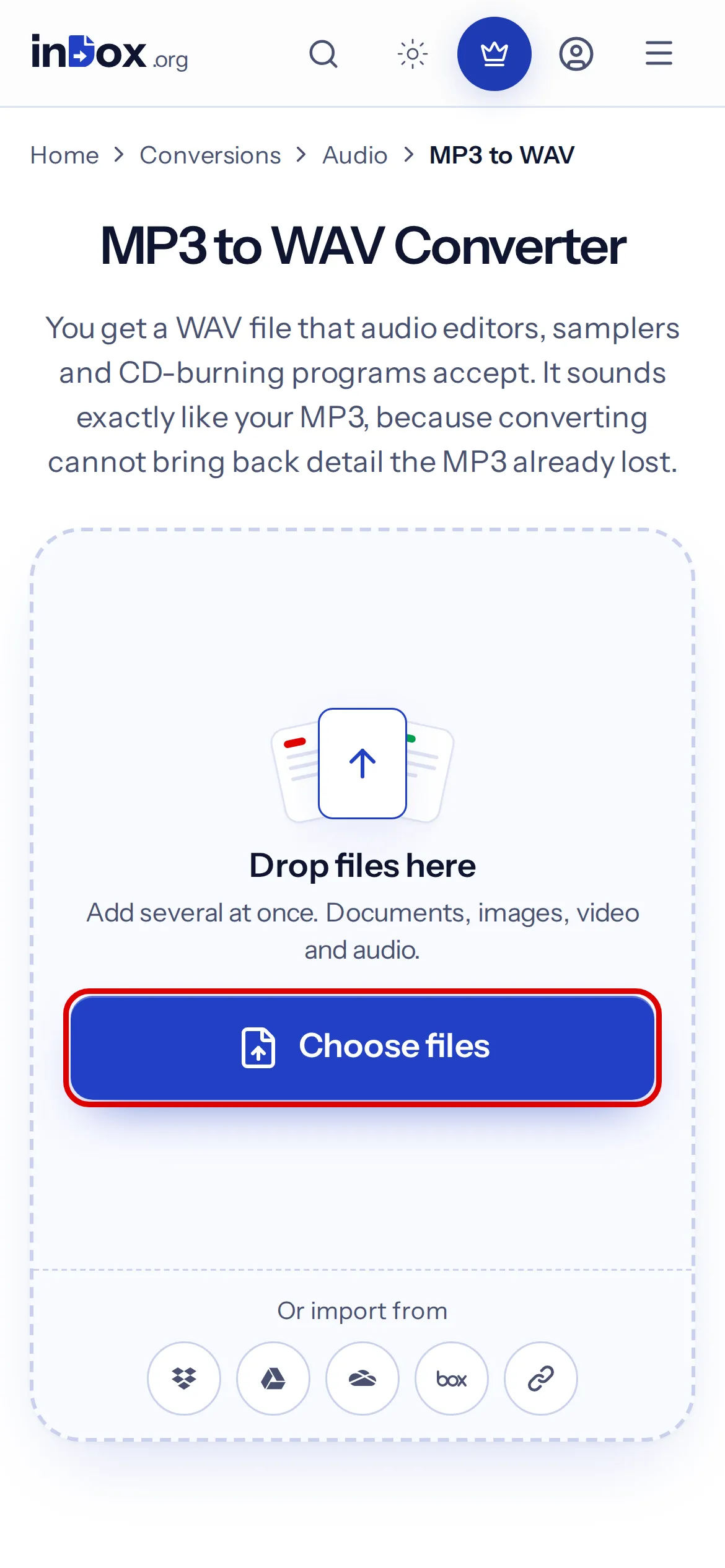
A new page opens with a big dashed box that says Drop files here. Select the blue Choose files button in the middle of the box. A window opens so you can pick your audio file from your device.
Check the output format
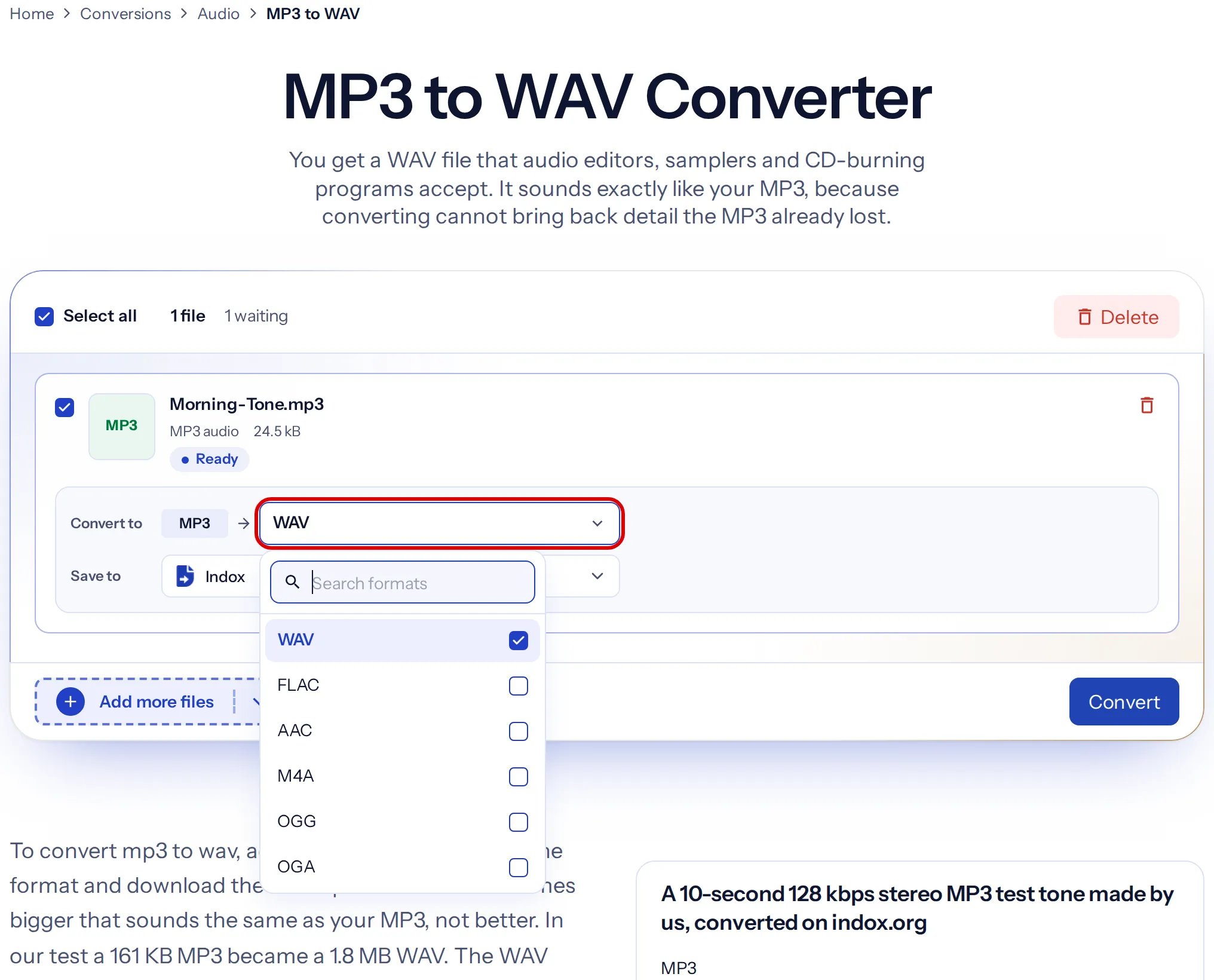
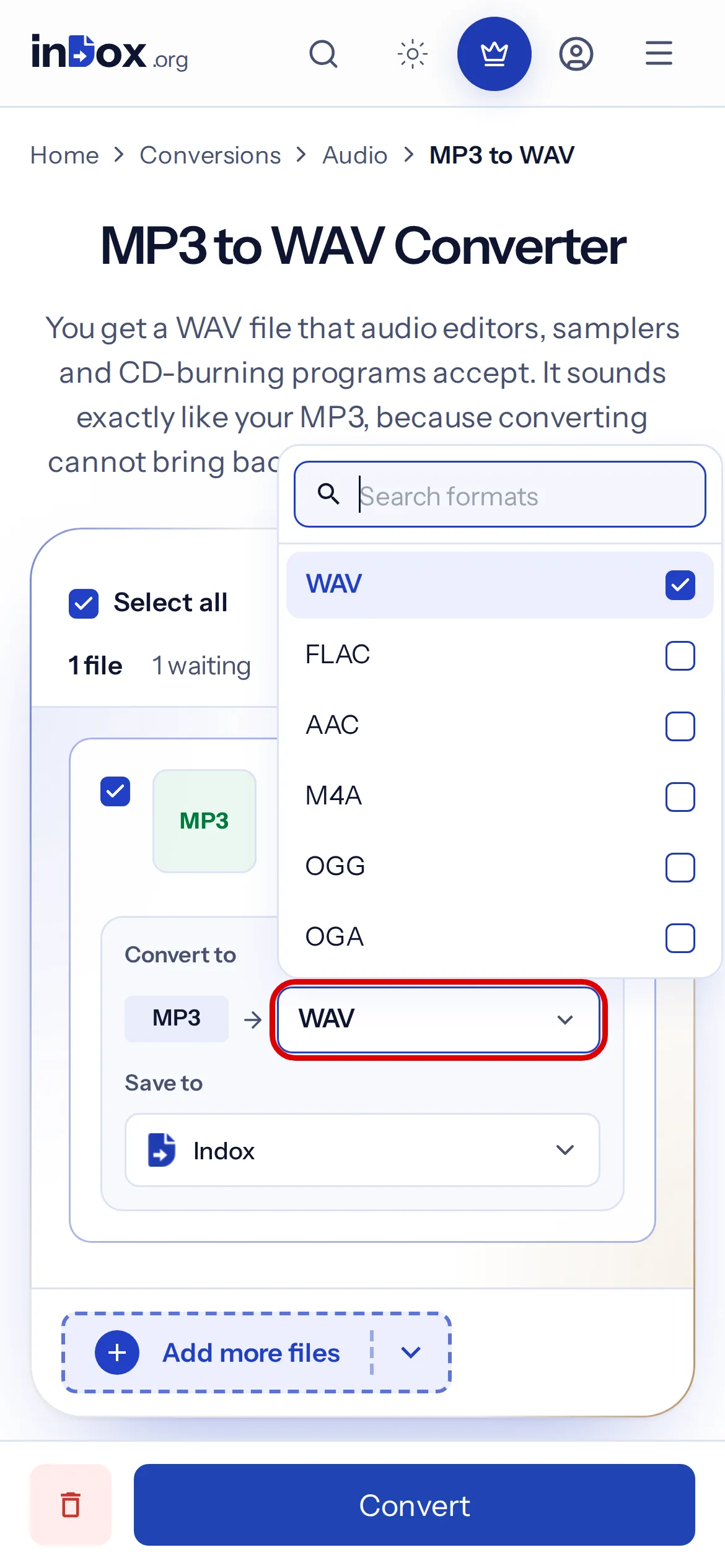
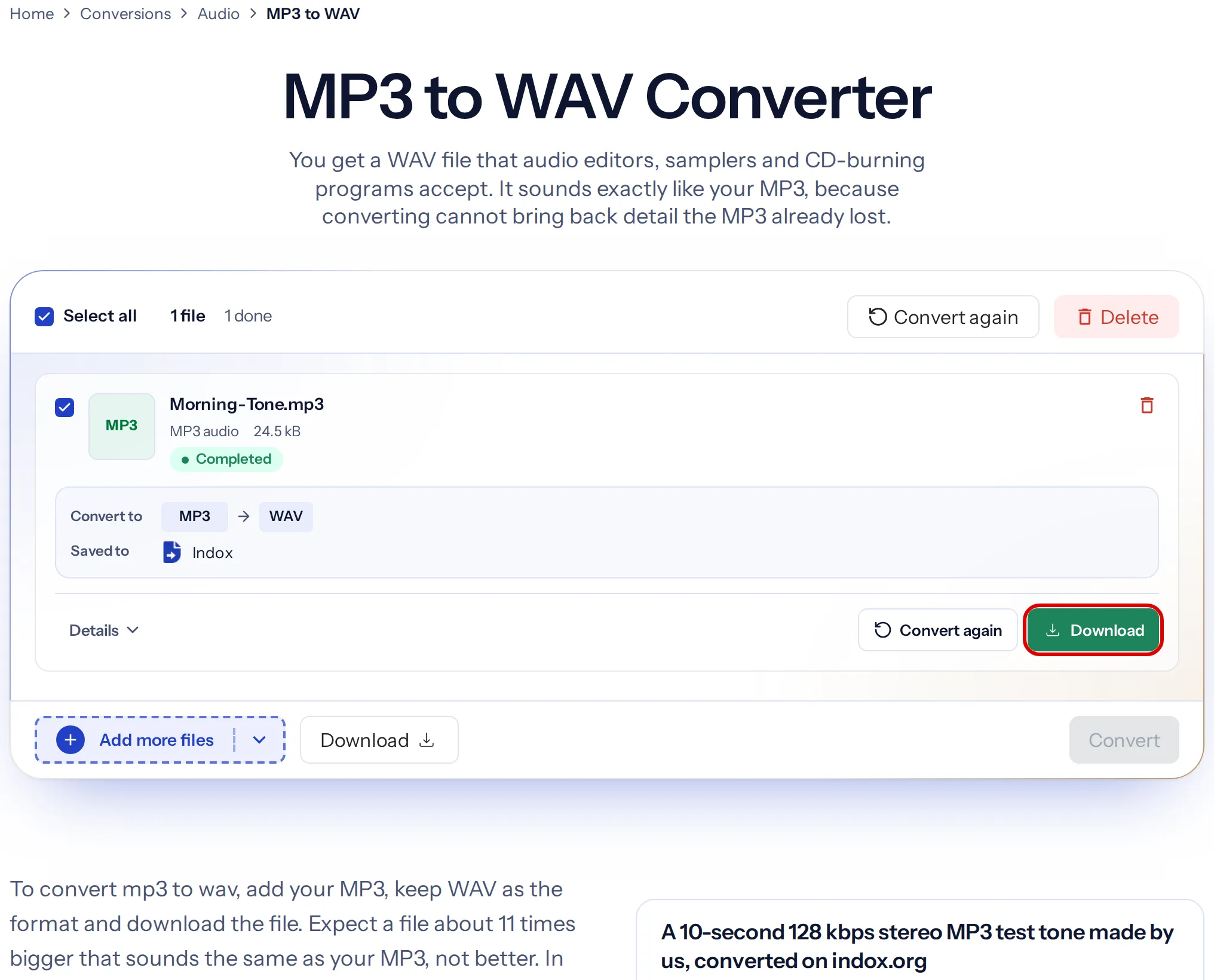
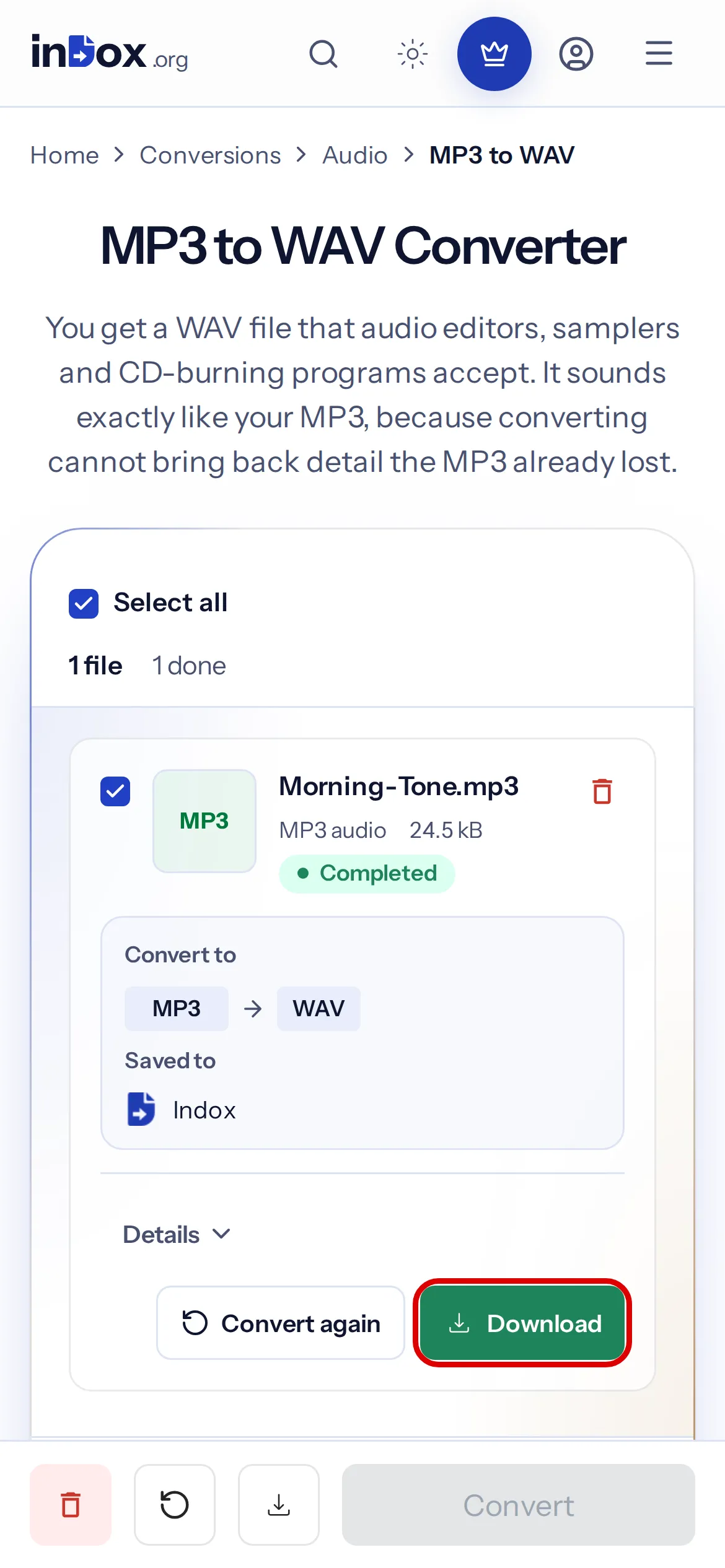
Your file appears in a card. In the row Convert to, the first tag is your file's format and the box after the arrow is the format you will get, such as WAV. To change it, select that box. A list opens with a Search formats field. For an MP3 the list also has FLAC, AAC, OGG, WMA and more. A WAV file is much bigger than the MP3 it came from.
Convert the audio file
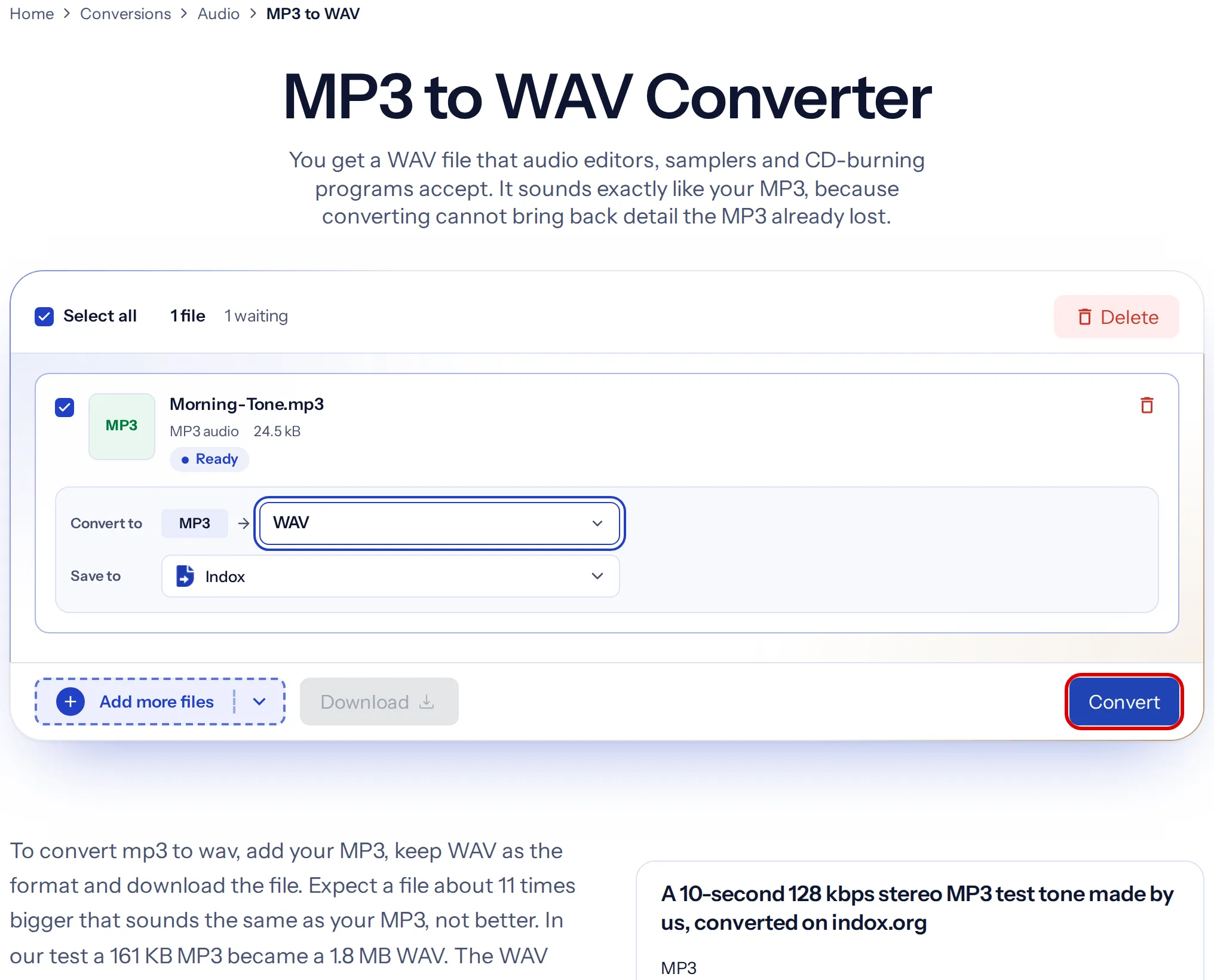
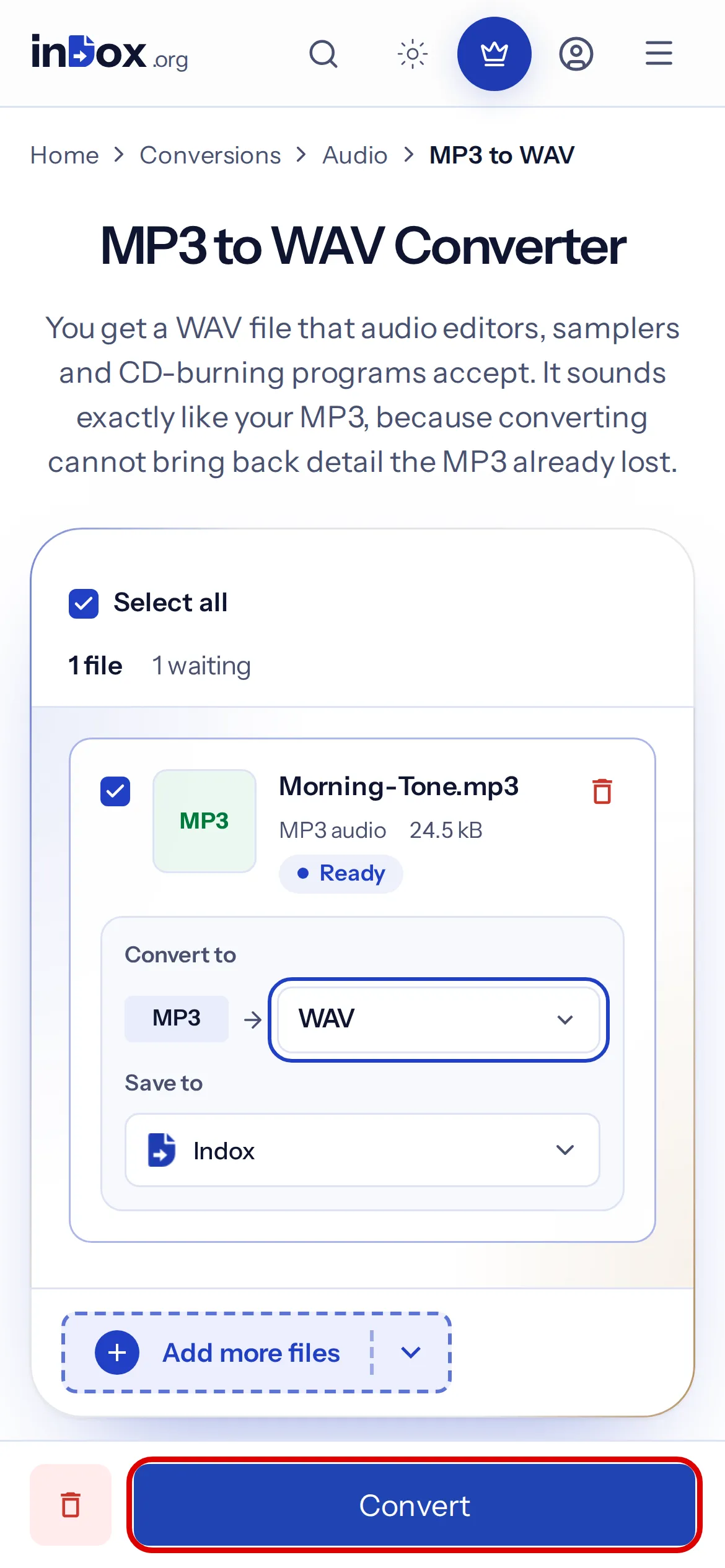
Select the blue Convert button. On a computer or tablet it is at the bottom right of the panel. On a phone it is at the bottom of the screen. The status under the file name changes from Ready to Completed when your audio file is done.
Download the result
When the status says Completed, select the green Download button in your audio file's card. Your device saves the new file.
Troubleshooting
| Problem | Cause | Fix |
|---|---|---|
| The status shows Error | The conversion failed | Select Convert again to try once more |
| Download is greyed out | The file isn't ready yet | Wait until the status shows Completed |
| You see File is too large | The file is bigger than your upload limit | Use a smaller file. The home page upload box shows the largest size you can use |
| The format you need isn't in the list | indox can't convert this audio file to that format | Pick the closest format in the list |