Last updated
Highlight, comment and draw on a PDF
Before you start
- Have the PDF on your phone or computer. The upload box says files can be up to 200 MB.
- To annotate means to add marks and notes on top of a page, like a pen and sticky notes on paper. The words on the page stay as they are.
- You don't need an account.
Open your PDF
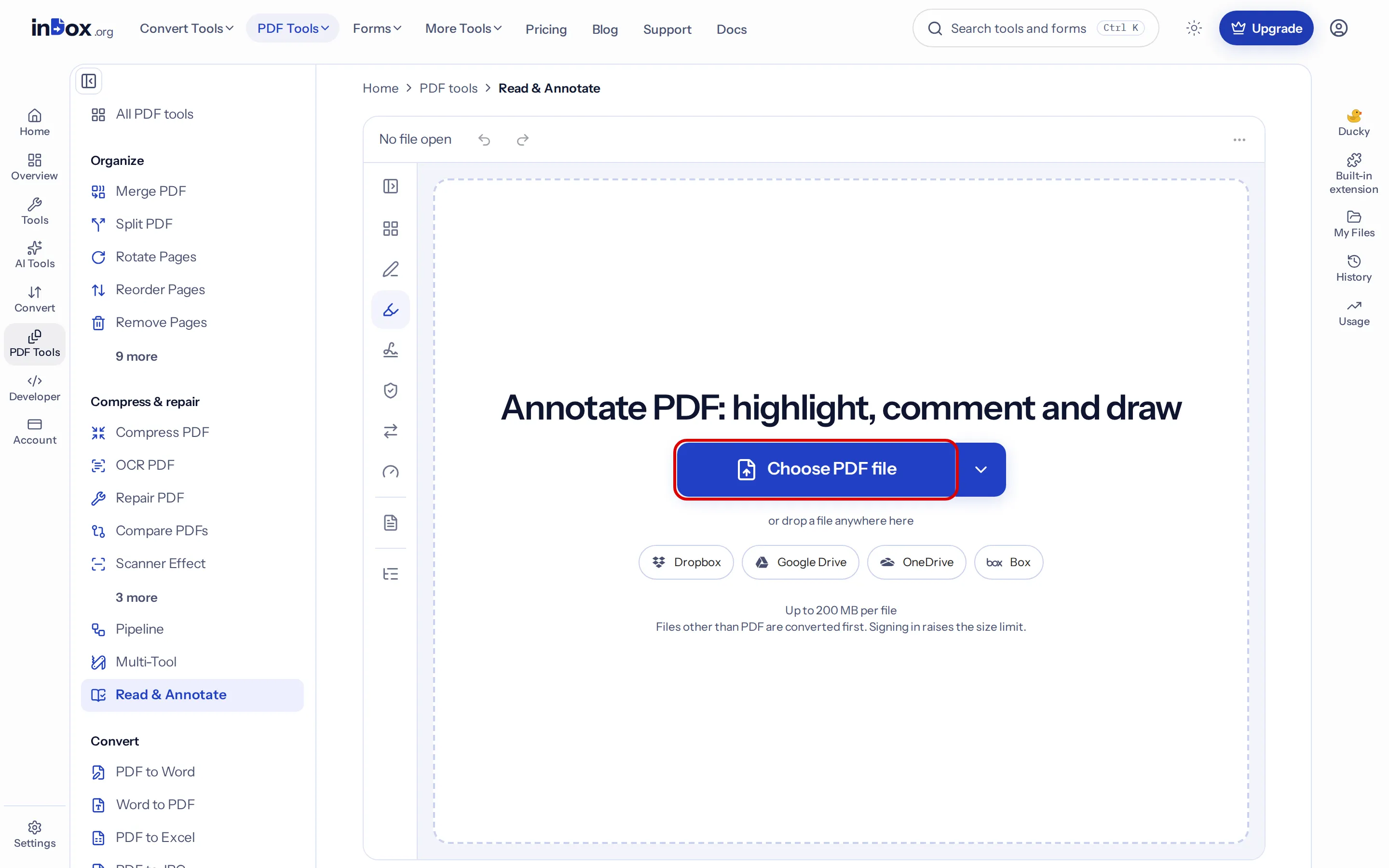
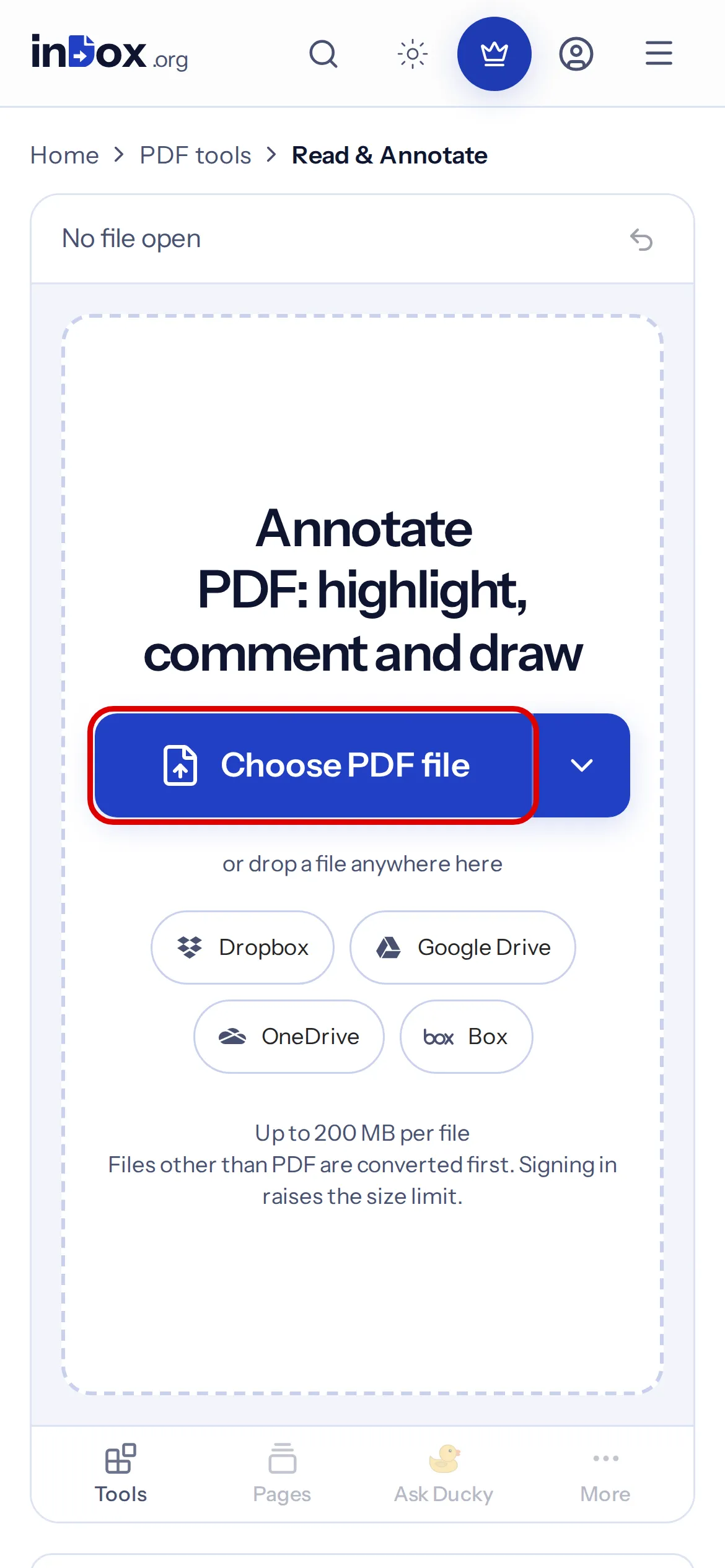
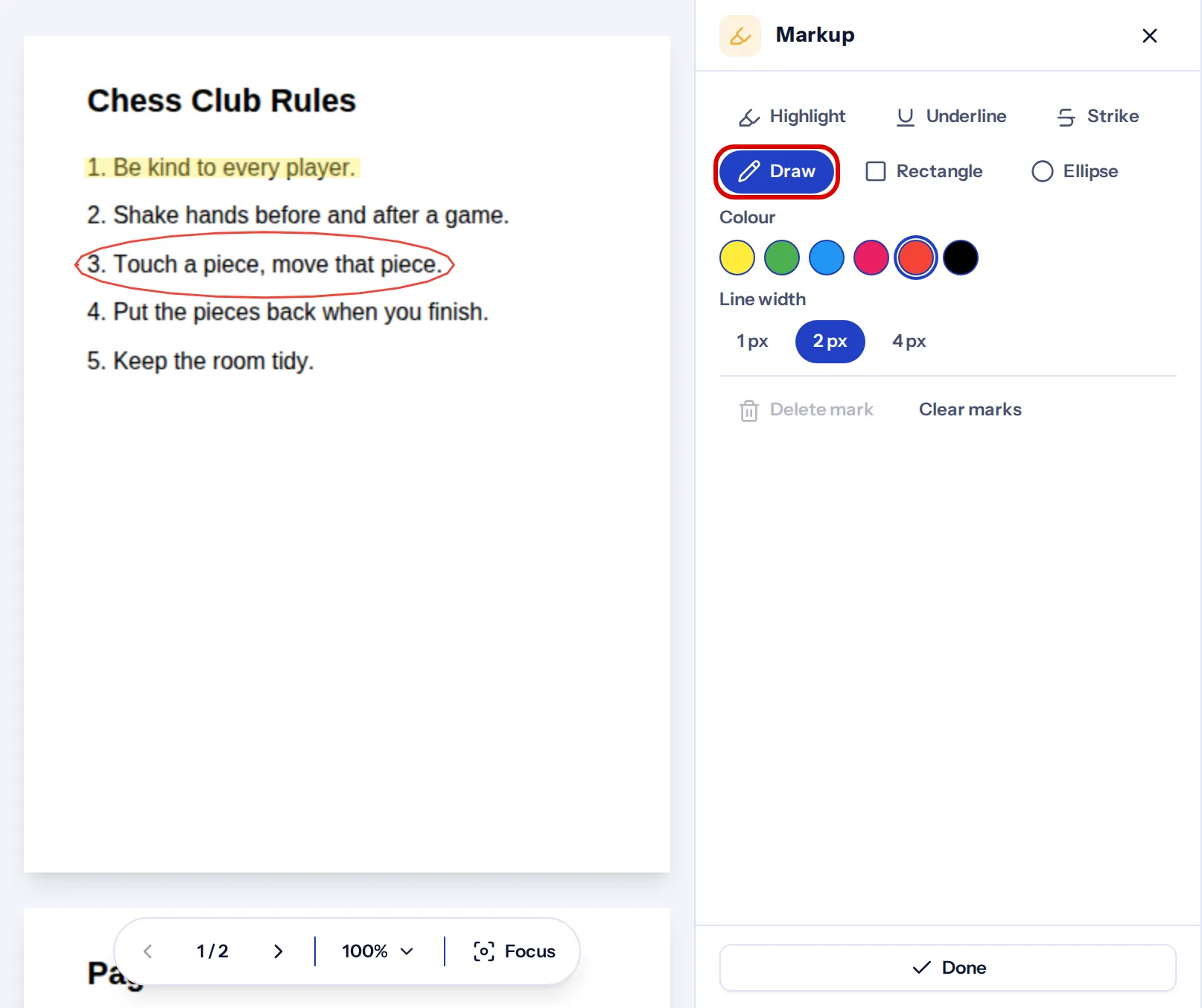
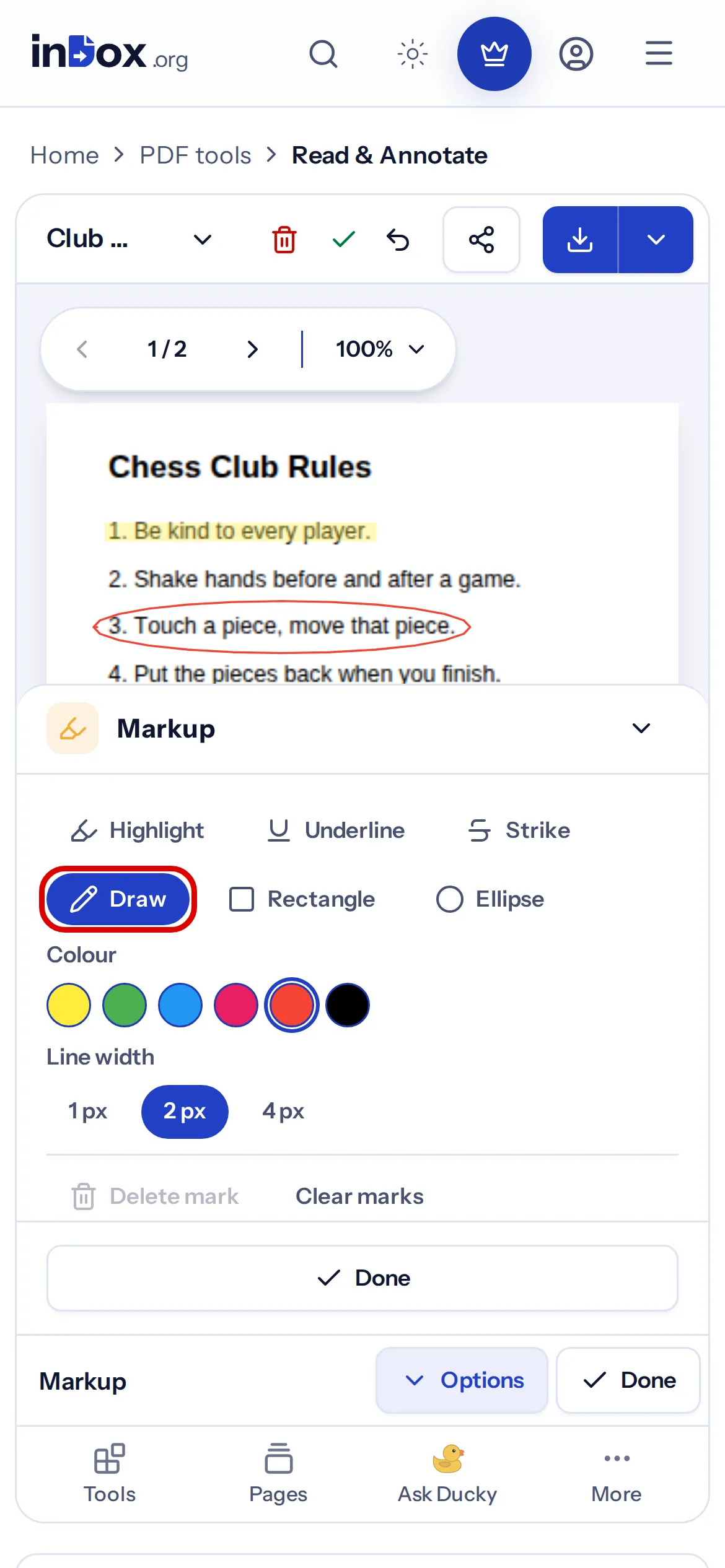
Go to the Read & Annotate page. In the middle of the page, select the blue Choose PDF file button. A box opens so you can pick a file from your device. You can also drag a file onto the page. The file opens in the editor with a panel called Markup. On a computer the panel is on the right. On a phone it slides up from the bottom. Highlight and the yellow colour are already chosen.
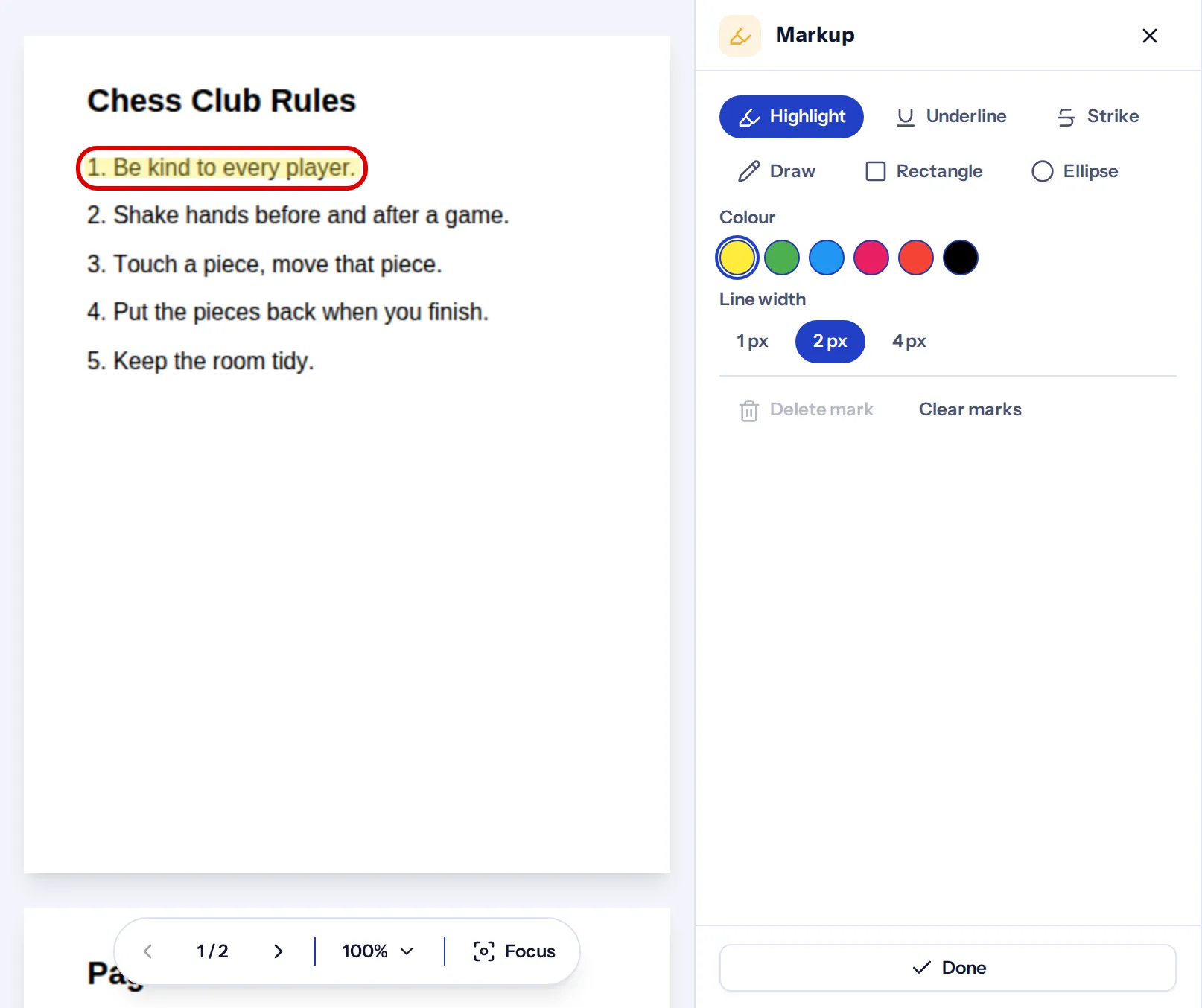
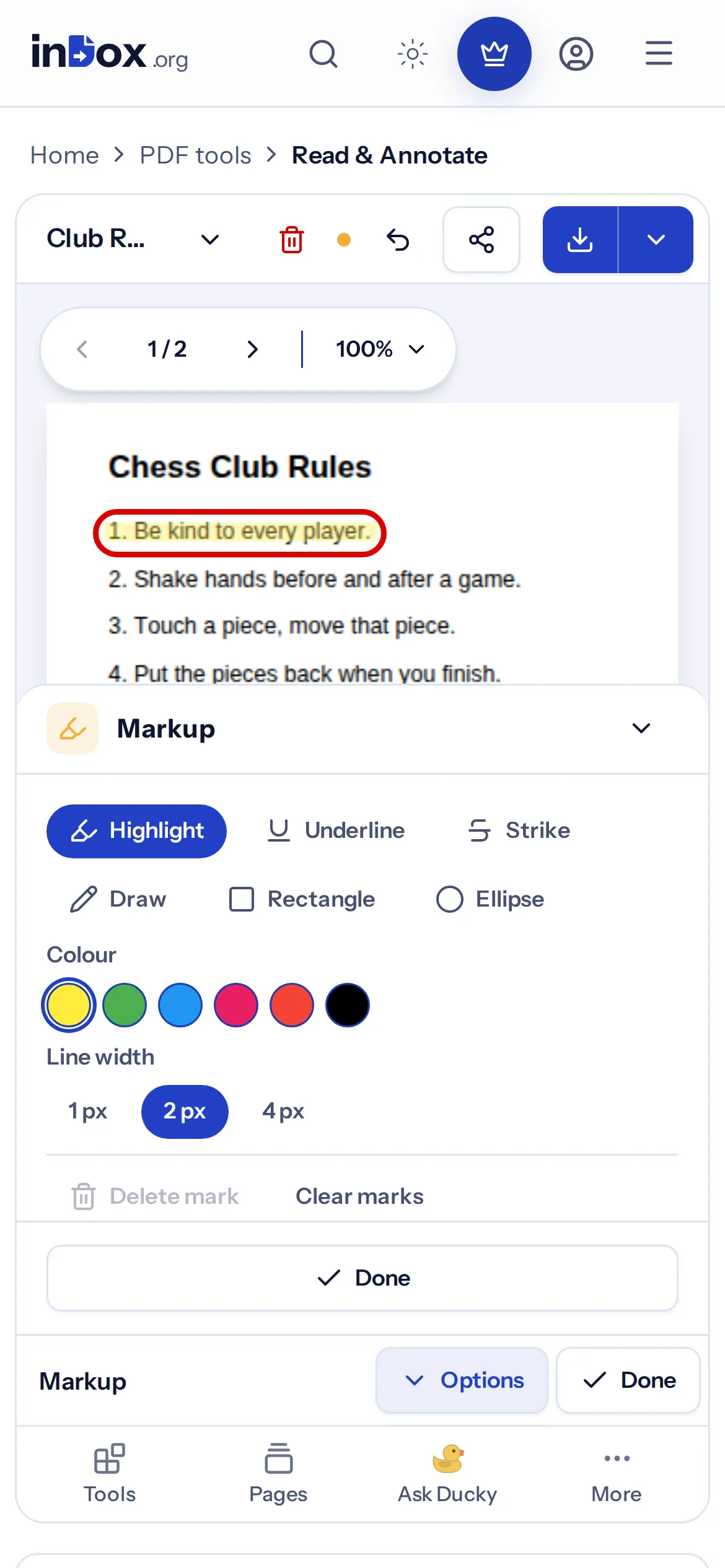
Highlight some words
To highlight means to colour over words, like a marker pen. Drag your mouse across the words you want. On a phone, drag your finger. Under Colour you can pick another colour first. Underline and Strike work the same way. Strike puts a line through the words.
Draw on the page
Select Draw, then pick Red under Colour. Drag around the words you want to point at. You can also pick Rectangle or Ellipse to draw a shape. Line width sets how thick the line is: 1 px, 2 px or 4 px.
Open Comments
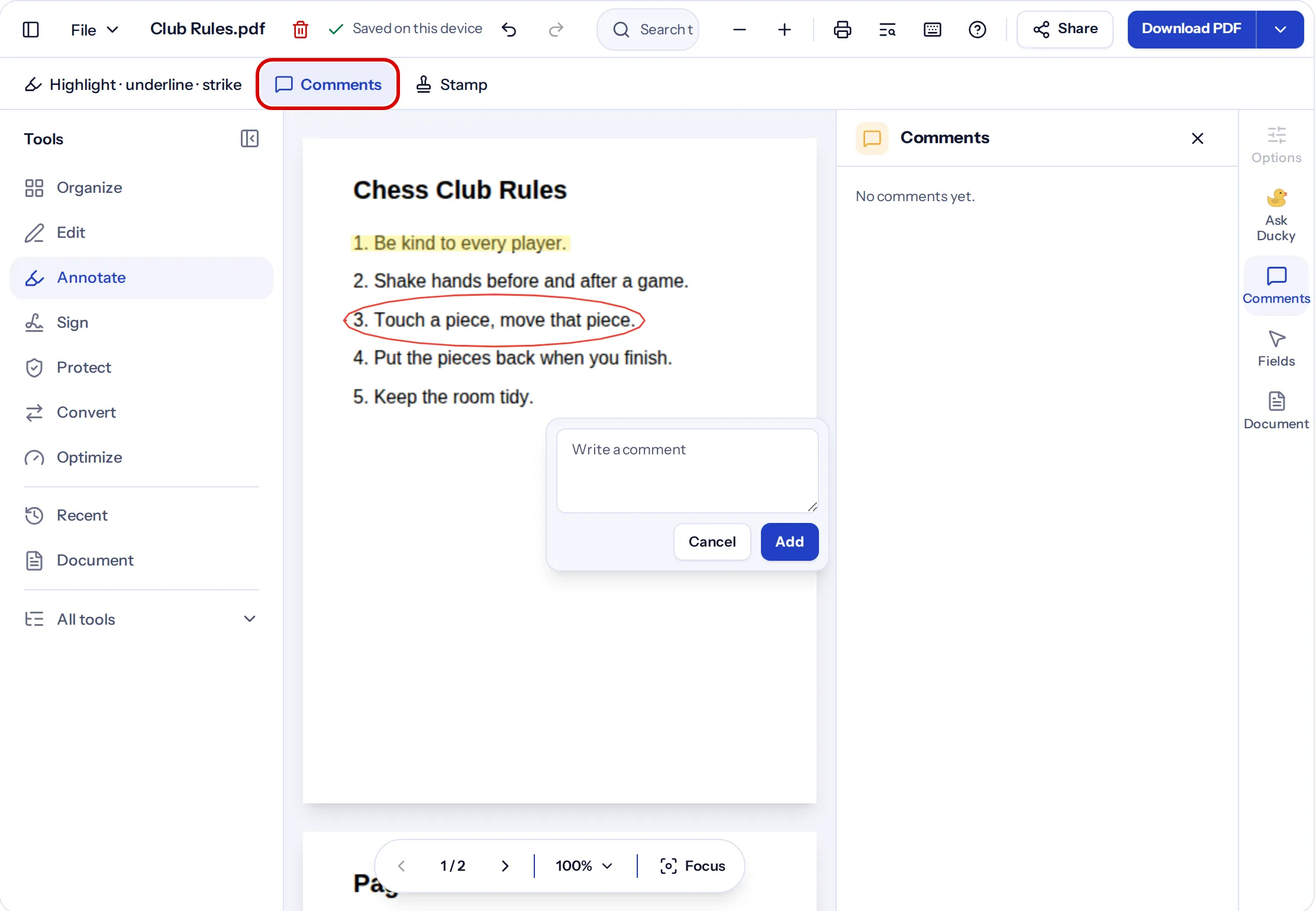
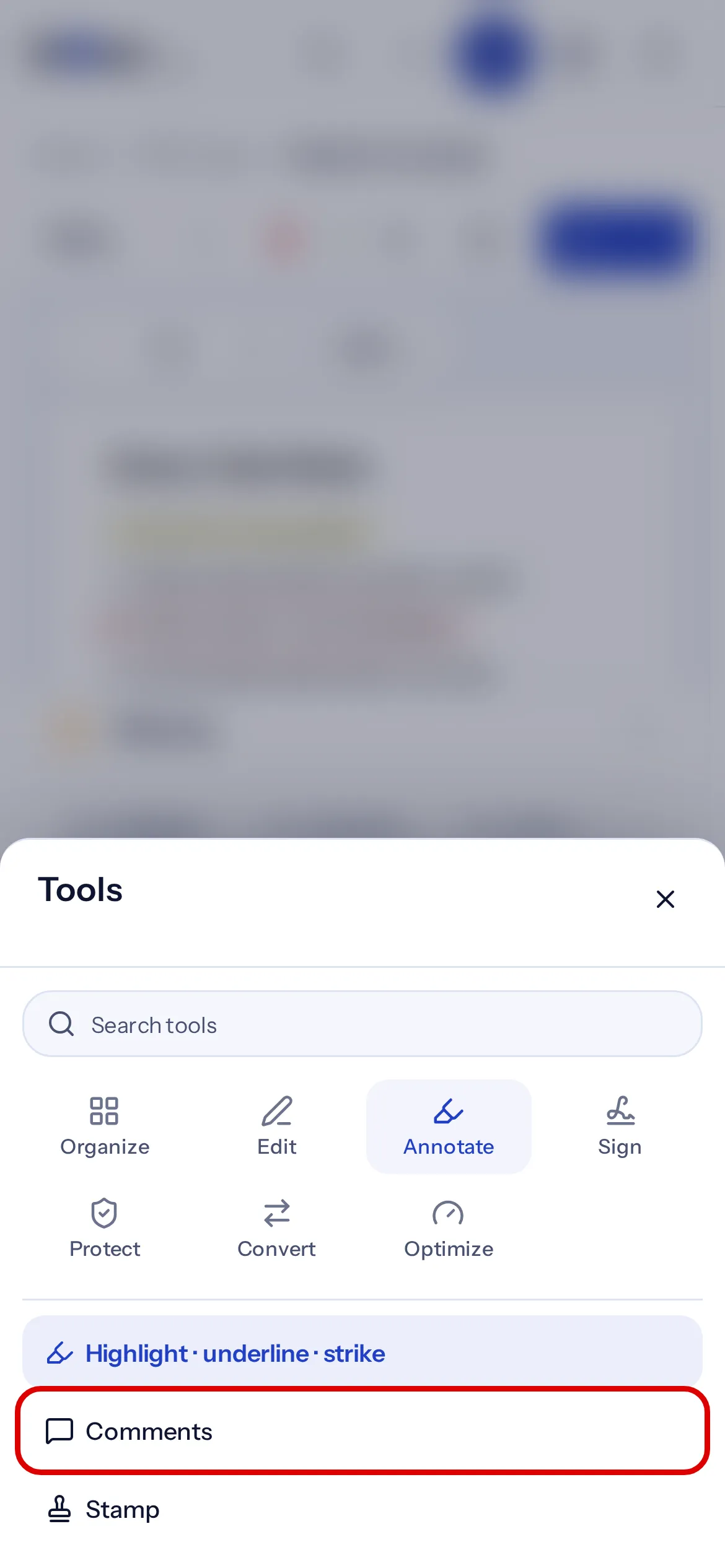
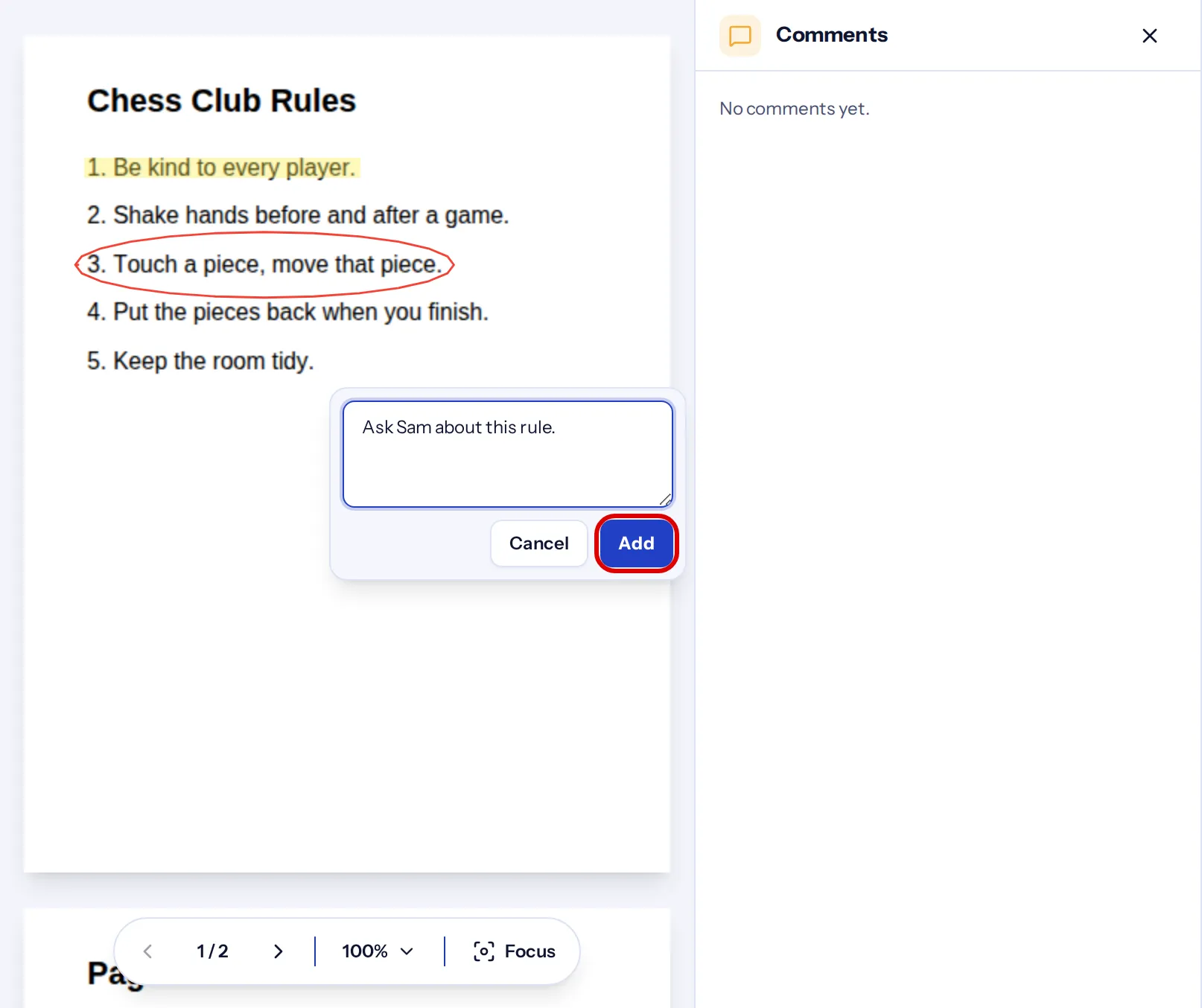
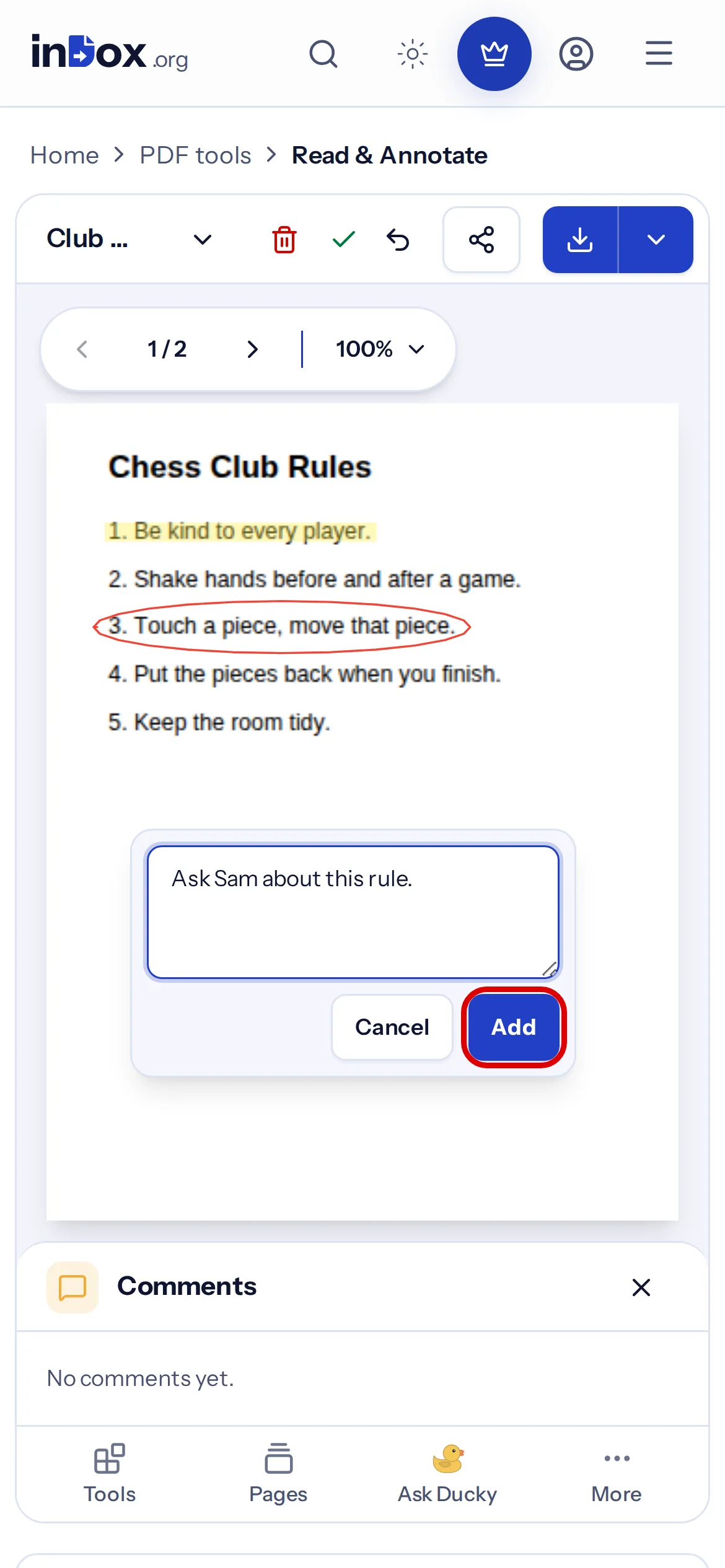
A comment is a note pinned to one spot on the page. On a computer, select Comments near the top of the editor, then click the page where you want the note. On a phone, select Tools at the bottom of the screen, then Comments, then tap an empty spot on the page. A small box opens with the words Write a comment.
Write your comment
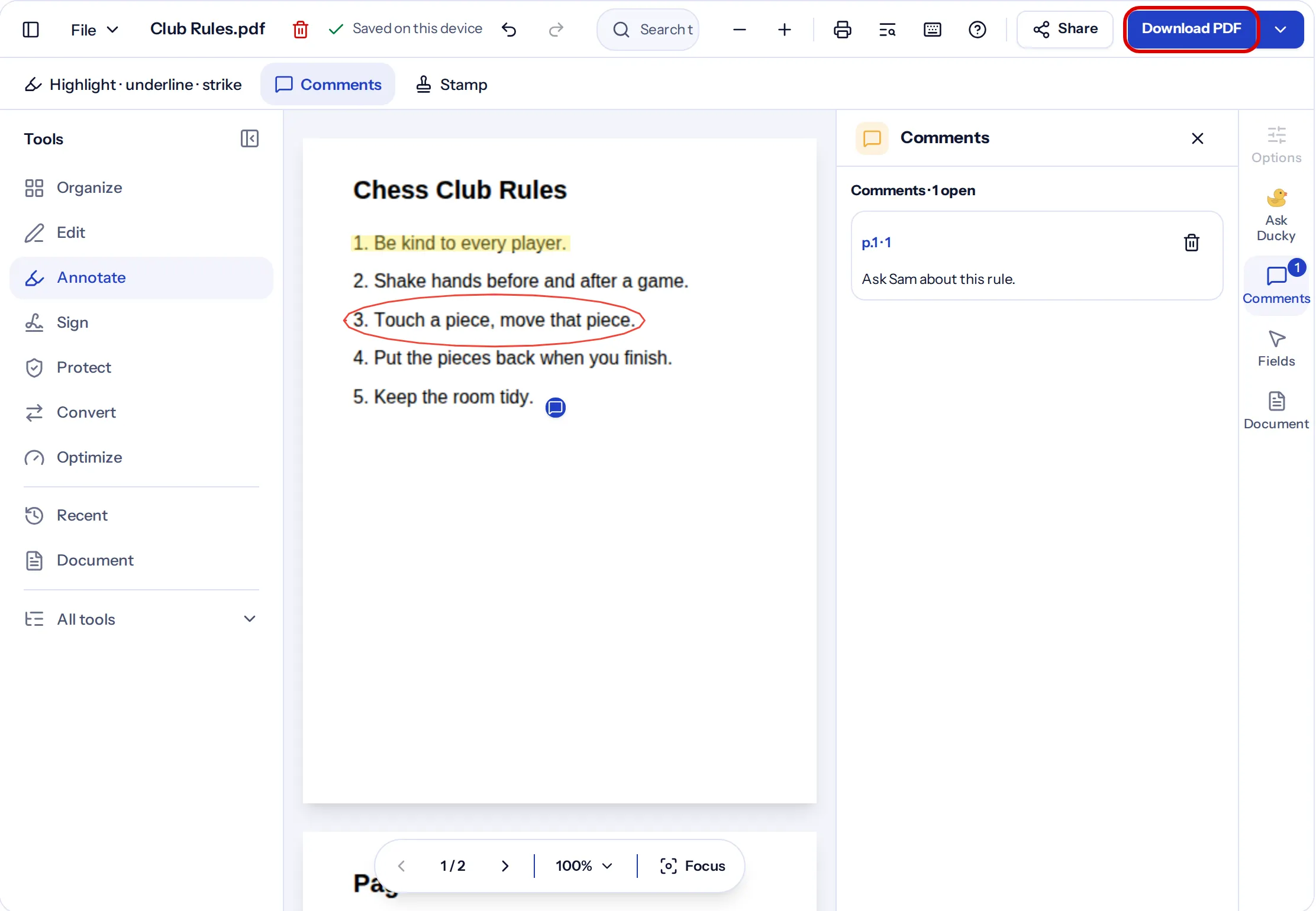
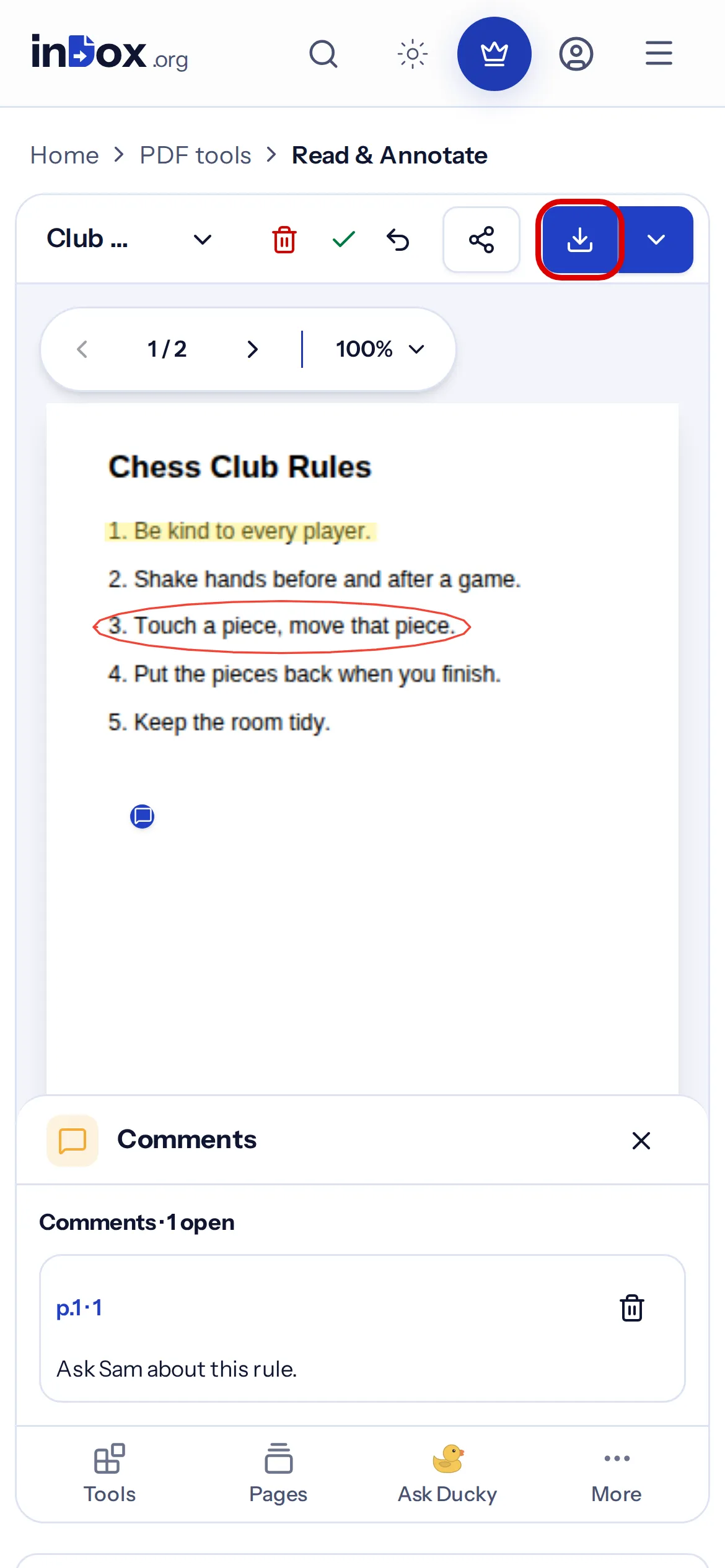
Type your note in the box. Select the blue Add button. A small blue speech bubble marks the spot on the page. The note also appears in the Comments panel.
Download your PDF
Select the blue Download PDF button at the top right. On a phone it is the blue arrow button at the top. The new file is saved on your device. Its name ends in -edited.
Troubleshooting
| Problem | Cause | Fix |
|---|---|---|
| A mark is on the wrong words | The mark went where you dragged | Select Undo at the top of the editor |
| You want to start over | Marks stay on the page until you remove them | In the Markup panel, select Clear marks |
| The file is too big to open | The upload box says files can be up to 200 MB | Make the PDF smaller with Compress PDF first |