Last updated
Add page numbers to a PDF
Before you start
- A page number is a small number printed on each page, usually at the bottom, that tells you which page you are on.
- Have the PDF on your phone or computer. The upload box tells you how big a file can be.
- You don't need an account.
Open your PDF
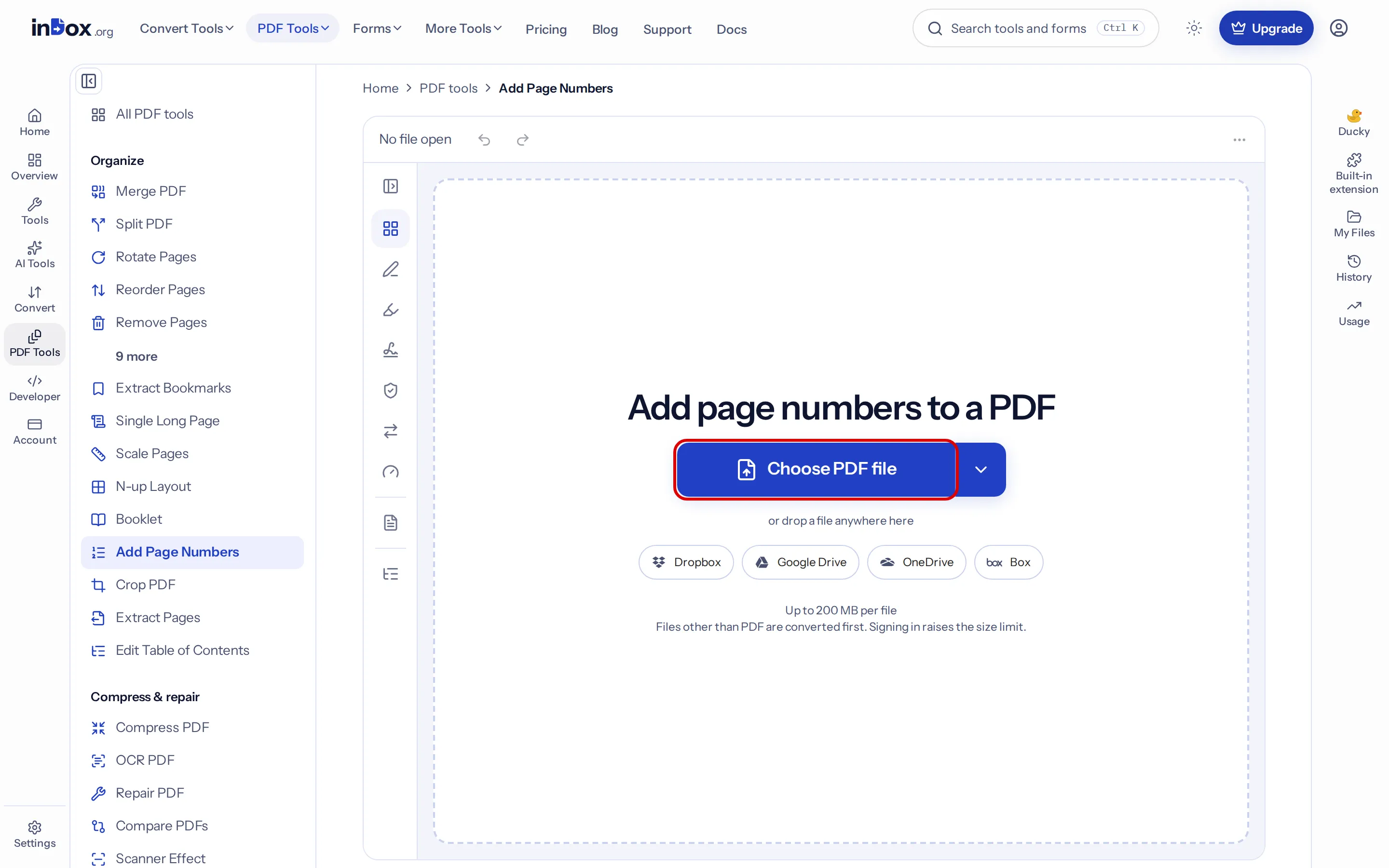
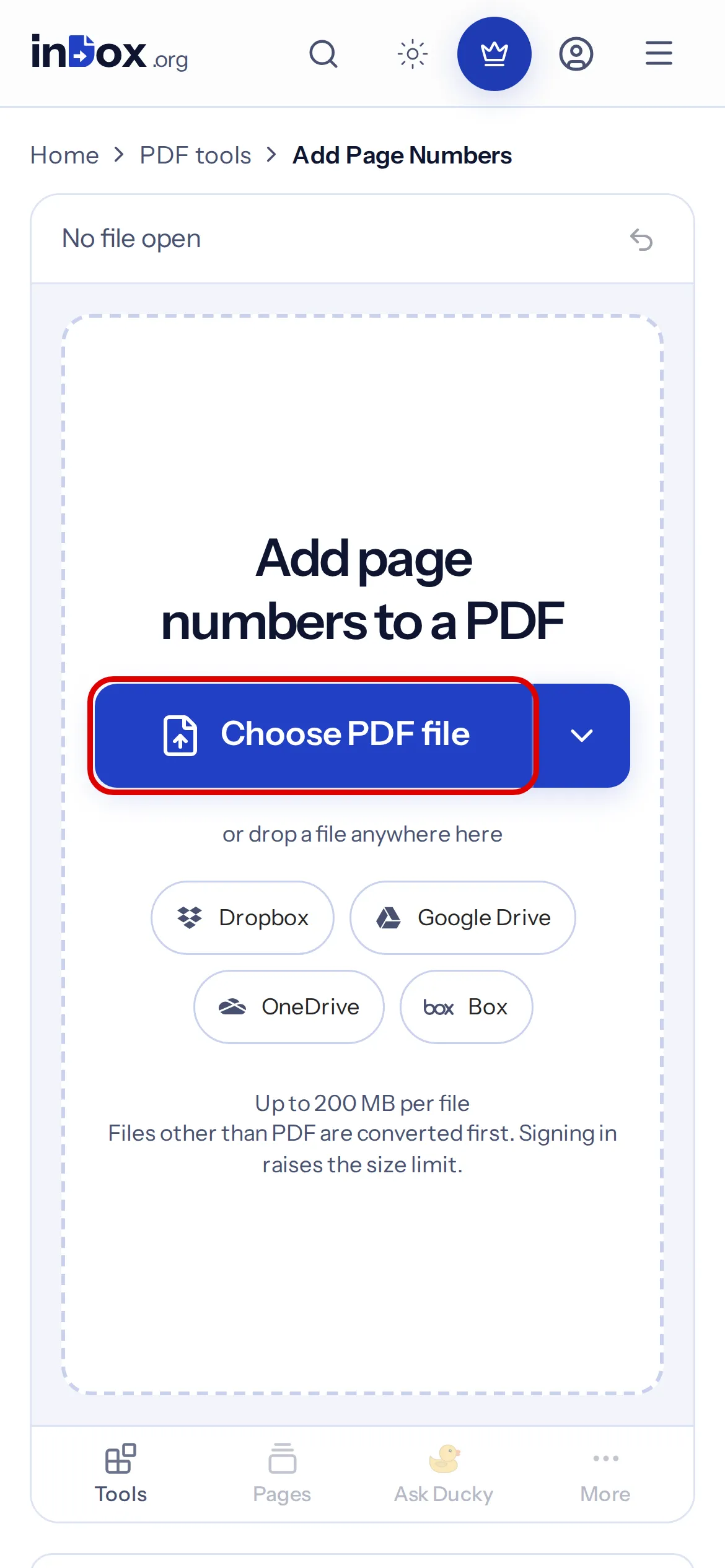
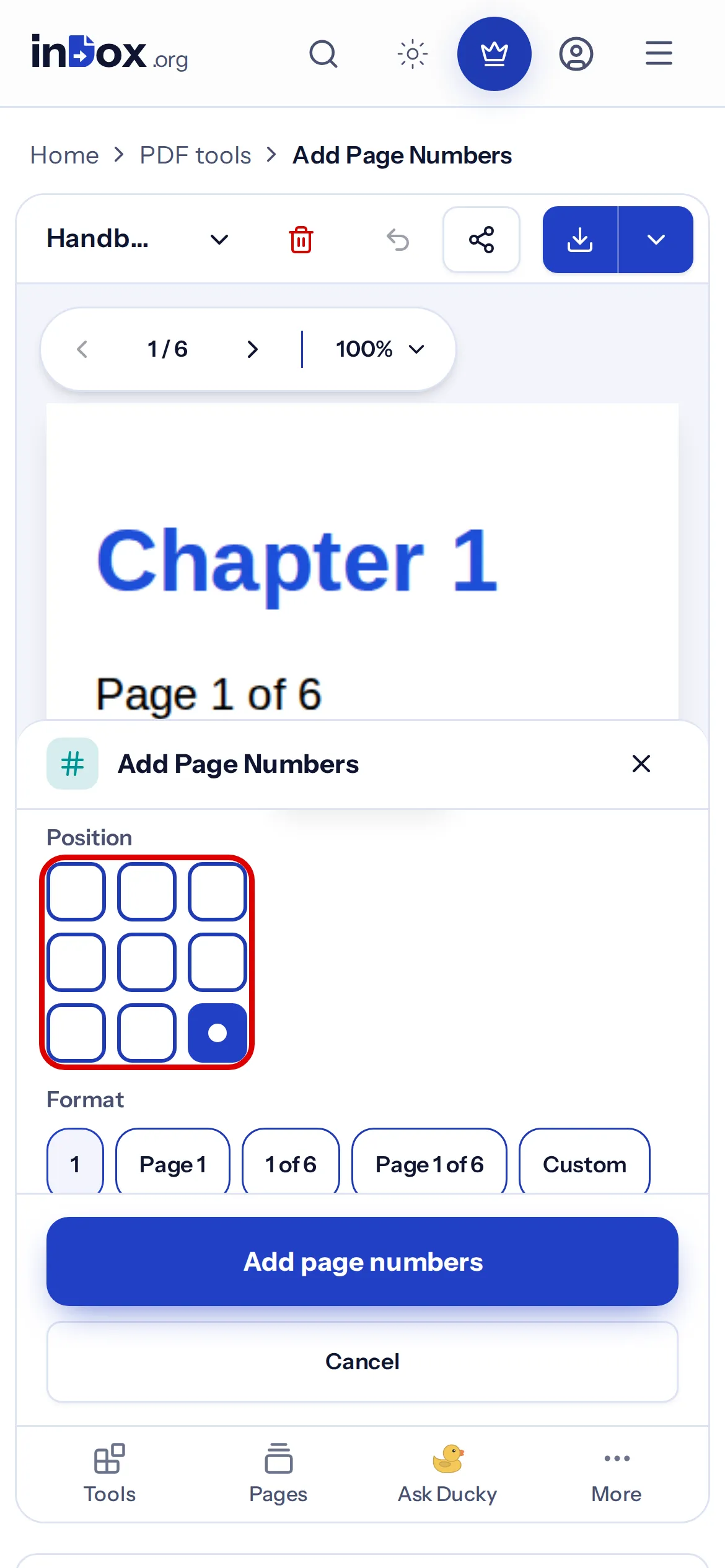
Go to the Add page numbers to a PDF page. In the middle of the page, select the blue Choose PDF file button. A box opens so you can pick a file from your device. You can also drag a file onto the page. When the file loads, you see its pages and an Add Page Numbers panel. On a computer the panel is on the right. On a phone it is at the bottom of the screen. The panel is taller than the screen, so scroll inside it to see all of it.
Pick where the number goes
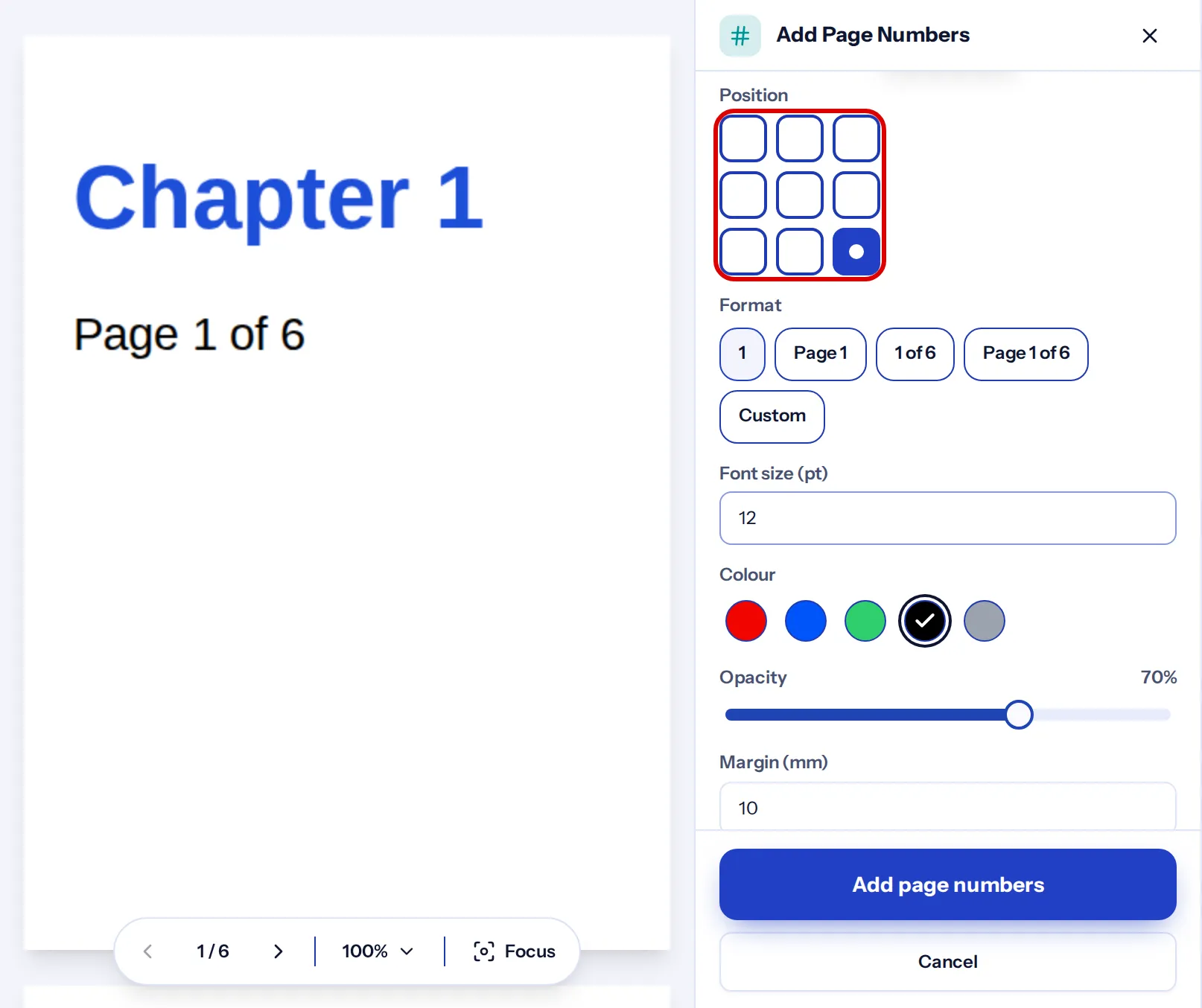
At the top of the Add Page Numbers panel, a small Preview shows a page with its number. Under Position, you see nine squares. They stand for nine spots on the page: three along the top, three in the middle and three along the bottom. A filled dot marks the spot in use. It starts at the bottom middle. Select a square to move the number, for example the bottom right square.
Choose how the number looks
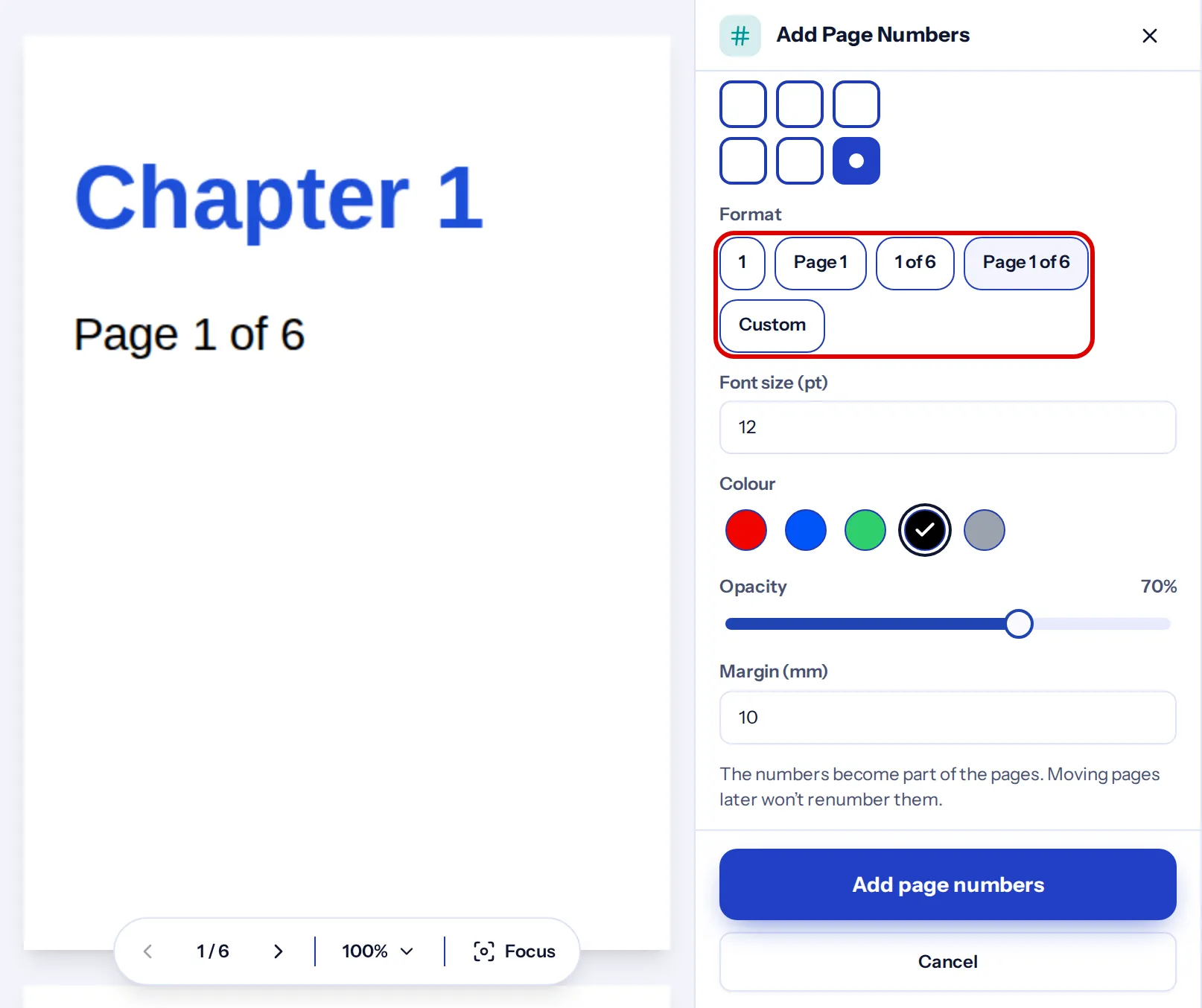
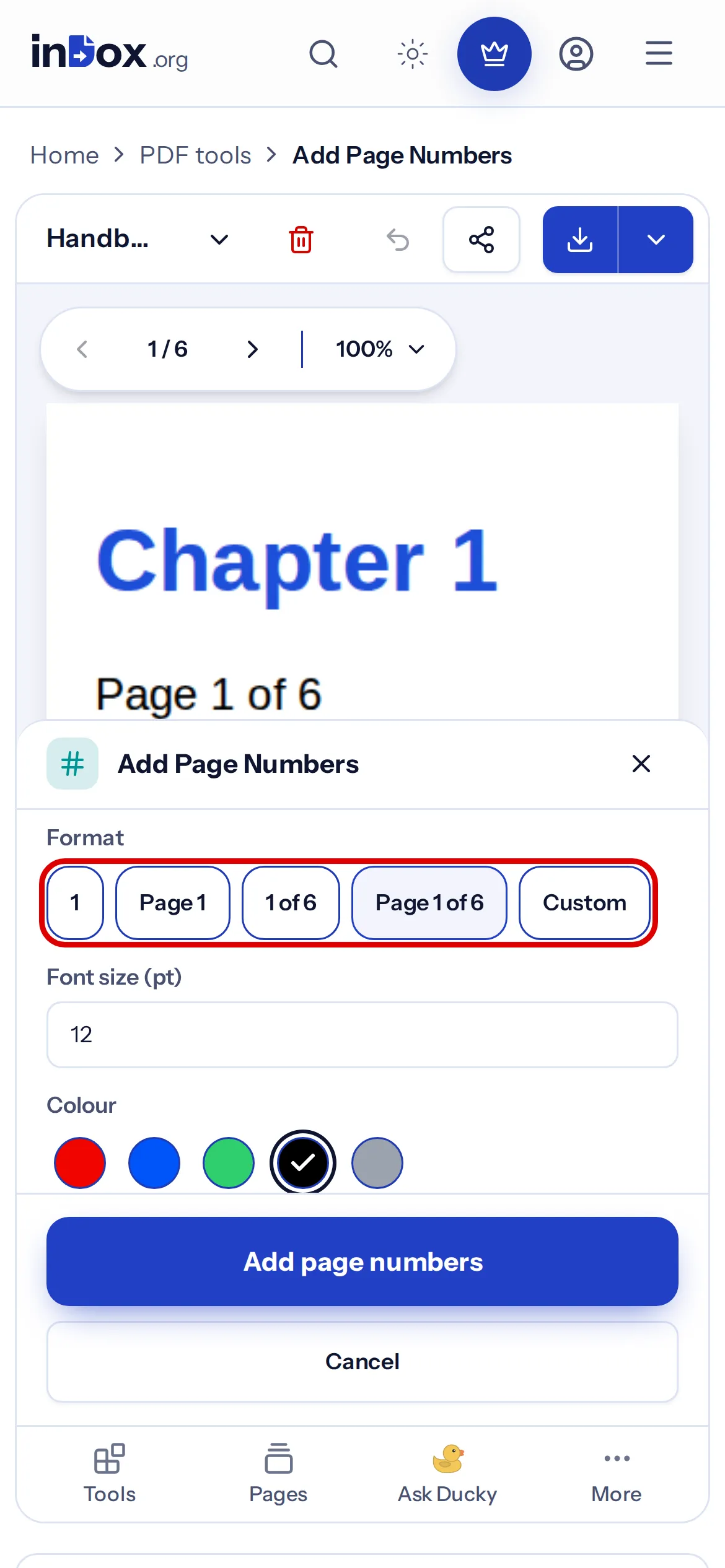
Scroll down to Format. Pick one of the first four buttons: 1, Page 1, 1 of 6 or Page 1 of 6. The last one shows the page number and how many pages there are. The picked button turns pale blue. To write your own words, select Custom. A box named Custom text opens. Type your words there. Use {n} where the page number goes and {total} where the number of pages goes. Leave the box empty to show just the number.
Change the size and colour (optional)
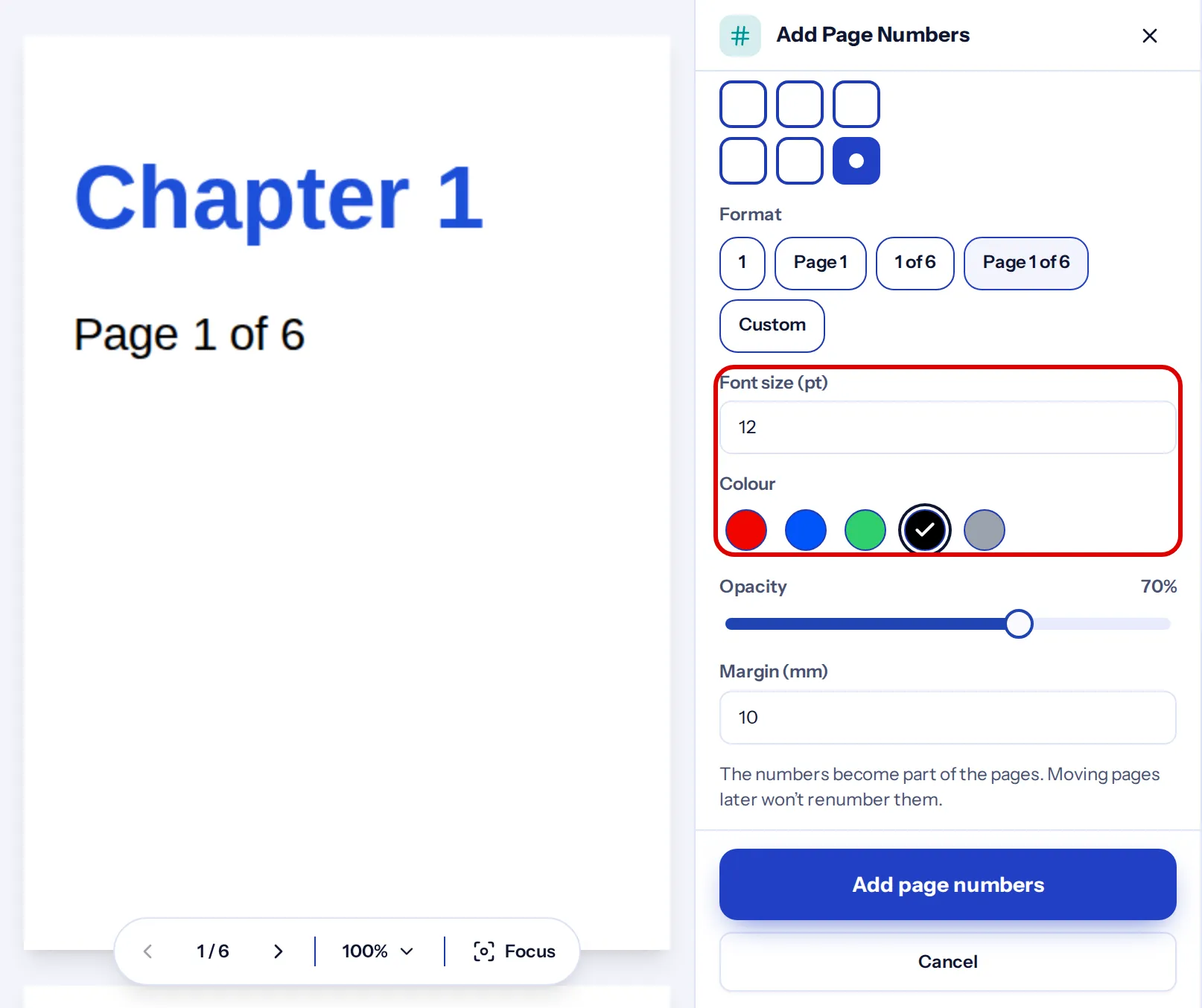
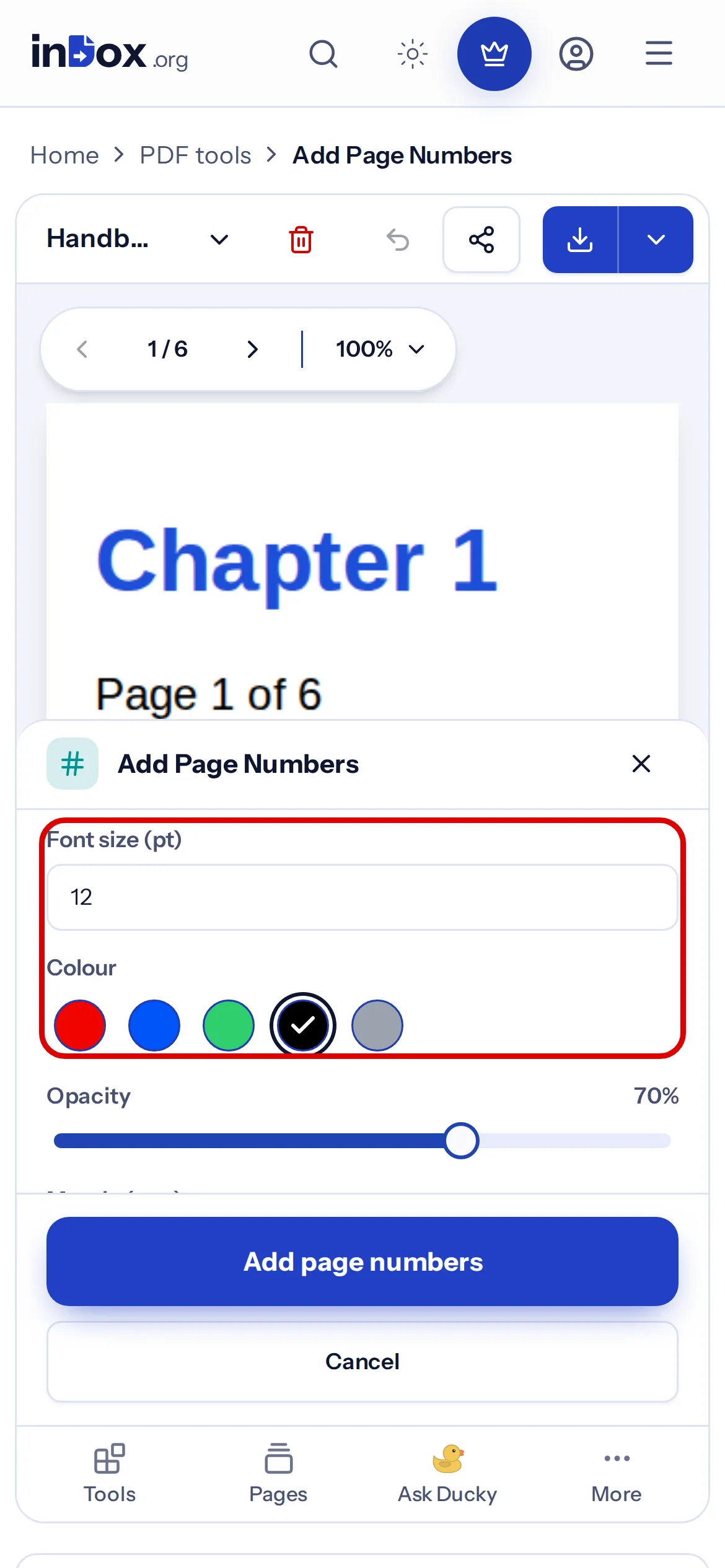
Find Font size (pt). It is how big the number is. The unit pt means points, a unit for text size. It starts at 12. Type a bigger number to make the number larger. Under Colour, select a circle: red, blue, green, black or grey. Black is picked at the start, and it has a tick on it. Skip this step if you are happy with the look.
Change the fade and the edge space (optional)
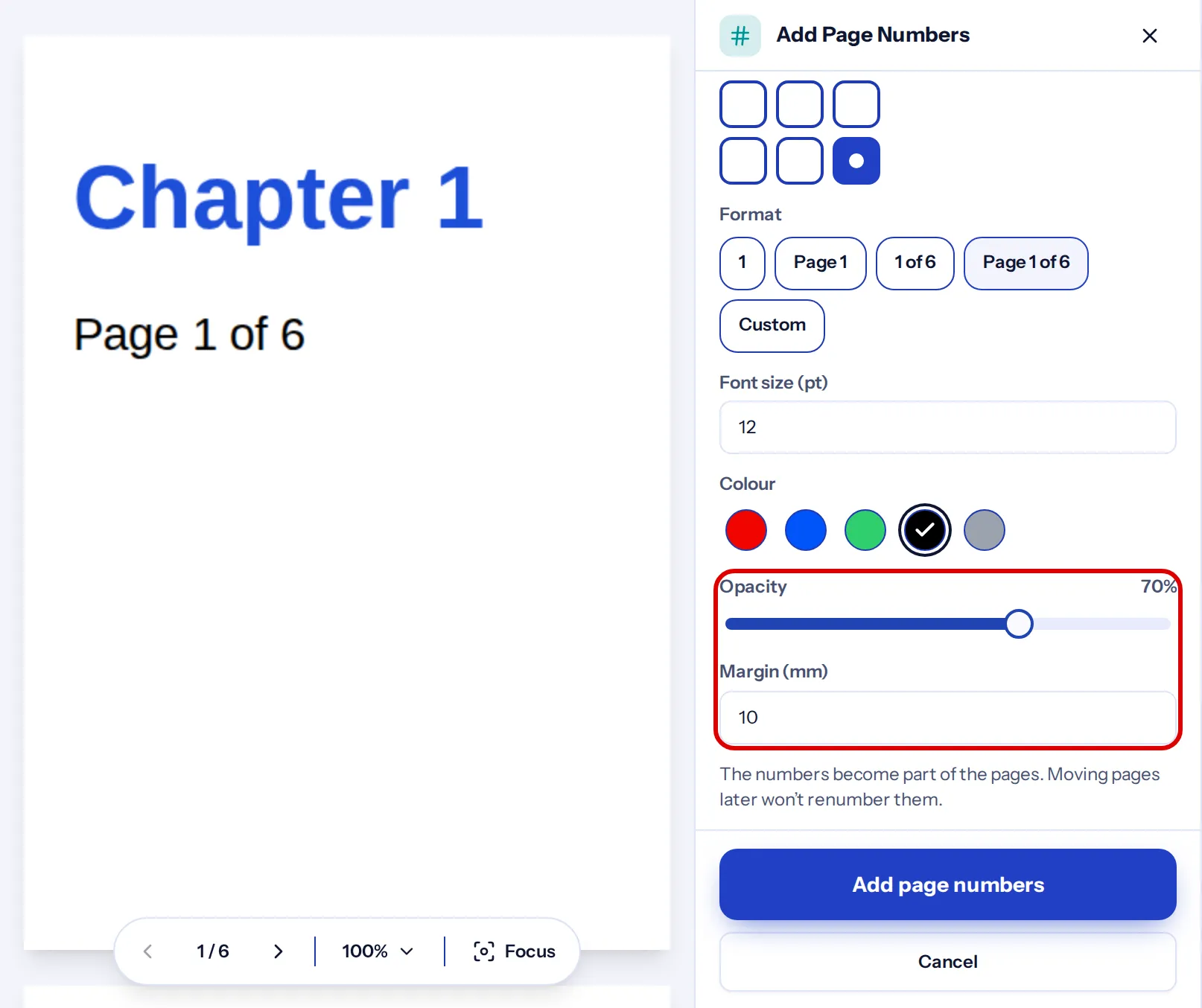
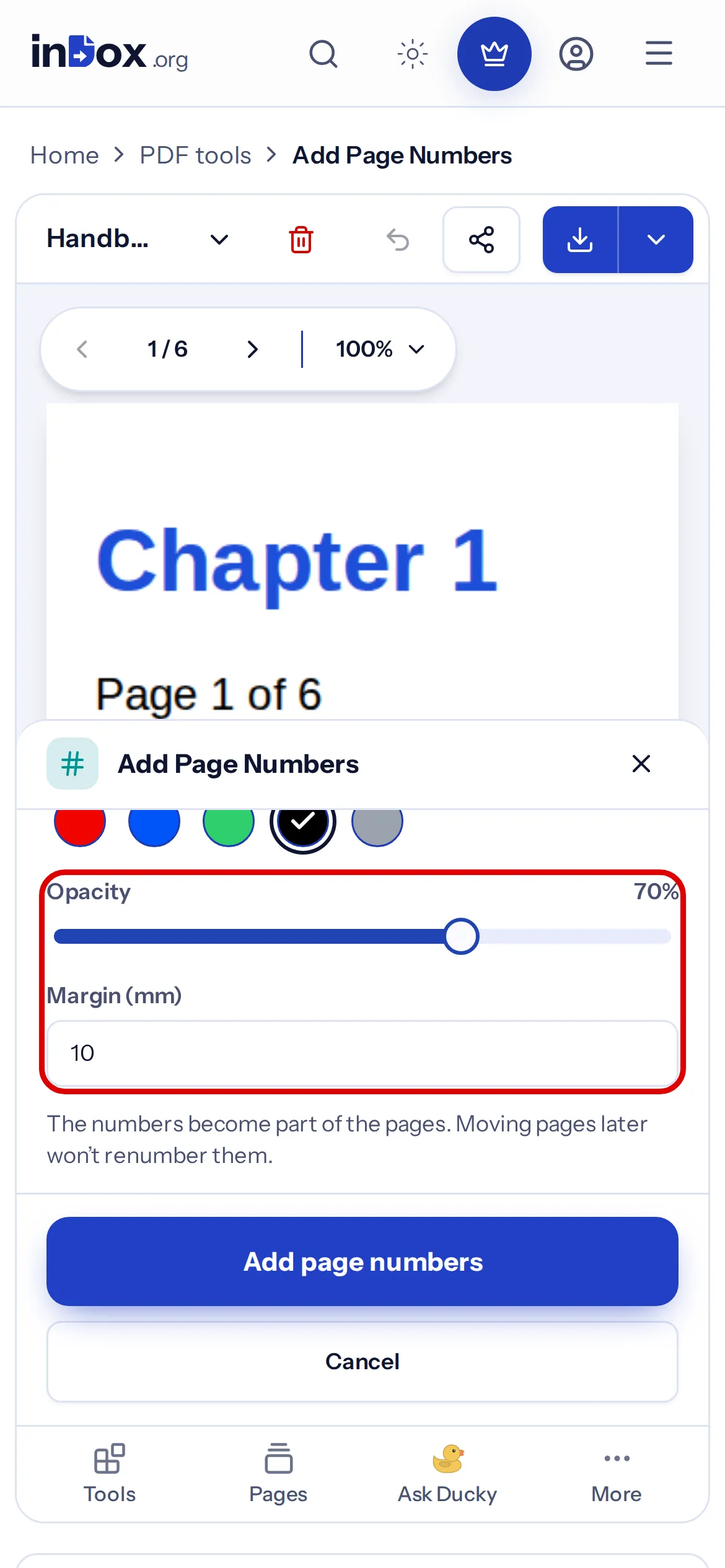
Find Opacity. It is how solid the number looks. It starts at 70%. Drag the round handle right to make the number darker, or left to make it fainter. Then find Margin (mm). It is the space between the number and the edge of the page, in millimetres. It starts at 10. Type a bigger number to move the number away from the edge.
Add the page numbers
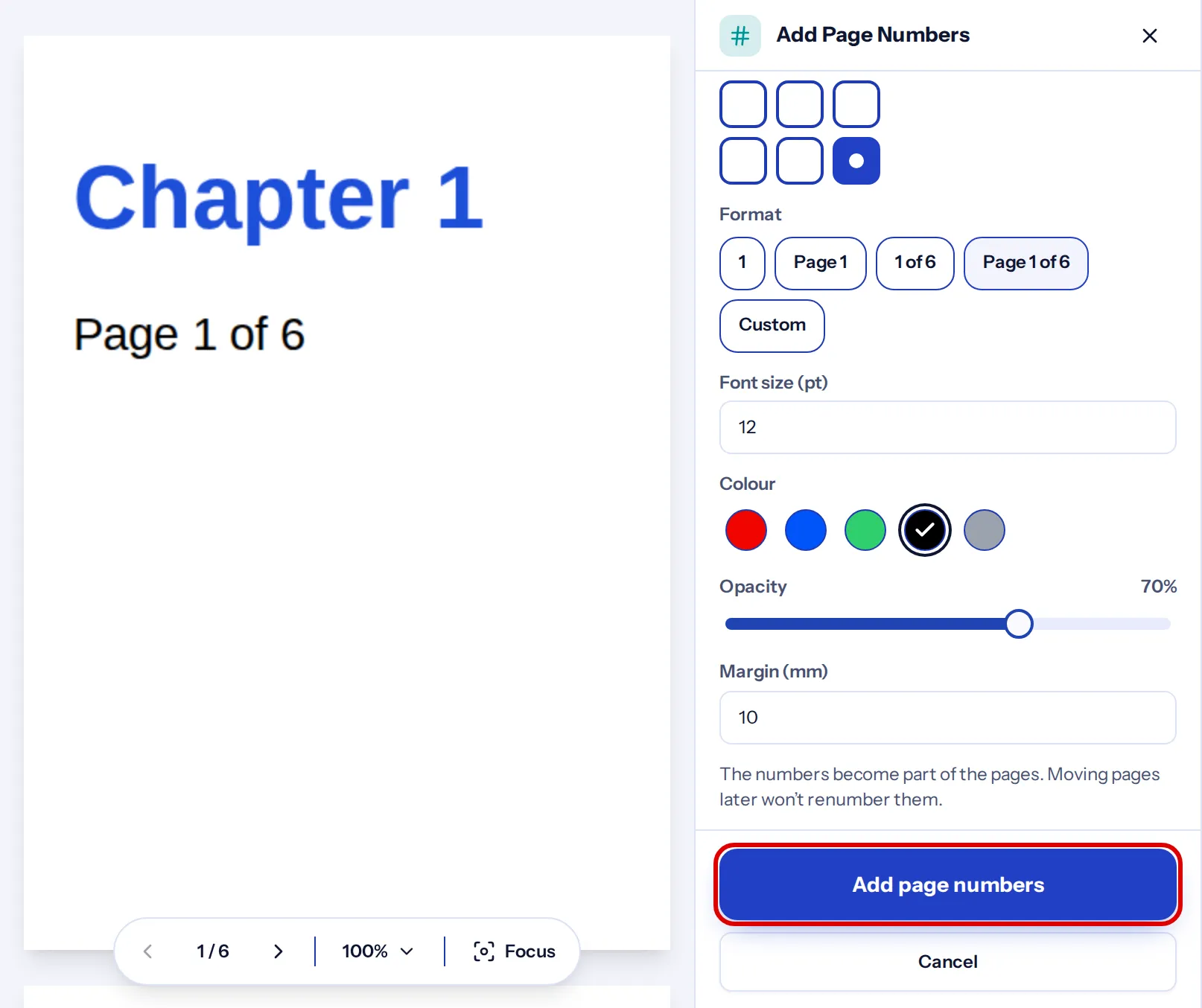
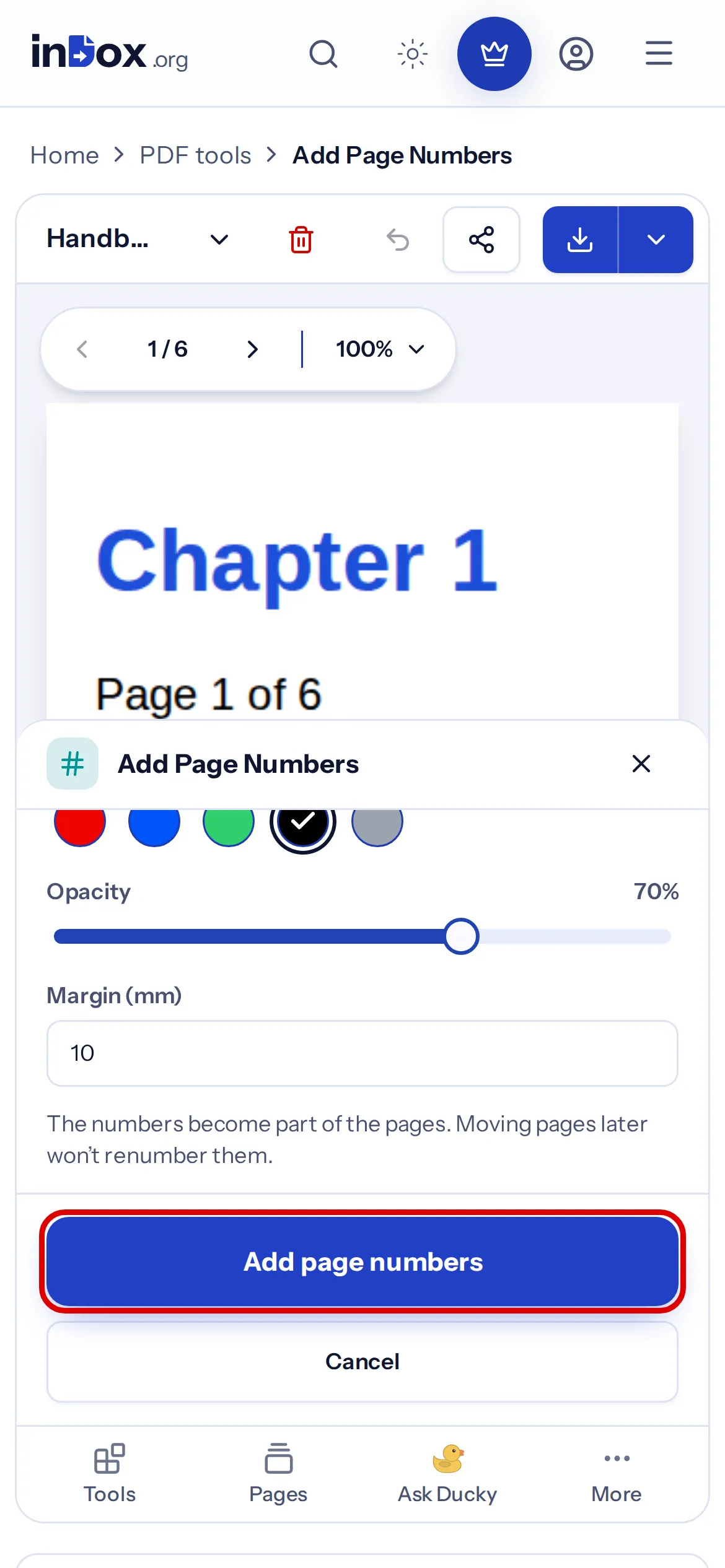
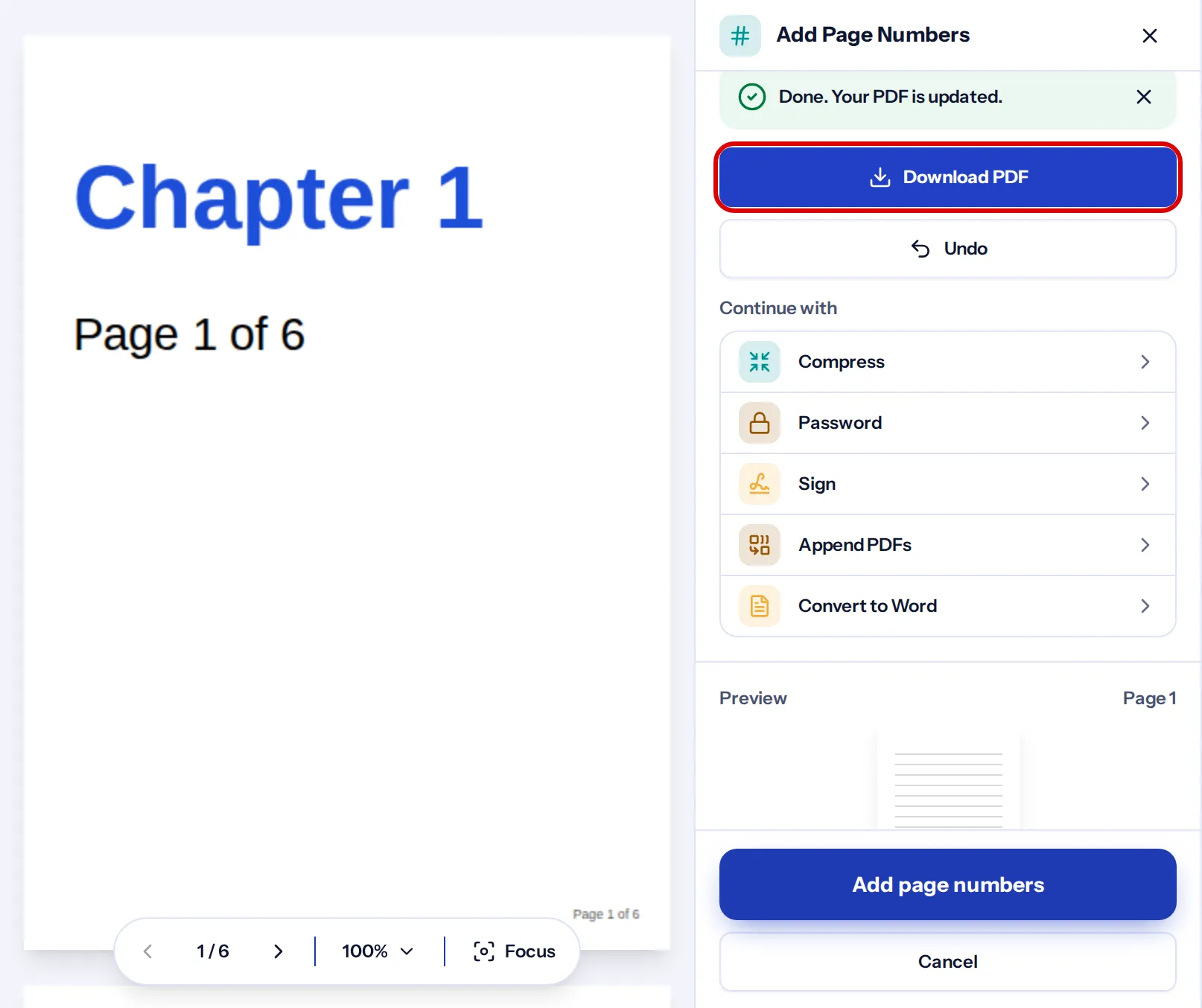
Select the blue Add page numbers button at the bottom of the panel. Wait a moment. The numbers are added to every page. A note in the panel says the numbers become part of the pages, and moving pages later won't renumber them.
Download your PDF
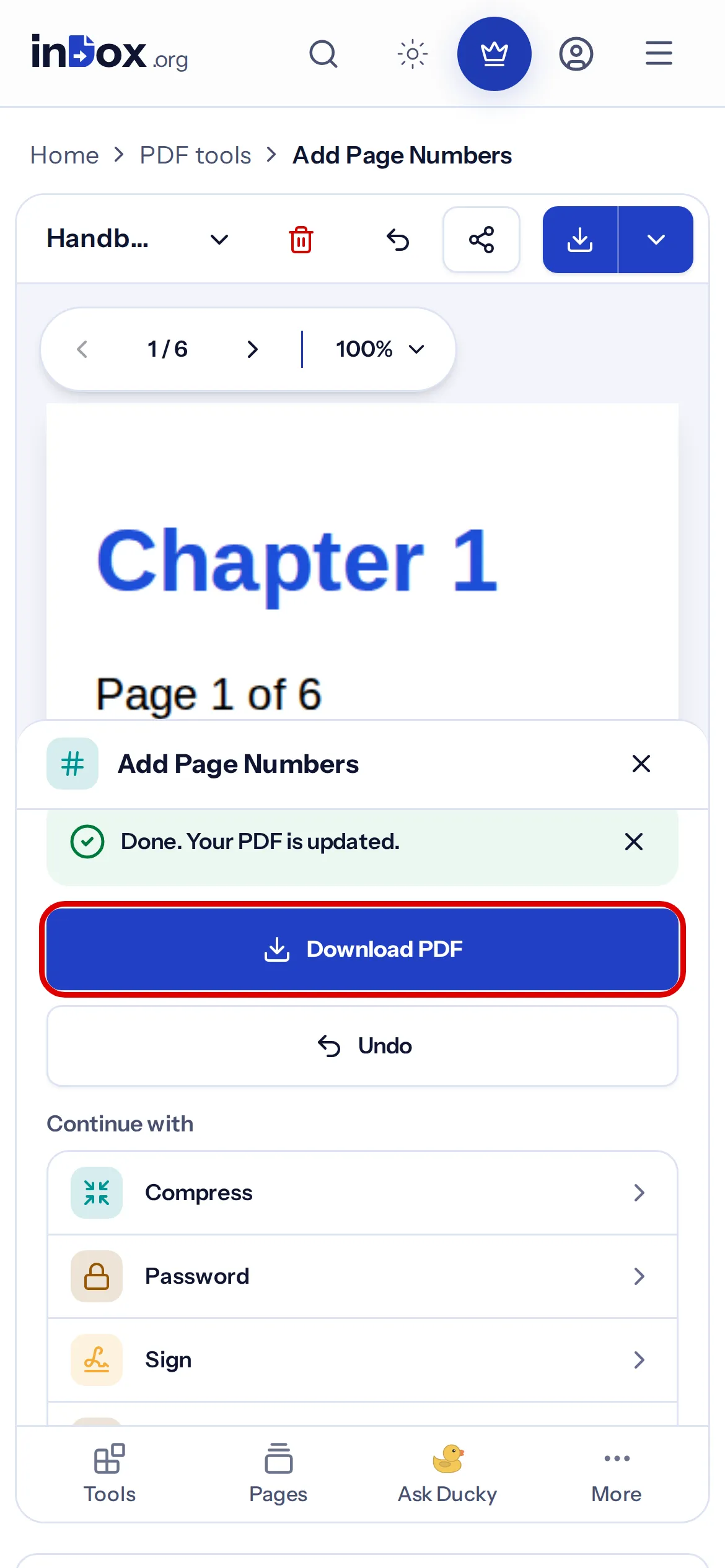
A green message says Done. Your PDF is updated. at the top of the panel. Select Download PDF, just below it. The new file is saved on your device. Its name is your file's name with -edited added. Look at the page on the left to see the number in the spot you chose. Not happy with it? Select Undo to go back to your PDF without numbers.
Troubleshooting
| Problem | Cause | Fix |
|---|---|---|
| The numbers are hard to see | The numbers start at 70% opacity, and a small size or a pale colour makes them harder to read | Select Undo, drag Opacity to the right, pick Black and a bigger Font size (pt), then select Add page numbers again |
| The numbers are in the wrong place | The Position square that is marked was not the one you wanted | Select Undo, pick another square under Position, and check the Preview before you select Add page numbers |
| The numbers are wrong after I moved pages | The numbers become part of the pages, so moving pages later won't renumber them | Reorder or delete pages first. Add the page numbers last |
| You want the PDF without numbers | The numbered PDF replaces the one on screen | Select Undo next to Download PDF. Your PDF on your device was never changed |