Last updated
Save an image as PNG, JPG or WebP
Goal: A picture from a web page saved on your computer as a PNG, JPG or WebP file.
Before you start
- The INDOX extension added to Chrome on a computer. These steps are for the computer version of Chrome.
- You don't need an account for this. The file is made inside your browser, so the picture is not sent to indox.org.
- PNG, JPG and WebP are three kinds of picture file. PNG keeps sharp edges and see-through areas. JPG makes small files for photos. WebP is a newer kind that is also small.
Move the pointer over a picture
Open a web page and point at a picture. A small button called INDOX appears in the top left corner of the picture.
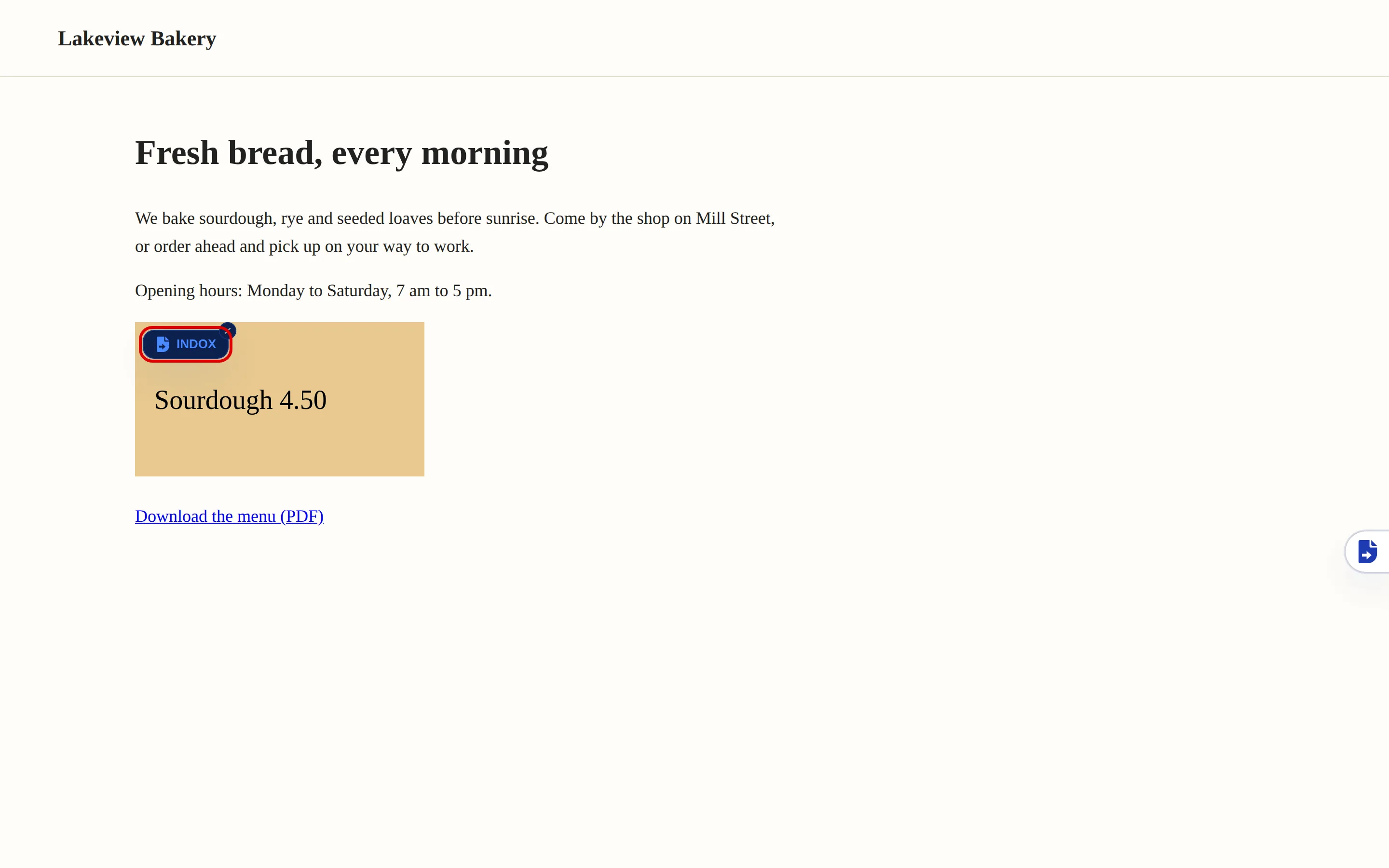
Select the INDOX button
A small menu opens over the picture. It has Convert, Extract text and Translate text. At the bottom is a row called Save as with three buttons: PNG, JPG and WEBP.

Select PNG, JPG or WEBP
Select the kind of file you want. Chrome downloads the file like any other download.
Or use the right-click menu
Right-click the picture. In the menu that opens, point at INDOX - Convert anywhere. Chrome groups the extension's items under its name. Point at Save image as in that list, then select PNG, JPG or WEBP. Chrome's own Save image as near the top of the menu is a different item.
Troubleshooting
| Problem | Cause | Fix |
|---|---|---|
| You can't see the INDOX button on the picture | The picture is smaller than 120 by 80 pixels, or Image button is turned off | Try a bigger picture. Or open the INDOX settings, select Edge bubble and turn on Image button |
| The right-click menu has no INDOX items | Right-click menu items is turned off | Open the INDOX settings, select Behavior and turn on Right-click menu items |
| Convert, Extract text or Translate text asks you to sign in | These three open the INDOX side panel, which needs an account | Use the Save as row instead. It works without an account |
| A notice says Could not save the image | The extension could not load the picture from the website | Try a different picture, or use the website's own download button |
| A JPG has a white background where the picture was see-through | JPG files can't have see-through areas | Save the picture as PNG or WEBP instead |