Last updated
Review your account activity
Before you start
- You need to be signed in to indox.org.
- The page says it shows sign-ins, key changes and other activity on your account, and that it keeps them for 90 days.
- Each event can show an IP address, which is a number that names your internet connection, and a user agent, which names your browser and device. Keep any picture or file of this page private.
Open the Audit log page
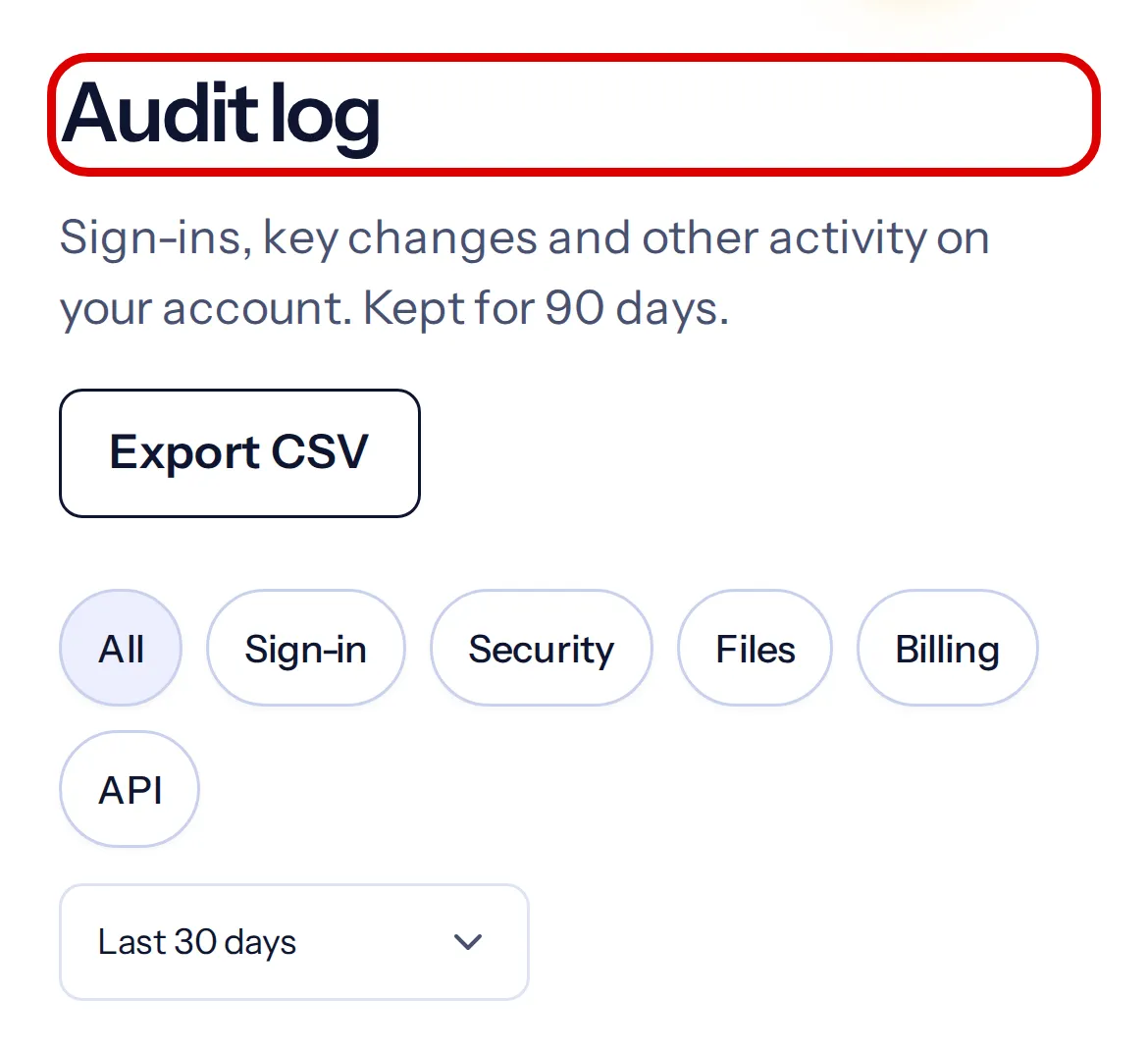
Go to the Audit log page. On a computer, you can also select Audit Log under Account in the left menu. The page title is Audit log. Under it, a row of round buttons and a date box filter the list. Below them, events are listed by day, with the newest first. Each row shows the event name, its type and the time.

Filter by type
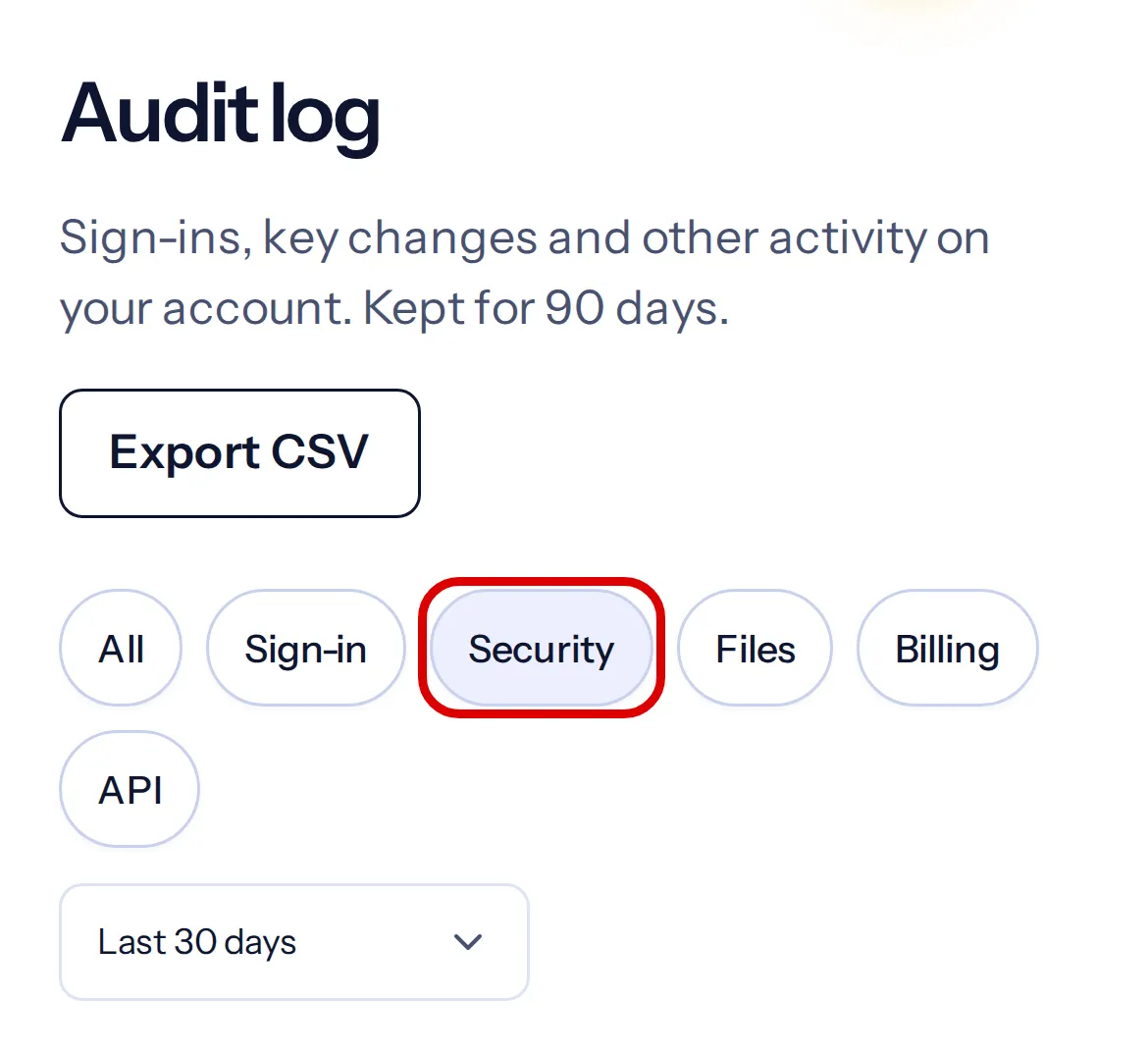
Select one of the round buttons: Sign-in, Security, Files, Billing or API. The list then shows only that type of event. Select All to see every type again.

Choose a date range
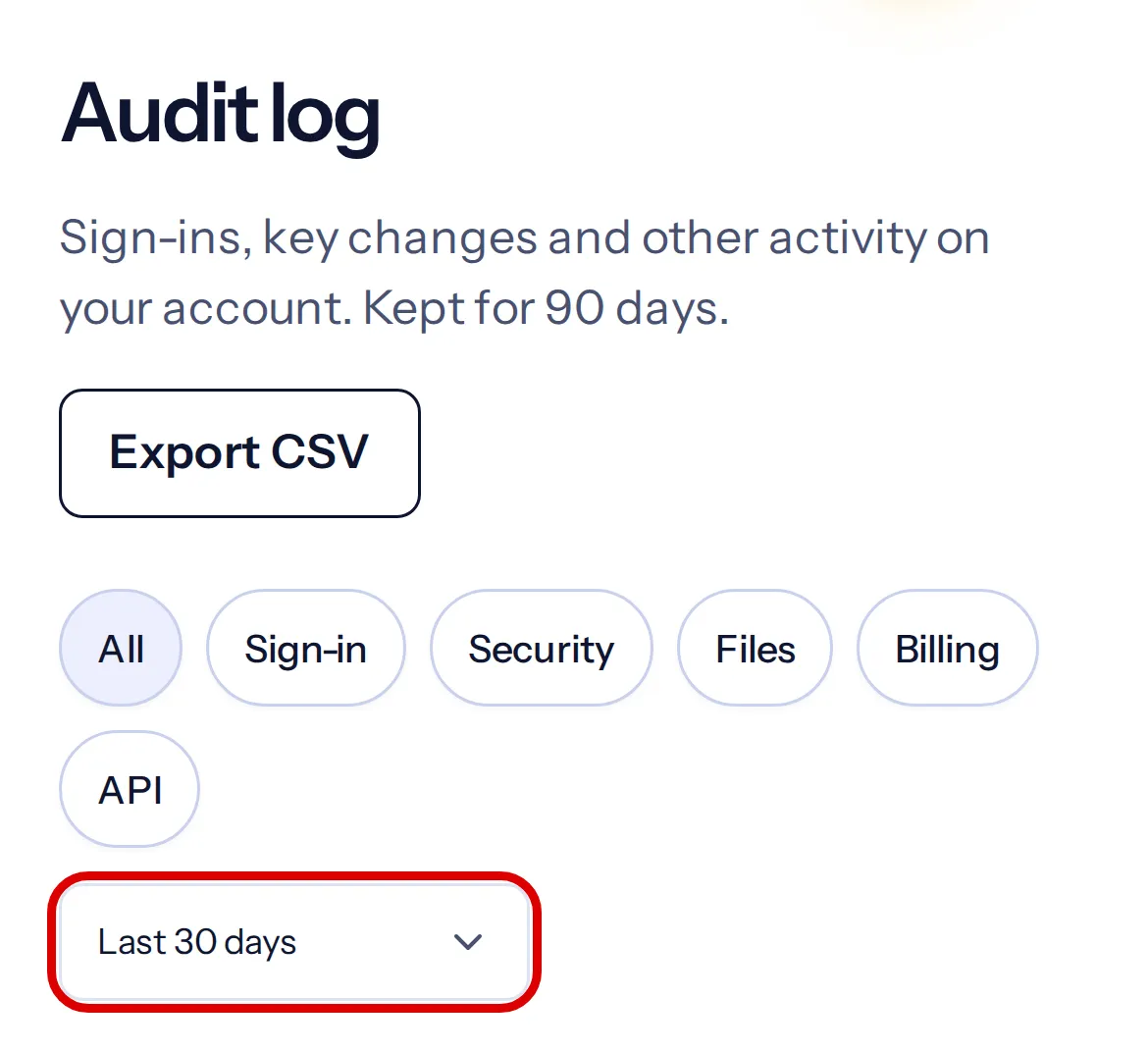
Select the box that says Last 30 days. On a computer it is at the right end of the filter row. On a phone it is under the round buttons. A menu opens with Last 7 days, Last 30 days, Last 90 days and All time. Select the one you want.

Export the list
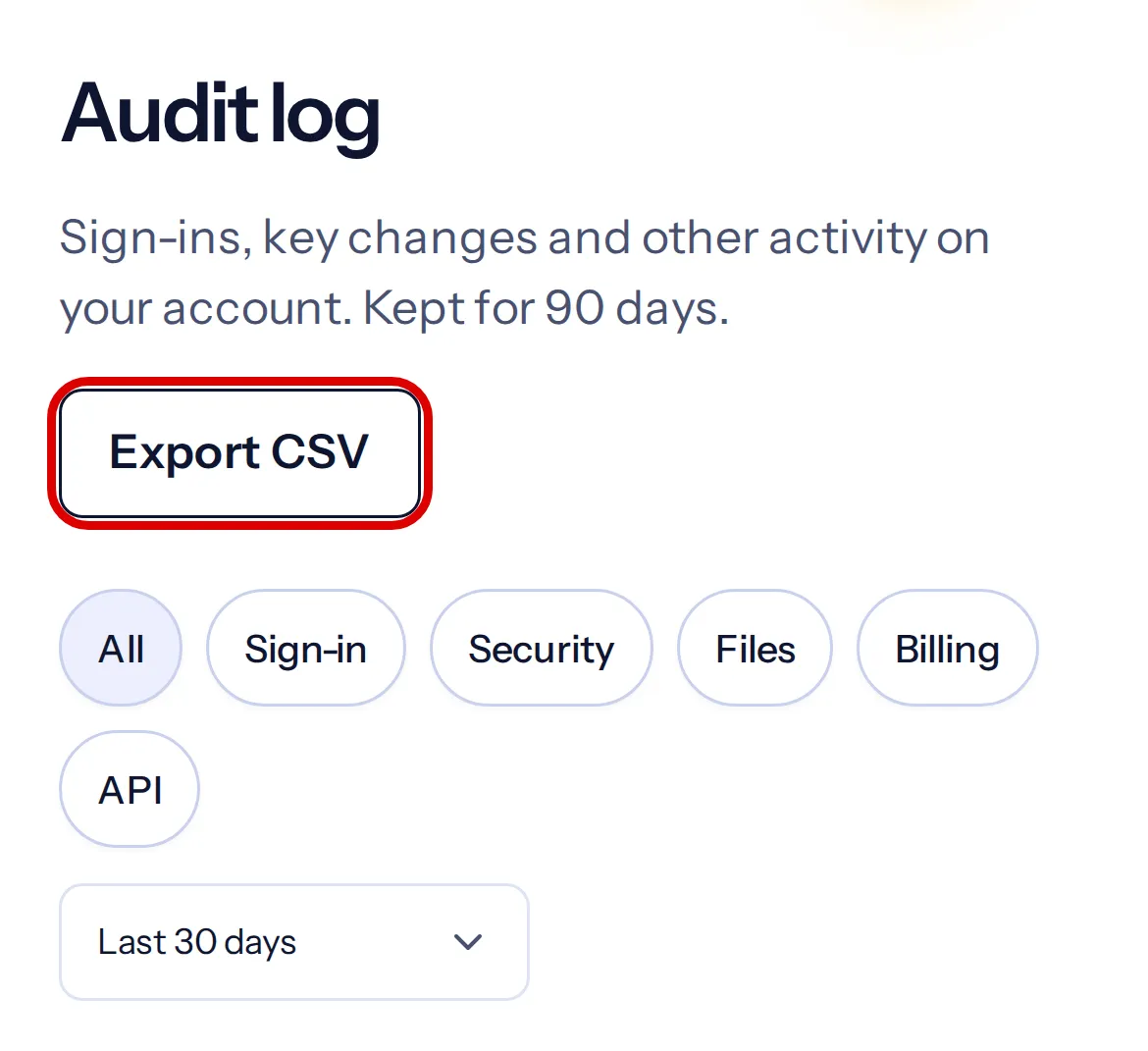
Select Export CSV at the top right of the list. On a phone it is under the page text. Your browser downloads a file with a name like audit-2026-11-22.csv. CSV is a plain table that a spreadsheet program can open. Keep the file private.

Open one event
Select any row. A panel opens with When (UTC), IP address, User agent, Request ID and Raw event. UTC is the world time standard. If you do not know a sign-in, contact support .
See older events
At the bottom of the list, select Load more. More rows are added under the ones you already see.
Troubleshooting
| Problem | Cause | Fix |
|---|---|---|
| You cannot find an old event | The page keeps events for 90 days | Choose Last 90 days or All time in the date box, then select Load more |