Last updated
Find a past conversion
Before you start
- Use the same browser and device where you converted the file. Without an account, indox shows only the conversions from that device.
- Files you convert without an account are deleted after 24 hours.
- You don't need an account for the Recent conversions box. The History page needs one.
- When you are signed in, files you convert stay in History for up to 180 days. The History page shows the number under its title.
Find the Recent conversions box
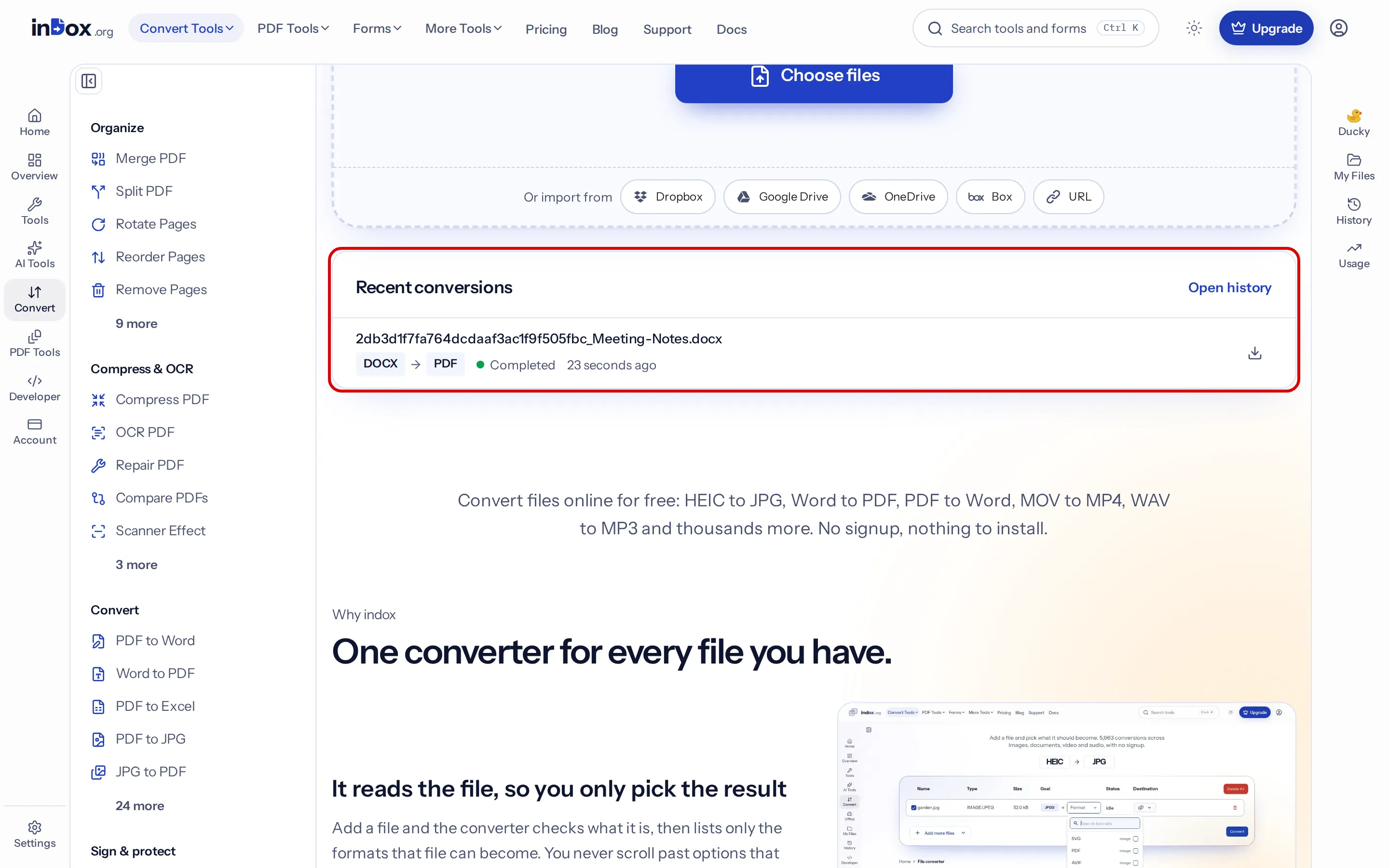
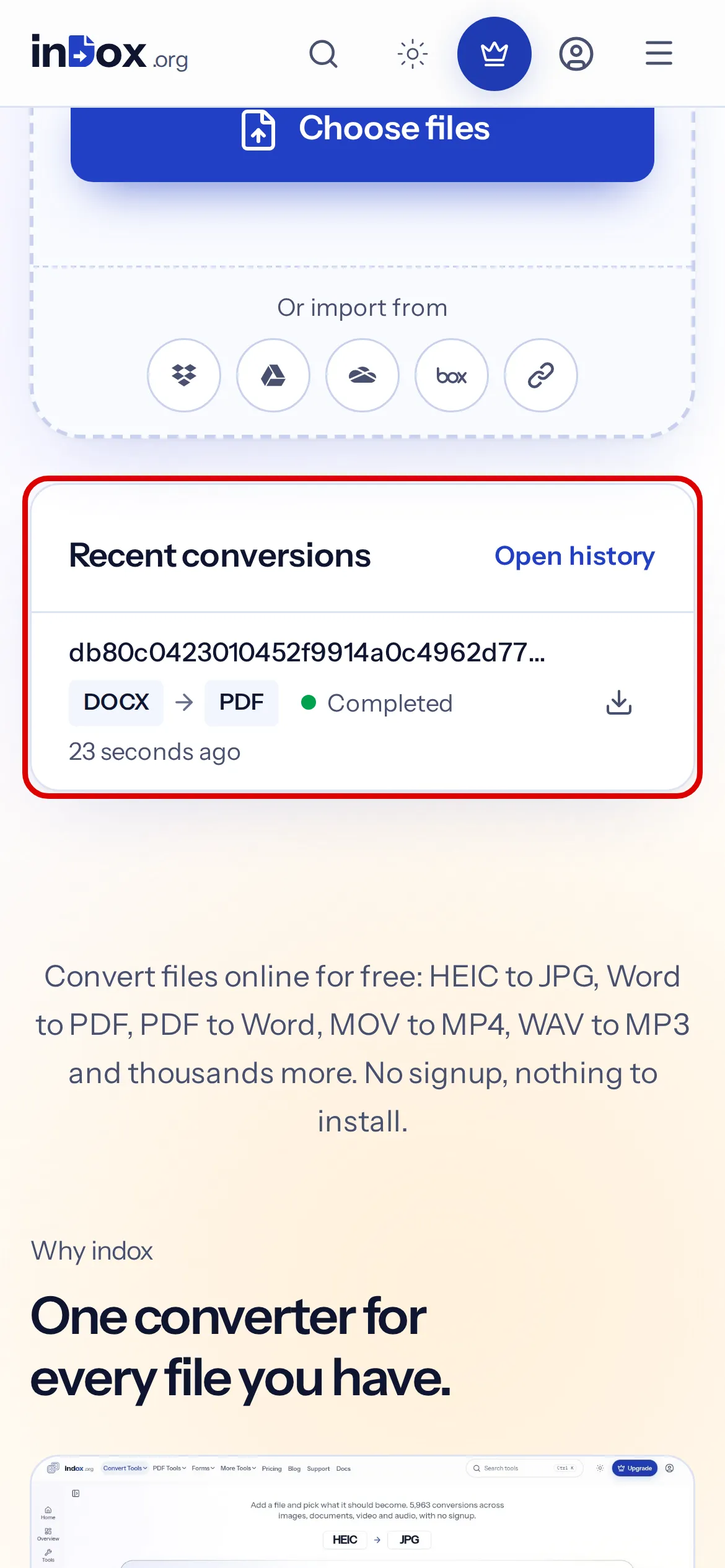
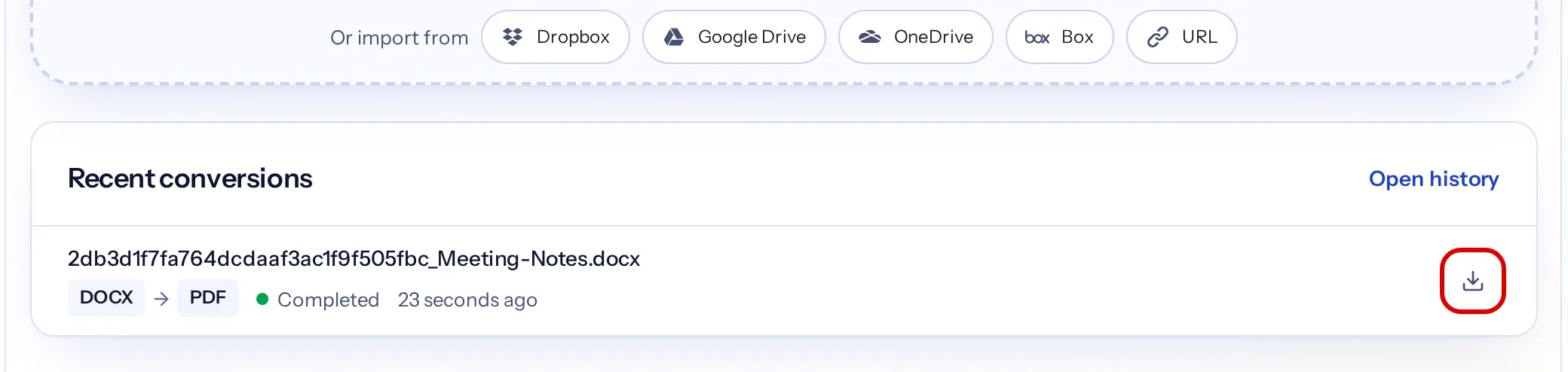
Go to the File converter . Scroll down to just below the dashed box. Find the box called Recent conversions. It shows only when you have converted something.
Find your file
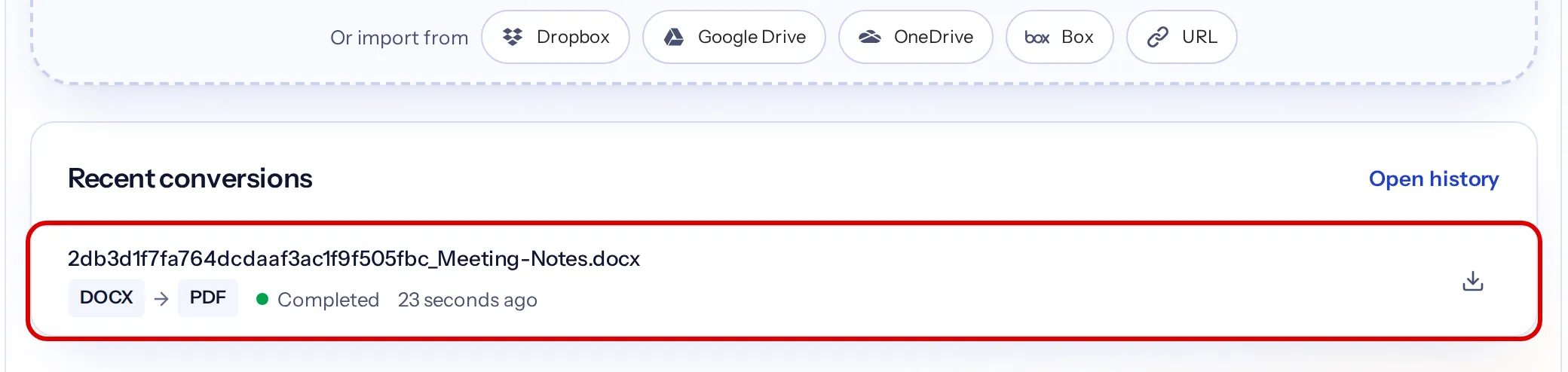
Each row is one conversion. It shows the file name, the format it started as, the format it became, the status and how long ago it ran. The name may start with a long code. Look for the status Completed.
Download it again
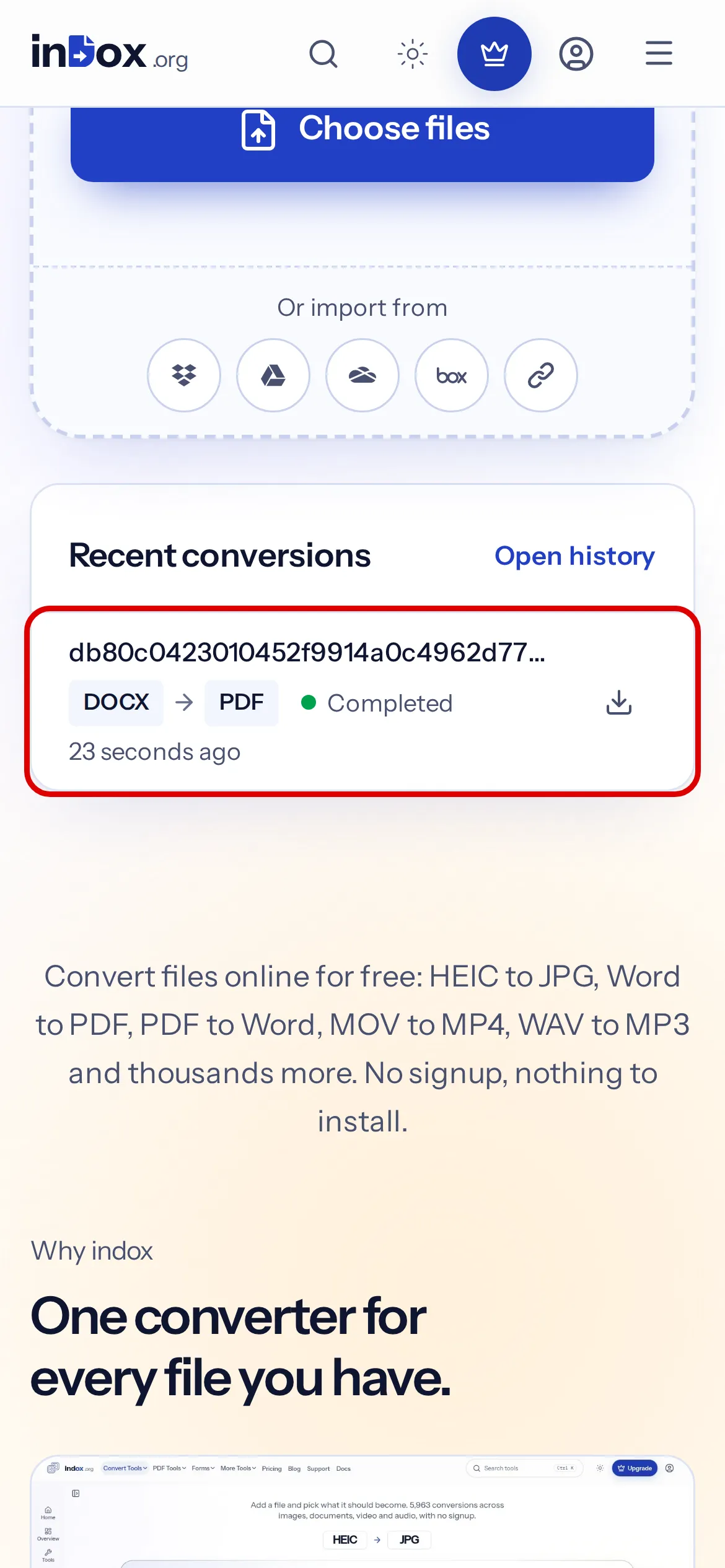
Select the small download icon at the right end of the row. Your device saves the file again.
Open the History page
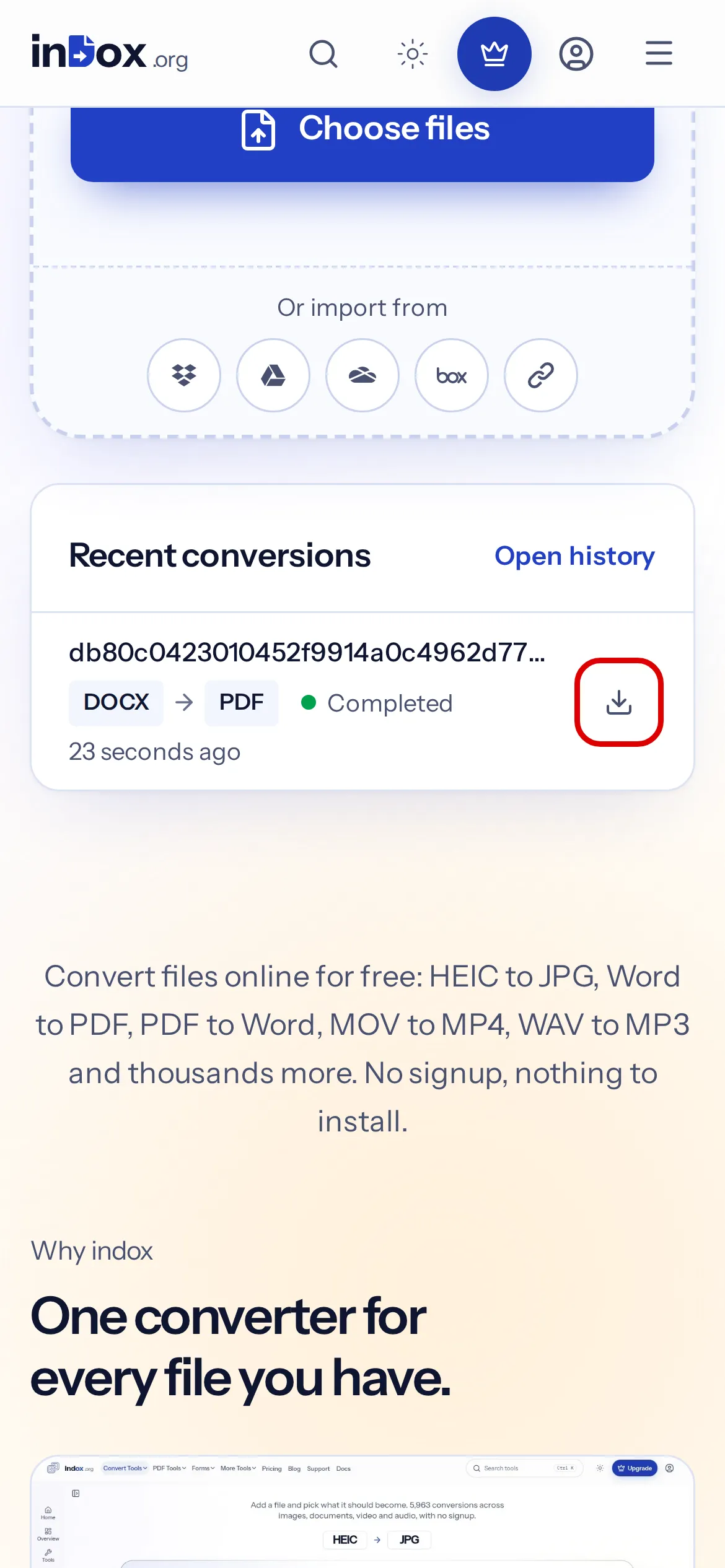
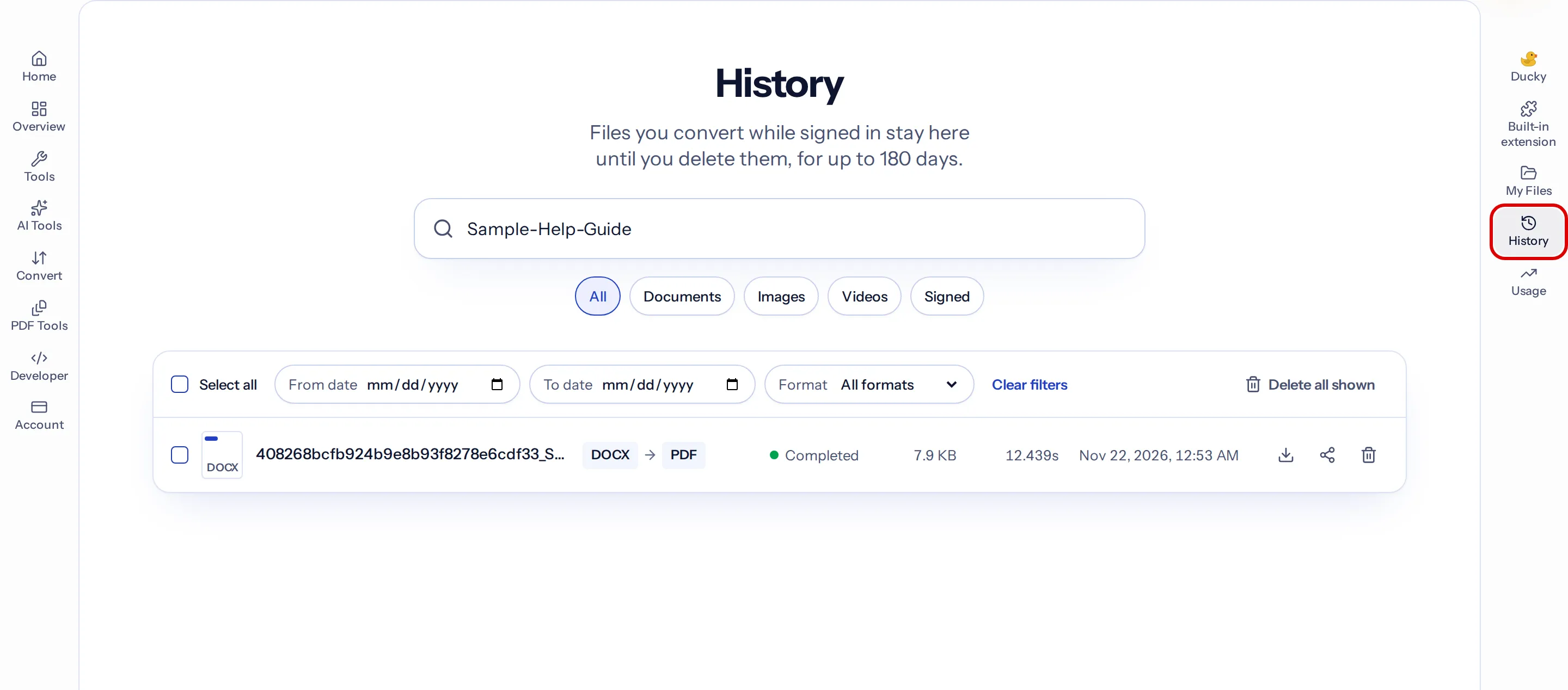
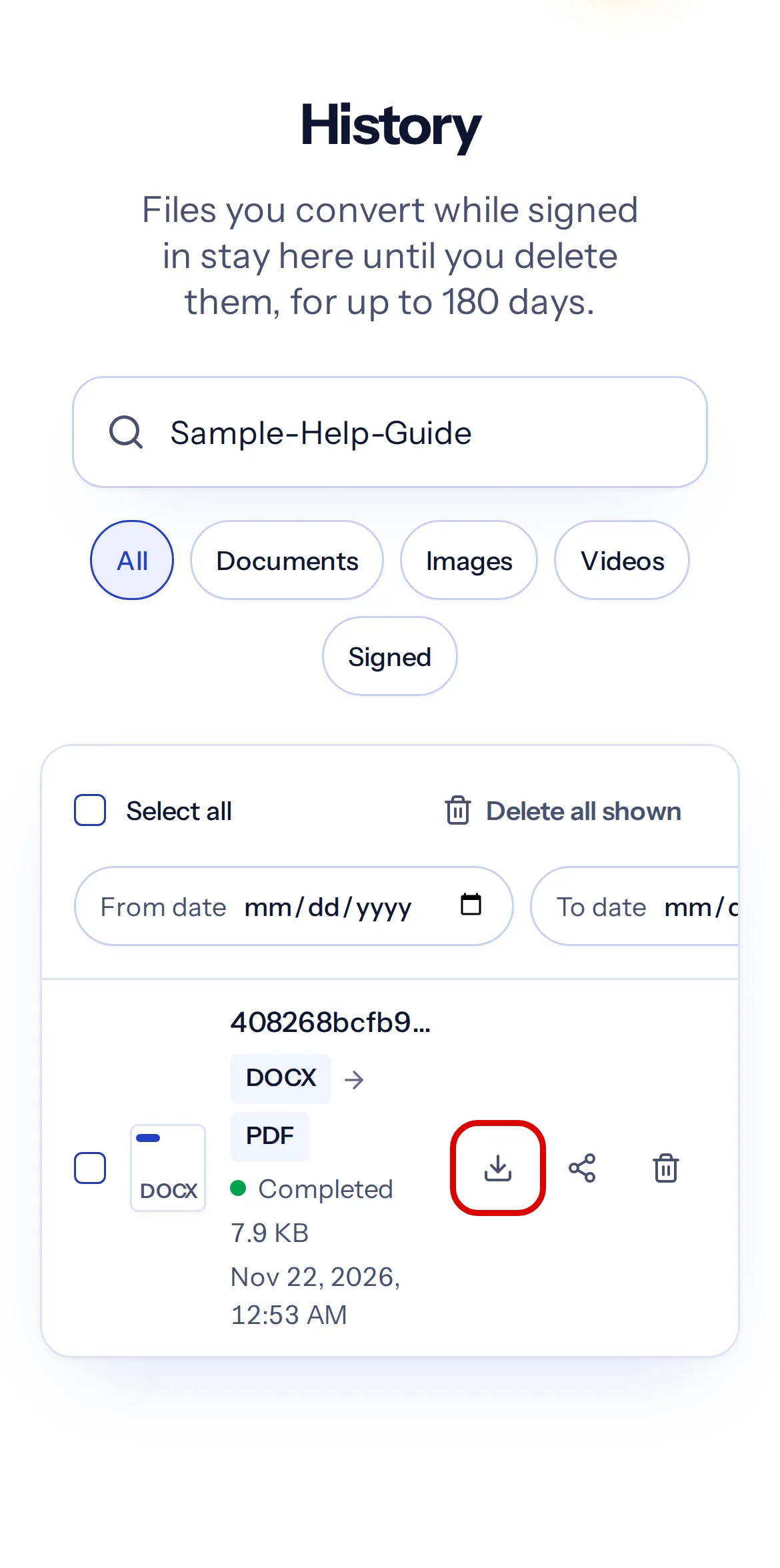
Sign in to indox.org. On a computer, select History in the bar at the right edge of the screen. On a phone, go to the File converter and select Open history at the top right of the Recent conversions box. The History page opens. It lists the files you converted while signed in, newest first.
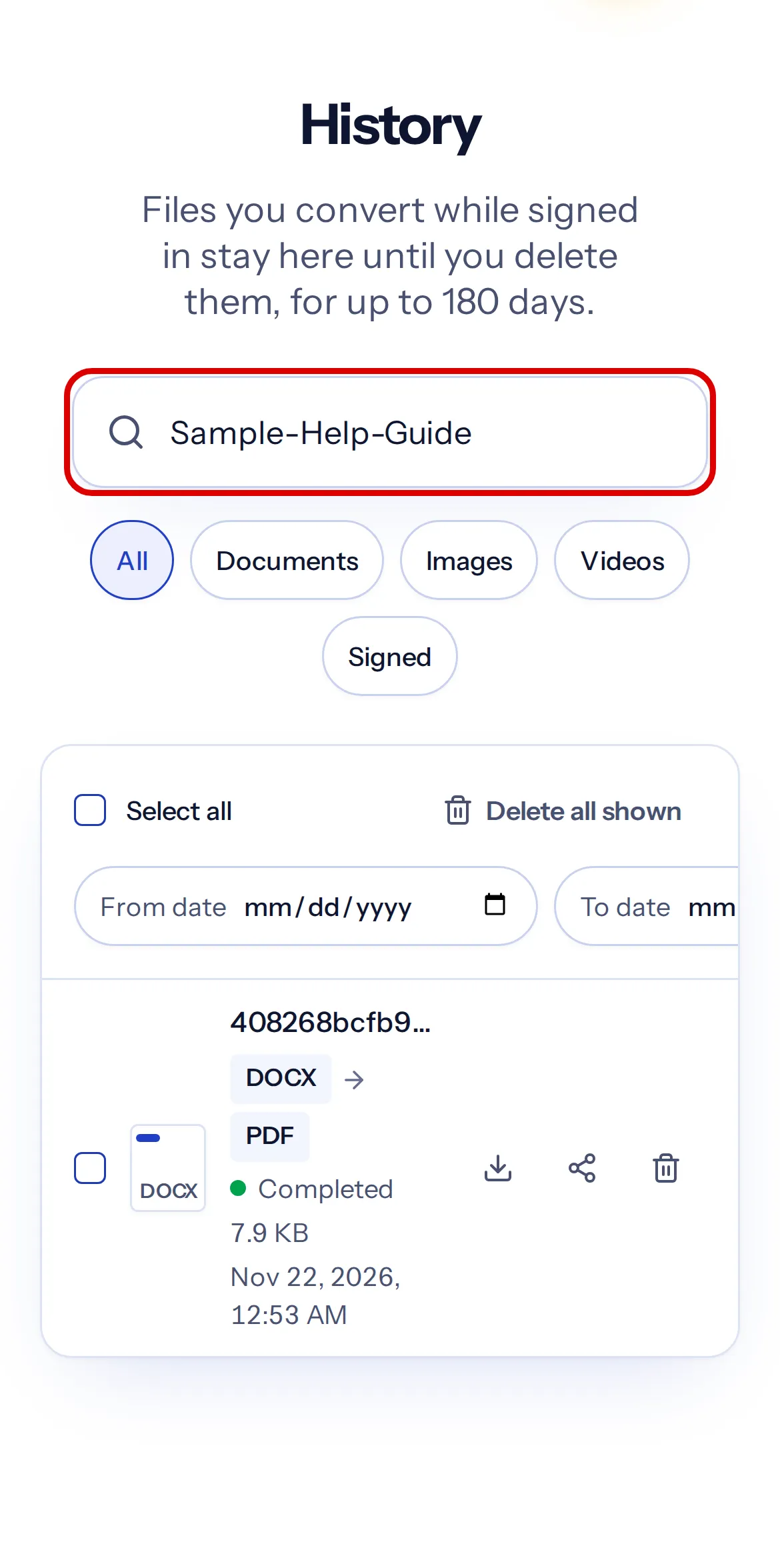
Search by file name
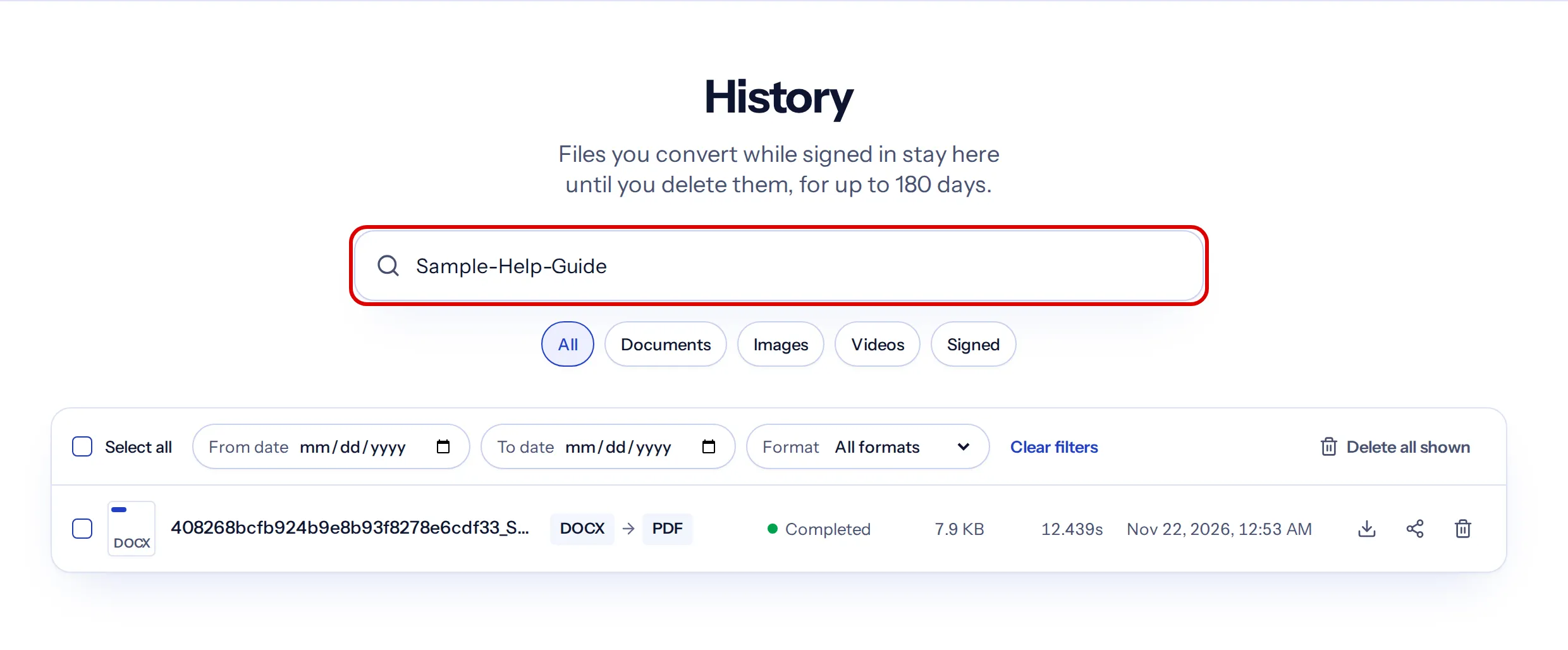
Type part of the file name in the box under the title. The box says Search by file name. The list gets shorter as you type.
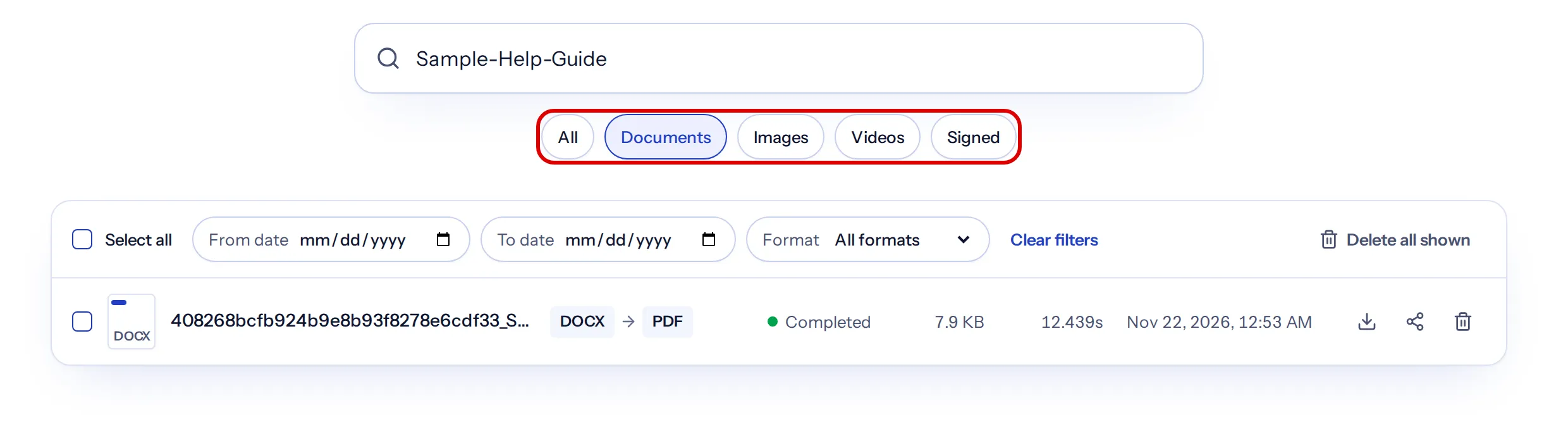
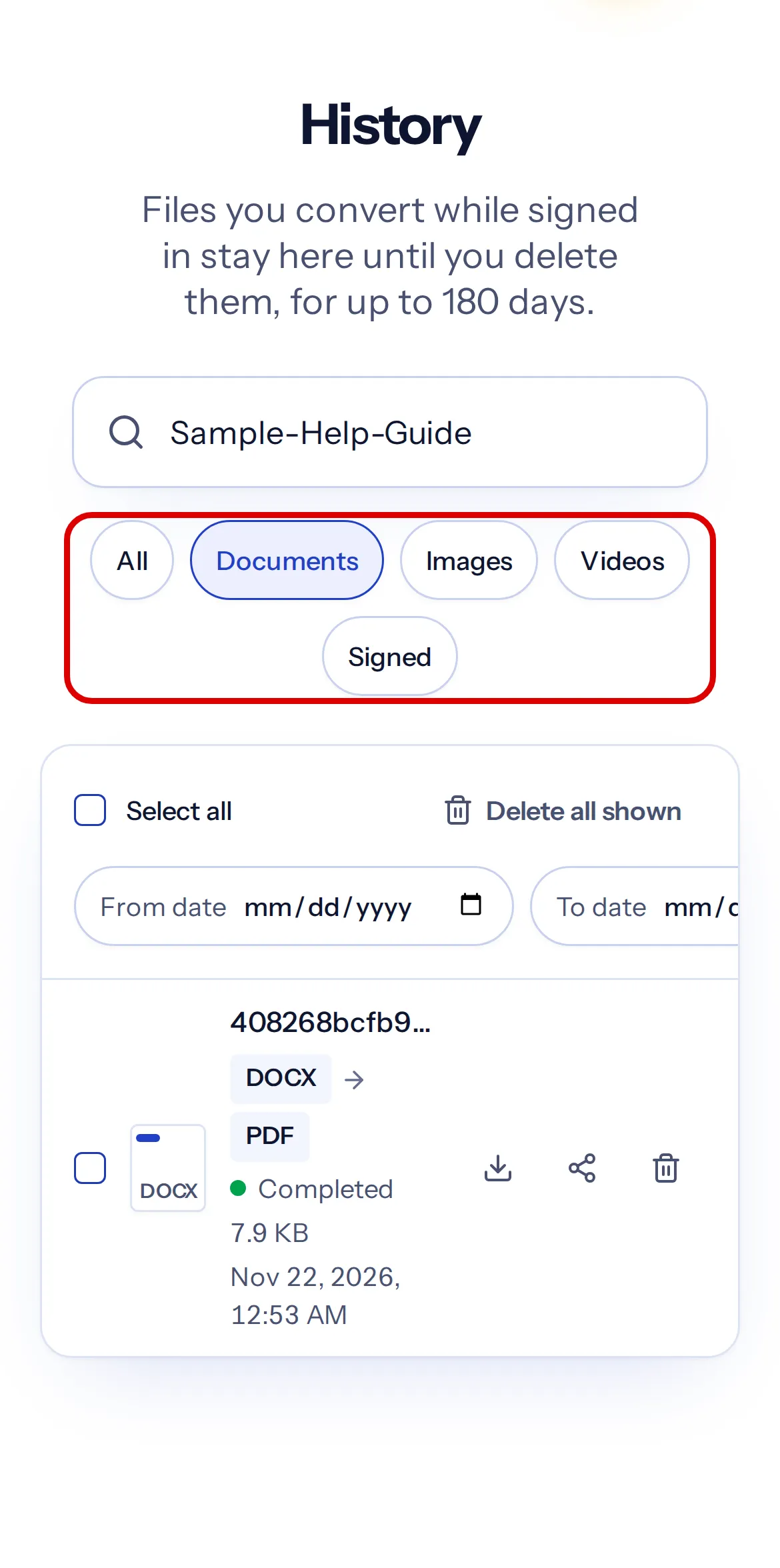
Narrow the list
Select a button under the search box: Documents, Images, Videos or Signed. You can also pick a day in From date or To date, or pick a type in Format. On a phone, slide the row of boxes sideways to see all of them. Select Clear filters to see everything again.
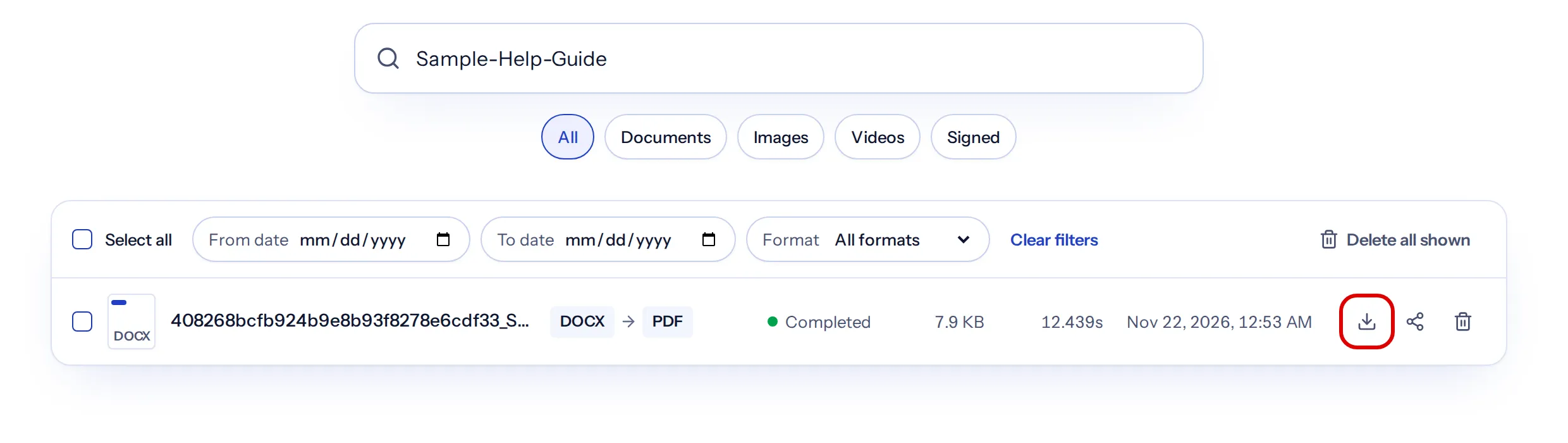
Download it again
Look at the status of your file. Completed means it is ready. Select the download icon at the right end of the row. Your device saves the file again.
Troubleshooting
| Problem | Cause | Fix |
|---|---|---|
| You don't see Recent conversions | Nothing was converted in this browser, or the files are gone after 24 hours | Use the browser where you converted the file, or convert the file again |
| The status says Processing | The file is still being converted | Wait a few seconds and reload the page |
| You select a file name and see Sign in to continue | A file's full page is part of an account | Use the download icon in the row instead. Open history also asks you to sign in |
| A file you converted is not in the list | Some conversions, such as PNG to JPG or PDF to JPG, don't show in this box | Download the file as soon as it finishes. PNG to JPG conversions also don't show in History |
| You see No conversions match | The search or a filter hides every file | Select Clear filters, or try another part of the name |
| The download icon is grey and says File no longer available | The keep time has passed, so the file was deleted | Convert the file again |