Last updated
Compress a PDF to make it smaller
Before you start
- Have the PDF on your phone or computer. The upload box tells you how big a file can be.
- To compress a file is to make it take less space. indox makes the pictures inside the PDF smaller, because pictures are most of the size of many PDFs.
- How much smaller the file gets depends on what is inside it. You can undo the change, so your original is safe.
- You don't need an account.
Open your PDF
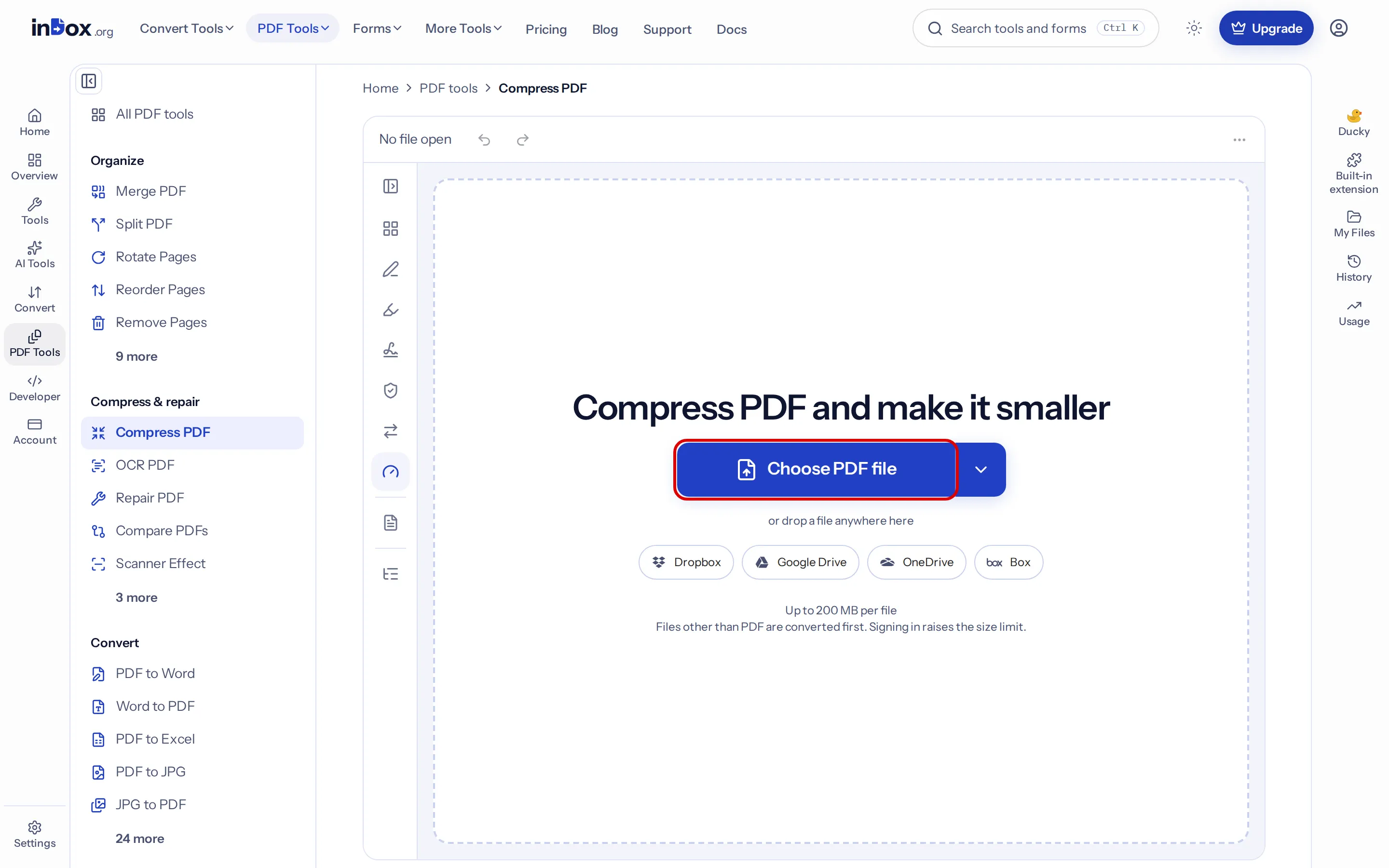
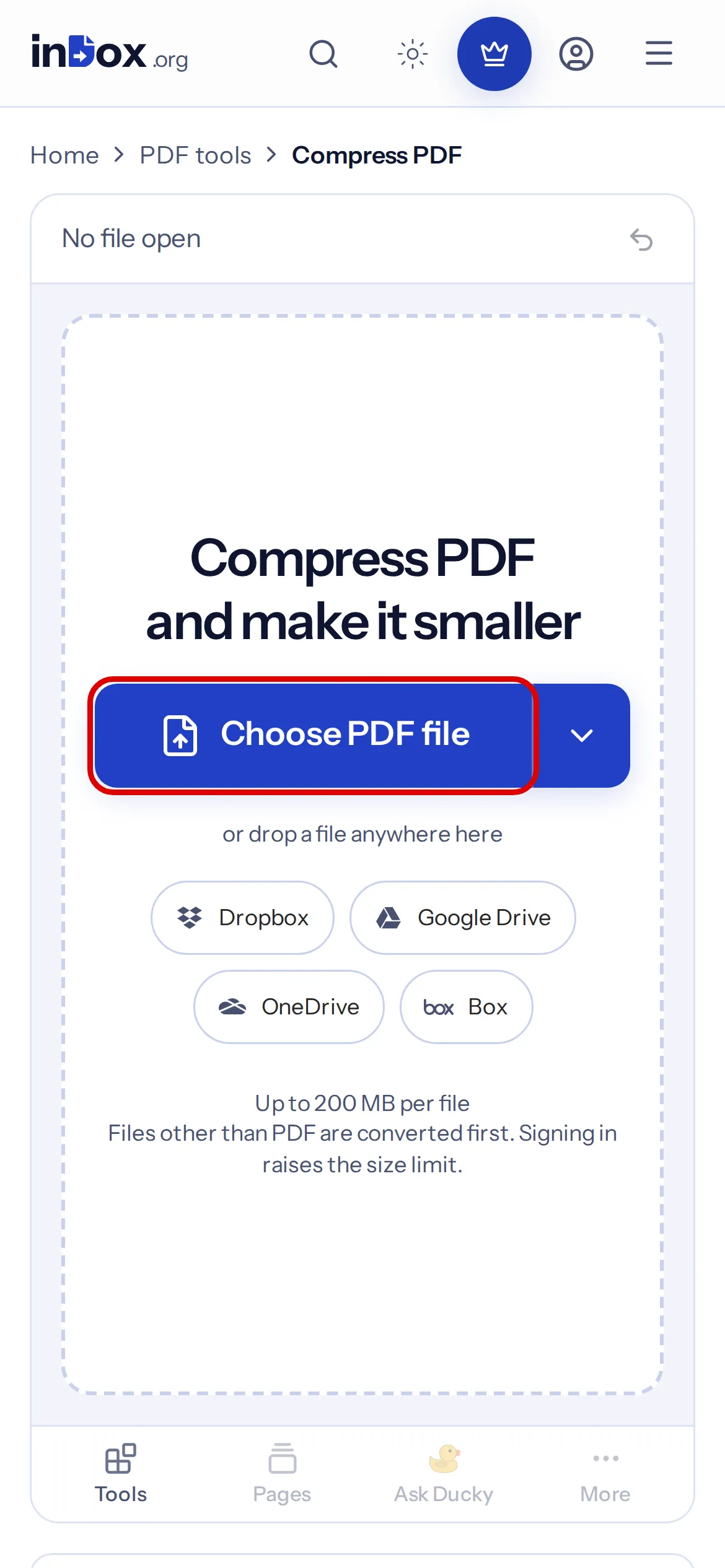
Go to the Compress PDF page. In the middle of the page, select the blue Choose PDF file button. A box opens so you can pick a file from your device. You can also drag a file onto the page. The file opens with a panel called Compress. On a computer the panel is on the right. On a phone it slides up from the bottom.
Check the size
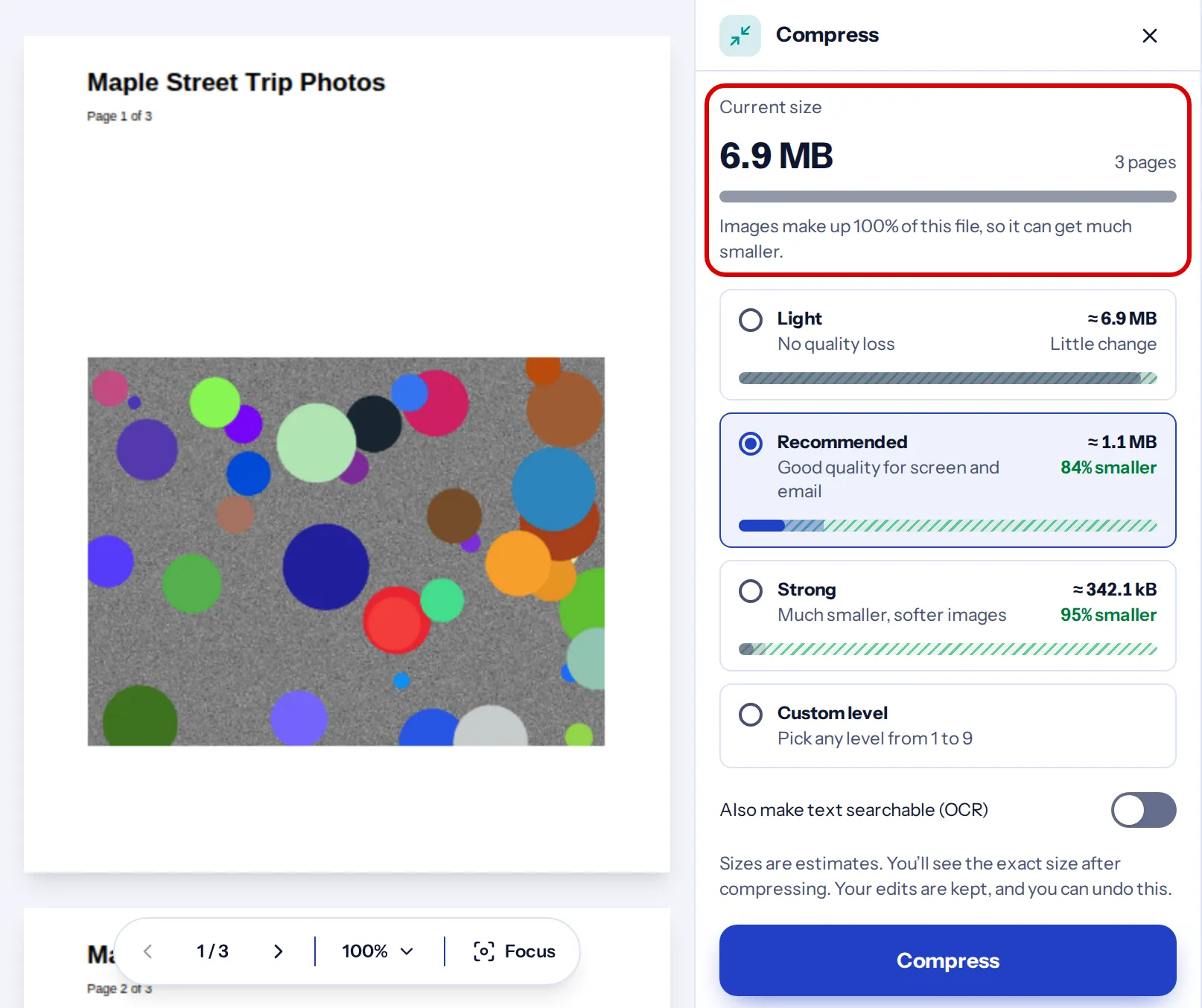
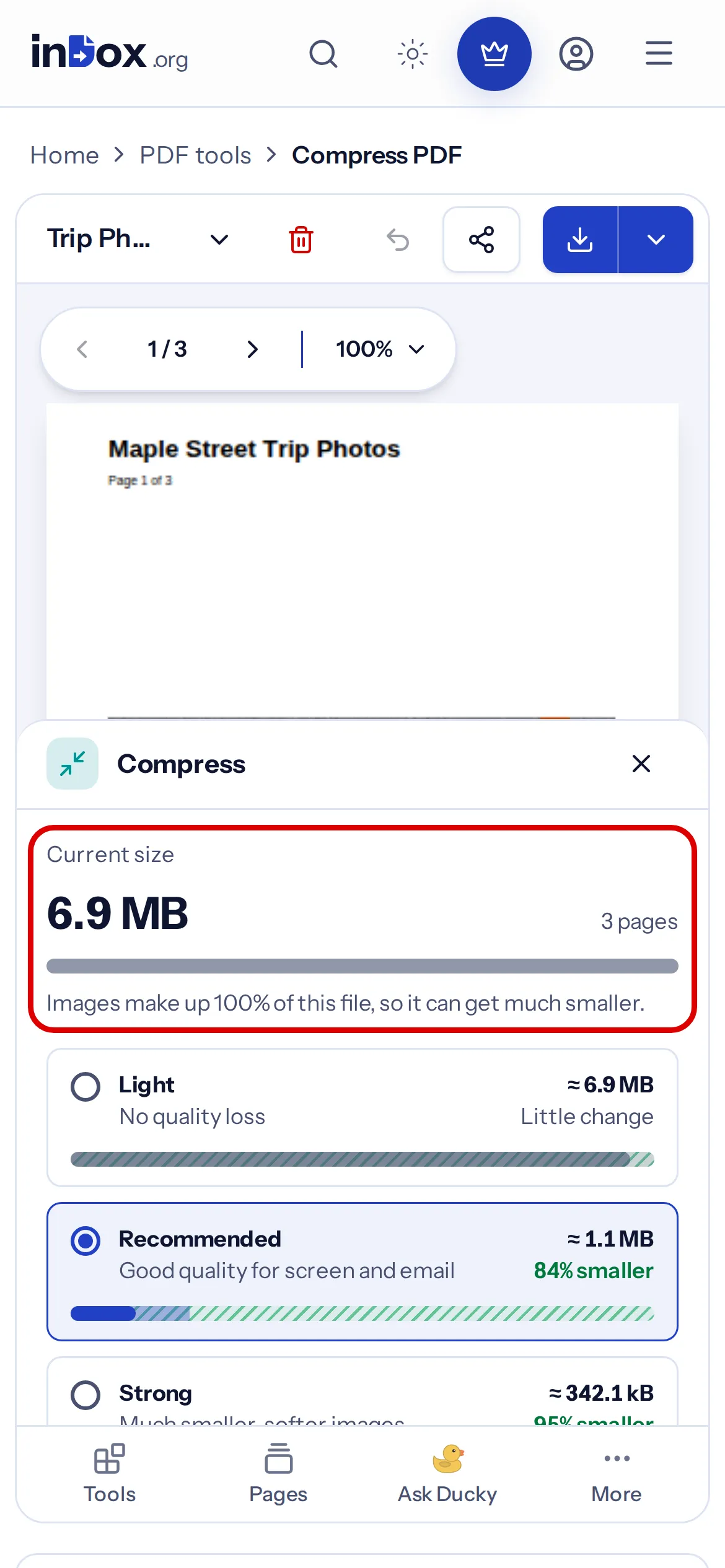
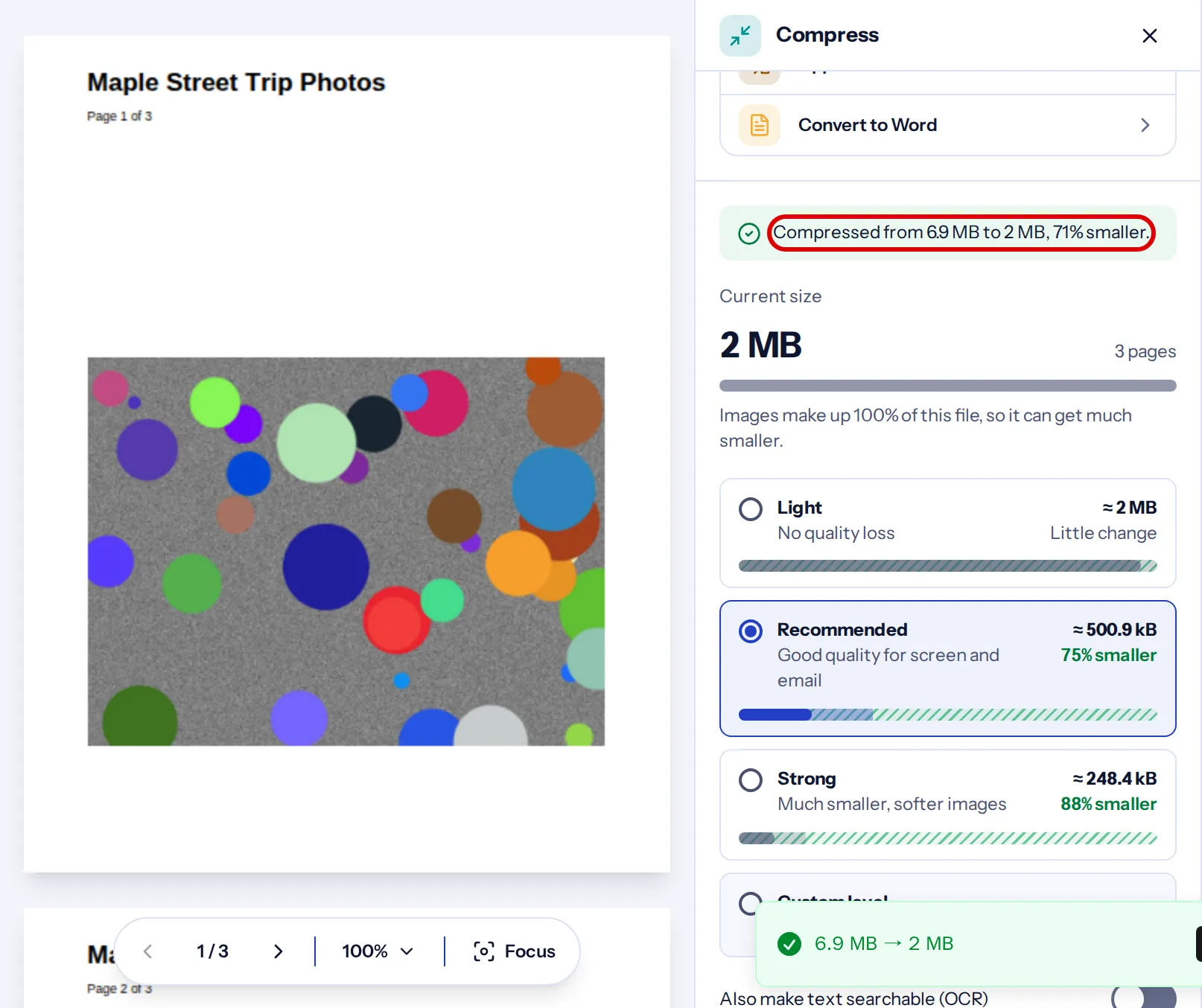
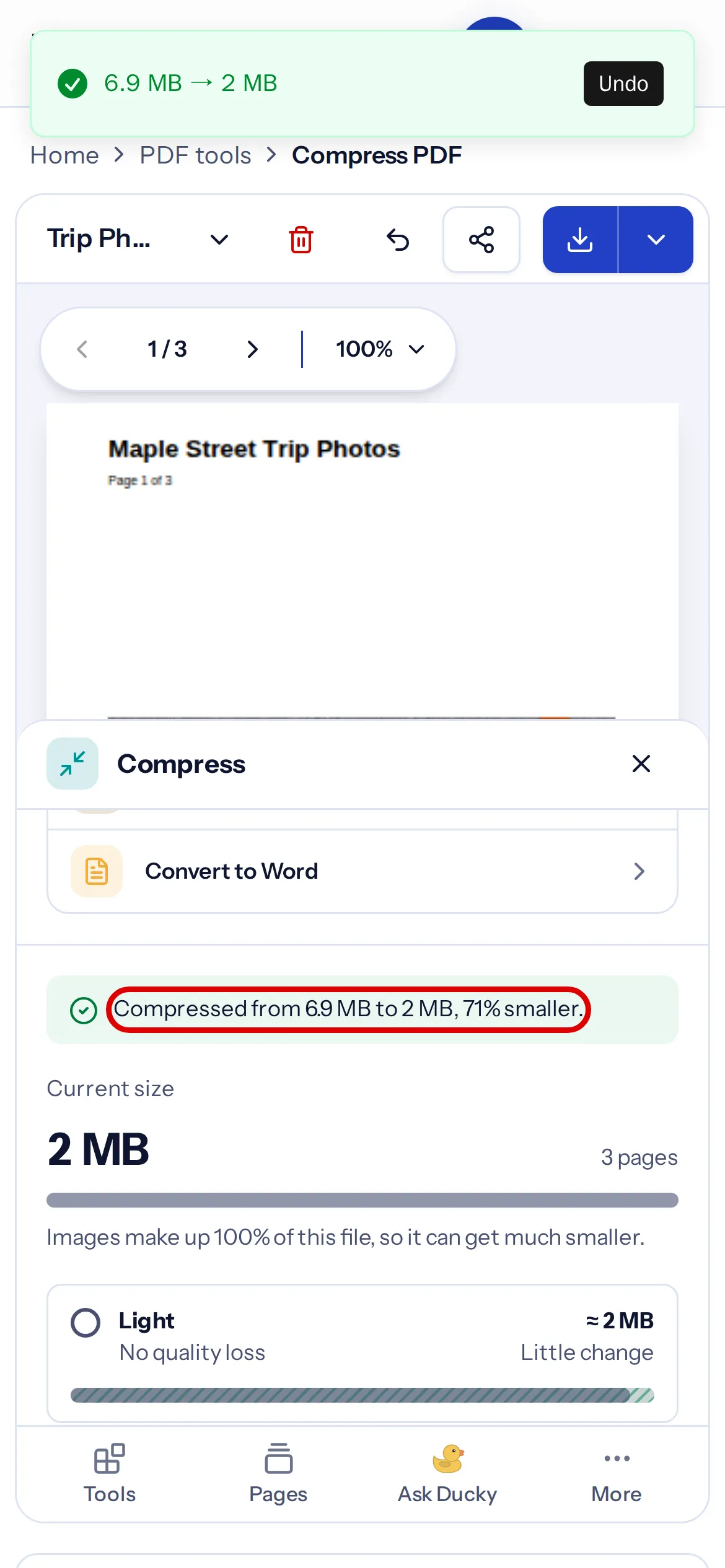
The panel starts with Current size. It shows how big your file is, such as 6.9 MB, and how many pages it has. MB means megabytes, a measure of file size. A line under it tells you how much of the file is pictures, such as Images make up 100% of this file, so it can get much smaller.
Pick a level
Scroll down the panel. Four choices follow: Light, Recommended, Strong and Custom level. Each one shows a guess of the new size. Recommended is already picked. It says Good quality for screen and email. Strong makes the file smallest, but the pictures look softer. Light keeps the pictures as they are, so the file changes little. Leave Recommended on.
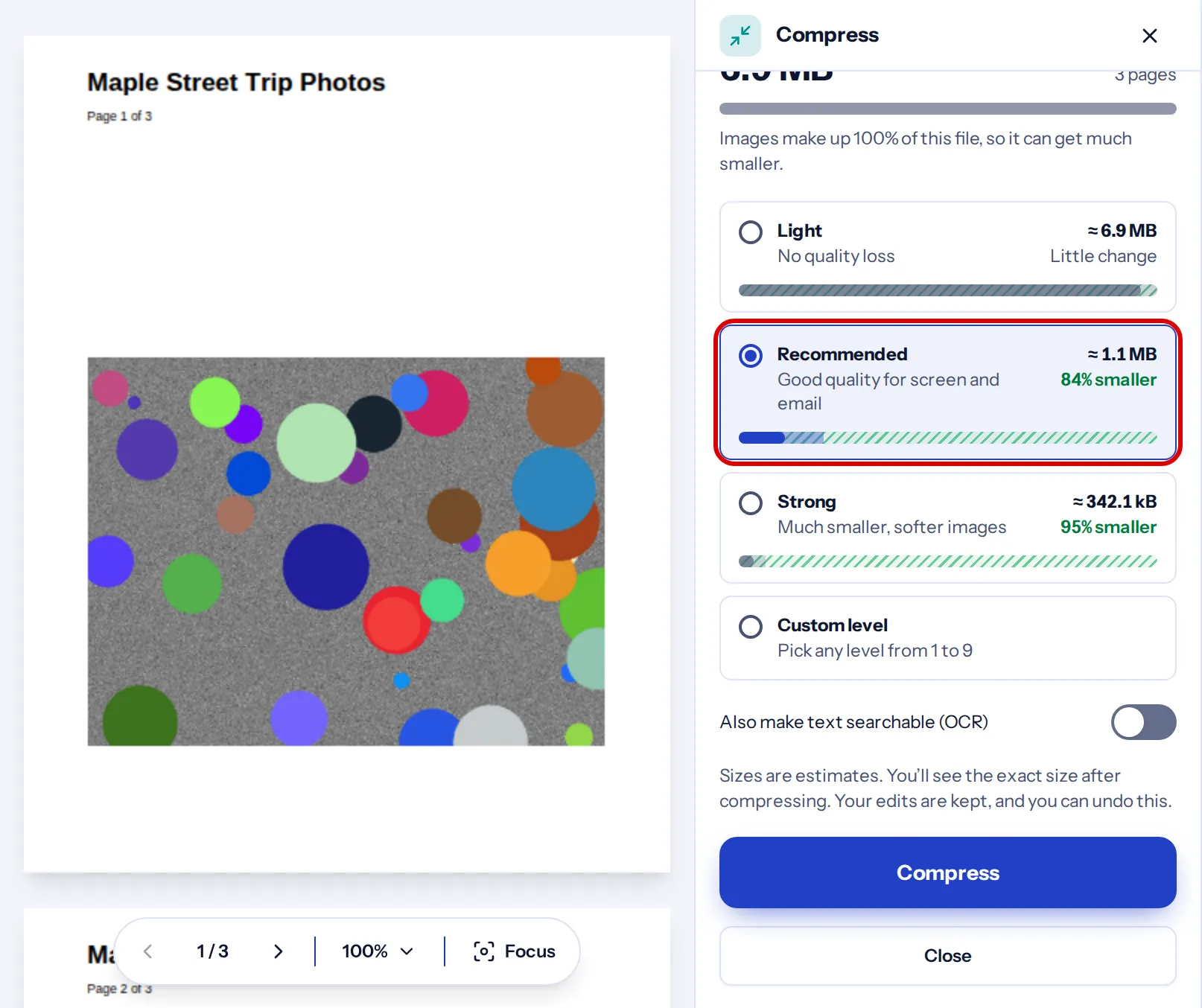
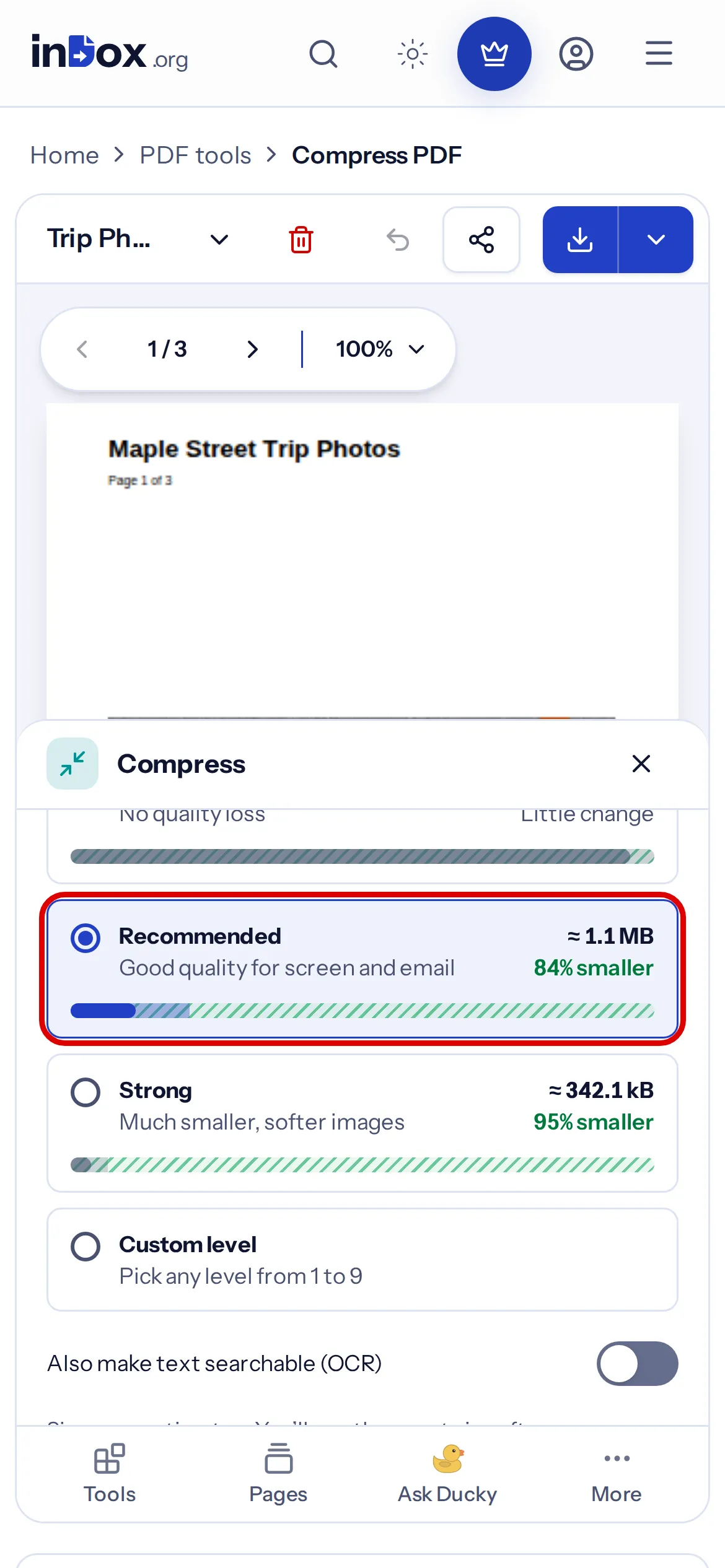
Compress the PDF
Select the blue Compress button at the bottom of the panel. Wait a moment. Leave Also make text searchable (OCR) off.
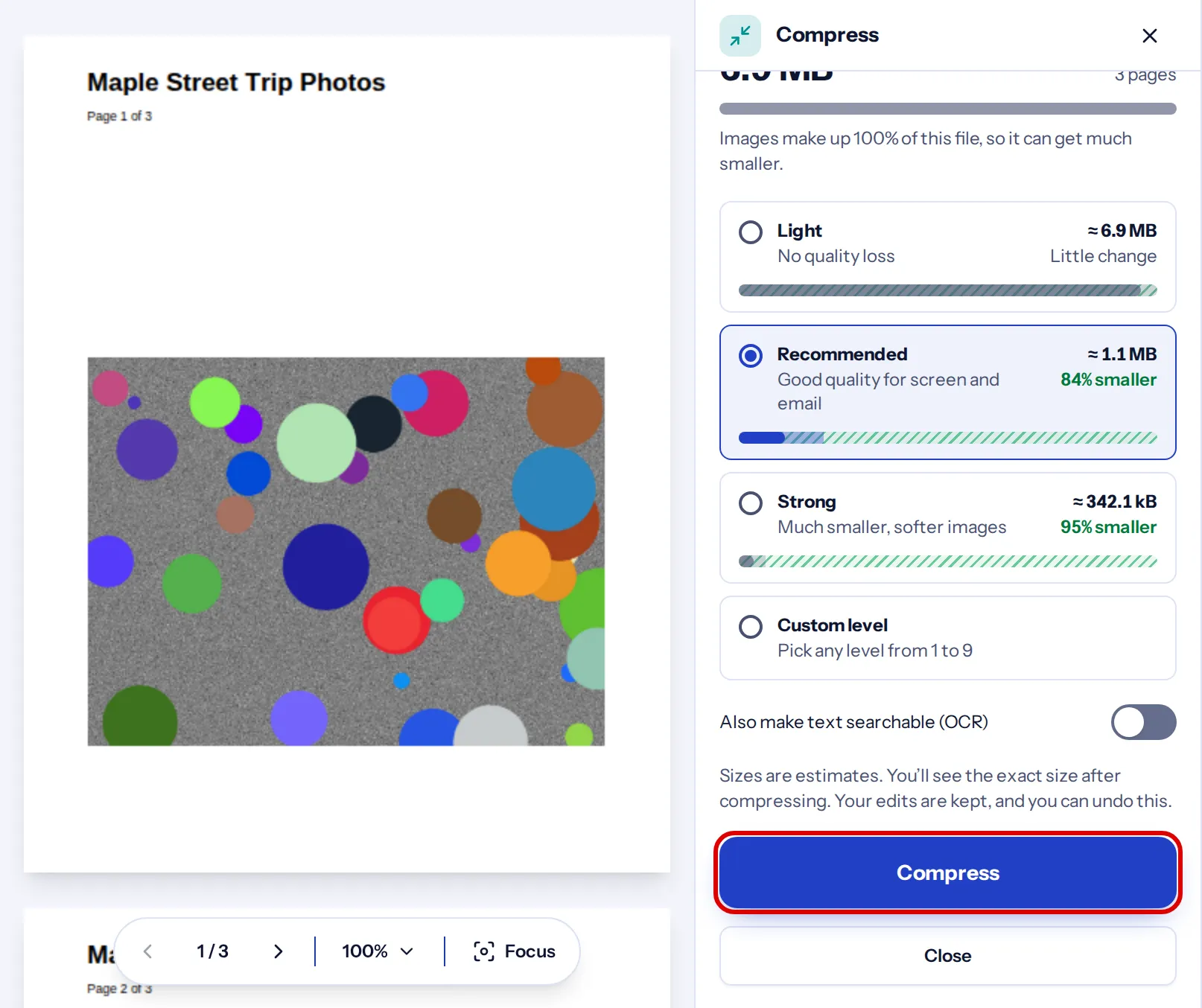
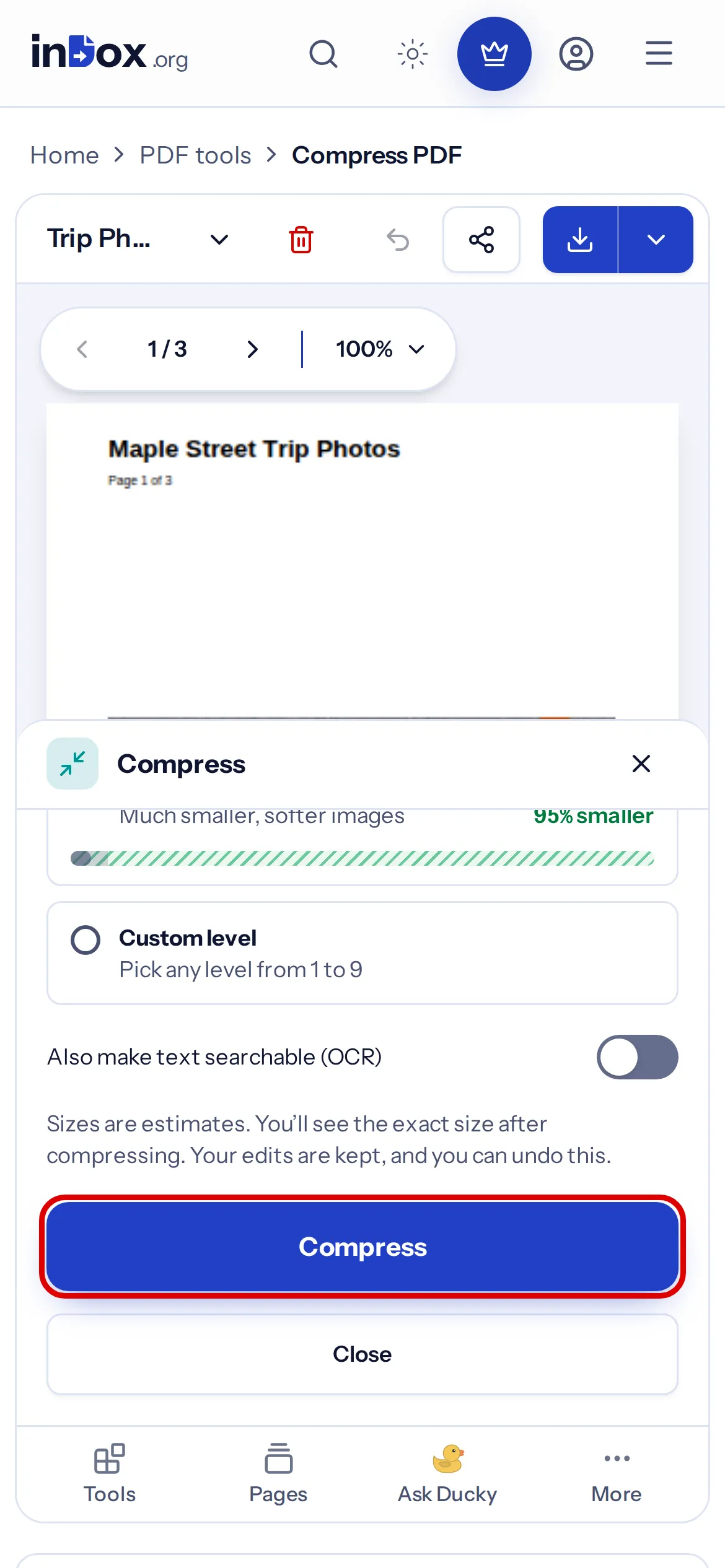
Read the result
A message tells you the real size, such as Compressed from 6.9 MB to 2 MB, 71% smaller. Your numbers will be different. The sizes shown before were only guesses. The smaller file now replaces the open one.
Download your PDF
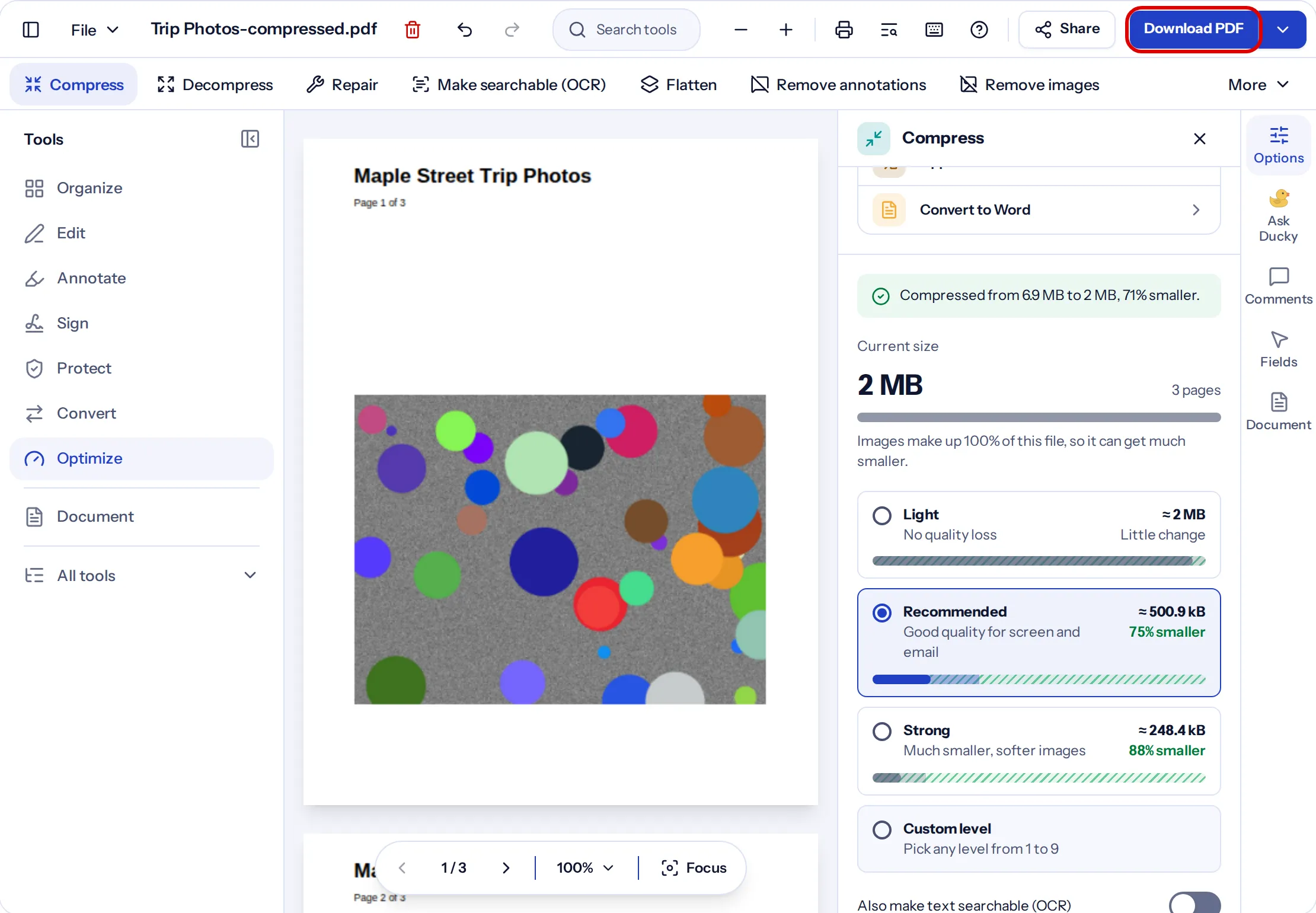
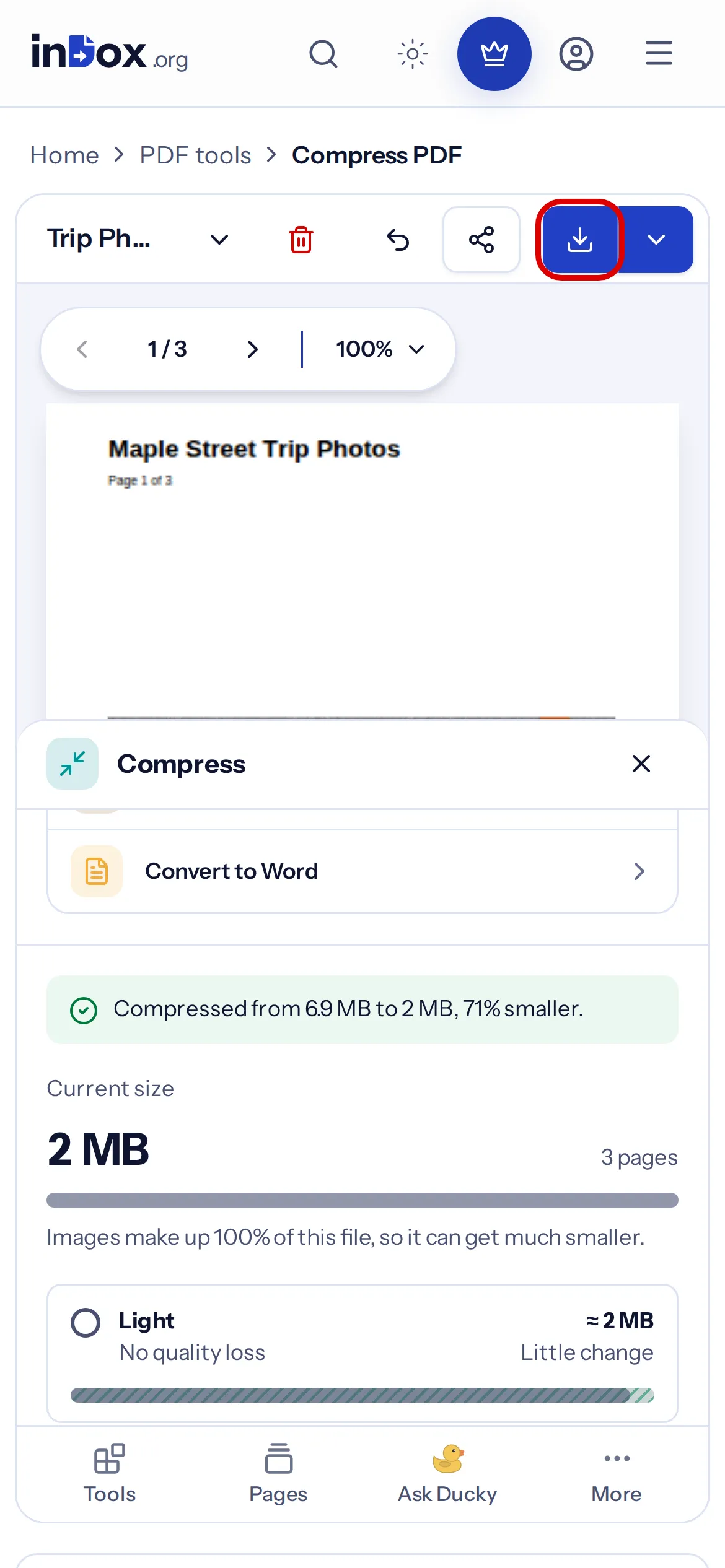
Select the blue Download PDF button. On a computer it is at the top right. On a phone it is the arrow in the bar above the page. The new file is saved on your device. Its name ends in -compressed. To go back, select Undo next to Download PDF before you leave the page. The old file comes back.
Troubleshooting
| Problem | Cause | Fix |
|---|---|---|
| The file got only a little smaller | The size depends on what is inside the file. A file with few pictures has less to shrink | Select Undo, pick Strong and compress again |
| The pictures look soft | Strong makes the pictures softer | Select Undo, then pick Recommended or Light |
| The real size is not what the panel guessed | The sizes shown before you compress are estimates | Read the exact size in the message after compressing |
| The upload box refuses your file | The upload box says Up to 200 MB per file | Cut the file in parts first with Split PDF |