Last updated
Fix problems with the INDOX extension
Before you start
- The INDOX extension added to Chrome on a computer. You don't need an account to do these steps.
- Diagnostics are a short note about your copy of the extension: its version, your browser and a few settings. Debug logging is a switch that makes the extension write down what it does.
Check the version
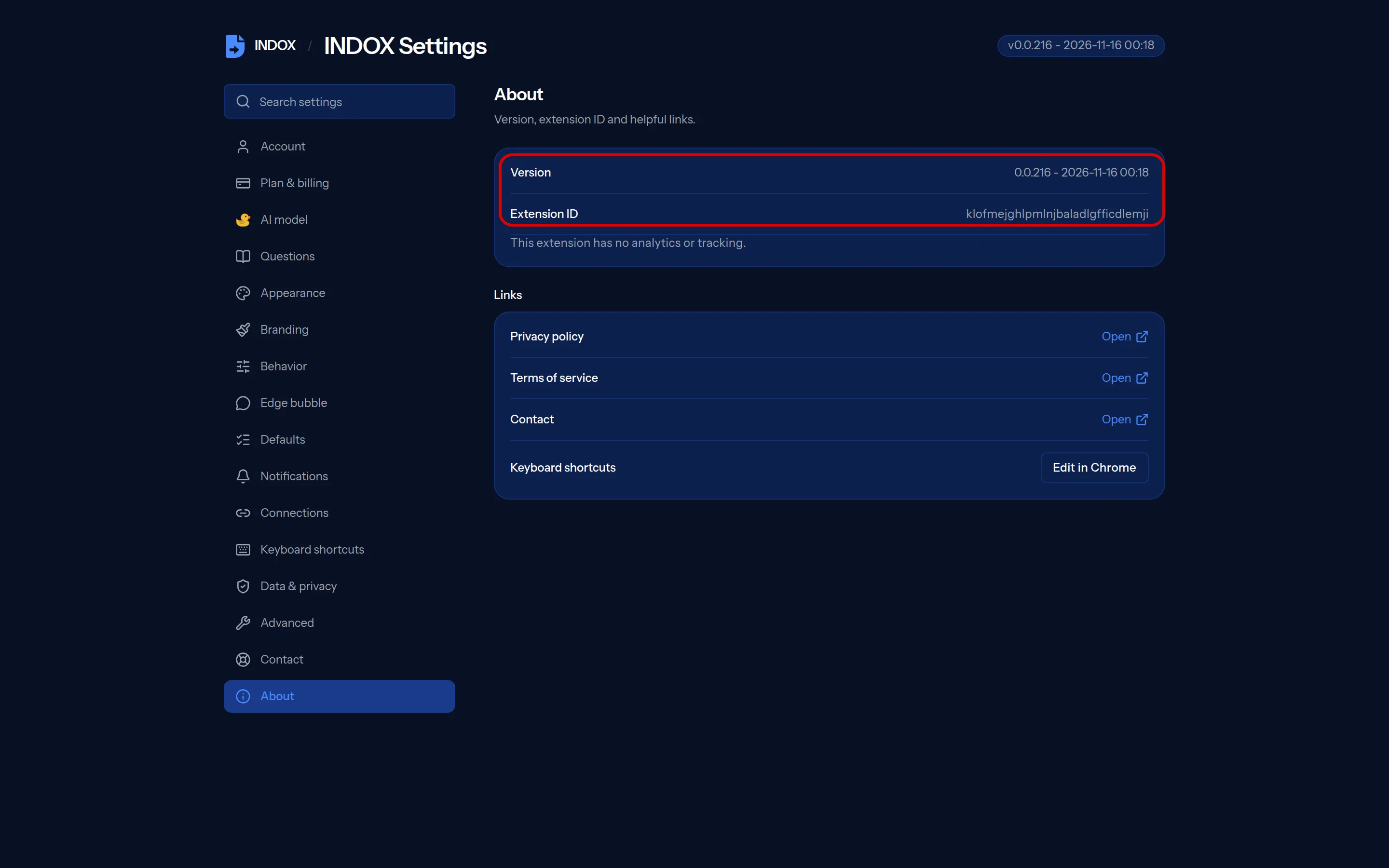
Right-click the INDOX icon in the toolbar and select Options. A new tab opens with the page INDOX Settings. In the list on the left, select About. Version shows the number and date of your copy, and Extension ID shows its ID. Write the version down if you plan to ask for help. The toolbar is the row of buttons next to the address bar.
Turn the extension off and on
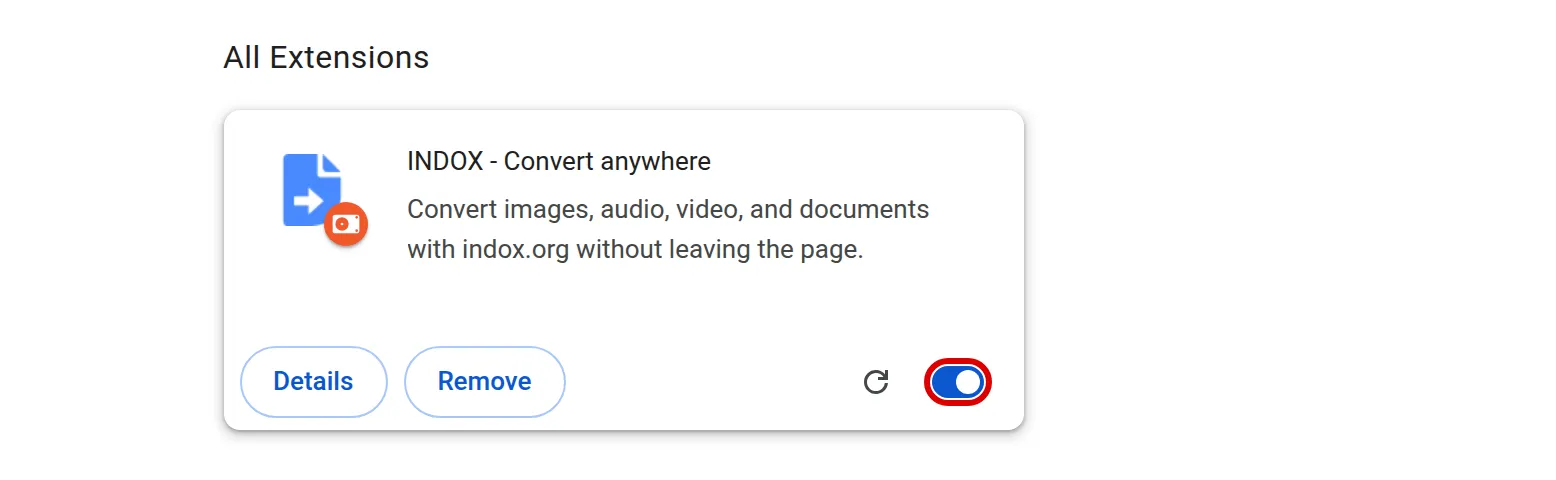
Select the Extensions icon, which looks like a puzzle piece, next to the address bar. Select Manage extensions. On the INDOX card, turn the blue switch off, wait a moment and turn it on again. Reload the web page you were using. The INDOX button comes back on the page.
Copy the diagnostics
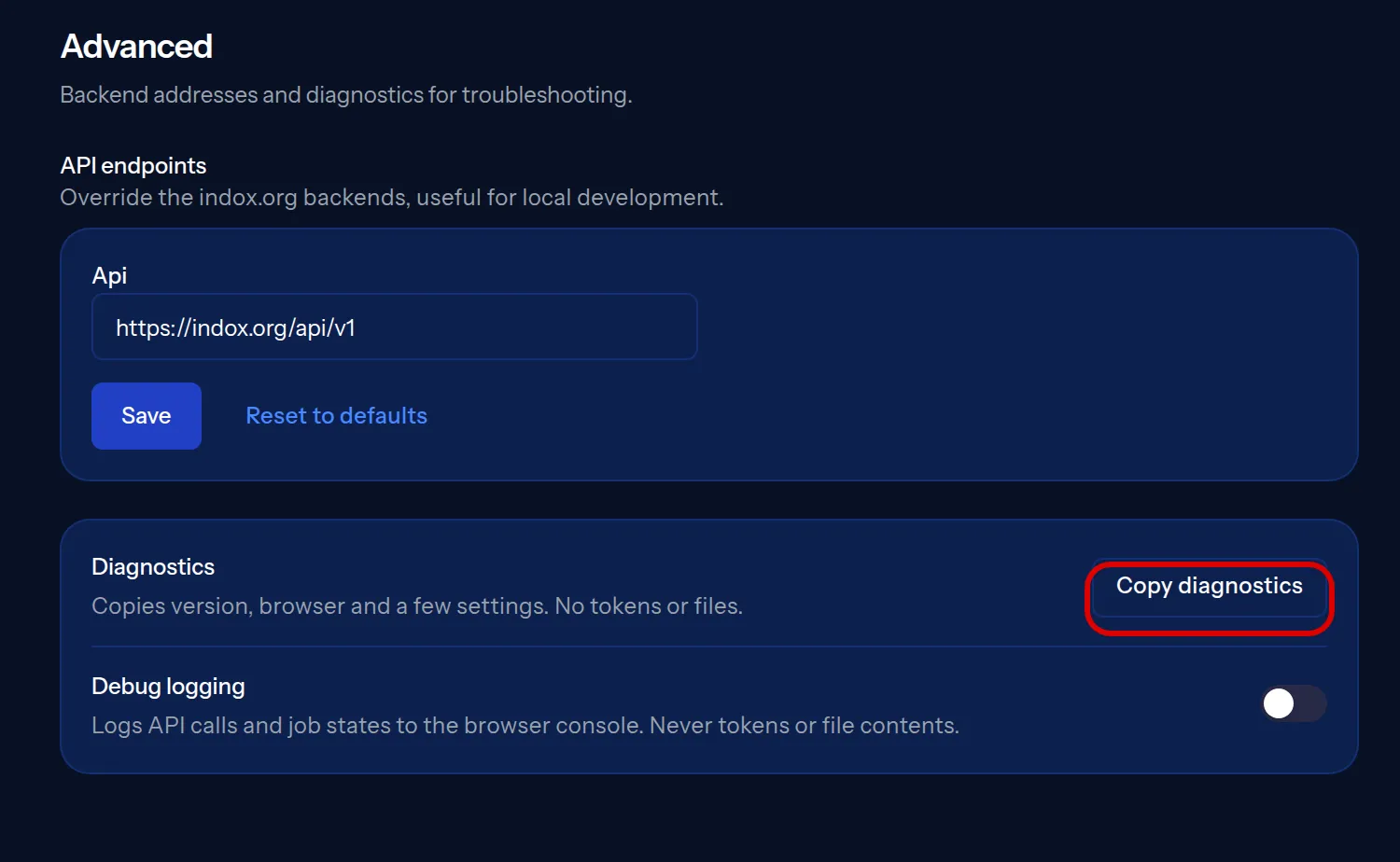
In the INDOX settings, select Advanced. Under Diagnostics, select Copy diagnostics. The page says Diagnostics copied. The note holds the version, the extension ID, your browser, language and theme, and the INDOX address. It holds none of your sign-in details and no files. Paste it into a message with Ctrl+V, or Command+V on a Mac.
Turn on debug logging
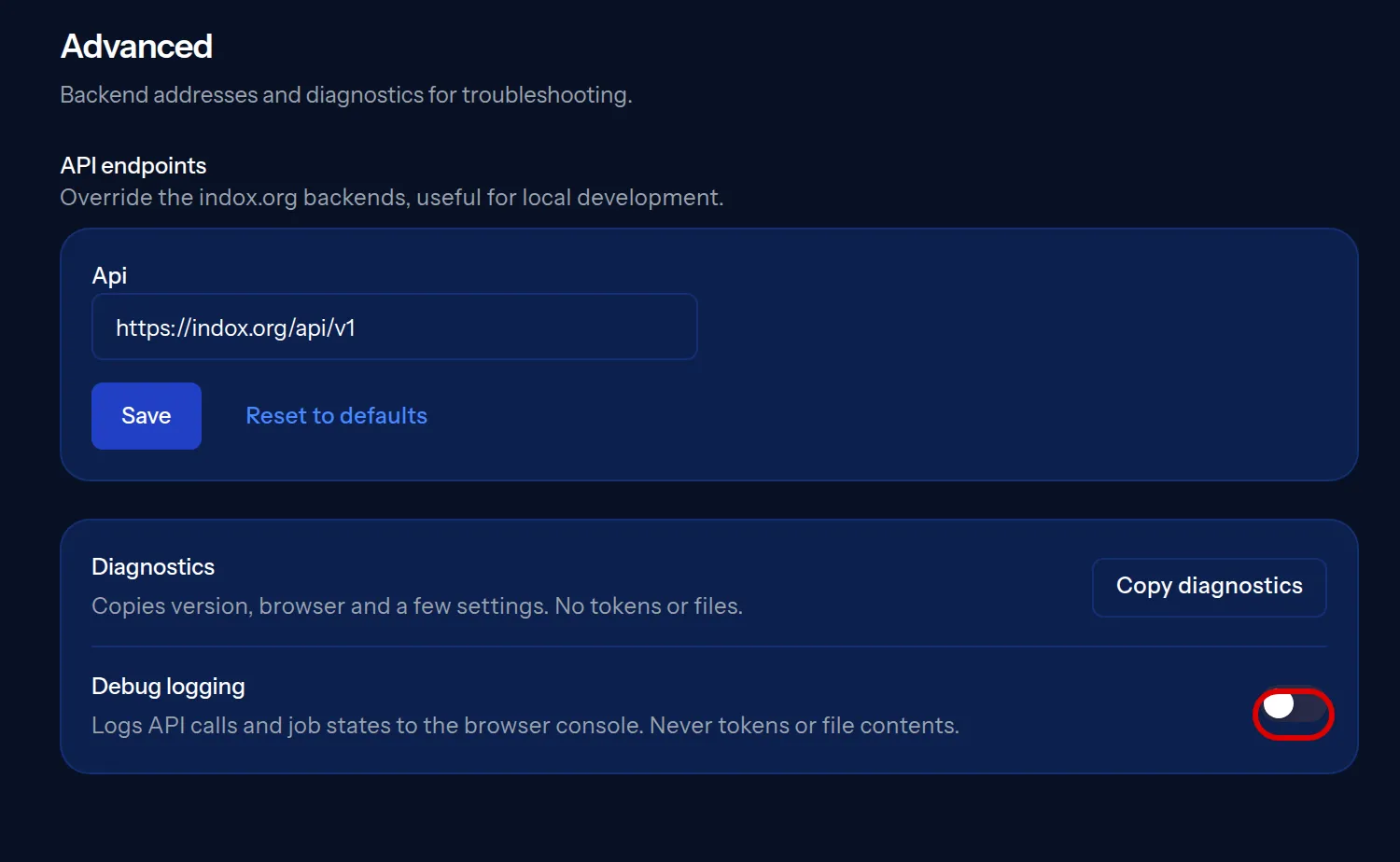
Turn this on only if the INDOX team asks. Under Diagnostics, turn on Debug logging. The page says it writes notes about its requests and jobs to the browser console, and never your sign-in details or file contents. The browser console is a hidden panel of technical notes that a support person can read. Turn the switch off again when you are done.
Repair a damaged extension
If Chrome says INDOX is corrupted, open Manage extensions, find INDOX and select Repair. Select Repair extension to confirm. If it still fails, remove the extension and add it again from the Chrome Web Store. The guide "Install the browser extension and pin it" shows how.
Contact the team
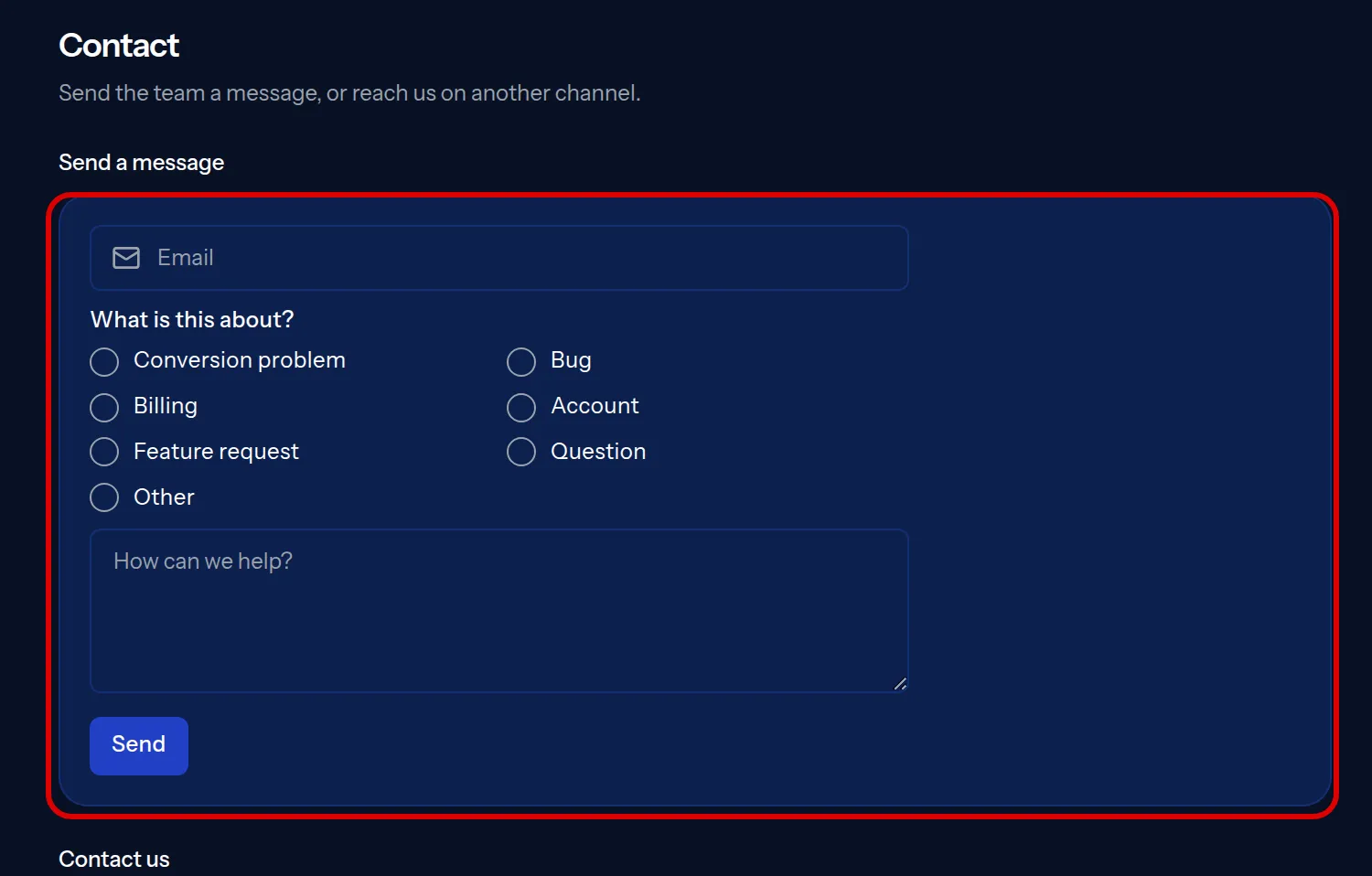
In the INDOX settings, select Contact. Under Send a message, type your email, choose what it is about, such as Conversion problem or Bug, describe the problem in the box How can we help? and select Send. Paste your diagnostics into the message.
Troubleshooting
| Problem | Cause | Fix |
|---|---|---|
| A job is stuck in the INDOX list | The extension keeps a list of jobs on your computer | In Data & privacy, select Clear next to Clear conversion list. Files on indox.org stay |
| A capture says The browser doesn't let extensions capture this page | Chrome keeps its own pages, such as chrome:// pages, closed to extensions | Open an ordinary website and try again |
| You changed the Api address by mistake | Api under API endpoints is for developers | Select Reset to defaults in that section |
| The settings feel wrong after many changes | Several settings were changed | In Data & privacy, select Reset to defaults. The guide "Change the INDOX extension's settings" shows how |