Last updated
Remove comments from a PDF
Before you start
- Have the PDF on your phone or computer. The upload box tells you how big a file can be.
- Comments, highlights and drawings are added on top of a page after the PDF was made. Another word for them is annotations.
- You don't need an account.
Open your PDF
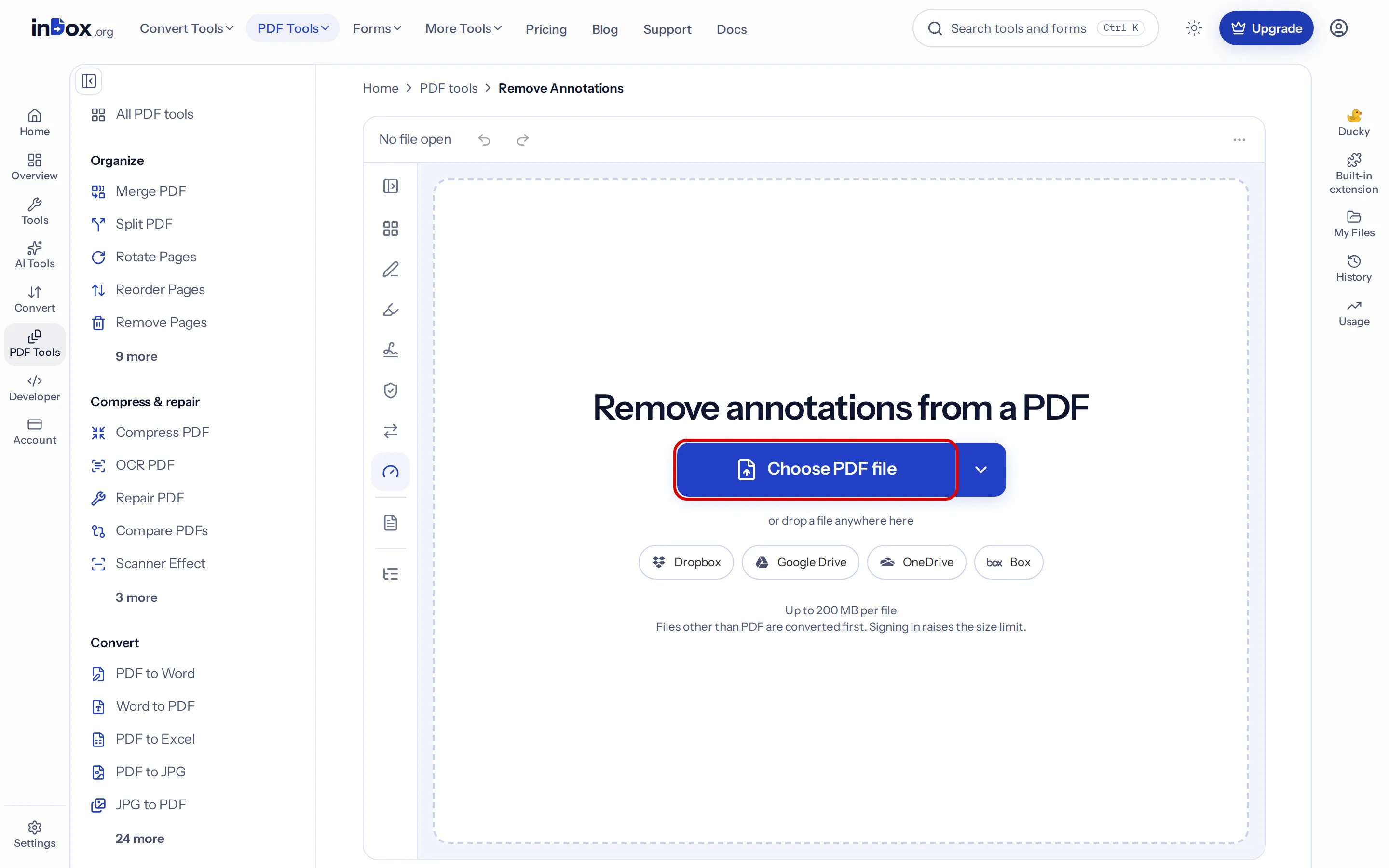
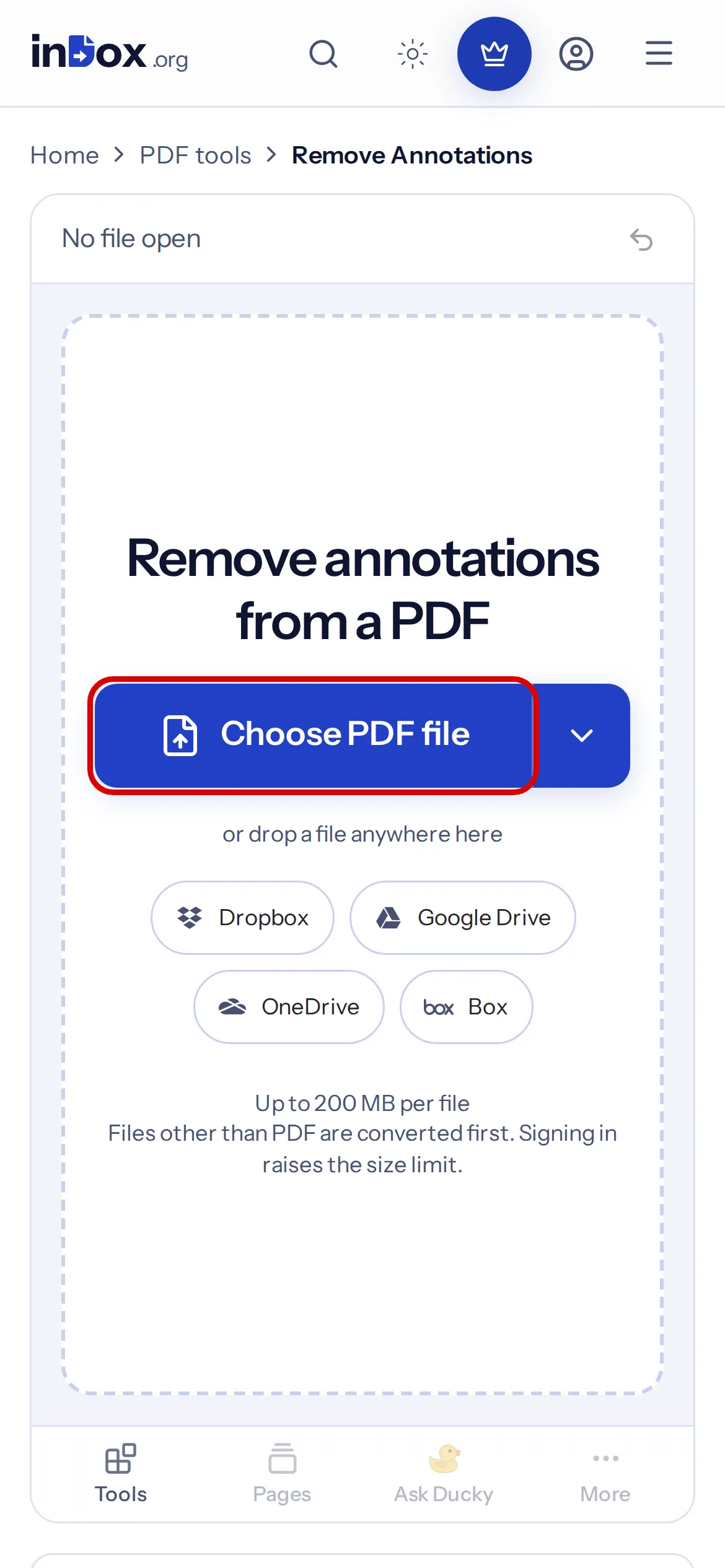
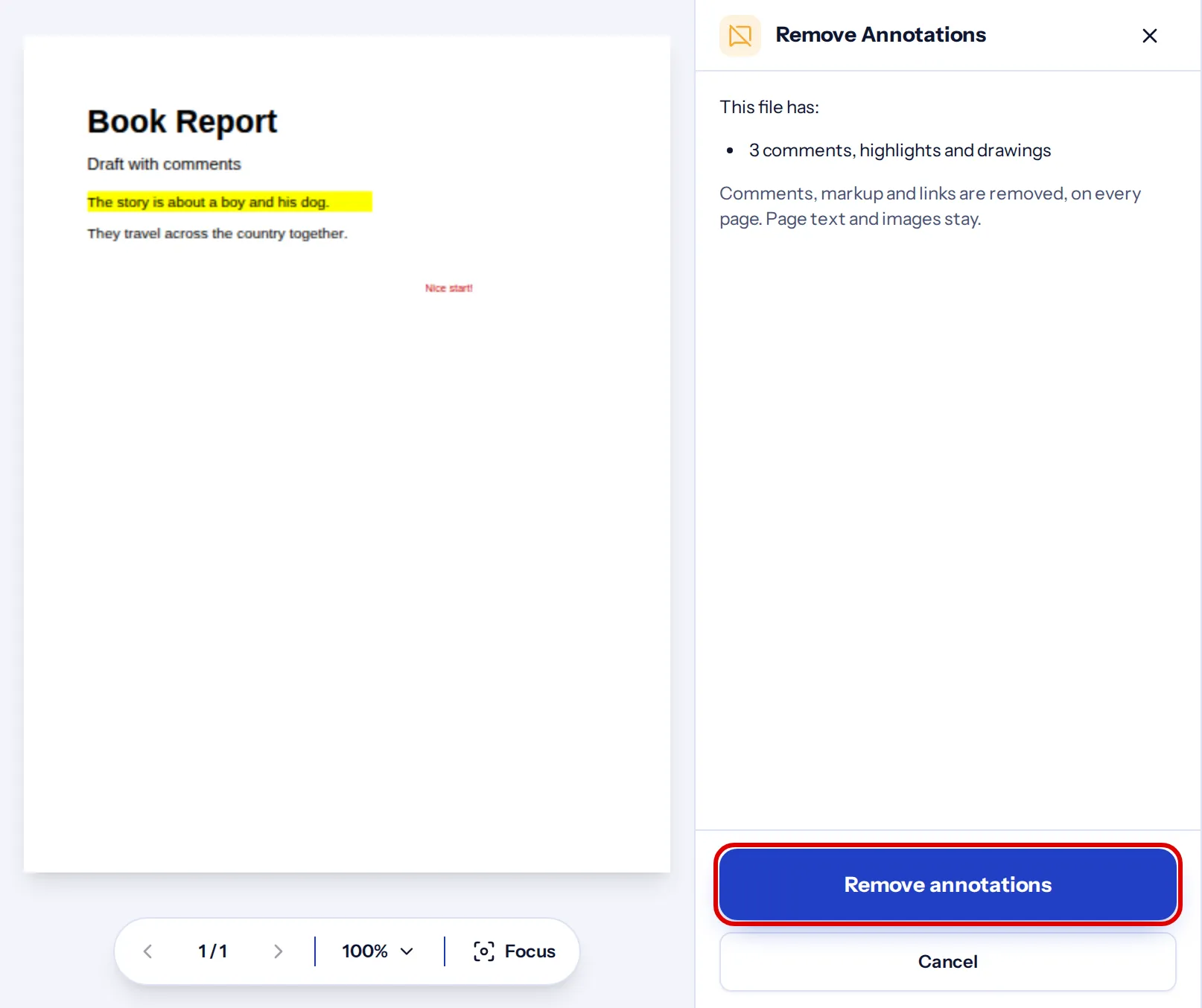
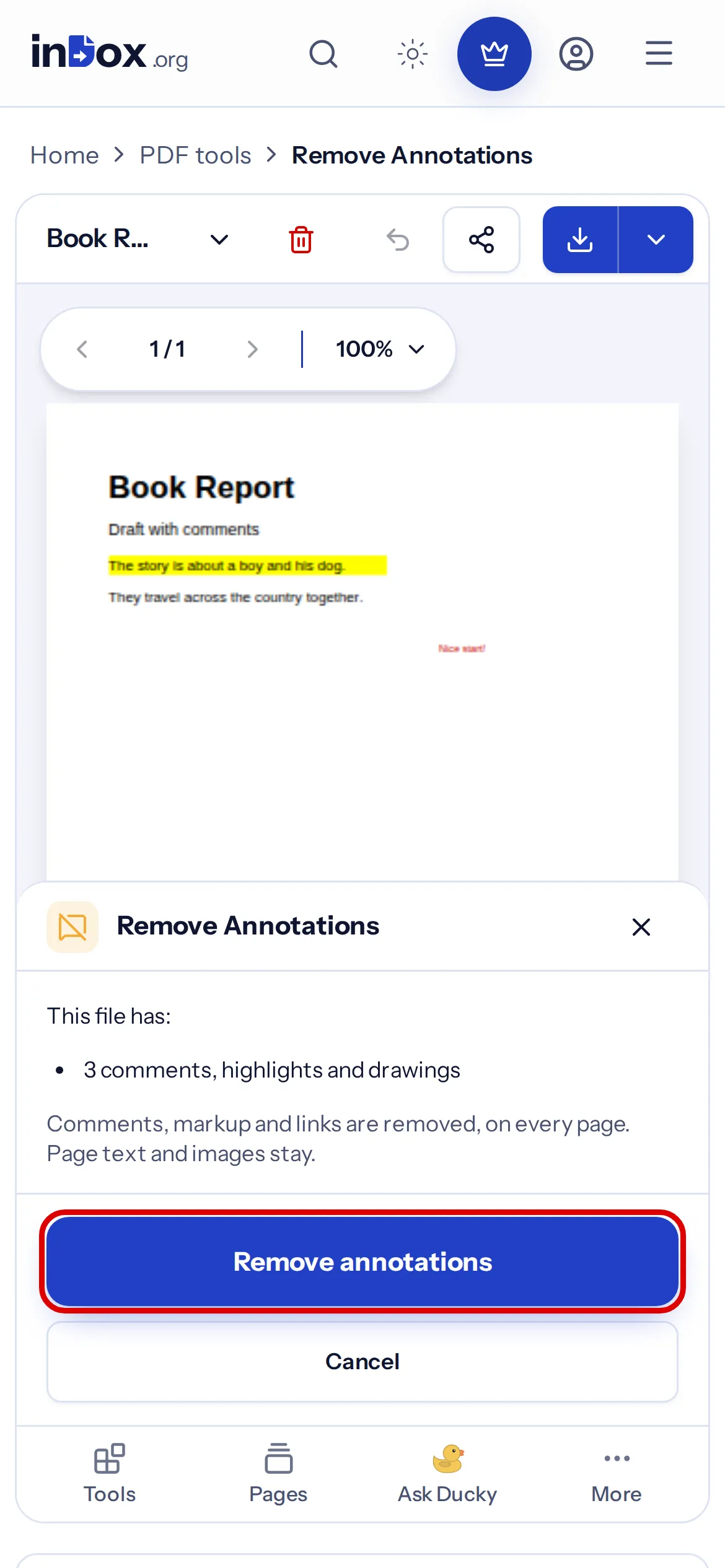
Go to the Remove Annotations page. In the middle of the page, select the blue Choose PDF file button. A box opens so you can pick a file from your device. You can also drag a file onto the page. The file opens with a panel called Remove Annotations. On a computer the panel is on the right. On a phone it slides up from the bottom.
See what the file has
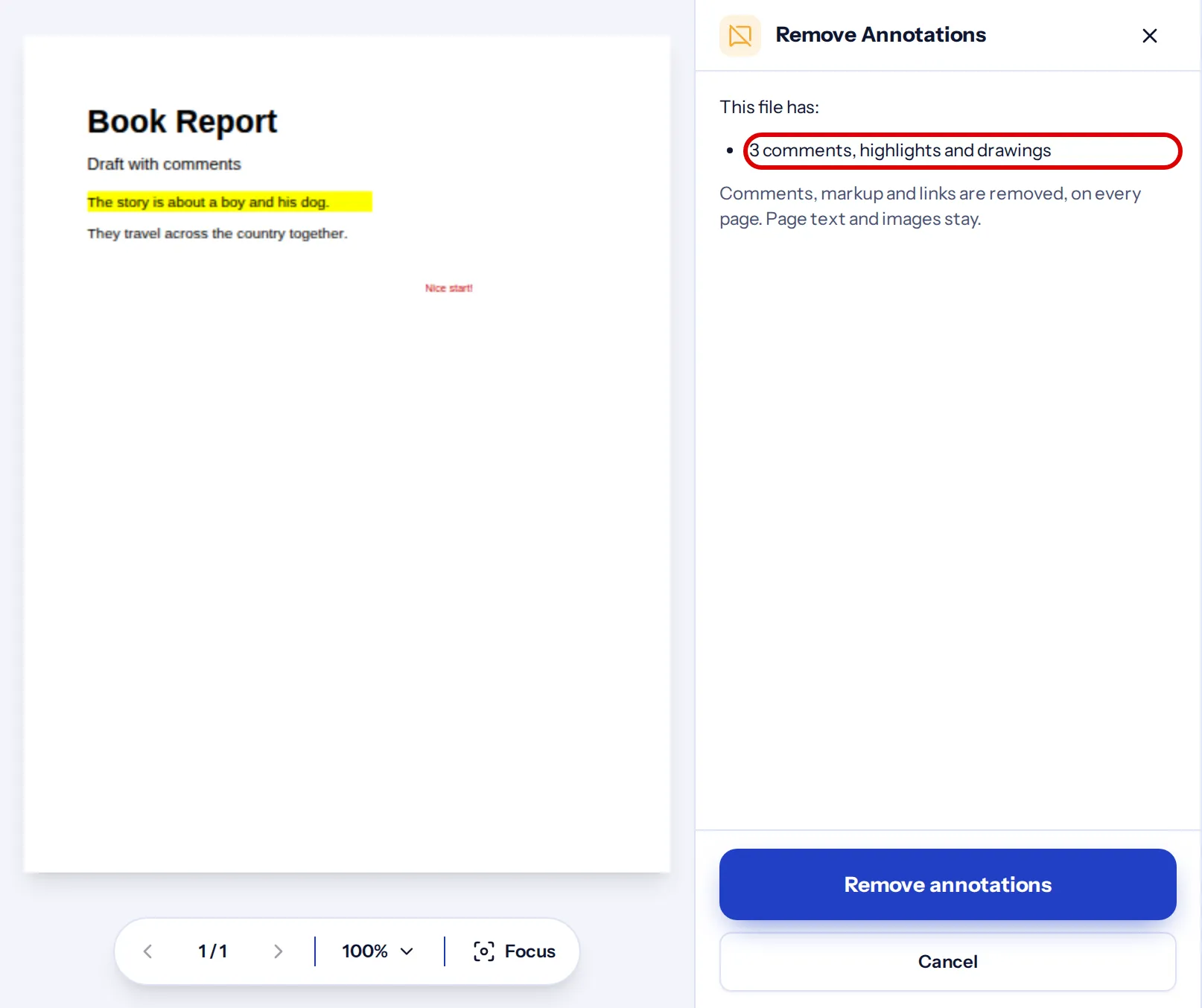
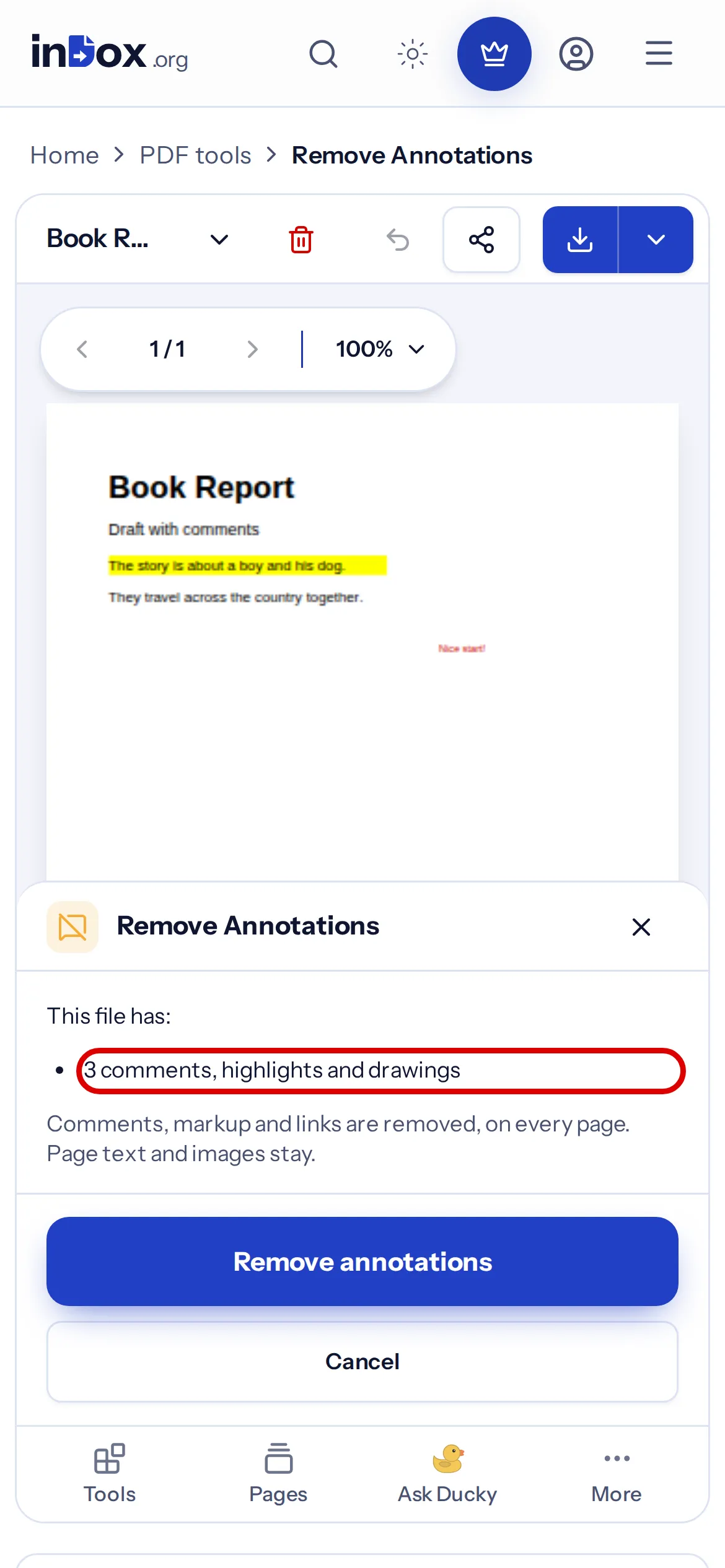
Under This file has:, the panel lists what it found, such as 3 comments, highlights and drawings. It removes comments, markup and links from every page. Page text and images stay.
Remove the markup
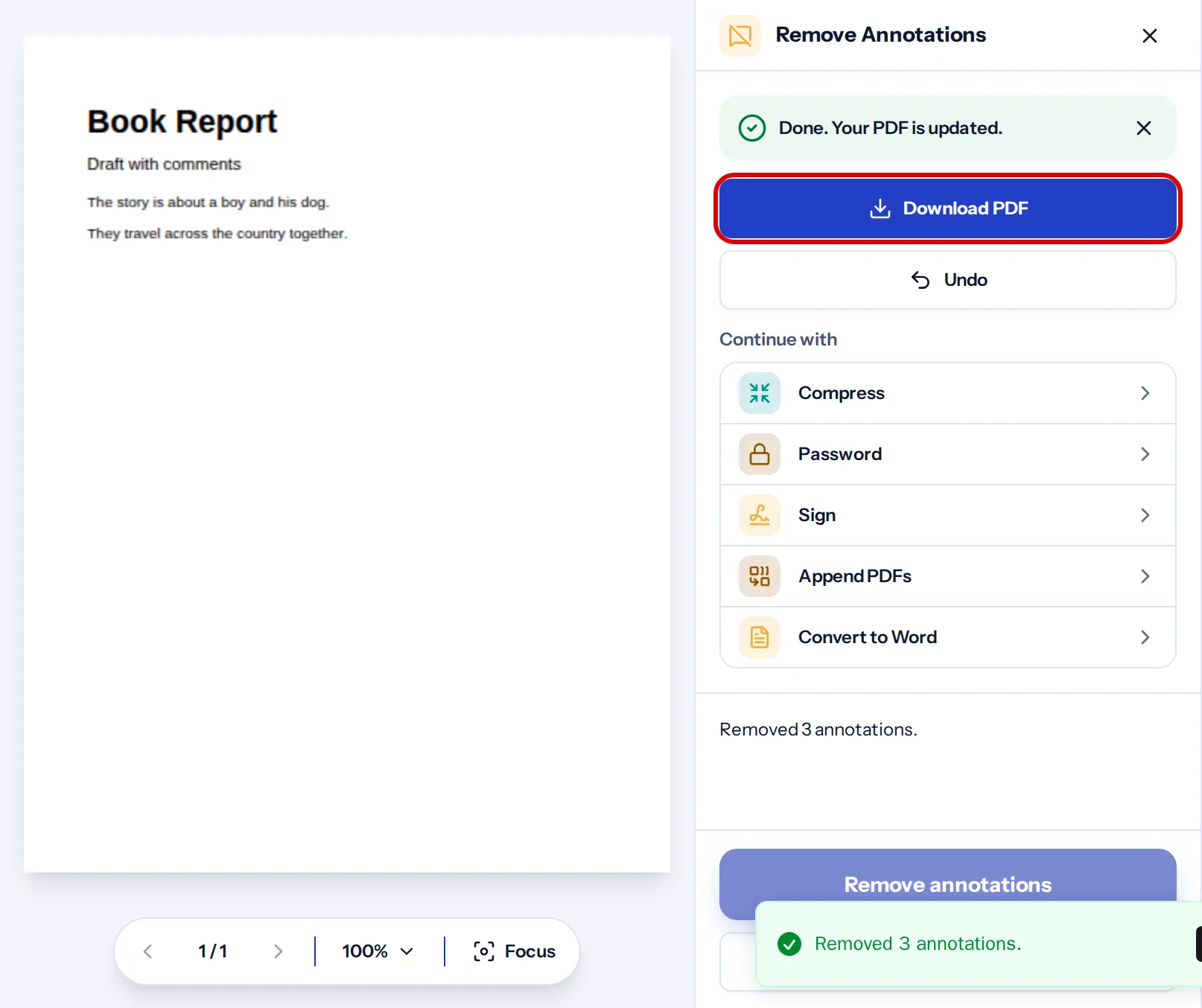
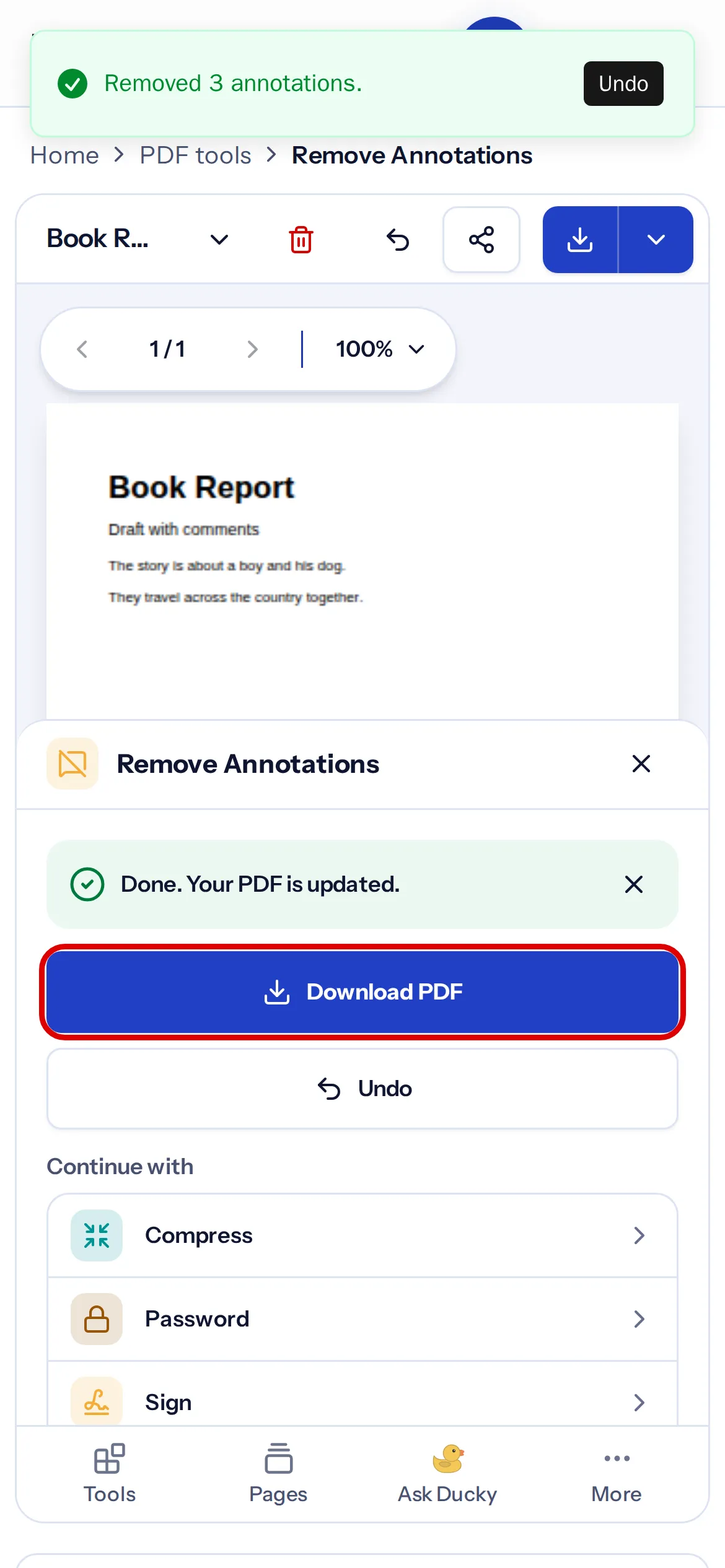
Select the blue Remove annotations button at the bottom of the panel. You can't pick one kind or one page. It cleans all of them. A message says how many were removed, such as Removed 3 annotations.
Download your PDF
The panel says Done. Your PDF is updated. Select the blue Download PDF button. The clean PDF downloads to your device.
Troubleshooting
| Problem | Cause | Fix |
|---|---|---|
| You want to keep some comments | The tool removes all of them from every page | Keep your original file and make the clean copy from it |
| Links in the file stopped working | Links are removed along with the comments | Use the original file when you need the links |
| Form boxes are still in the file | Form fields stay in the file, with their answers | Use the Flatten PDF page to fix the answers on the page |