Last updated
Remove hidden data from a PDF
Before you start
- Have the PDF on your phone or computer. The upload box tells you how big a file can be.
- A PDF can hold more than you see on the page. It can hide small programs called scripts. It can hide files stored inside it. It can also hide details about the file, called metadata, such as the title, the author and the dates. This tool takes them out.
- The page itself looks the same afterwards. To hide words you can see on the page, use Redact text instead.
- You don't need an account.
Open your PDF
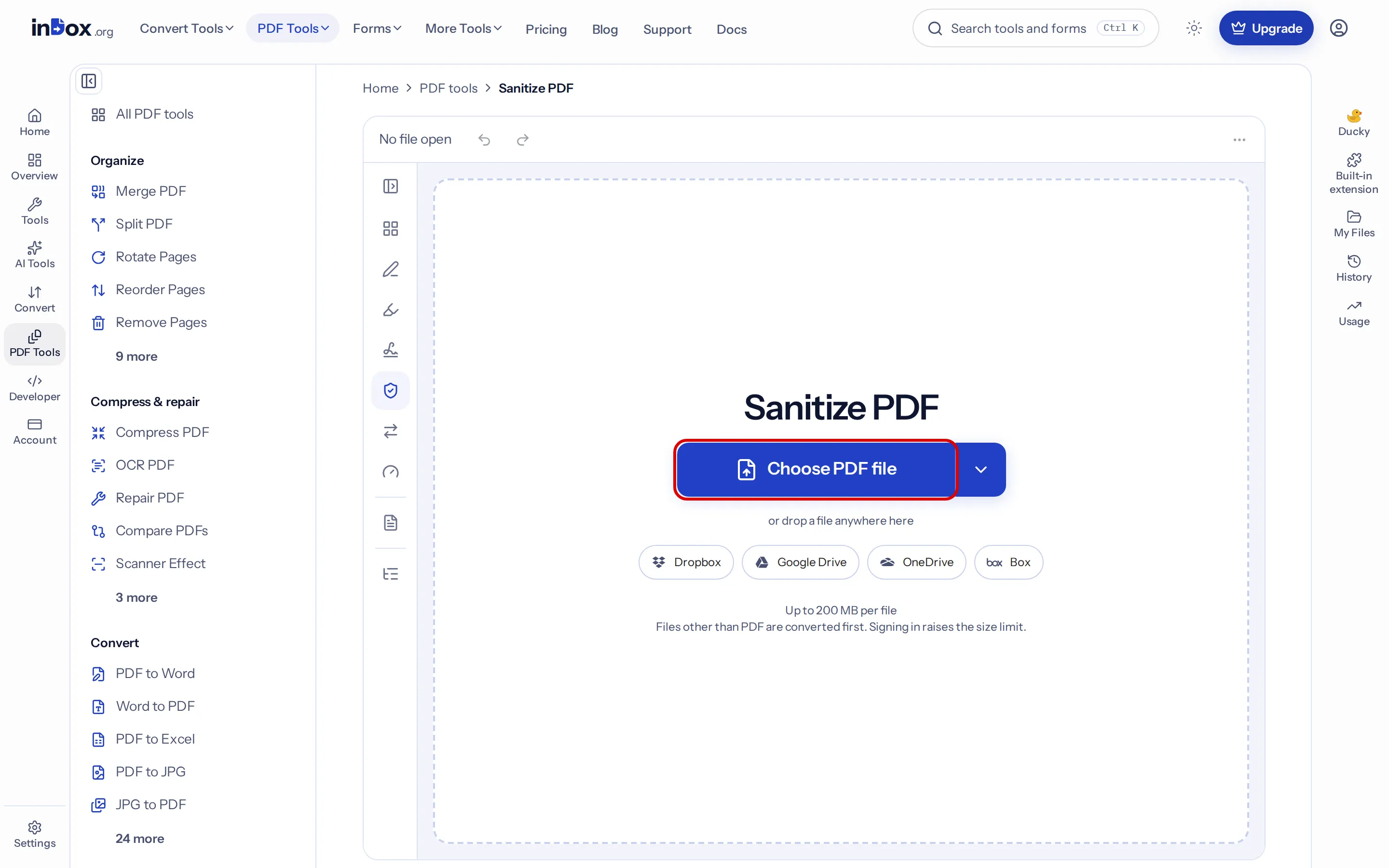
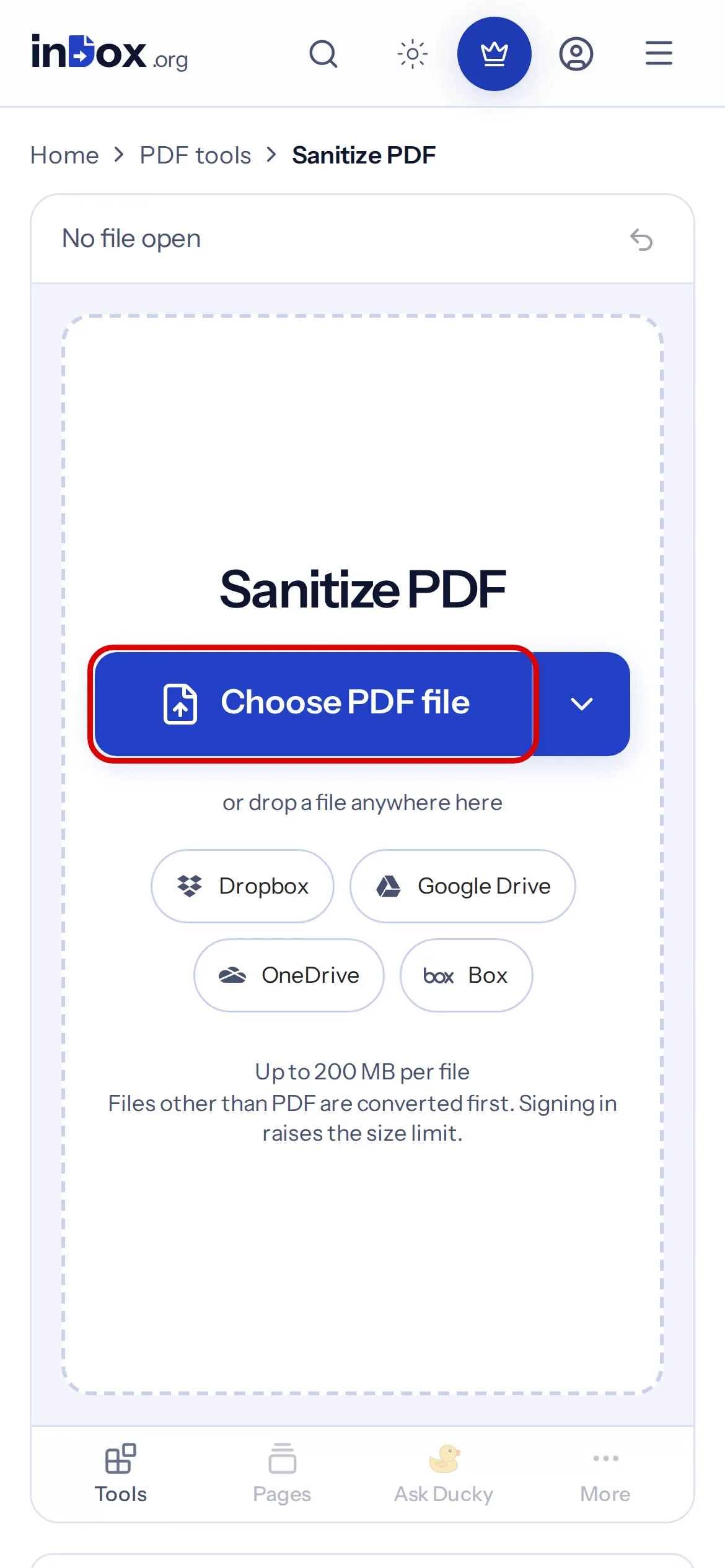
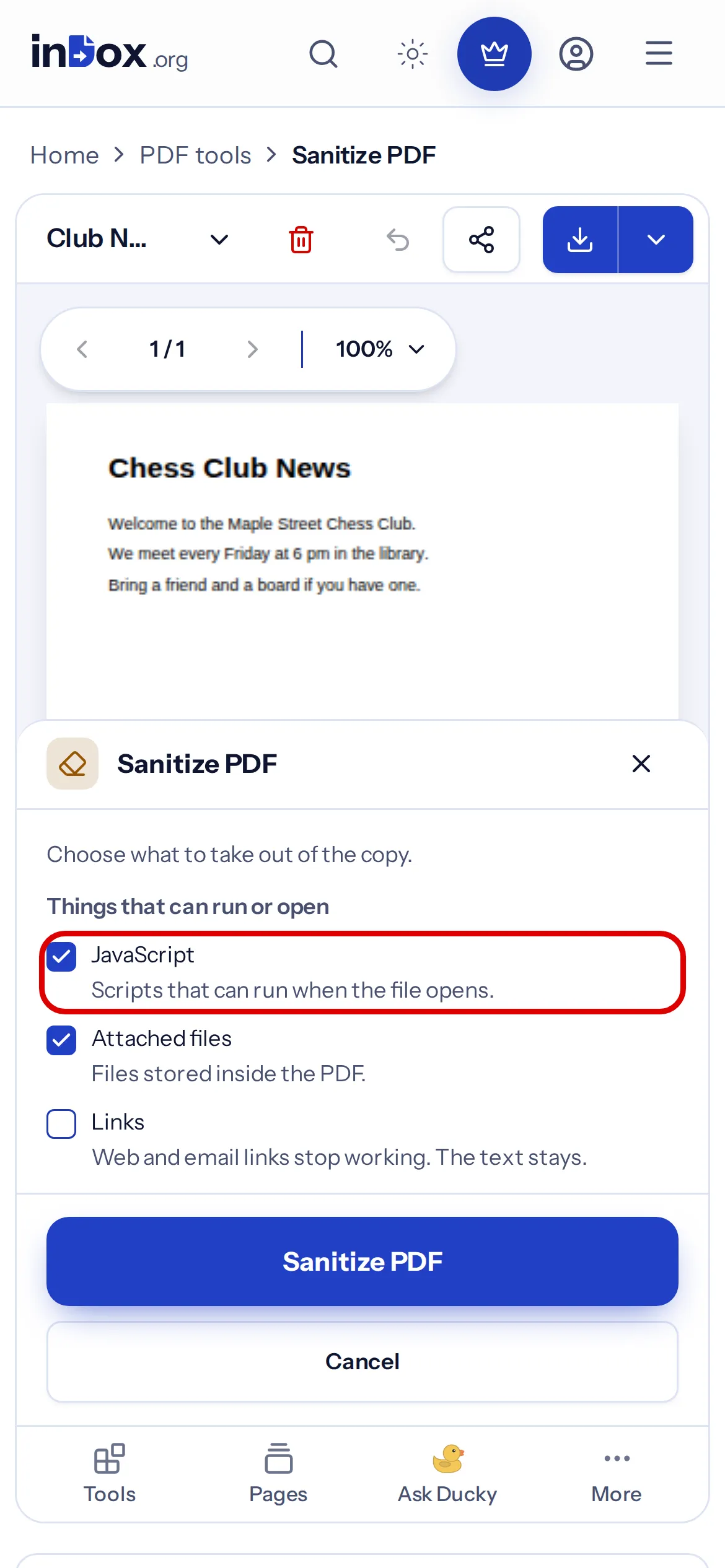
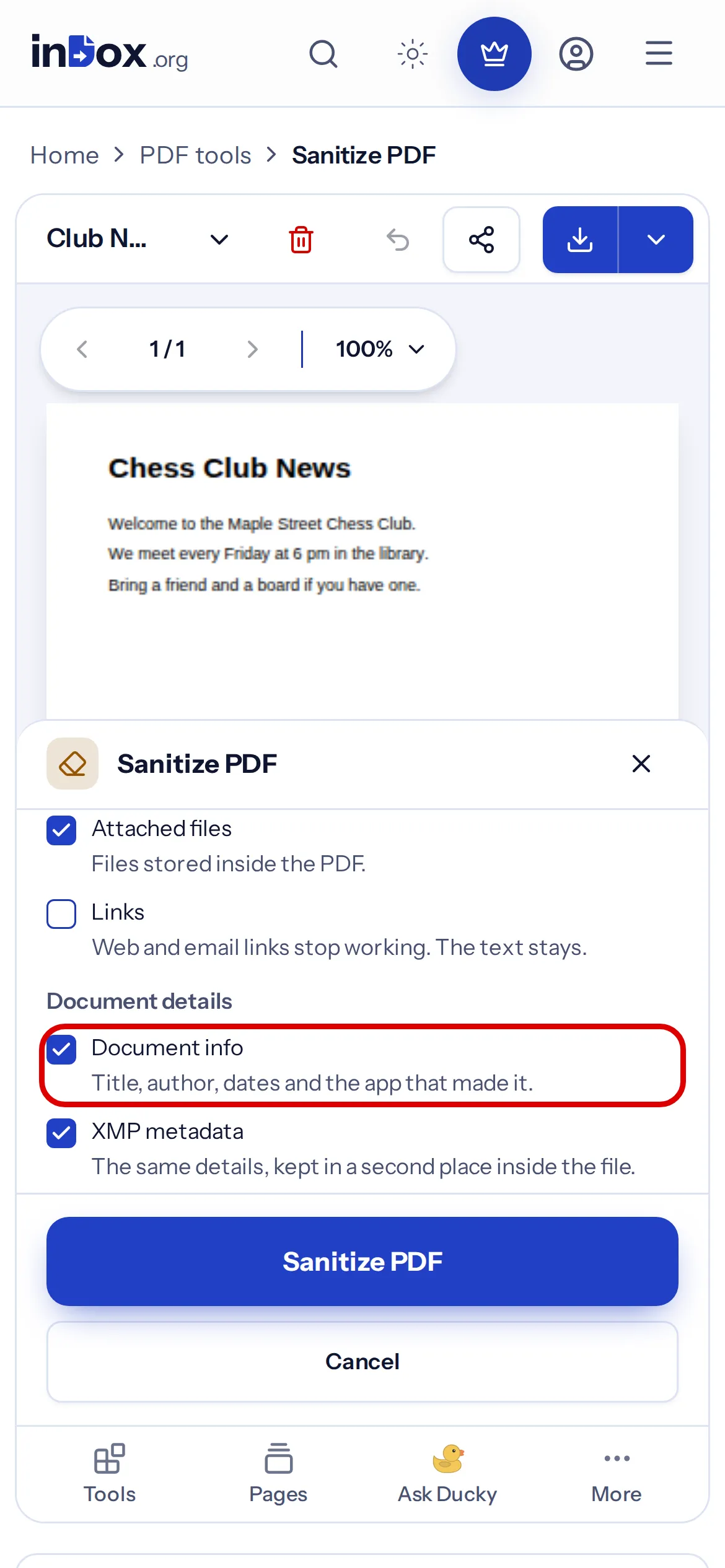
Go to the Sanitize PDF page. In the middle of the page, select the blue Choose PDF file button. A box opens so you can pick a file from your device. You can also drag a file onto the page. The file opens with a panel called Sanitize PDF. On a computer the panel is on the right. On a phone it slides up from the bottom.
Look at the choices
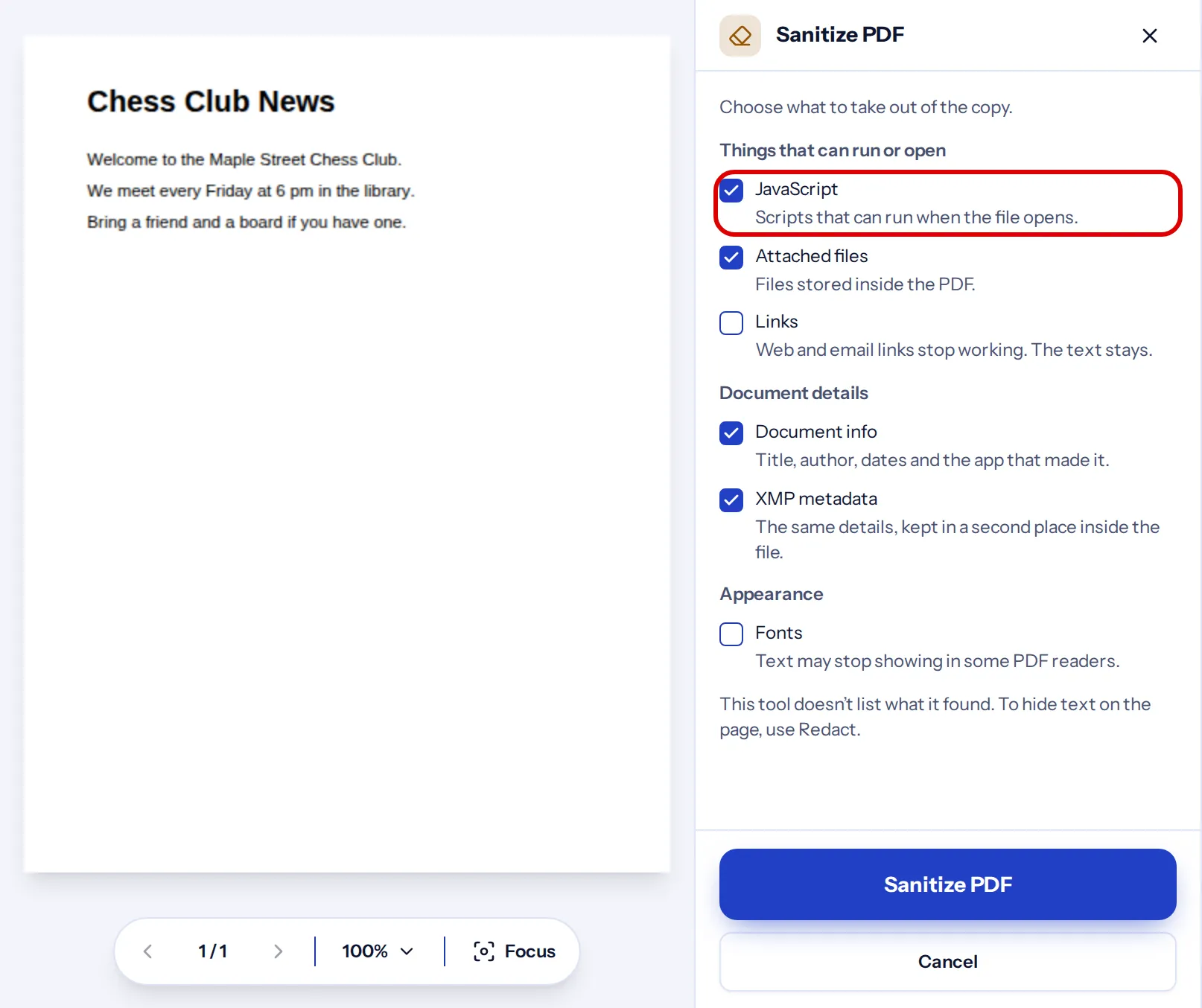
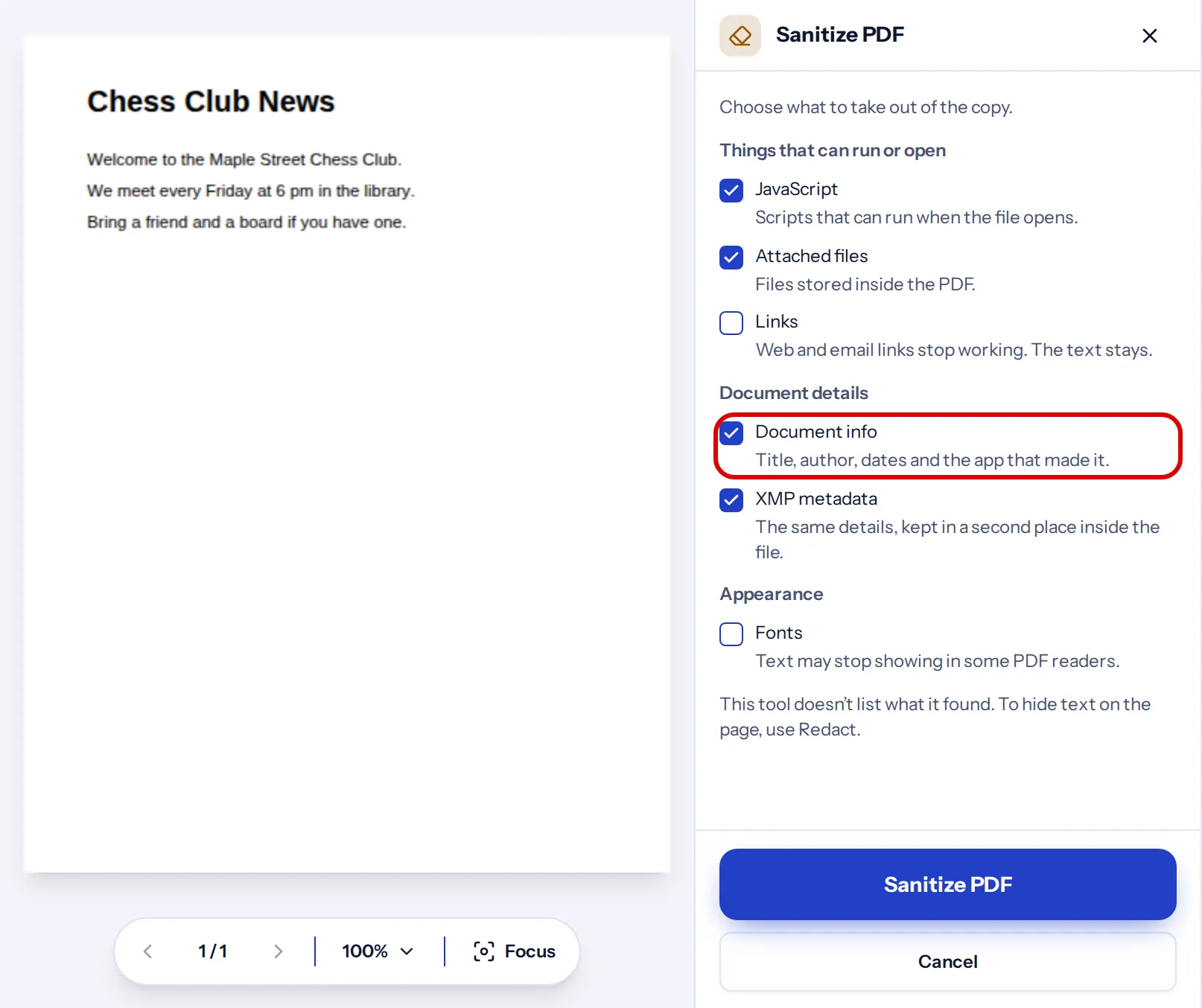
The panel says Choose what to take out of the copy. Six boxes sit in three groups. Under Things that can run or open, the first is JavaScript. A script is a small program hidden in the file. It can run when someone opens the PDF. Four boxes are ticked when the panel opens: JavaScript, Attached files, Document info and XMP metadata. Leave them ticked.
Check the document details
Scroll down the panel to Document details. Document info is the title, author, dates and the app that made the file. XMP metadata keeps the same details in a second place inside the file. Both are ticked, so both will go. Links and Fonts start unticked. Tick Links only if you want web and email links to stop working. Leave Fonts unticked, because removing fonts can make the text disappear in some PDF readers.
Sanitize the PDF
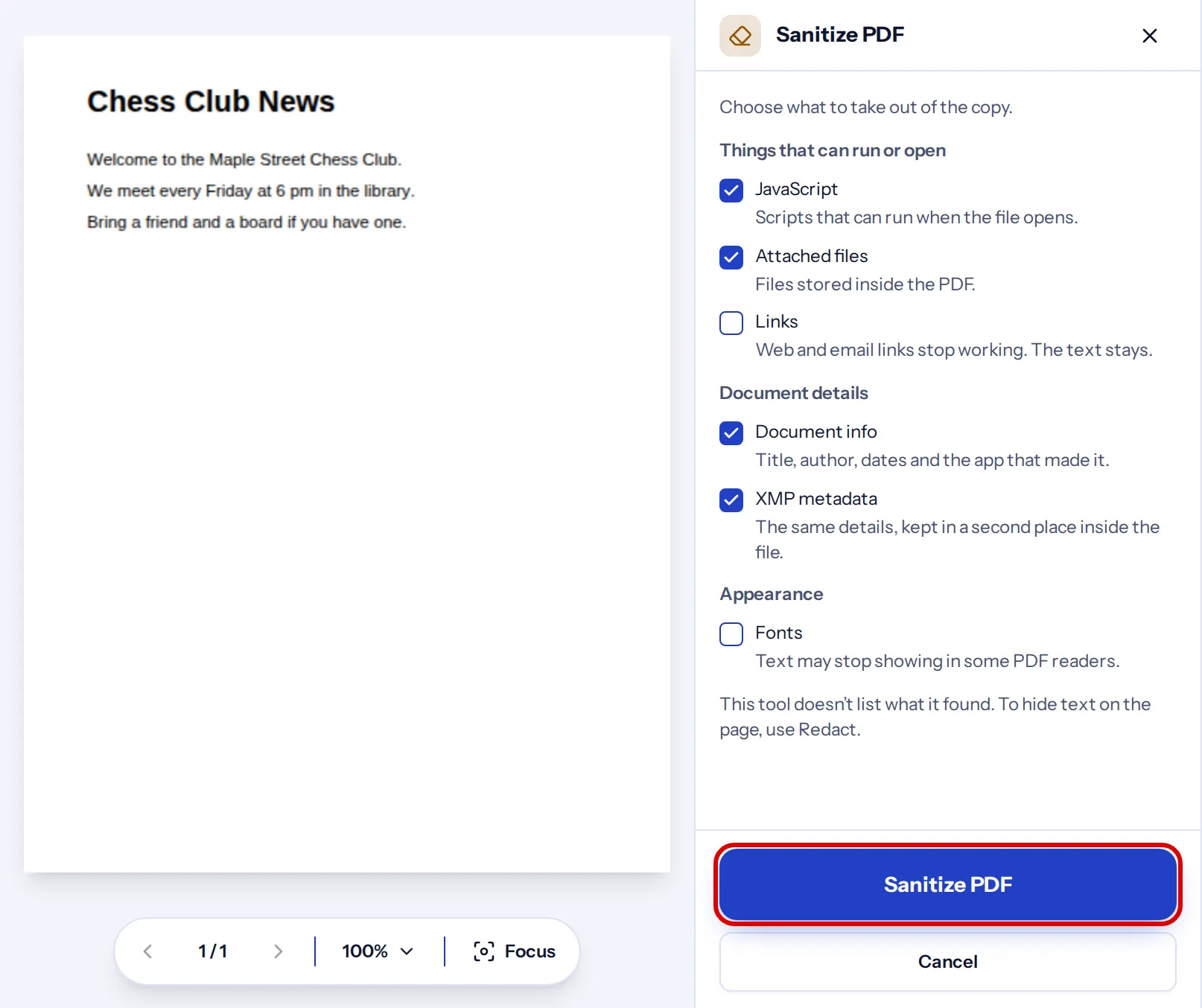
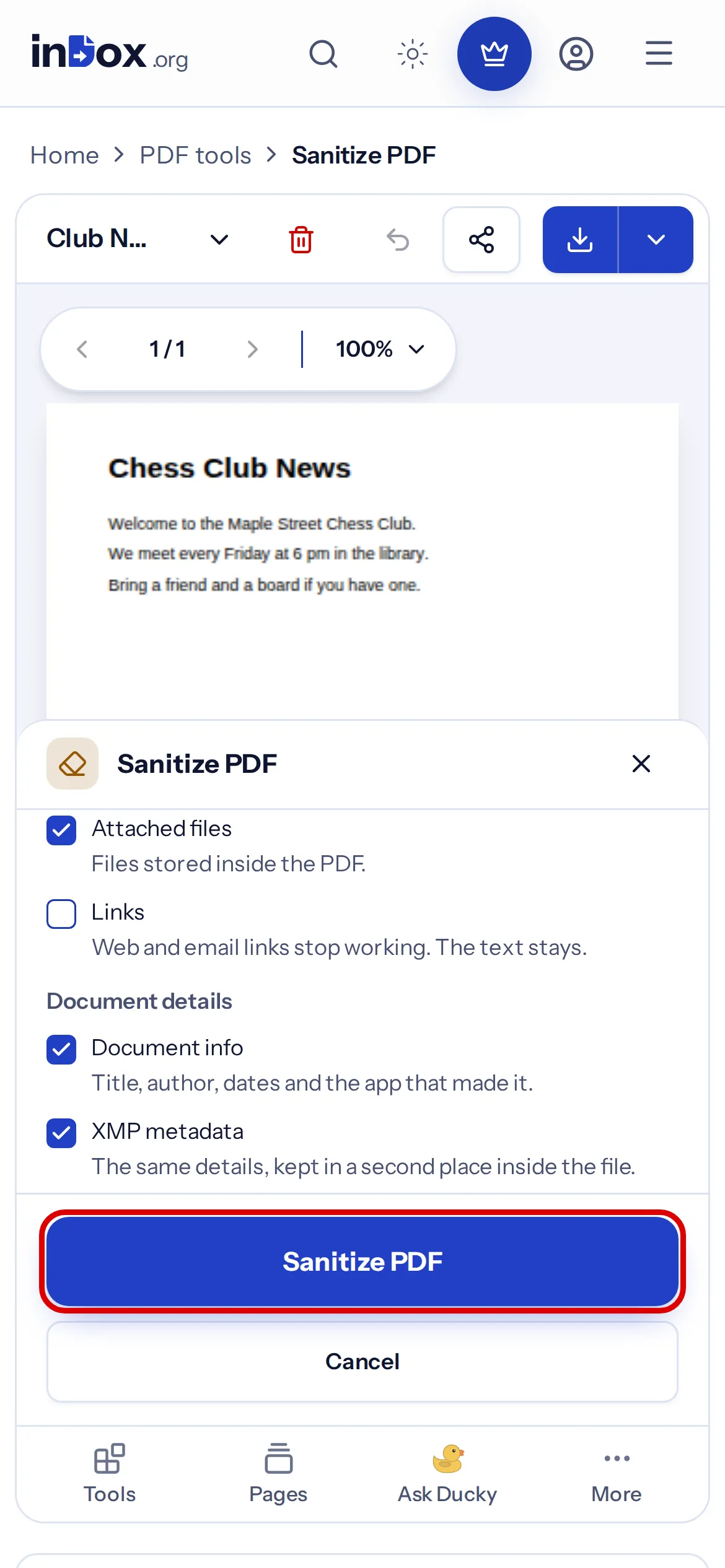
Select the blue Sanitize PDF button at the bottom of the panel. Wait a moment.
Download your PDF
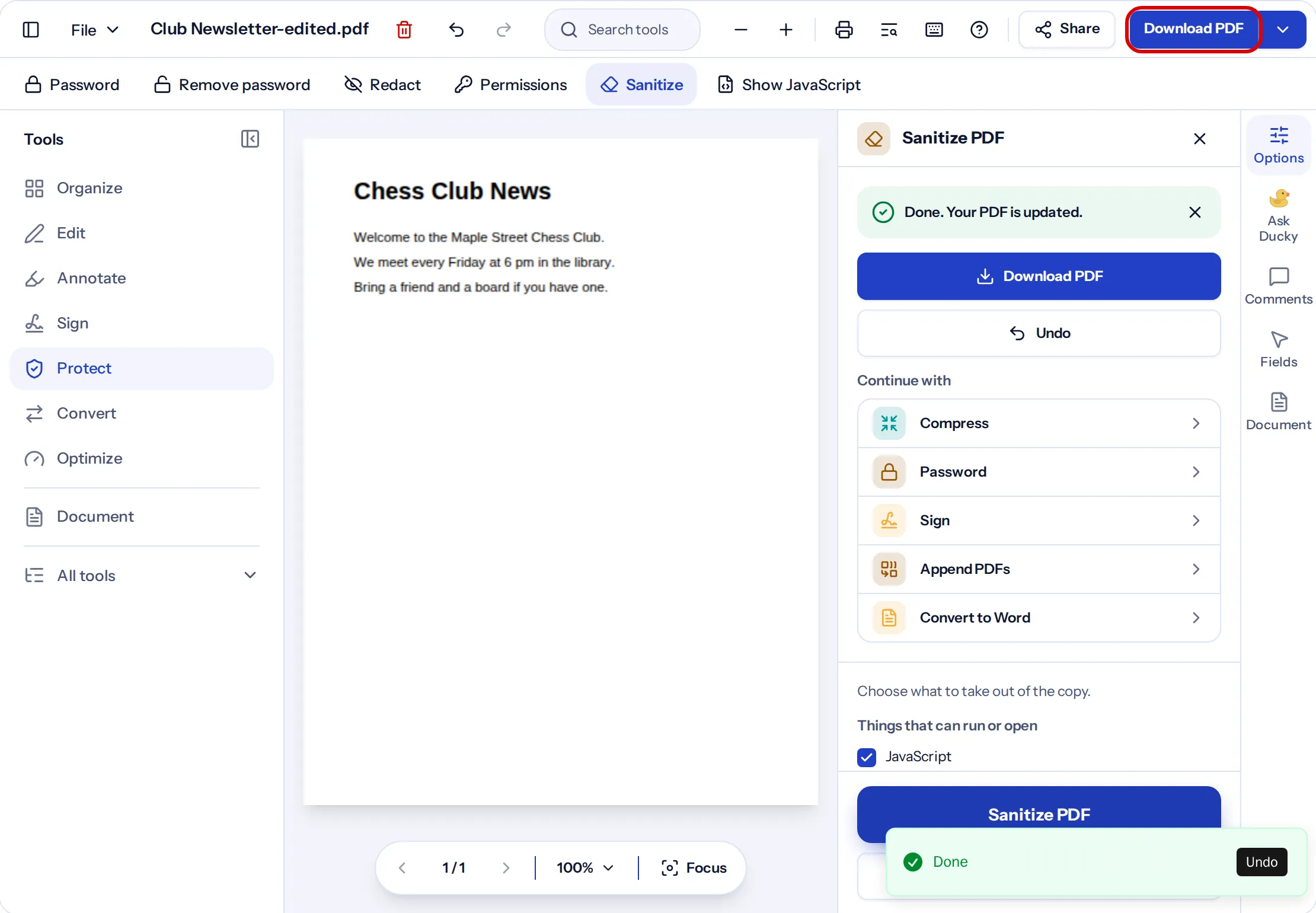
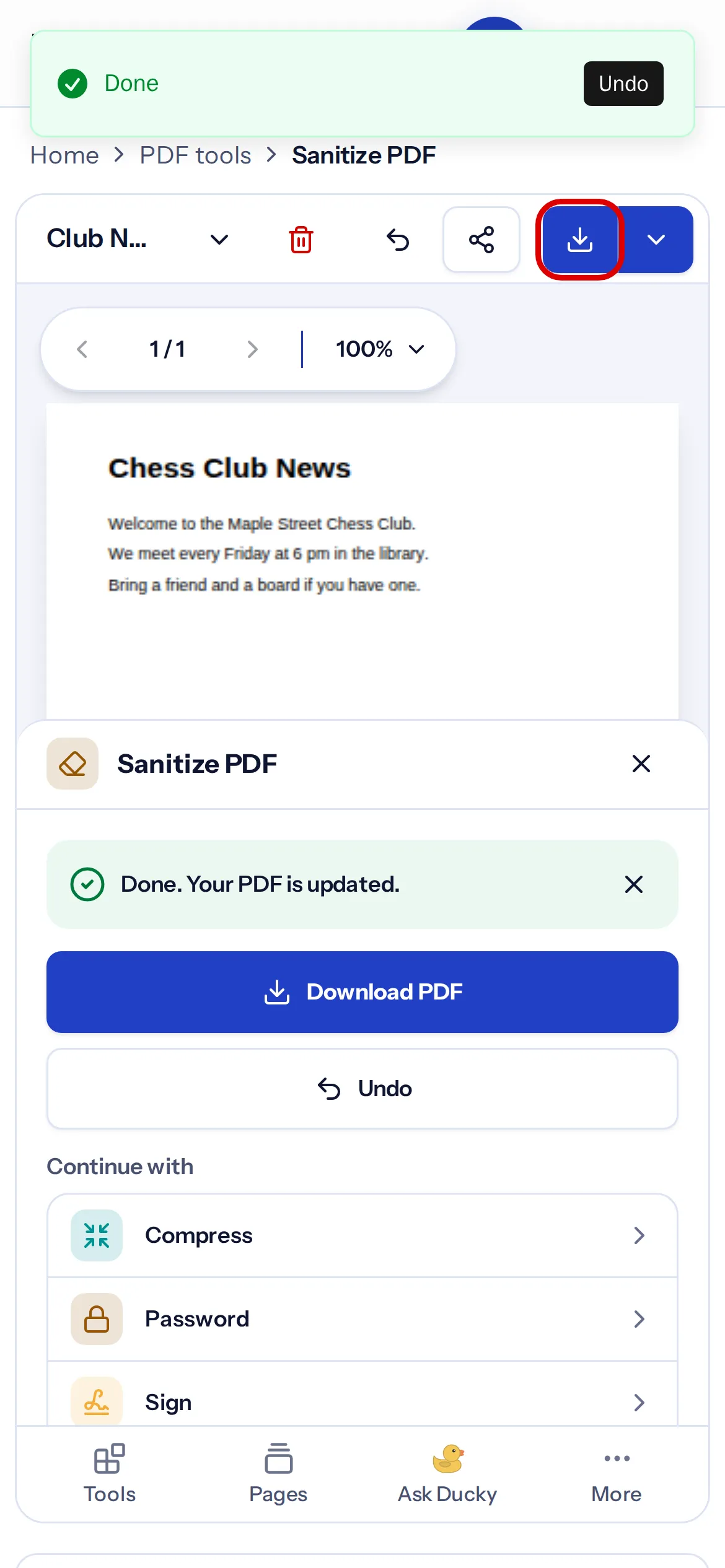
The panel says Done. Your PDF is updated. Select the blue Download PDF button. On a computer it is at the top right. On a phone it is the arrow in the bar above the page. The new file is saved on your device. Its name ends in -edited. The scripts, the title and the author are gone from it.
Troubleshooting
| Problem | Cause | Fix |
|---|---|---|
| The page looks the same as before | The hidden parts were never on the page | Open the new file's properties in your PDF reader. The title and author are empty |
| The panel says This tool doesn't list what it found. | The tool removes what you tick. It does not report what was inside | Tick the boxes you want and select Sanitize PDF |
| The text is missing or the page looks empty in your PDF reader | Fonts was ticked | Select Undo next to Download PDF, untick Fonts and run it again |
| The new file names indox.org as the maker | indox puts its own site name in the Creator and Producer fields of every file it makes | This is normal. Your own title, author and dates are gone |
| Words you can read are still on the page | This tool removes hidden parts, not words on the page | Use Redact text to cover them |