Last updated
Draw, highlight and sign a PDF in the INDOX reader
Before you start
- The INDOX extension added to Chrome on a computer, with a PDF open in the INDOX reader. These steps are for the computer version of Chrome.
- You don't need an account for these tools.
Open the markup tools
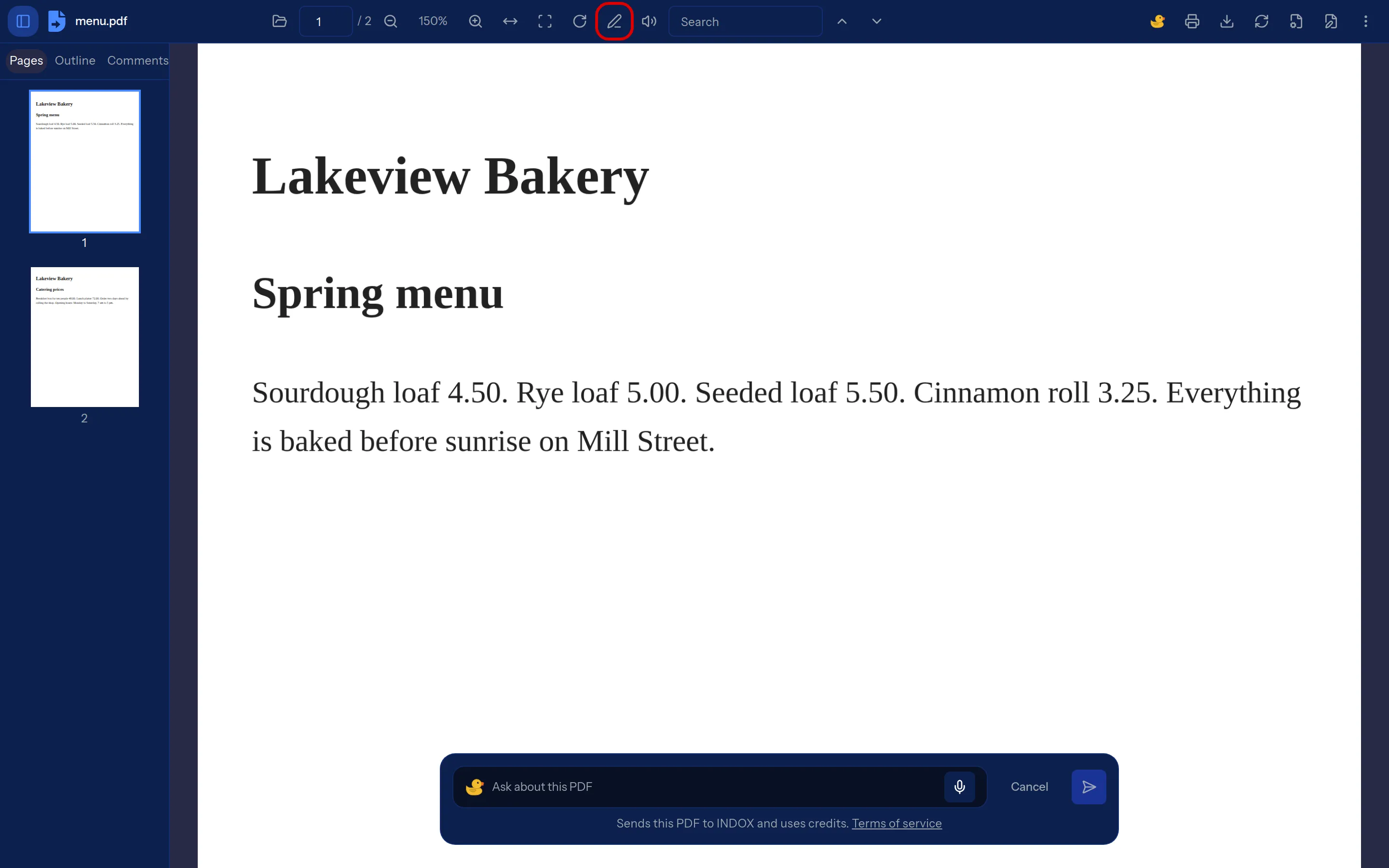
Open a PDF in Chrome. It opens in the INDOX reader. Select Annotate, the pen button in the top bar. A second row of tools opens under the top bar.
Draw on the page
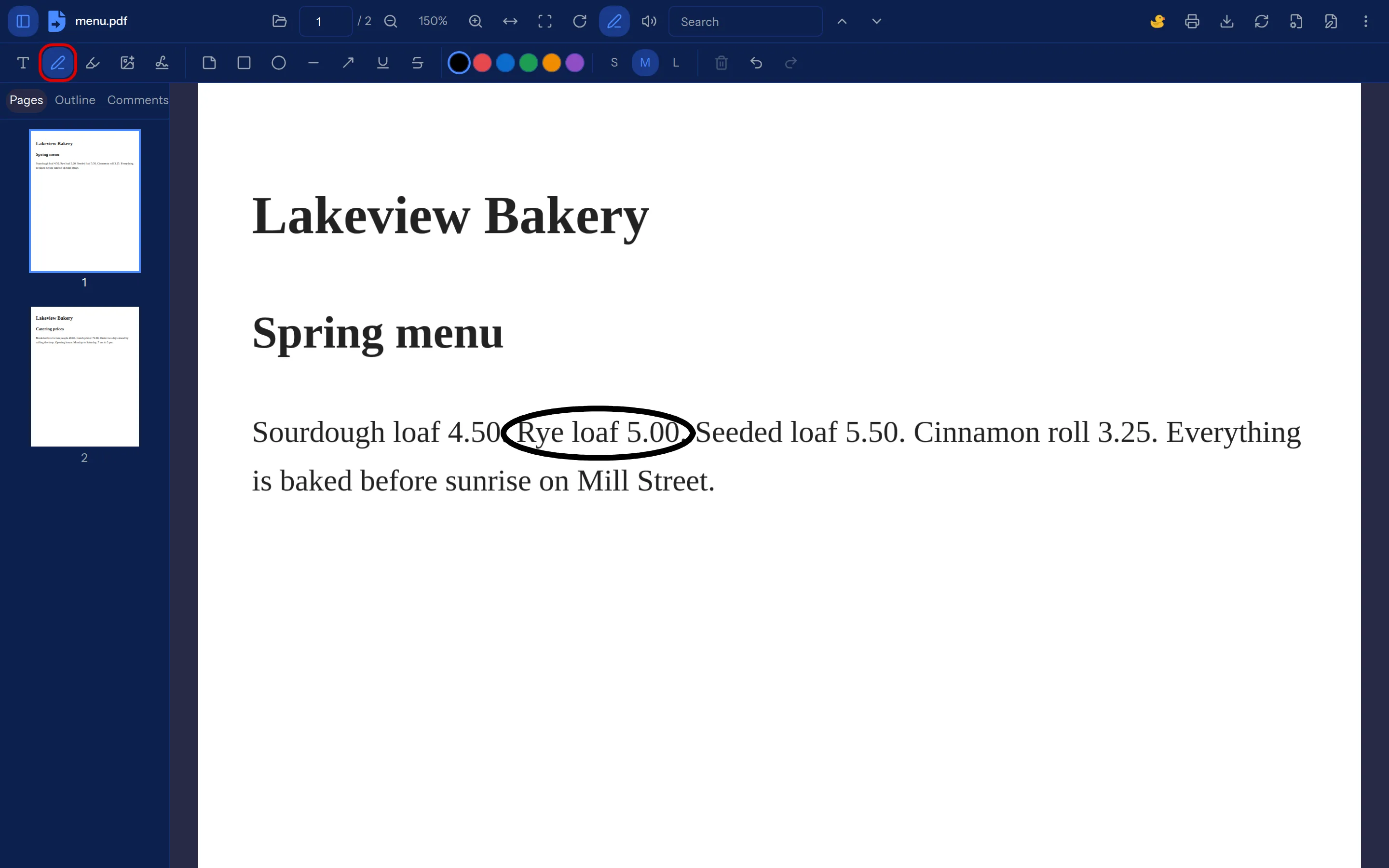
Select Draw, the pencil second from the left in the second row. You can pick a colour and a size (S, M or L) first. Press the mouse button on the page, move the mouse, and let go. Your line stays on the page.
Highlight words
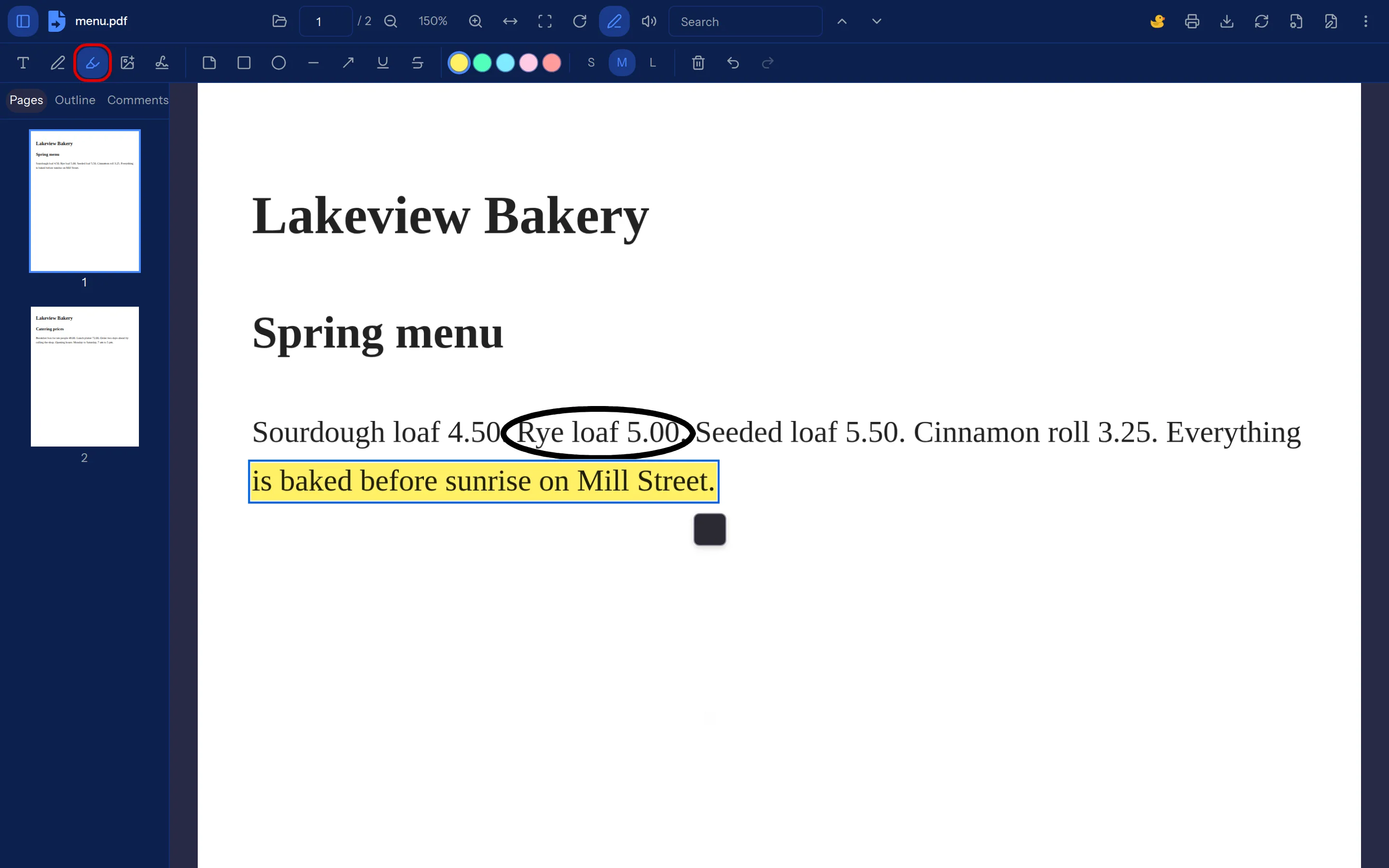
Select Highlight, the marker next to the pencil. Press the mouse button at the start of the words, move to the end, and let go. A coloured band covers the words.
Open the signature box
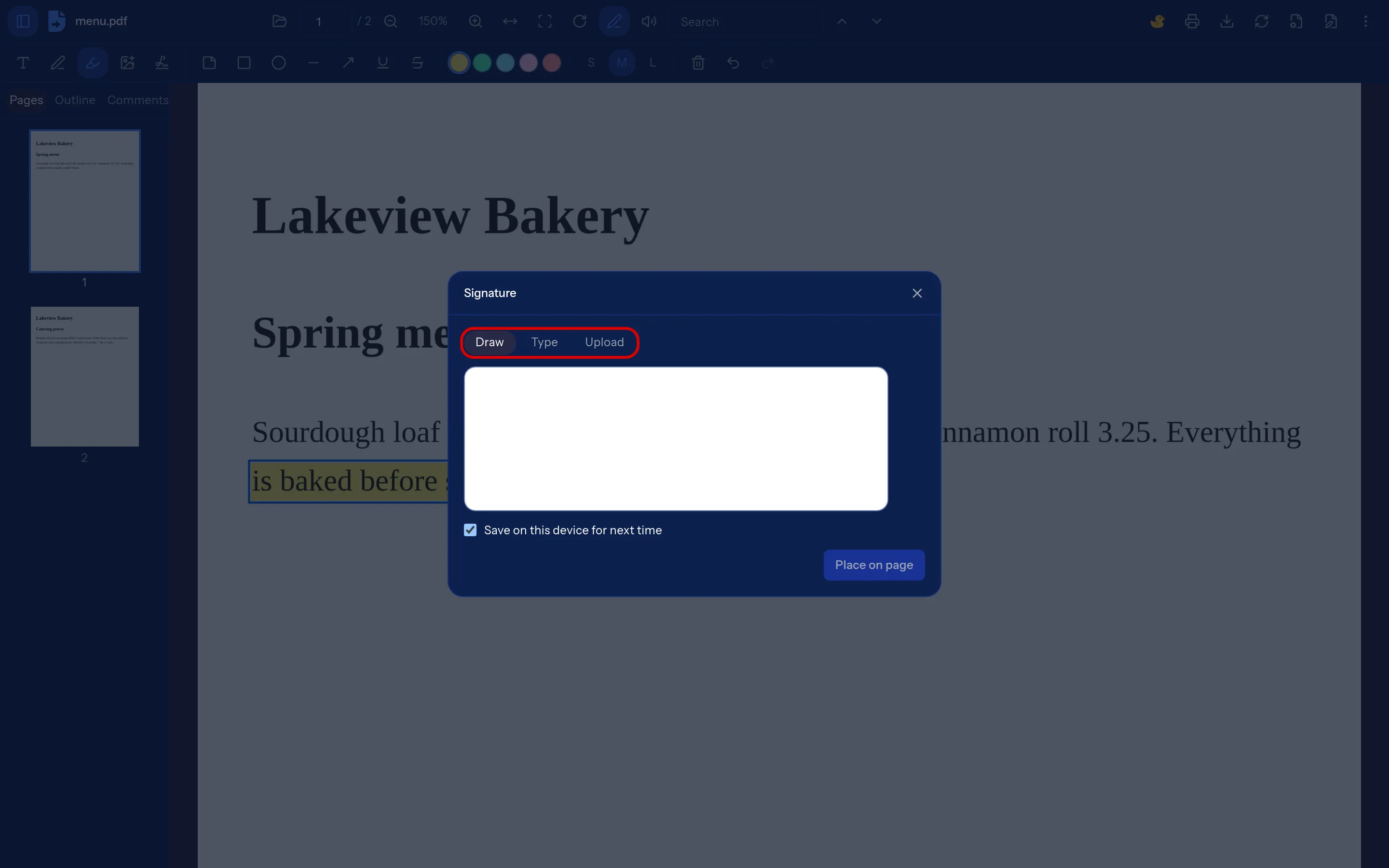
Select Signature, the last button in the first group. A box opens with three tabs: Draw, Type and Upload.
Type a name and place it
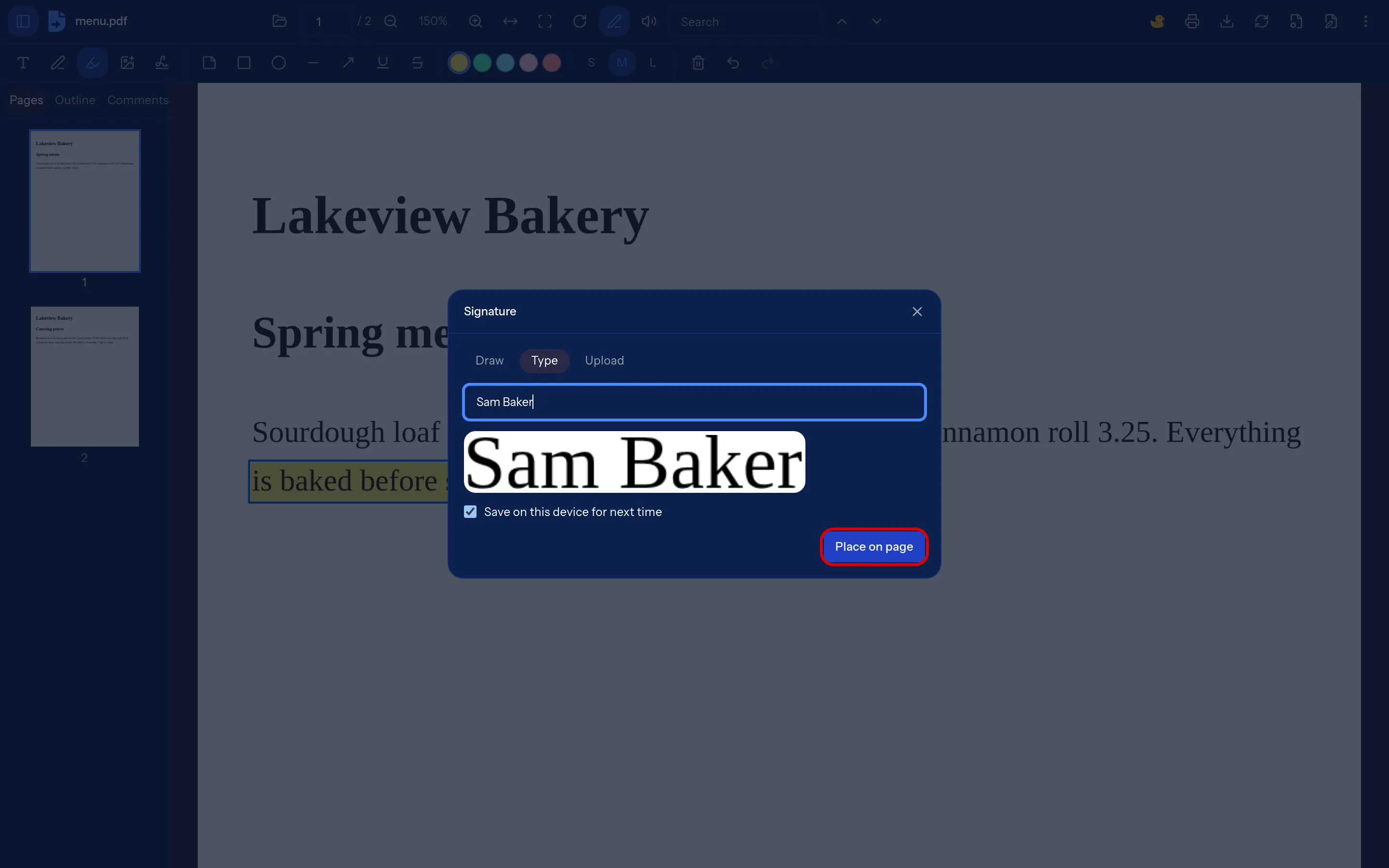
Select Type, then type the name you want to sign with. A preview shows how it will look. Leave Save on this device for next time ticked to reuse it later, or untick it on a shared computer. Select Place on page.
Move your signature
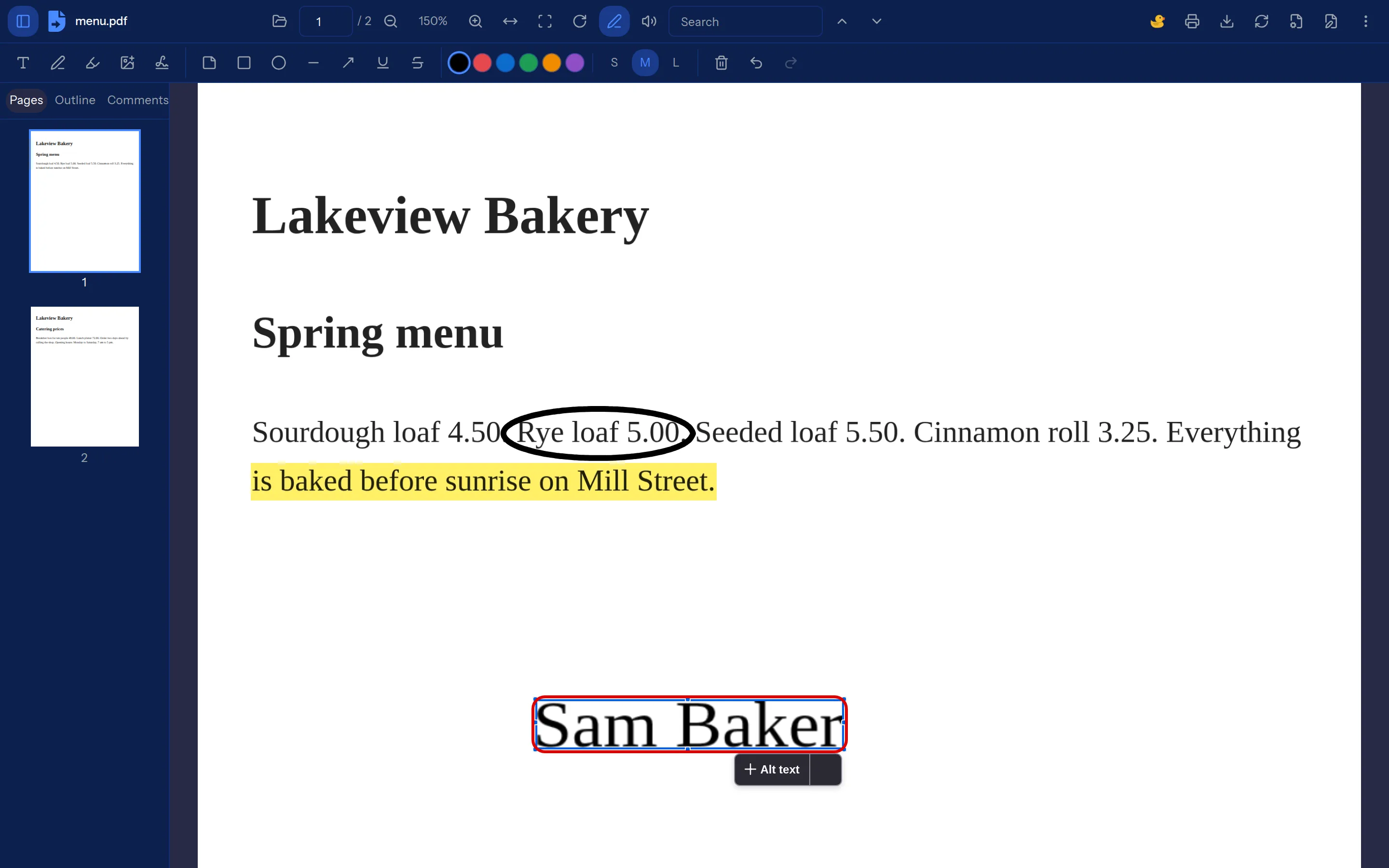
The signature appears on the page with small squares around it. Drag it to the spot you want. Drag a corner square to make it smaller or bigger.
Download the PDF
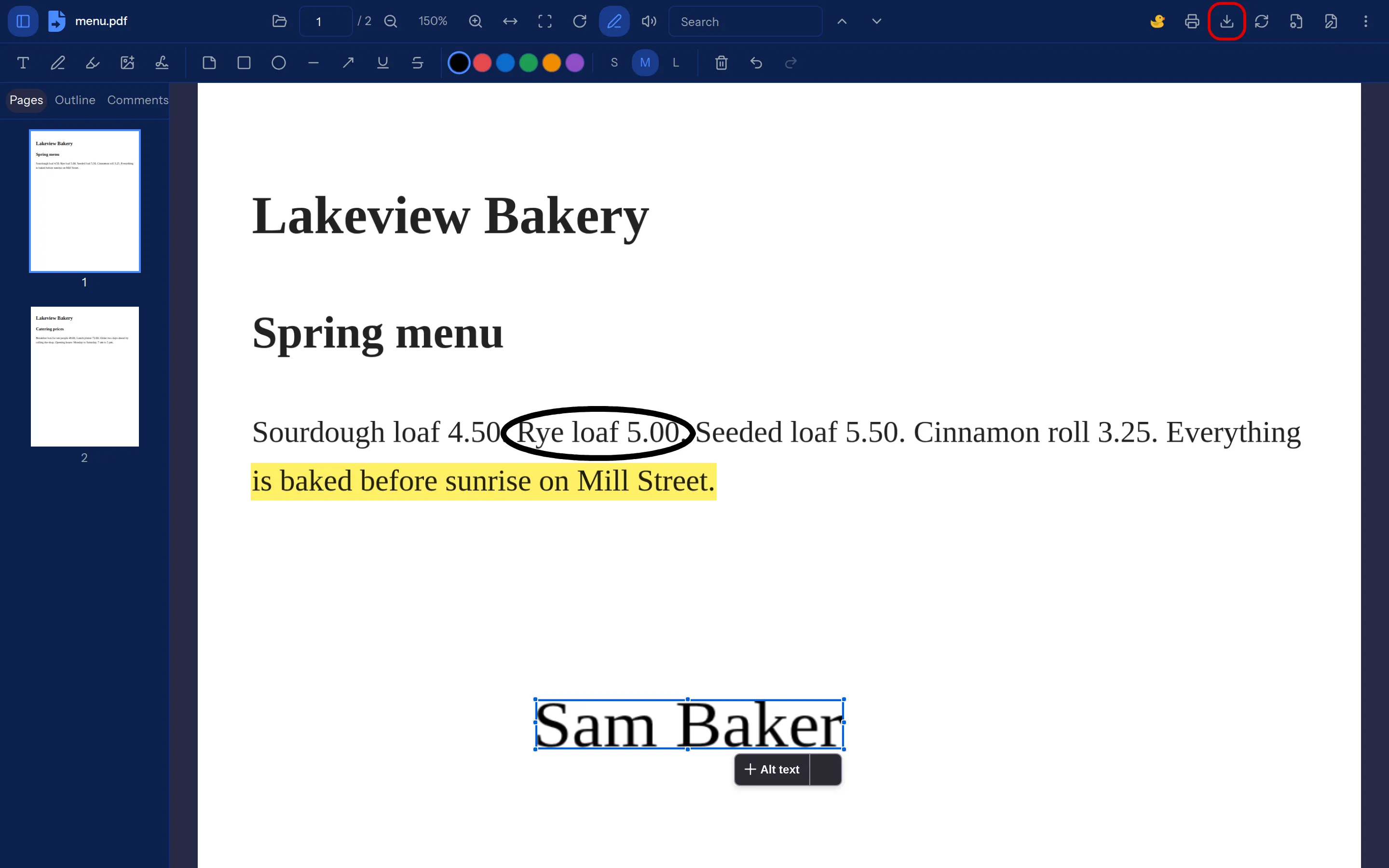
Select Download, the arrow at the top right. Your browser saves a copy of the PDF with your drawing, highlight and signature on it.
Troubleshooting
| Problem | Cause | Fix |
|---|---|---|
| A mark is in the wrong place | It landed where you pressed or let go | Select Undo, the curved arrow in the second row. Or click the mark and select Delete selected, the bin button |
| The PDF opens in Chrome's viewer, not the reader | Always open PDFs in the INDOX reader is off | Turn it on in the INDOX settings under Behavior, then open the PDF again |