Last updated
Add your colors and logo to shared files
Before you start
- You need to be signed in to indox.org.
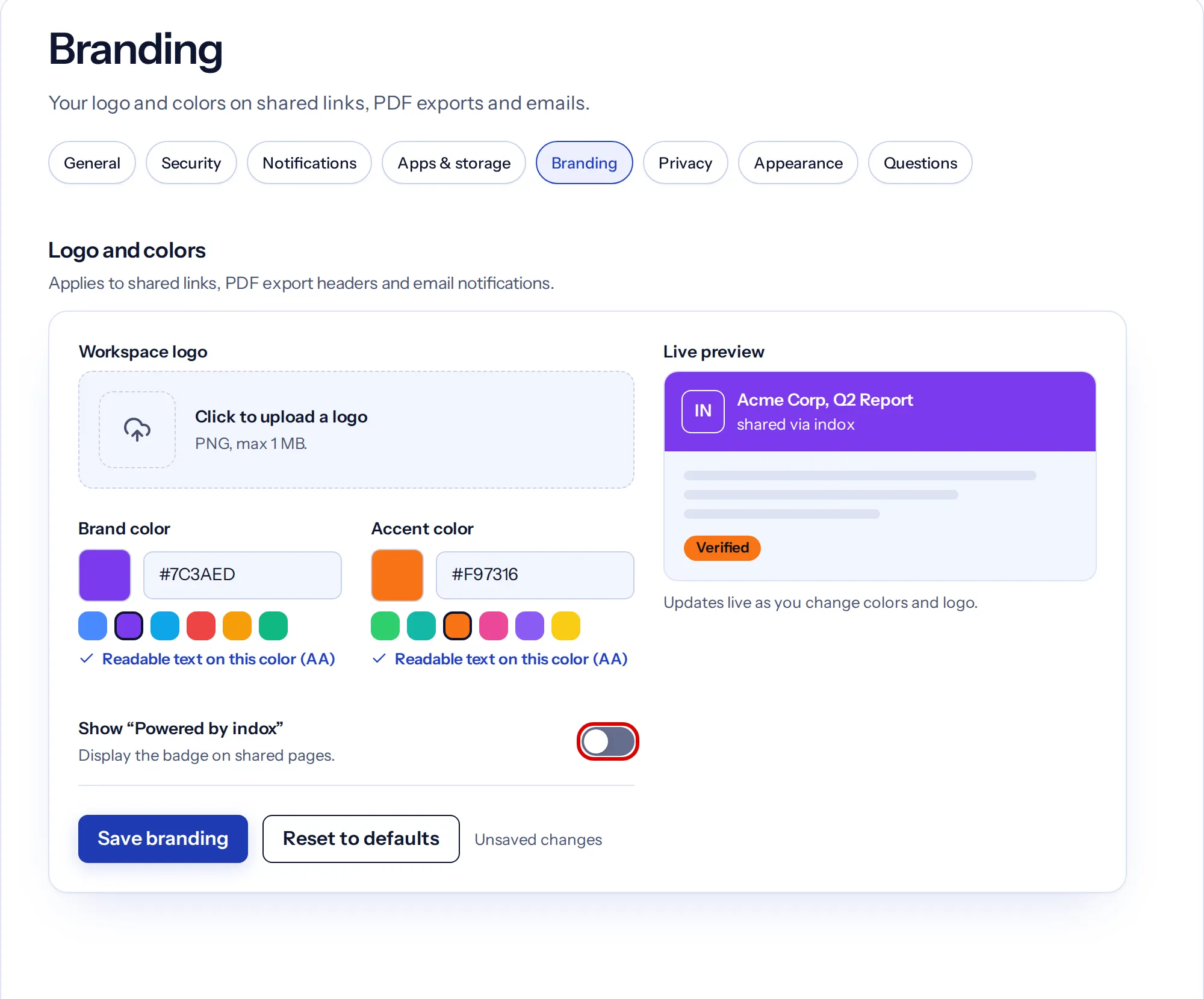
- The page says your logo and colors apply to shared links, PDF export headers and email notifications.
- A color is shown as a code, such as #7C3AED. You do not need to type one, because each color box has small round color buttons you can select.
Open the Branding page
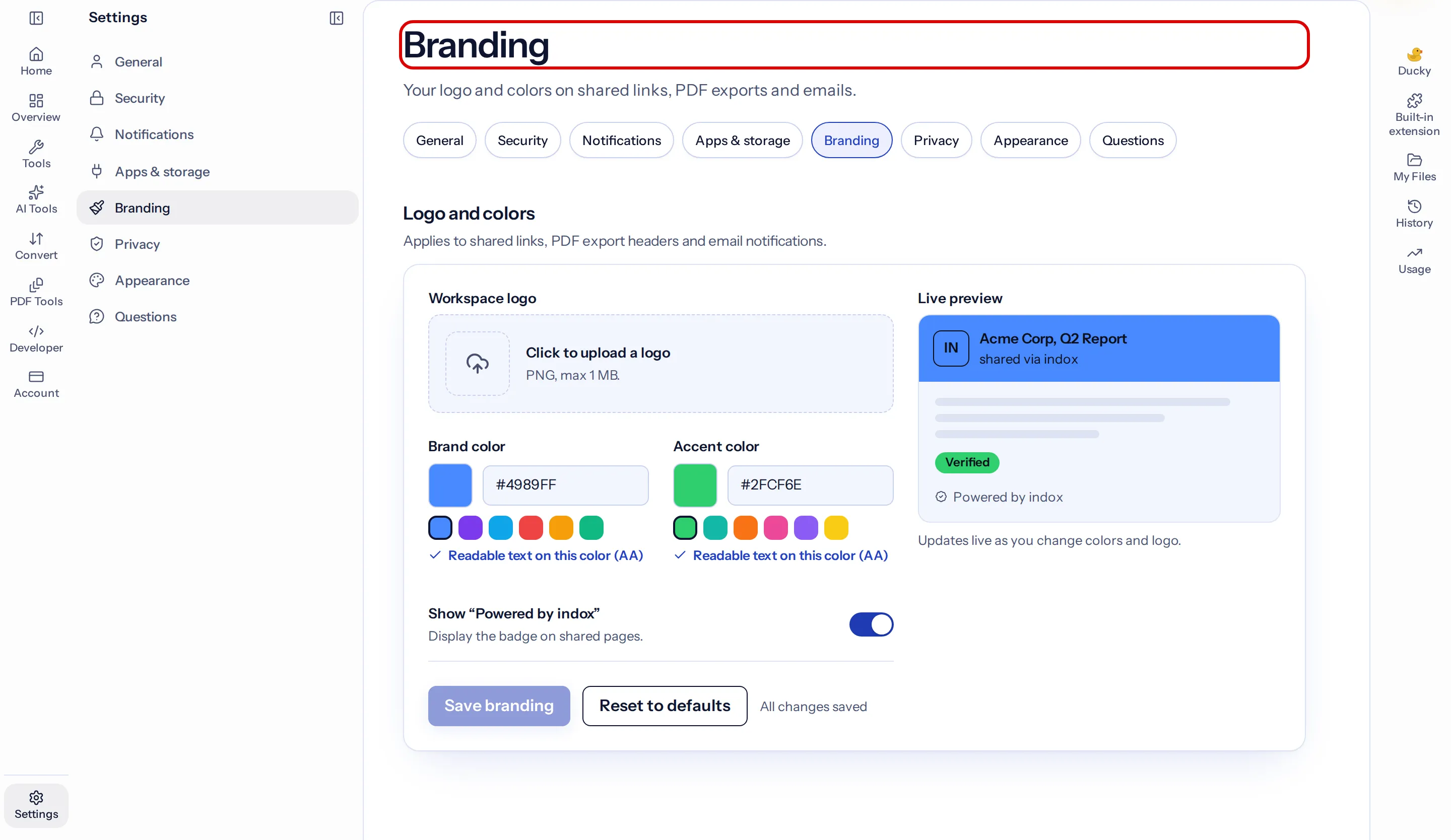
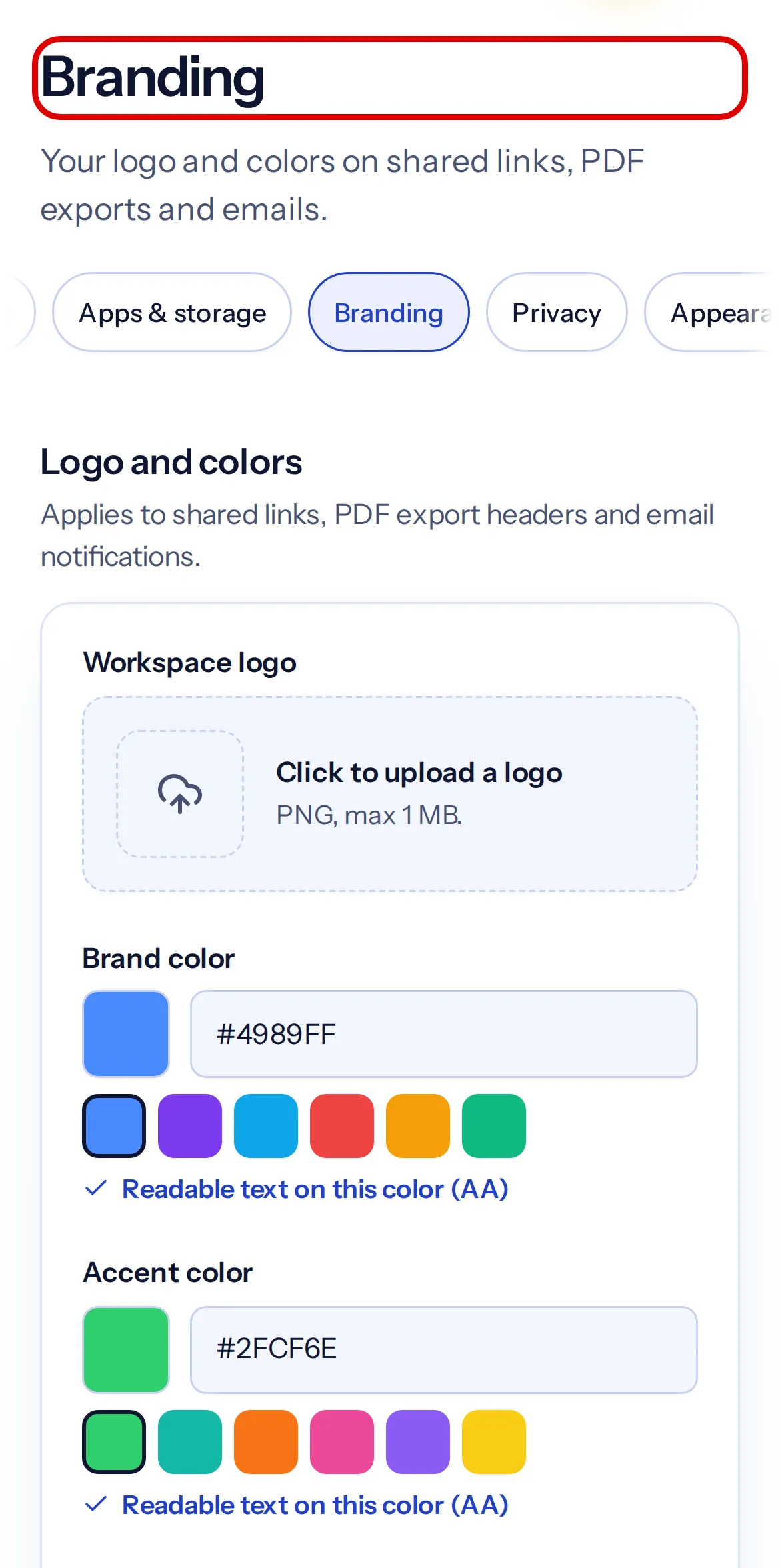
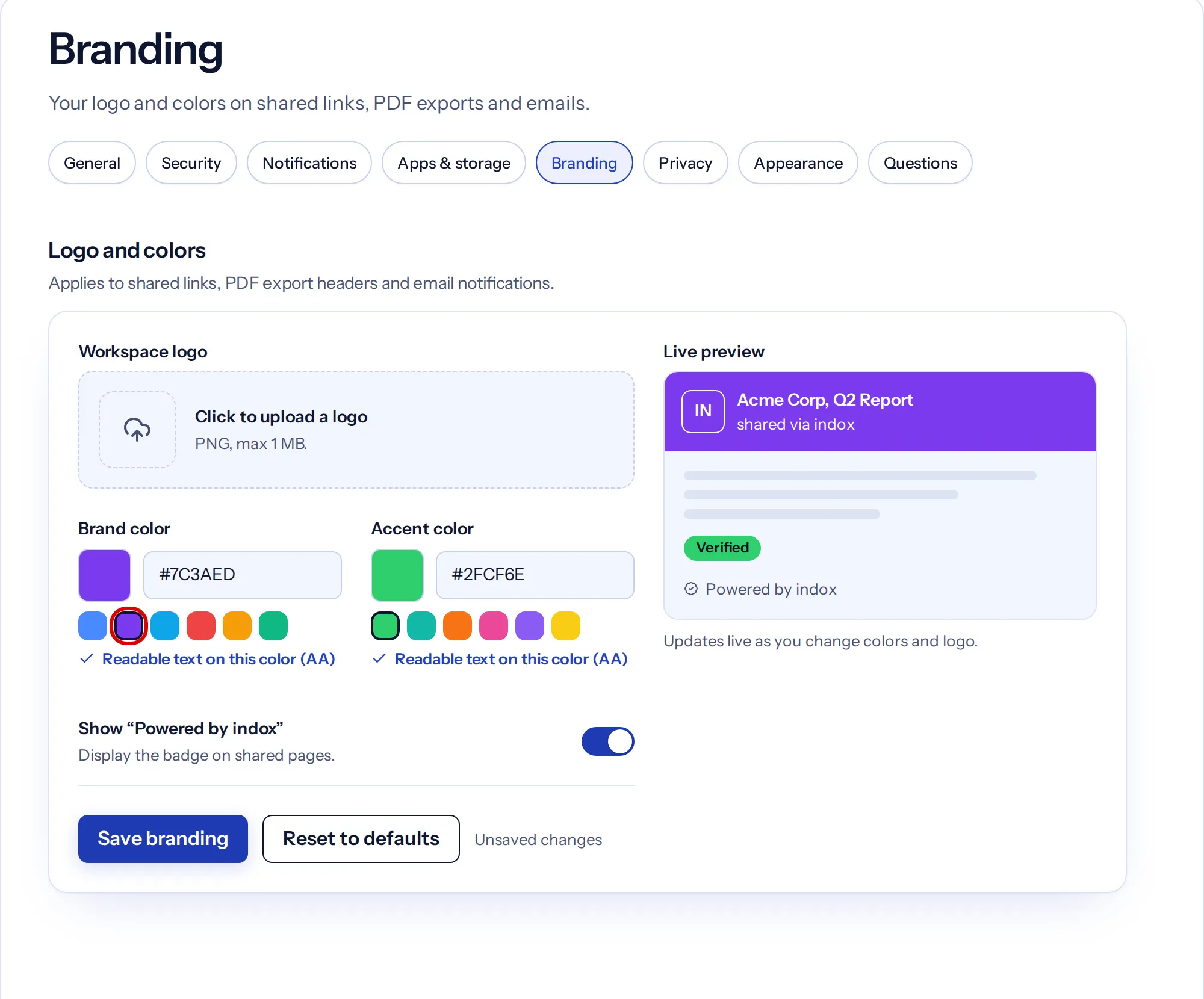
Go to the Branding page. On a computer, you can also select Branding under Settings in the left menu. On any screen, select Branding in the row of round buttons under the page title. The page title is Branding, and one card called Logo and colors holds the choices. A Live preview card shows a sample report with your colors.
Look at the logo box
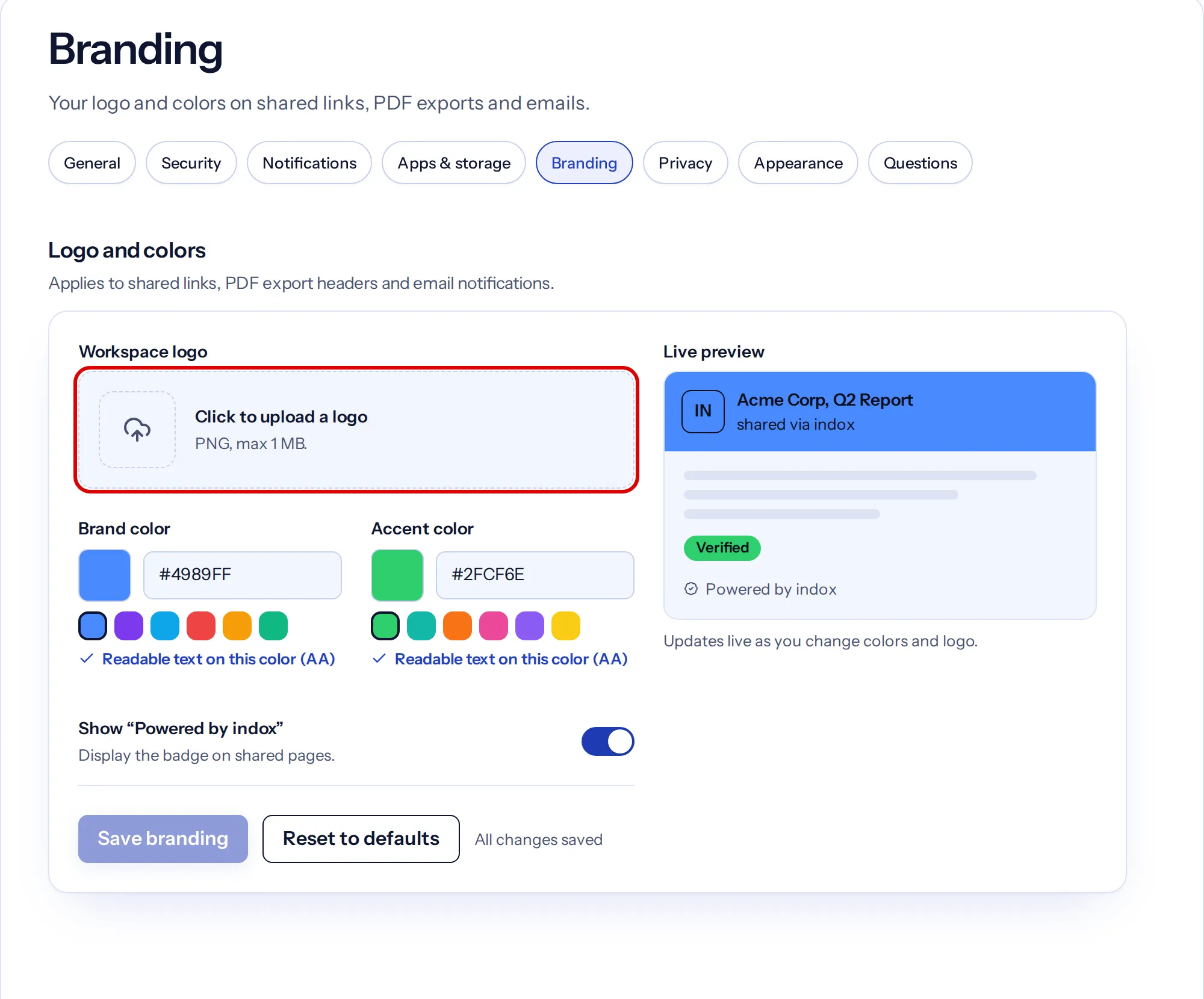
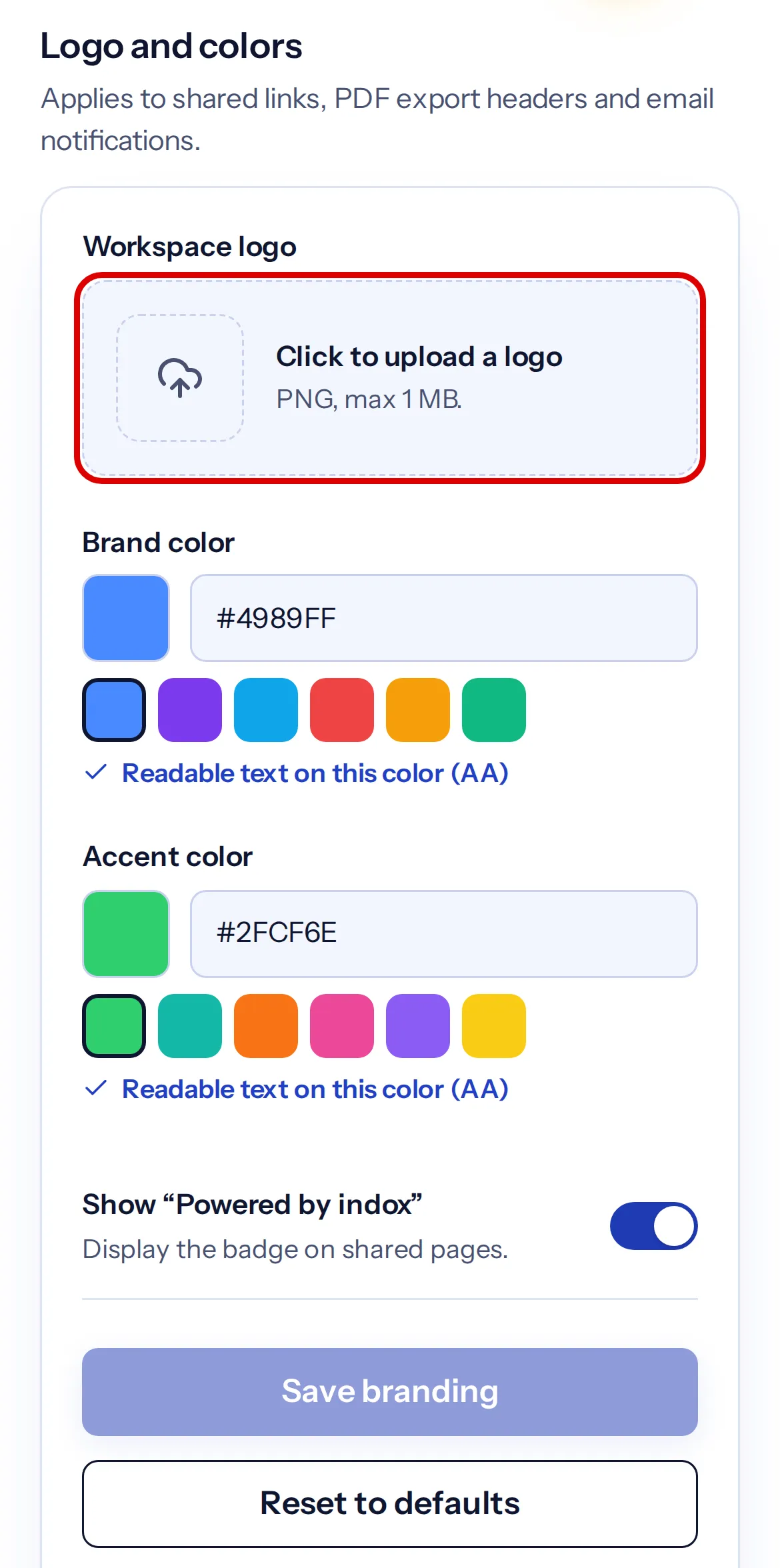
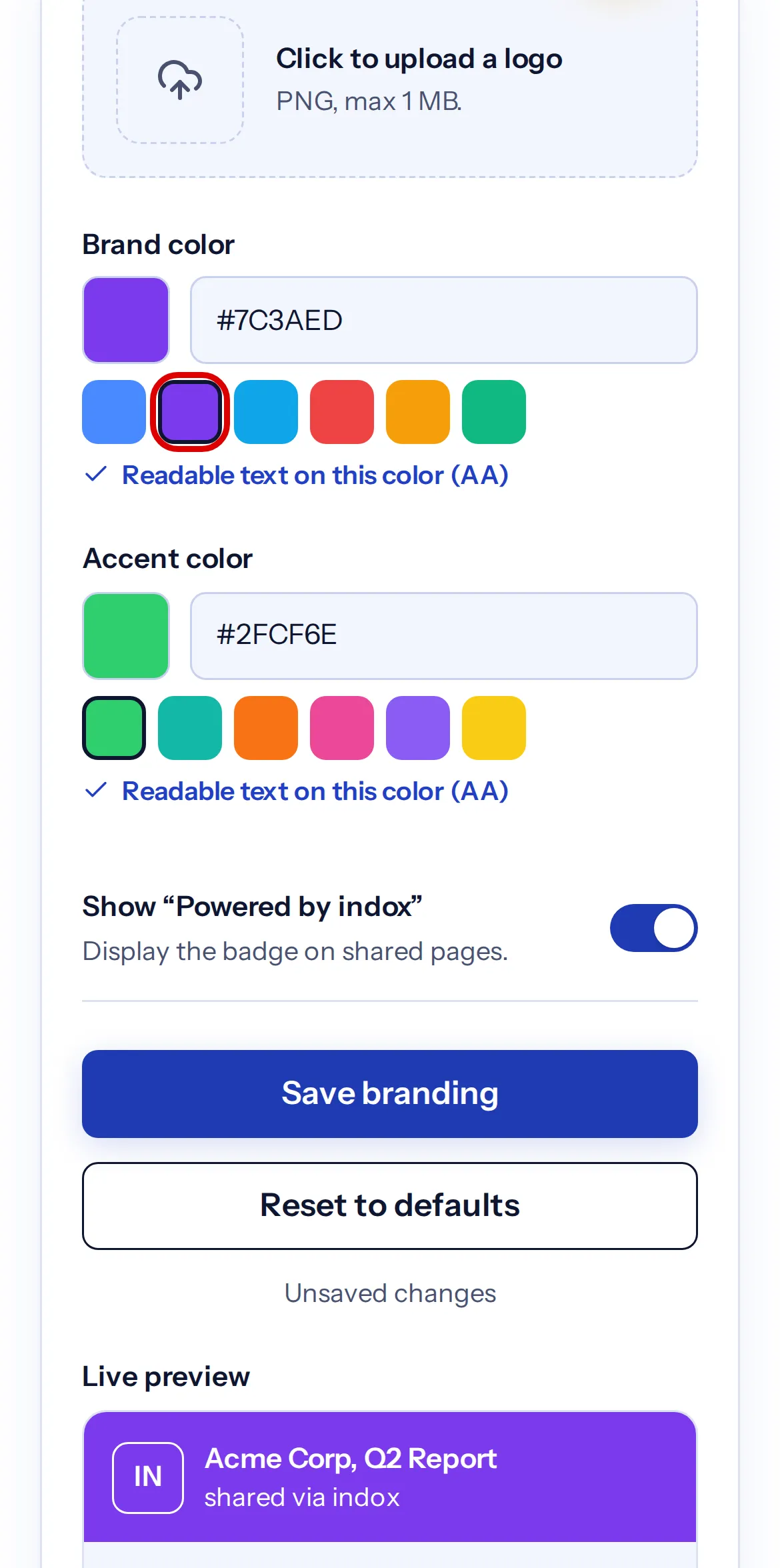
The Workspace logo box says Click to upload a logo and PNG, max 1 MB. To add a logo, select the box and pick a PNG picture of 1 MB or less. You can leave the logo empty and still set colors.
Pick a brand color
Under Brand color, a row of small round buttons has names such as Violet, Sky and Red. Select one. For Violet, the color code in the box next to it changes to #7C3AED, and the top of the Live preview card turns purple.
Pick an accent color
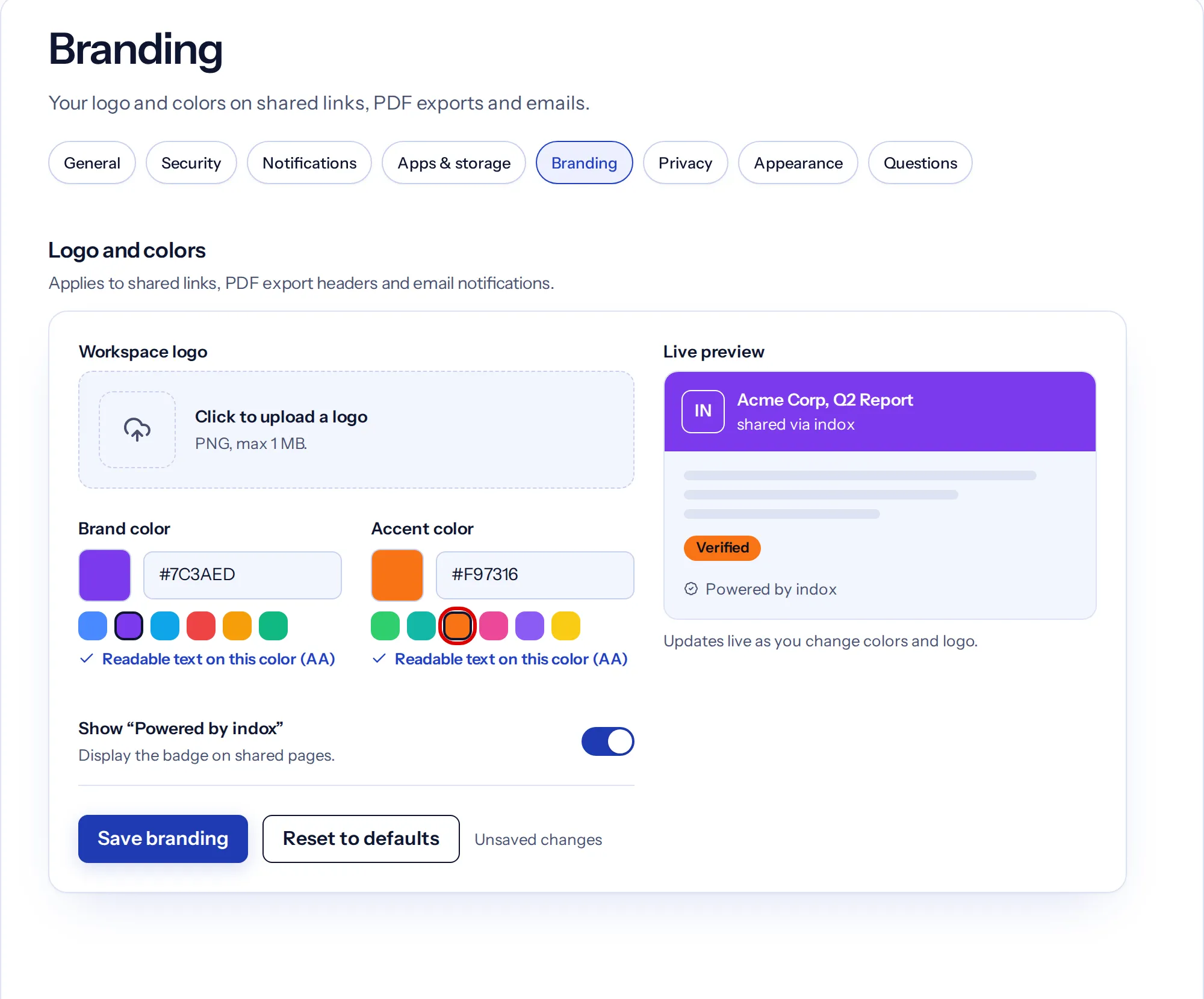
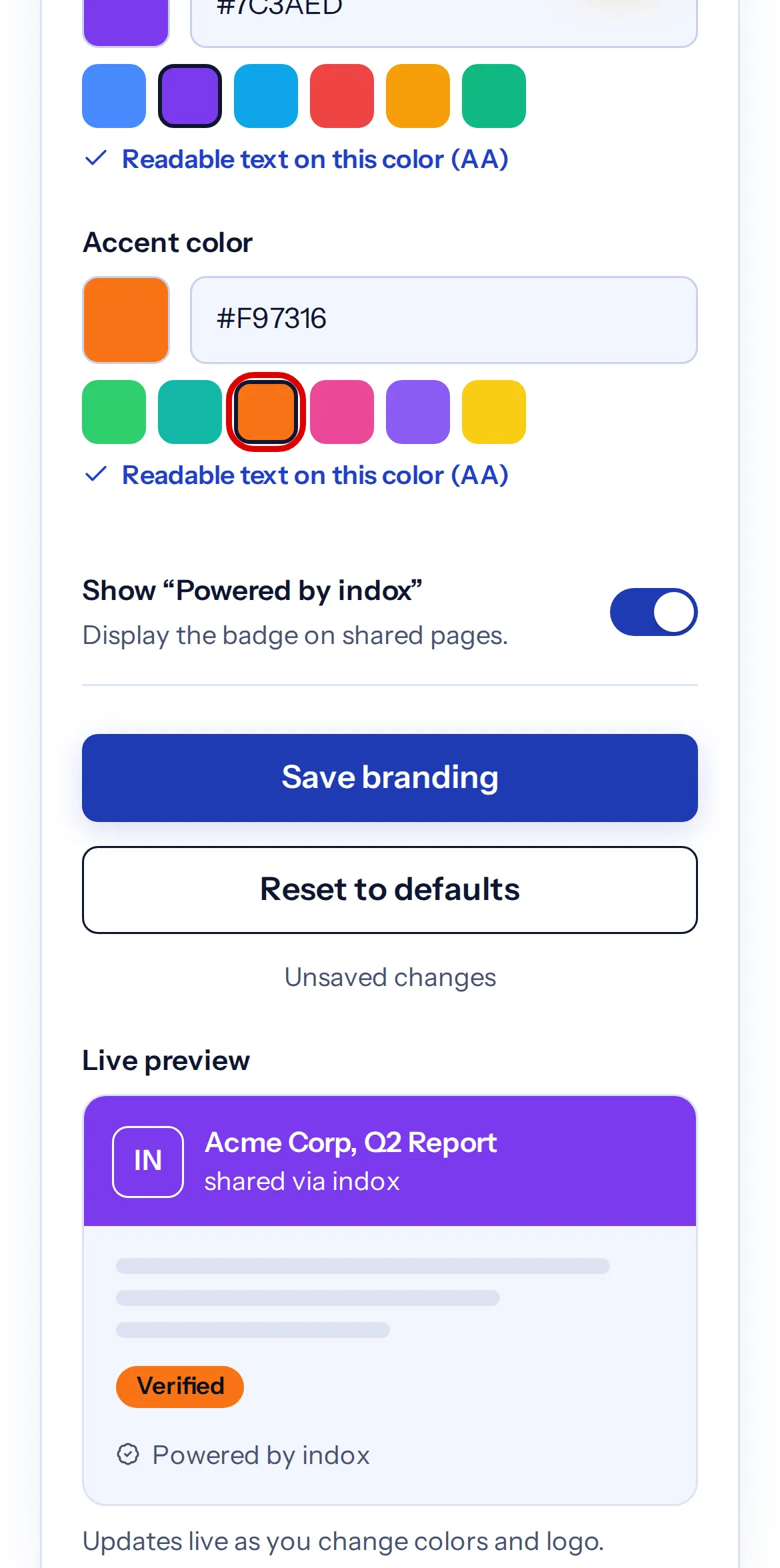
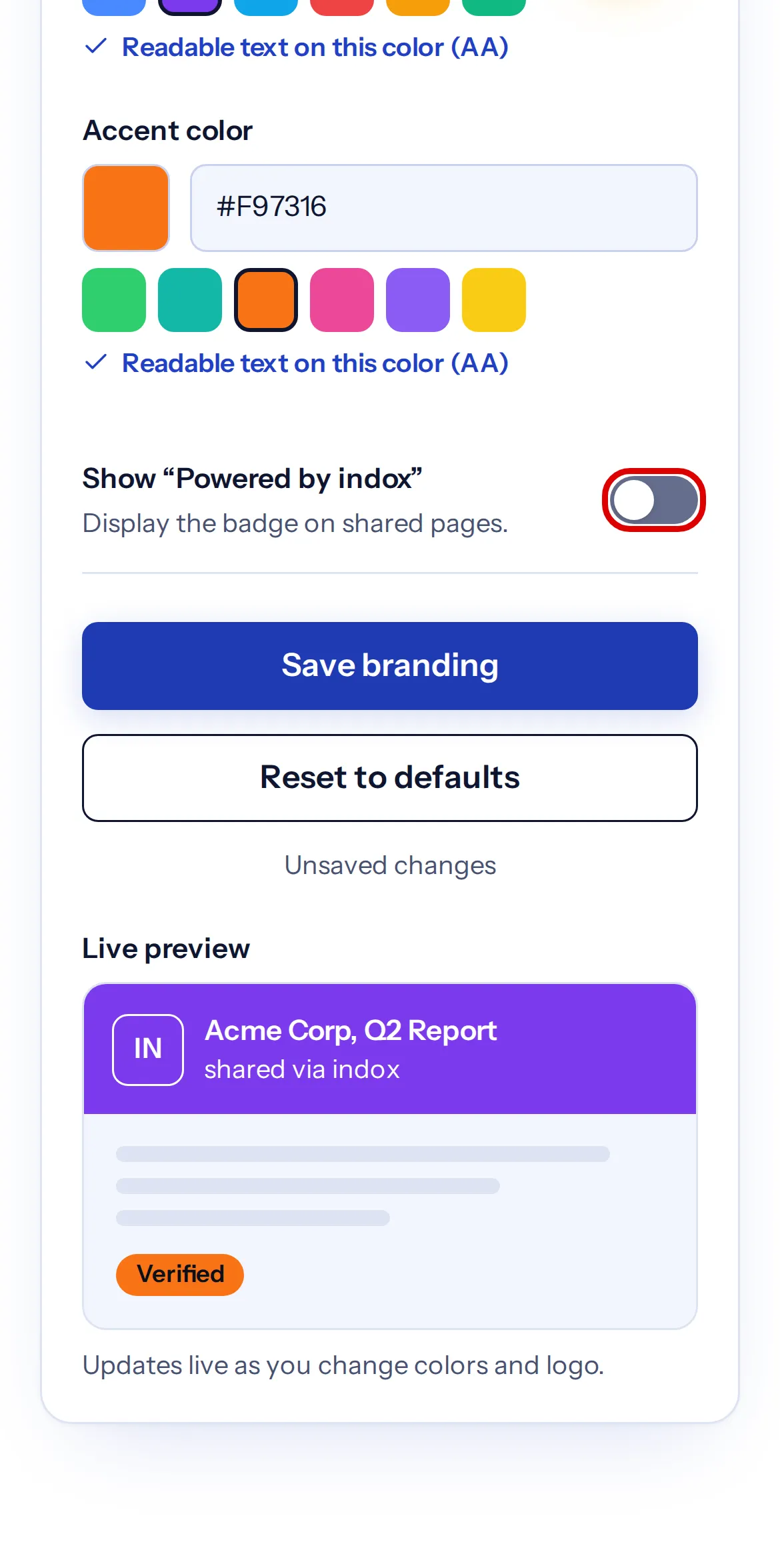
Under Accent color, select one of the round buttons, such as Orange. The accent color box changes to #F97316. The Live preview card shows the accent color on its small tag.
Choose the badge
The next row is called Show “Powered by indox”, and its note says it shows the badge on shared pages. Select its switch to turn the badge off. The switch moves to the left. Under the buttons, the words Unsaved changes show, and Save branding turns dark blue.
Save your choices
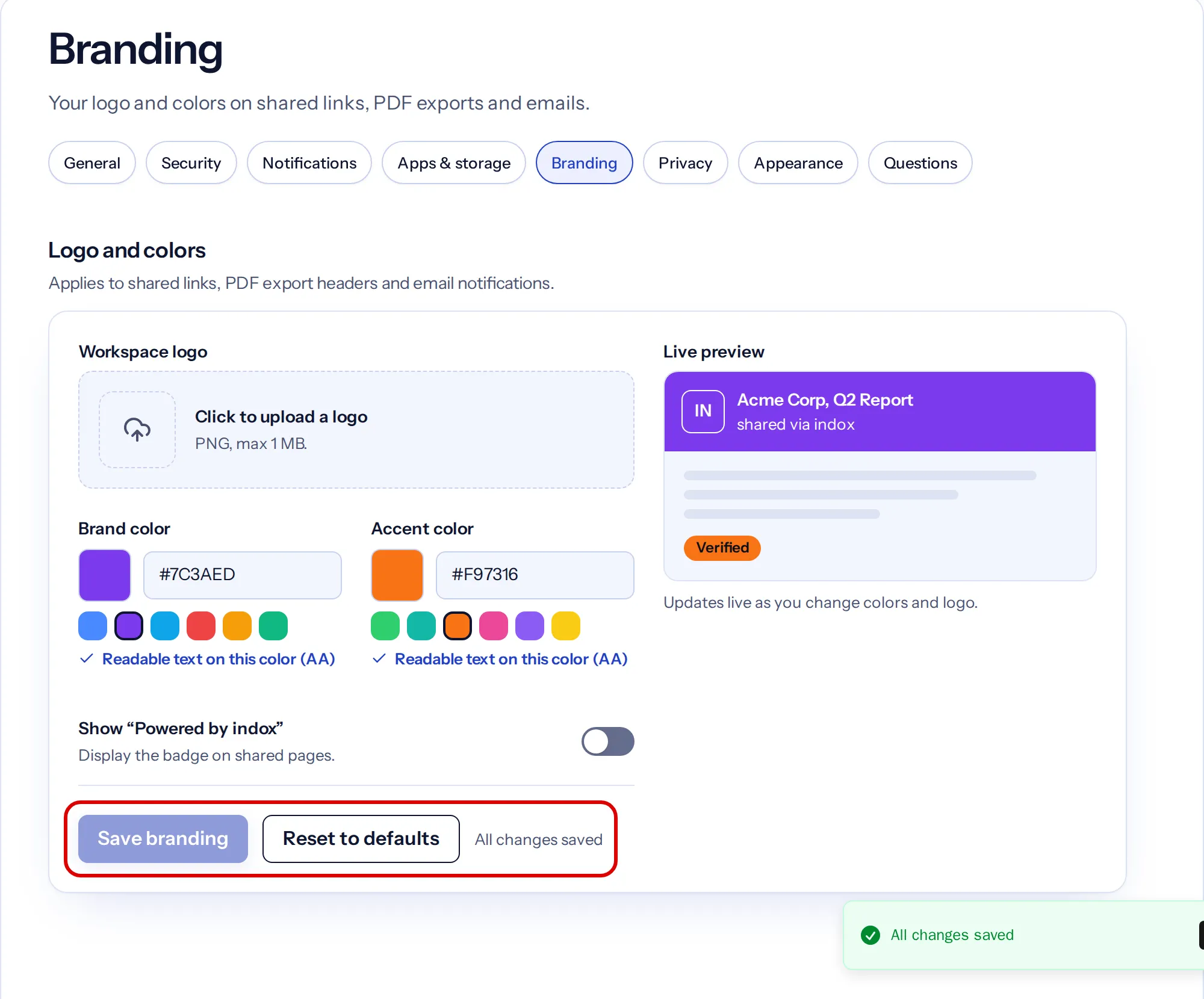
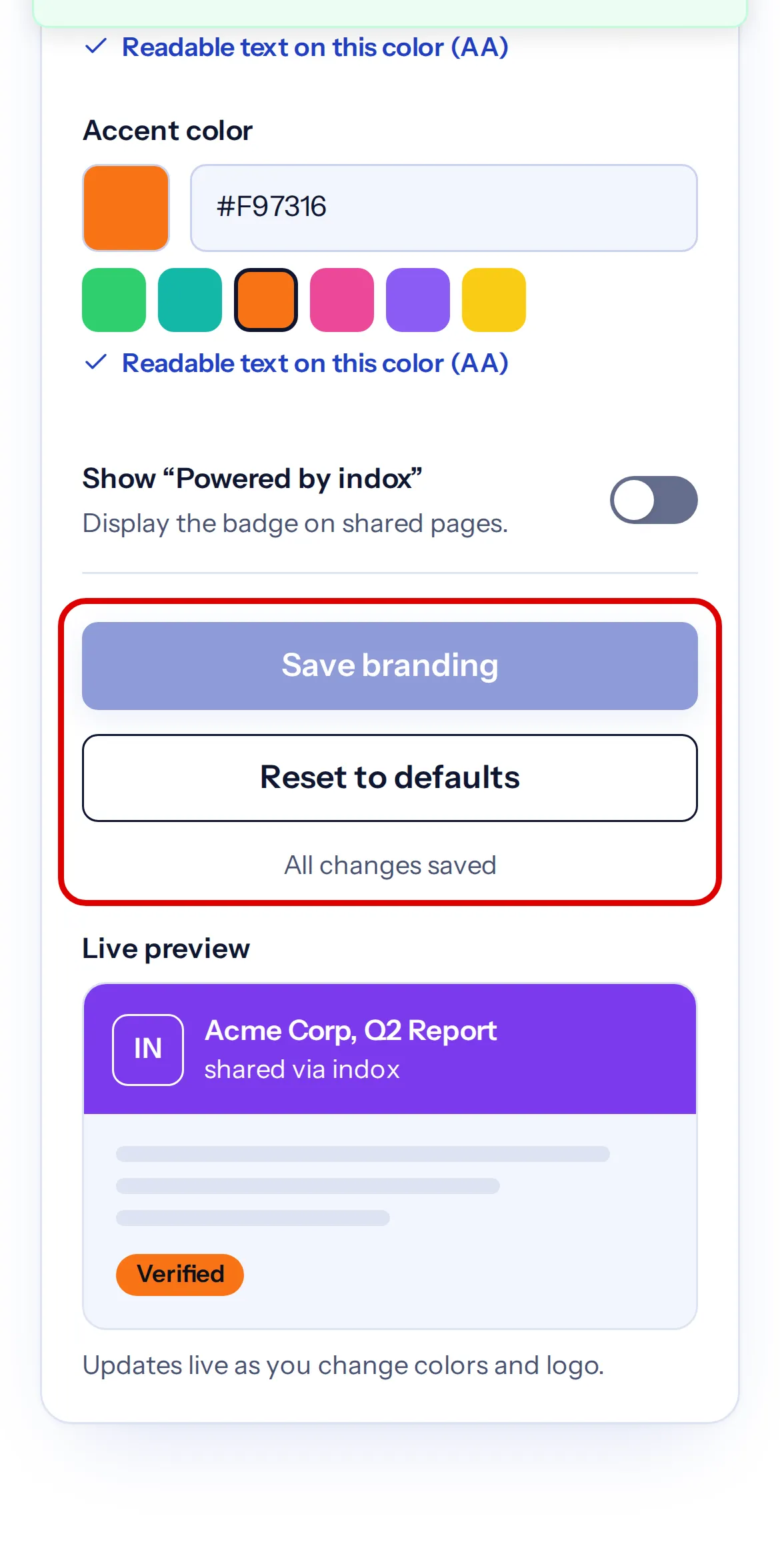
Select Save branding. The words All changes saved show next to the buttons, and a small message with an Undo button pops up for a moment. The Save branding button turns pale again.
Troubleshooting
| Problem | Cause | Fix |
|---|---|---|
| The words Unsaved changes show under the buttons | You did not save yet | Select Save branding. The words All changes saved then replace them |
| You want the first colors back | The page starts with a blue brand color and a green accent color | Select Indigo blue under Brand color and Green under Accent color, turn the badge switch back on, and select Save branding |
| The Save branding button is pale | There is nothing new to save | Change a color or the switch first. The button turns dark blue when there is something to save |