Last updated
Open the INDOX side panel
Before you start
- The INDOX extension added to Chrome on a computer. These steps are for the computer version of Chrome.
- You don't need an account to open the panel. The side panel is a strip that opens along the side of your browser window, so you can use INDOX without leaving the page.
Select the INDOX button on a web page
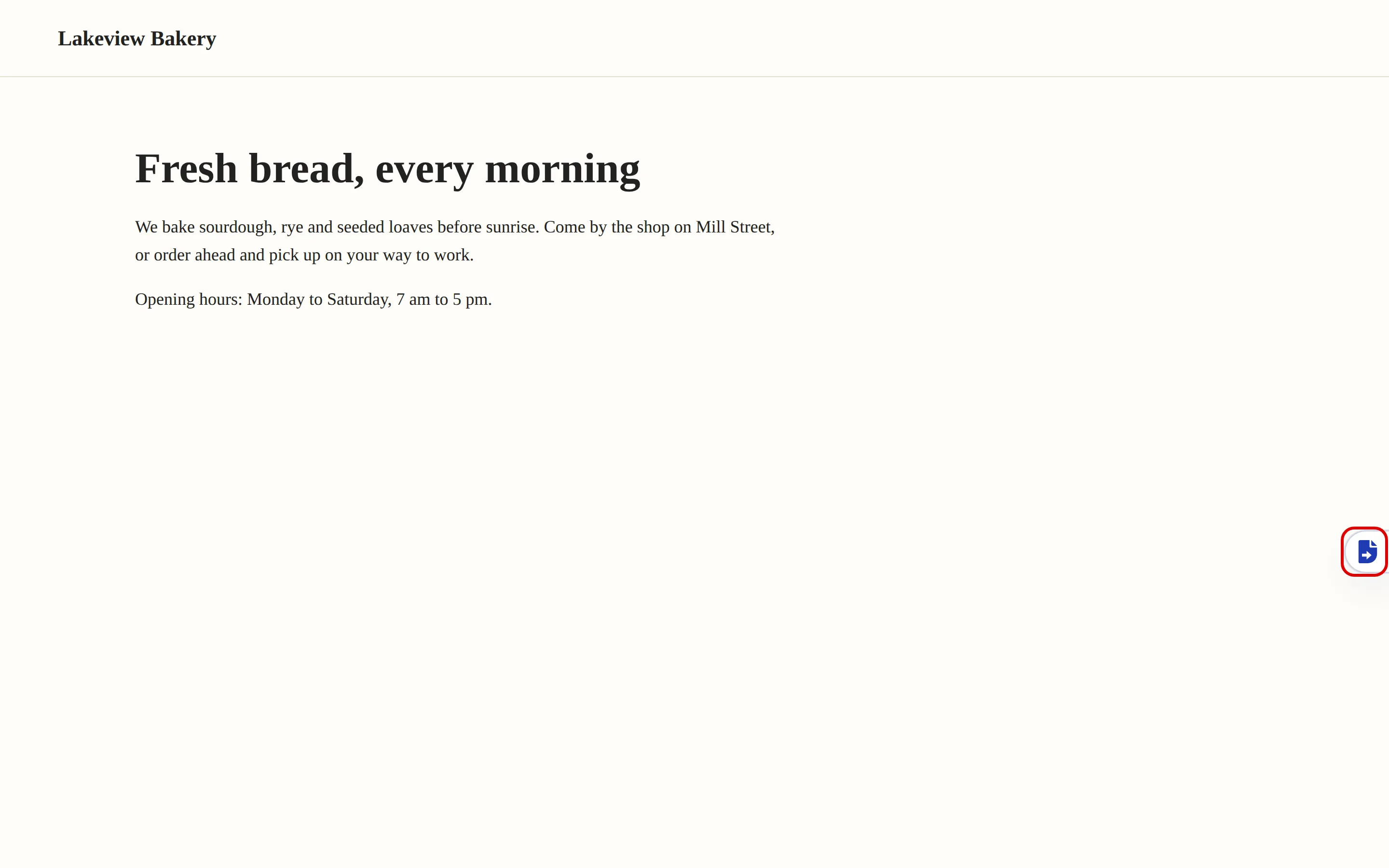
Open any web page. Look at the right edge of the window. A small INDOX button with a blue file icon sits there. Select it. The side panel opens along the side of the window. If you are not signed in, it says Convert anything, right in your browser and shows a Get started button.
Or select the INDOX icon in the toolbar
The toolbar is the row of buttons next to the address bar. Select the INDOX icon there. The side panel opens. If you can't see the icon, select the Extensions icon, which looks like a puzzle piece, and then select INDOX.
Or press the keyboard shortcut
On Windows or Linux, press Ctrl+Shift+U. On a Mac, press Command+Shift+U. The side panel opens.
Open the INDOX settings
To change how the panel opens, right-click the INDOX icon in the toolbar and select Options. A new tab opens with the page INDOX Settings.
Choose what the toolbar icon opens
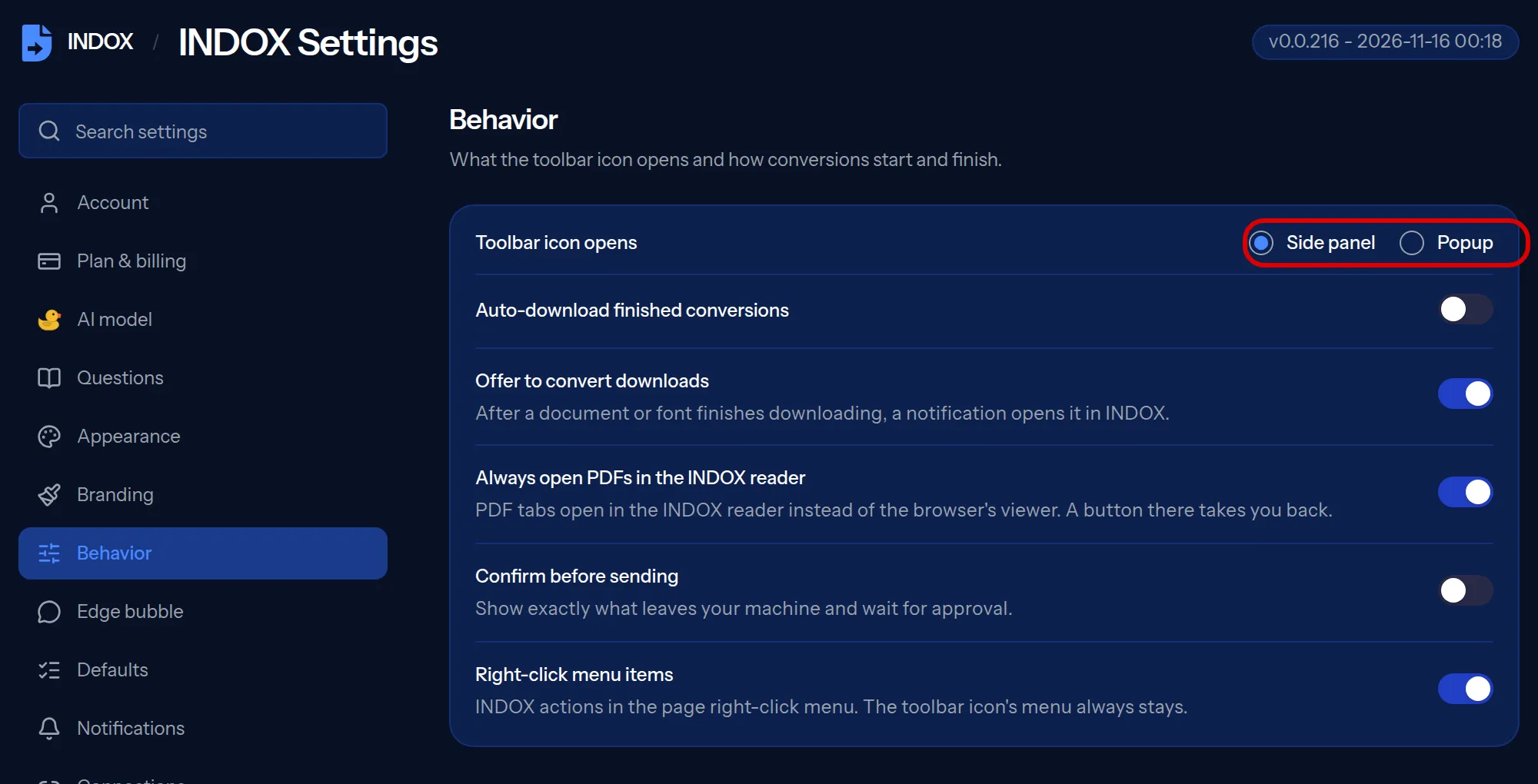
In the list on the left, select Behavior. Next to Toolbar icon opens, pick Side panel or Popup. A popup opens a small window under the icon instead of the side panel. Side panel is already picked when you first install the extension.
Choose what the page button does
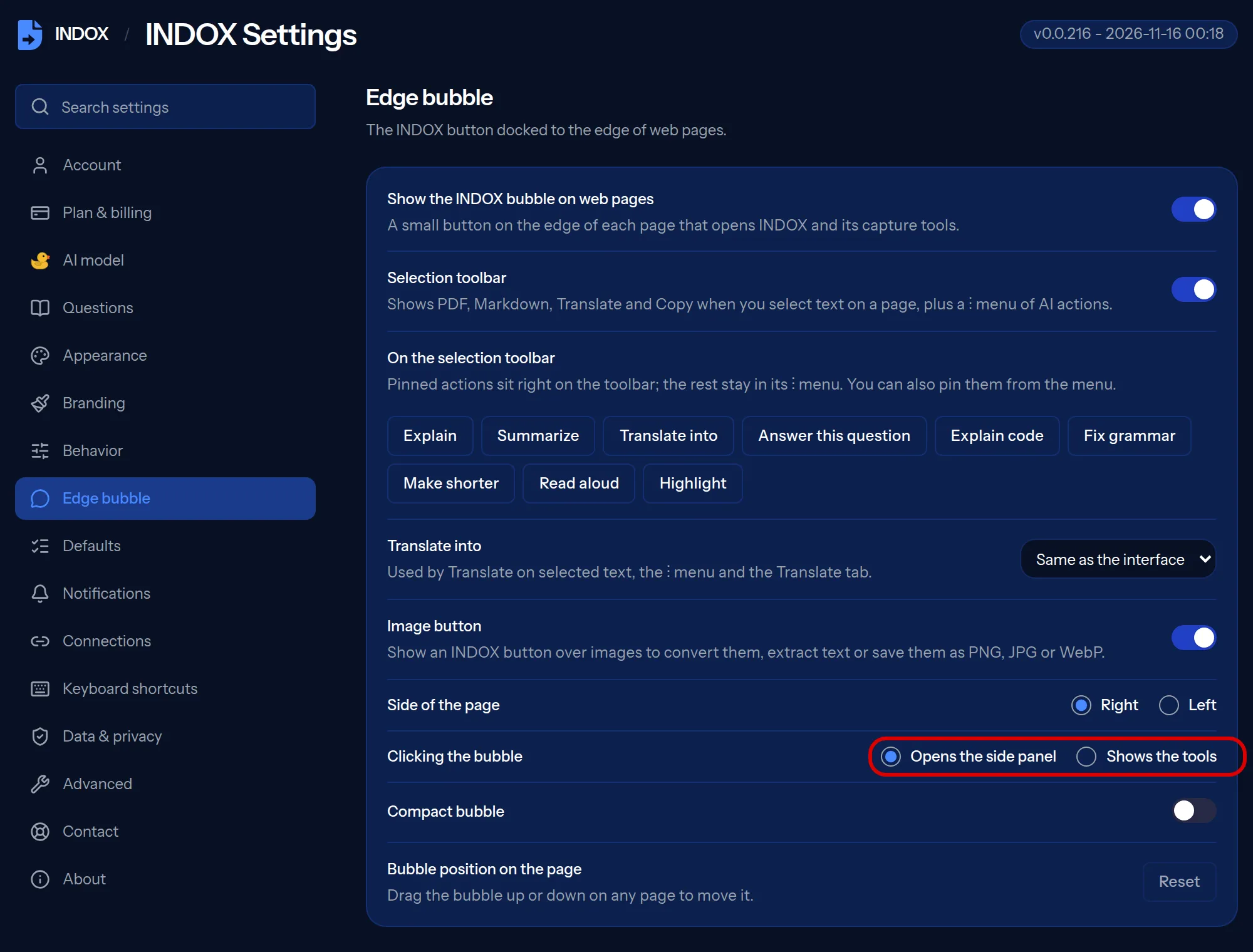
In the list on the left, select Edge bubble. Next to Clicking the bubble, pick Opens the side panel or Shows the tools. To hide the button, turn off Show the INDOX bubble on web pages at the top of the same page.
Troubleshooting
| Problem | Cause | Fix |
|---|---|---|
| You can't see the INDOX button on the page | The button is turned off, or the page is one of the browser's own pages, such as chrome://version | Turn on Show the INDOX bubble on web pages in Edge bubble, or open a normal web page |
| The toolbar icon opens a small window, not the side panel | Toolbar icon opens is set to Popup | Open the settings, select Behavior and pick Side panel |
| The page button shows tools, not the side panel | Clicking the bubble is set to Shows the tools | Select Edge bubble in the settings and pick Opens the side panel |
| The keyboard shortcut does nothing | The keys may be set to something else on your computer | In the settings, select Keyboard shortcuts. The row Open the INDOX side panel shows the keys. Select Edit in Chrome to change them |