Last updated
Control print, copy and edit permissions in a PDF
Before you start
- Have the PDF on your phone or computer. The upload box tells you how big a file can be.
- A permission is a rule about what people may do with a PDF once it is open, such as print it, copy its words or change it. This tool sets those rules and locks them with a password. Only that password lifts the rules later.
- Some PDF readers ignore these rules, and anyone can still read the file. To keep a file private, also add a password to open it. You can do that in step 4.
- You don't need an account.
Open your PDF
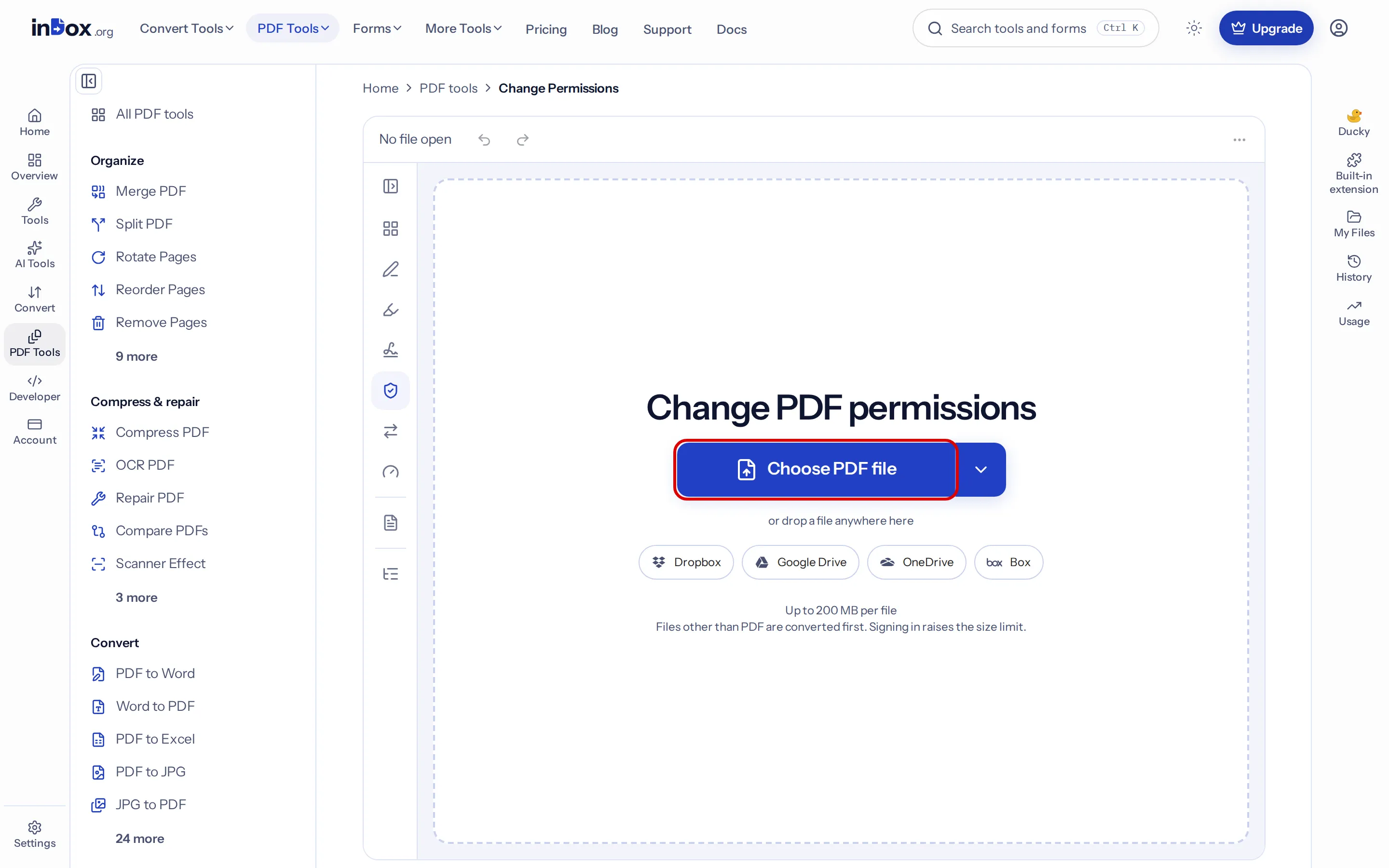
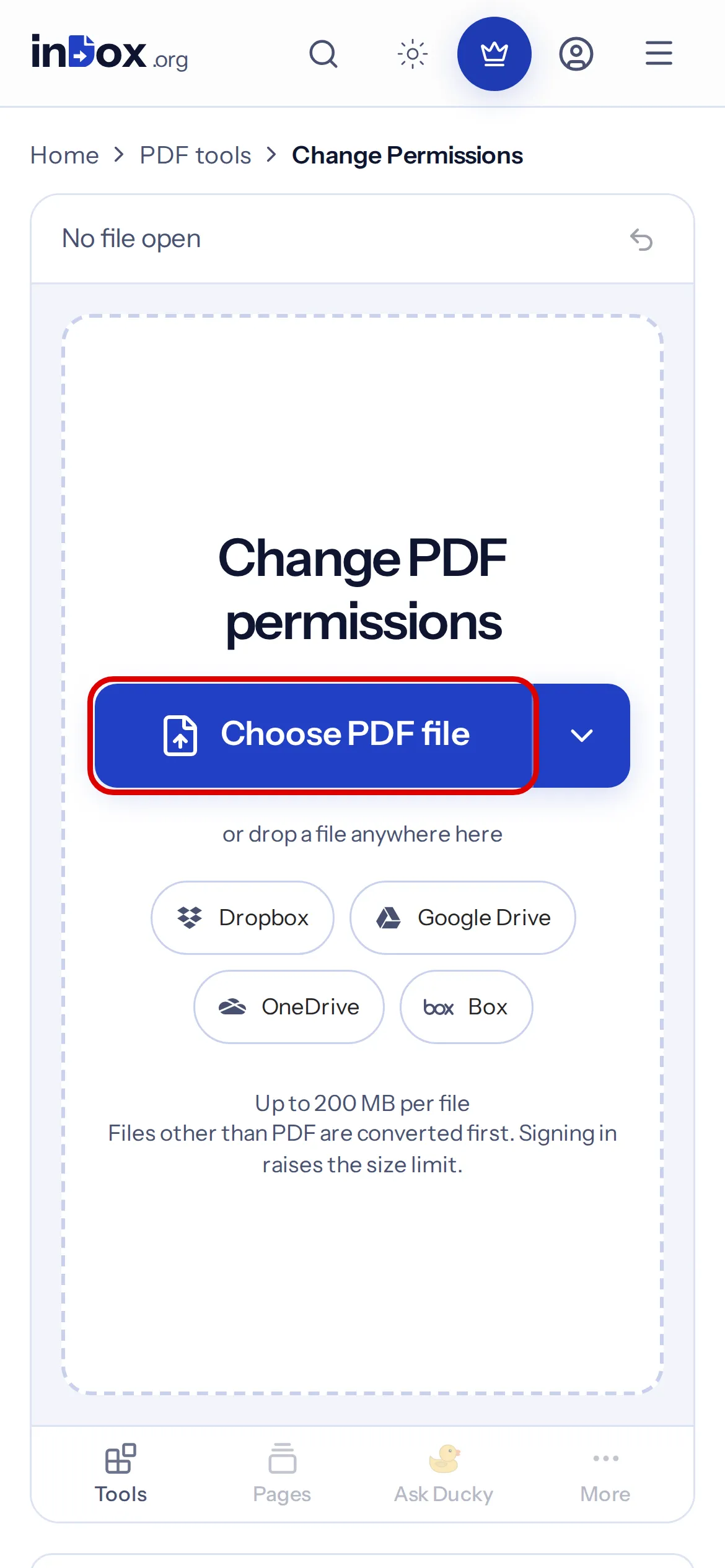
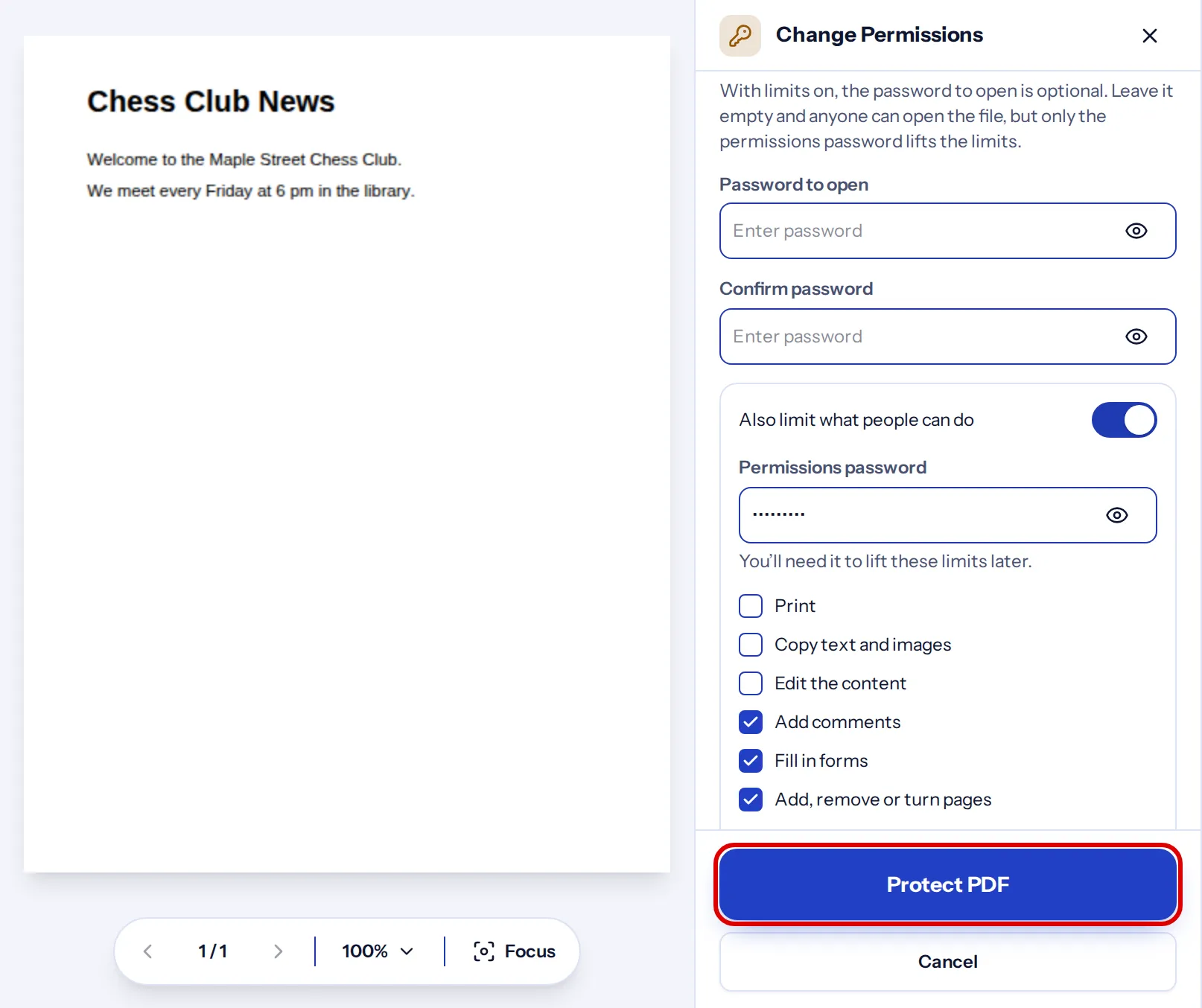
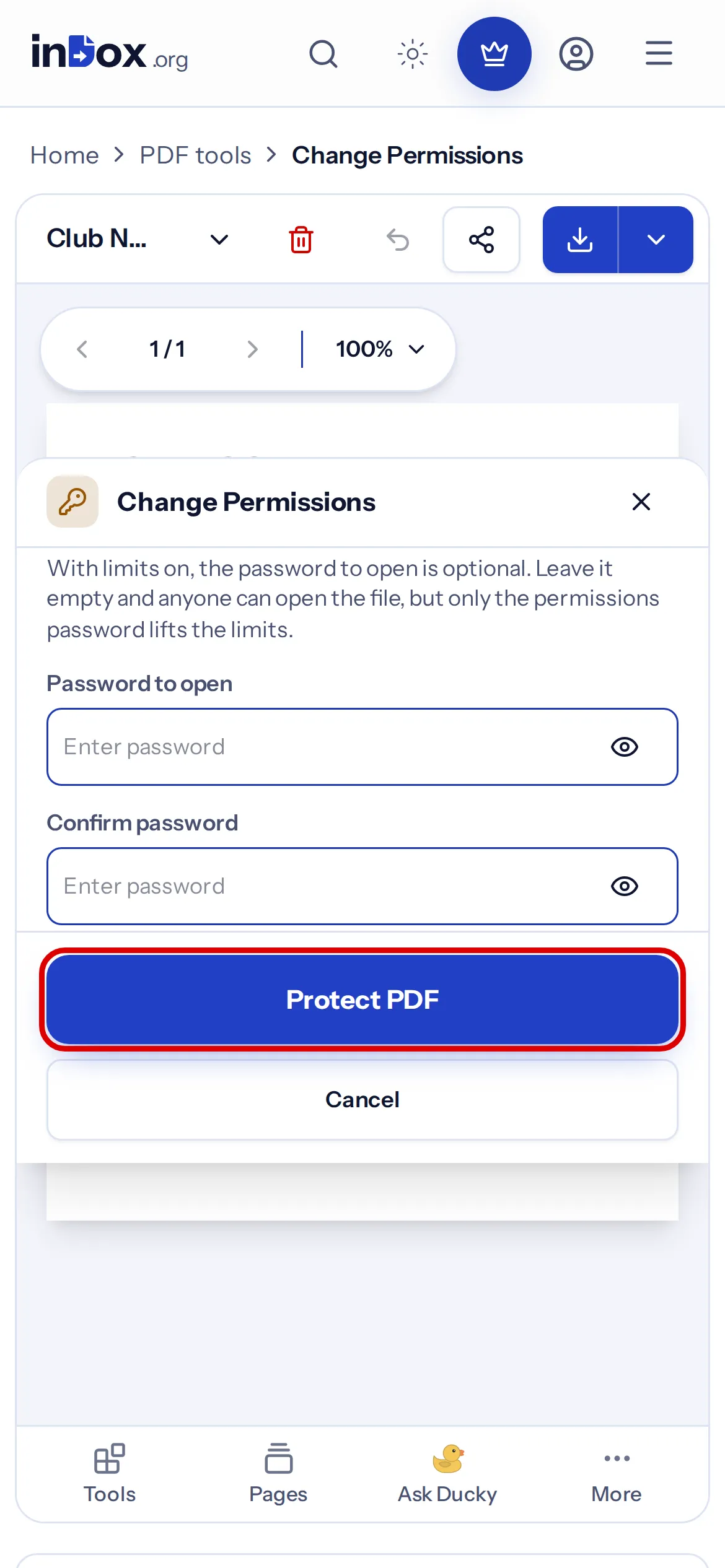
Go to the Change Permissions page. In the middle of the page, select the blue Choose PDF file button. A box opens so you can pick a file from your device. You can also drag a file onto the page. The file opens with a panel called Change Permissions. On a computer the panel is on the right. On a phone it slides up from the bottom.
Type a permissions password
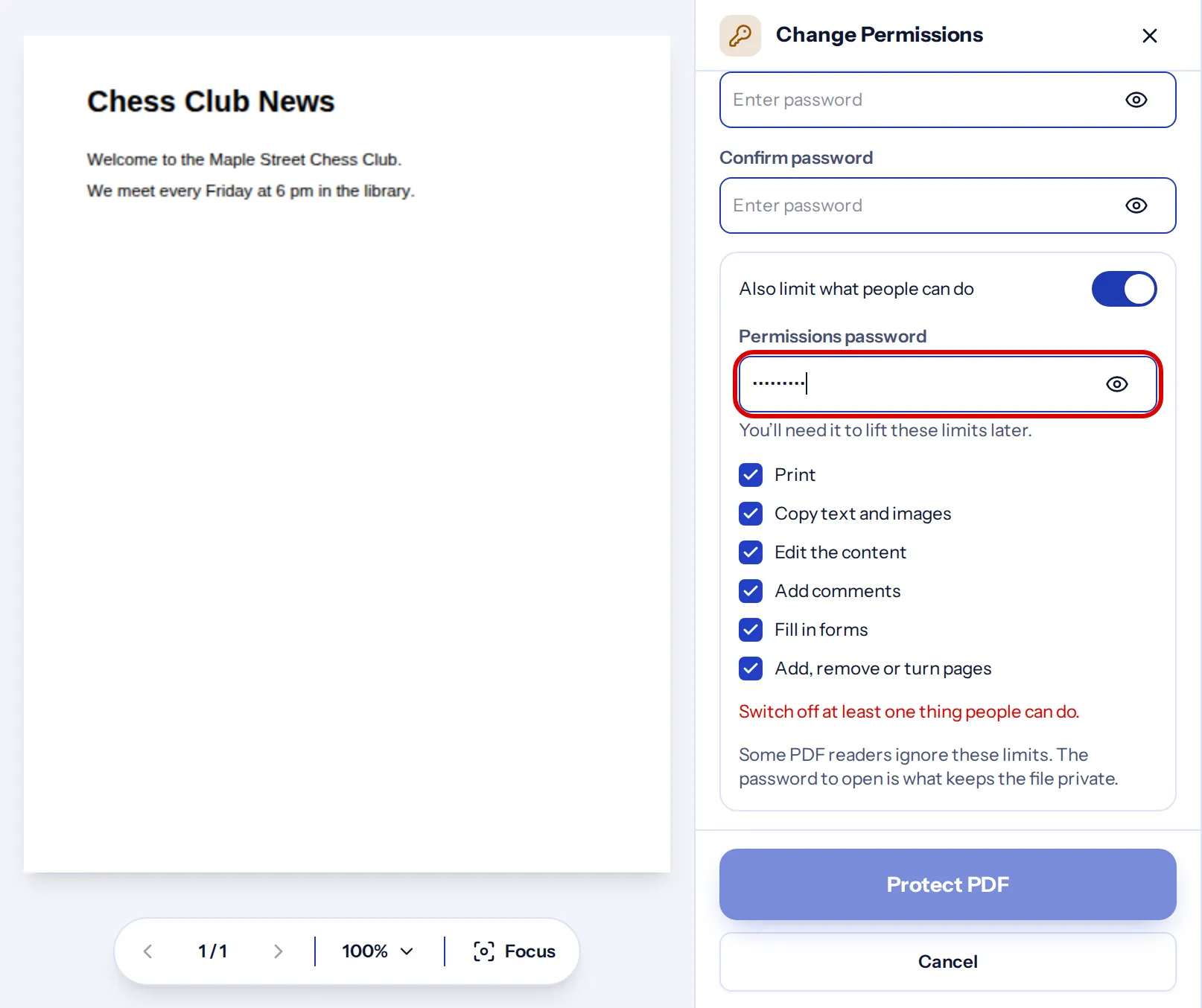
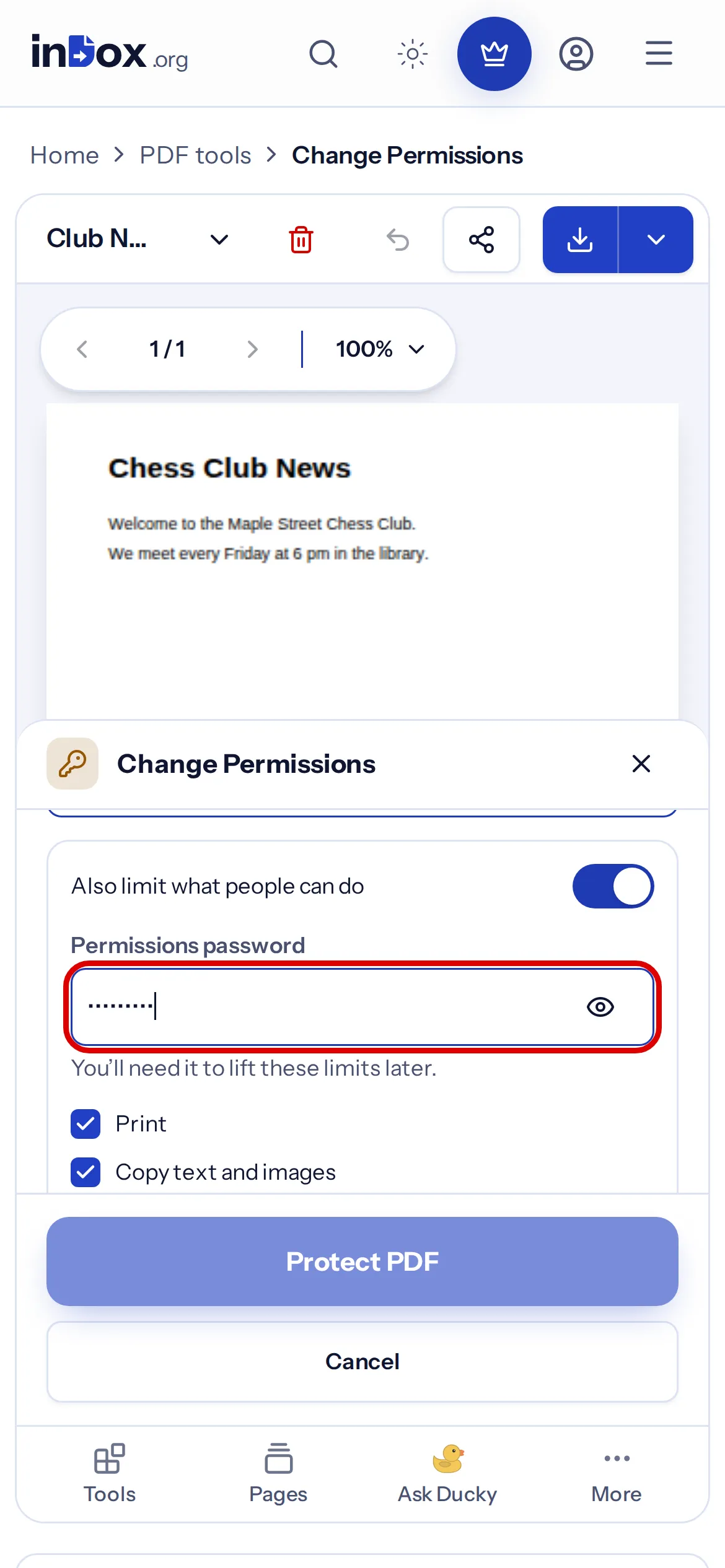
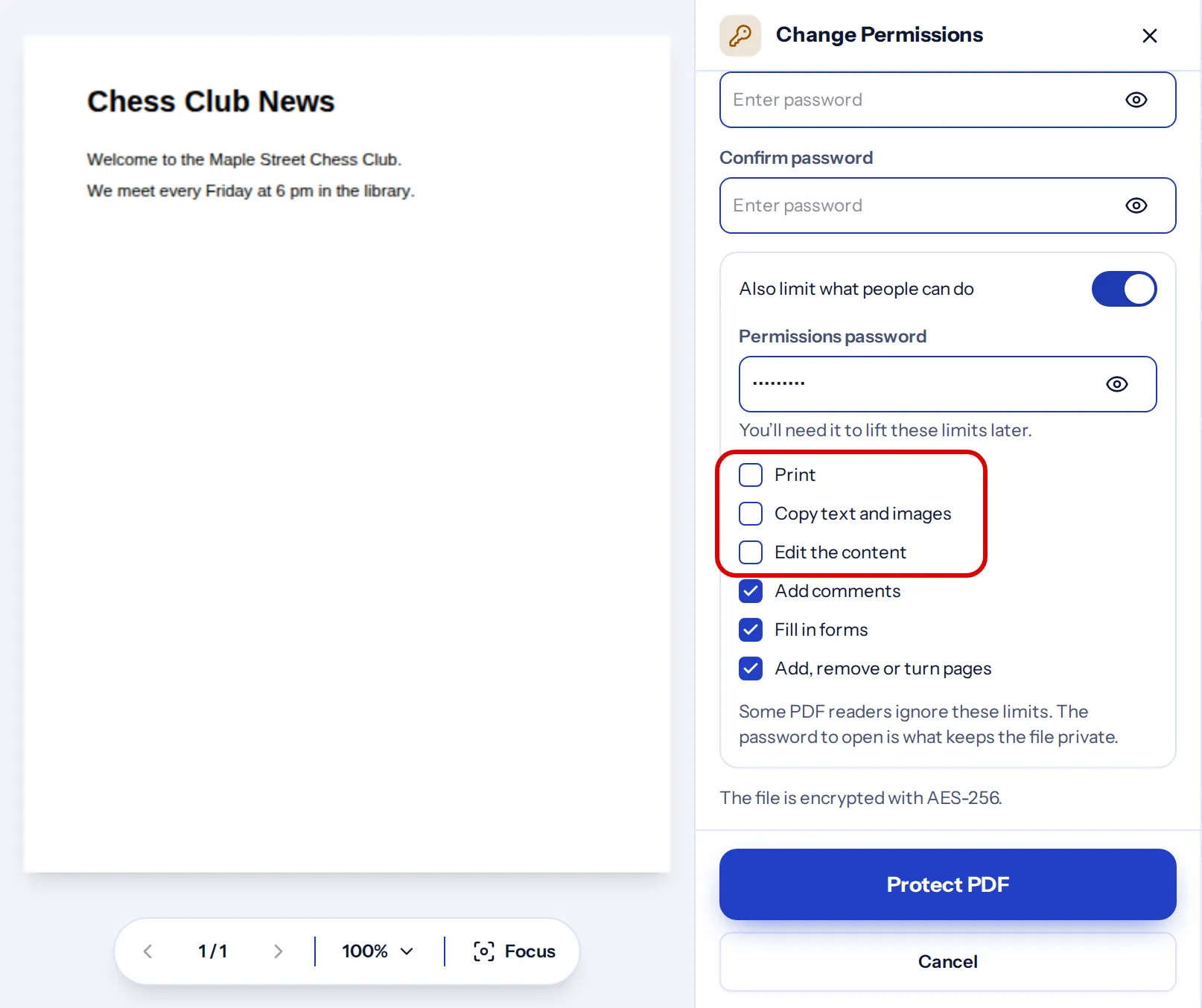
In the panel, the switch Also limit what people can do is already on. Under it, type a password in the Permissions password box, such as Owner-123. The letters show as dots. A line under the box says You'll need it to lift these limits later. Keep the password somewhere safe. A red line may say Switch off at least one thing people can do. The next step fixes that.
Switch off what you want to block
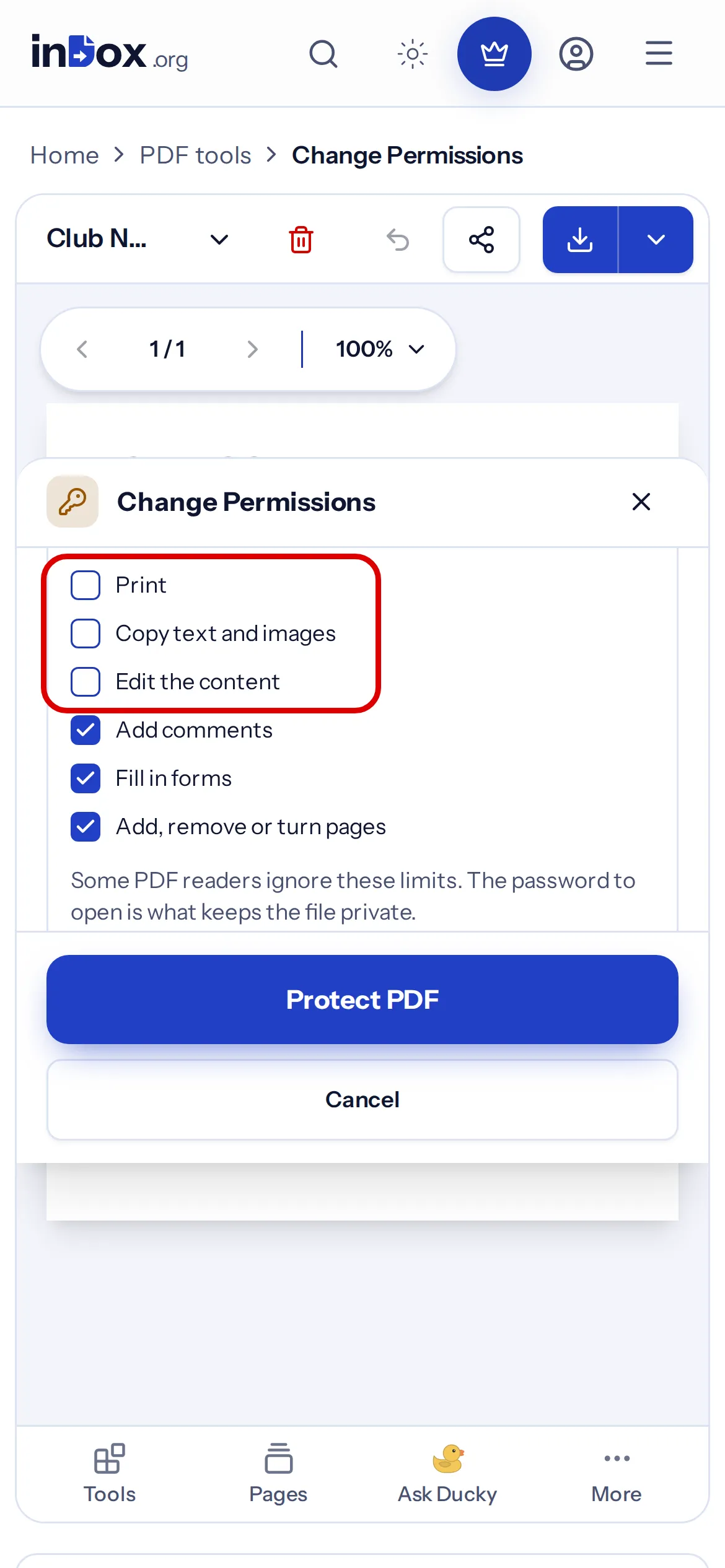
Six check boxes sit under the password: Print, Copy text and images, Edit the content, Add comments, Fill in forms and Add, remove or turn pages. A tick means people may do it. Untick the ones you want to block, such as Print, Copy text and images and Edit the content. The blue Protect PDF button turns solid once you untick at least one box.
Add a password to open (optional)
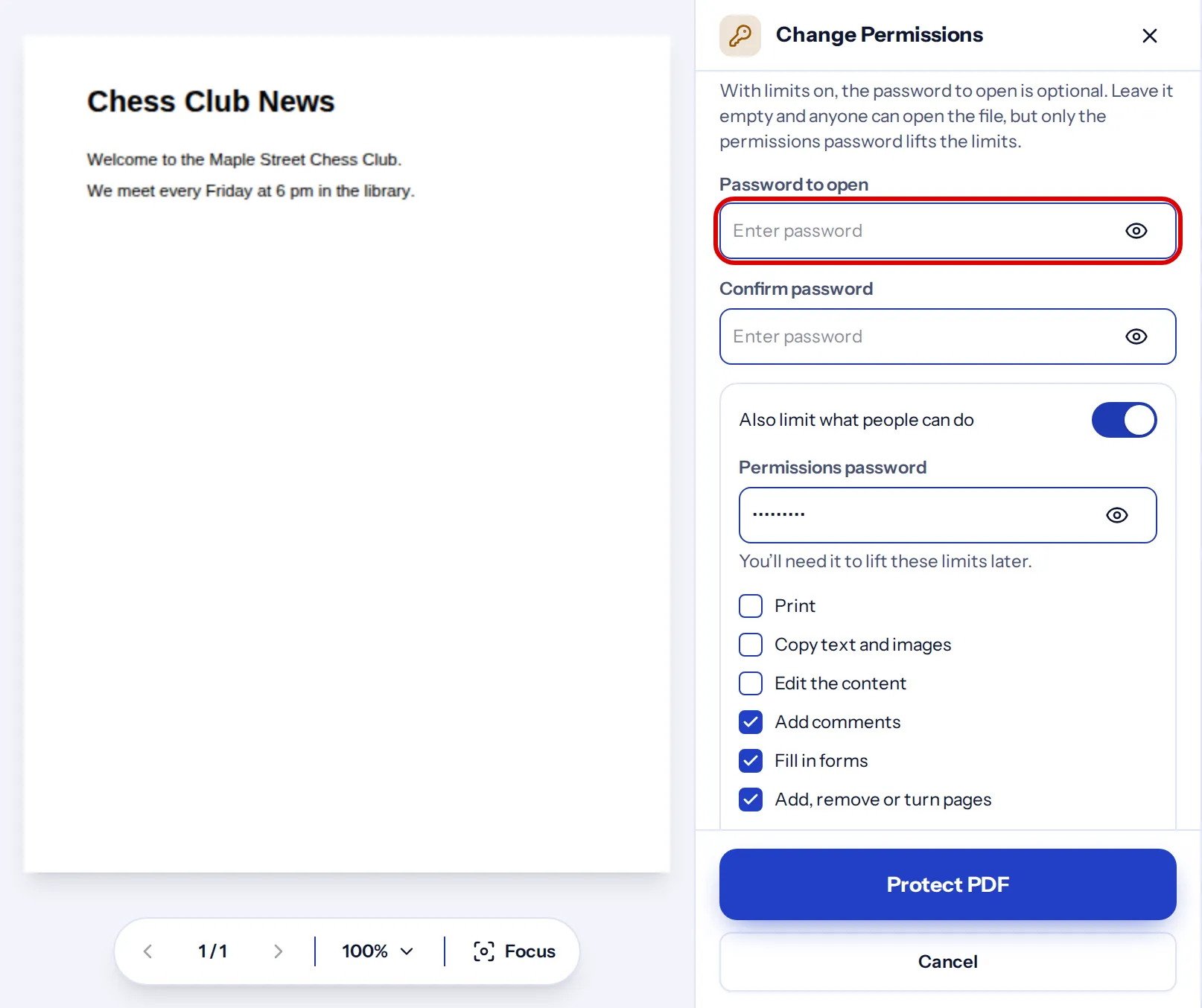
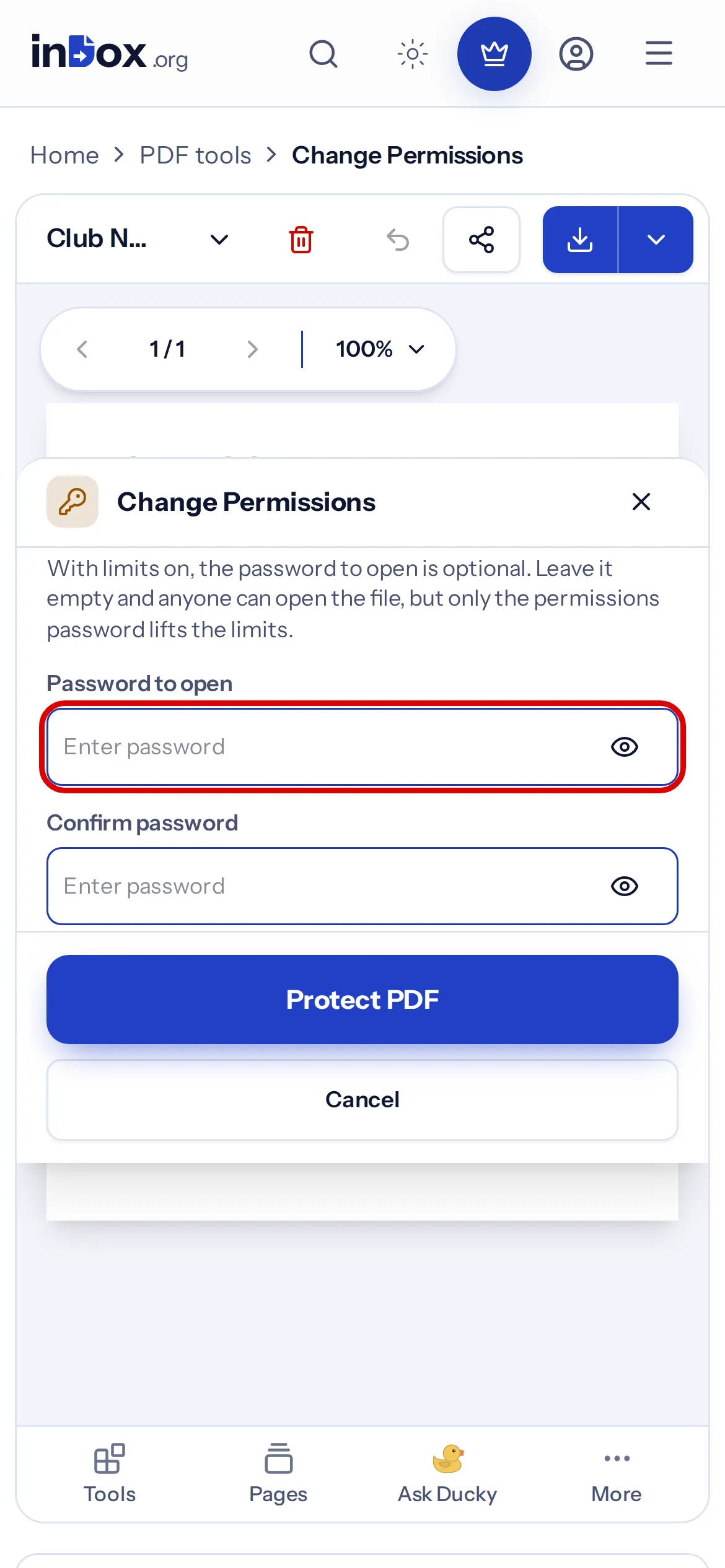
Skip this step if anyone may open the file. To also lock the file itself, scroll up the panel to Password to open and type a password. Then type the same one in Confirm password. The file will ask for it when someone opens it. Leave both boxes empty and anyone can open the file, but only the permissions password lifts the limits.
Protect the PDF
Select the blue Protect PDF button at the bottom of the panel. Wait a moment.
Download your PDF
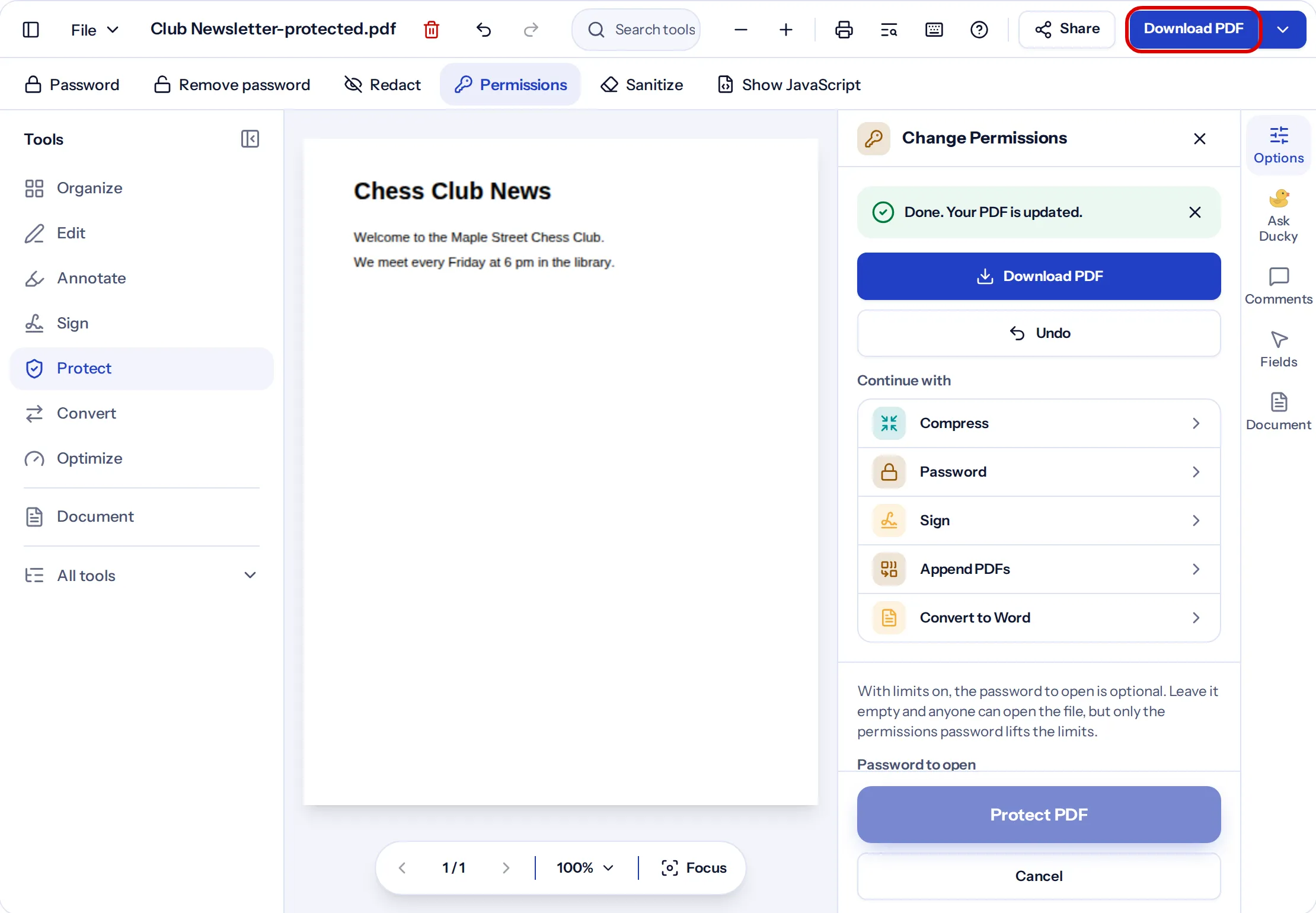
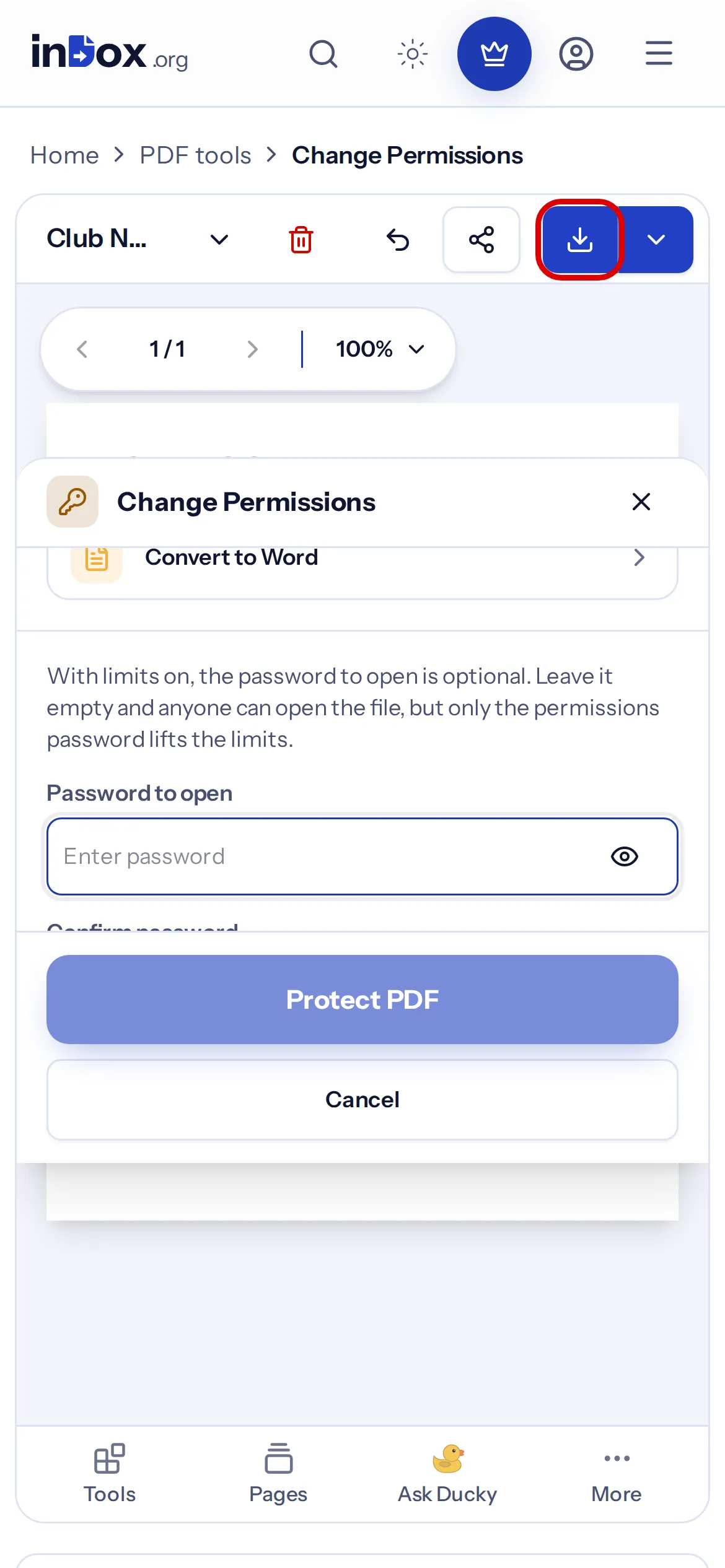
The panel says Done. Your PDF is updated. Select the blue Download PDF button. On a computer it is at the top right. On a phone it is the arrow in the bar above the page. The new file is saved on your device. Its name ends in -protected.
Troubleshooting
| Problem | Cause | Fix |
|---|---|---|
| The blue Protect PDF button stays pale | Every box is still ticked, so no limit is switched on | Untick at least one box. A red line says Switch off at least one thing people can do. |
| Your PDF reader still lets you print or copy | Some PDF readers ignore these limits | Add a Password to open too. Only that keeps the file private |
| You forgot the permissions password | Only that password lifts the limits | Keep your original file. Run these steps again on the original with a new password |
| You want the limits off again | The new copy keeps its limits | Use Unlock PDF |