Last updated
View or edit PDF properties
Before you start
- Have the PDF on your phone or computer. The upload box tells you how big a file can be.
- Properties, also called metadata, are details a PDF keeps about itself, such as its title and who wrote it.
- The pages Get PDF Info, Analyze PDF and Check a PDF for JavaScript open this same panel.
- You don't need an account.
Open your PDF
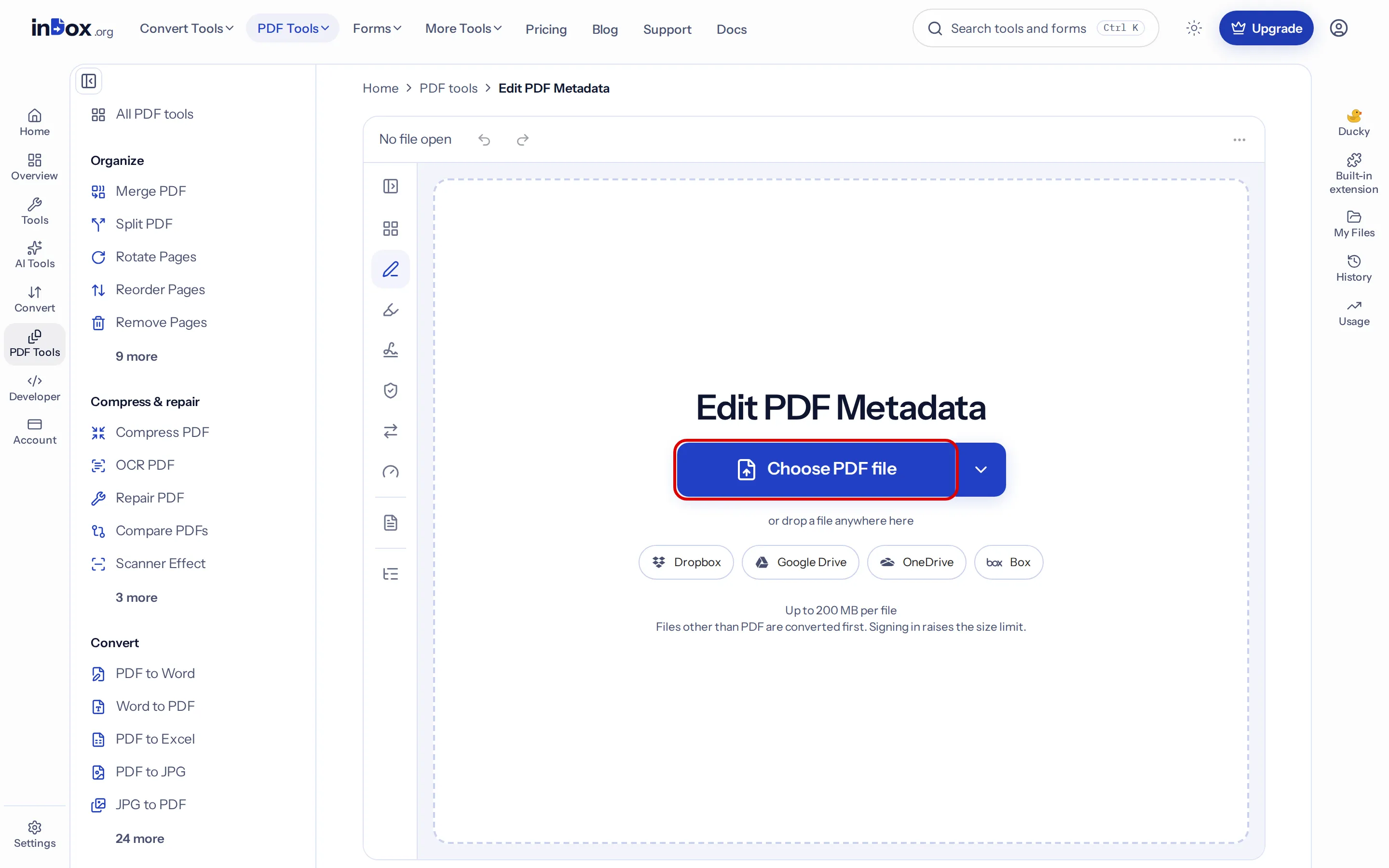
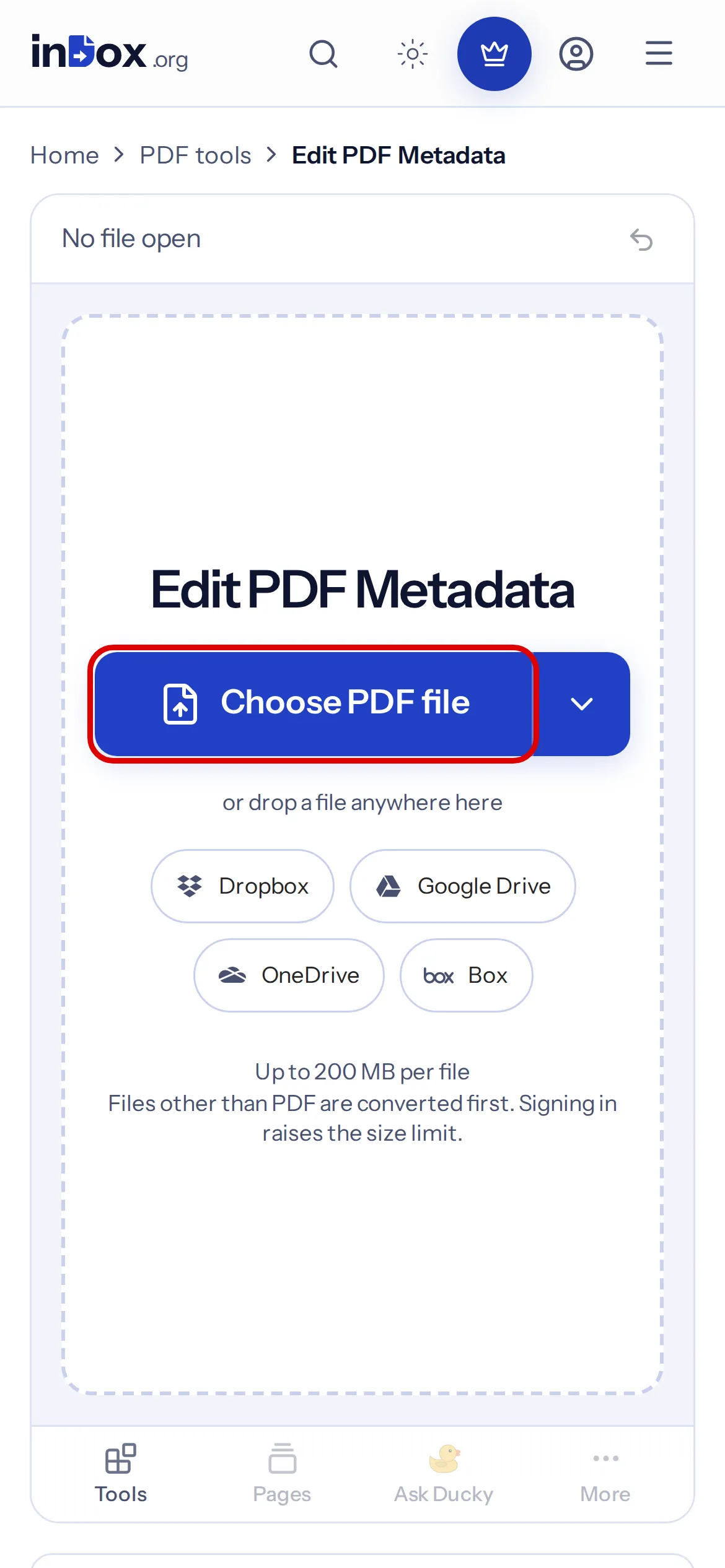
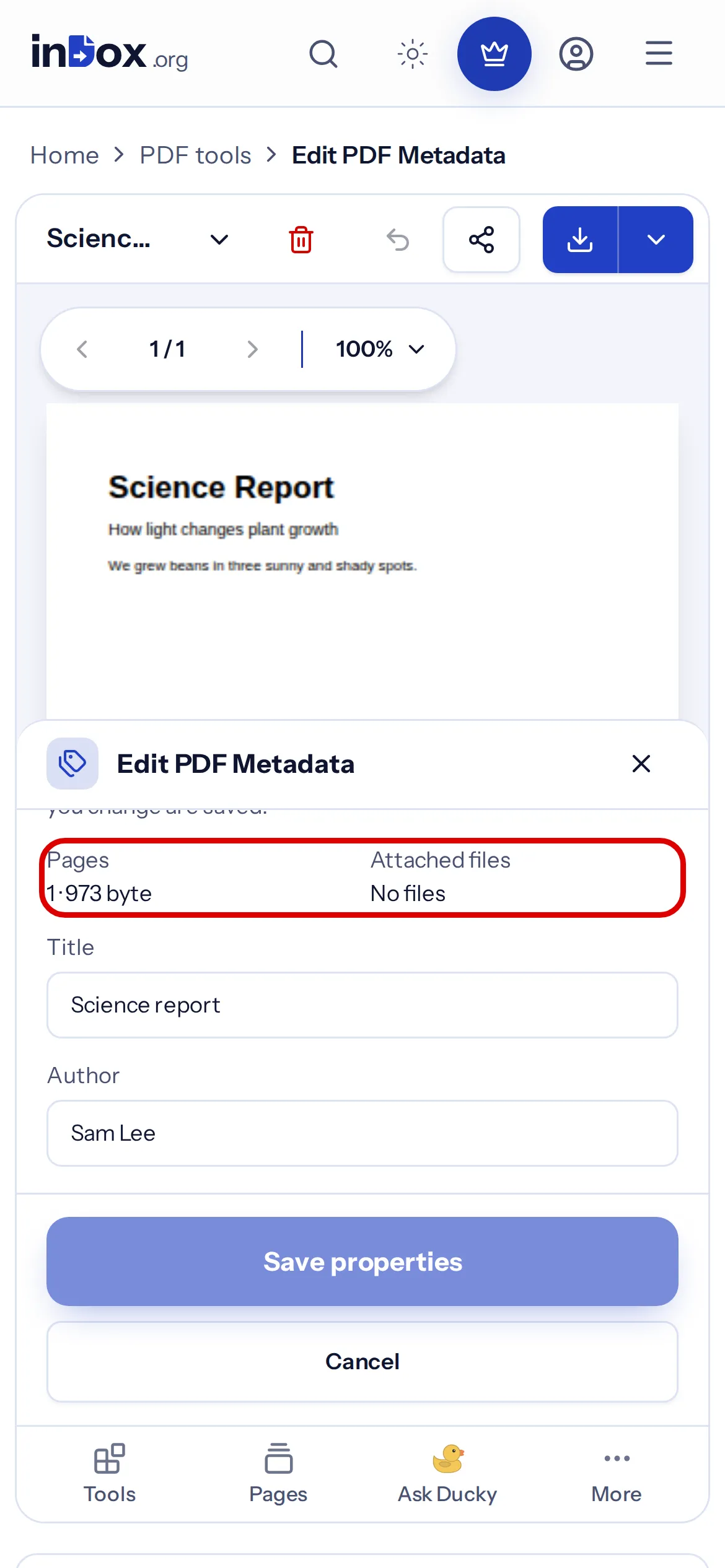
Go to the Edit PDF Metadata page. In the middle of the page, select the blue Choose PDF file button. A box opens so you can pick a file from your device. You can also drag a file onto the page. The file opens with a panel called Edit PDF Metadata. On a computer the panel is on the right. On a phone it slides up from the bottom.
Read the facts
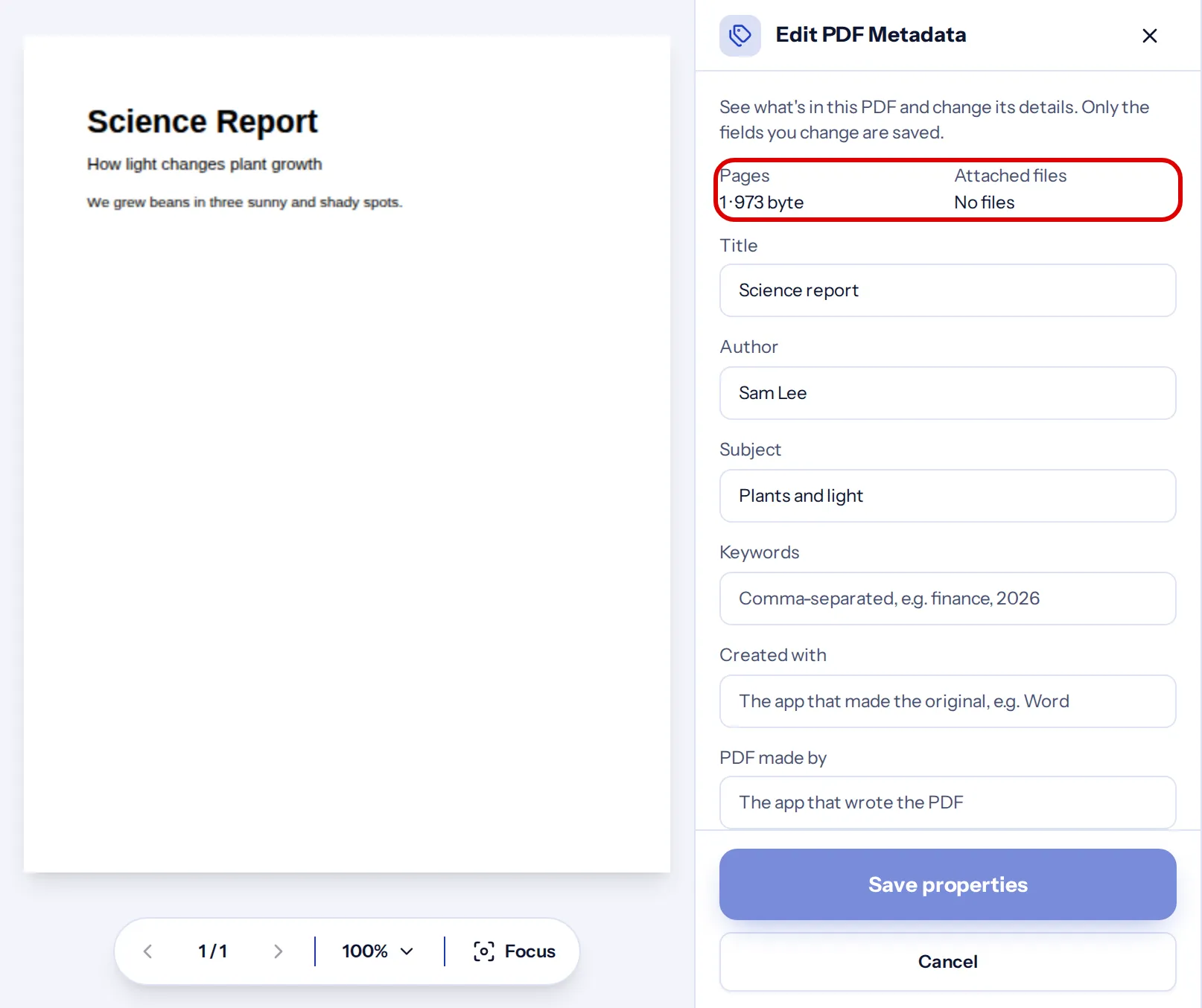
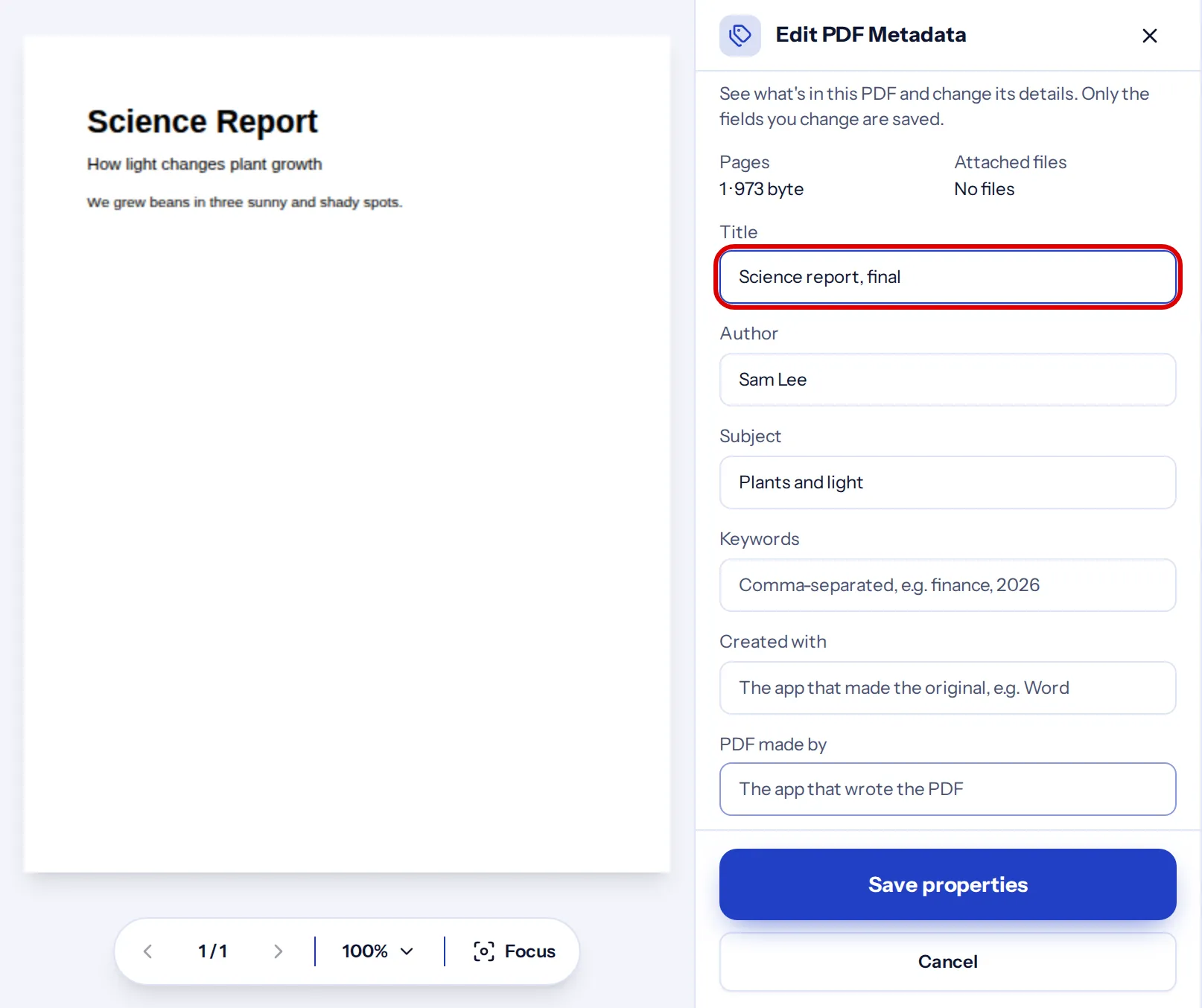
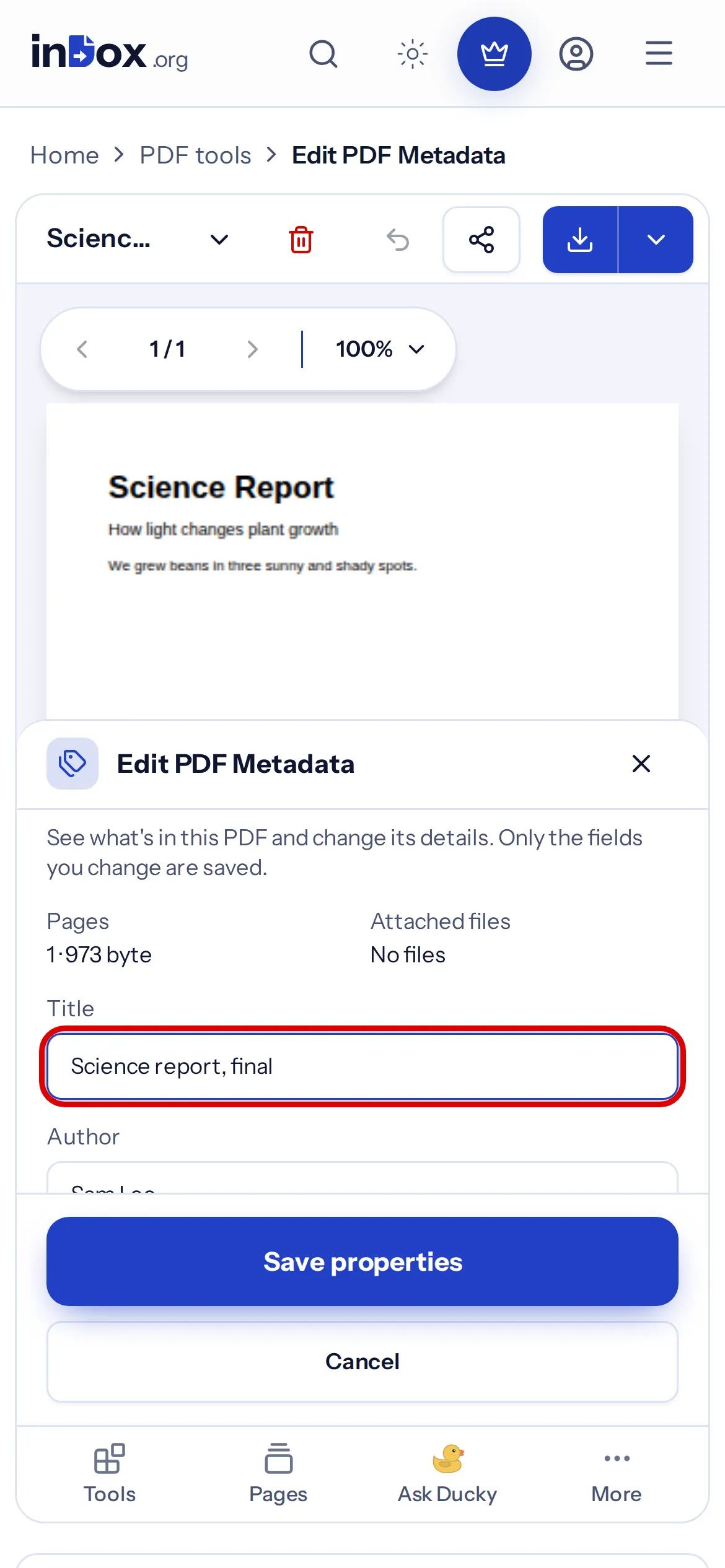
At the top of the panel, Pages tells you how many pages the file has and how big it is. Attached files says how many files are hidden inside it. Below are six boxes filled in from the file: Title, Author, Subject, Keywords, Created with and PDF made by. An empty box means the file has nothing there. The panel is taller than the screen, so scroll inside it.
Check for scripts
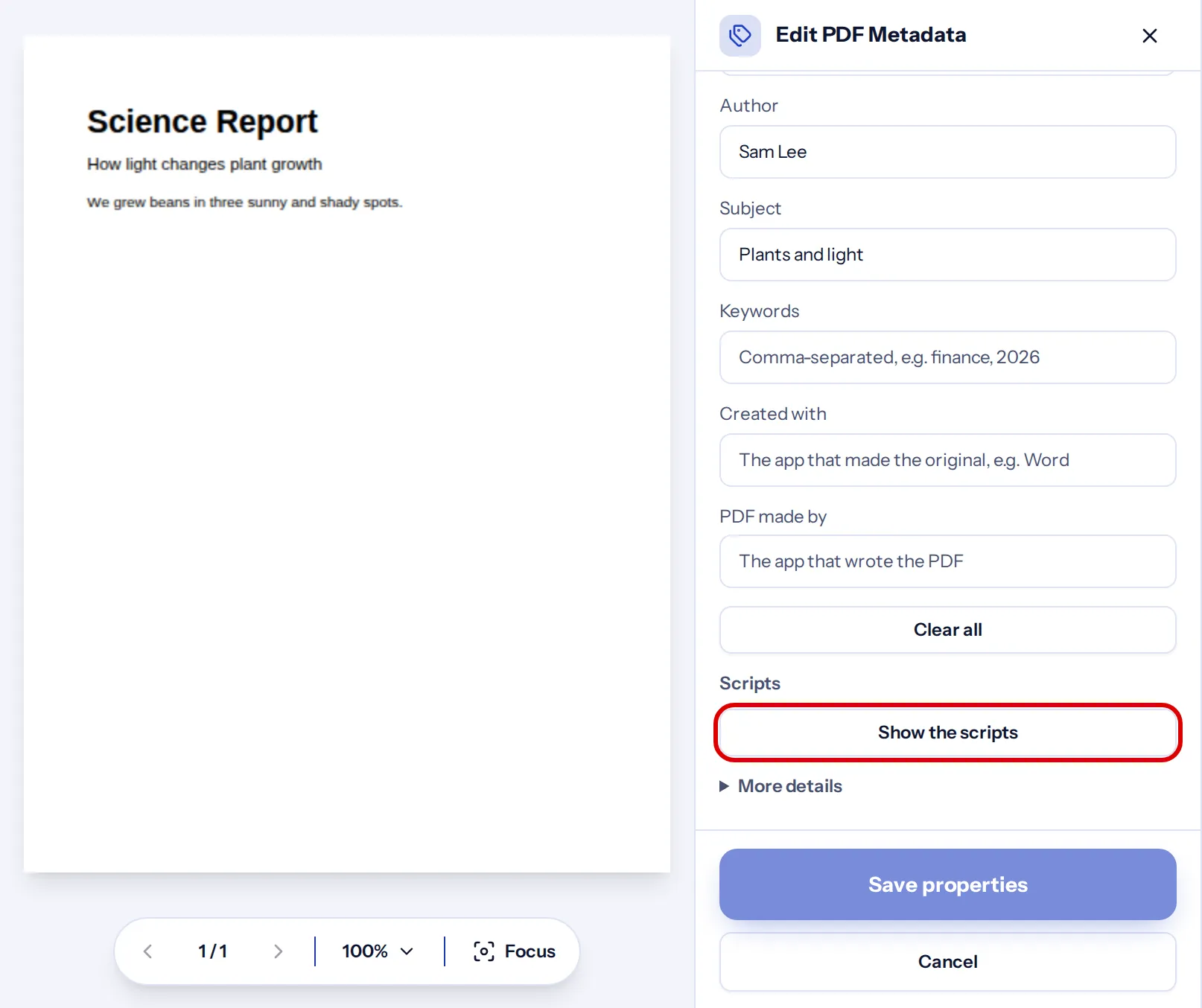
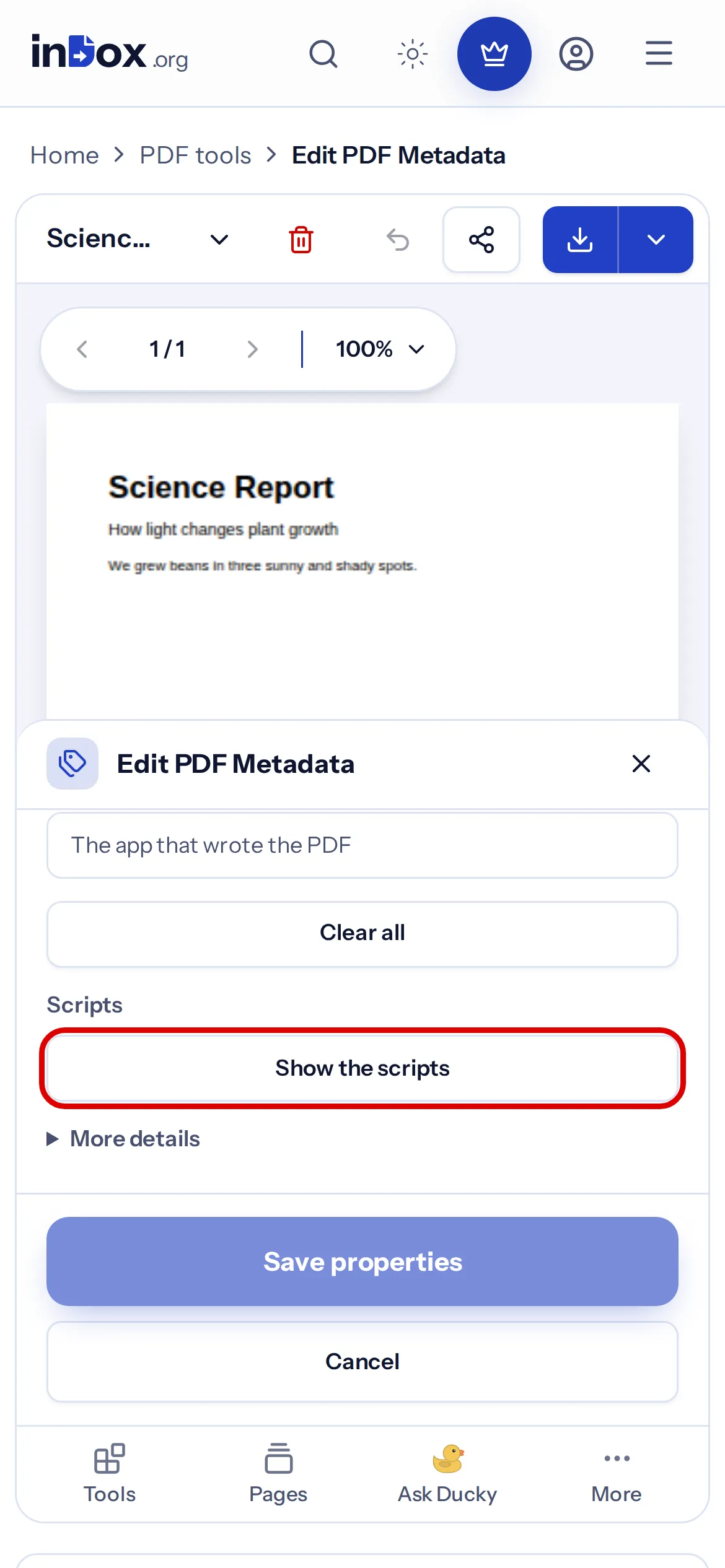
Scroll down to Scripts. A script is a small program a PDF can carry. It can run when the file opens. Select Show the scripts.
Read the answer
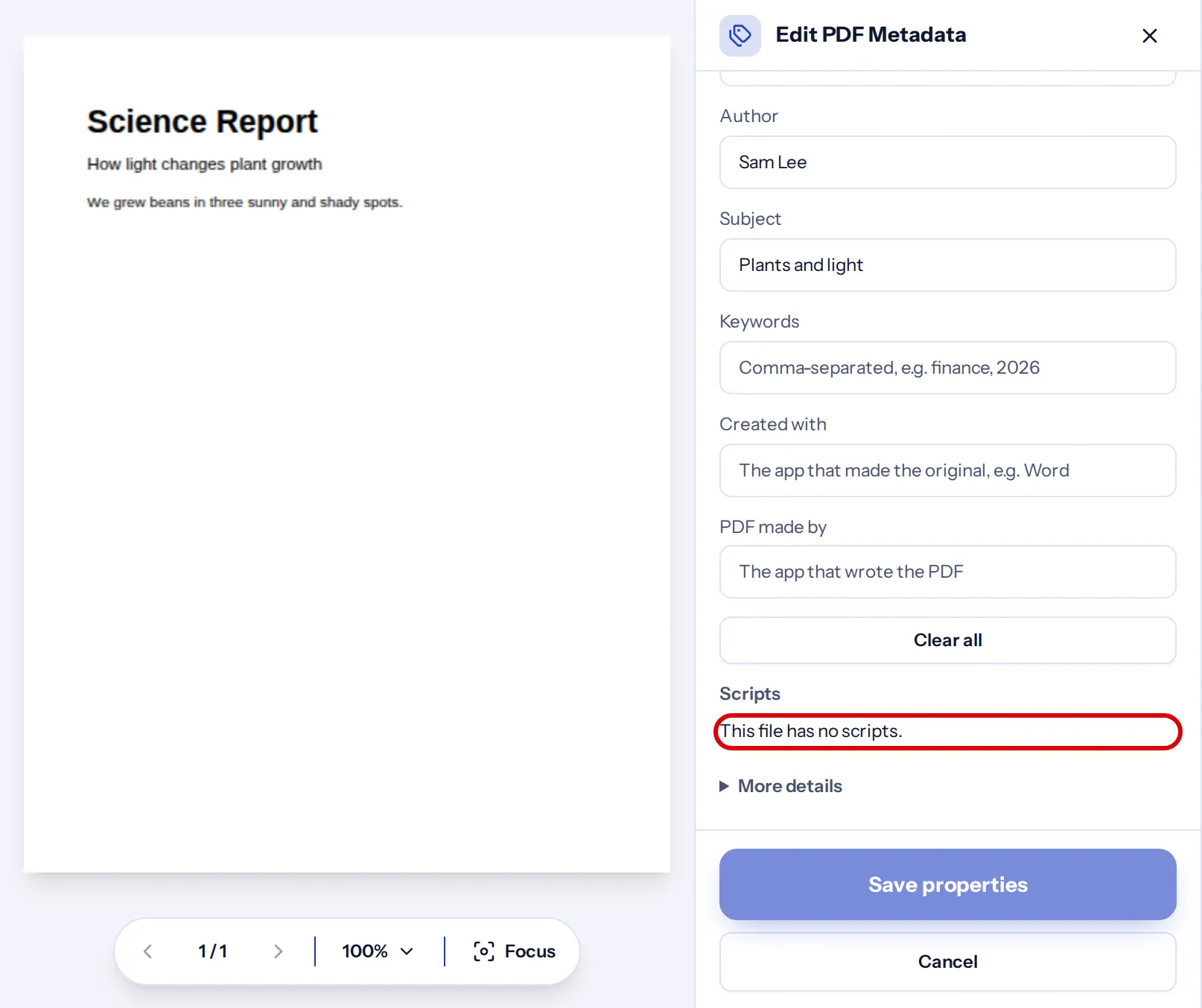
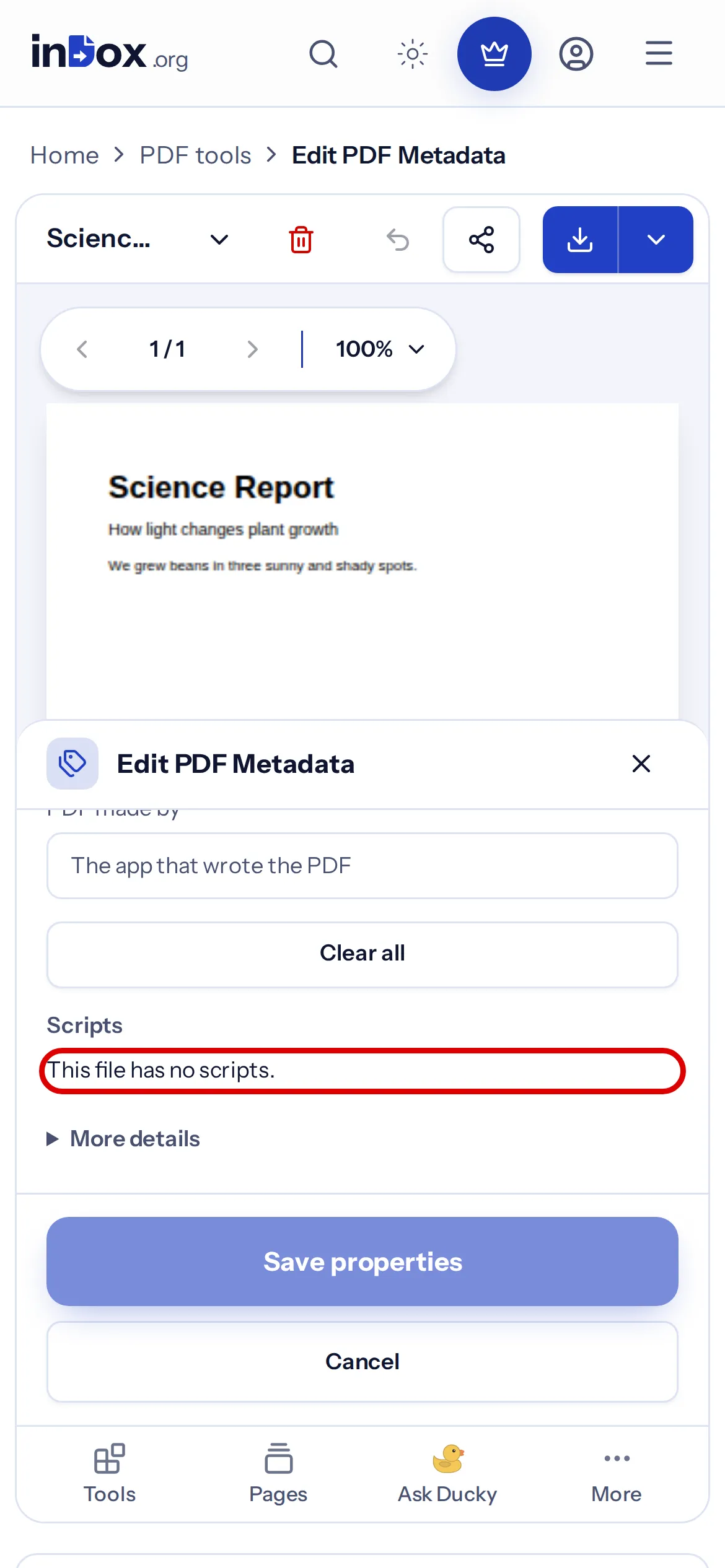
A line tells you what was found. Most PDFs say This file has no scripts. If the file has scripts, each one is listed with its name and where it sits in the file.
Look closer (optional)
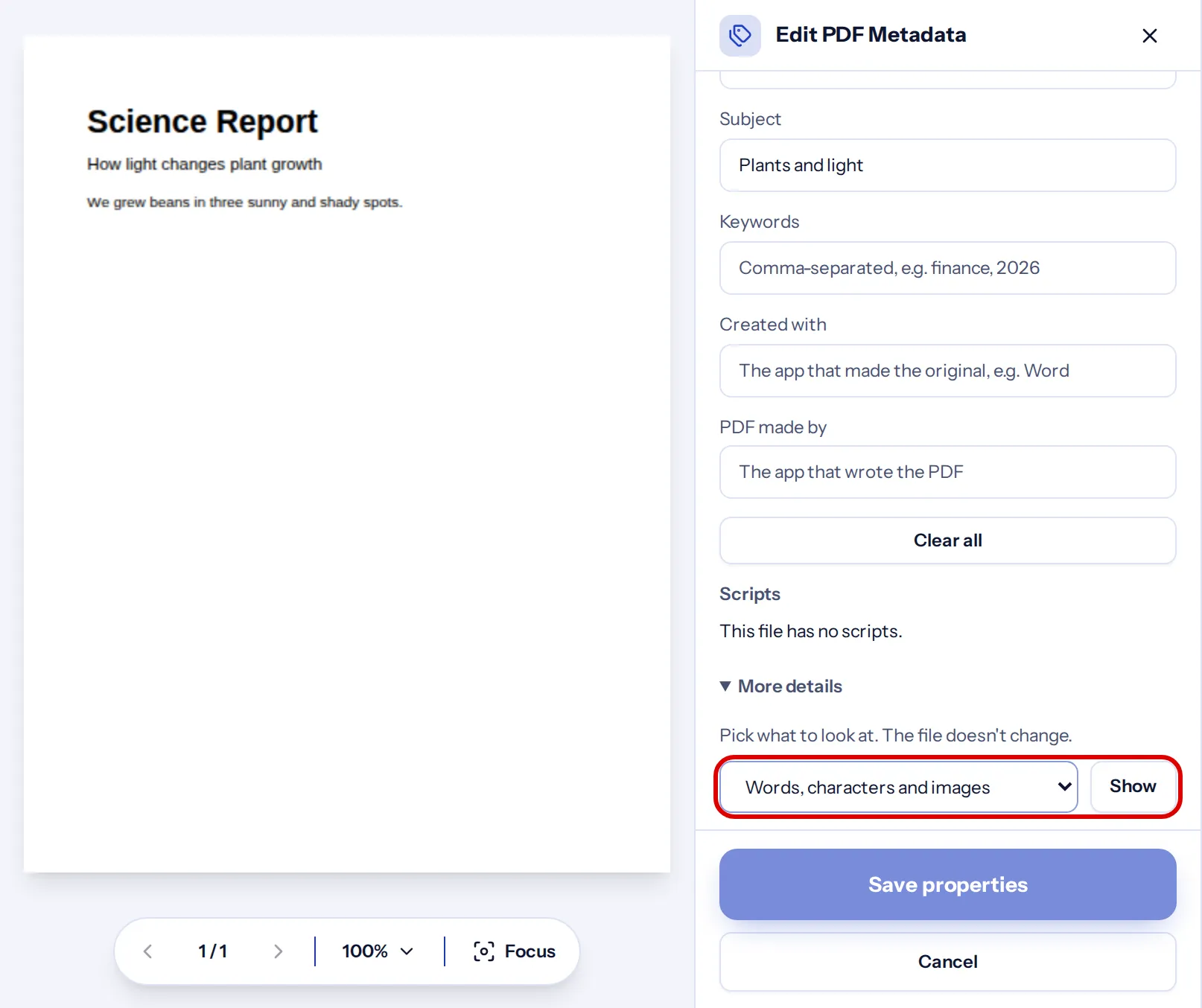
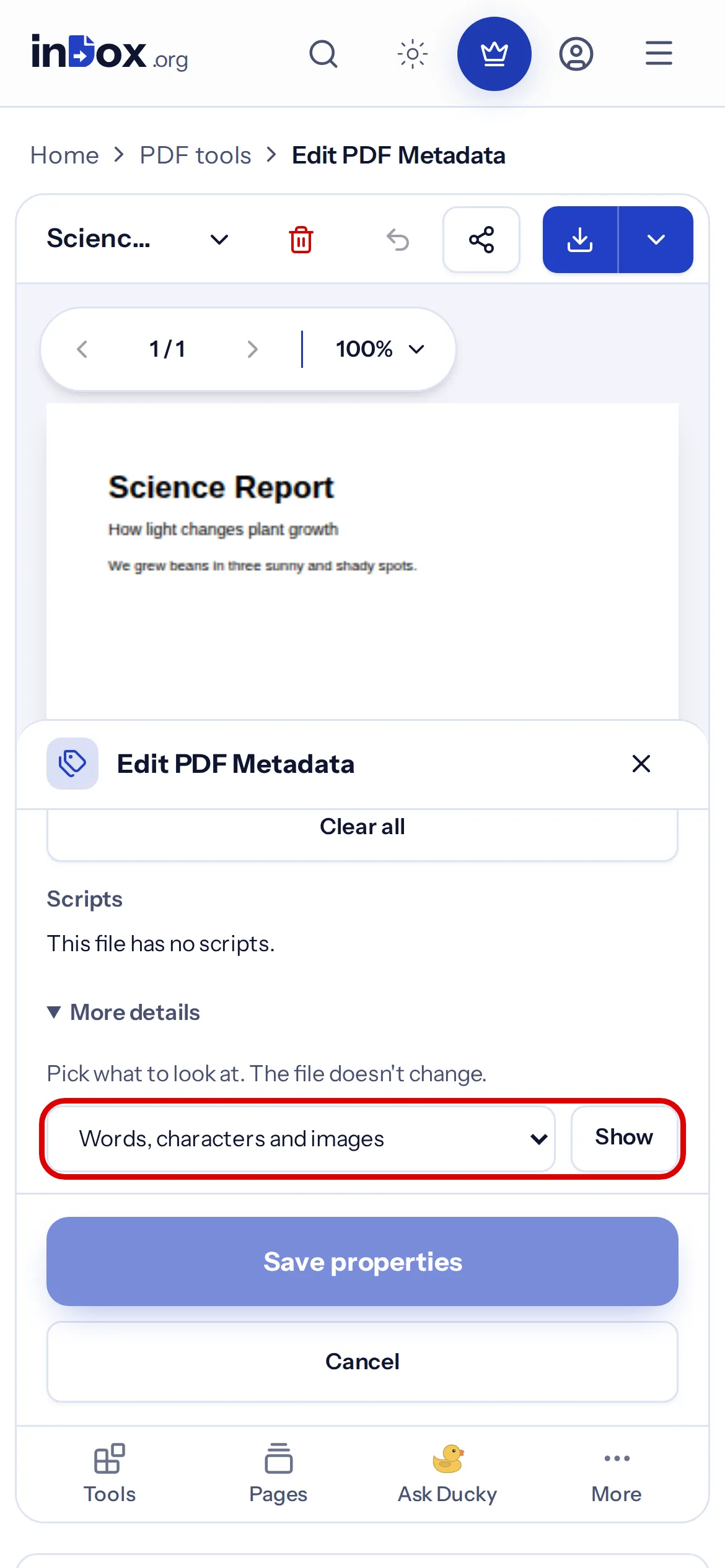
Select More details to open it. Pick what to look at in the list: Words, characters and images, Page sizes, Fonts, Form fields, Comments and links or Security. Select Show. A short list of facts appears below, such as page count, PDF version and file size. The file doesn't change.
Change a detail
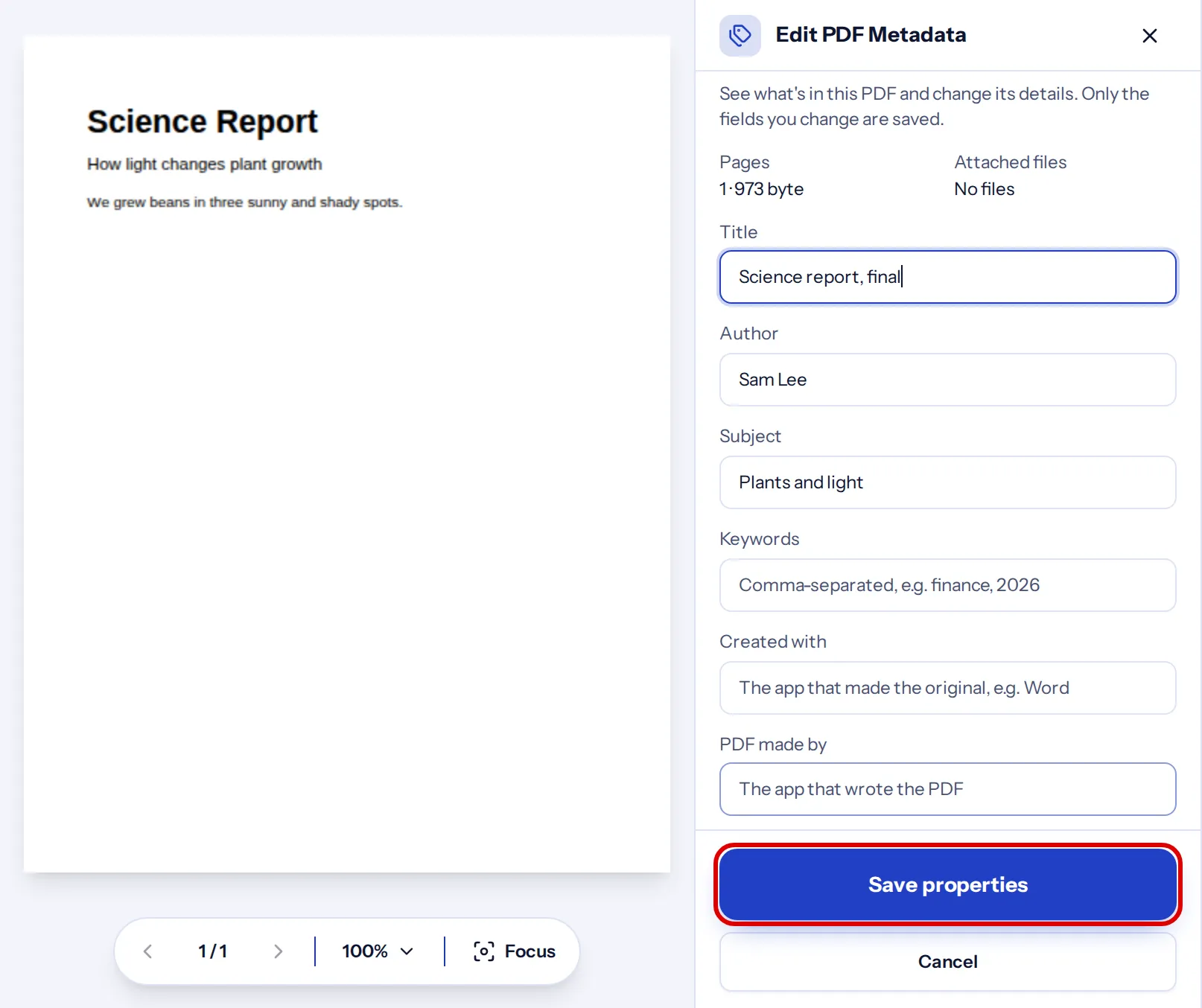
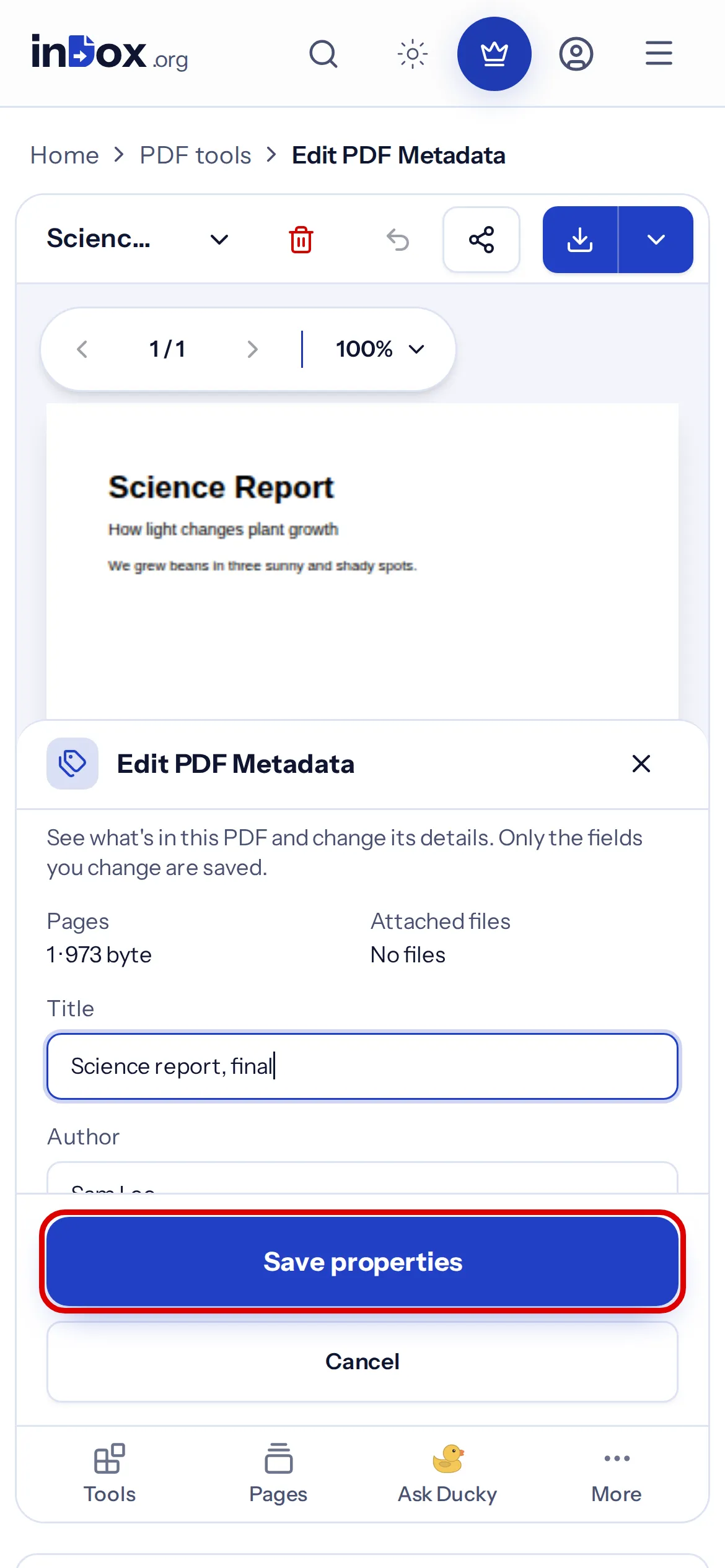
To edit a detail, scroll back up. Select a box, such as Title, and type over the old words. Only the boxes you change are saved. The Clear all button empties all six boxes.
Save the properties
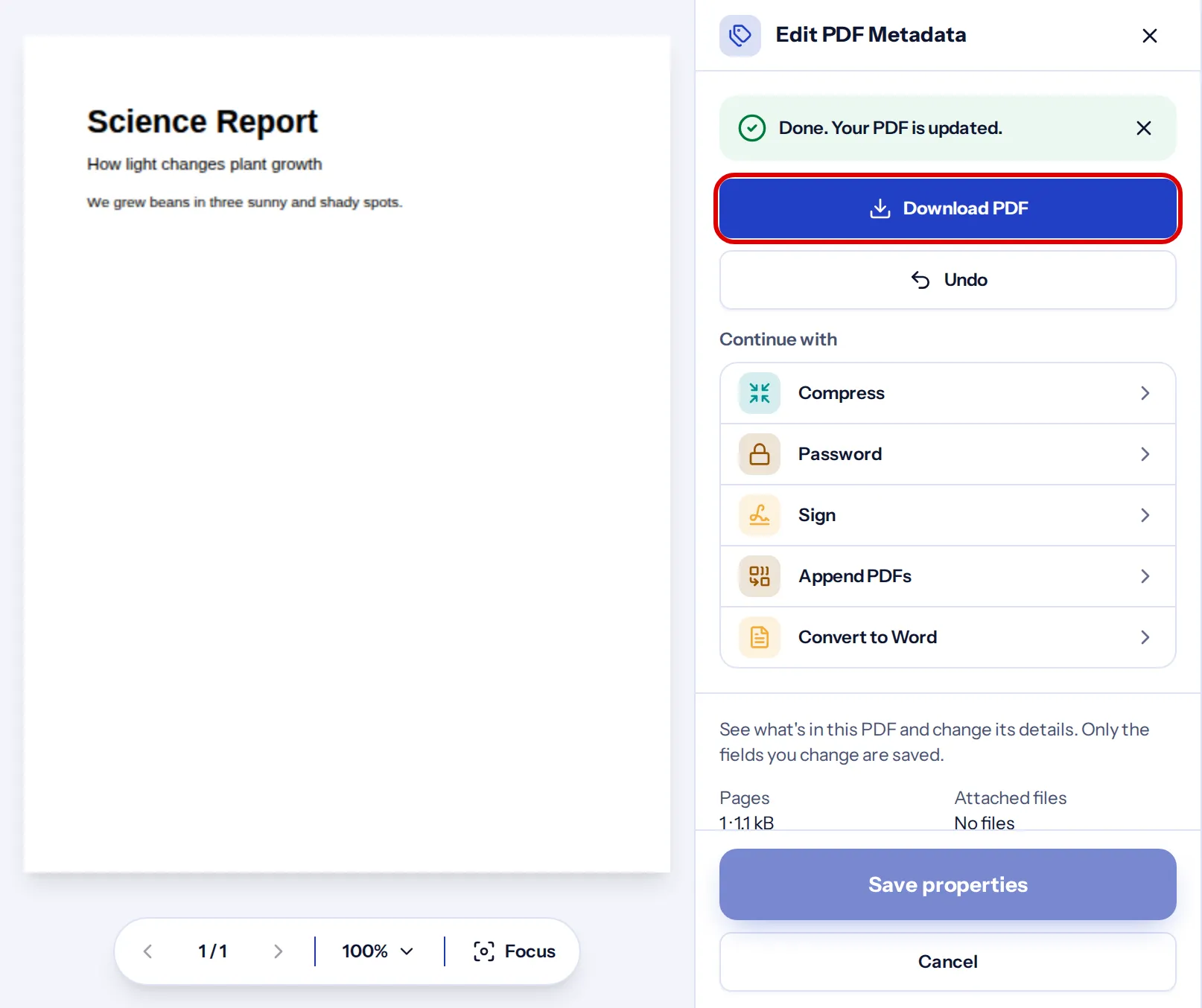
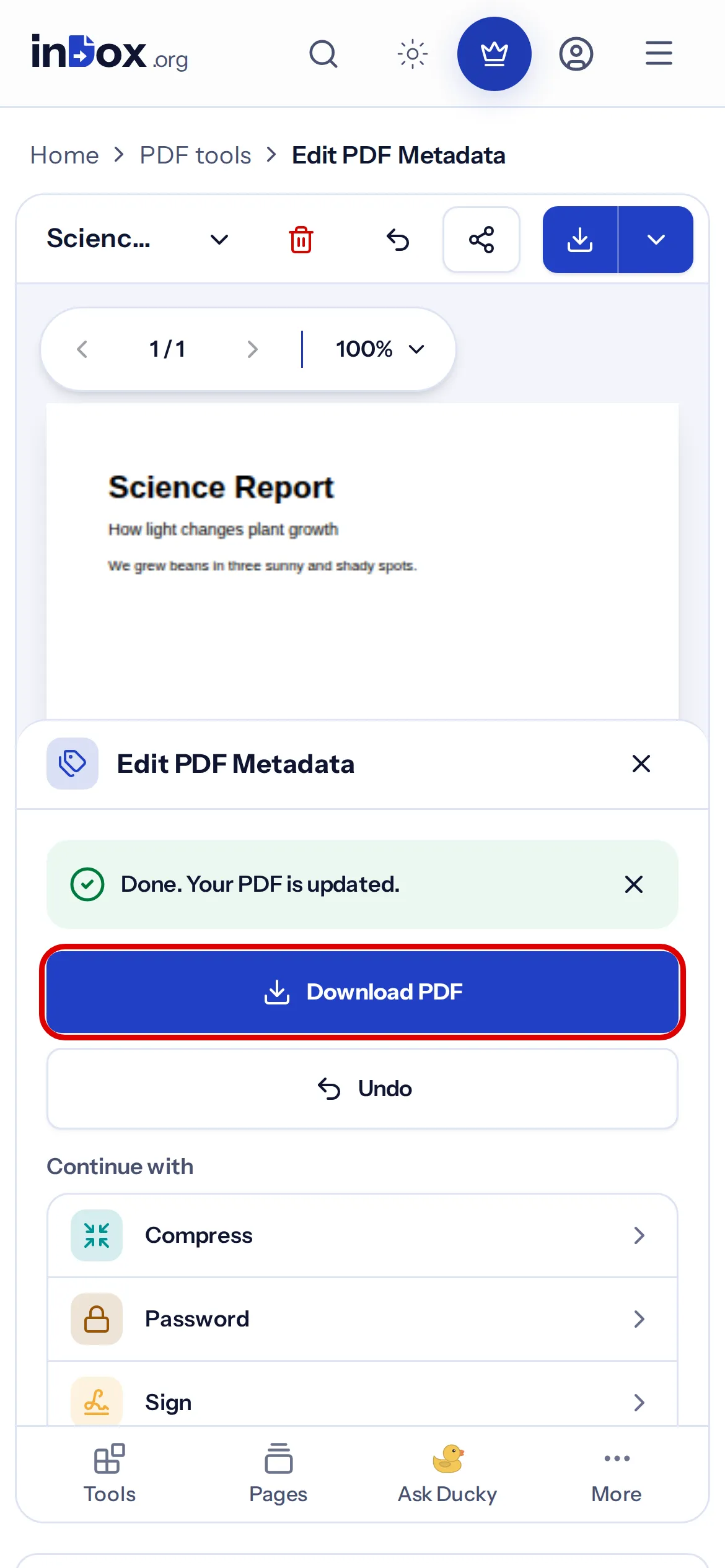
Select the blue Save properties button at the bottom of the panel. It is pale and can't be selected until you change a box. The panel then says Done. Your PDF is updated.
Download your PDF
Select the blue Download PDF button at the top of the panel. The new file is saved on your device. Its name ends in -edited.
Troubleshooting
| Problem | Cause | Fix |
|---|---|---|
| Save properties is pale | You have not changed any box yet | Type in one of the boxes first. Then the button turns solid blue |
| The panel says the file has a password | A locked file can't be read | Unlock it first with the Unlock PDF page, then come back |
| The Author or Title is empty | The file has nothing saved there | Type what you want and select Save properties |
| You only wanted to look | Looking at facts never changes the file | Select Cancel, or just leave. Nothing is saved until you select Save properties |