Last updated
Show, move or hide the INDOX button on web pages
Before you start
- The INDOX extension added to Chrome on a computer. You don't need an account.
- The bubble is the small INDOX button on the edge of a web page. To choose what a click on it does, or to hide it completely, see the guide "Open the INDOX side panel".
Open the INDOX settings
Right-click the INDOX icon in the toolbar and select Options. A new tab opens with the page INDOX Settings. The toolbar is the row of buttons next to the address bar.
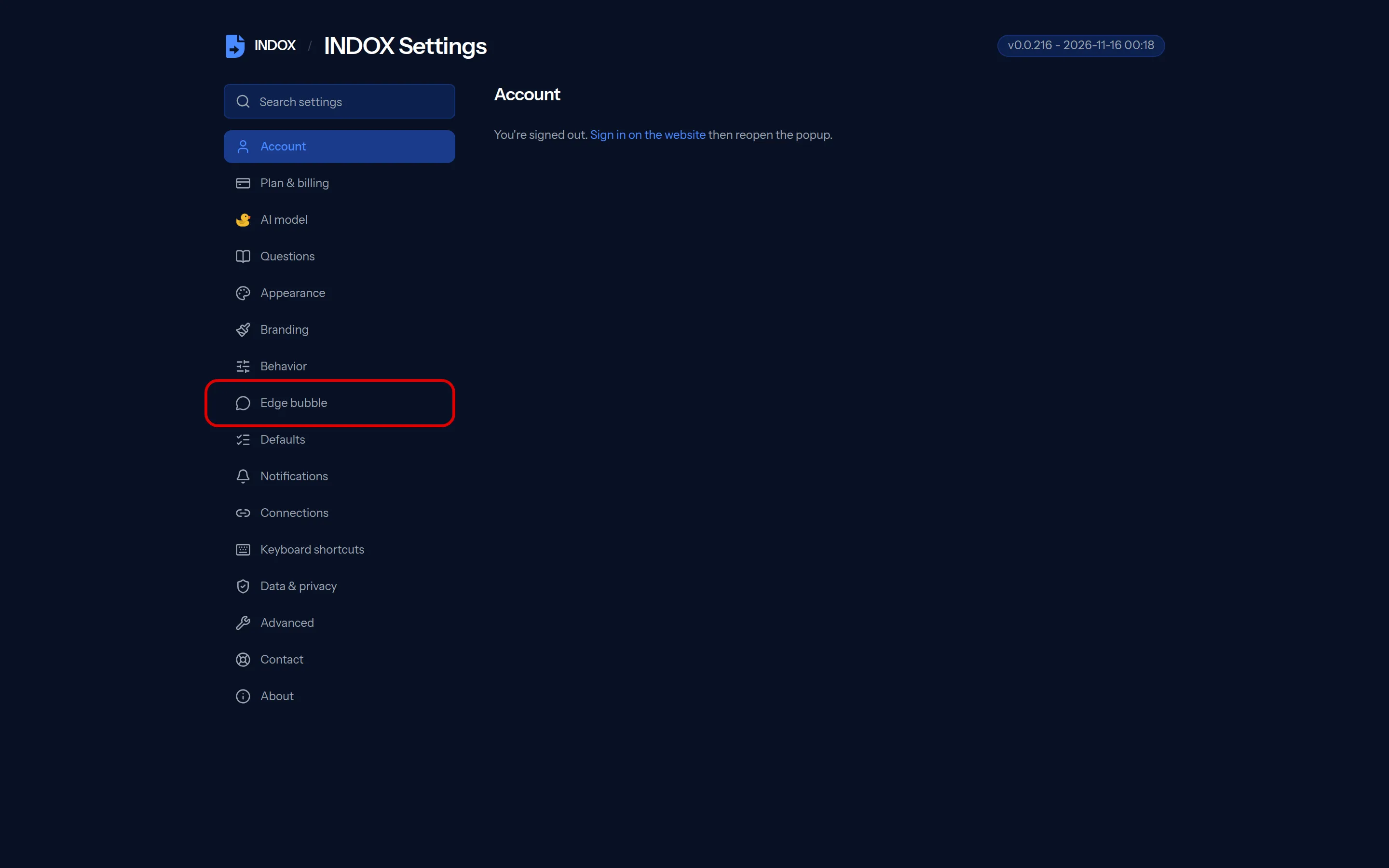
Select Edge bubble
In the list on the left, select Edge bubble. The page shows the switches and choices for INDOX on web pages. A change is saved as soon as you make it, so there is no Save button. Pages that are already open update on their own.
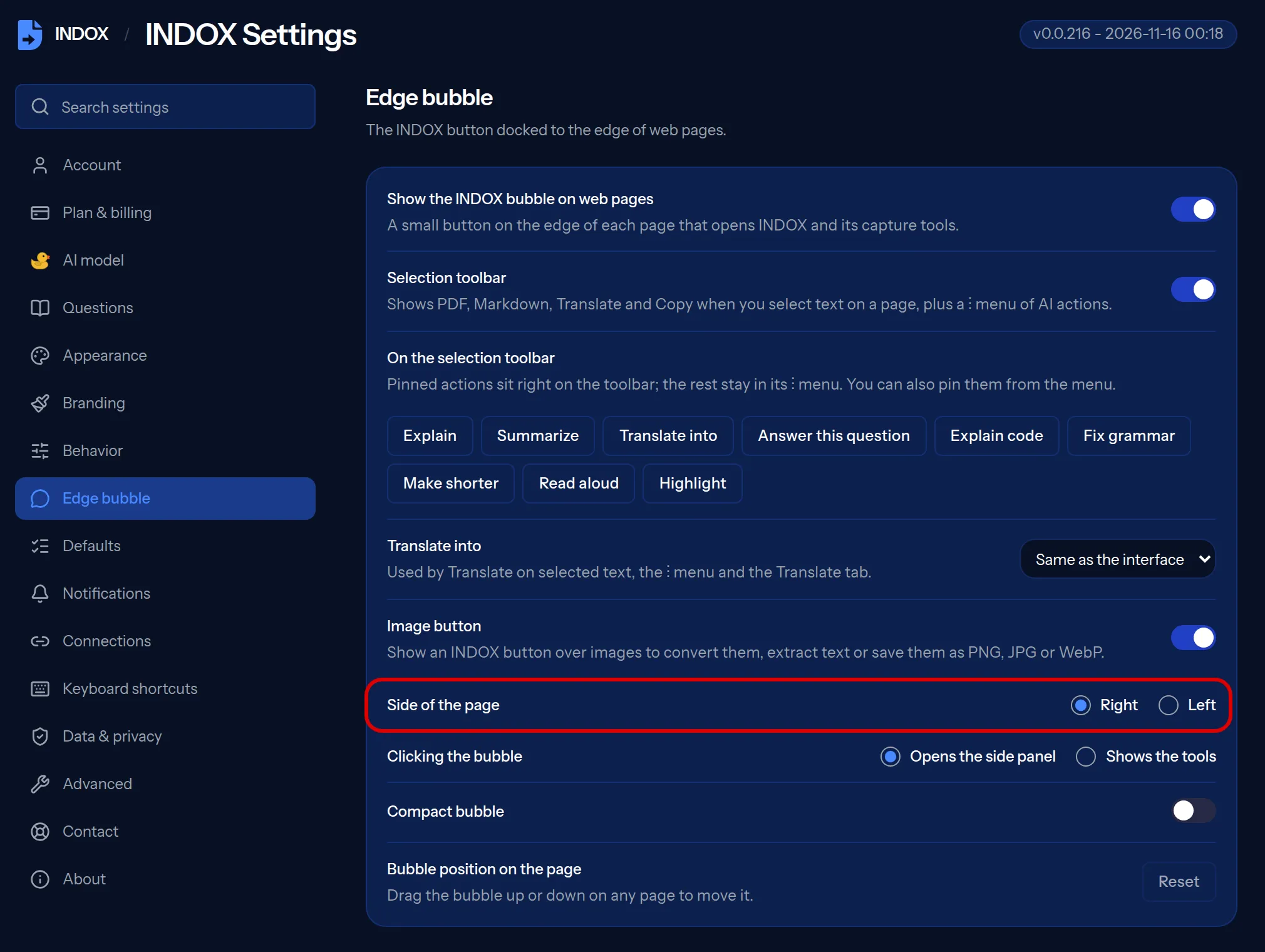
Choose the side of the page
Find Side of the page. Pick Right or Left.
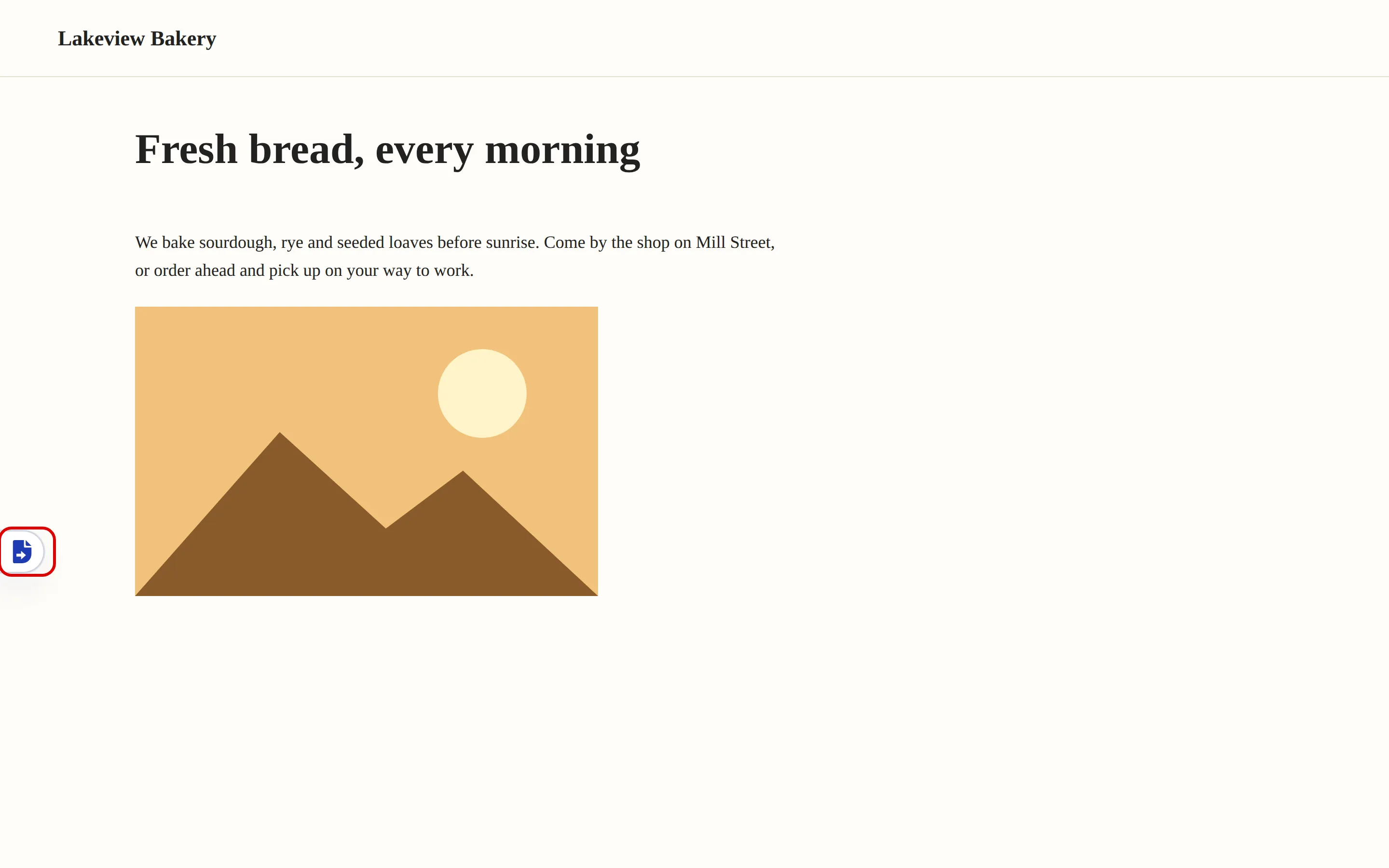
See the bubble move
Go back to any web page. The bubble now sits on the side you picked, against the edge of the window.
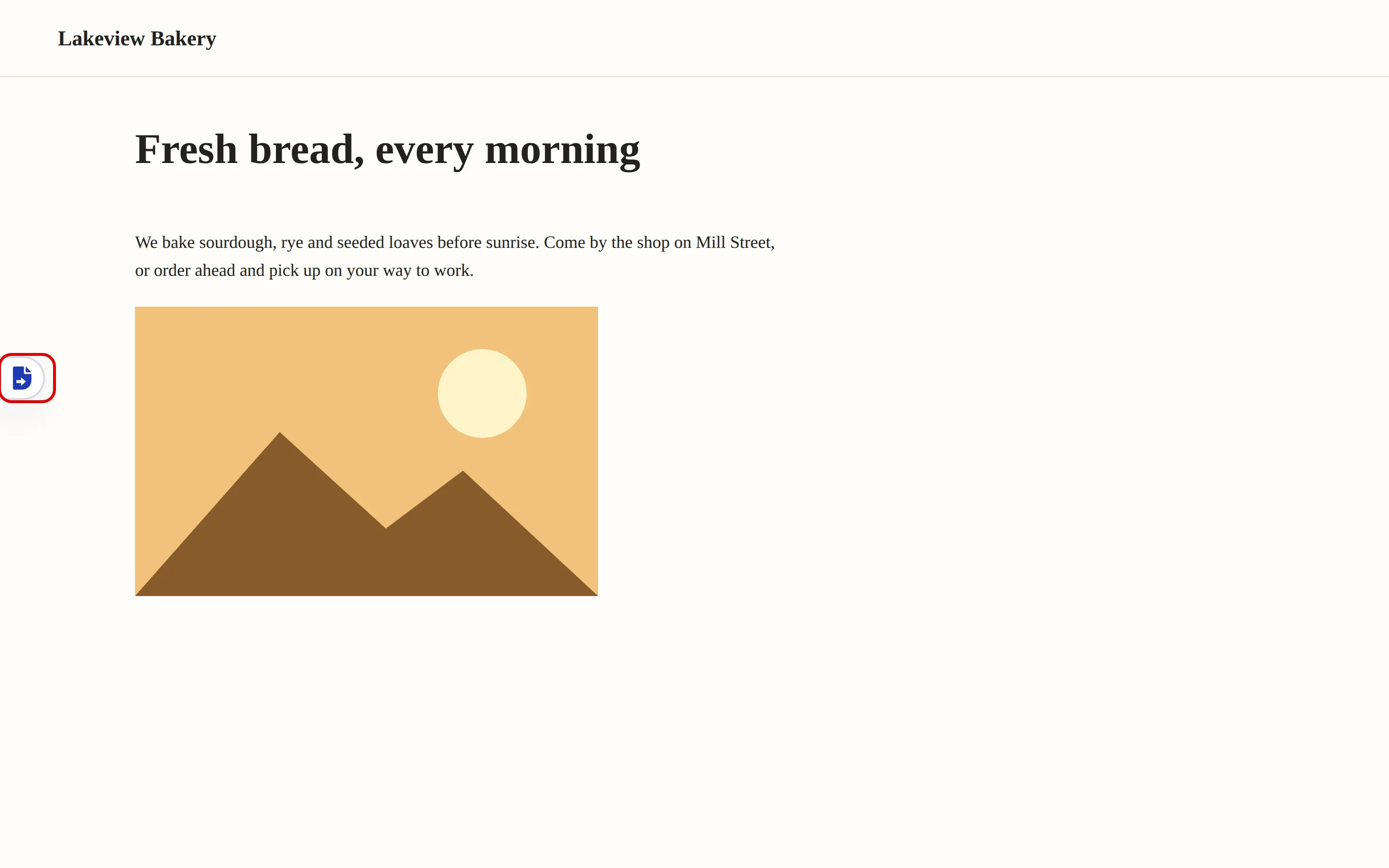
Drag the bubble up or down
Press and hold the bubble, move the mouse up or down, then let go. The bubble stays where you dropped it, even after you reload the page.
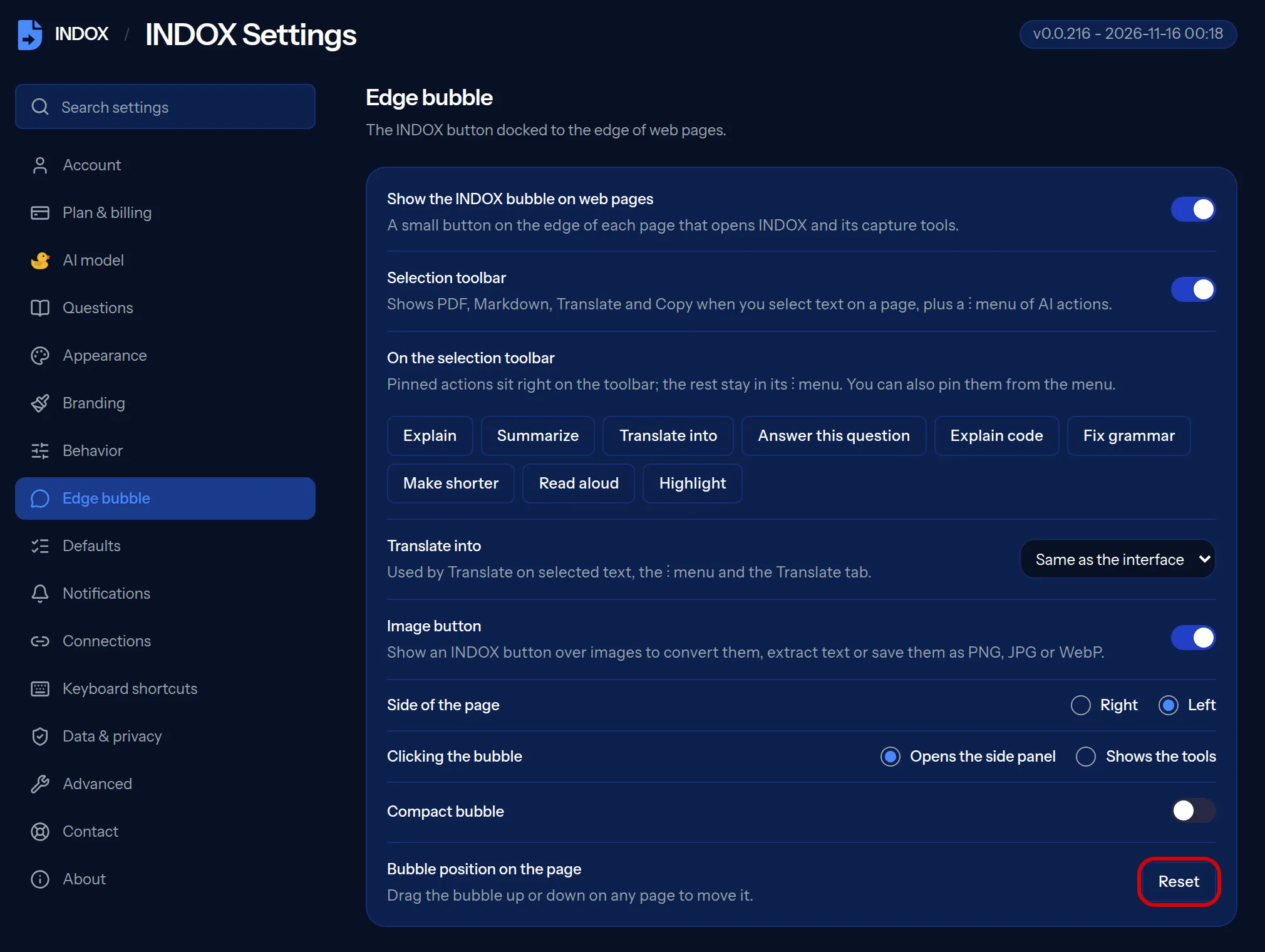
Put the bubble back with Reset
In the settings, find Bubble position on the page and select Reset. The bubble goes back to its usual height. The side you picked stays the same.
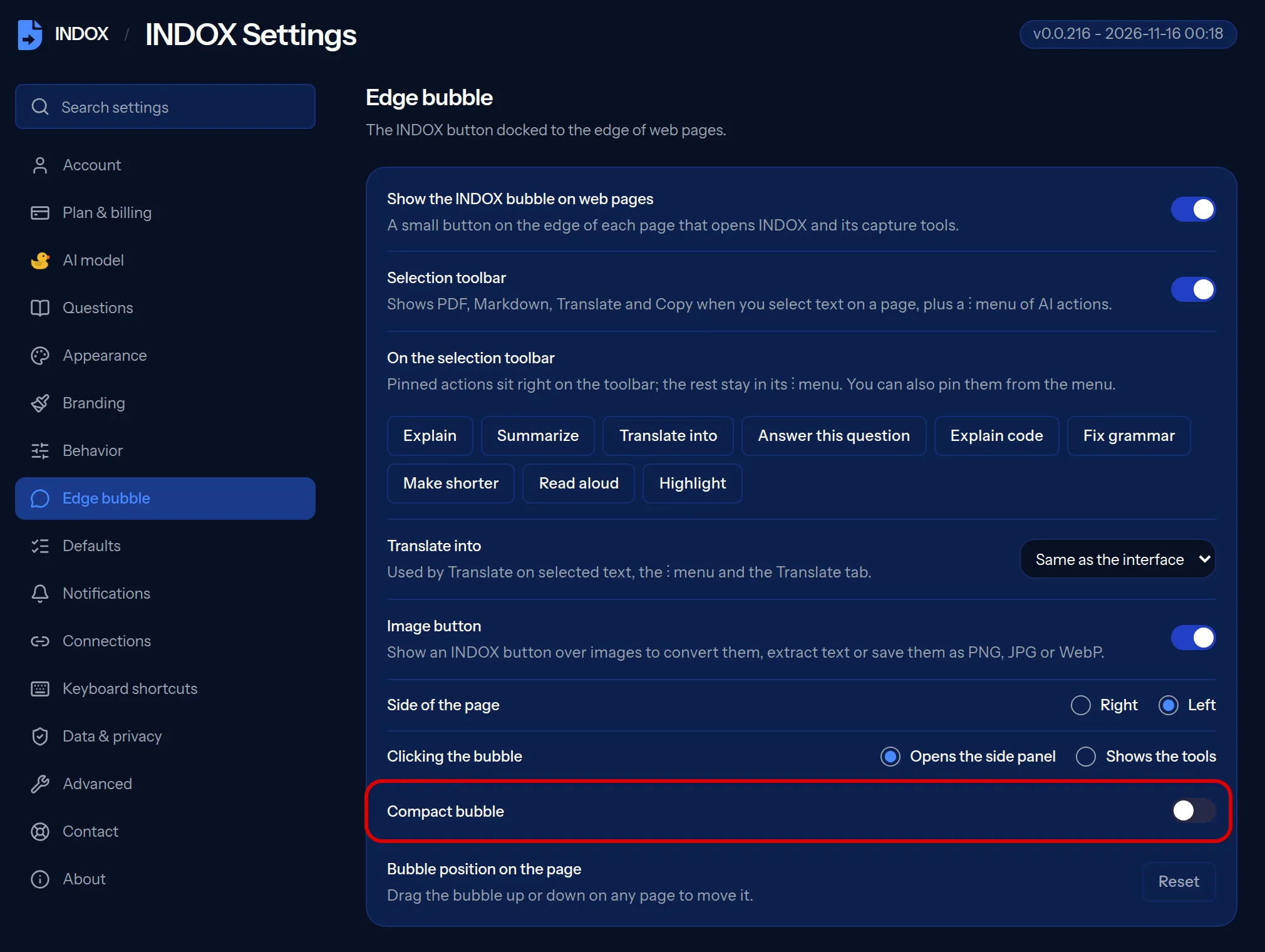
Make the bubble smaller
Turn on Compact bubble. The bubble shrinks and sits closer to the edge of the page.
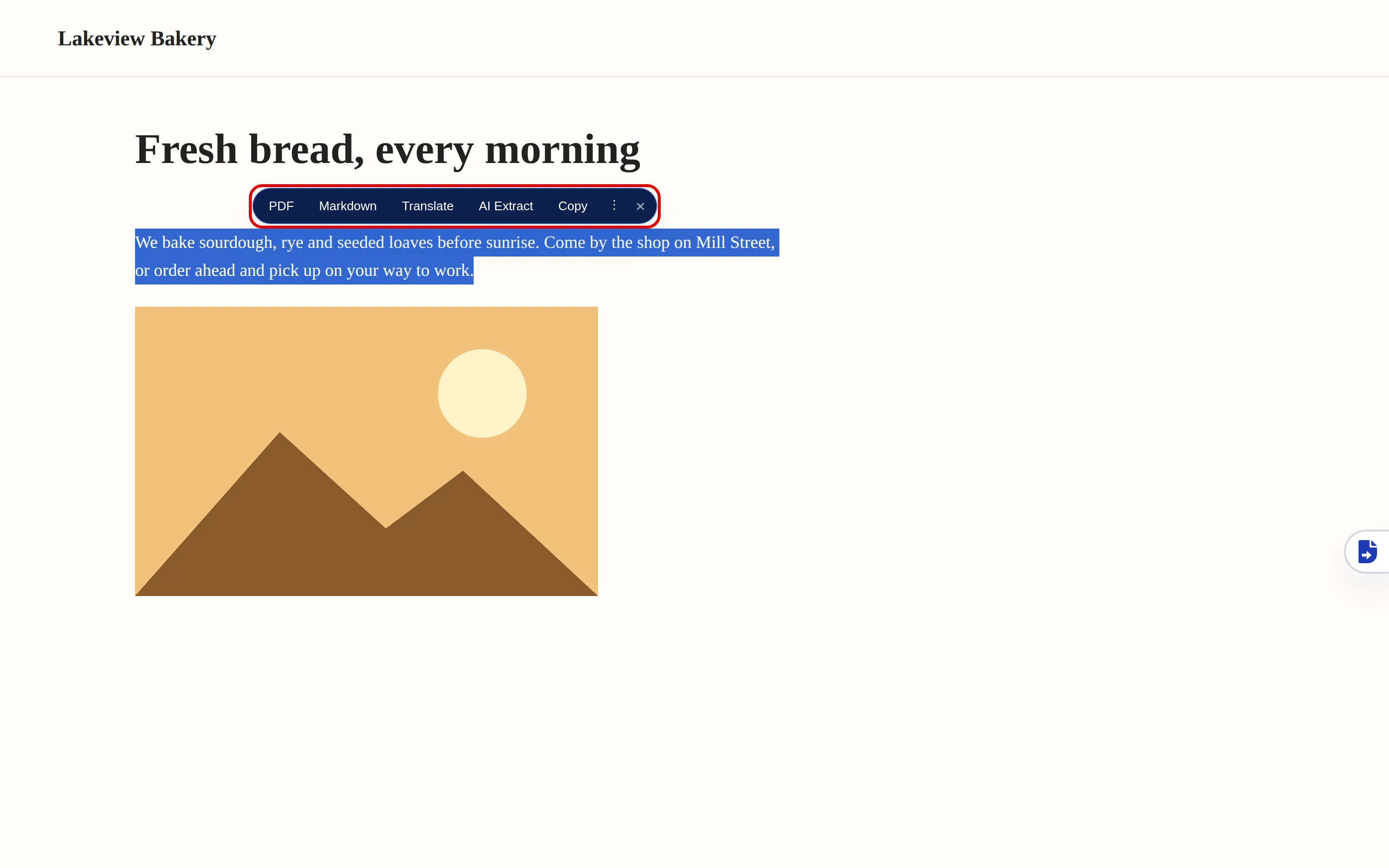
Choose whether selected text shows a toolbar
Select a few words on a web page. A small bar appears above them with PDF, Markdown, Translate, AI Extract and Copy. To stop it appearing, turn off Selection toolbar in the settings.
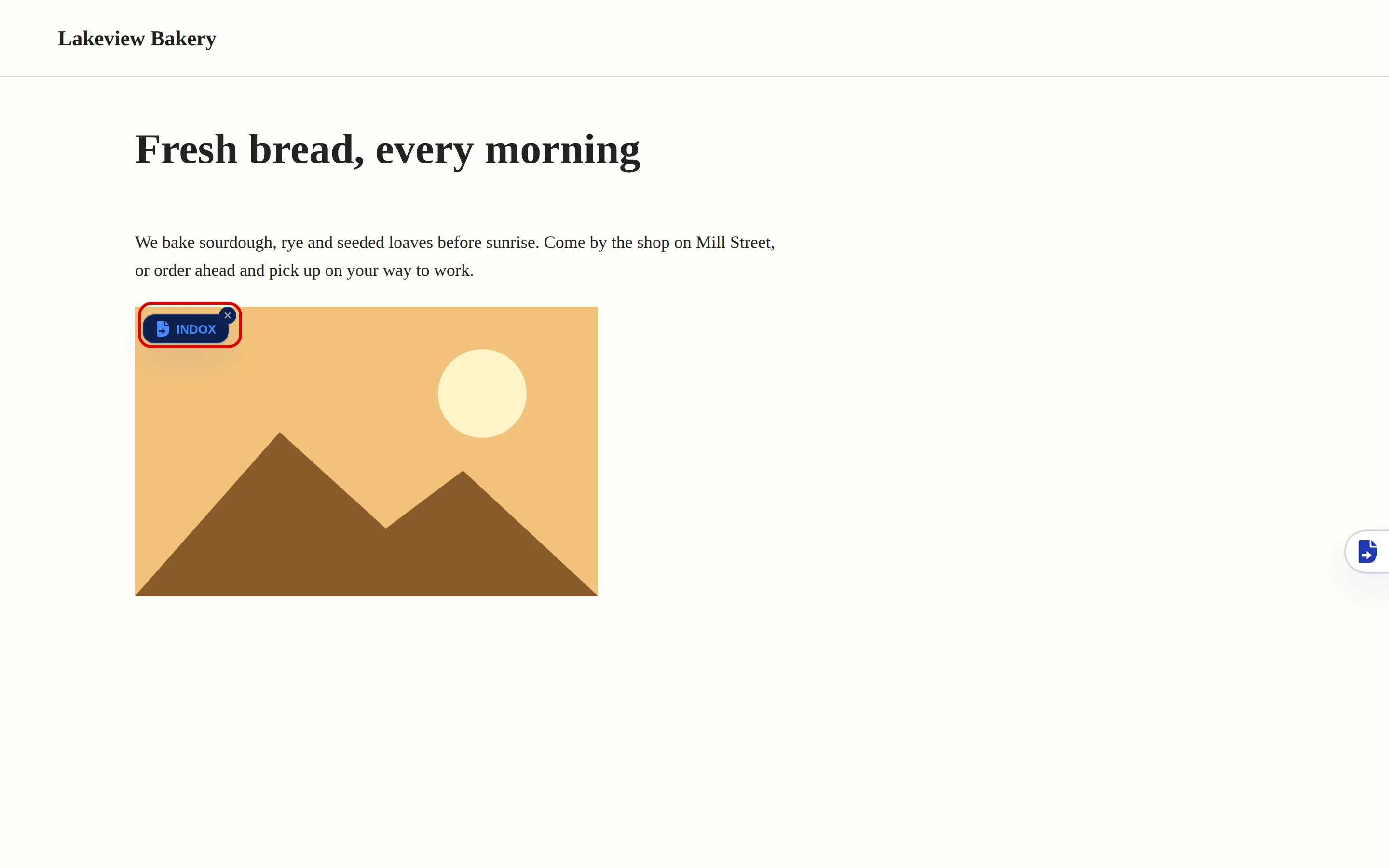
Choose whether pictures show an INDOX button
Move the mouse over a picture on a web page. A small INDOX button appears in its top left corner. To stop it appearing, turn off Image button in the settings.
Troubleshooting
| Problem | Cause | Fix |
|---|---|---|
| You can't see the bubble | Show the INDOX bubble on web pages is turned off | Turn it on at the top of Edge bubble |
| The bar doesn't appear over selected text | Selection toolbar is off, you selected fewer than 3 letters, or the text is inside a box you type in | Turn on Selection toolbar, or select a longer piece of ordinary page text |
| A picture has no INDOX button | Image button is off, or the picture is very small, under about 120 by 80 pixels | Turn on Image button, or try a bigger picture |
| The bubble is in the way of the page | It sits over a button or a line of text | Drag it up or down, or turn on Compact bubble |