Last updated
Make a scanned PDF searchable with OCR
Before you start
- Have the PDF on your phone or computer. The upload box tells you how big a file can be.
- A scan is a photo of a paper page. The computer sees only a picture, so you can't select or search the words. OCR, short for optical character recognition, reads the picture and adds the words as hidden text behind it.
- The page looks the same afterwards. Pages that already have text are left as they are.
- The language list has five choices: Chinese (Simplified), German, English, French and Portuguese. Arabic and Persian are not in the list, so this tool can't read pages in those languages.
- You don't need an account.
Open your scanned PDF
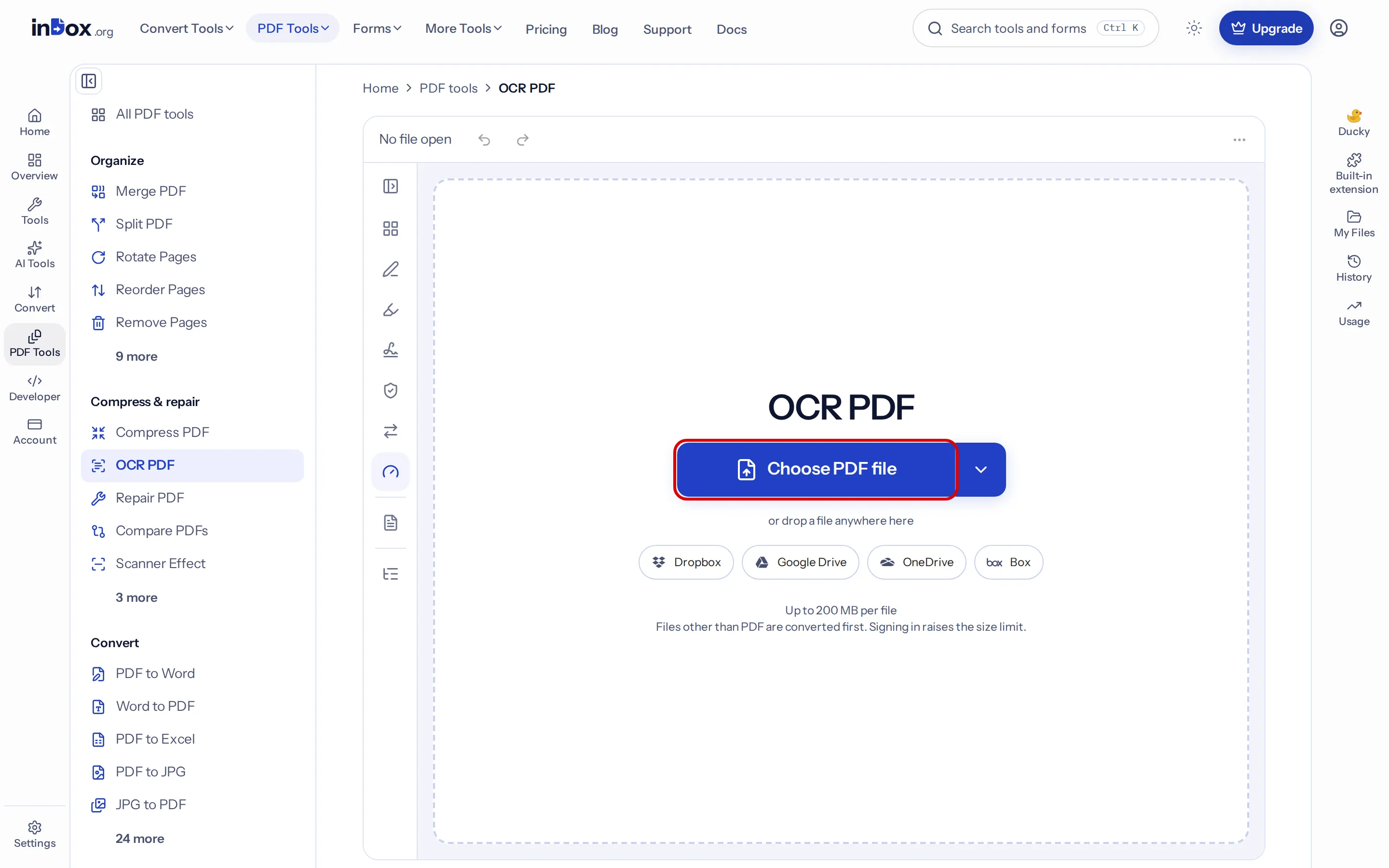
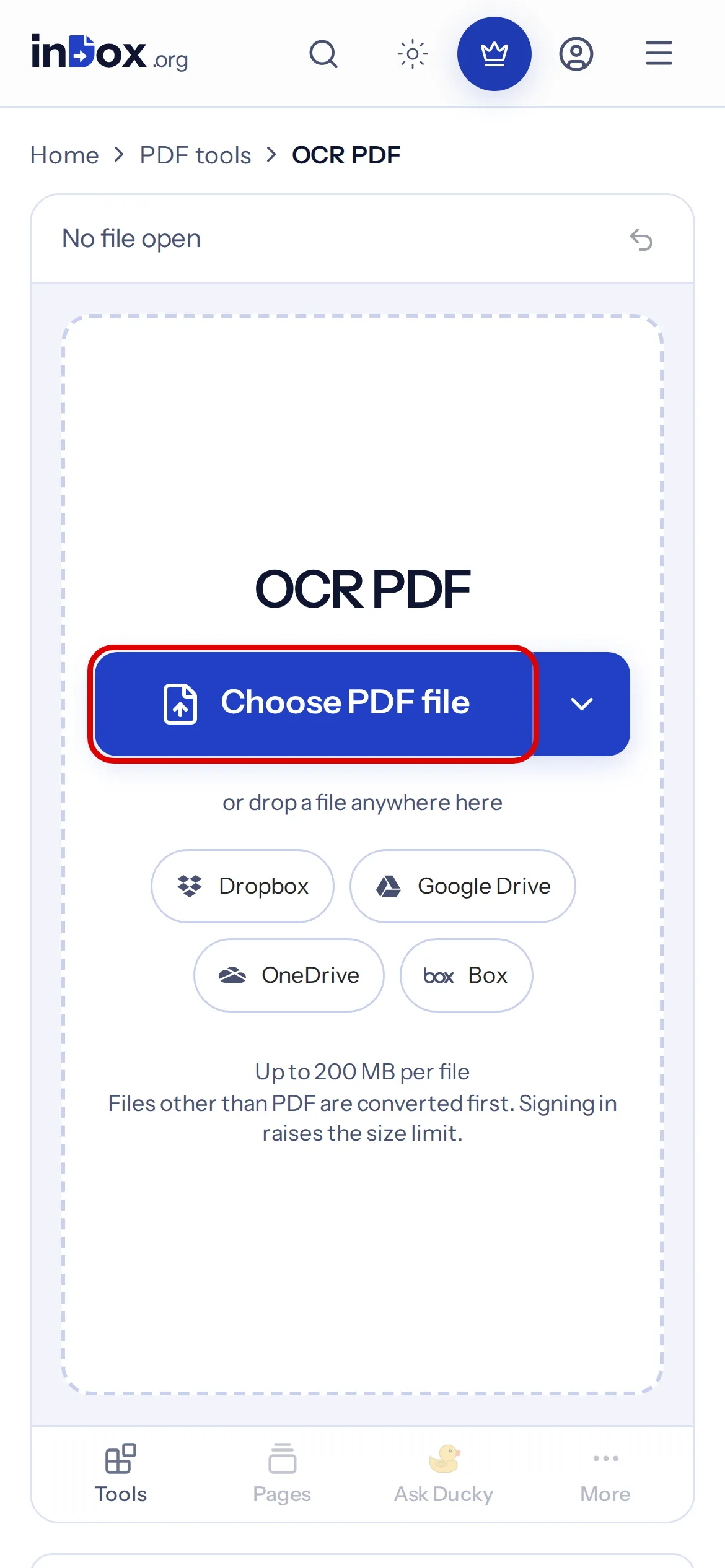
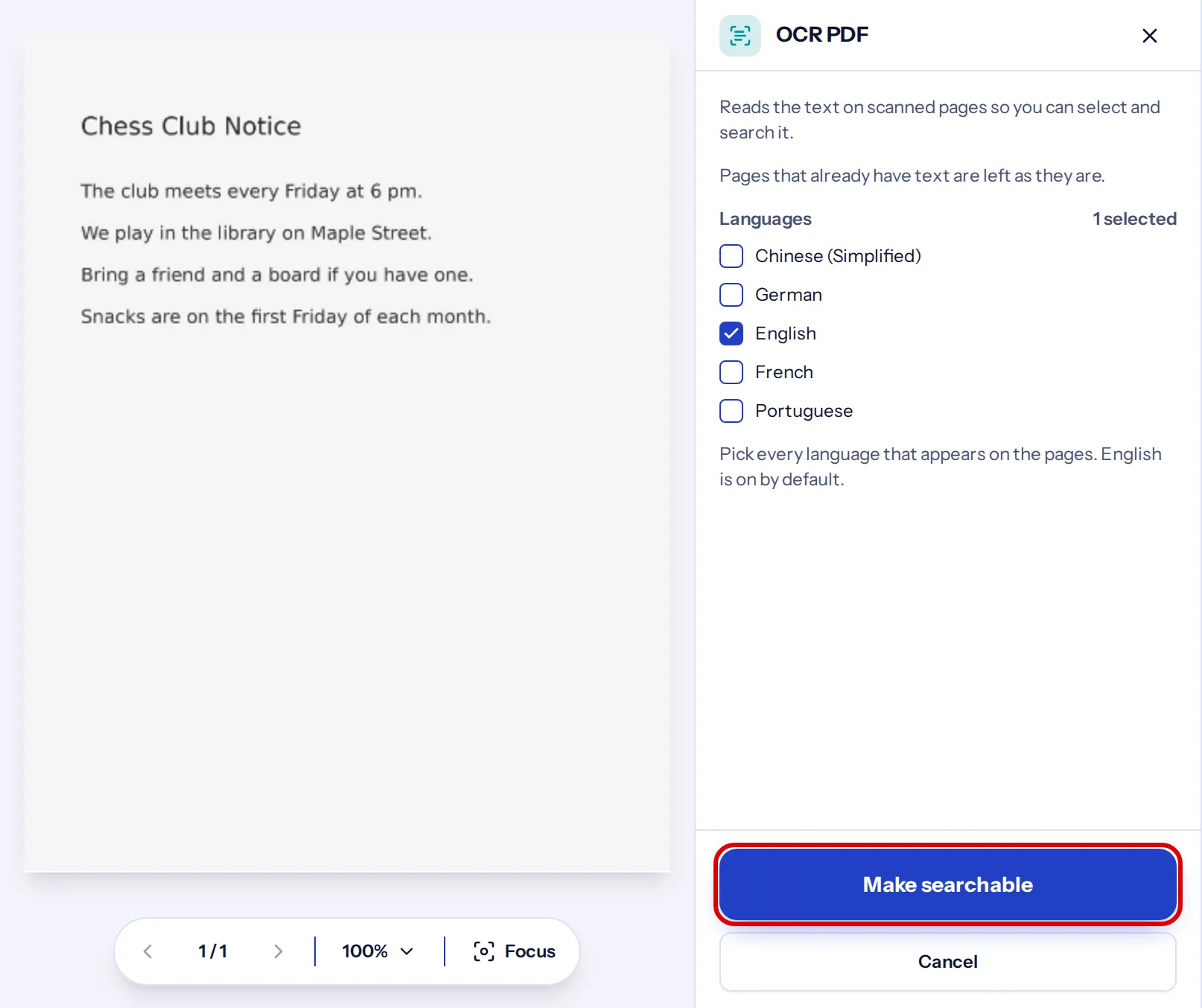
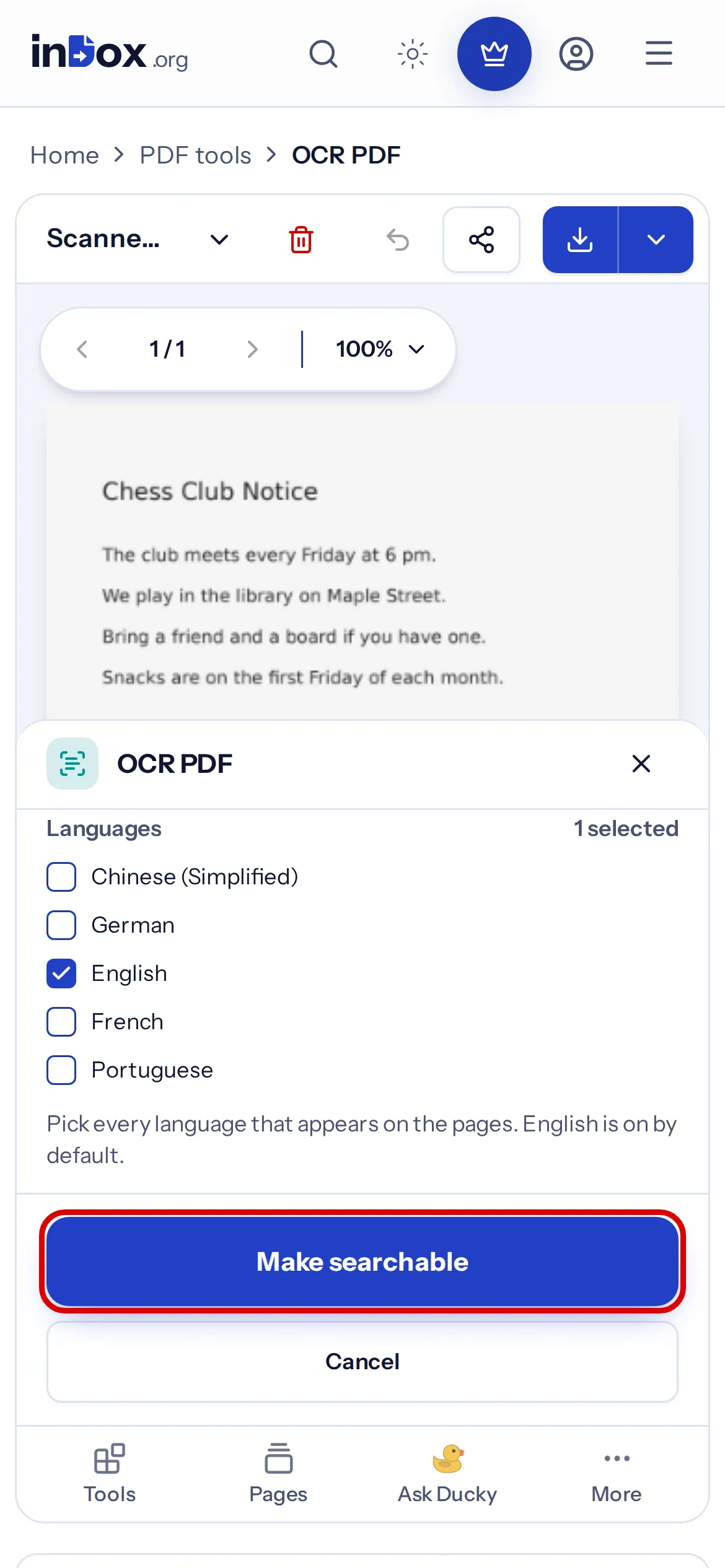
Go to the OCR PDF page. In the middle of the page, select the blue Choose PDF file button. A box opens so you can pick a file from your device. You can also drag a file onto the page. The file opens with a panel called OCR PDF. On a computer the panel is on the right. On a phone it slides up from the bottom.
Pick the languages
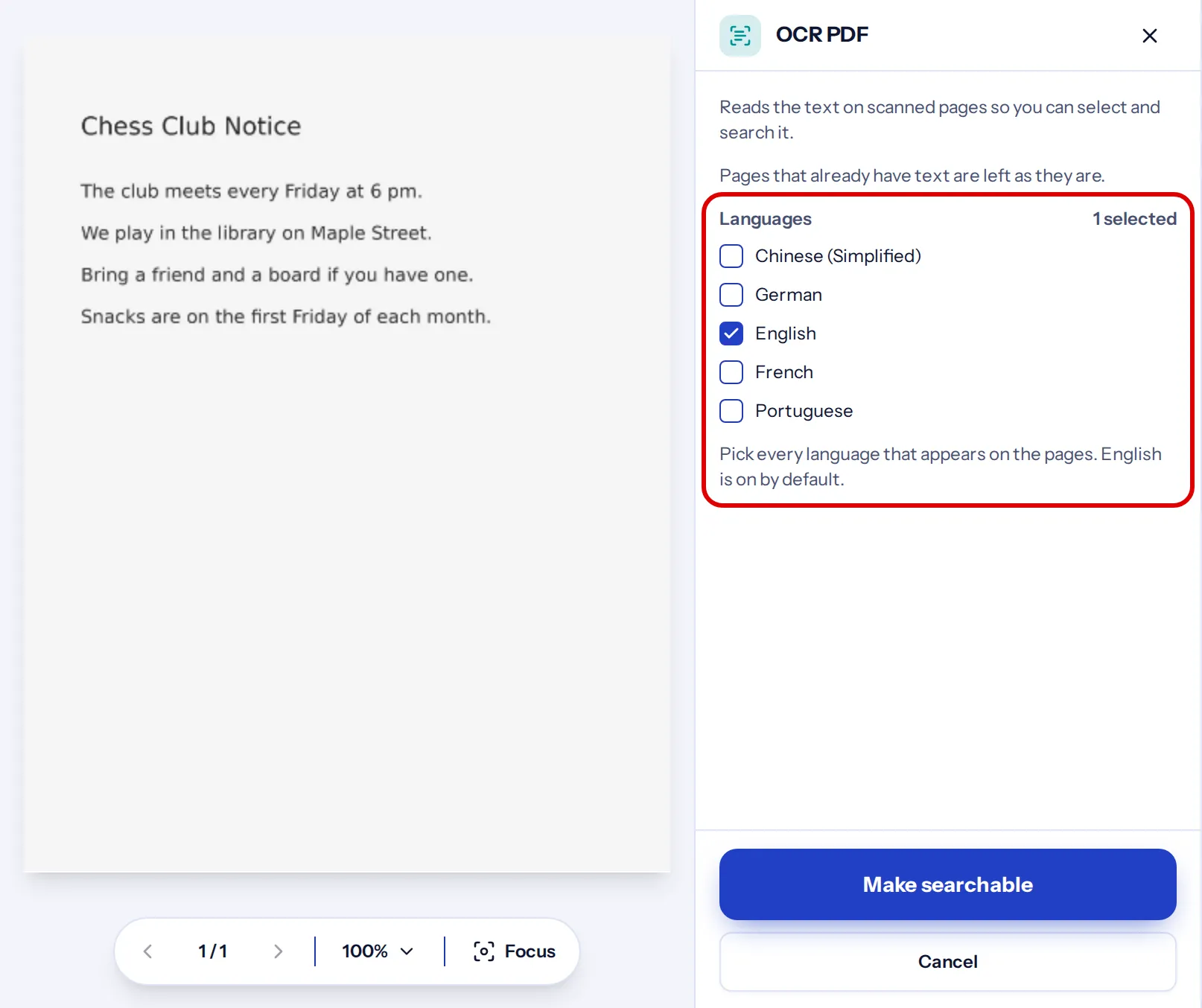
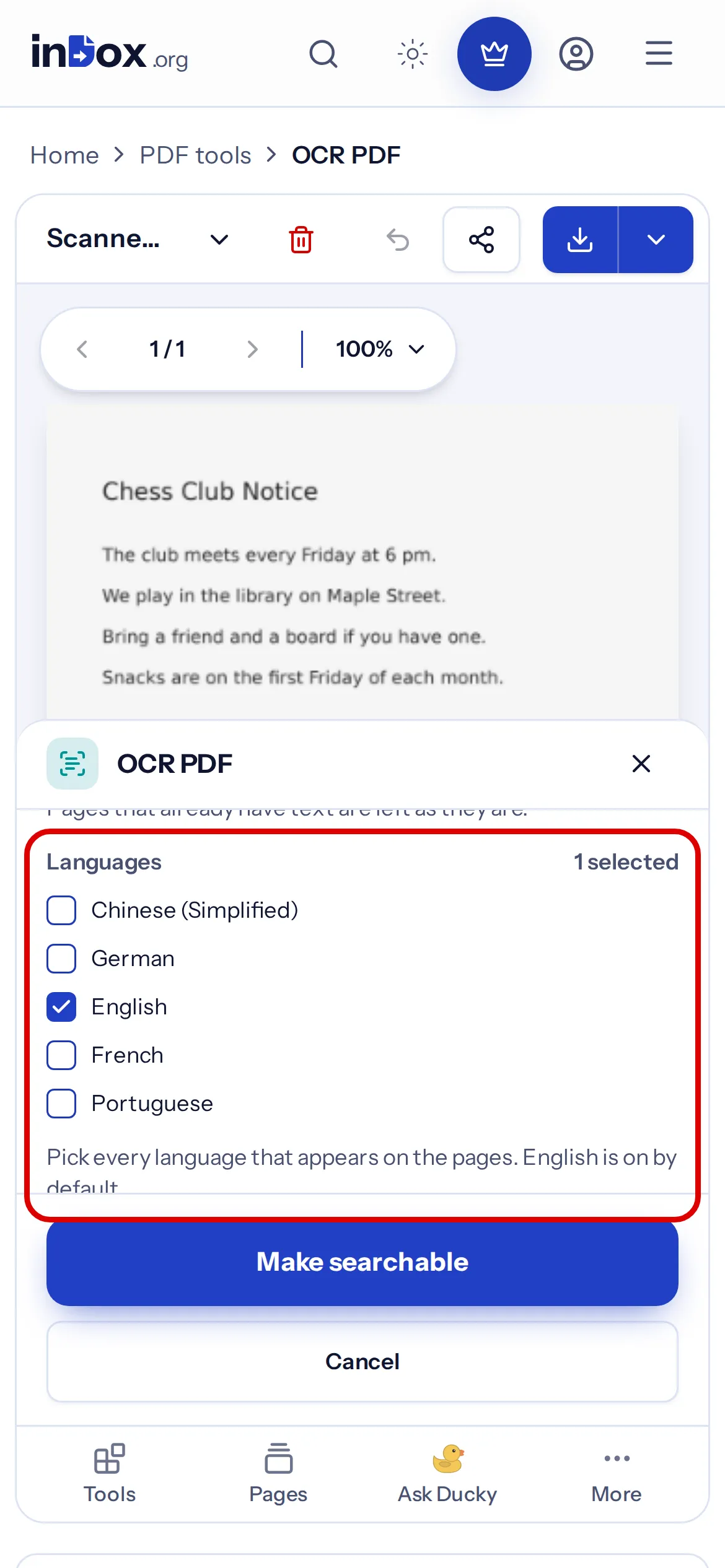
The panel has a list called Languages. Tick every language that appears on the pages. English is ticked already. Tick more if your scan has them, such as German or French. The panel counts them, for example 1 selected. The button below stays pale until at least one language is ticked.
Make the PDF searchable
Select the blue Make searchable button at the bottom of the panel. Wait until the progress bar goes away.
Read the result
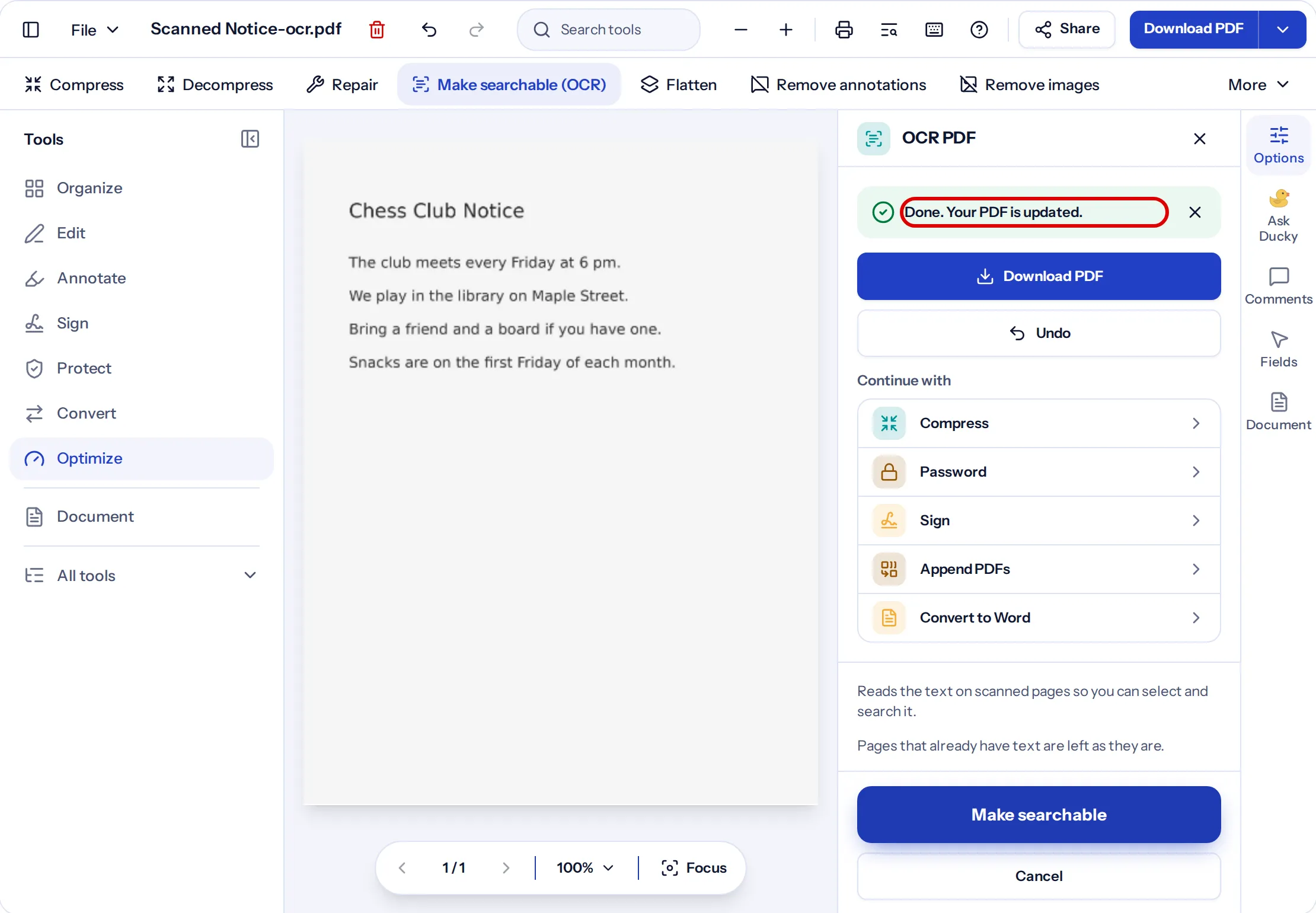
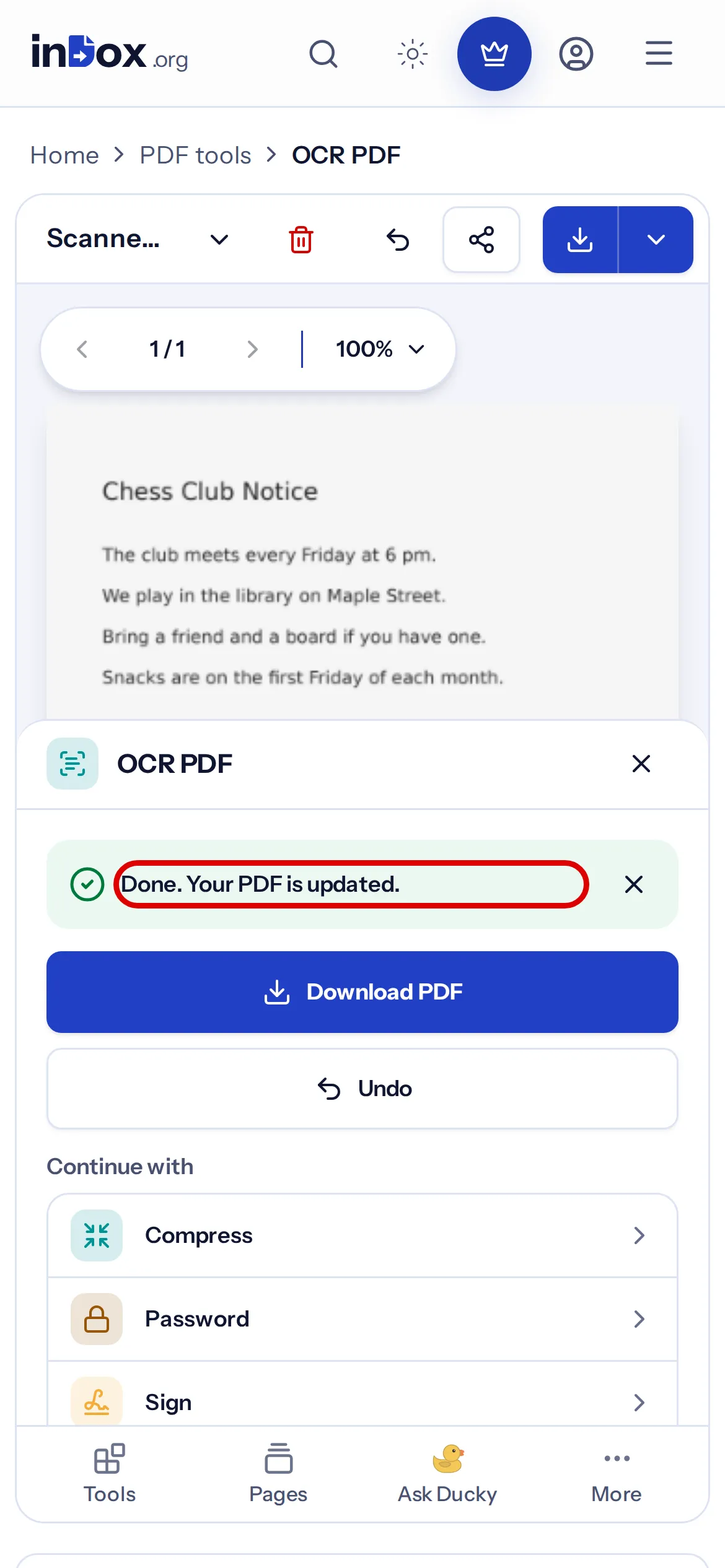
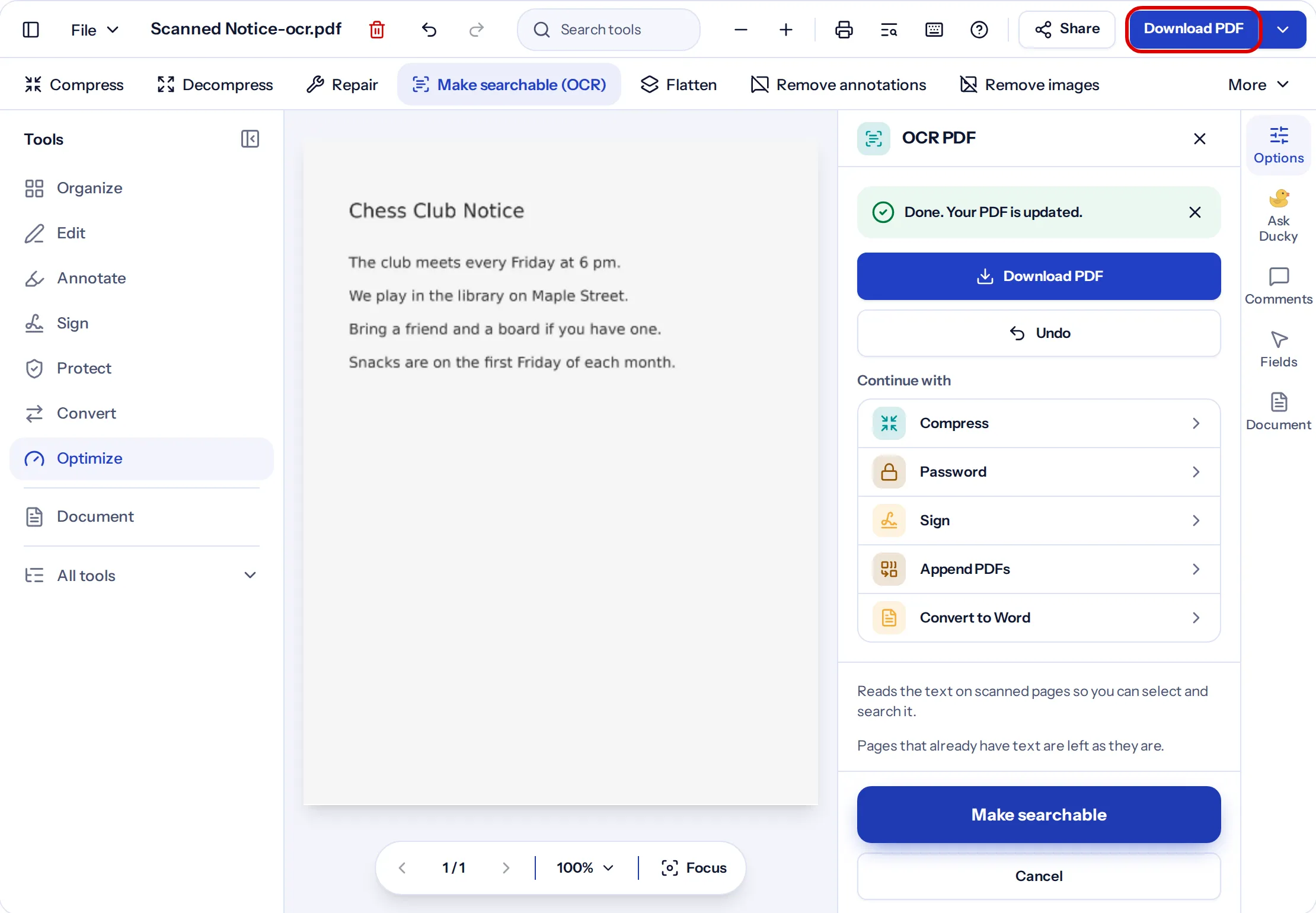
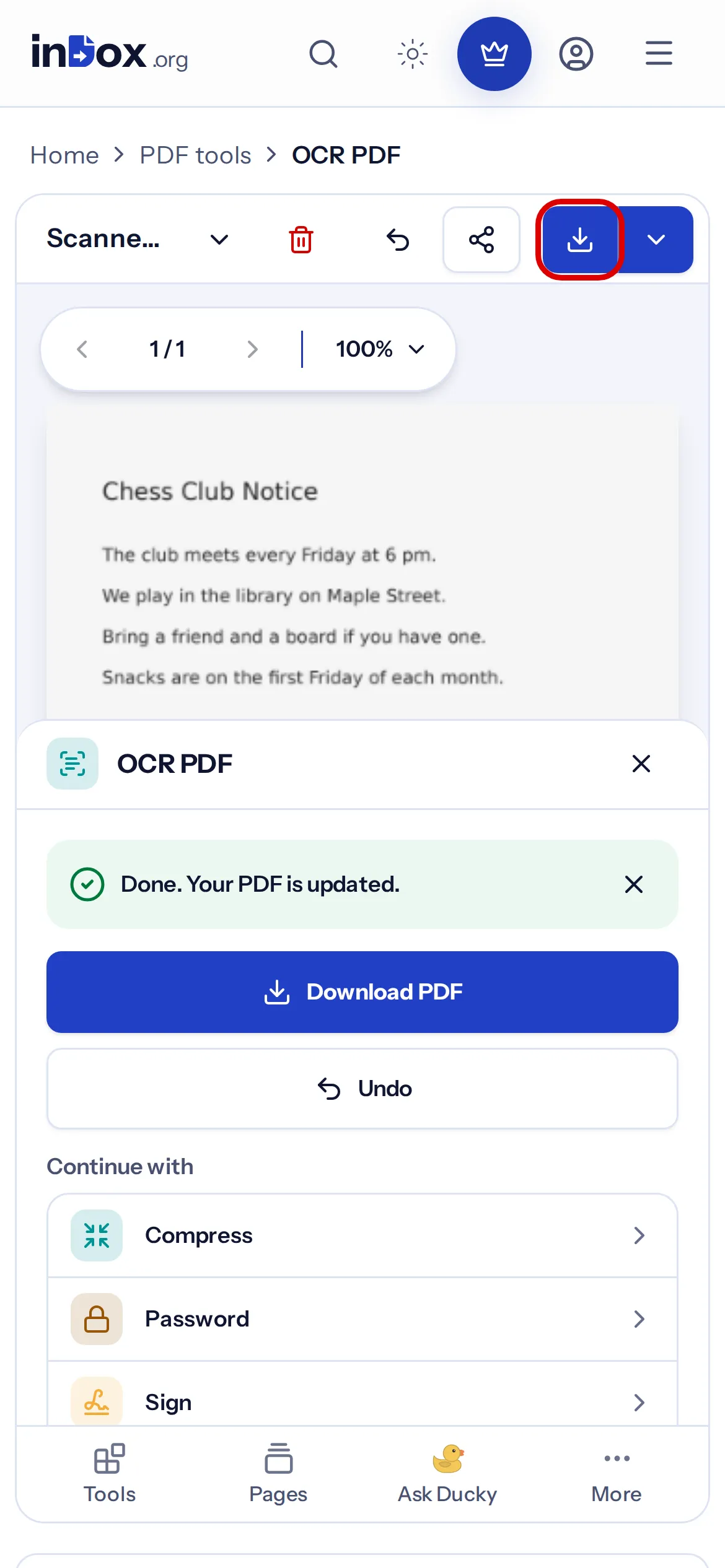
The panel says Done. Your PDF is updated. The page looks the same, but its words are now text. You can select them with the mouse or your finger, search for them and copy them.
Download your PDF
Select the blue Download PDF button. On a computer it is at the top right. On a phone it is the arrow in the bar above the page. The new file is saved on your device. Its name ends in -ocr.
Troubleshooting
| Problem | Cause | Fix |
|---|---|---|
| The blue Make searchable button is pale | No language is ticked | Tick at least one language in the Languages list |
| Some words are missing or wrong | The language of the page was not ticked | Select Undo, tick every language on the page and run it again |
| Your pages are in Arabic or Persian | These two languages are not in the list | This tool can't read them |
| Nothing seems to change | Pages that already have text are left as they are | The words on those pages can already be selected |
| The scan is very faint | Faint ink is harder to read | Try Make a faint scan readable first, then run OCR |