Last updated
Rotate PDF pages
Before you start
- To rotate a page means to turn it, like turning a photo on a table.
- Have the PDF on your phone or computer. The upload box tells you how big a file can be.
- You don't need an account.
Open your PDF
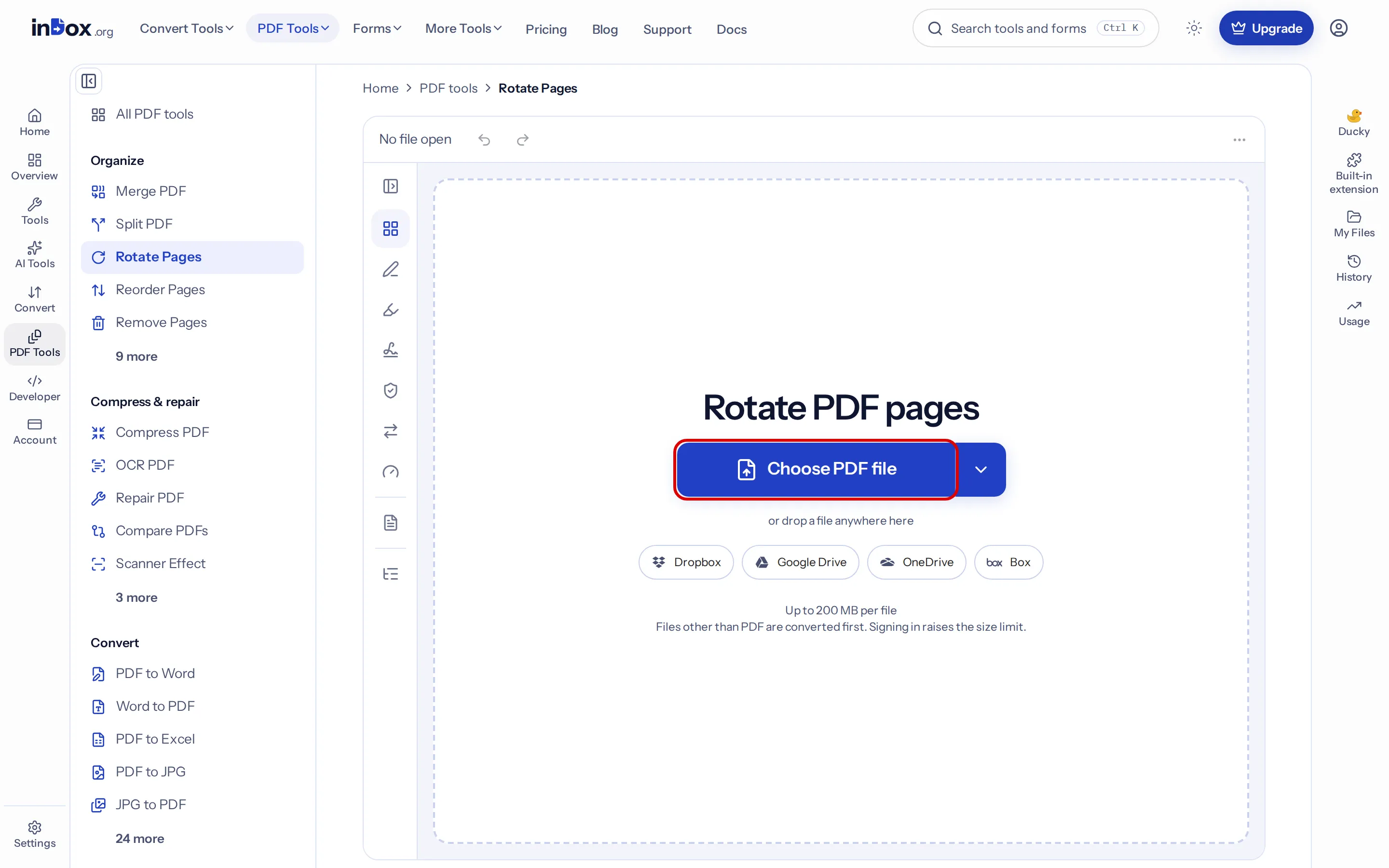
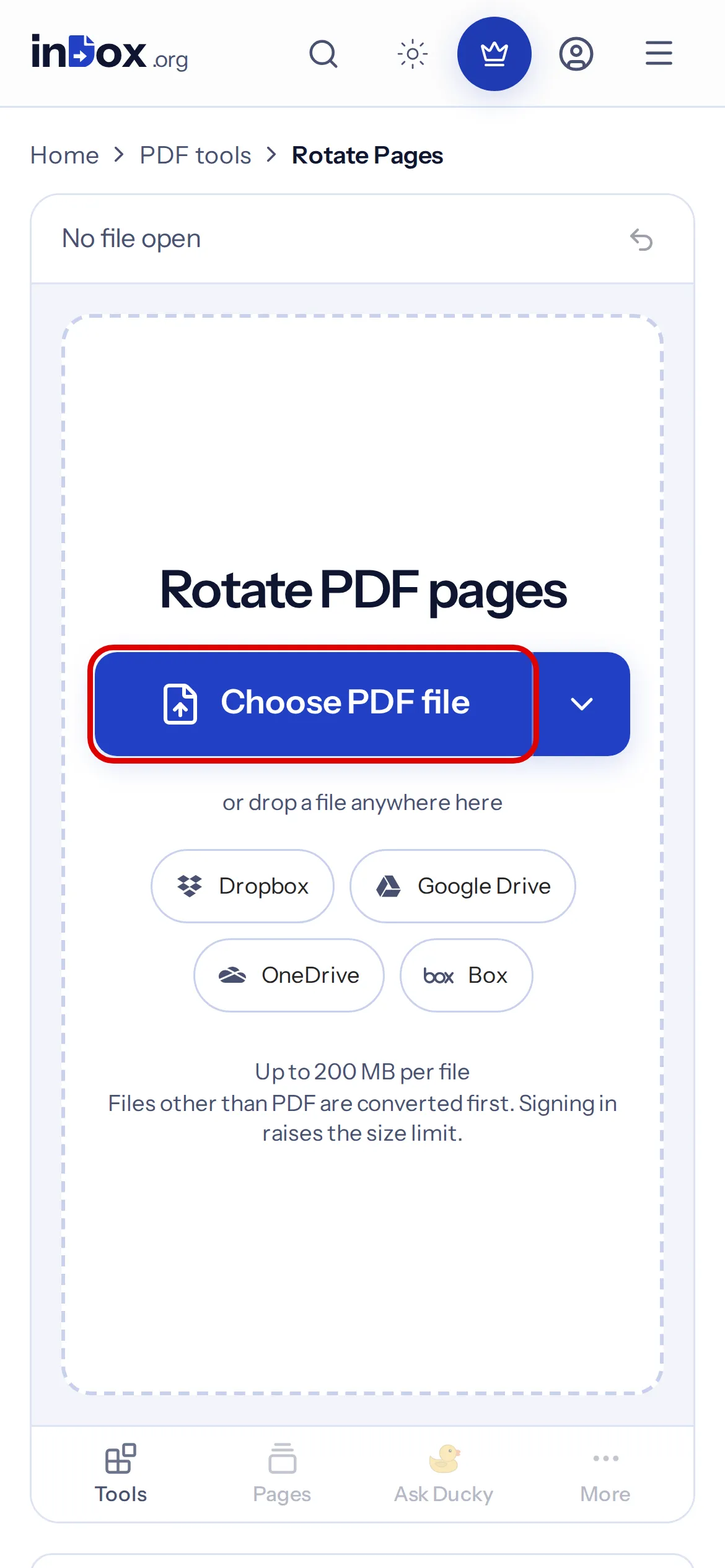
Go to the Rotate Pages page. In the middle of the page, select the blue Choose PDF file button. A box opens so you can pick a file from your device. You can also drag a file onto the page. When the file loads, your pages appear as small pictures in a grid. A Rotate Pages panel opens. On a computer it is on the right. On a phone it slides up from the bottom of the screen.
Pick the pages to turn
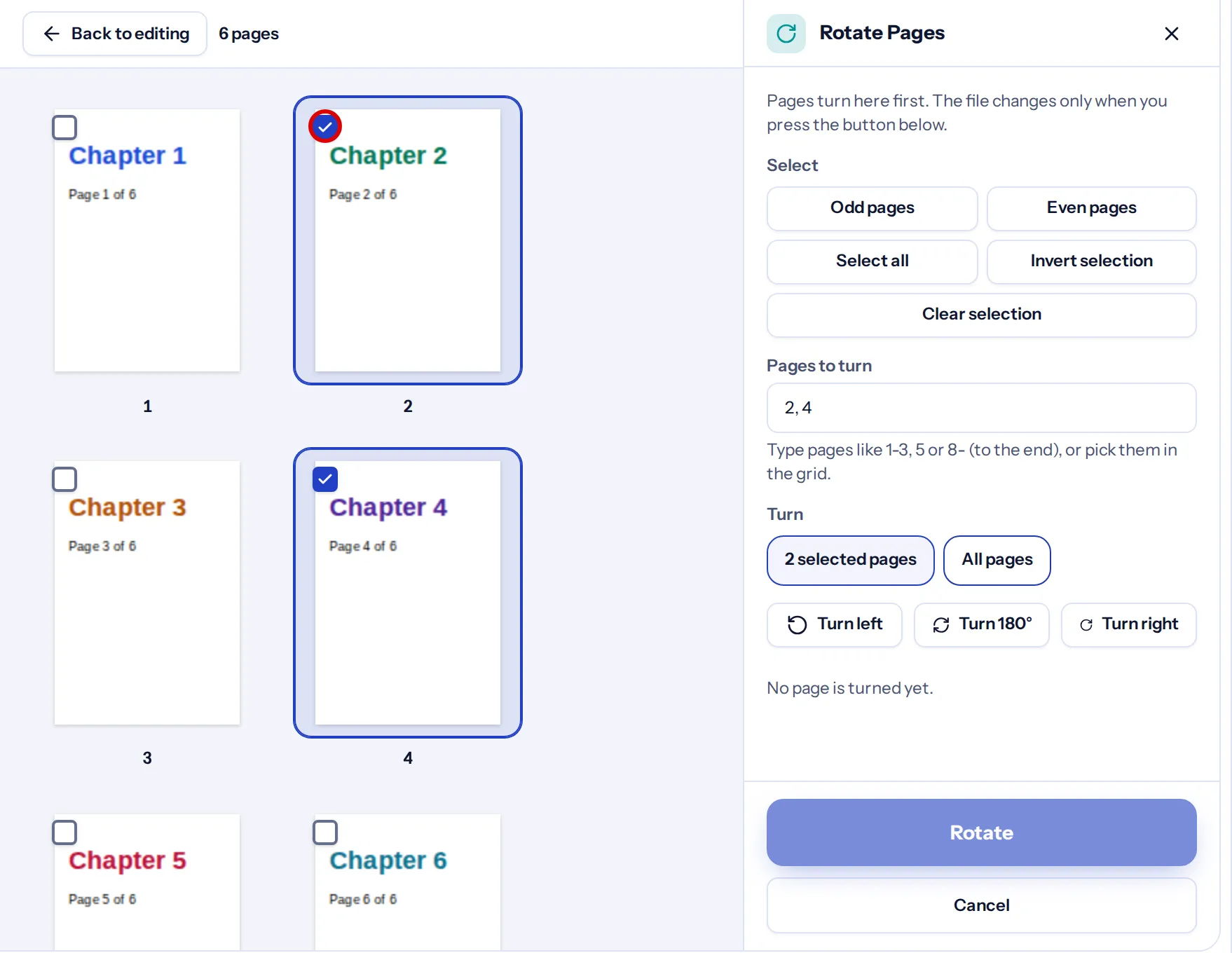
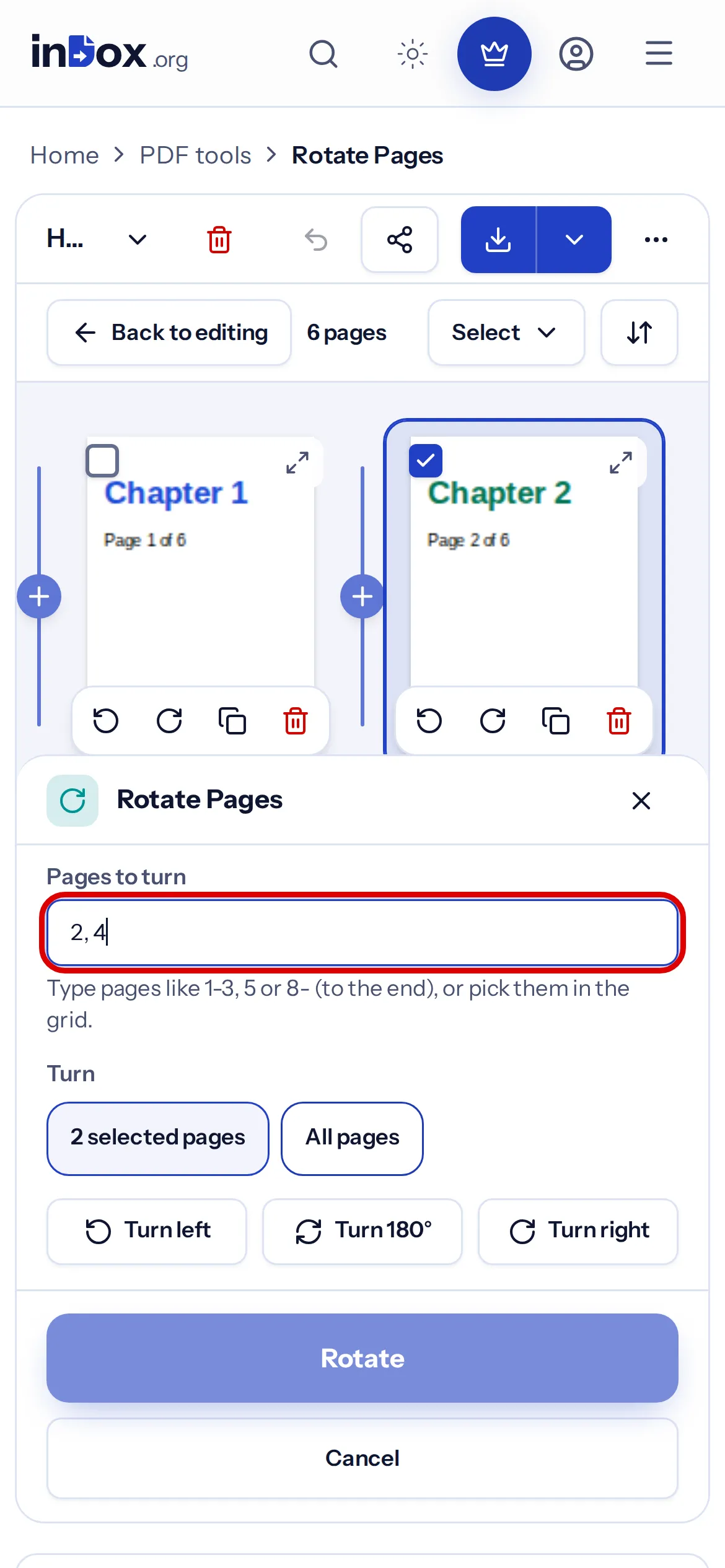
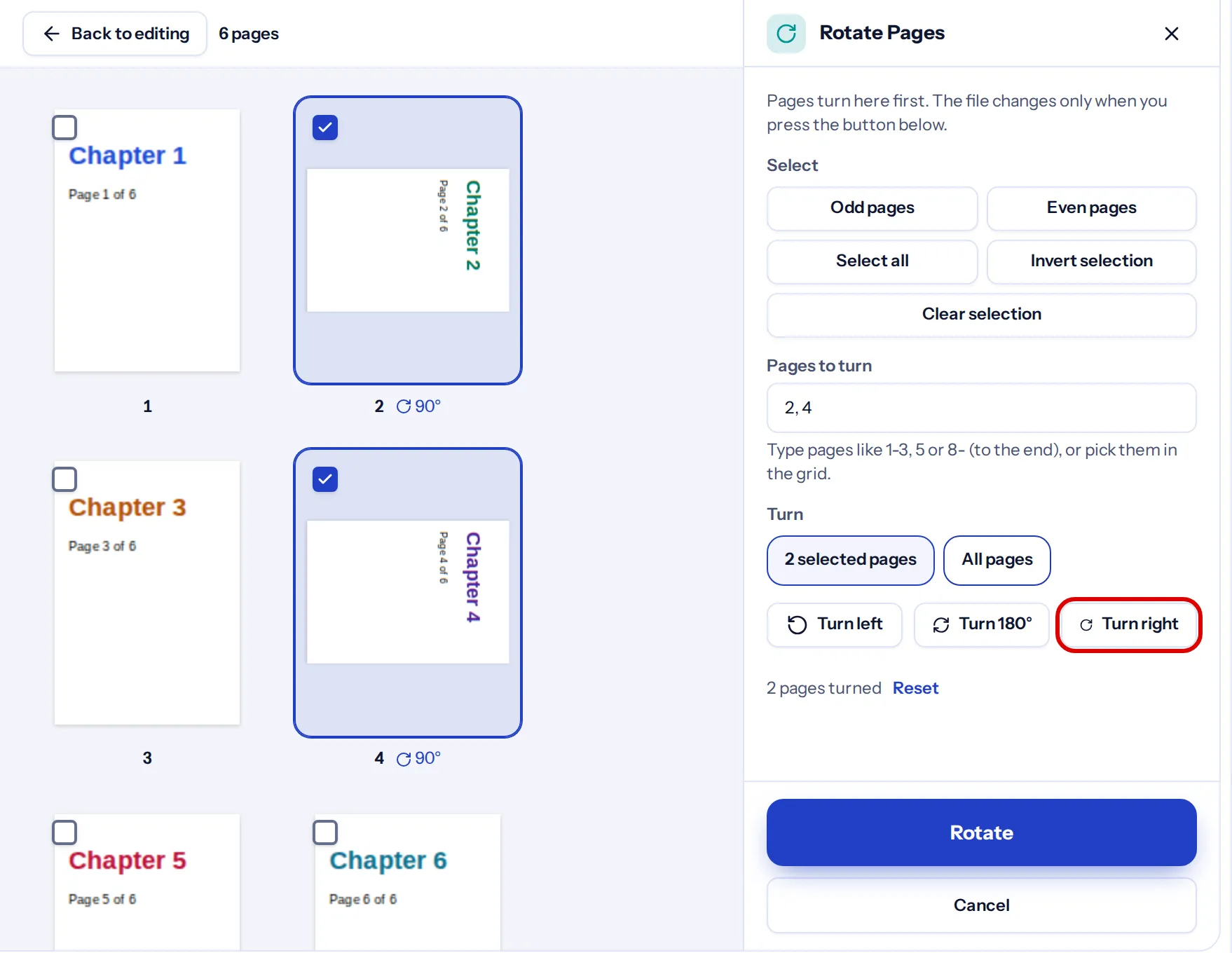
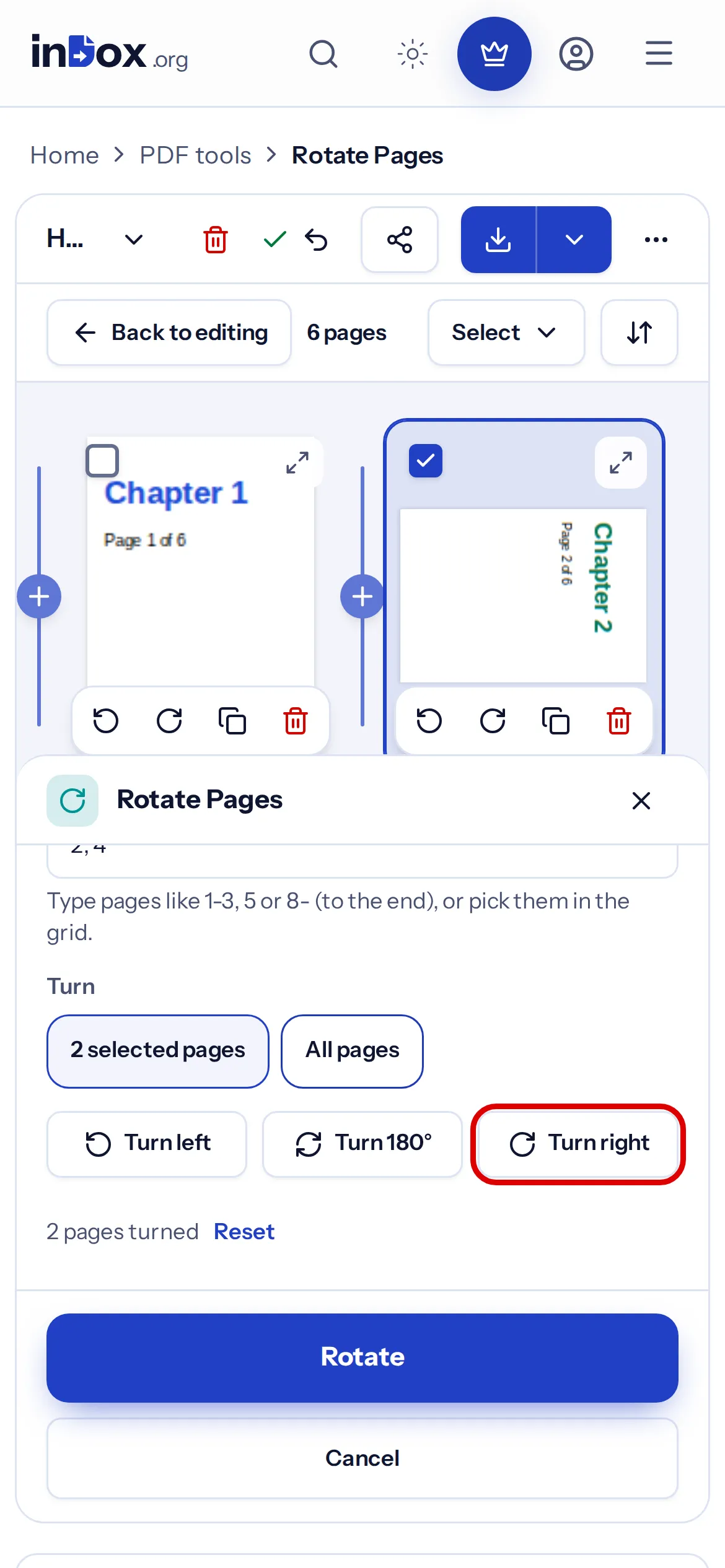
Each page in the grid has a small box in its top left corner. Select the box of every page you want to turn. A tick shows the page is picked. You can also type page numbers in Pages to turn, like 1-3, 5. The quick buttons under Select, such as Odd pages and Select all, pick many pages at once. On a phone, scroll the panel to find the Pages to turn box.
Choose the direction
Scroll the panel down to Turn. Under it, 2 selected pages is already chosen, so only your picked pages turn. To turn the whole file, select All pages instead. Then select Turn left, Turn 180° or Turn right. The pages in the grid turn at once, and a small tag like 90° shows how far. Under the buttons the panel says how many pages turned, for example 2 pages turned. Select Reset next to it to undo the turns. Nothing is saved yet.
Rotate the PDF
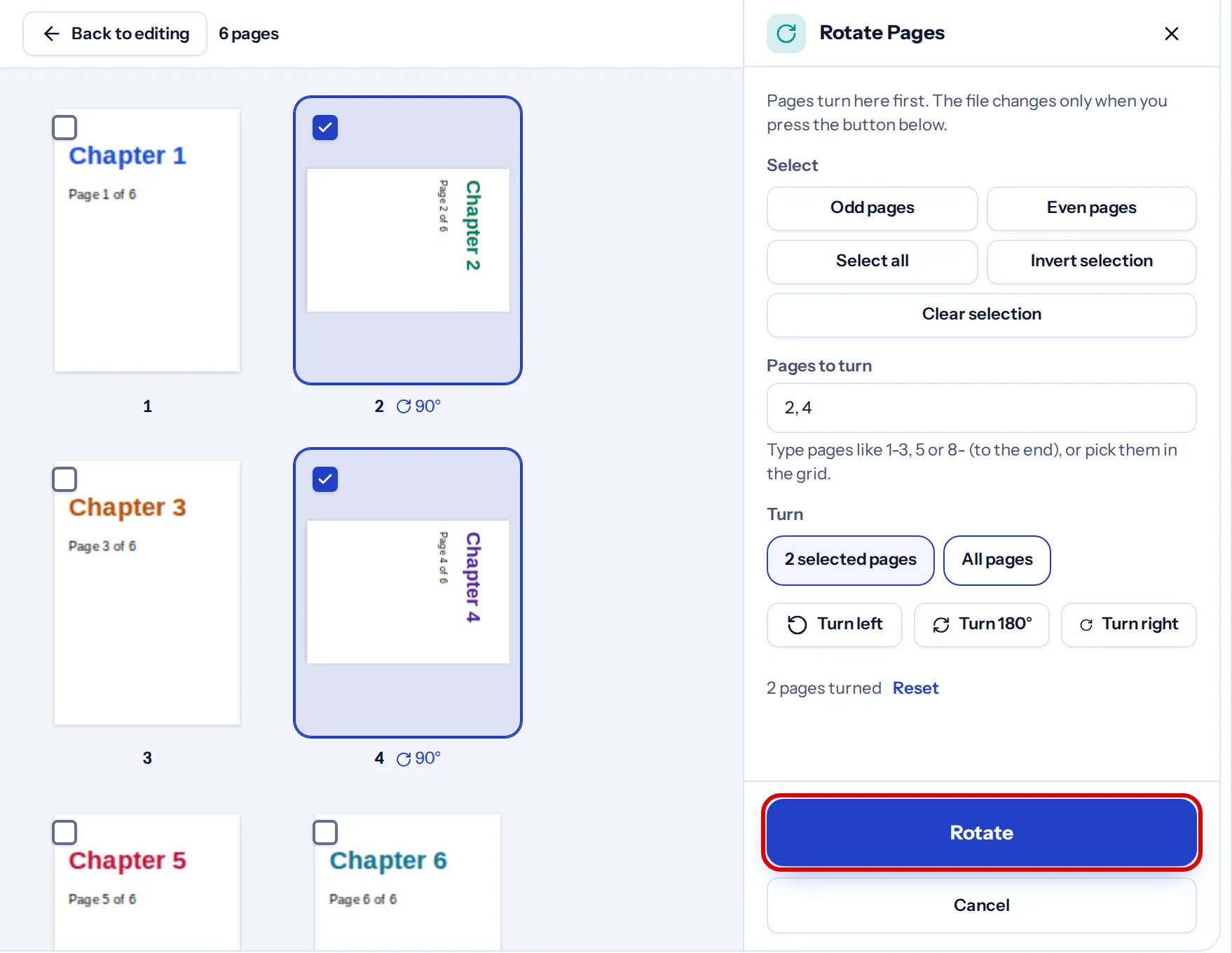
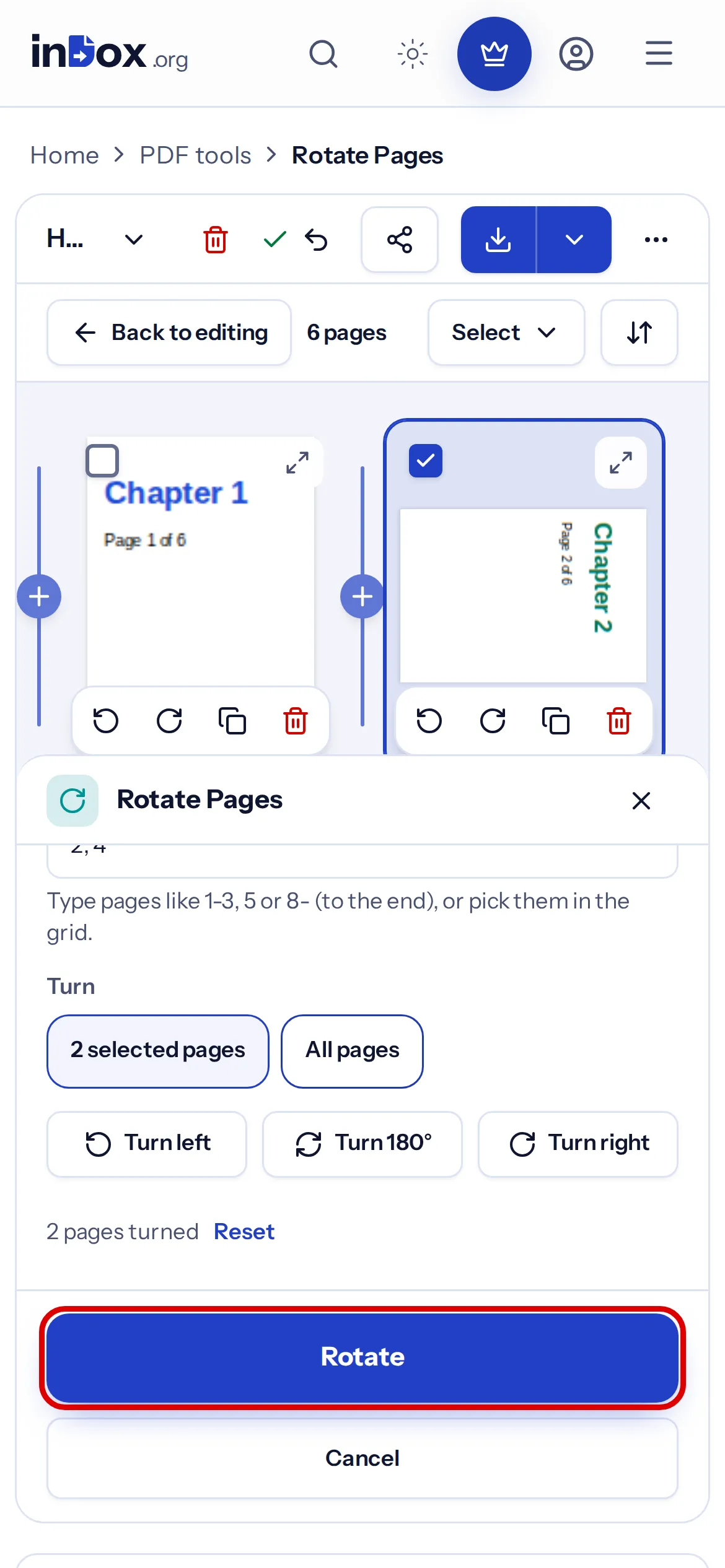
Select the blue Rotate button at the bottom of the panel. It stays pale until you turn at least one page. The file only changes when you select it. Wait a moment while indox builds the new file.
Download your PDF
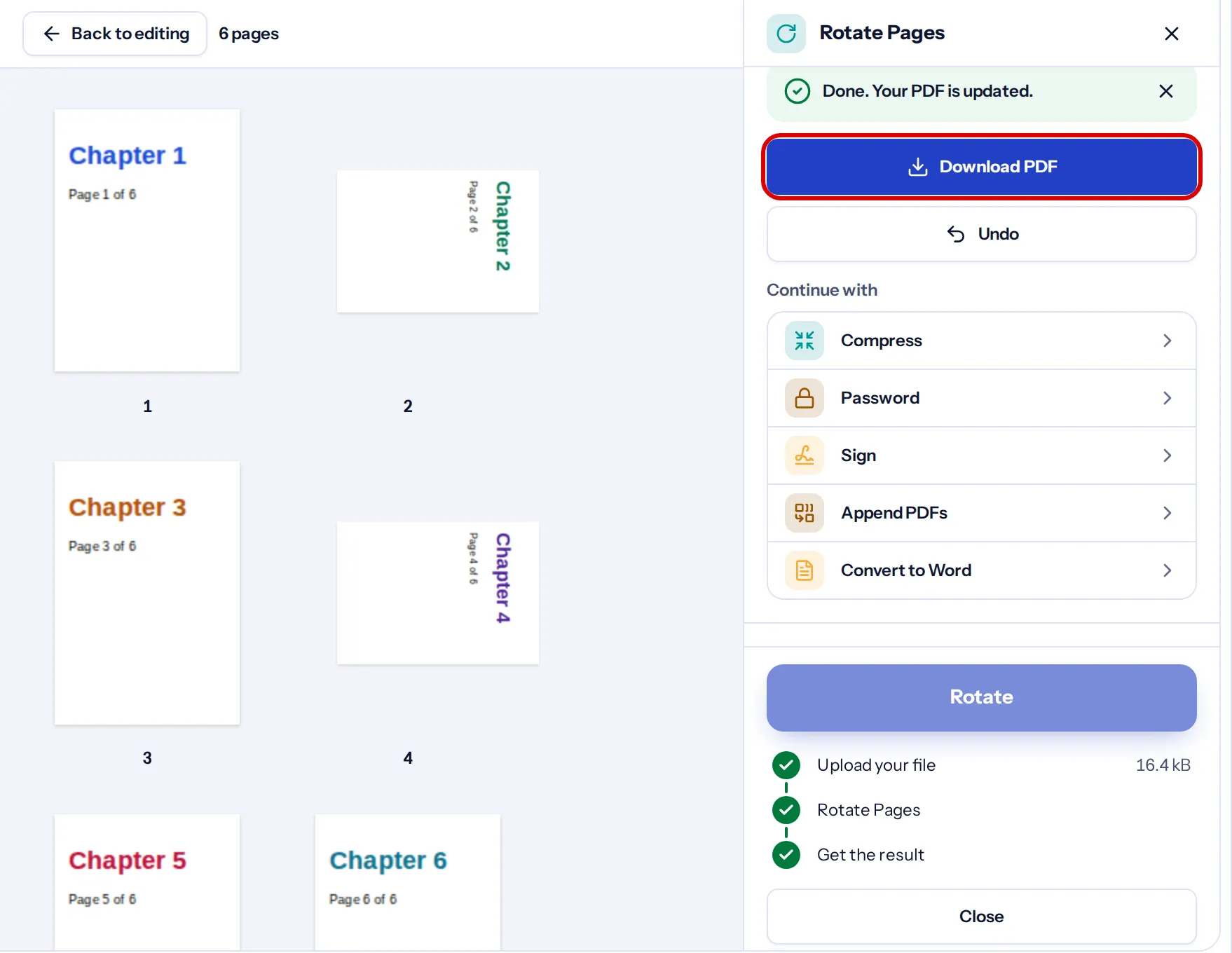
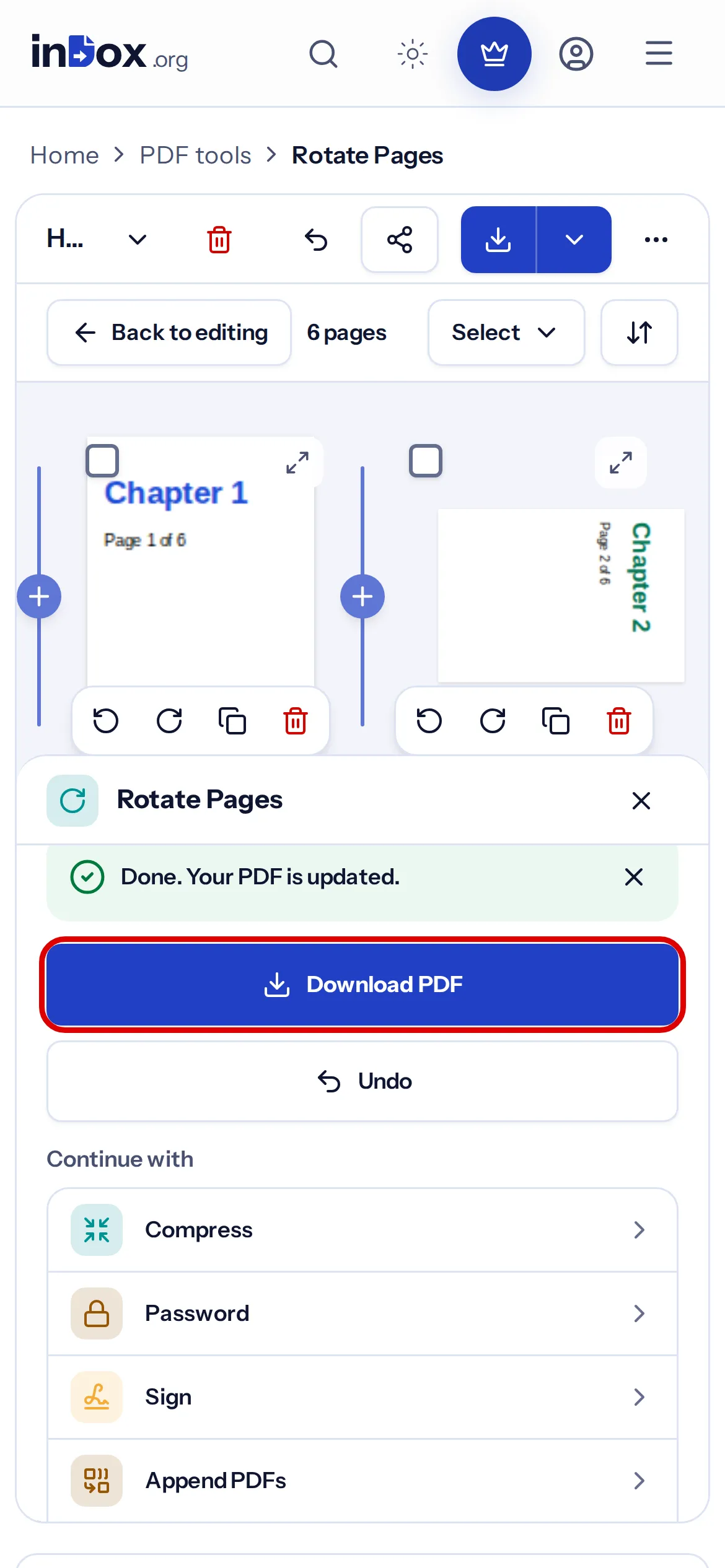
A green message says Done. Your PDF is updated. at the top of the panel. Select Download PDF, just below it. The new file is saved on your device. Not happy with it? Select Undo to get your pages back.
Troubleshooting
| Problem | Cause | Fix |
|---|---|---|
| Rotate is greyed out | No page has been turned yet. The panel says No page is turned yet. | Pick a page, then select Turn left, Turn 180° or Turn right |
| A page turned the wrong way | It was turned in the other direction than the one it needed | Select Reset next to the count of turned pages, or turn it again before you select Rotate |
| Only some pages turned | Only the pages you picked turn | Select All pages under Turn to turn the whole file |
| The file name ends in -rotated | indox names the turned PDF as a copy of the one you opened | Rename it on your device after you download it |