Last updated
Change the theme, density and language
Before you start
- You need to be signed in to indox.org.
- The Appearance page also has rows called Sidebar, Reduce motion and Sync to account. This guide does not use them.
- To pick the AI model for your AI tools, read the guide Choose the AI model for your AI tools.
Open the Appearance page
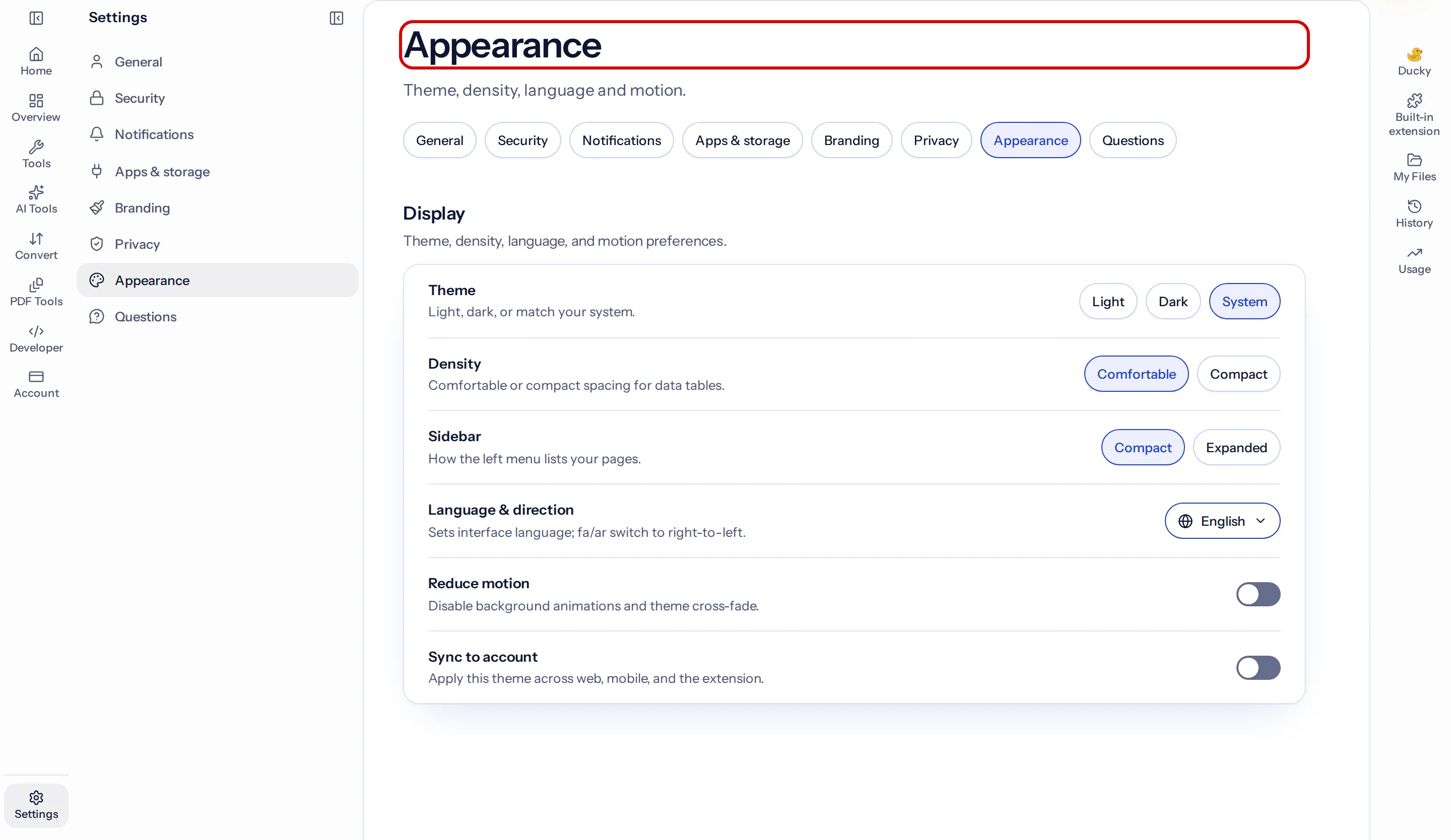
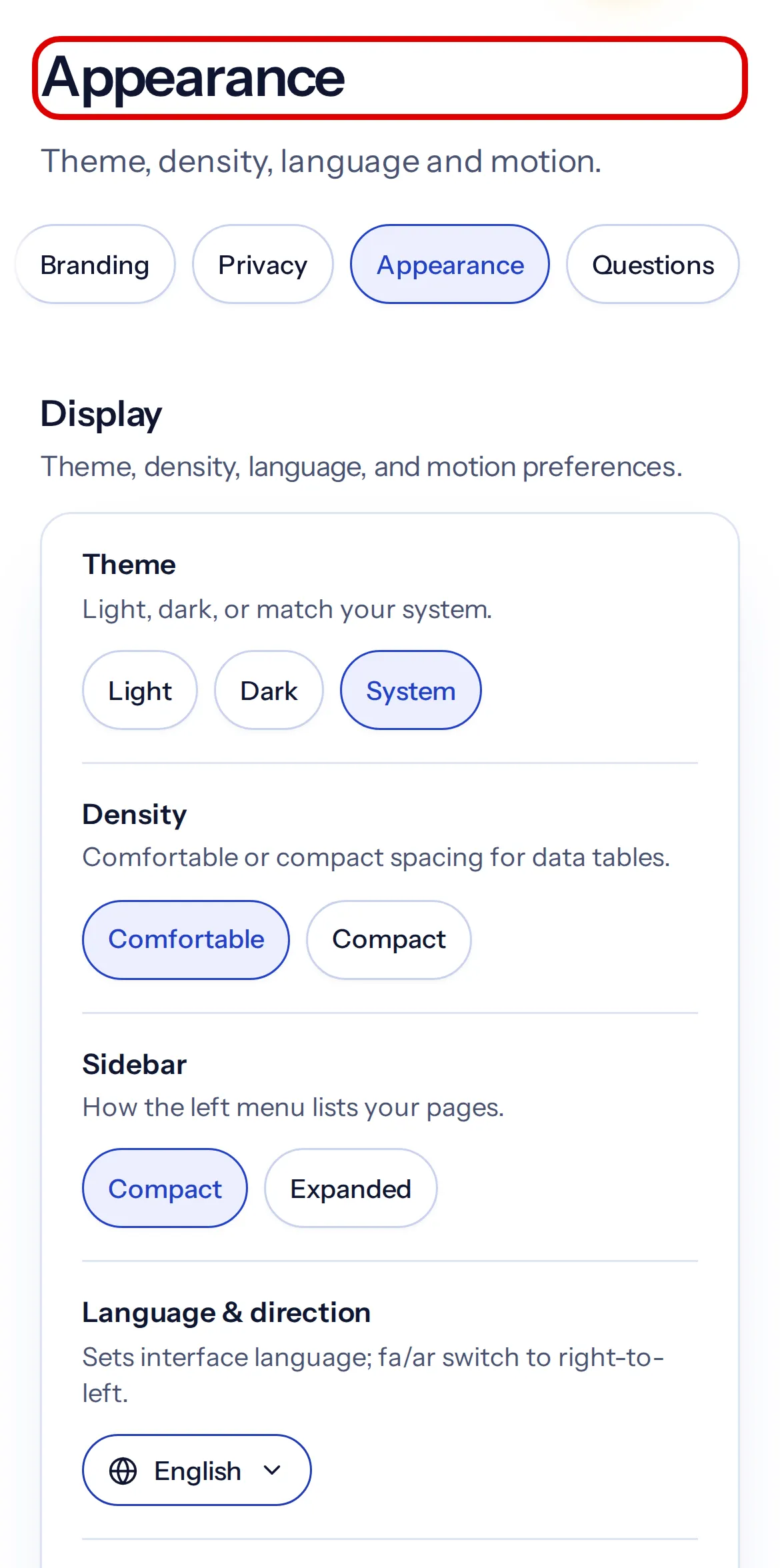
Go to the Appearance page. On a computer, you can also select Appearance under Settings in the left menu. On any screen, select Appearance in the row of round buttons under the page title. The page is called Appearance, and one card called Display holds the choices.
Choose a theme
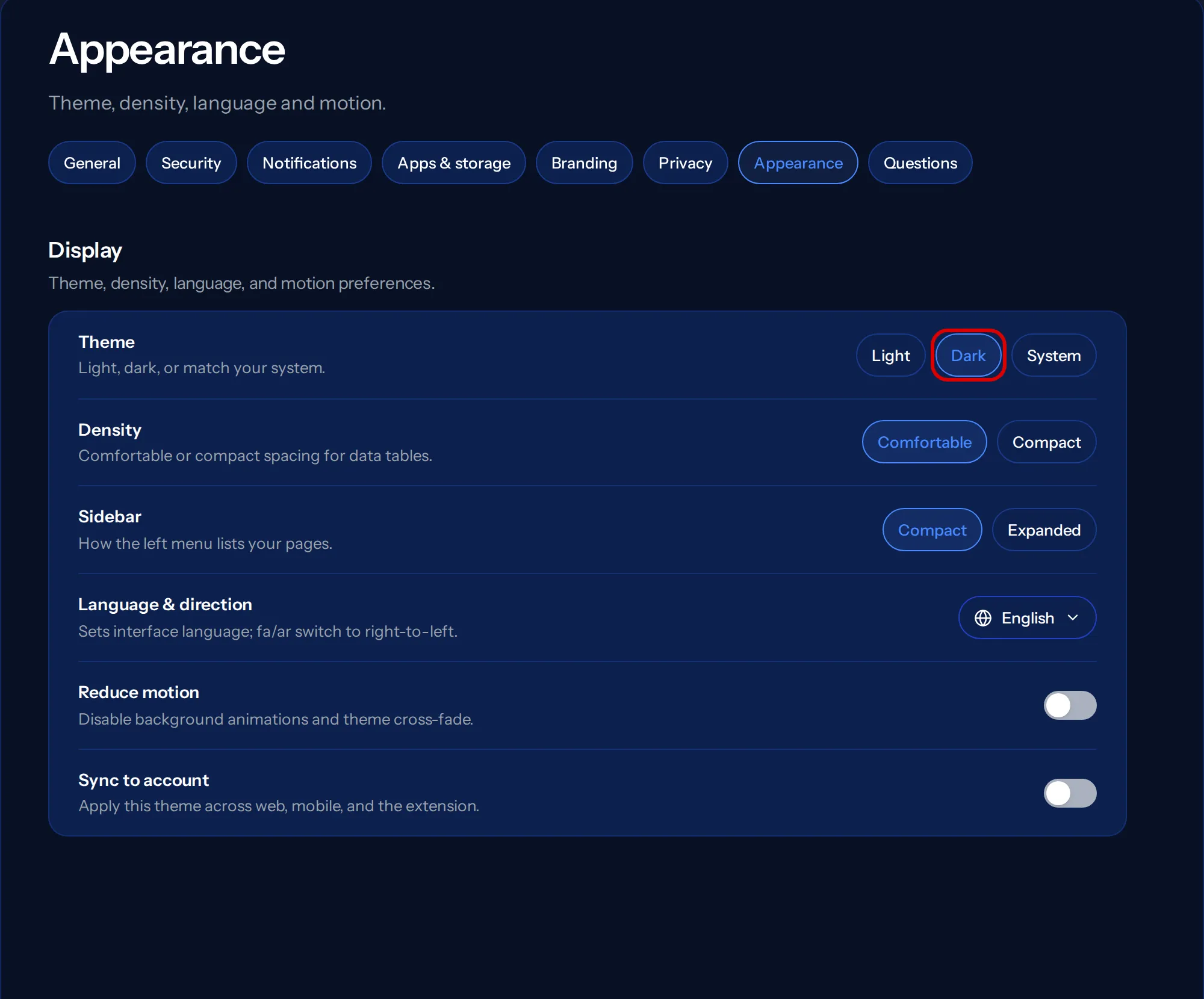
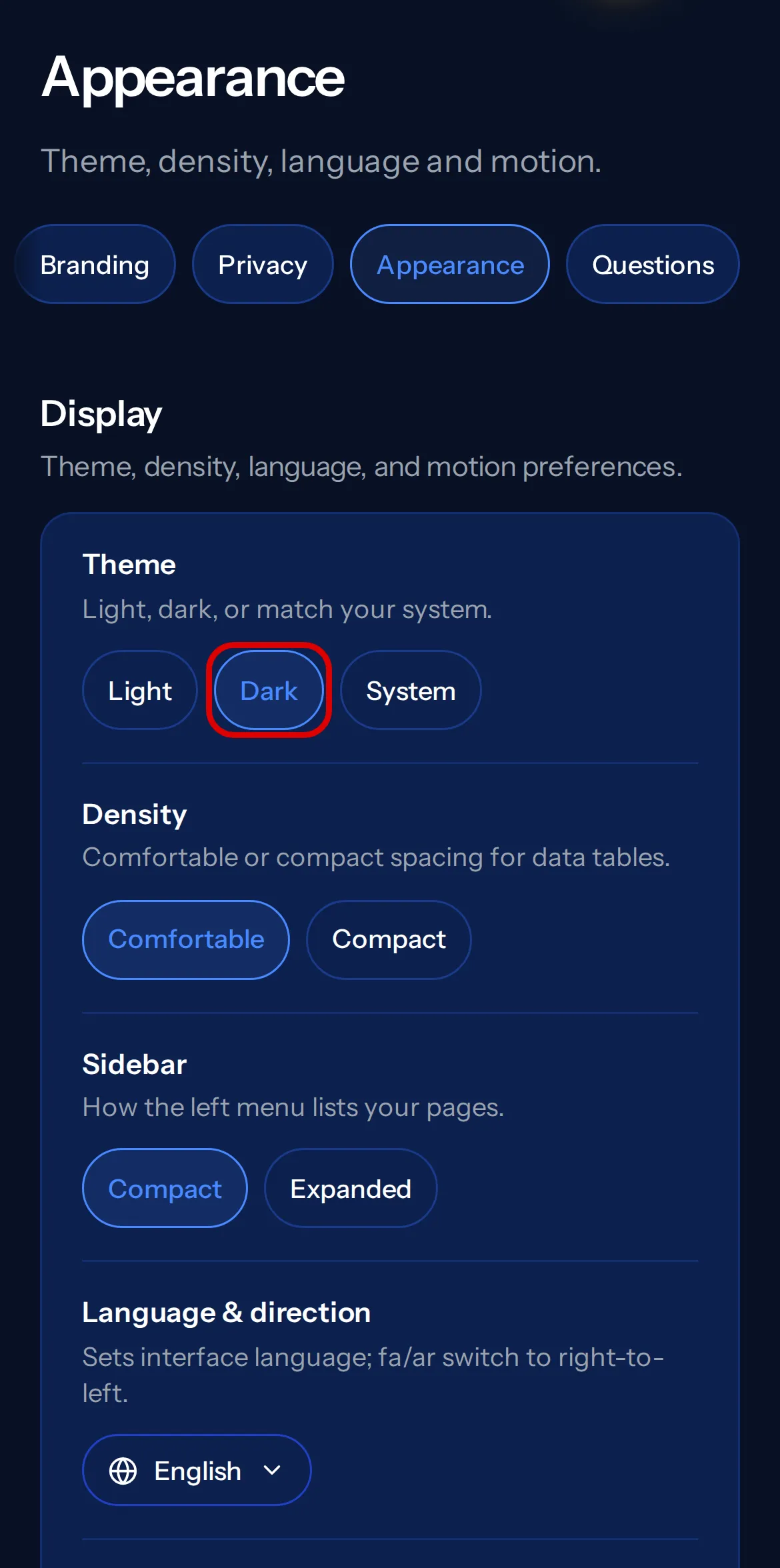
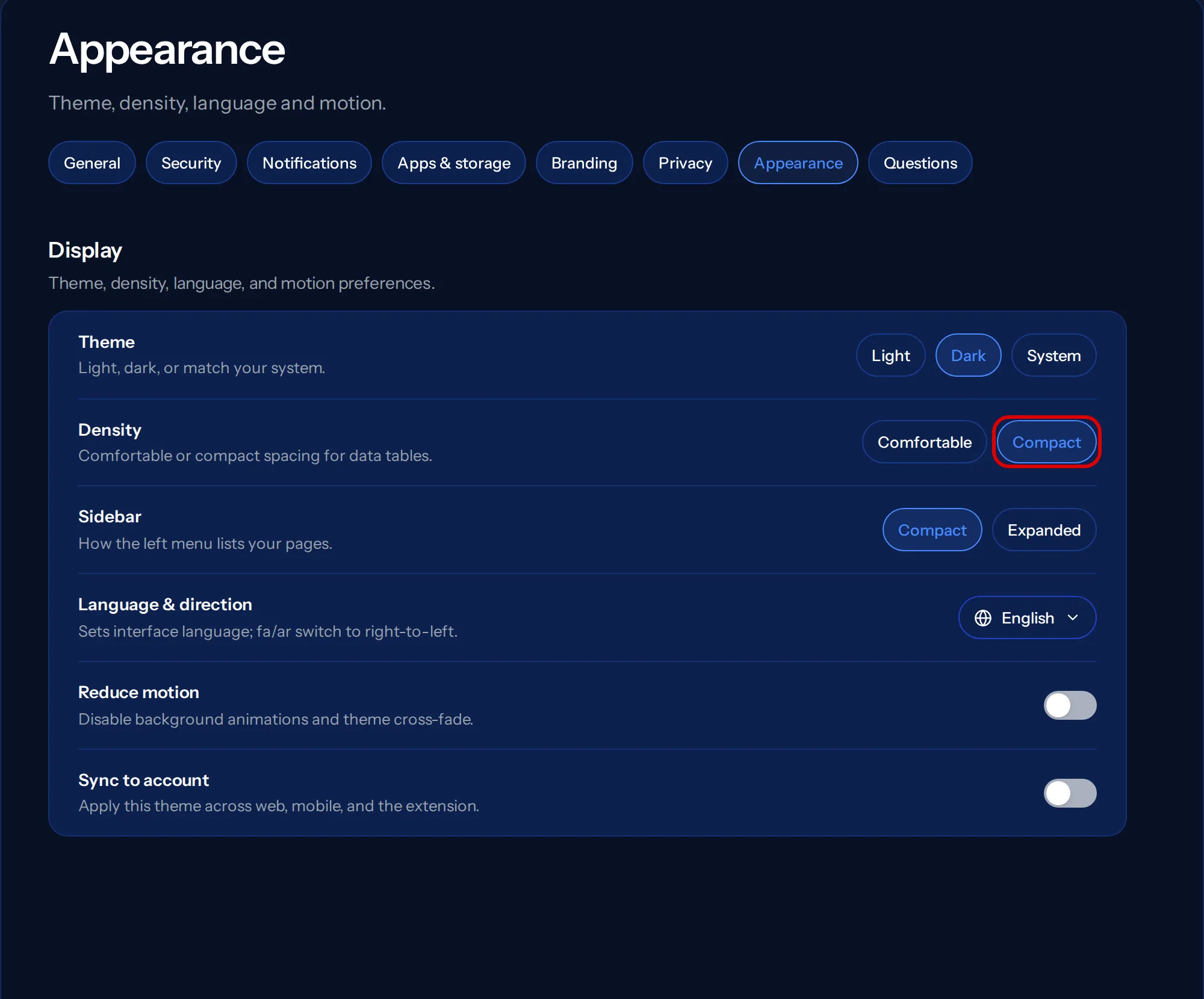
In the Theme row, select Light, Dark or System. System matches your device. If you select Dark, the whole page turns dark at once. There is no Save button, so the change happens as soon as you select it.
Set the density
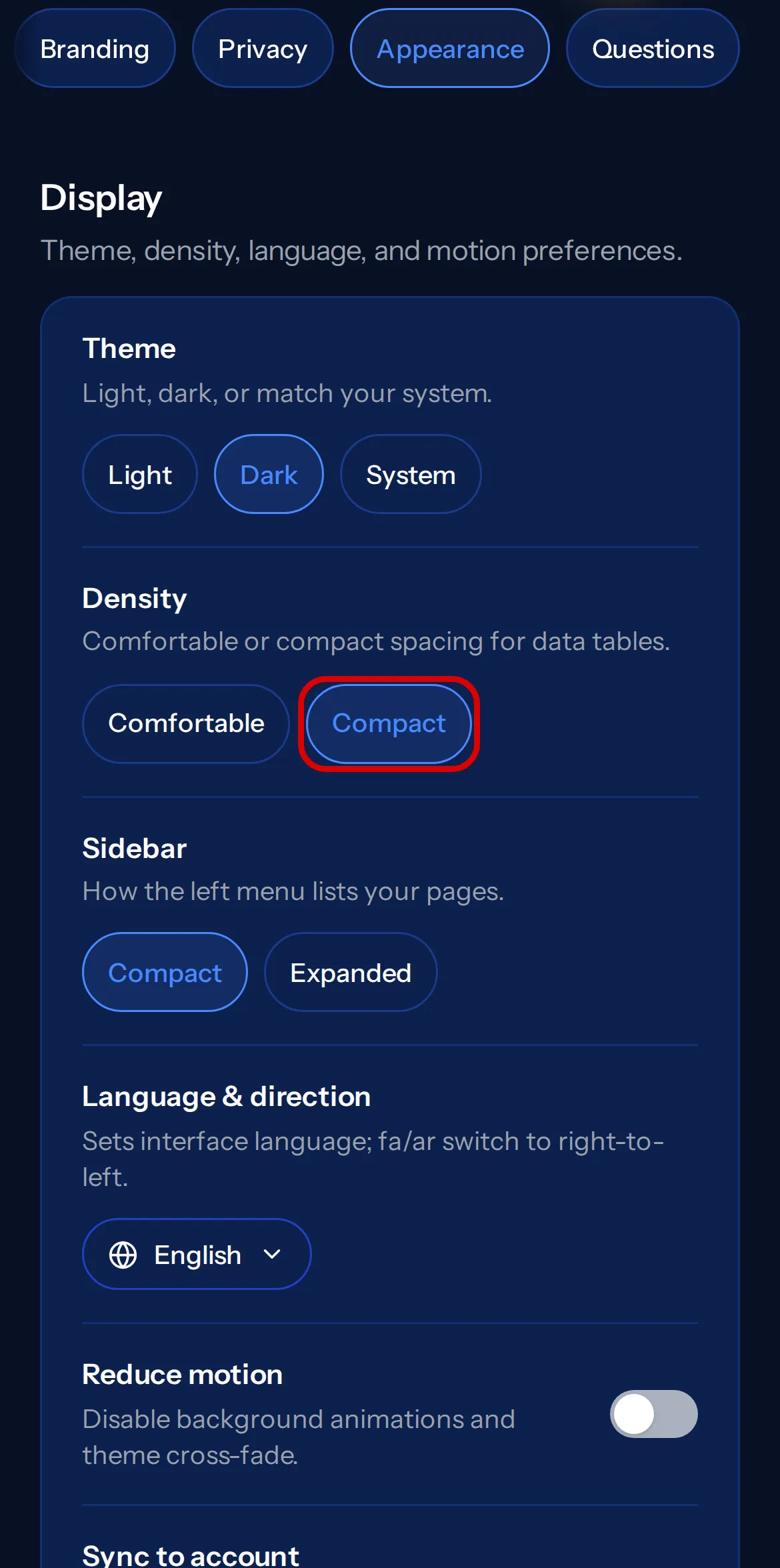
In the Density row, select Compact. The row says it sets the spacing for data tables: Comfortable leaves more space and Compact leaves less. This page looks the same, because the setting is for data tables.
Open the language list
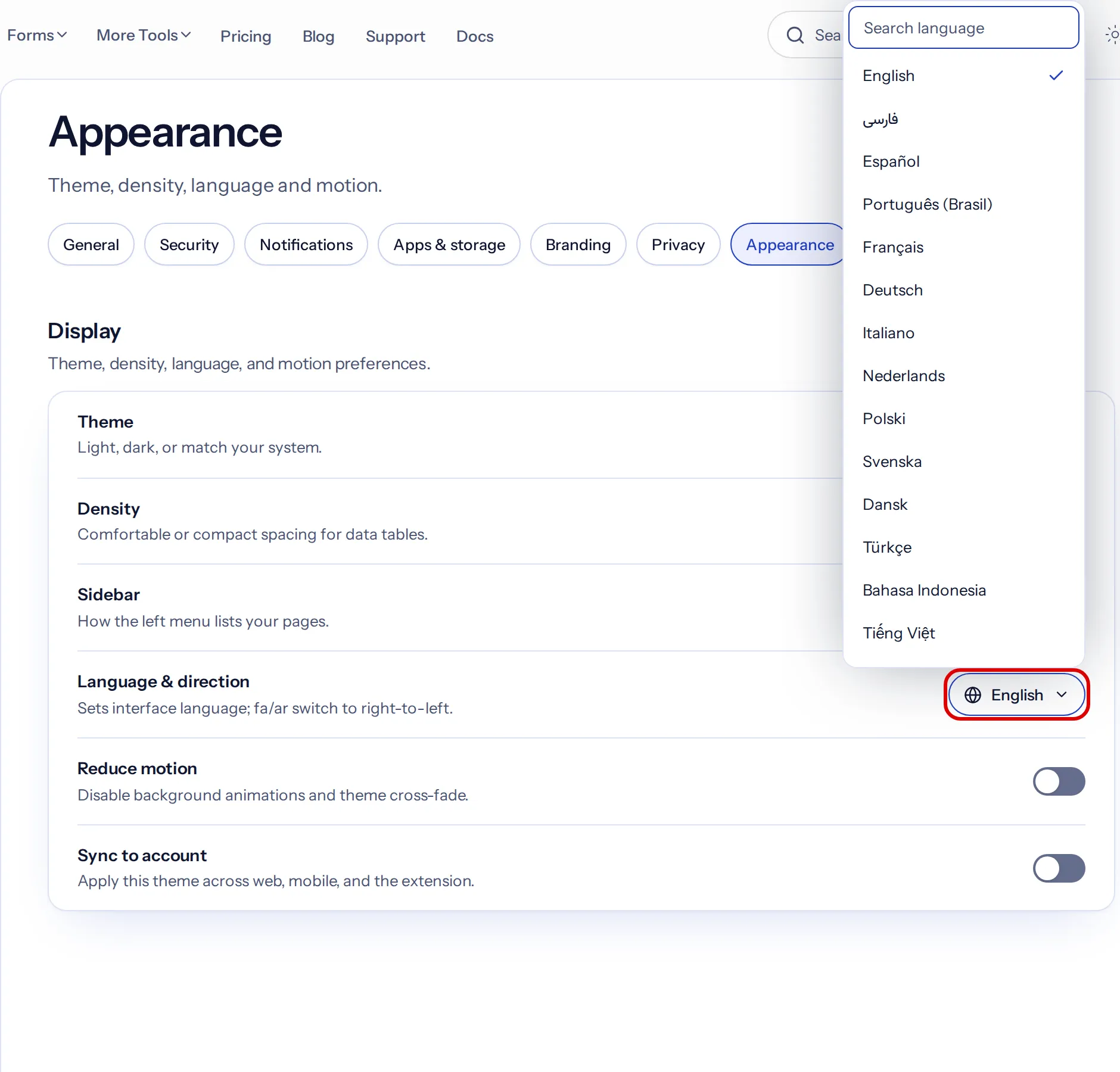
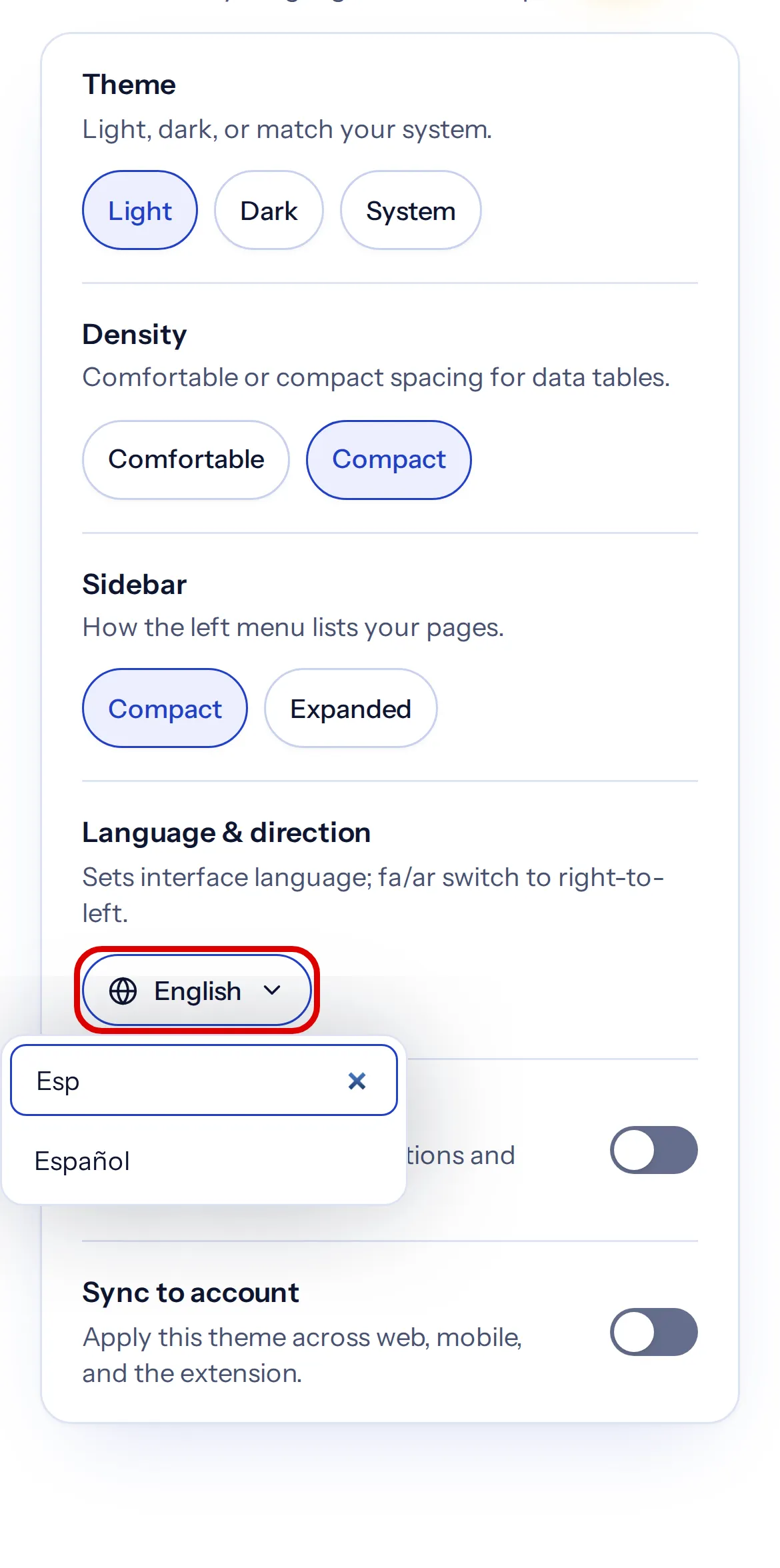
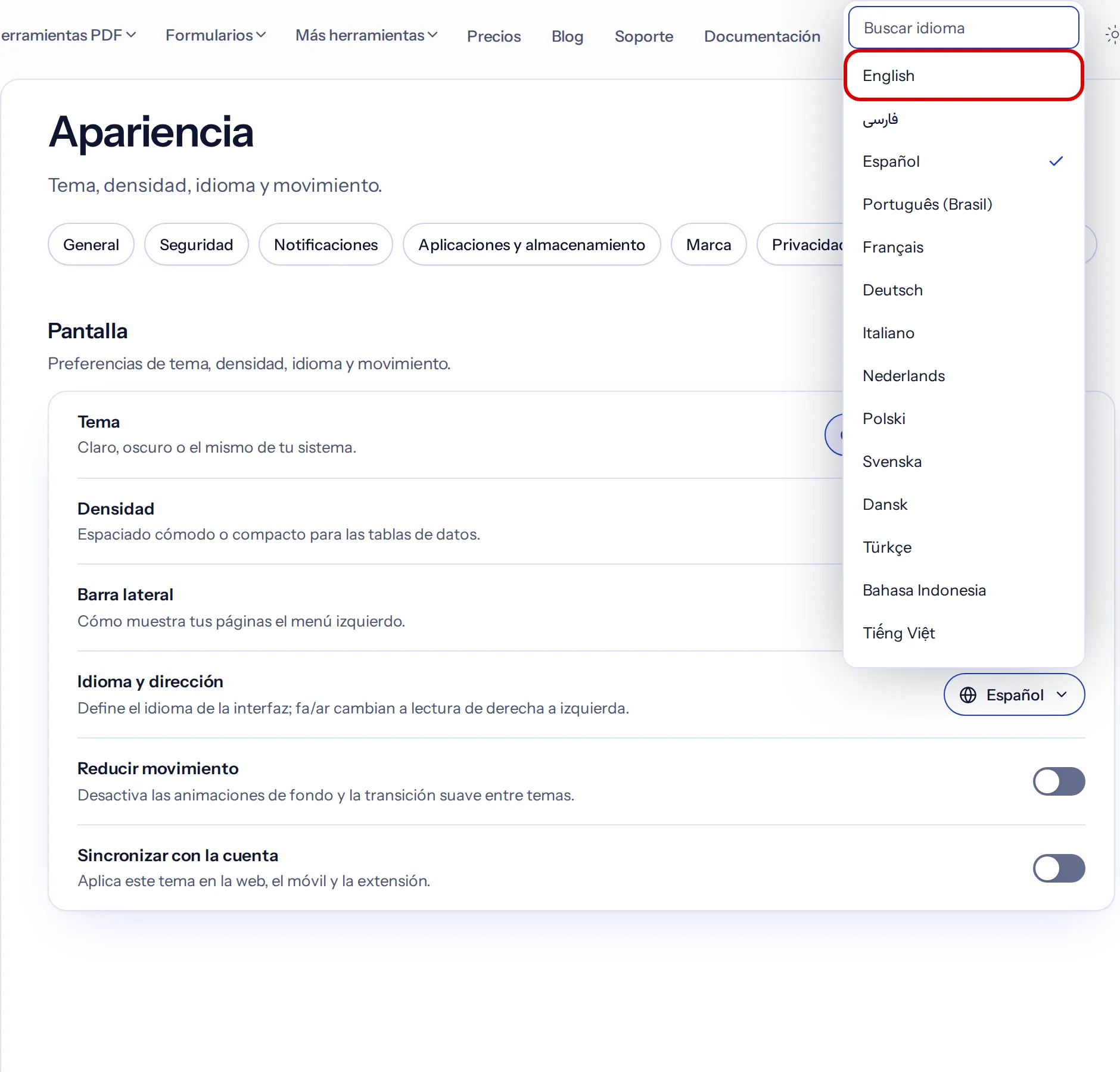
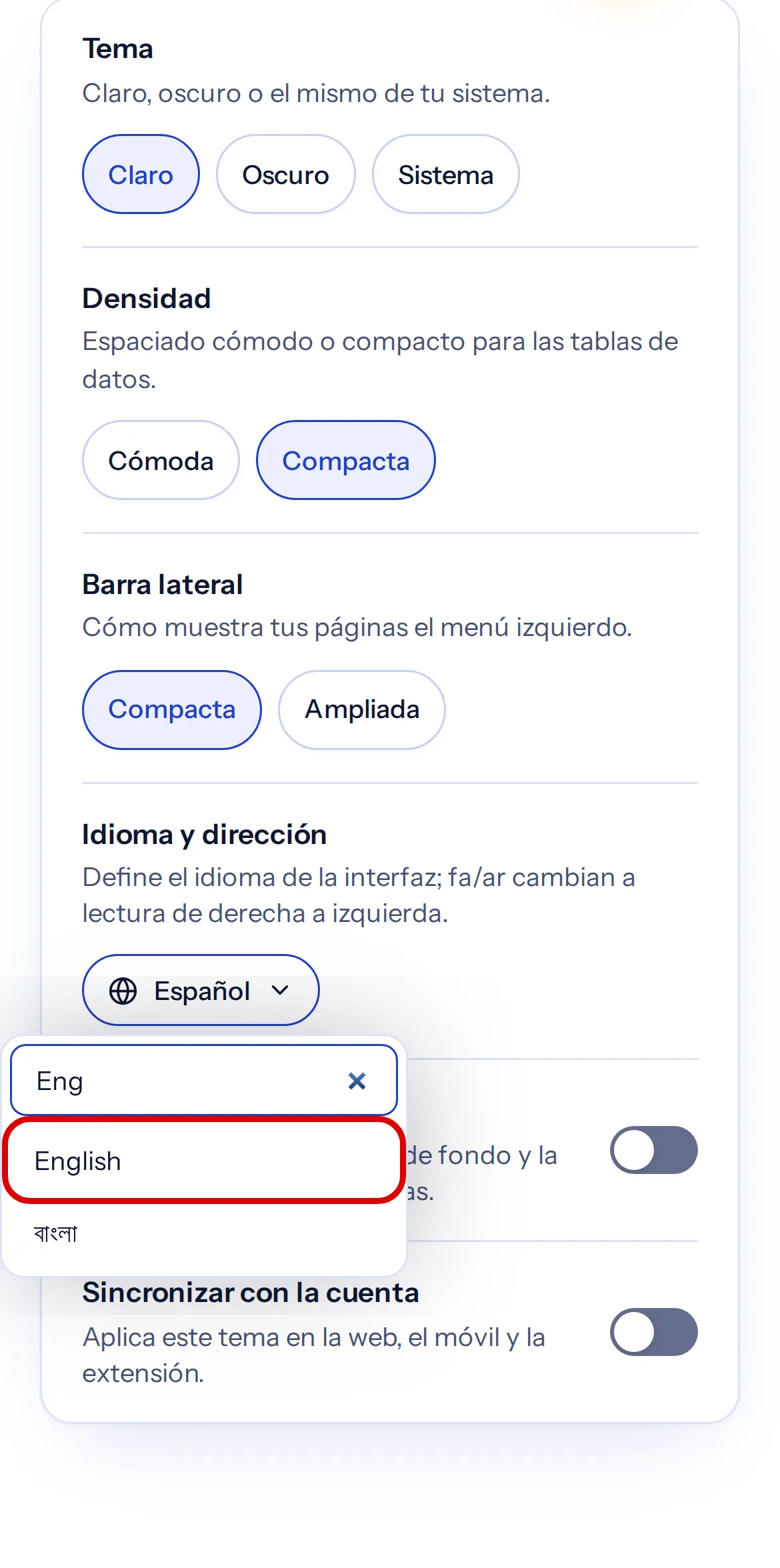
In the Language & direction row, select the button that shows your language, such as English. A list of languages opens. Each language is written in its own language. A box called Search language sits at the top of the list. Type a few letters, such as Esp, to find a name fast.
Pick a language
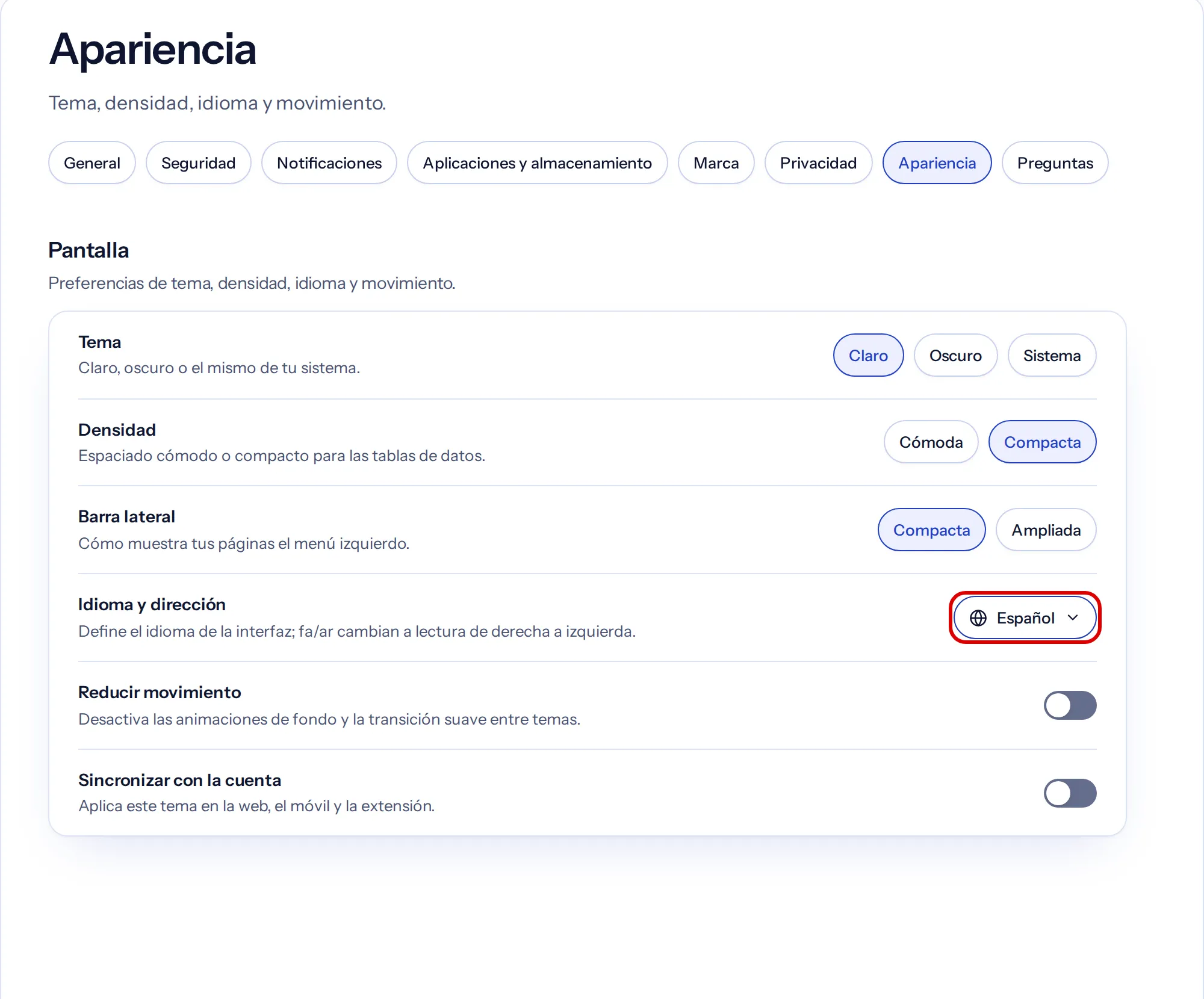
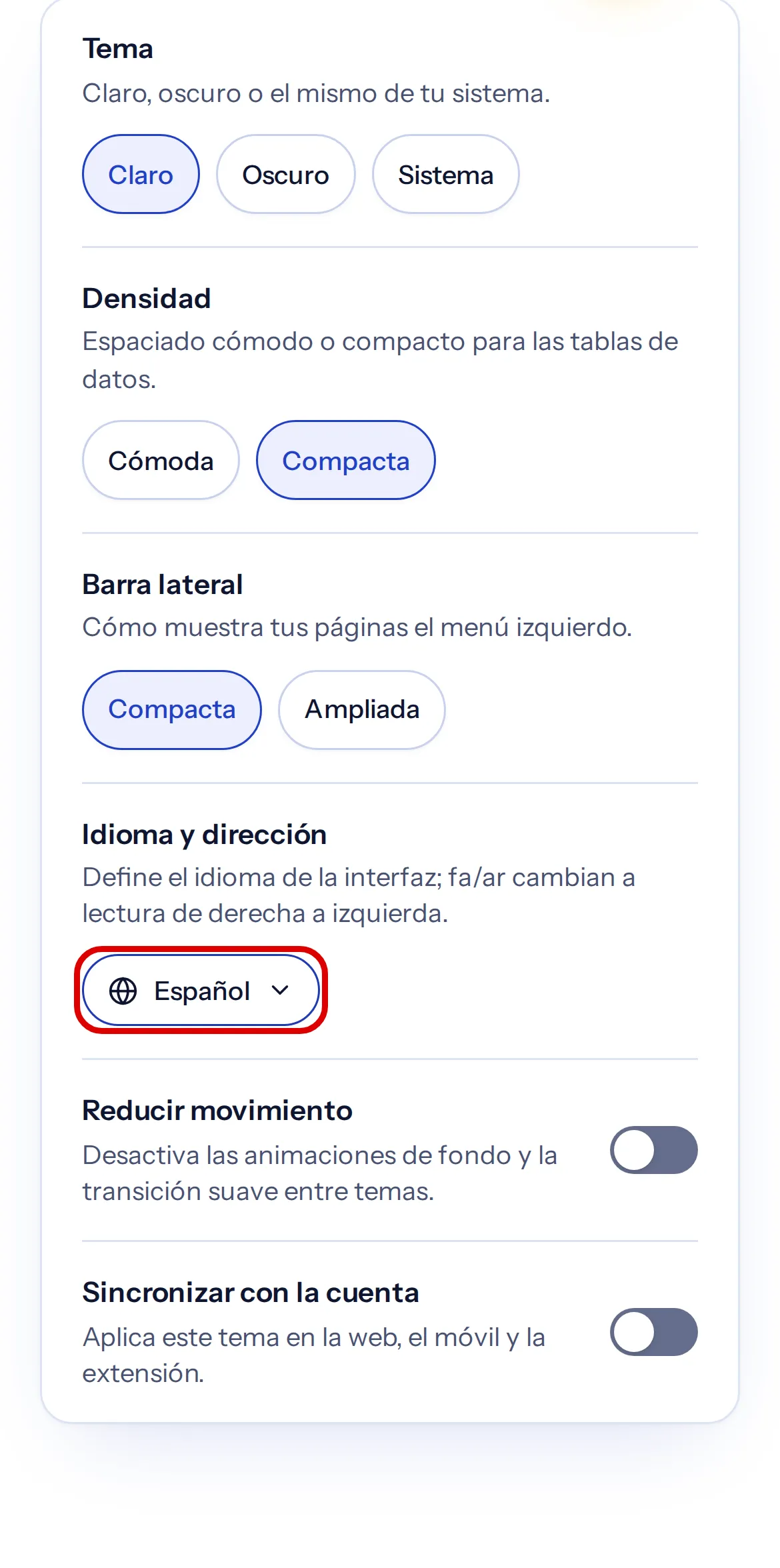
Select Español. The page loads again in Spanish, and the address in your browser now starts with /es. The words on the page change, and the row you used is now called Idioma y dirección.
Go back to English
Select the language button again, then select English. The page loads again in English. The button stays in the same place on the page, so you can find it even when you cannot read the words.
Troubleshooting
| Problem | Cause | Fix |
|---|---|---|
| The page is in a language you cannot read | You picked another language | Find the row with a globe button, open it, and select English. The button stays in the same row after the language changes |
| You cannot find your language in the list | The list has many languages | Type a few letters of the name in the Search language box at the top of the list |
| The theme does not match your device | Light or Dark is selected | Select System in the Theme row to match your device |