Last updated
Uninstall the extension
Before you start
- Chrome on a computer with the INDOX extension. You don't need an account.
- To stop INDOX for a while without removing it, turn off the switch on its card in Manage extensions instead.
Save your settings first
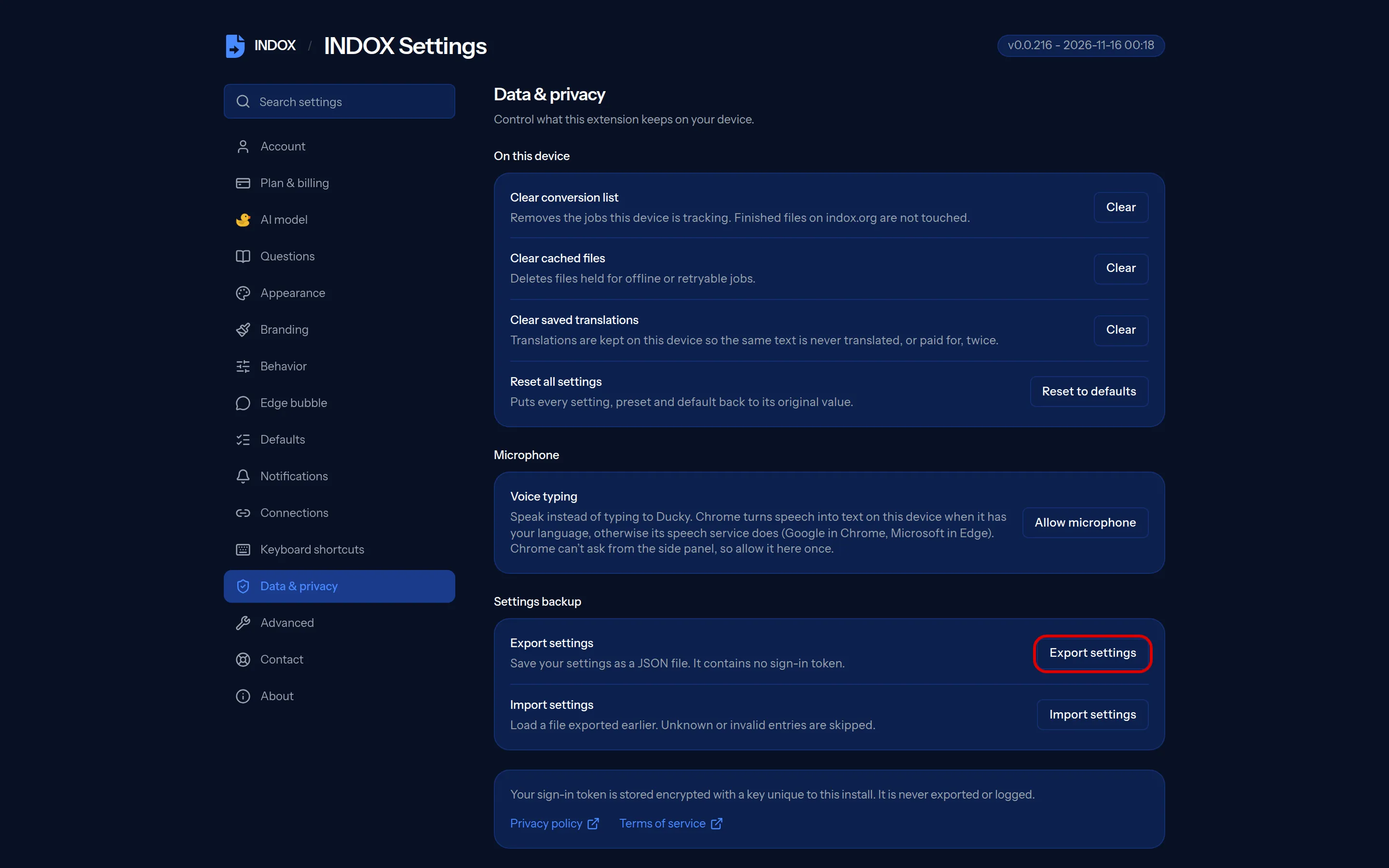
This step is optional. Right-click the INDOX icon in the toolbar and select Options. In the list on the left, select Data & privacy. Under Settings backup, select Export settings. The file holds your settings, not your sign-in details. Import settings loads it again later. The toolbar is the row of buttons next to the address bar.
Remove it from the toolbar icon
Right-click the INDOX icon in the toolbar and select Remove from Chrome. Chrome asks you to confirm. Select Remove.
Or remove it from the extensions page
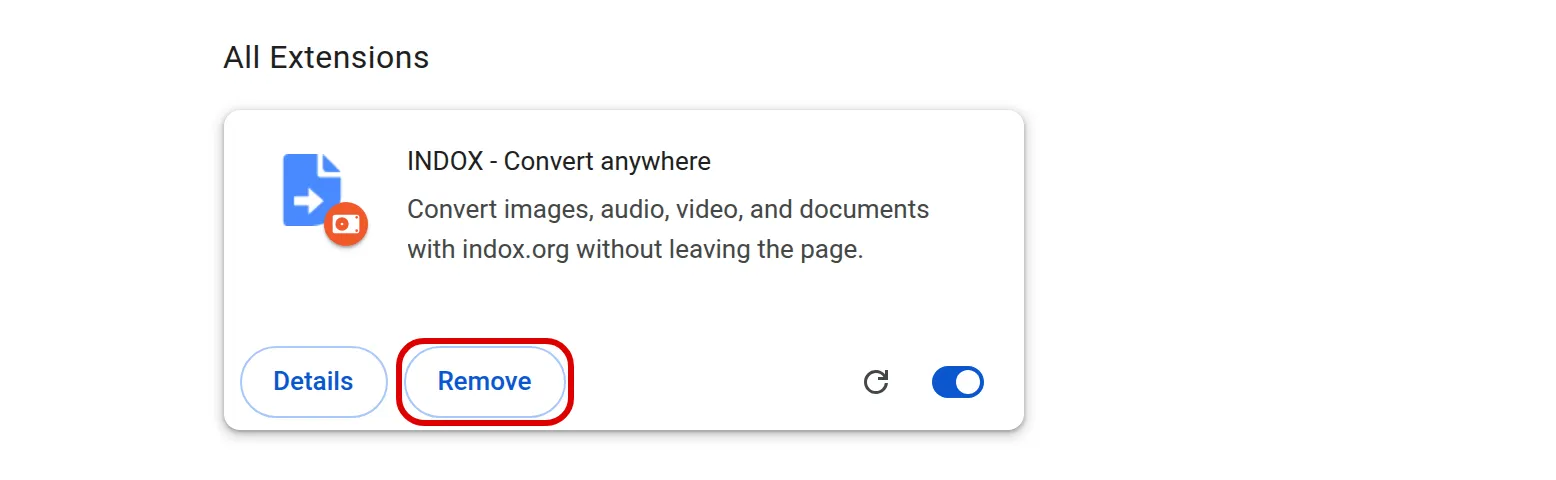
If you can't see the icon, select the Extensions icon, which looks like a puzzle piece, next to the address bar. Select Manage extensions. On the INDOX card, select Remove. Chrome asks you to confirm. Select Remove again.
Check that it is gone
The INDOX icon leaves the toolbar, and INDOX no longer shows in Manage extensions. After you reload a web page, the INDOX button is gone from its edge. The extension asks Chrome to open a page from indox.org in a new tab after it is removed. You can close it.
Troubleshooting
| Problem | Cause | Fix |
|---|---|---|
| Remove from Chrome is not in the menu | You right-clicked somewhere other than the INDOX icon | Right-click the INDOX icon itself, or use Manage extensions |
| You can't see the INDOX icon | Chrome hides extension icons in the Extensions menu until you pin them | Use the Extensions icon and Manage extensions as in step 3 |
| The Remove button is greyed out or missing | A school or work computer may manage its extensions | Ask the person who looks after that computer |
| You want INDOX back | The extension was removed | Follow the guide "Install the browser extension and pin it", then select Import settings in Data & privacy to load your saved file |