Last updated
Extract pages from a PDF
Before you start
- To extract pages means to copy some pages out of a PDF into a new file.
- Have the PDF on your phone or computer. The upload box tells you how big a file can be.
- You don't need an account.
Open your PDF
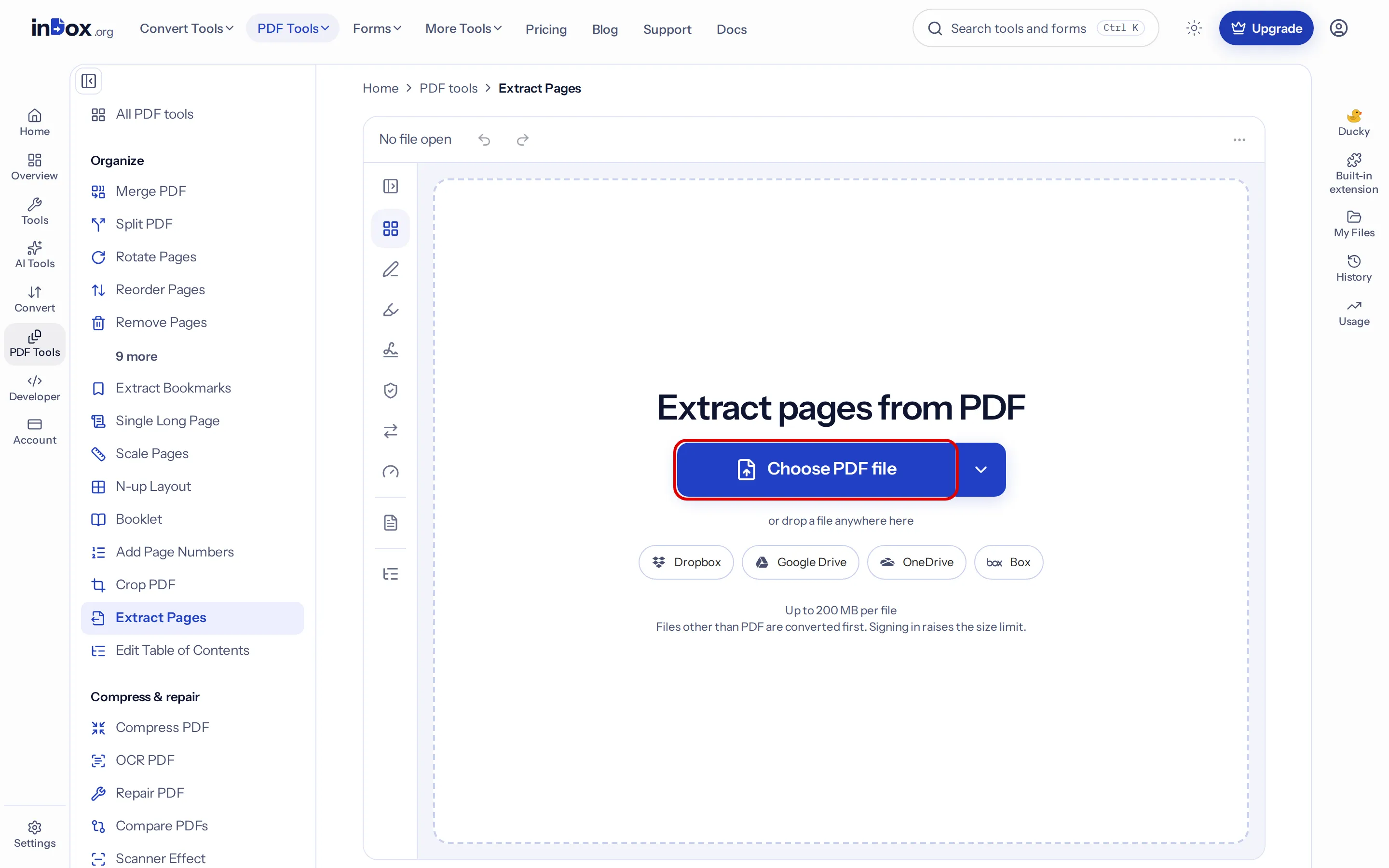
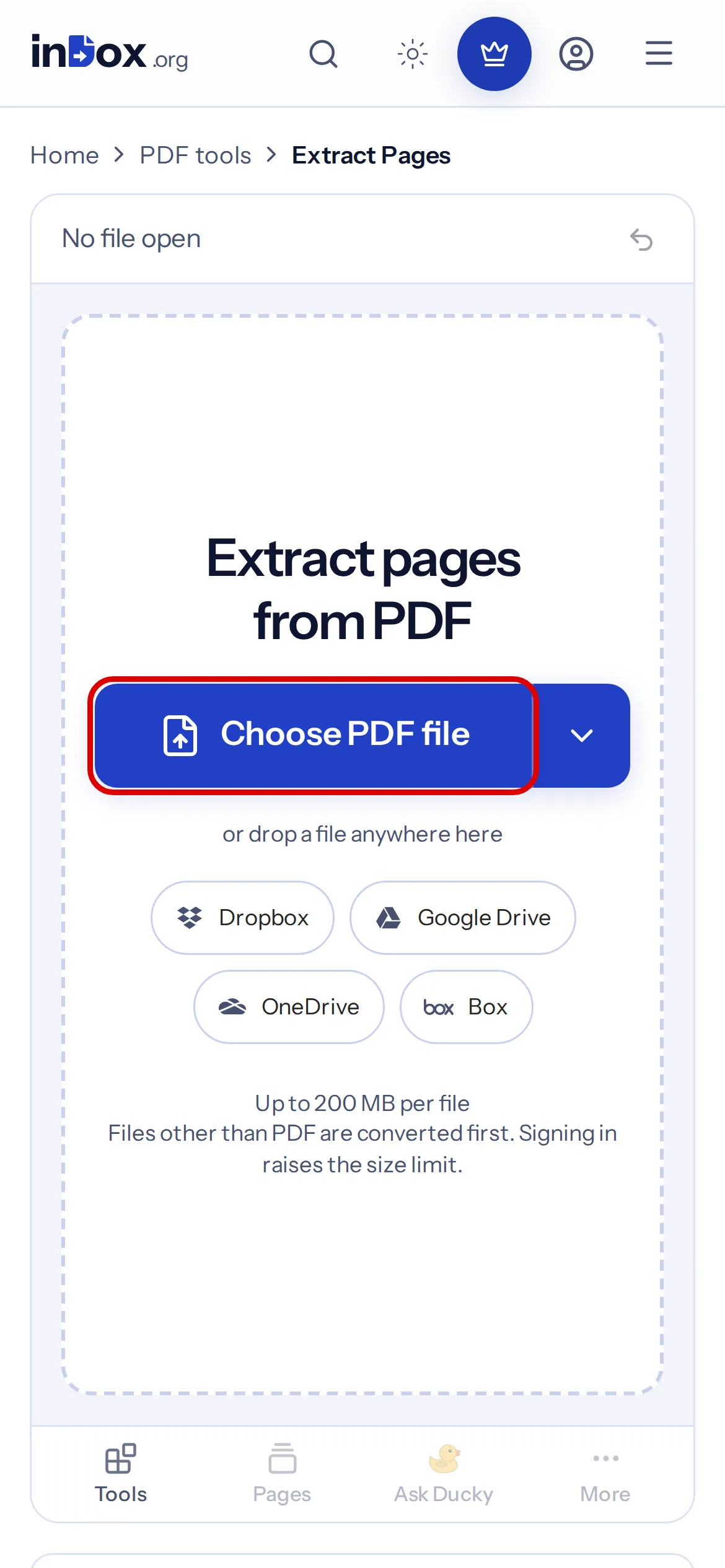
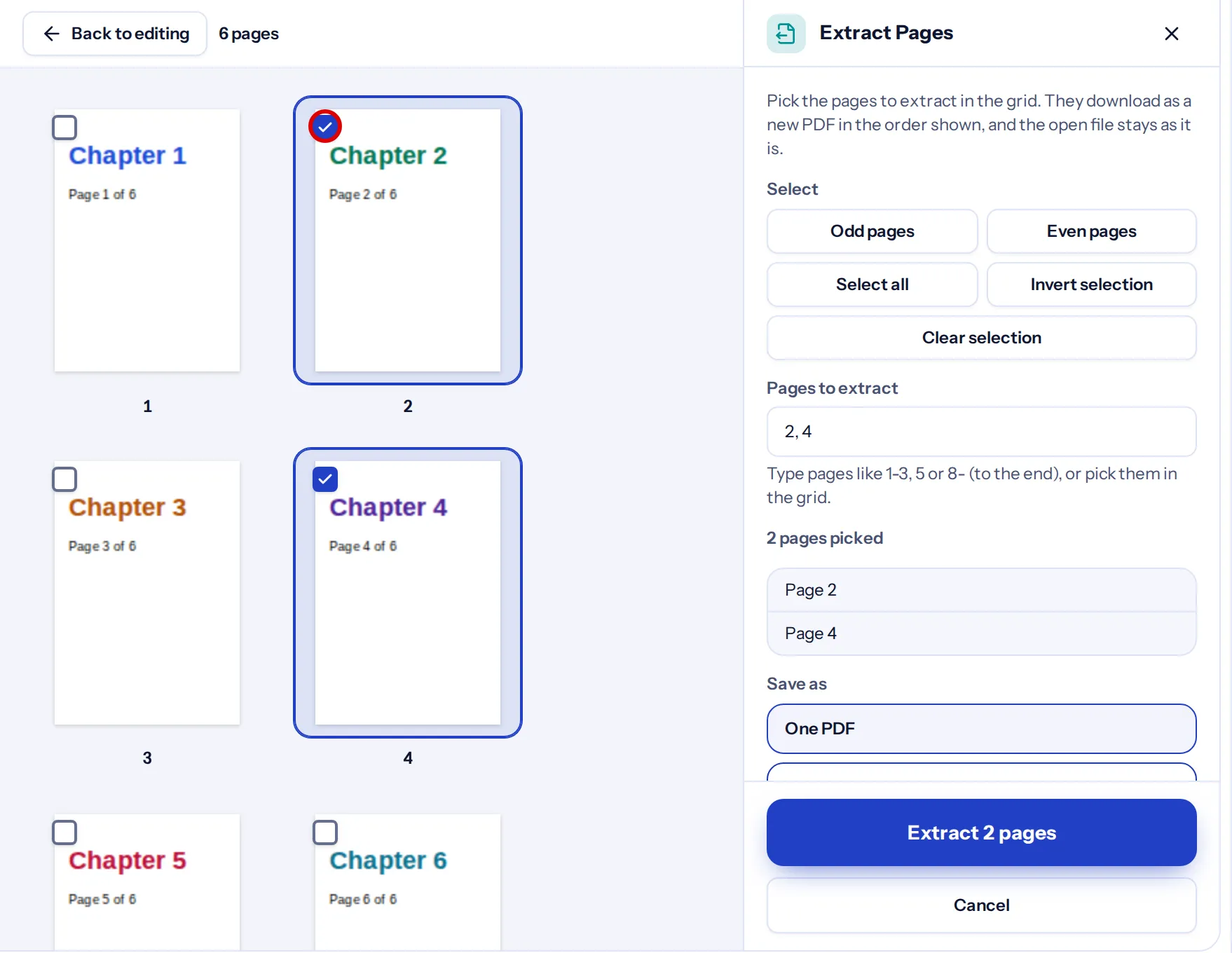
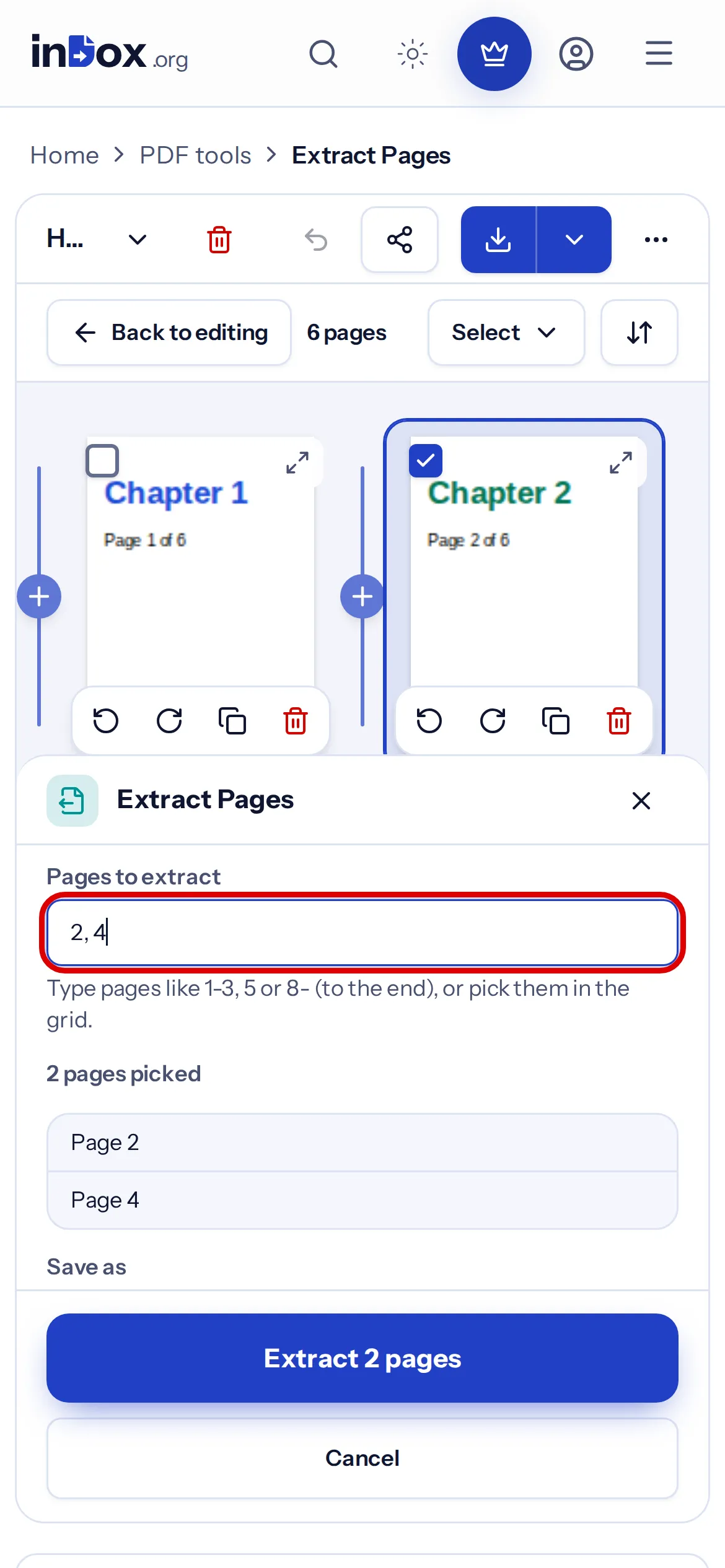
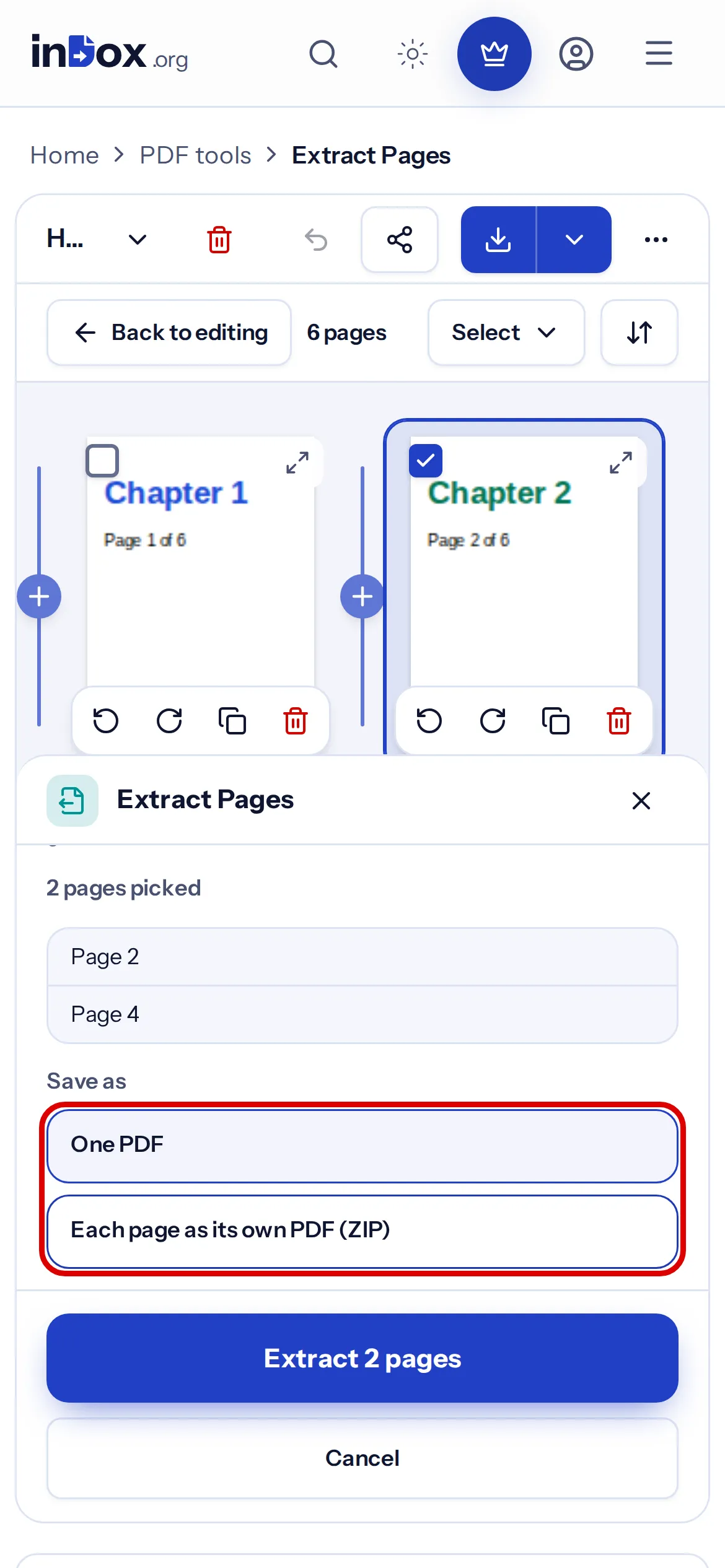
Go to the Extract Pages page. In the middle of the page, select the blue Choose PDF file button. A box opens so you can pick a file from your device. You can also drag a file onto the page. When the file loads, your pages appear as small pictures in a grid. An Extract Pages panel opens. On a computer it is on the right. On a phone it slides up from the bottom of the screen.
Pick the pages
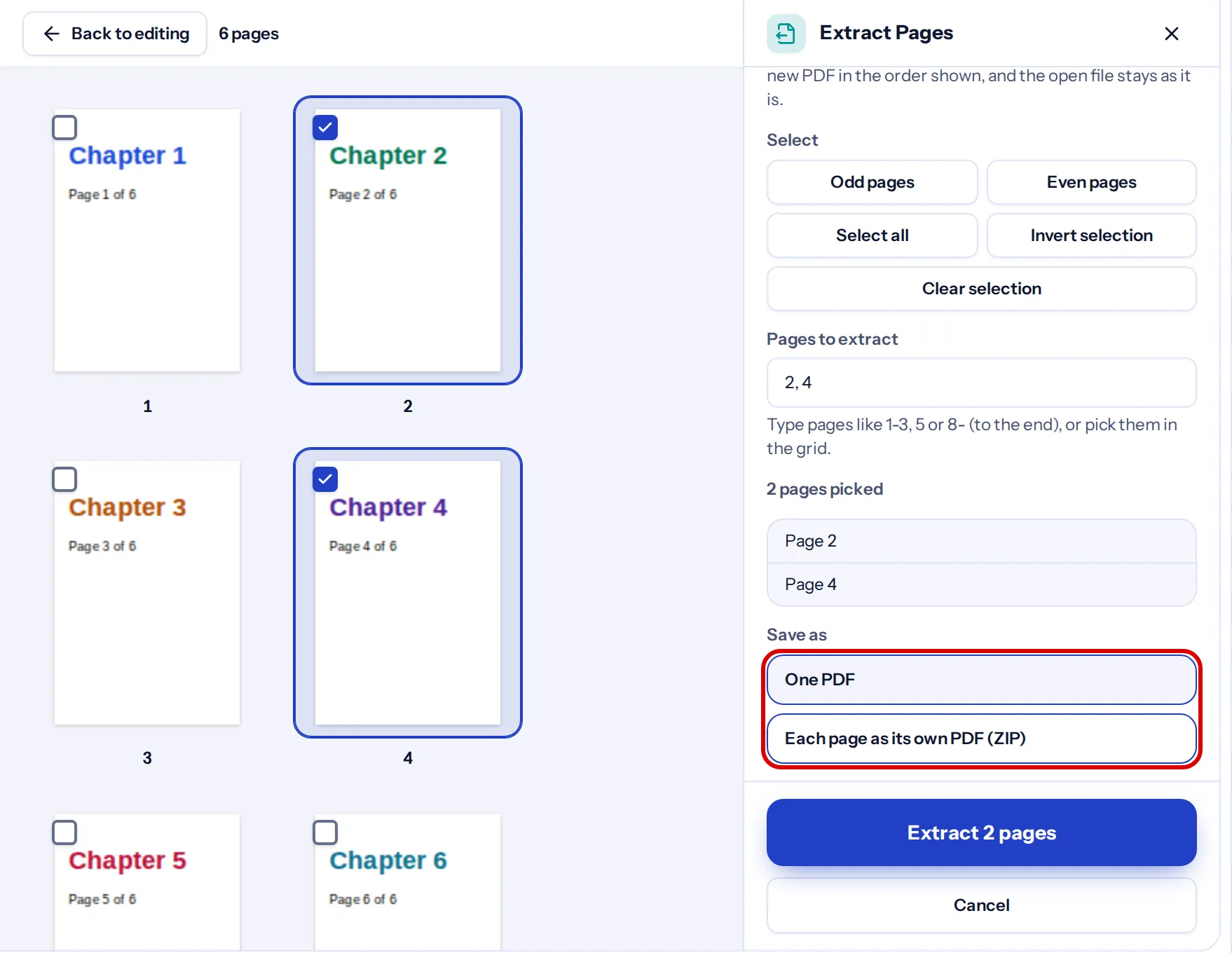
Each page in the grid has a small box in its top left corner. Select the box of every page you want to keep. A tick shows the page is picked, and the panel says how many pages you picked, for example 2 pages picked. For many pages, use the quick buttons under Select: Odd pages, Even pages, Select all or Invert selection. Clear selection starts again. You can also type page numbers in Pages to extract, like 1-3, 5. On a phone you may need to scroll the panel to find that box.
Choose how to save
Scroll the panel down to Save as. One PDF puts all the pages you picked into one file. Each page as its own PDF (ZIP) makes one PDF per page and packs them together in a ZIP, which is one file that holds many files. One PDF is already chosen.
Extract the pages
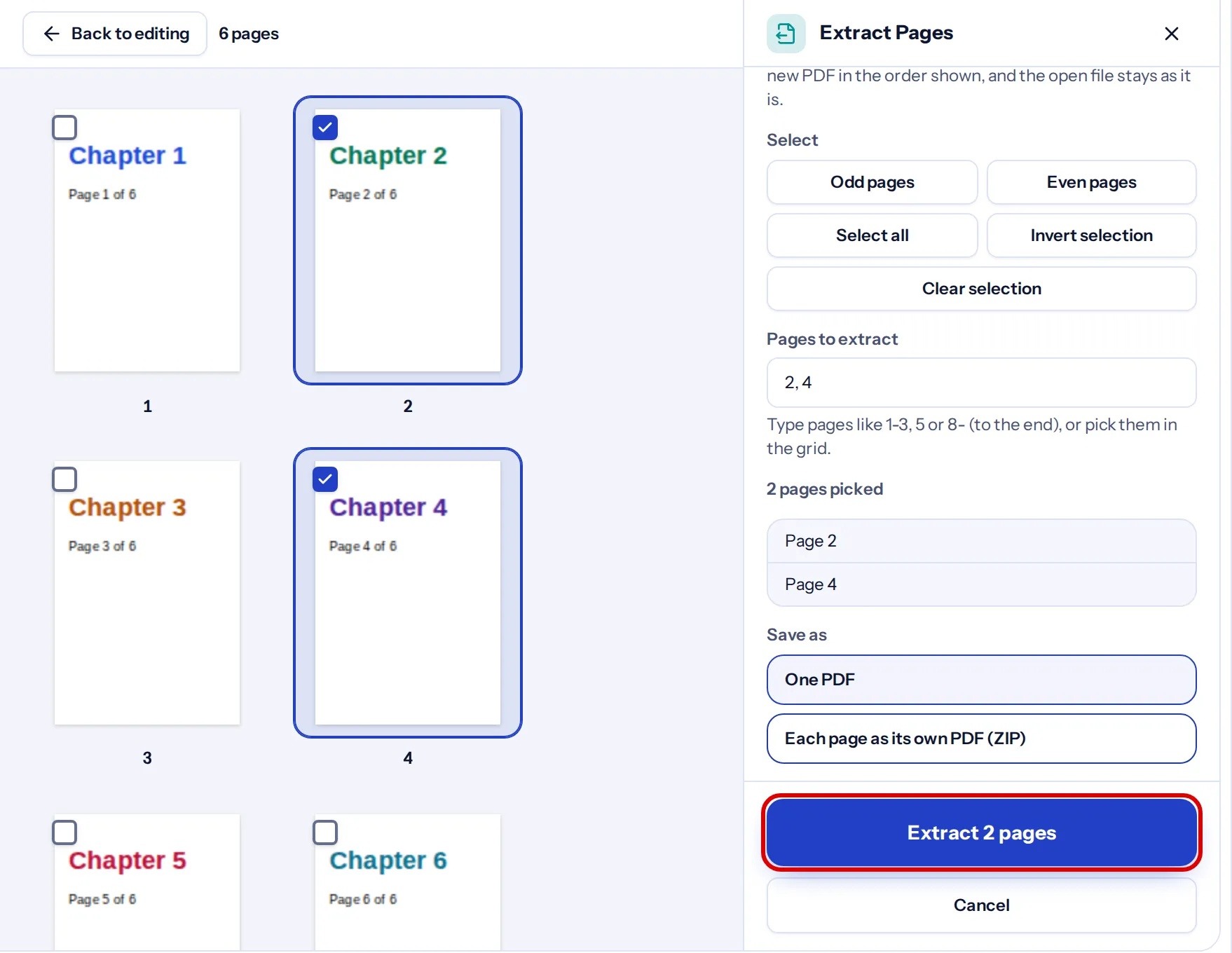
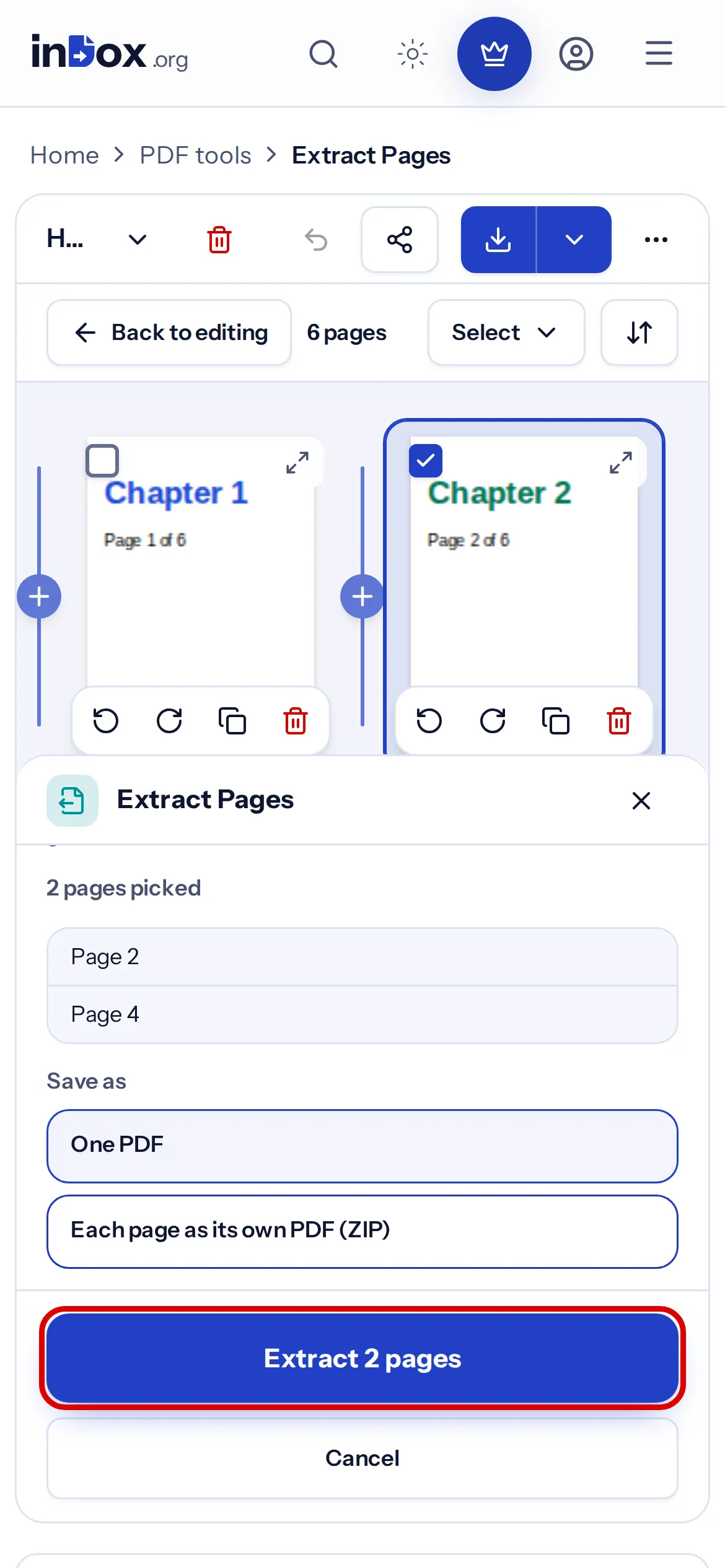
Select the blue Extract 2 pages button at the bottom of the panel. The number on the button is how many pages you picked. It reads Extract pages and stays pale until you pick at least one page. Wait a moment while indox builds the new file.
Save the file
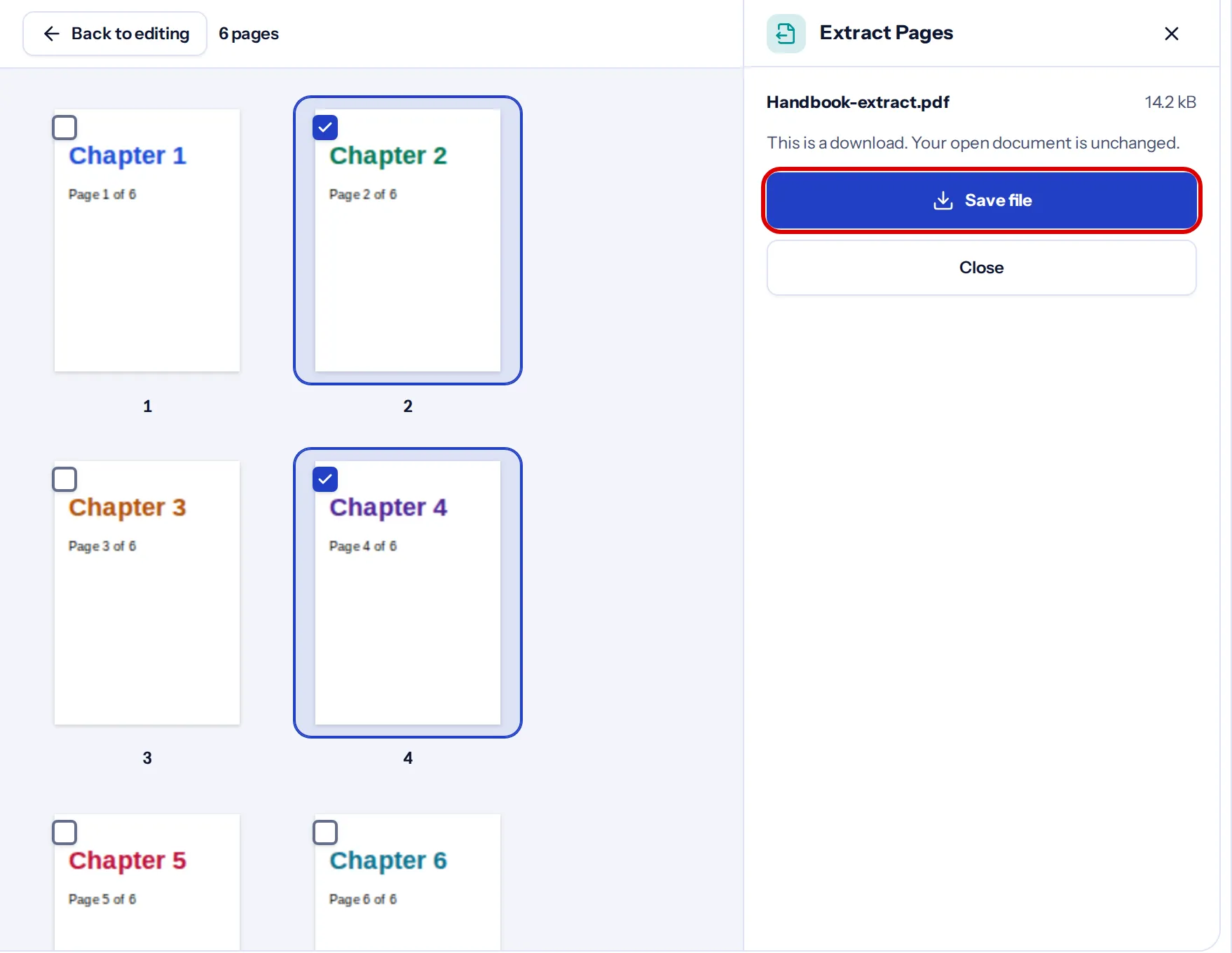
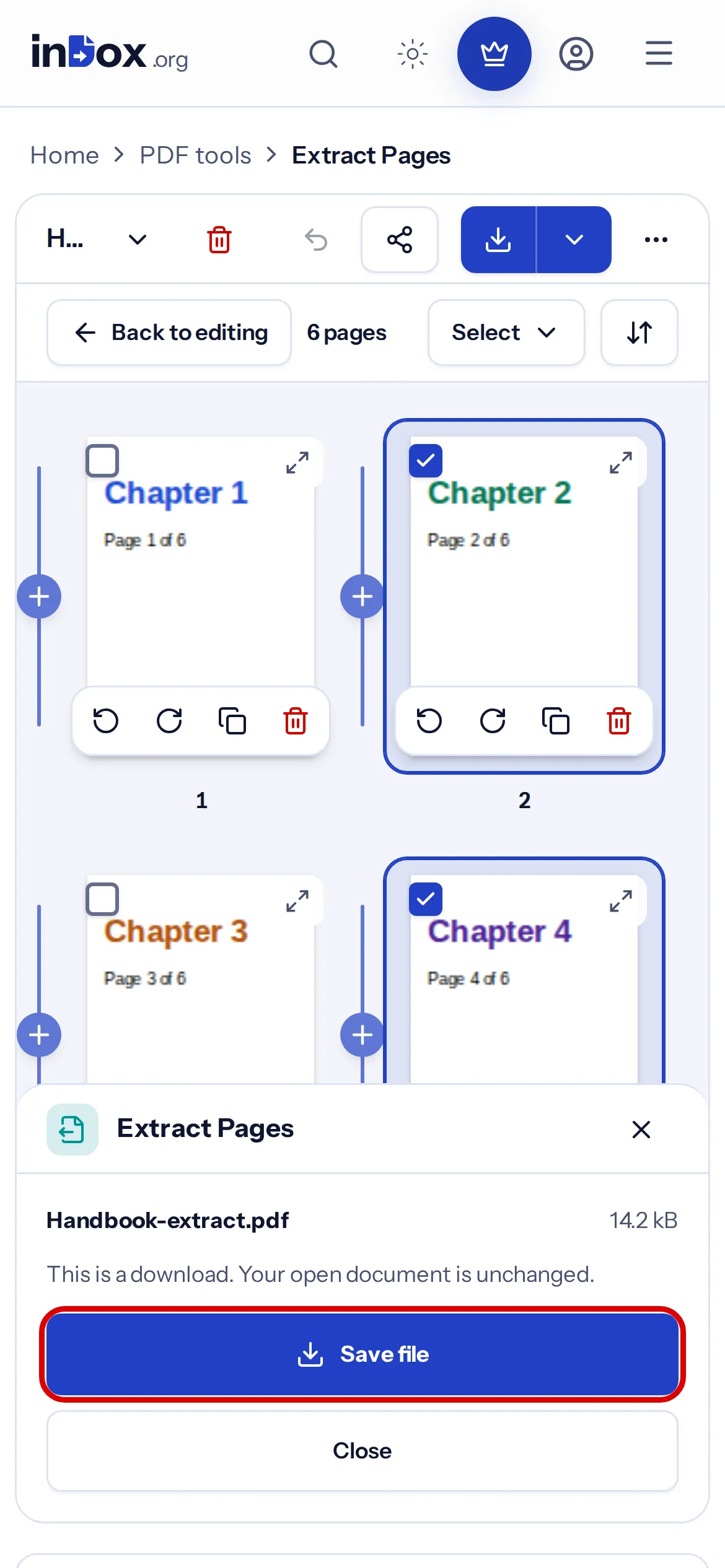
The panel now shows the name of the new file, like Handbook-extract.pdf, and says This is a download. Your open document is unchanged. Select Save file. The new file is saved on your device. Select Close when you are done.
Troubleshooting
| Problem | Cause | Fix |
|---|---|---|
| Extract pages is greyed out | No page is picked yet. The panel says No page picked yet. | Select a page in the grid, or type page numbers in Pages to extract |
| The panel says a page is past the last page | You typed a page number higher than the number of pages in the PDF, for example Page 9 is past the last page (6). | Type only page numbers the PDF has. The count is next to Back to editing |
| The pages come out in a different order than expected | Pages you click come out in the order of the grid. A typed list keeps the order you type | Type the pages in the order you want, for example 5, 1-3 |
| The download is a ZIP | Each page as its own PDF (ZIP) was selected | Select One PDF under Save as and extract again |
| The PDF you opened didn't change | Extracting copies the pages into a new file and leaves the open PDF as it was | Select Save file to get the new PDF |