Mix single pages and ranges
Separate entries with commas and write a range with a hyphen. Typing 1-3, 5, 8 picks pages 1, 2, 3, 5 and 8, and 8- picks page 8 to the end. Persian digits work, and spaces around the numbers are ignored.
or drop a file anywhere here
Files other than PDF are converted first. Signing in raises the size limit.
Extracting pages copies the pages you choose out of a PDF and saves them as a new, shorter PDF. Your file opens as a grid of page thumbnails. Pick the pages by clicking them, with the quick picks, or by typing them in Pages to extract, for example 1-3, 5, then press the Extract button. Pages you click come out in the order of the grid. A typed list keeps the order you type, so 5, 1-3 puts page 5 first. Every page you did not pick is left out, and so are blank pages you added in the grid. Under Save as you choose One PDF, or Each page as its own PDF (ZIP). The open file stays as it is. Extraction suits the case where you want a few pages out of many. When you want almost all of them, Remove pages needs a shorter list, and Split PDF is the tool for cutting a whole document into parts. Use One PDF for anything you will share. The limits below describe what Each page as its own PDF (ZIP) did in our test.
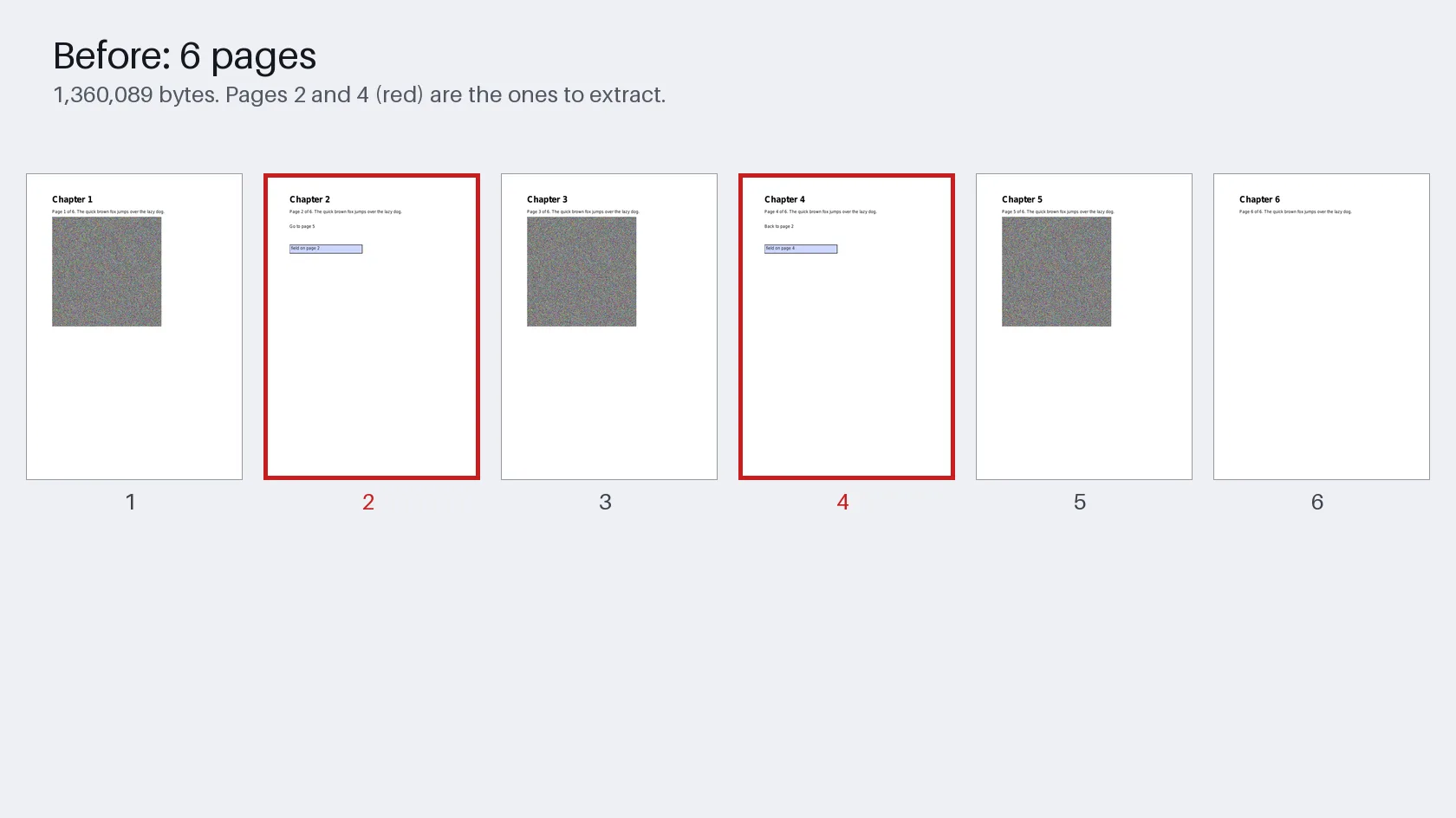
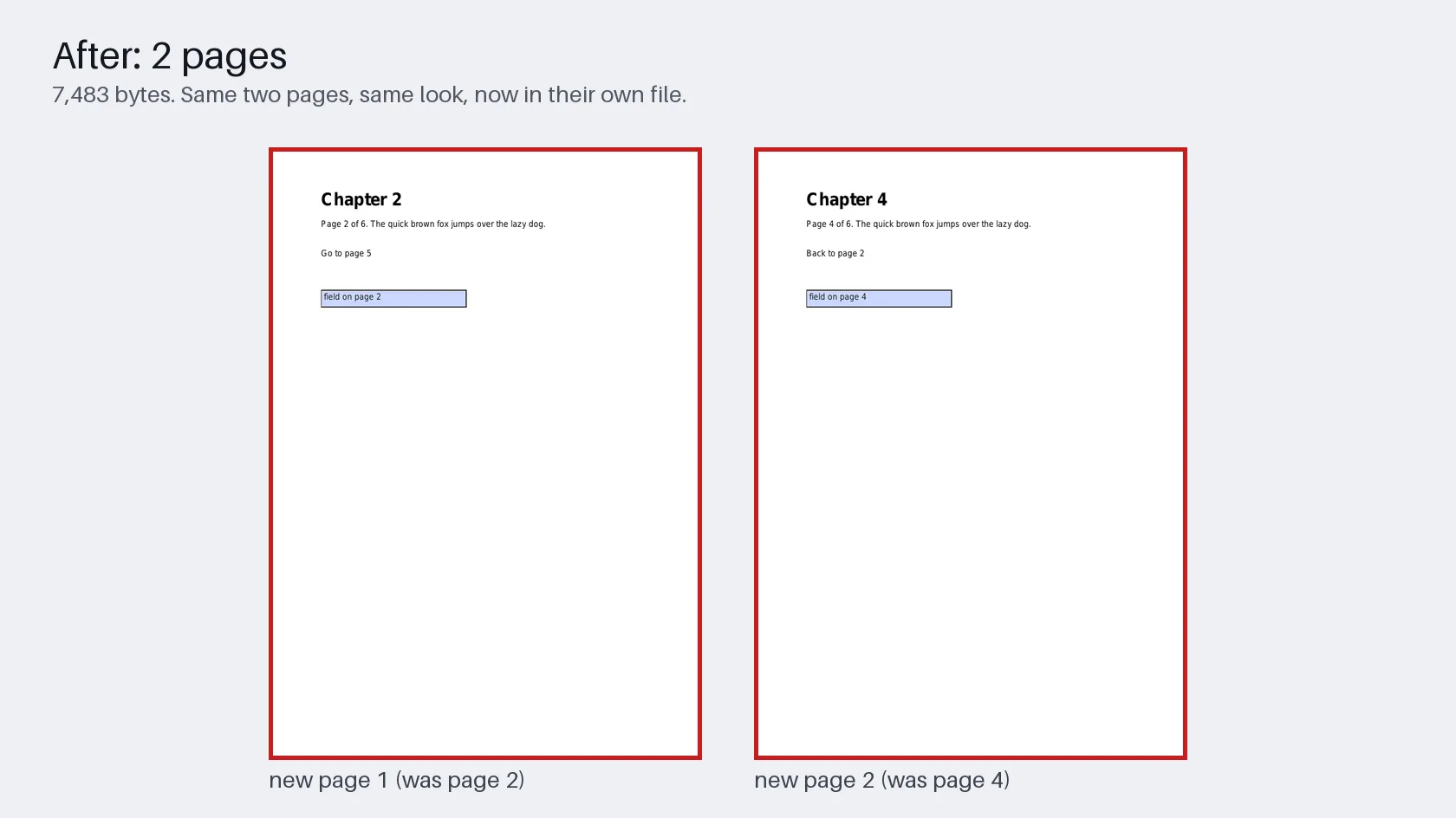
Our own 6-page test PDF (1.36 MB, 6 bookmarks, 2 form fields), run on indox.org with pages 2 and 4
Separate entries with commas and write a range with a hyphen. Typing 1-3, 5, 8 picks pages 1, 2, 3, 5 and 8, and 8- picks page 8 to the end. Persian digits work, and spaces around the numbers are ignored.
Click thumbnails in the grid, or use the quick picks Odd pages, Even pages, Select all, Invert selection and Clear selection. The picked pages are listed under the box, and the button shows the count, for example Extract 3 pages.
Under Save as, choose One PDF, with the picked pages in grid order or in the order you typed, or Each page as its own PDF (ZIP), for when every picked page should be a separate file. In our test the ZIP kept more than it should, so use it only for files that stay with you.
With One PDF the download is a single PDF with nothing to unzip. Pages are copied as they are and never re-rendered, so text stays selectable and images keep their quality. In our test the text, fonts and page sizes matched the source and no pixel differed.
Drop the file on the upload box, or click the box to pick it from your device.
Click thumbnails, use a quick pick, or type pages in Pages to extract, such as 1-3, 5 or 8-. Under Save as, choose One PDF, which is the safe choice for a file you will share. Each page as its own PDF (ZIP) is also there; read the limits first.
Press the Extract button, which shows the count, for example Extract 2 pages. The panel shows progress and the steps, and Cancel stops the job. When it finishes, save the file, or choose Save ZIP for single pages.
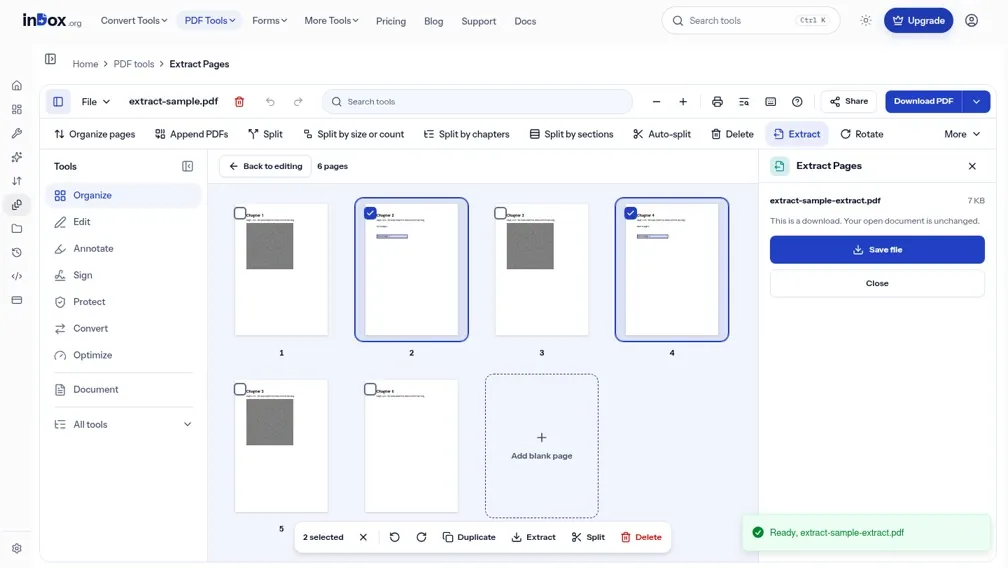
You see the pages as a grid and pick them by clicking or typing, and the button shows how many will be extracted. The open file stays as it is, so you can pick again and run another extraction. Blank pages you added in the grid are not part of the file, so they are left out. A list the tool cannot read shows a message under the box instead of running, so you do not download a PDF that is missing a page you asked for. Our test run needed no account. The extraction runs on indox's server, which deletes your PDF and the new file after 24 hours when you are not signed in.
| What you see | Why | What to do |
|---|---|---|
| A message appears under Pages to extract | An entry cannot be read, or a page number is past the last page | Fix the entry. The message names the page and the page count. Use numbers and ranges such as 1-3, 5 or 8-. |
| The pages come out in the wrong order | Clicked pages follow the grid. A typed list keeps the typed order until you click a page after typing | Type the pages in the order you want, or move them in the grid first. Reorder PDF Pages also works. |
| Bookmarks you expected are missing | Bookmarks come along only for the pages you keep | Pick the pages the bookmarks point to as well, then extract again. |
| A link in the new file does nothing | The link pointed to a page you left out. It stays in the file with nowhere to go, and indox shows no warning | Pick the target page too, or check the links in the new file before you send it. |
| The ZIP parts are large or hold more than their page | In our test the ZIP route copied the shared image into every part and kept the other picked pages inside each part | Use One PDF, once for each page you need, and do not share the ZIP parts. |
| The new file is almost as big as the original | A kept page uses a large image. Size follows the images on kept pages, not the page count | Leave out the pages that carry the big image if you can. In our test two pages without it came out at 7.5 KB. |
| You wanted several files, not one | Save as is set to One PDF | Run One PDF once for each file, use Each page as its own PDF (ZIP) only for files that stay with you, or cut the document into parts with Split PDF. |
| The file asks for a password | It is password-protected | Enter its password when the editor asks. Extract runs with it, or remove it for good with Unlock PDF. |
Based on our 5 November 2026 test and what each tool does on this site.
| Tool | Use it when | What you get |
|---|---|---|
| Extract pages, One PDF | You want a few chosen pages in one new PDF | One PDF with the picked pages. In our test the bookmarks and fields of those pages stayed |
| Extract pages, Each page as its own PDF (ZIP) | You want one file per page and the files stay with you | A ZIP of one-page PDFs. In our test each part was larger than expected and still held the other picked pages |
| Remove Pages | You want to drop a few pages and keep the rest | One PDF without the pages you list |
| Split PDF | You want the whole document cut into parts | Several files in a ZIP |
| Reorder PDF Pages | You want the same pages in a different order | One PDF with the pages rearranged |
A portal asks for one certificate or transcript page, and yours sits inside a longer scan. Extract that page and upload only what was requested.
A statement or ledger export runs to many pages and the client needs two of them. Keep those pages and send a short file.
You want to share one article or figure from a long report. Extract its page range as a standalone PDF.
Facts checked on November 5, 2026
Click thumbnails, use the quick picks, or type page numbers separated by commas with a hyphen for a range, for example 1-3, 5, 8. 8- means page 8 to the end. Page 1 is the first page in the file, whatever number is printed on it.
Yes, by typing. A typed list keeps its order, so 5, 1-3 gives page 5 and then pages 1 to 3. Pages you pick by clicking follow the grid order, and clicking a page after typing switches back to it. You can also move pages in the grid before you extract.
A picked page appears once. To get a page twice, use Duplicate in the grid to add a copy, then pick both pages.
A message such as Page 12 is past the last page (10) appears under Pages to extract, and your pick stays as it was. Fix the list and press Extract.
With One PDF, bookmarks and form fields on the pages you keep come along. In our test on 5 November 2026, Chapter 2 and Chapter 4 opened pages 1 and 2 of the new file, fields f2 and f4 kept their values and the title stayed. Bookmarks to left-out pages are not in the new file. A link on a kept page to a left-out page stays but leads nowhere.
No, pages are copied as they are, without being re-rendered or turned into images. In our test the text, fonts and page sizes matched the source and no pixel differed.
Size follows the images on the kept pages, not the page count. In our test, pages 2 and 4 of a 1.36 MB file came out at 7.5 KB because the one big image was used only by pages we left out. In an earlier check on 4 November 2026 with the same kind of file, keeping a page that uses the image left the file near 1.36 MB.
With One PDF, not in our test: the new file held two pages and none of the image used only by the left-out pages. With Each page as its own PDF (ZIP) they were: part 1 still held the content of pages 3 and 5. Use One PDF for anything you send to someone else.
Extracting returns one PDF with the pages you picked, or a ZIP of single pages if you choose Each page as its own PDF. Splitting cuts the whole document into several files and returns them in a ZIP.
Open this page in Safari or Chrome and add the PDF. Click the pages or type them in Pages to extract, keep Save as on One PDF, then press Extract. Nothing needs installing, and the steps are the same on Windows.
No. Our test run worked without an account. Signed out, a daily free allowance applies and the PDF can be up to 200 MB. Signing in raises that to 200 MB.