See the sheet count first
Before you run it, the panel says how many pages go on how many sheets of paper, for example 8 pages on 2 sheets. If the count is not a multiple of 4, it also says how many blank pages are added to fill the last sheet.
or drop a file anywhere here
Files other than PDF are converted first. Signing in raises the size limit.
A booklet puts your pages in print order, so a stack of sheets printed on both sides and folded in half reads from the first page to the last. It is for a finished PDF that you will print yourself, fold and staple, such as a program, a zine, a handbook or a proof copy. Add your PDF and press Make booklet. Before you run it, the panel says how many sheets of paper the file needs and how many blank pages it will add if the page count is not a multiple of 4. The only option is a border around each page. When the booklet is ready, the pages look out of order on screen, and that is expected. The panel then lists the print steps: print on both sides of the paper, flip on the short edge, fold the stack in half and staple along the fold. The tool does not print or set the paper size, and links are not kept. The booklet is made on indox's server, and the editor lists Booklet as a tool for a tablet or computer screen.
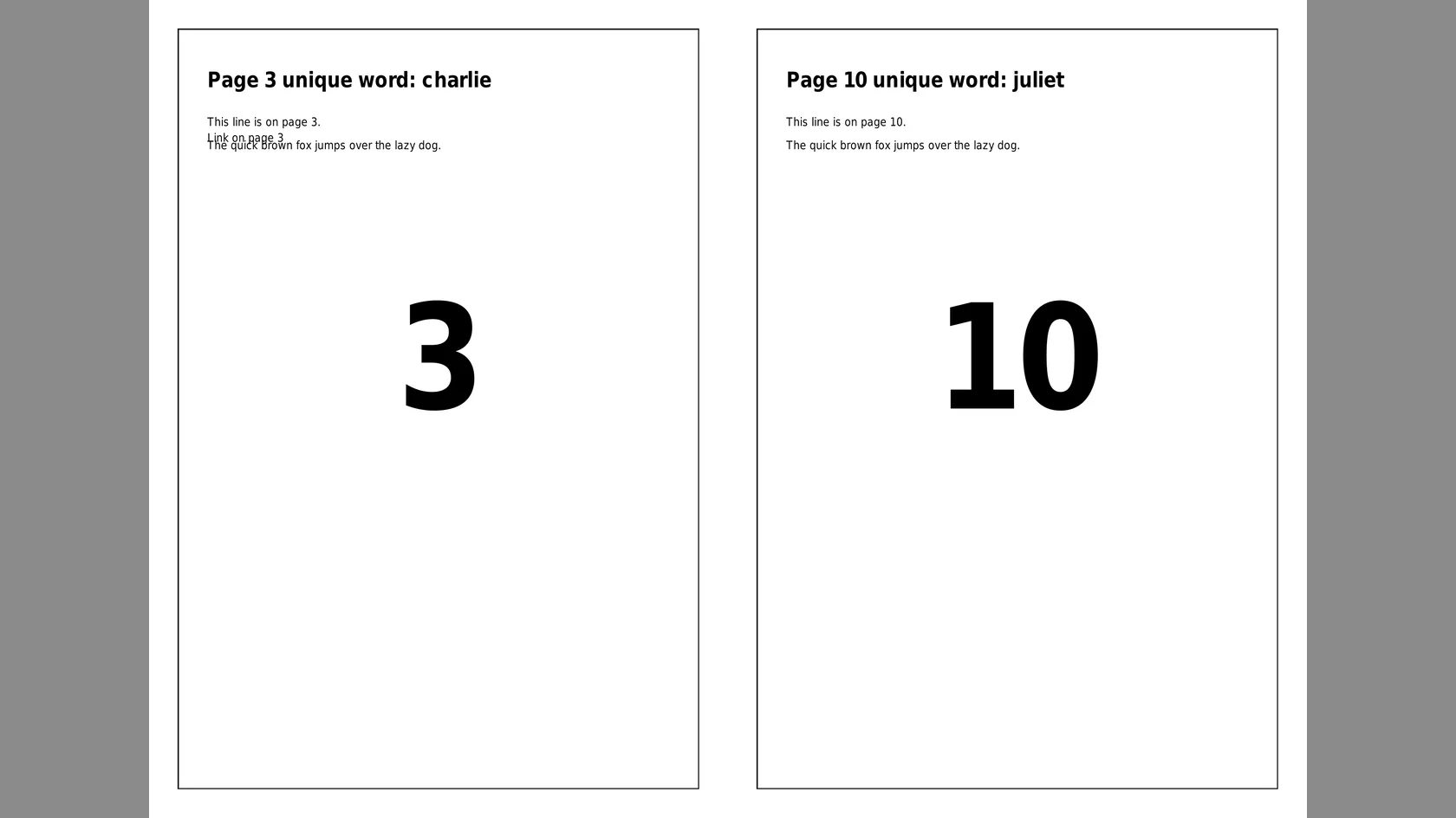
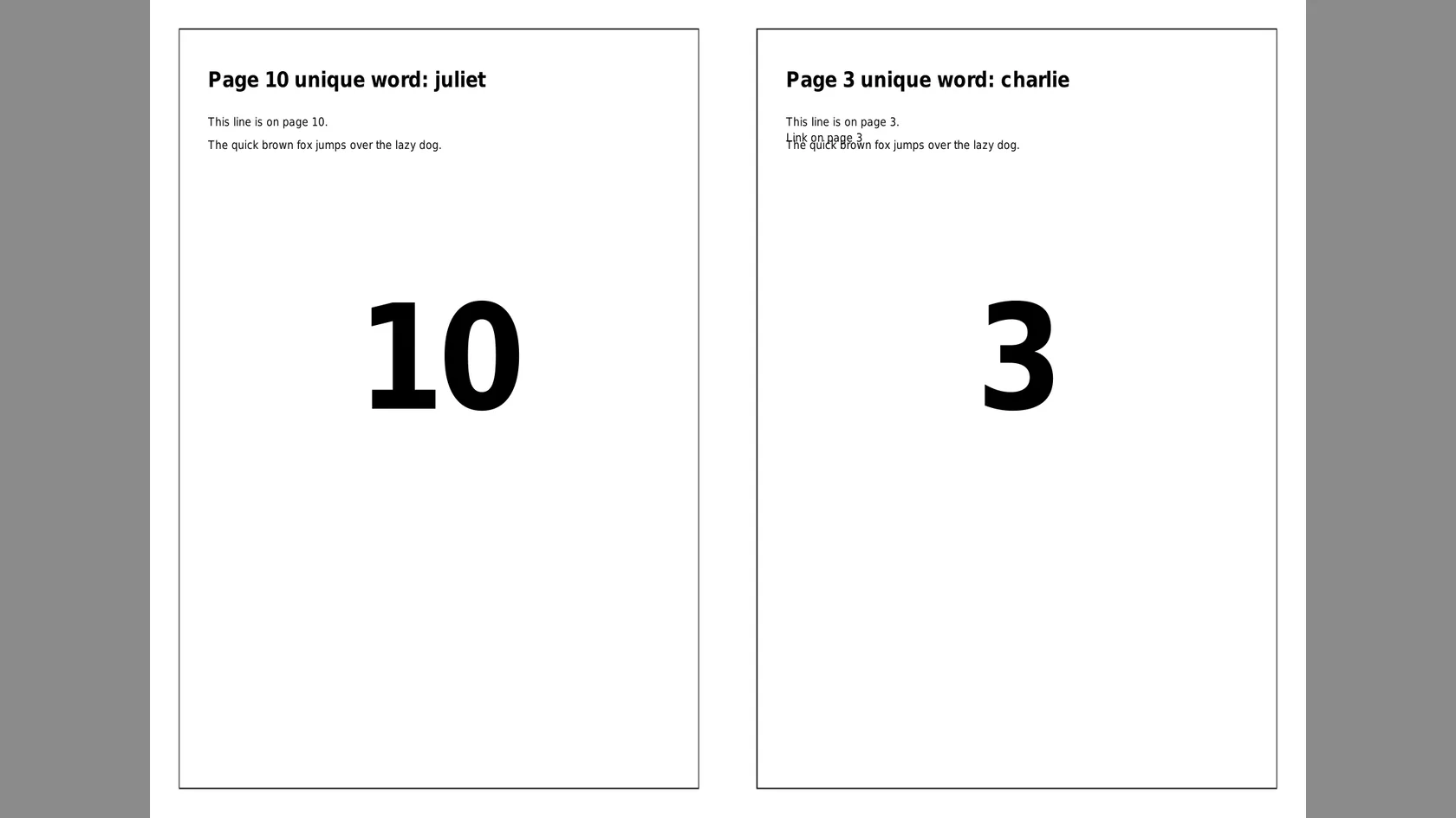
A 10-page A4 test PDF with a big page number on each page and a link on page 3, made into a booklet on indox.org
Before you run it, the panel says how many pages go on how many sheets of paper, for example 8 pages on 2 sheets. If the count is not a multiple of 4, it also says how many blank pages are added to fill the last sheet.
Pages are placed two to a landscape side, in the order that makes a folded stack read correctly: the first page beside the last page of the rounded-up count (a blank one if blanks were added), the second beside the one before it, and so on. In our test the 10 pages came out as blank|1, 2|blank, 10|3, 4|9, 8|5 and 6|7.
Tick Draw a border around each page to outline every page. It is off by default, and it is the only option.
When the booklet is ready, the panel lists three steps: print on both sides of the paper and flip on the short edge, fold the stack in half, staple along the fold.
Drop a PDF on the upload area at the top of the page, or click to choose one. Put the pages in reading order first and delete the ones you do not want, because every page goes into the booklet. A booklet needs at least 2 pages.
Read how many sheets the booklet needs and how many blank pages it adds. Tick Draw a border around each page if you want outlines.
Press Make booklet. When the panel says Booklet ready, download the PDF and follow its three steps: print on both sides and flip on the short edge, fold the stack, staple along the fold.
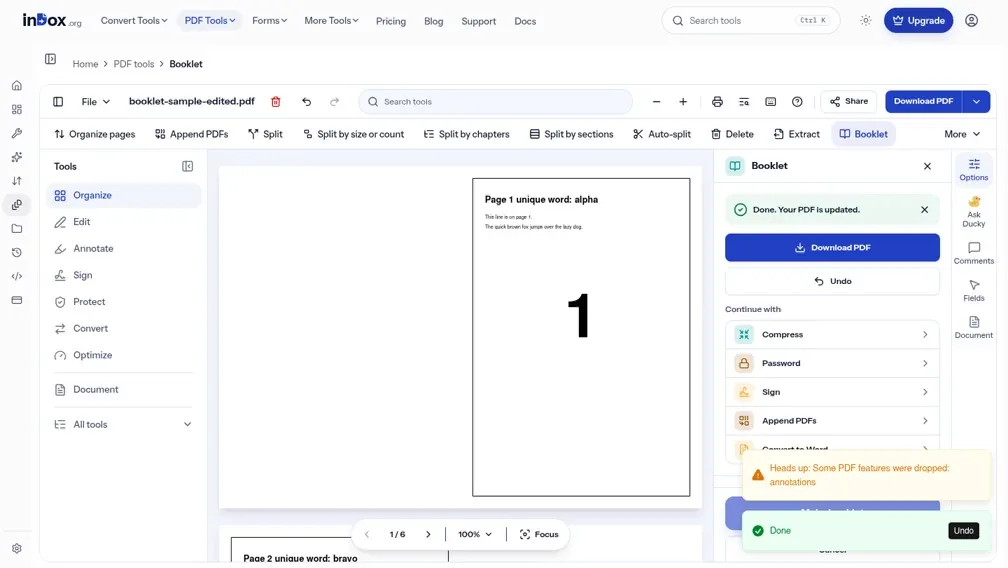
Booklet order is easy to get wrong by hand: with the count rounded up to a multiple of 4, page 1 sits beside the last page, page 2 beside the one before it, and so on through the stack. The panel does that for you and tells you what to expect before you run it: the number of sheets, any blank pages, and what the booklet leaves out. In our test a 10-page A4 file took about 4 seconds from the click to the finished download, came back as 6 A4 landscape sides, and every side held the right pair of pages. When it is done it gives the print steps in plain words. You can make a booklet without an account, and our test run was anonymous.
| What you see | Why | What to do |
|---|---|---|
| The pages look out of order on screen | They are in print order, not reading order | Print one copy on both sides, fold it and check that it reads in order. |
| The last pages are blank | The page count is rounded up to a multiple of 4 with blank pages | This is expected. Add the pages you want there before you make the booklet. |
| The backs of the sheets come out upside down | The printer flipped on the long edge. In our test every side of the booklet was upright in the file | Choose to flip on the short edge in your print dialog and test one sheet. |
| The pages are smaller than the original | Each page is scaled to fit half of a landscape side, 70.7% in our test | Expected for a booklet. To change the paper size, run the result through Scale Pages. |
| Links, comments or form fields are missing | The booklet drops them | Use the booklet for printing and keep your original for anything interactive. |
| A warning says some PDF features were dropped | Annotations such as links are not kept in the booklet | Nothing is wrong with the file. Keep your original if you need the links. |
| The sheet size is not what you expected | The page does not state the output size. A4 pages gave A4 landscape sides in our test | Open the result in your viewer and check the page size before printing. |
| The panel will not run and shows a message | A booklet needs at least 2 pages | Add a PDF with 2 or more pages. |
| You want several pages per sheet and no folding | A booklet is ordered for folding | Use N-up PDF layout instead. |
| Compared on | Booklet | N-up layout |
|---|---|---|
| Page order | Print order, so a folded stack reads from first page to last | Reading order, pages are only placed side by side in a grid |
| Pages on a side | Two, on a landscape side | 2, 4, 9 or 16 on a sheet |
| Blank pages | Added until the count is a multiple of 4 | None needed, nothing is folded |
| Folding and stapling | The stack is folded in half and stapled along the fold | Not folded, each sheet is read flat |
| Best for | Programs, zines, handbooks and proof copies | Handouts, contact sheets and draft review copies |
Programs, newsletters and service leaflets are often short enough to staple. Lay them out as a booklet and print them on an office printer.
A short story, zine or sample chapter becomes a folded proof copy you can hold, mark up and hand to a reader.
Price lists, menus and product guides exported as plain pages can be turned into a folded handout without layout software.
Facts checked on November 5, 2026
It is a PDF whose pages are arranged so that a stack of sheets, printed on both sides and folded in half, reads in order from front to back.
Two of your pages share each side of the result, and the count is rounded up to a multiple of 4 first. An 8-page PDF comes back with 4 sides, which is 2 sheets printed on both sides. In our test a 10-page A4 file came back as 6 A4 landscape sides, with 2 blank pages added.
They are in print order, not reading order. Once the sheets are printed on both sides and folded, the booklet reads from front to back.
A folded sheet holds four booklet pages, so a multiple of 4 fills every sheet. Other counts get blank pages added up to the next multiple of 4. The panel tells you how many before you run it. A booklet needs at least 2 pages.
Draw a border around each page outlines every page in the booklet. It is off until you tick it.
Download the PDF and print it on both sides of the paper, flipping on the short edge. Then fold the stack in half and staple along the fold. Print one copy first to check which way your printer flips.
No. Comments, links, bookmarks, form fields and attached files are not kept. Only what is drawn on the pages carries over, so keep your original for the rest.
No. The only option is a border. To change the paper size afterward, use Scale Pages on the result.
One booklet needs no account, and our test run was anonymous. Signed out, a daily free allowance applies. On a phone, the editor's tool list shows Booklet needs a larger screen, so use a tablet or computer.
Print on both sides and flip on the short edge, which is what the panel tells you after the run. In our test every side was upright in the PDF, so backs that print upside down come from the long-edge setting or from your printer driver. Print one test sheet first, and if your printer cannot print on both sides, check whether its dialog offers manual double-sided printing.