Last updated
Control privacy and site access
Before you start
- The INDOX extension added to Chrome on a computer. You don't need an account for the settings in this guide.
- Site access is the list of websites an extension is allowed to read. Incognito is Chrome's private window, which does not save the pages you visit.
- Under About in the INDOX settings, the page says This extension has no analytics or tracking.
Open Data & privacy
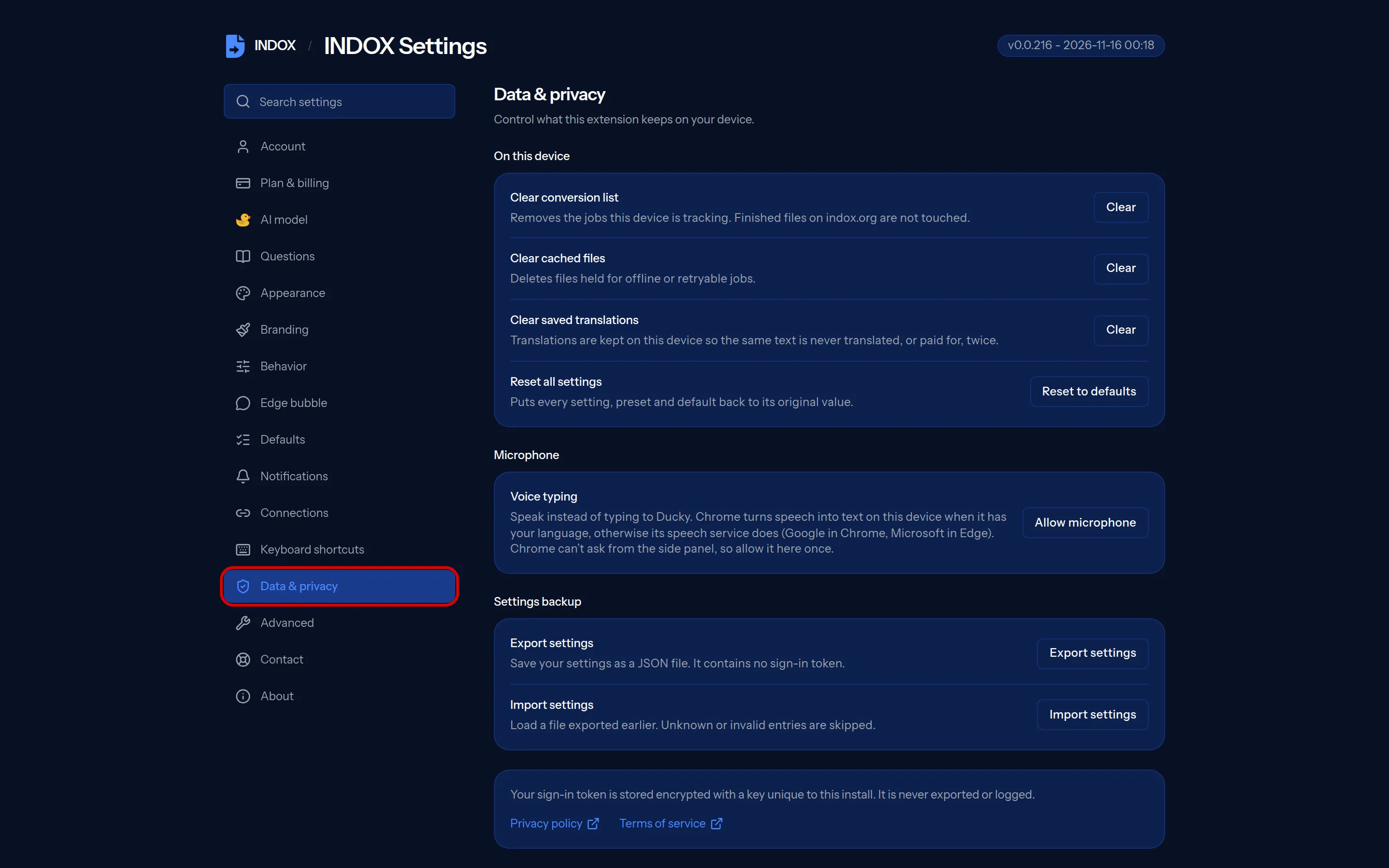
Right-click the INDOX icon in the toolbar and select Options. A new tab opens with the page INDOX Settings. In the list on the left, select Data & privacy. The page says Control what this extension keeps on your device. The toolbar is the row of buttons next to the address bar.
Clear what the extension keeps
Under On this device are three Clear buttons. Clear conversion list removes the jobs this device is tracking, and finished files on indox.org stay. Clear cached files deletes files the extension holds so a job can be retried or run offline. Clear saved translations deletes the translations kept on this device. Select a Clear button, then select it again when it says Click again to confirm. A message such as Conversion list cleared appears.
Ask before anything is sent
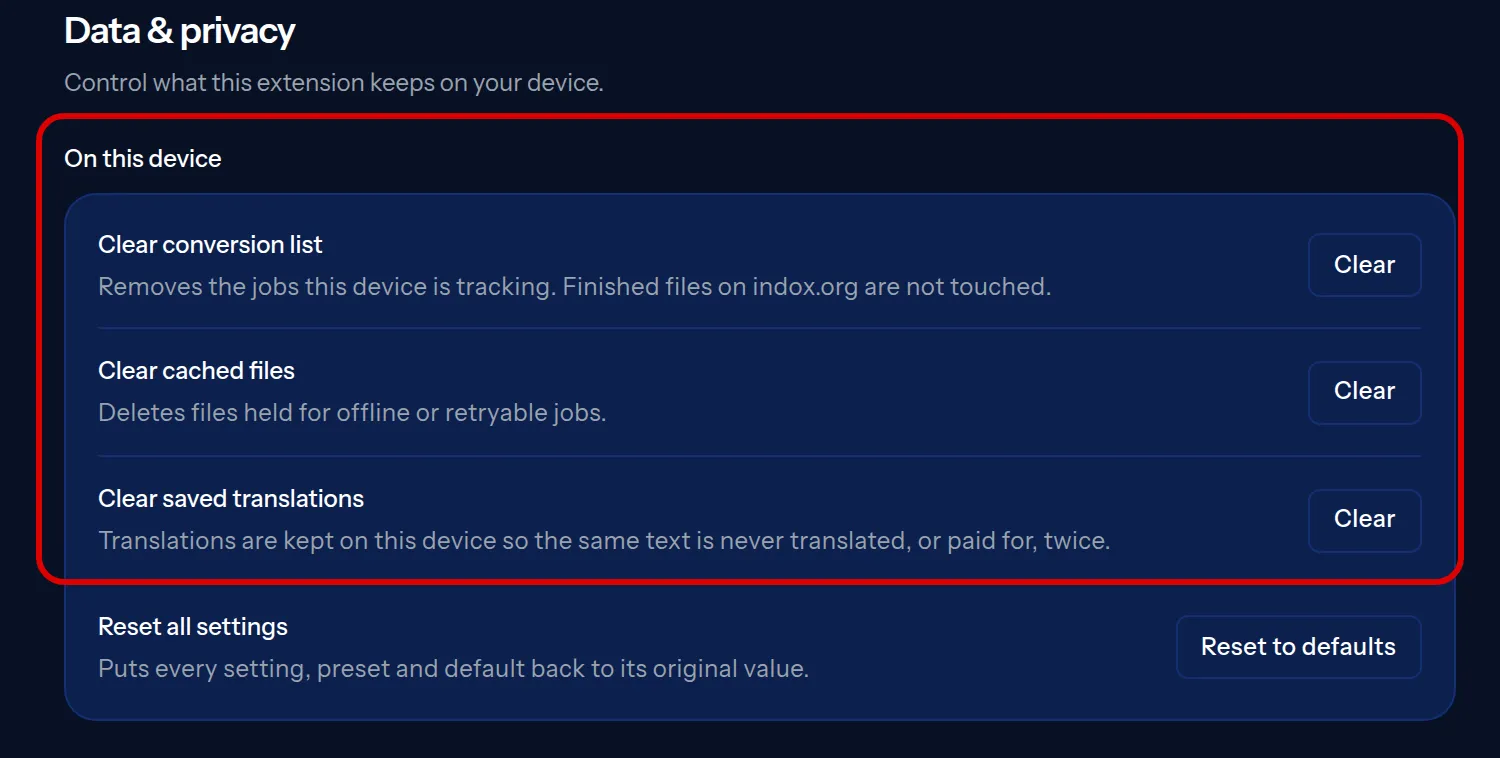
In the list on the left, select Behavior. Turn on Confirm before sending. The page says it will show exactly what leaves your machine and wait for approval. It is off when you first install the extension. Also in this list, Offer to convert downloads is on at first. It shows a notification after a document or font finishes downloading. Turn it off if you do not want that notification.
Open the extension's Chrome page
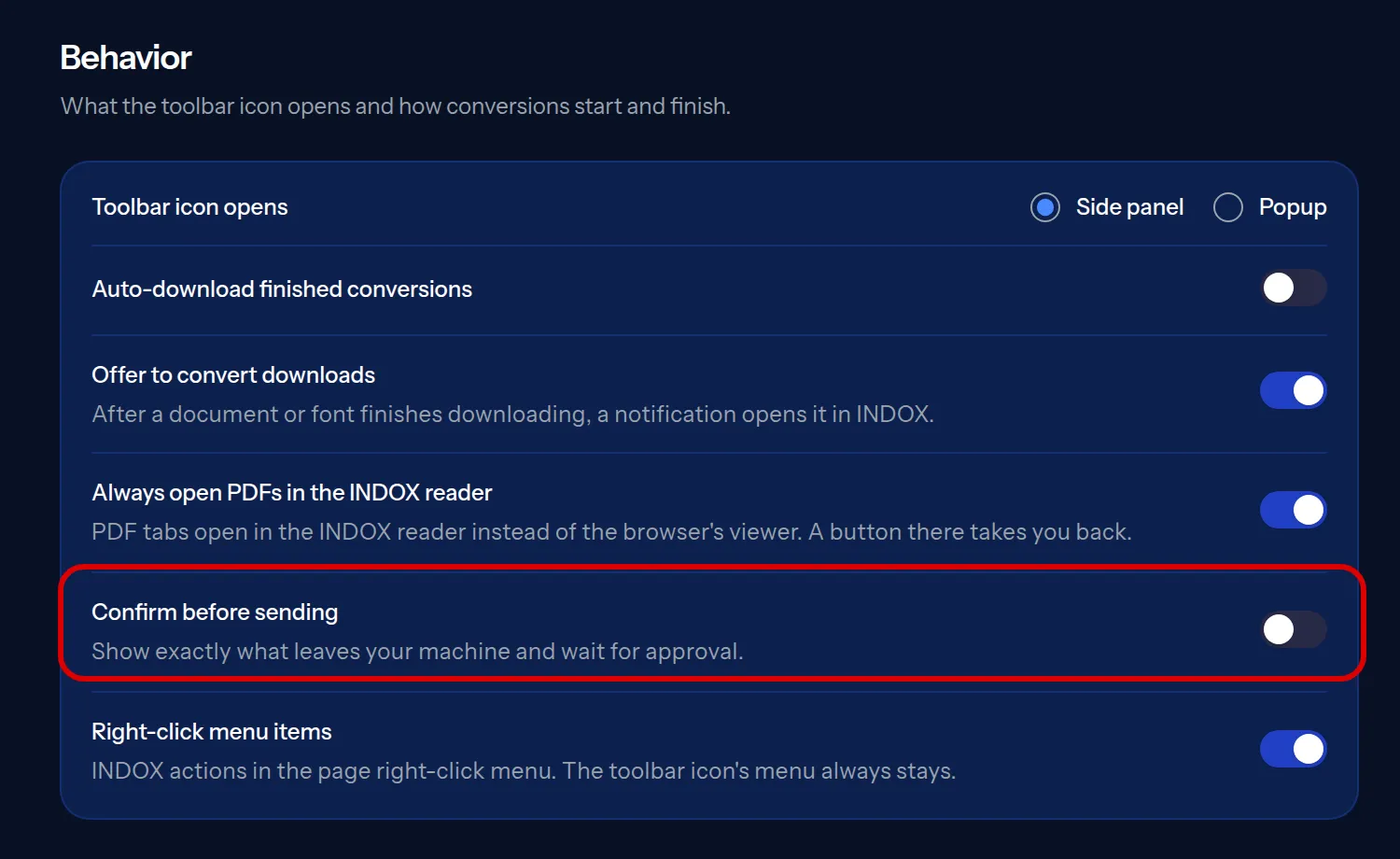
Chrome keeps its own controls for each extension. Select the Extensions icon, which looks like a puzzle piece, to the right of the address bar. Select Manage extensions. Find INDOX and select Details.
Choose which sites it can read
Find Site access. Open the menu next to Allow this extension to read and change all your data on websites you visit. Pick On click to let INDOX work on a page only when you select its icon, On specific sites to choose the sites yourself, or On all sites. With On click, the INDOX button on the edge of web pages stops showing. Reload a page that was already open.

Allow or block private windows
On the same page, find Allow in Incognito. Turn it on if you want INDOX in private windows. Leave it off to keep INDOX out of them. Under the switch, Chrome warns that it cannot stop an extension from recording your browsing history.
Troubleshooting
| Problem | Cause | Fix |
|---|---|---|
| The INDOX button vanished from web pages | Site access is set to On click, or Show the INDOX bubble on web pages is off | Set Site access back to On all sites, or turn the bubble on under Edge bubble in the INDOX settings |
| A Clear button did nothing | The first click only asks you to confirm | Select the button again while it says Click again to confirm |
| INDOX does not work in a private window | Allow in Incognito is off | Turn it on on the extension's Details page in Chrome |
| You can't find Site access | You are in the INDOX settings, not Chrome's Details page | Select the Extensions icon, then Manage extensions, then Details on the INDOX card |