Last updated
Buy extra credits
Before you start
- You need to be signed in to indox.org.
- A card to pay with.
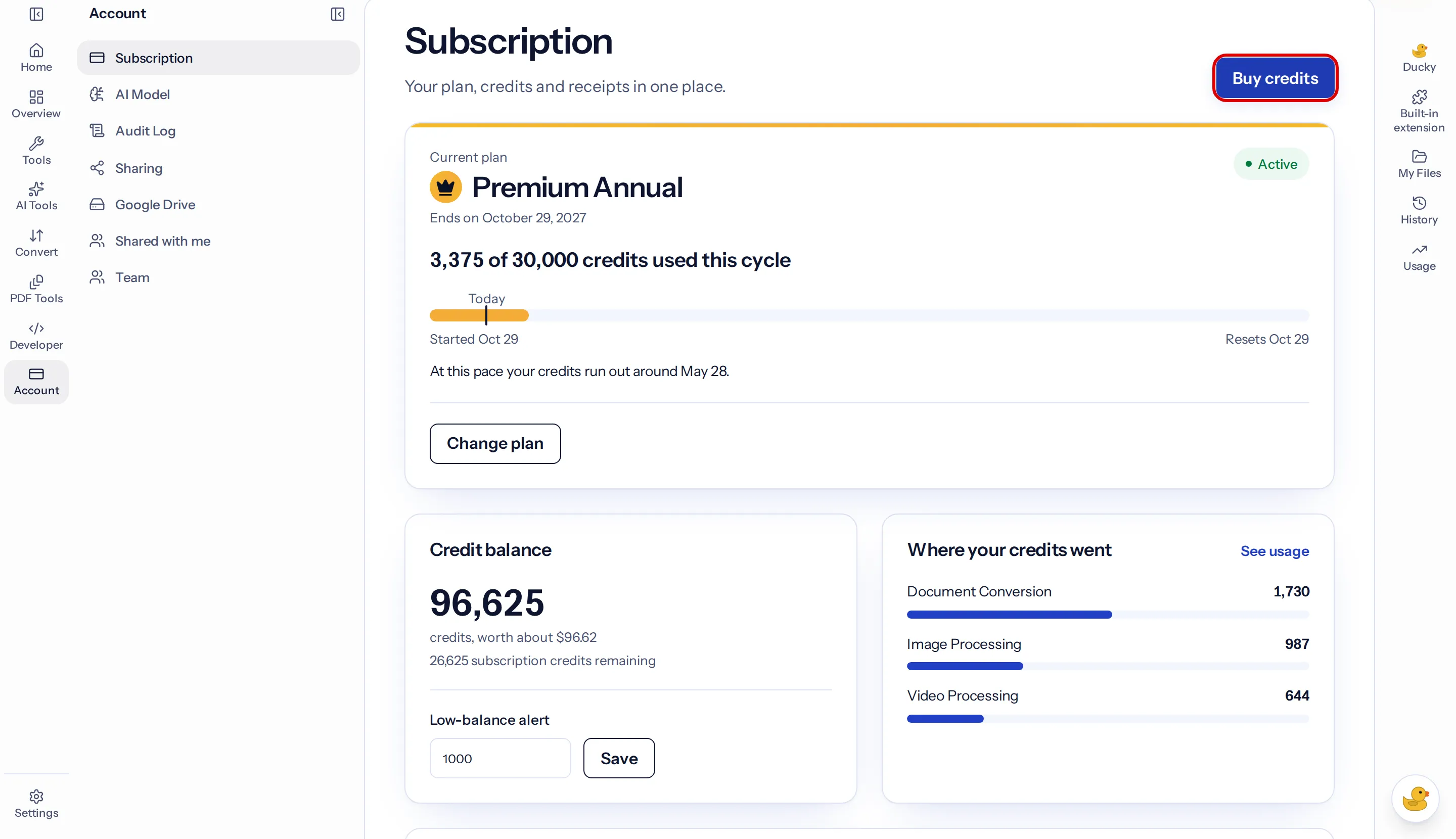
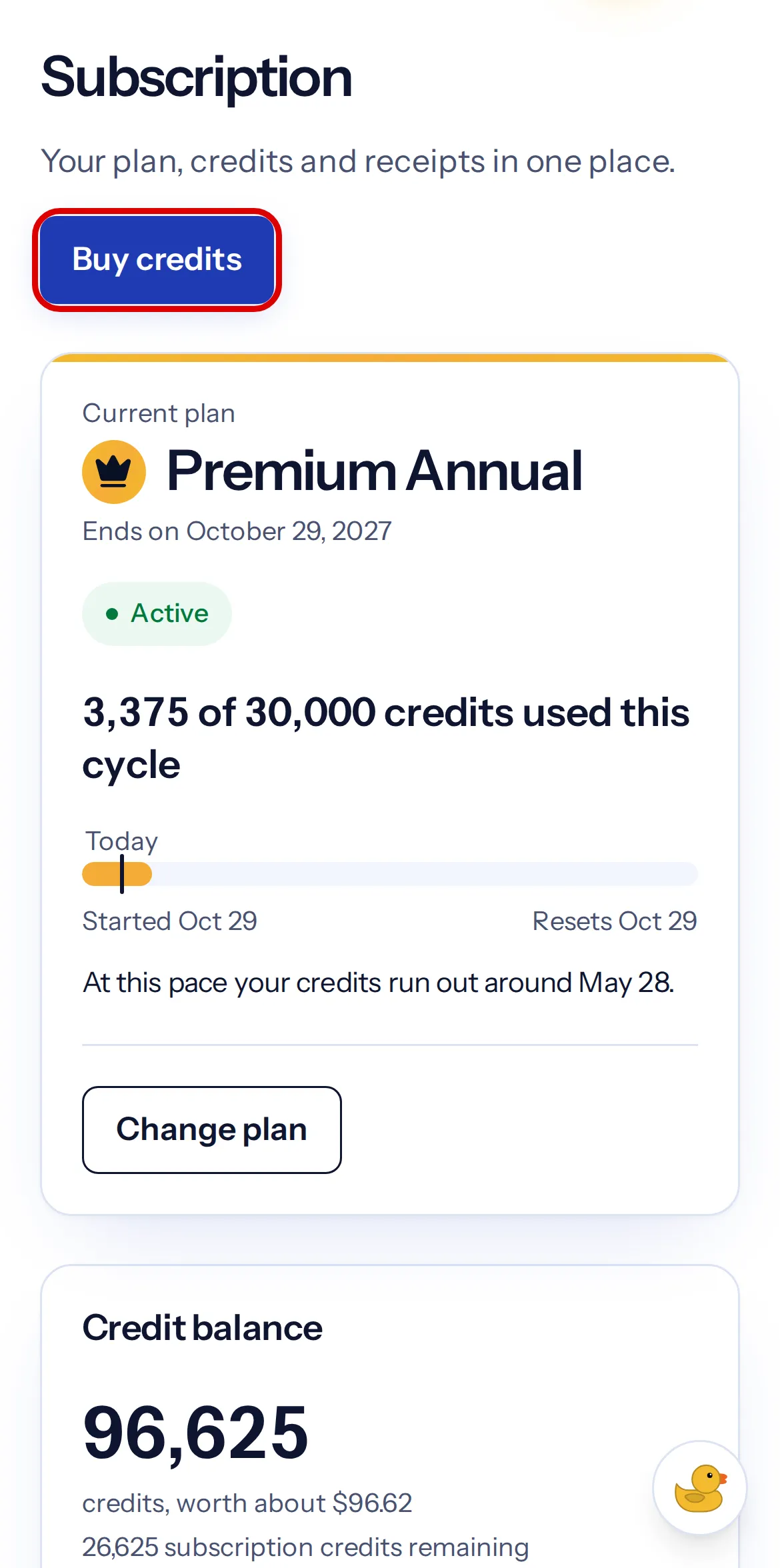
Open the Subscription page and select Buy credits
Go to the Subscription page. On a computer, you can also select Account in the bar on the left, then Subscription. Select the blue Buy credits button. On a computer it is at the top right. On a phone it is under the page text.
Find the top-up amount
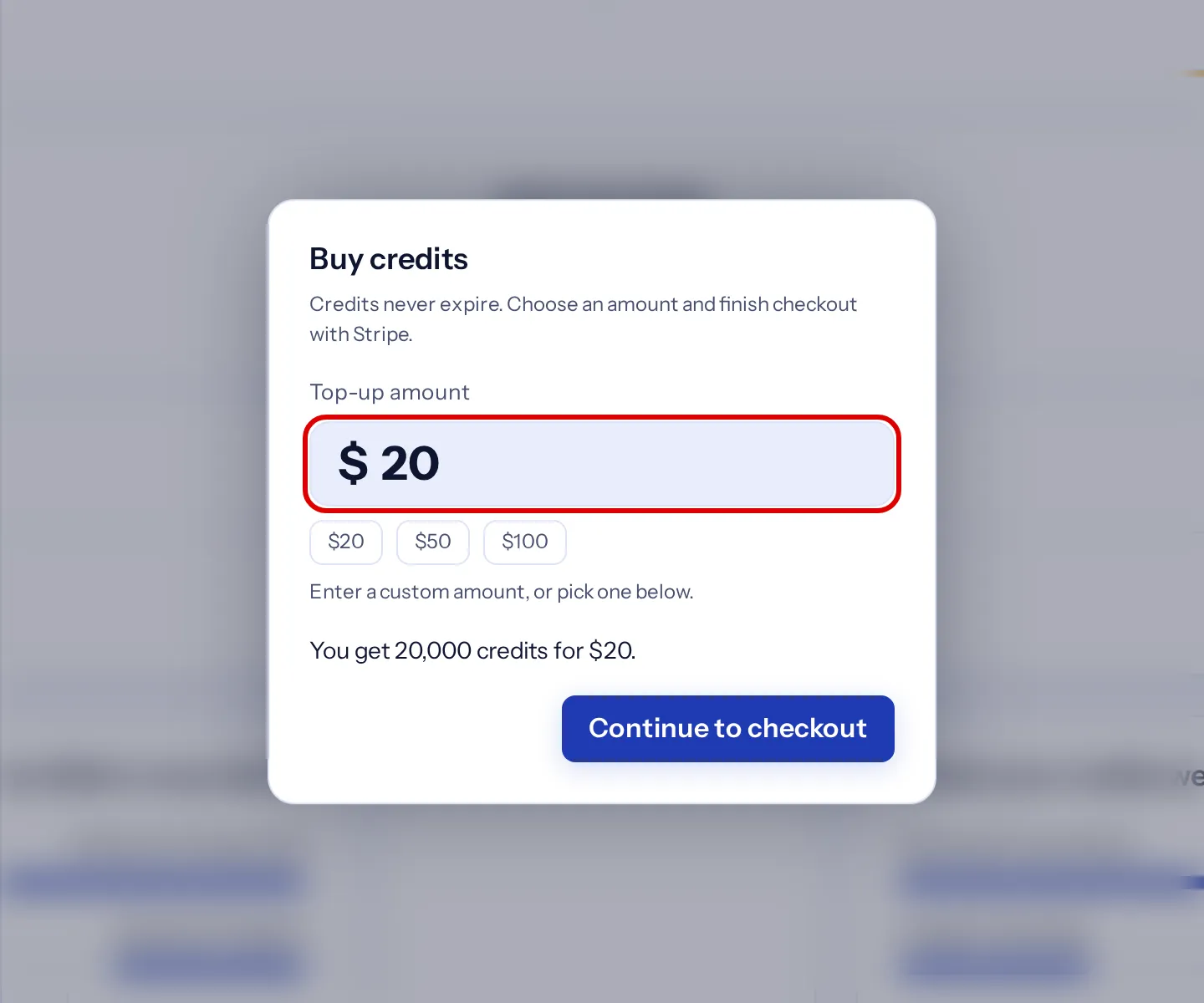
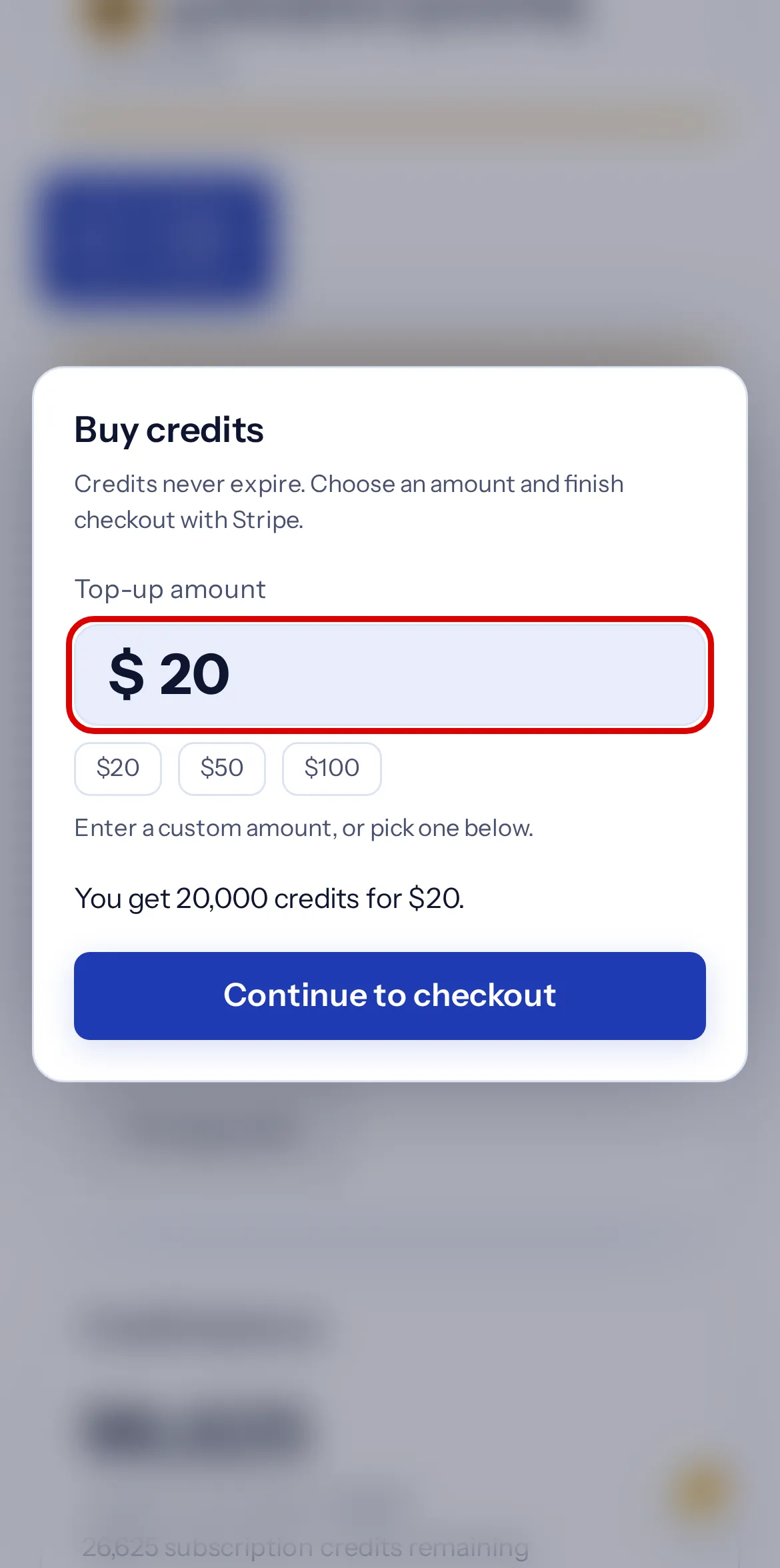
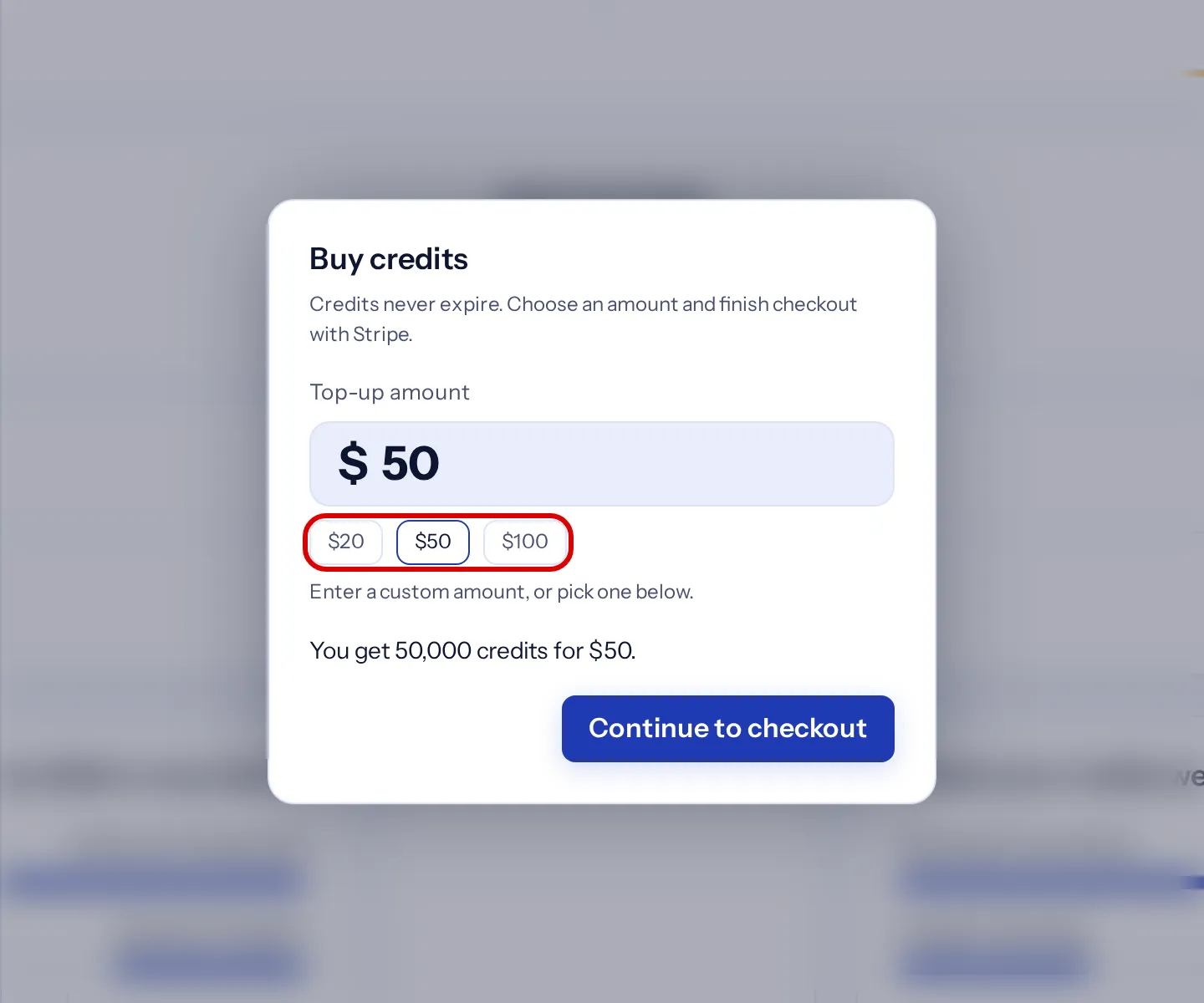
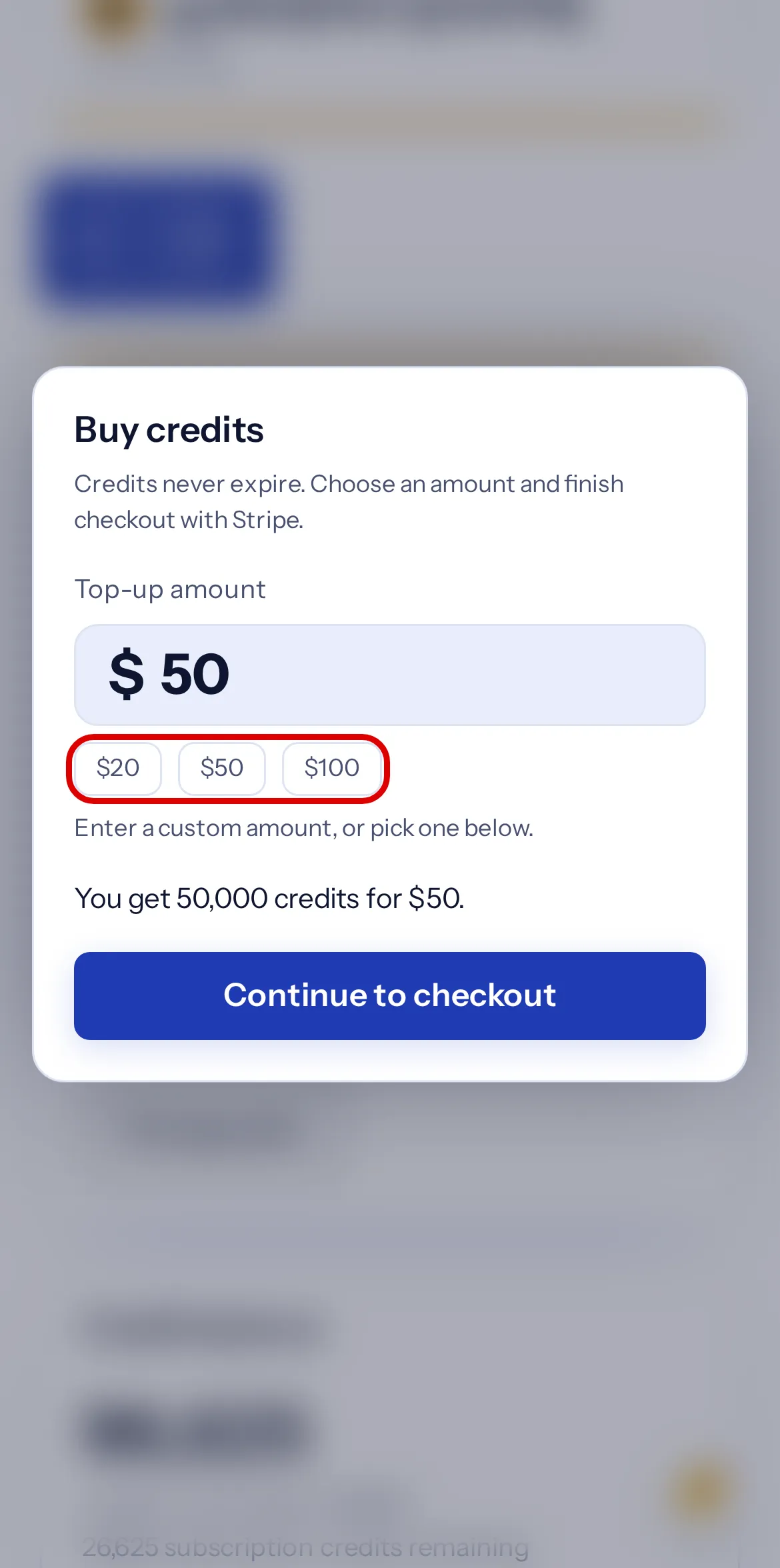
A box called Buy credits opens. It says that credits never expire. The Top-up amount box starts at $20. You can type another amount, from $20 up to $5,000.
Choose how much to spend
Select $20, $50 or $100, or type your own amount. The line under the buttons tells you what you get, for example You get 50,000 credits for $50.
Continue to checkout
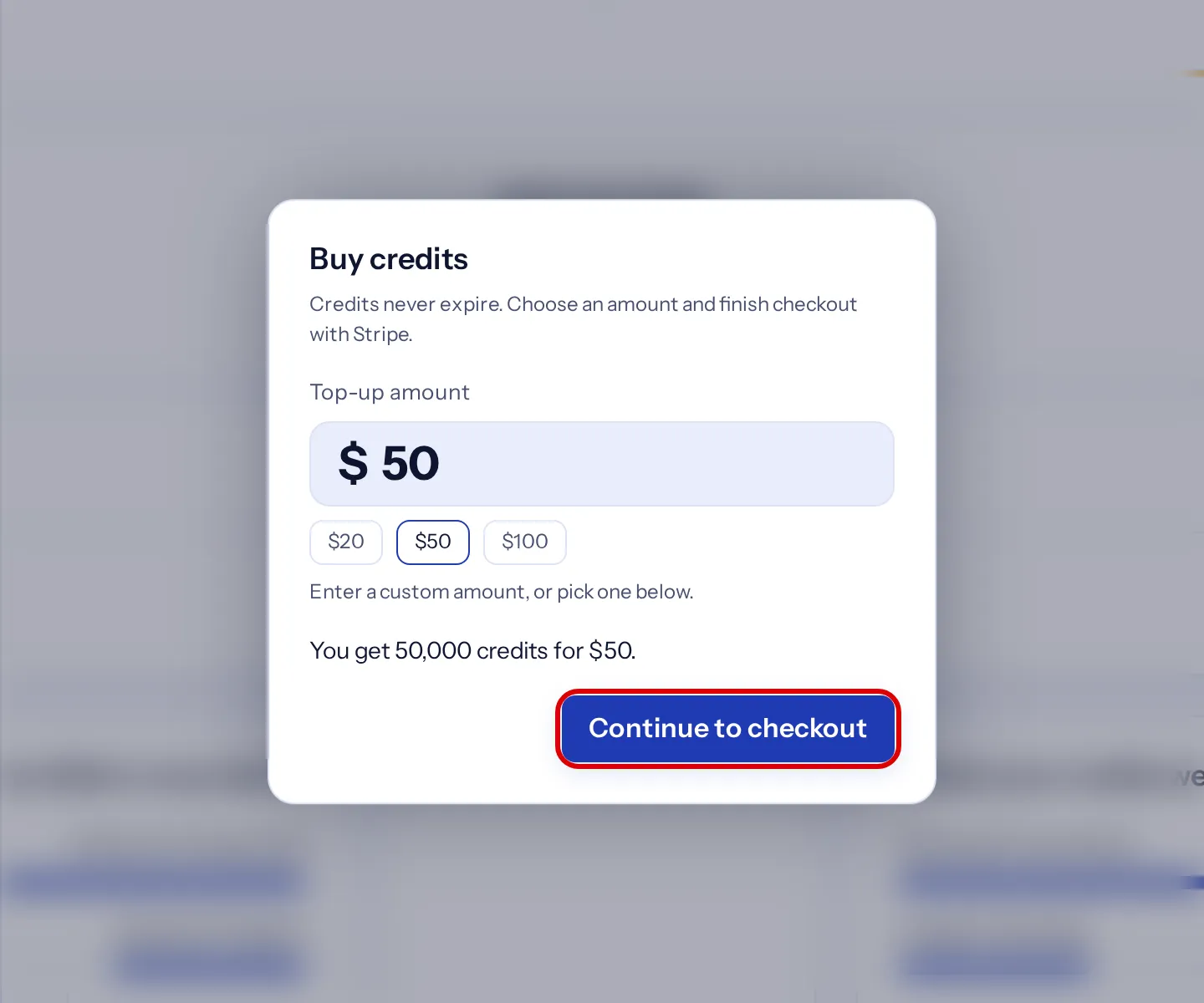
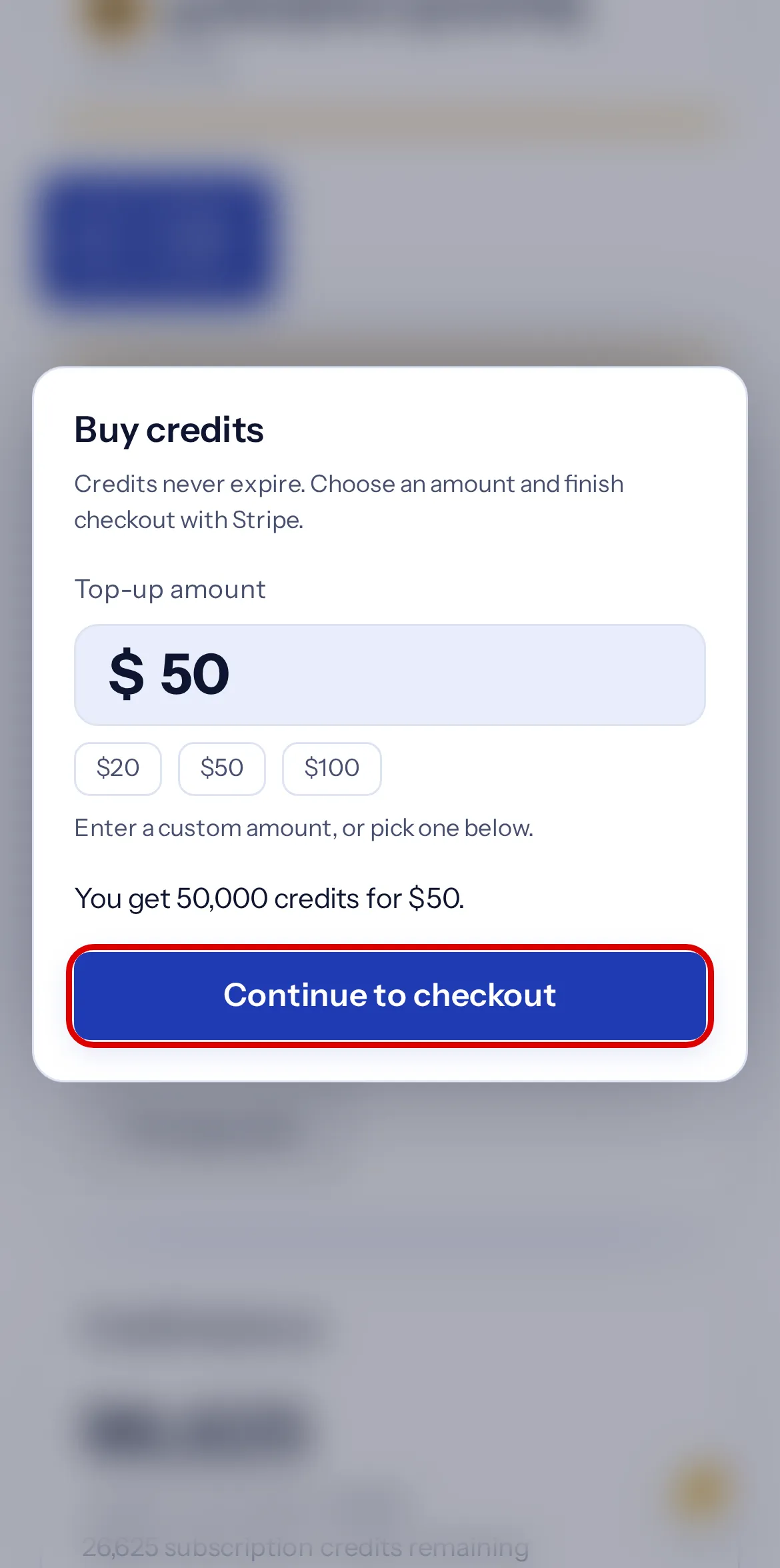
Select Continue to checkout. The box says you finish with Stripe, a secure payment company, so you enter your card on its page. Stop here if you only wanted to see the price.
Check your balance
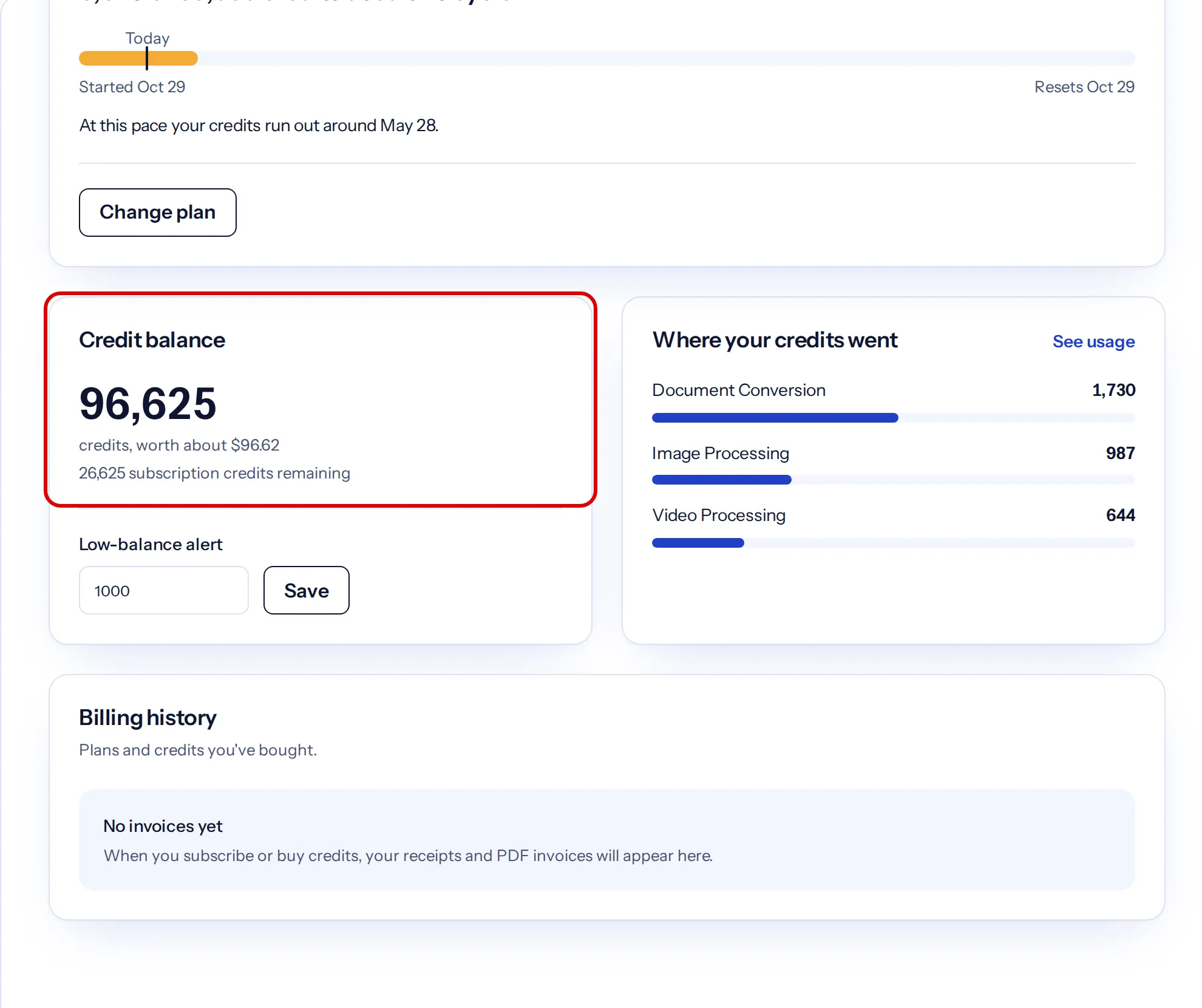
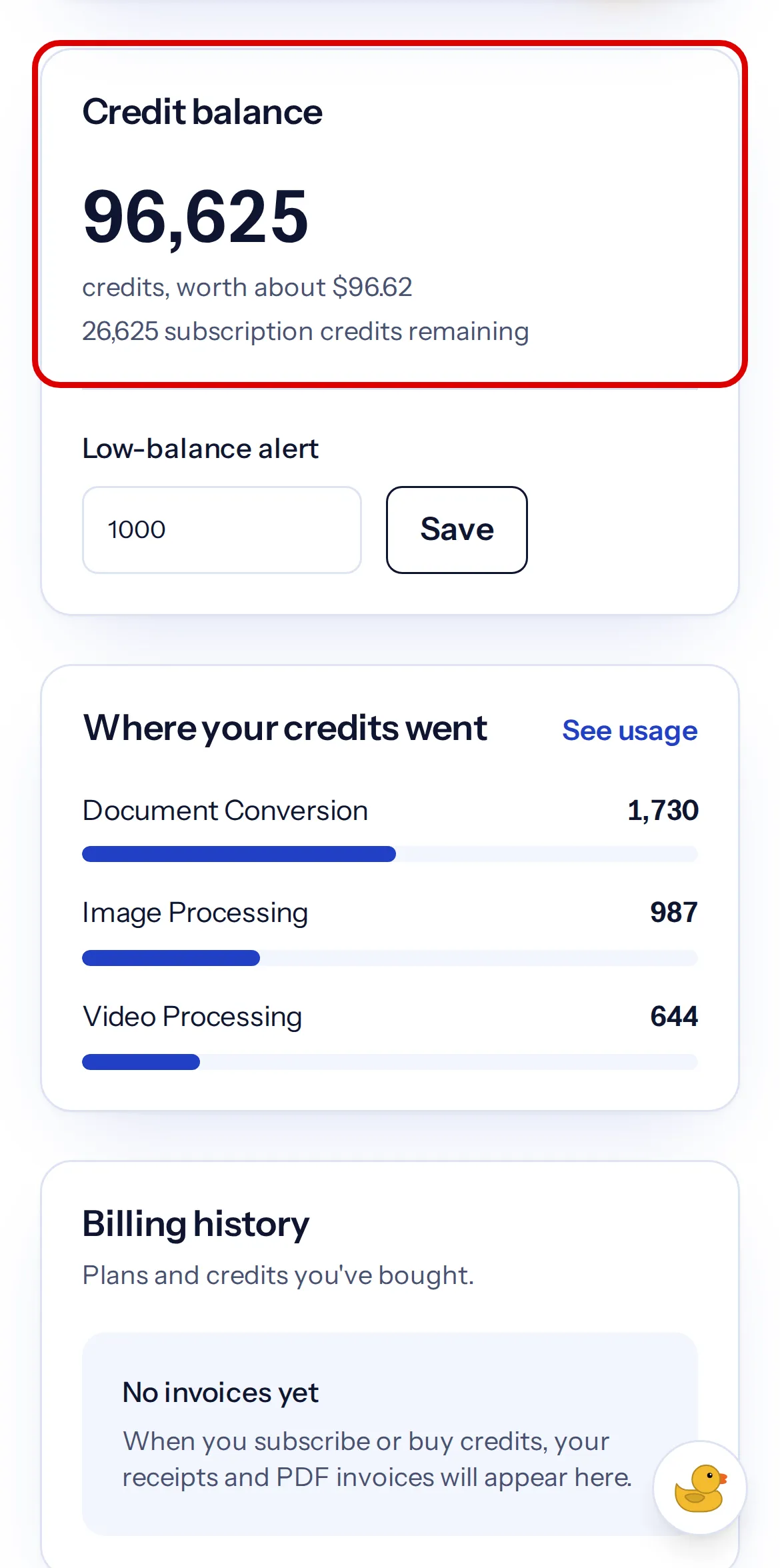
After you pay, look at the Credit balance card on the Subscription page. The big number is how many credits you have.
Troubleshooting
| Problem | Cause | Fix |
|---|---|---|
| The Continue to checkout button is grey | The amount is below $20 or above $5,000. The box says Enter an amount between $20 and $5,000. | Type an amount from $20 to $5,000, or select $20, $50 or $100 |
| You wonder if the credits run out | Bought credits never expire | Your plan credits and bought credits both show in the Credit balance card |
| The new credits are not there yet | The payment may still be going through | Wait a minute, then refresh the Subscription page |