Last updated
Turn a document into Markdown or JSON with AI Extract
Before you start
- A PDF, Word (DOCX), PowerPoint (PPTX), Excel (XLSX) or HTML file of up to 200 MB. Photos such as PNG or JPG can't be read.
- Markdown is plain text with small marks that show structure. A line that starts with # is a heading. Chat helpers and note apps understand it.
- AI Extract reads your file with converter tools. No AI chat model reads it.
- You don't need an account. Without one you can extract a few files a day, and your file is deleted about a day later.
Open AI Extract
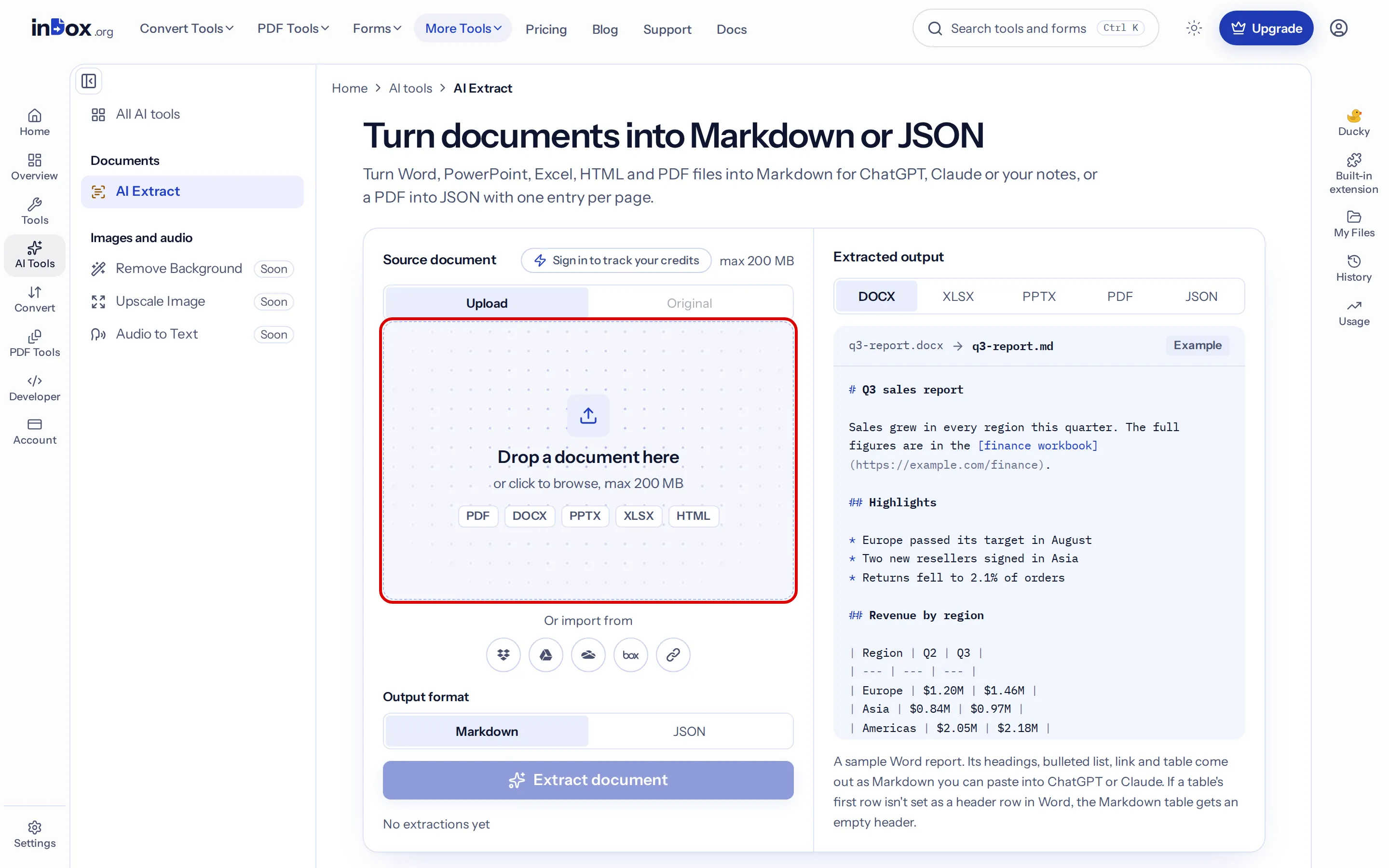
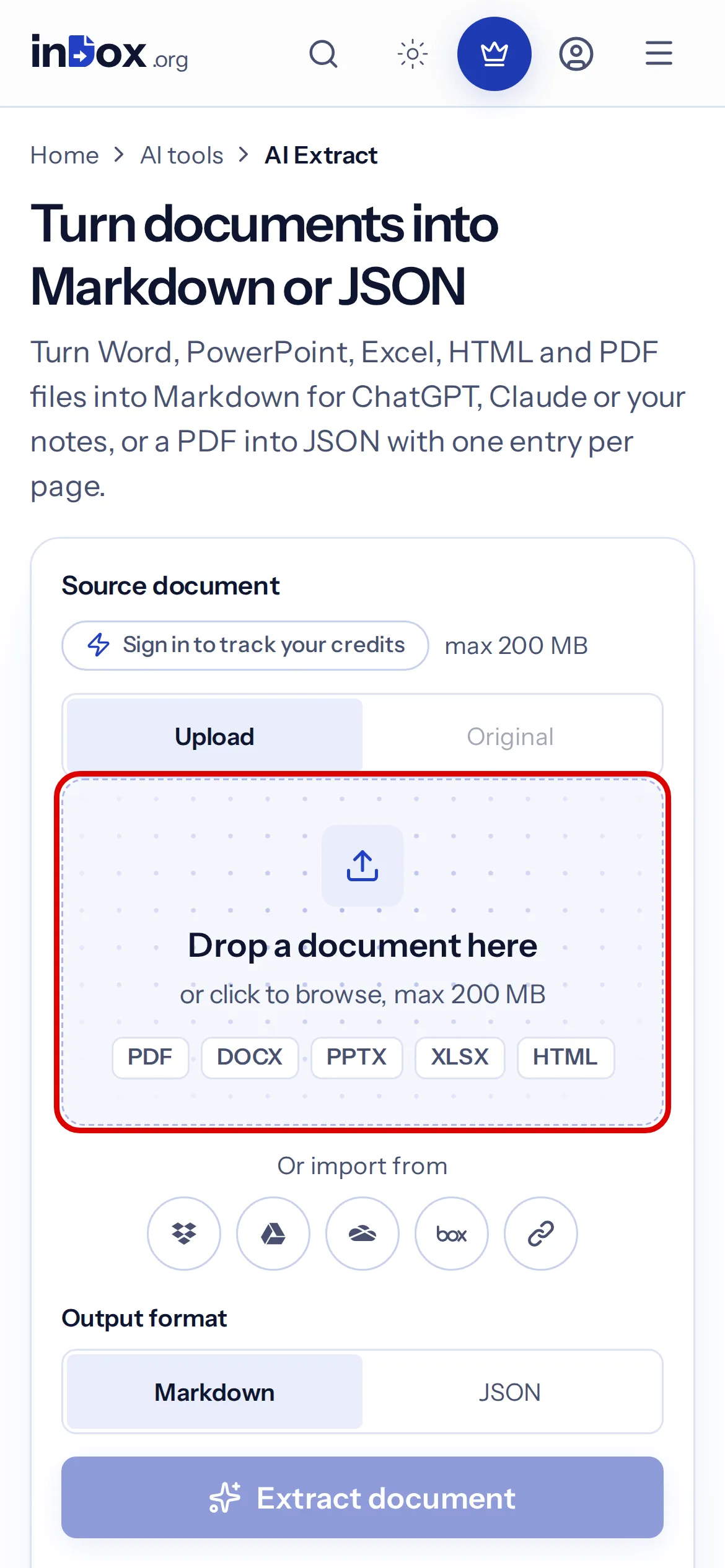
Go to the AI Extract page. The box on the left is called Source document. It has a dashed area that says Drop a document here. The box on the right is called Extracted output. On a phone the two boxes sit one above the other.
Add your file
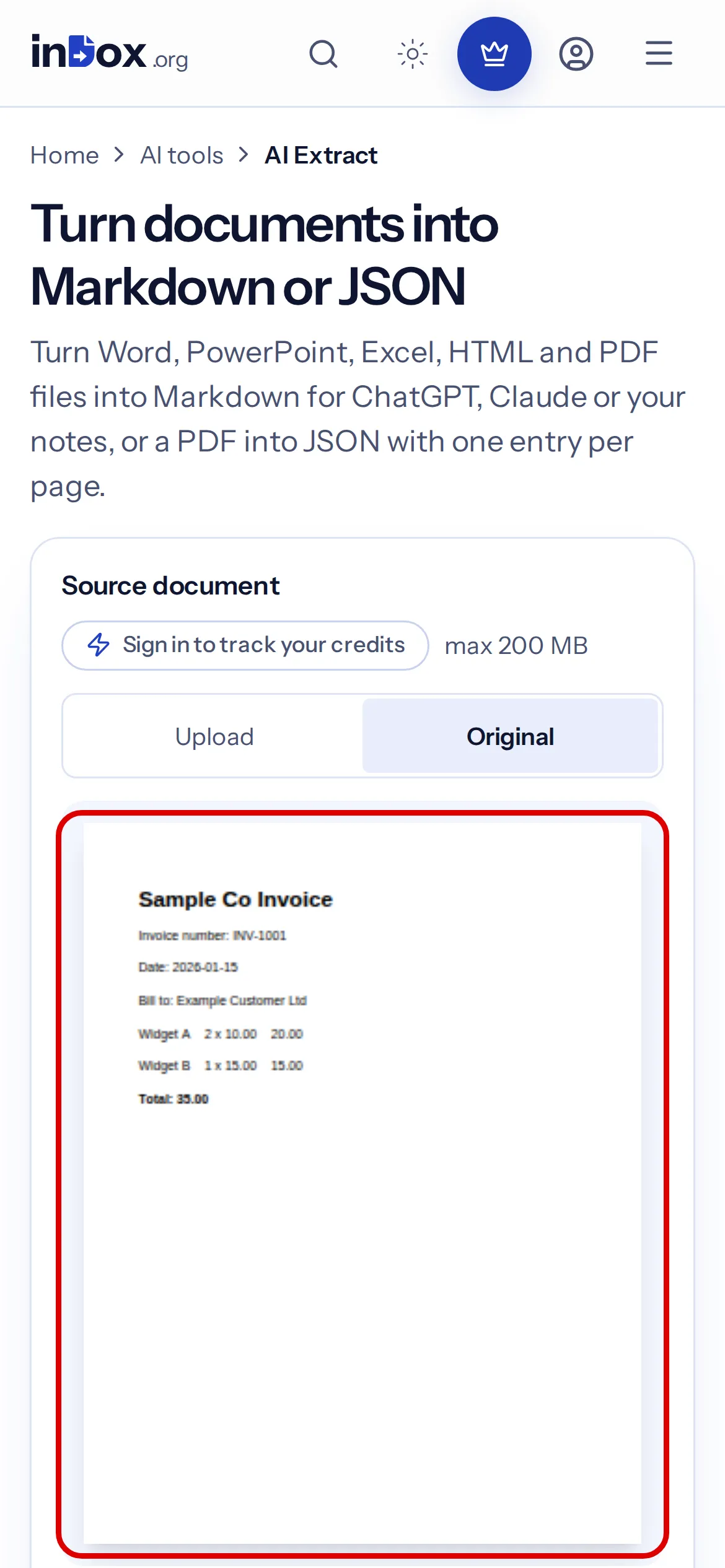
Drag your file onto the dashed area, or select the area and pick the file from your device. The tab at the top of the box changes from Upload to Original, and your file appears below it. The extraction starts by itself. Markdown is already chosen under Output format, and the button below it says Extracting… while it works.
Read the result
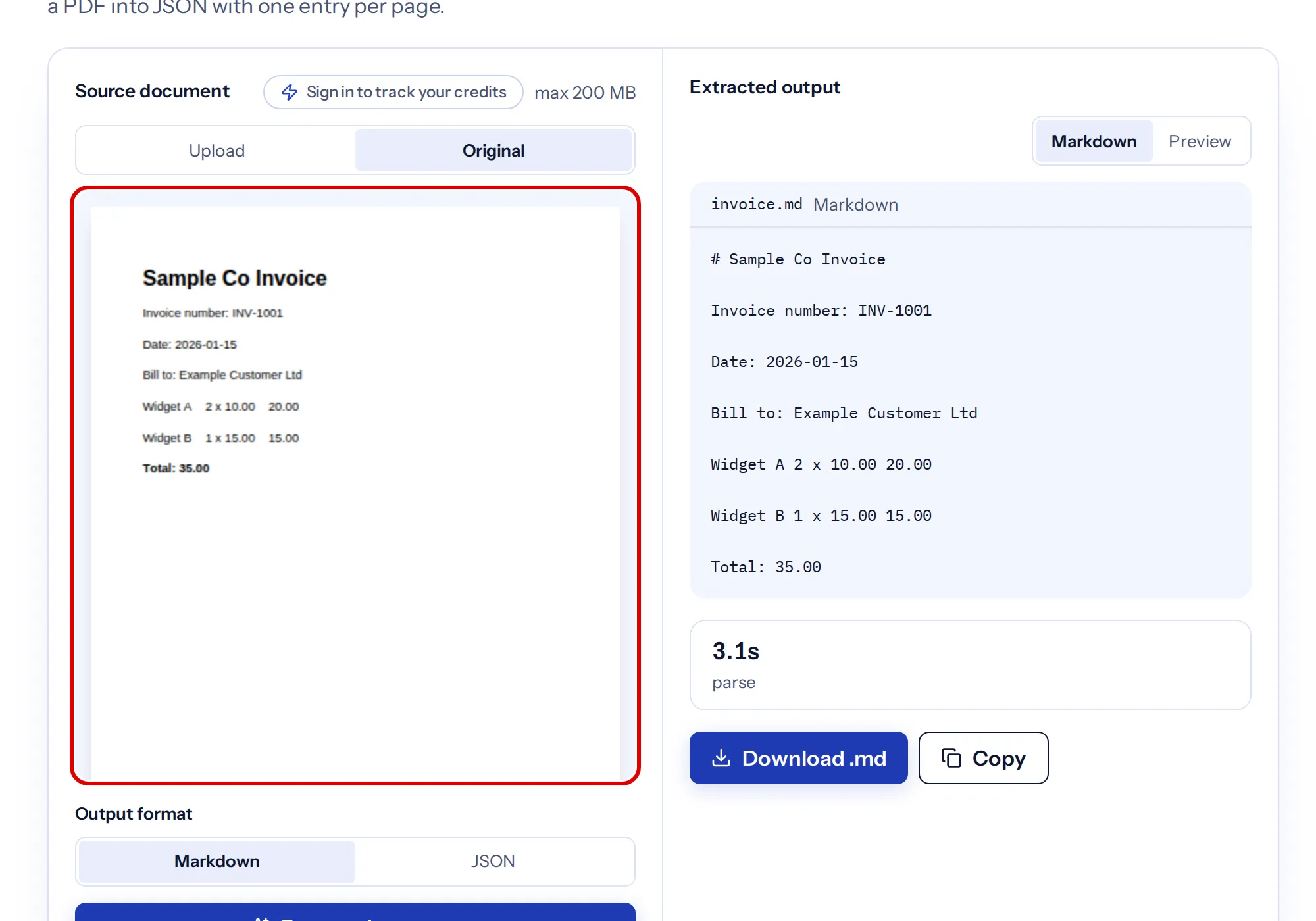
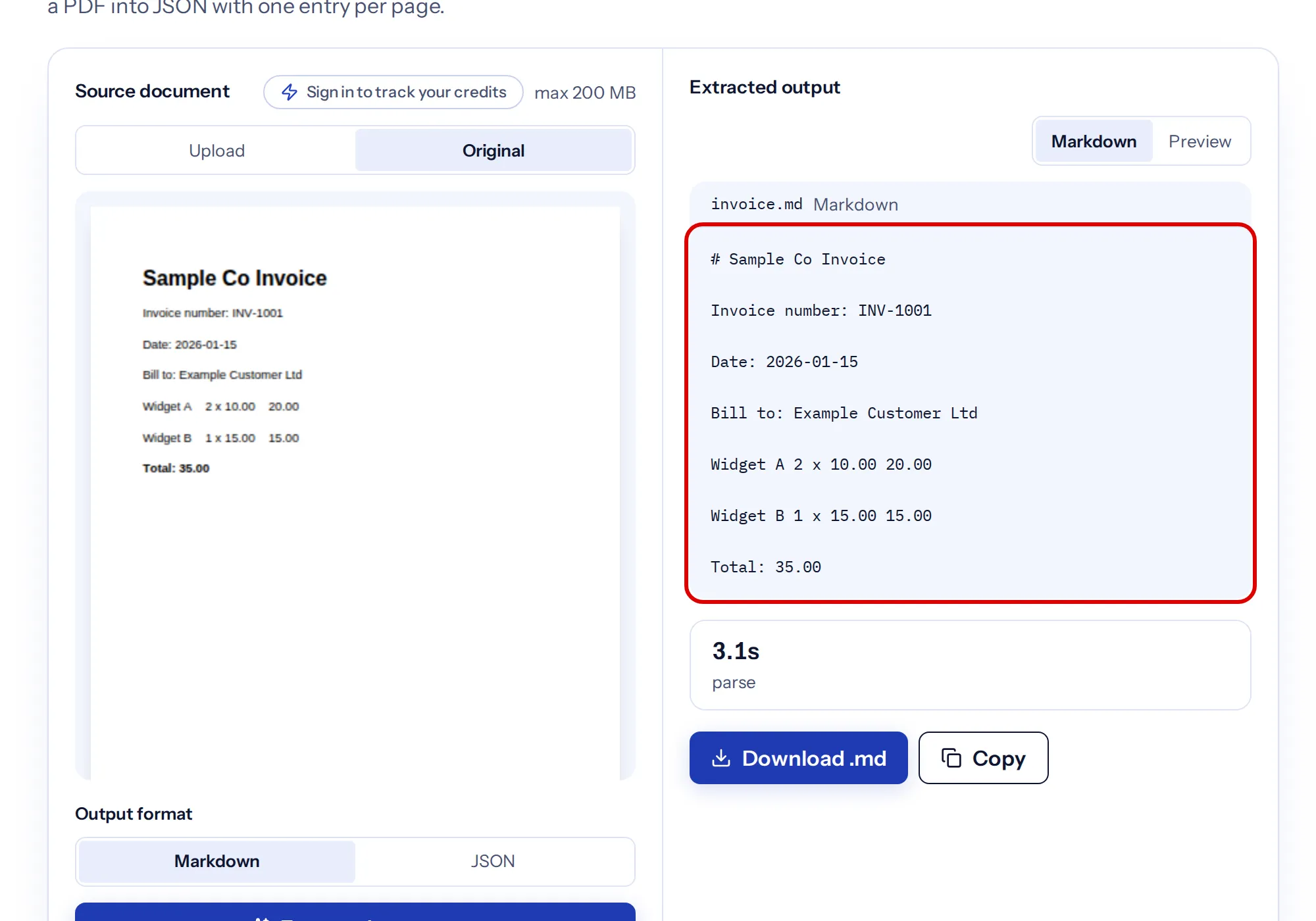
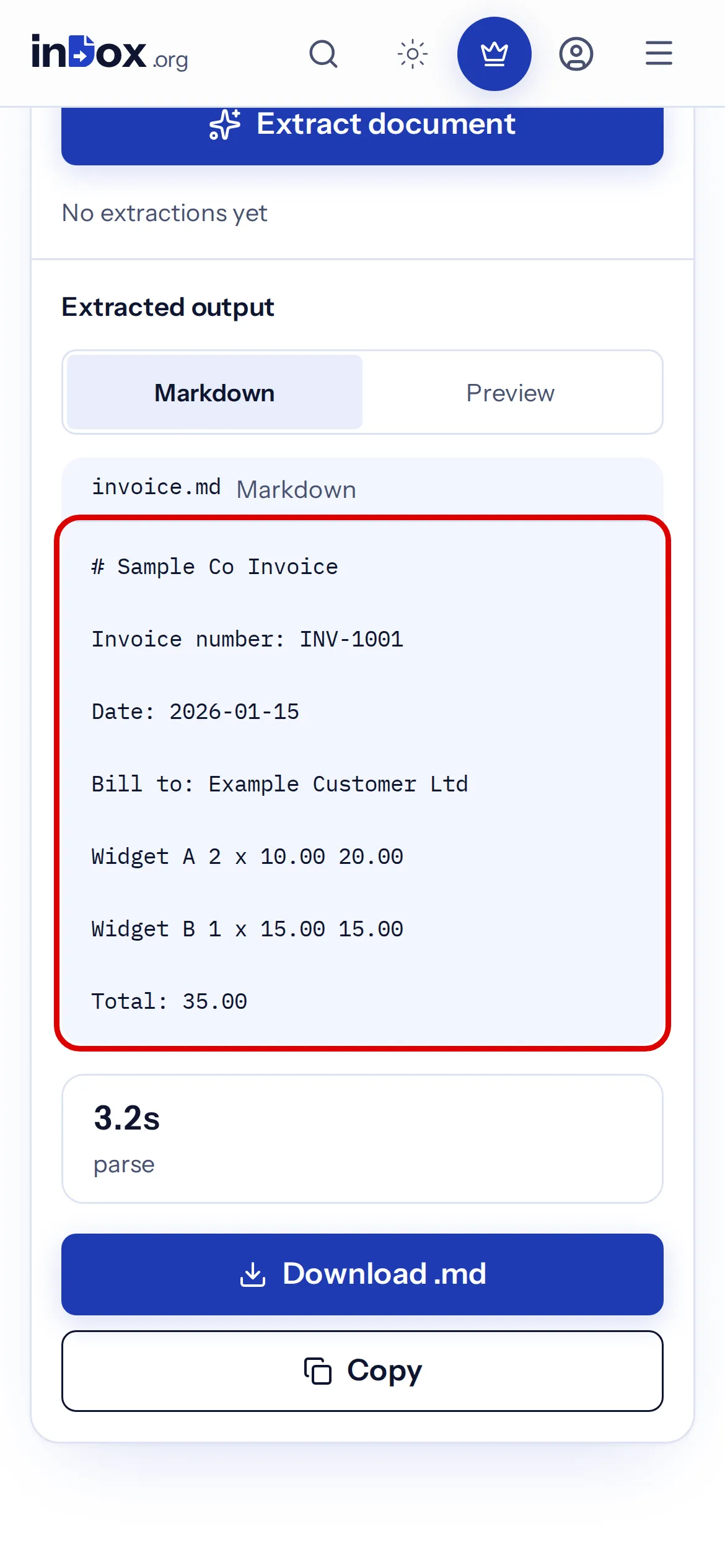
After a few seconds the Extracted output box shows the text of your file. The file name is above the text, such as invoice.md. Headings start with #. The tab next to Markdown is Preview, which shows the text laid out like a page. A small box under the text shows how long it took, such as 3.1s.
Download or copy the text
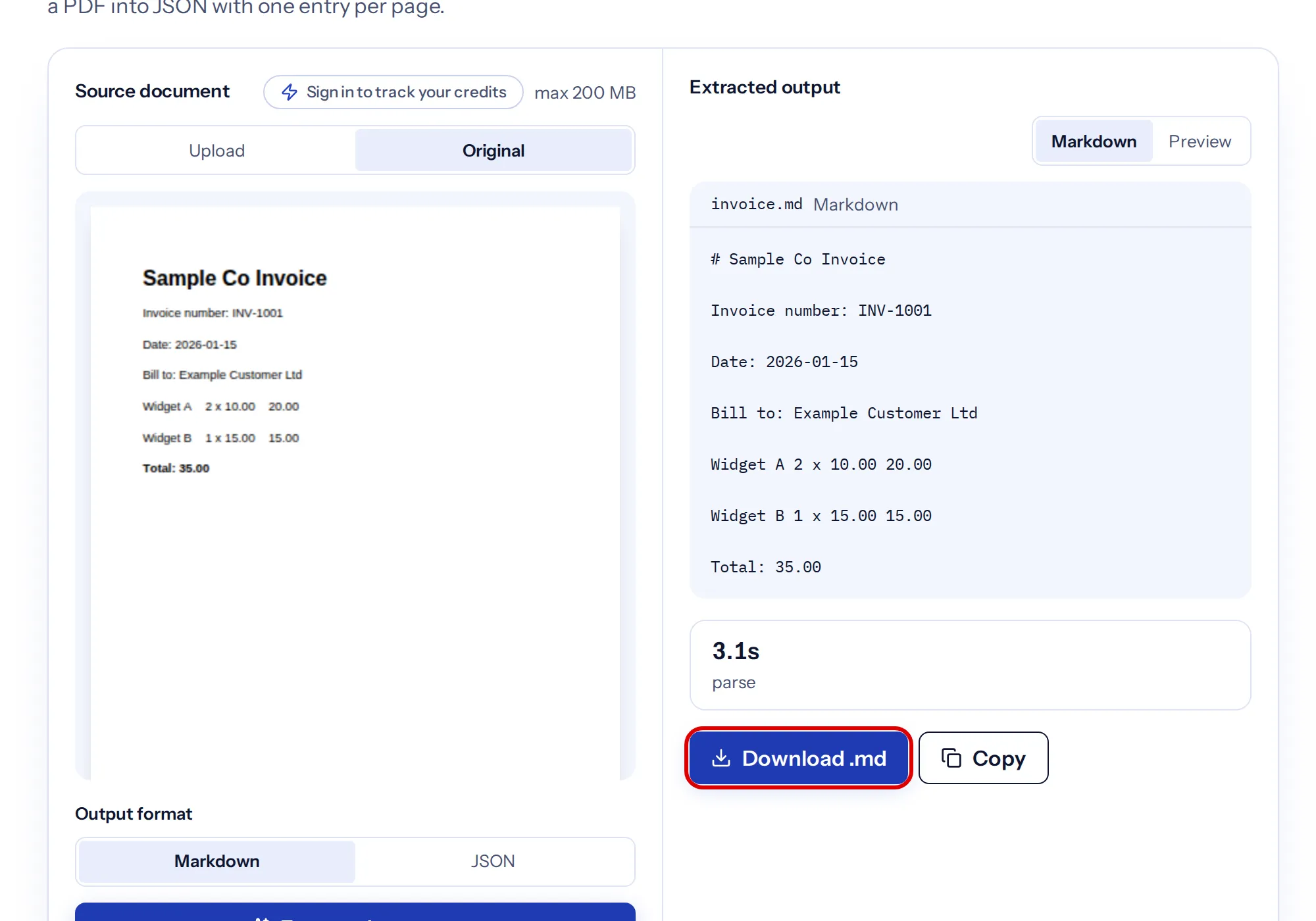
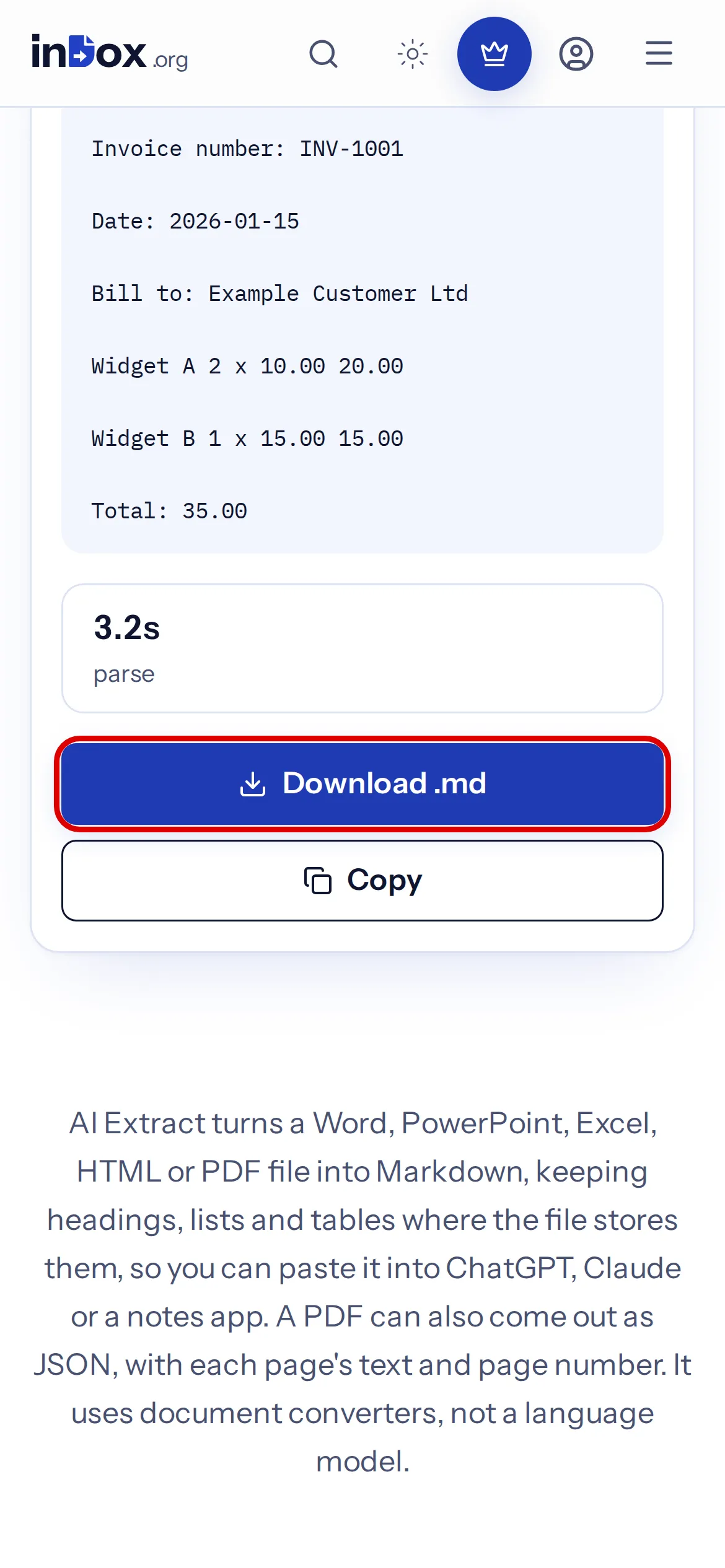
Select the blue Download .md button. A file with your file's name, ending in .md, saves to your device, and any text editor can open it. You can also select Copy and paste the text into a chat or a notes app.
Troubleshooting
| Problem | Cause | Fix |
|---|---|---|
| JSON can't be picked | JSON works for PDF files only | Use Markdown for Word, PowerPoint, Excel and HTML files. For a PDF, pick JSON under Output format and select Extract document. You get one entry per page, with its page number |
| The page says That file is too large | Uploads are limited to 200 MB | Split the file or make it smaller, then try again |
| The page says Couldn't extract that file | The file is not a PDF, DOCX, PPTX, XLSX or HTML file, or something went wrong while it was converted | Check the file type and size, then try again. A scan is a picture of a paper page. For a scan, run OCR PDF first, then extract the PDF it gives you |
| The text from a PDF has no headings marked | A PDF does not say which lines are headings, so they come out as plain lines | If you still have the Word file the PDF came from, extract that file instead |
| The page says Sign in to track your credits | You are not signed in, so indox can't show your credits | You can keep going without an account. Sign in only if you want your extractions kept in a history |