Last updated
Add, list or extract PDF attachments
Before you start
- Have the PDF on your phone or computer. The upload box tells you how big a file can be.
- Have the file you want to attach, such as a text file, a picture or a spreadsheet.
- An attachment is a file stored inside a PDF. It travels with the PDF. Anyone who has the PDF can take it out, so don't use it to hide anything.
- The pages List Attachments and Extract Attachments open this same panel.
- You don't need an account.
Open your PDF
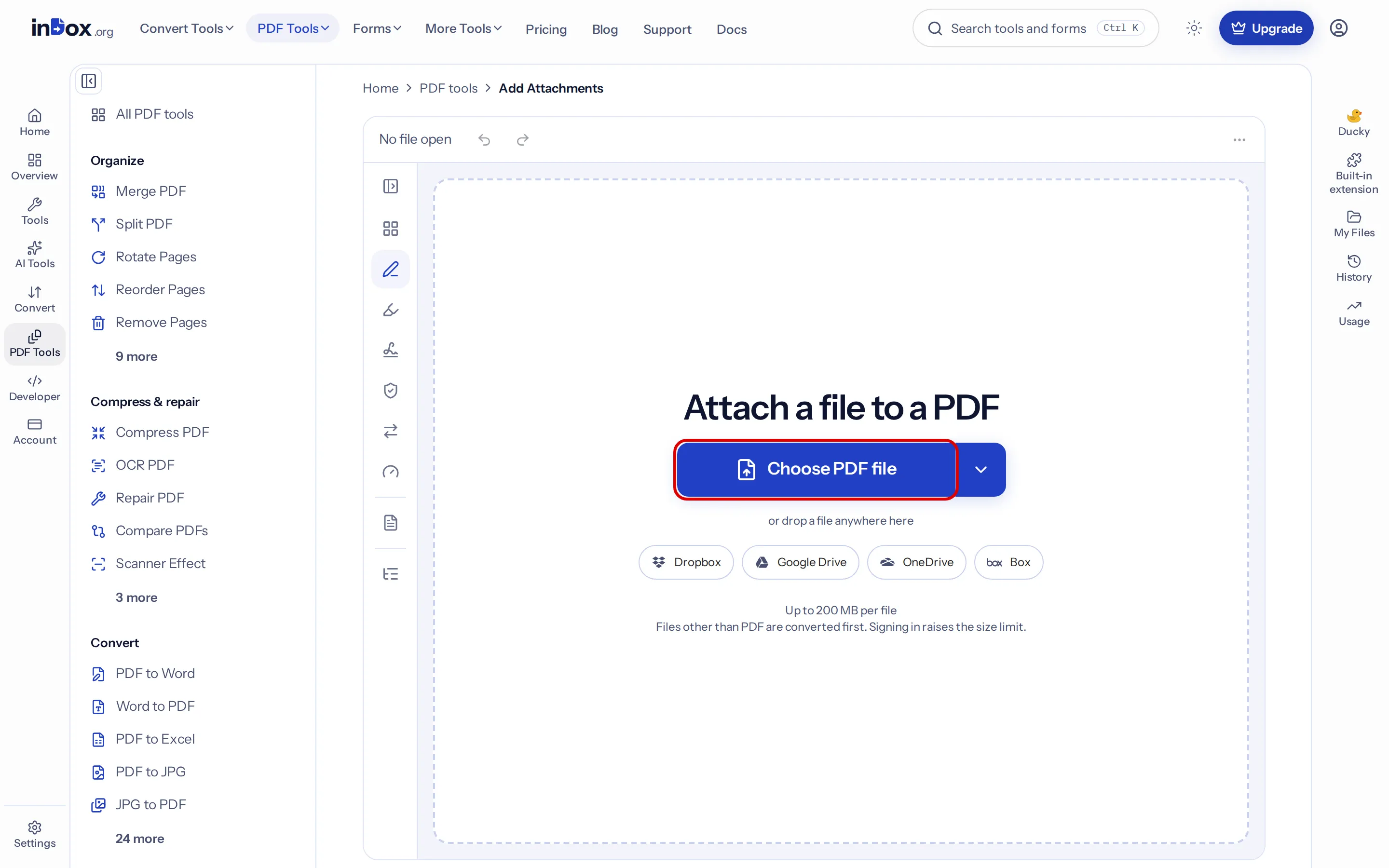
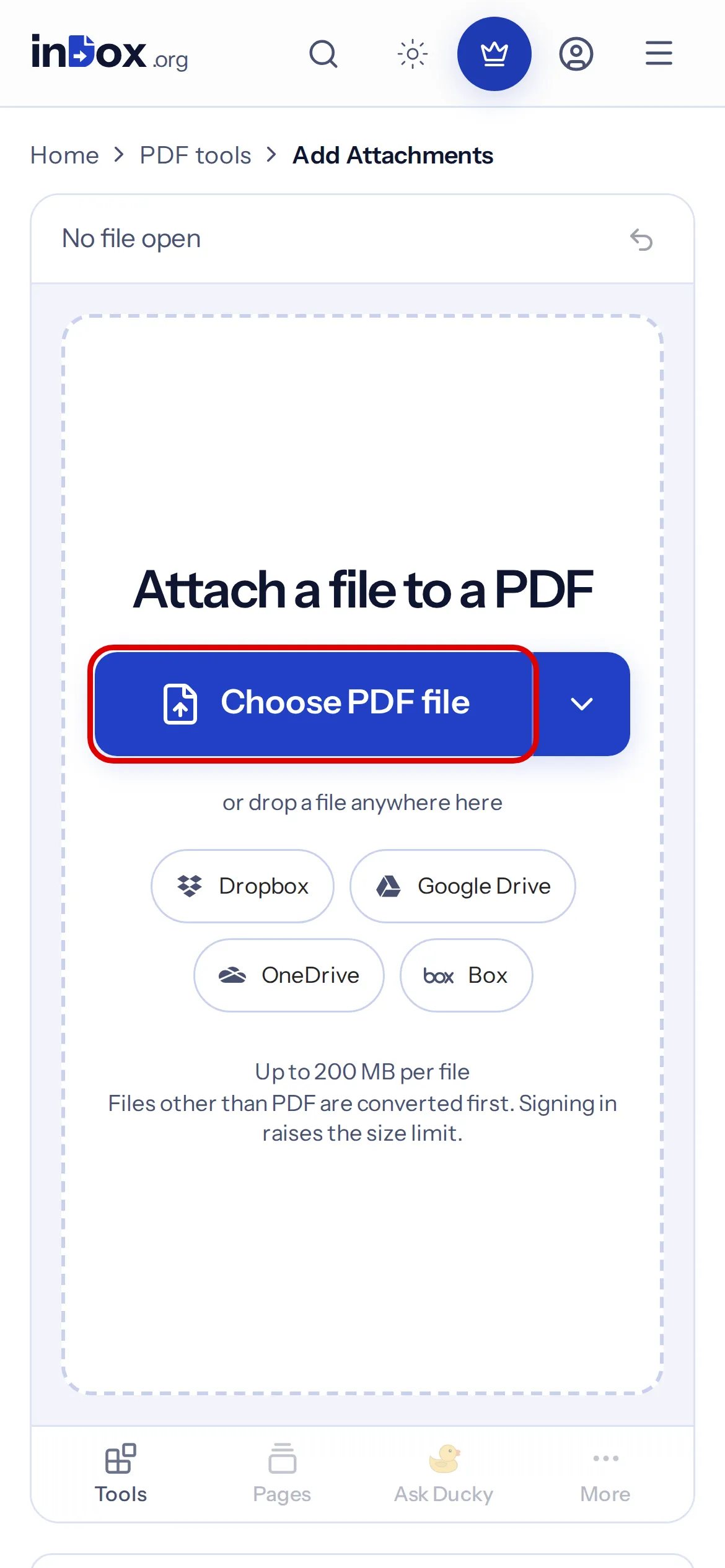
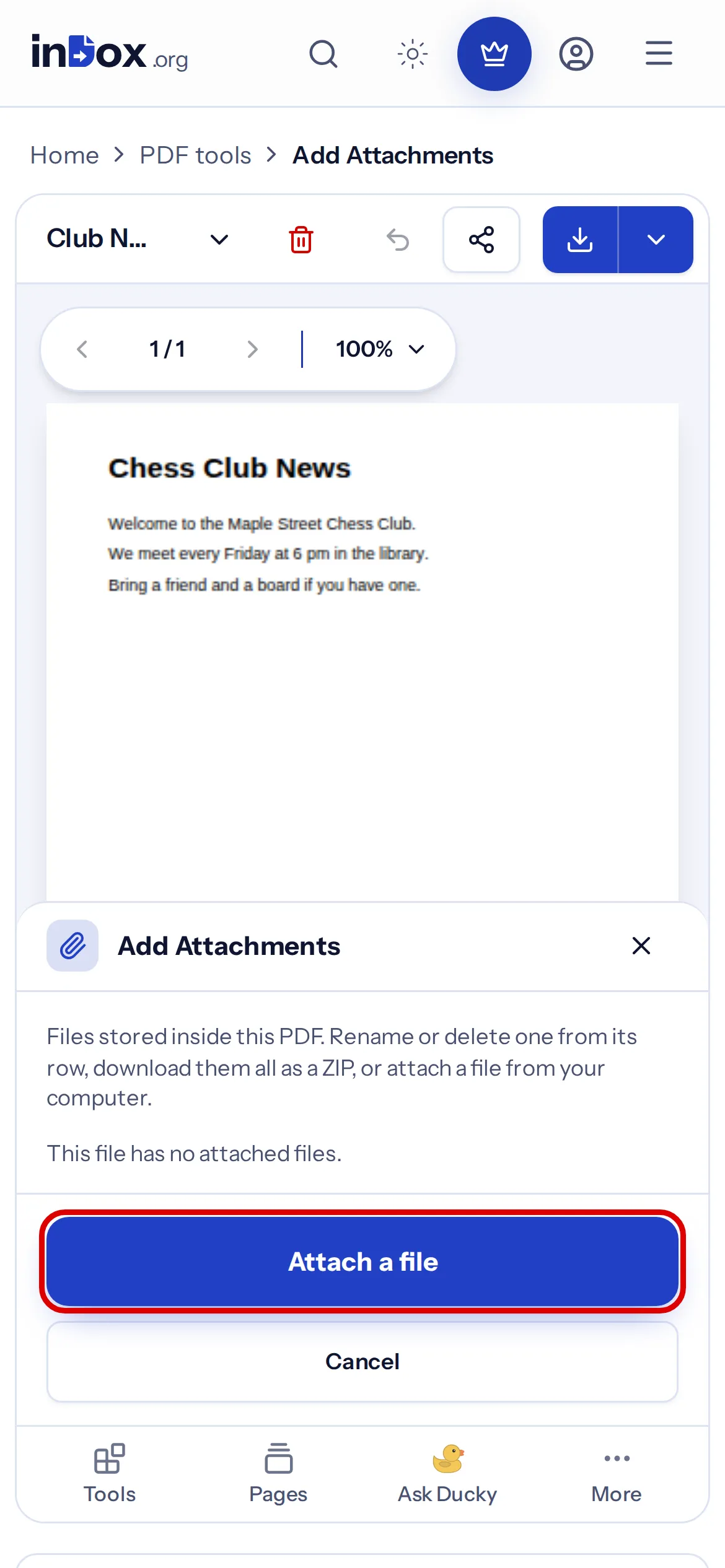
Go to the Add Attachments page. In the middle of the page, select the blue Choose PDF file button. A box opens so you can pick a file from your device. You can also drag a file onto the page. The file opens with a panel called Add Attachments. On a computer the panel is on the right. On a phone it slides up from the bottom.
See what is inside
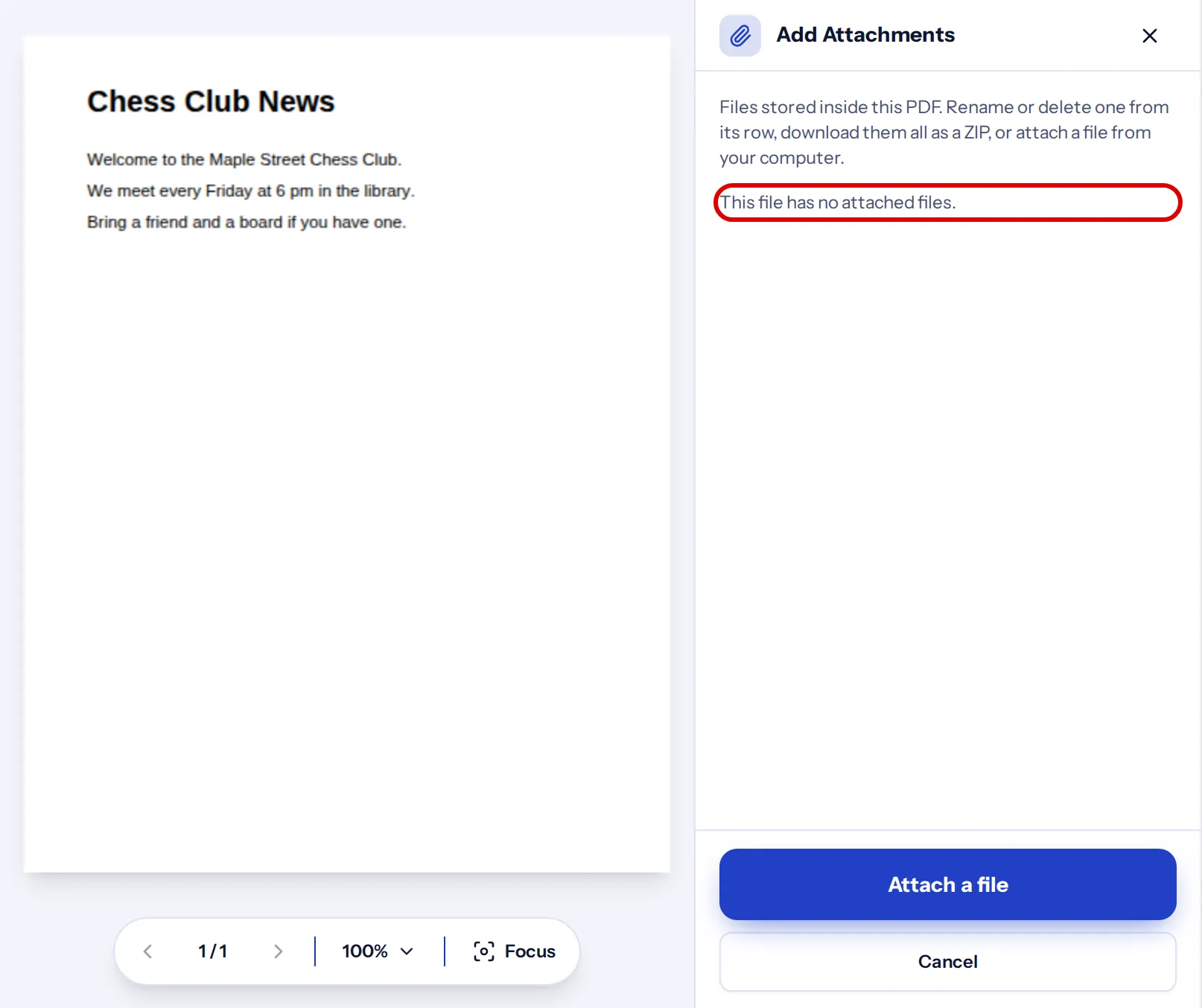
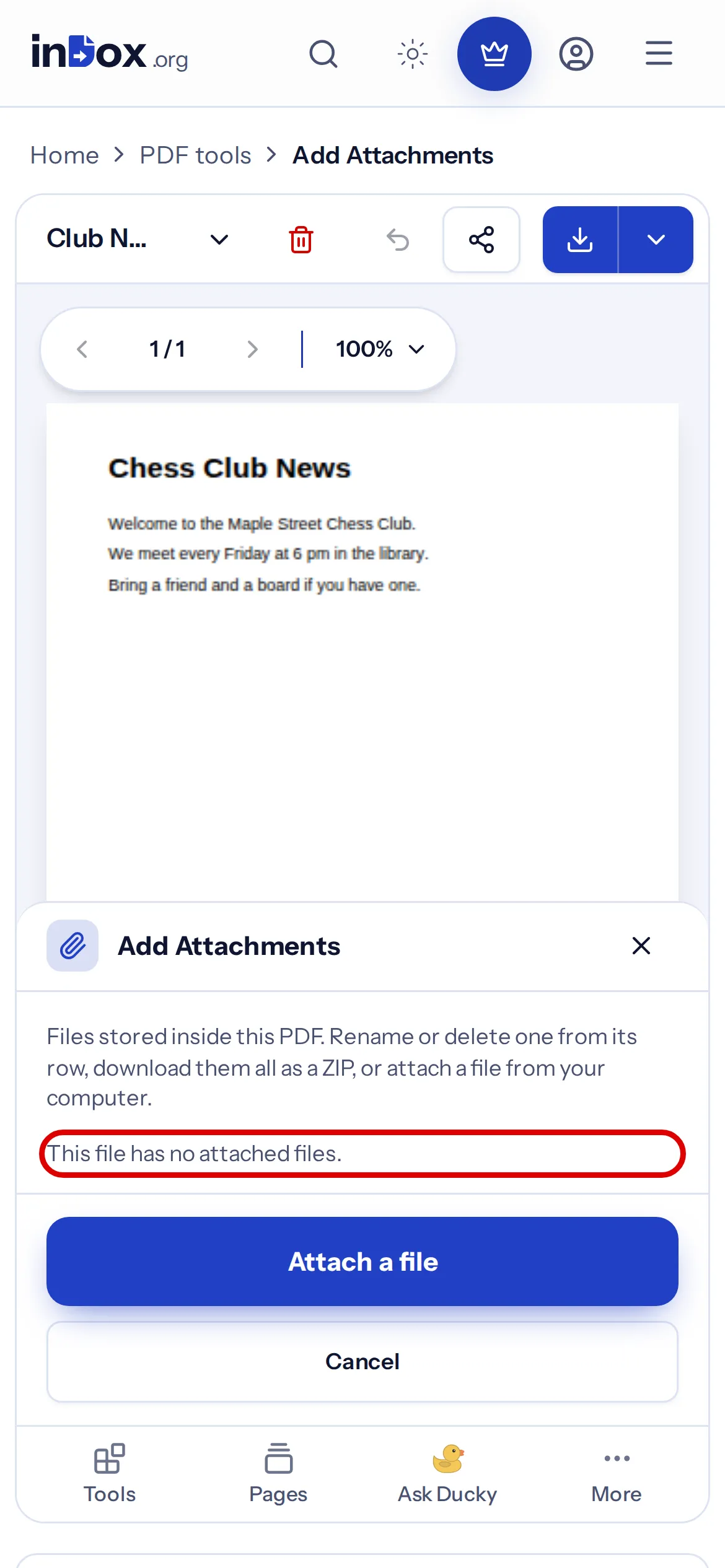
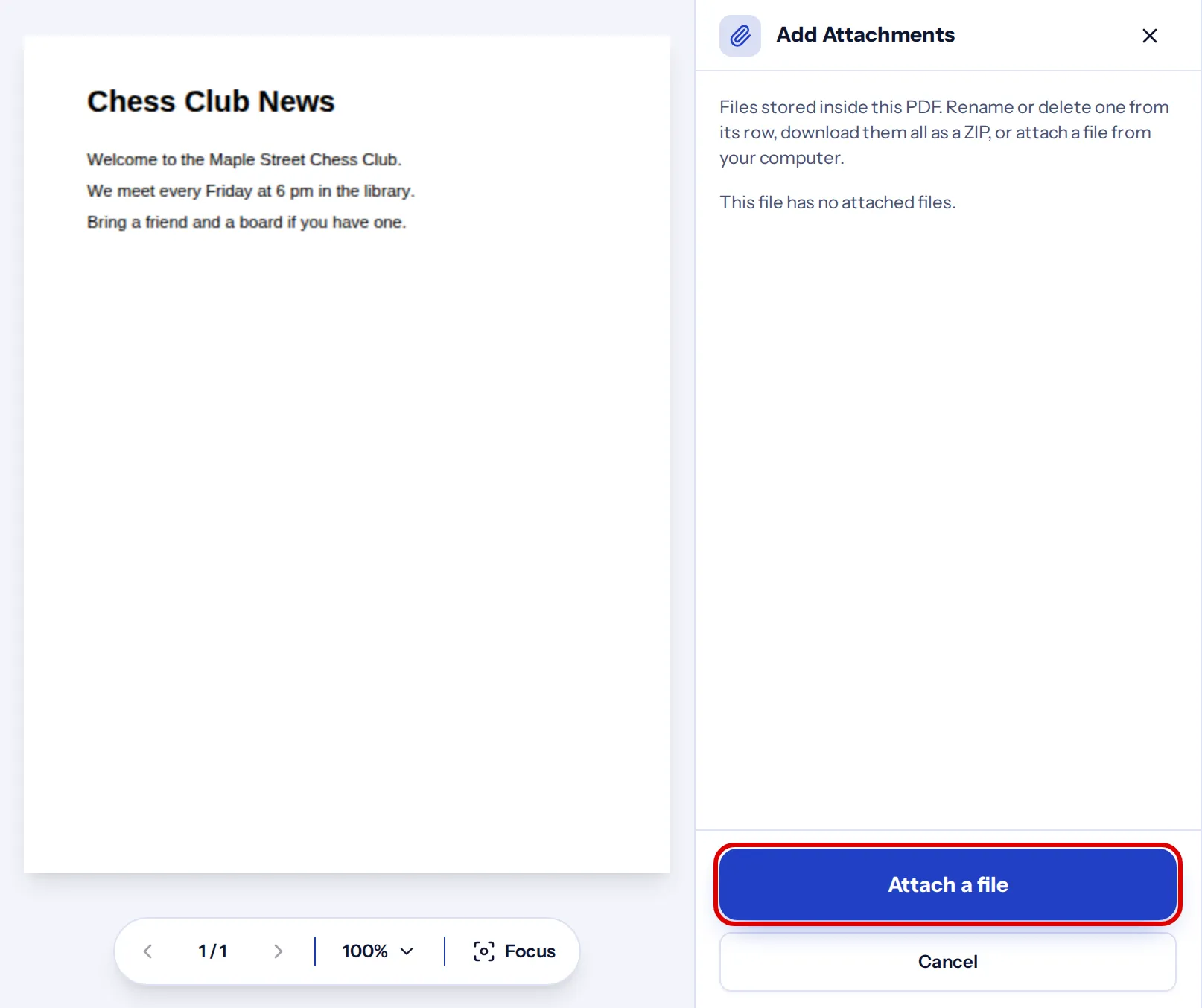
The panel lists the files already stored in the PDF. A PDF with none says This file has no attached files. A PDF with some says how many, such as 1 attached file, and lists their names.
Pick a file to attach
Select the blue Attach a file button at the bottom of the panel. A box opens so you can pick a file from your device. Pick one file. It is added right away.
Wait for the file to land
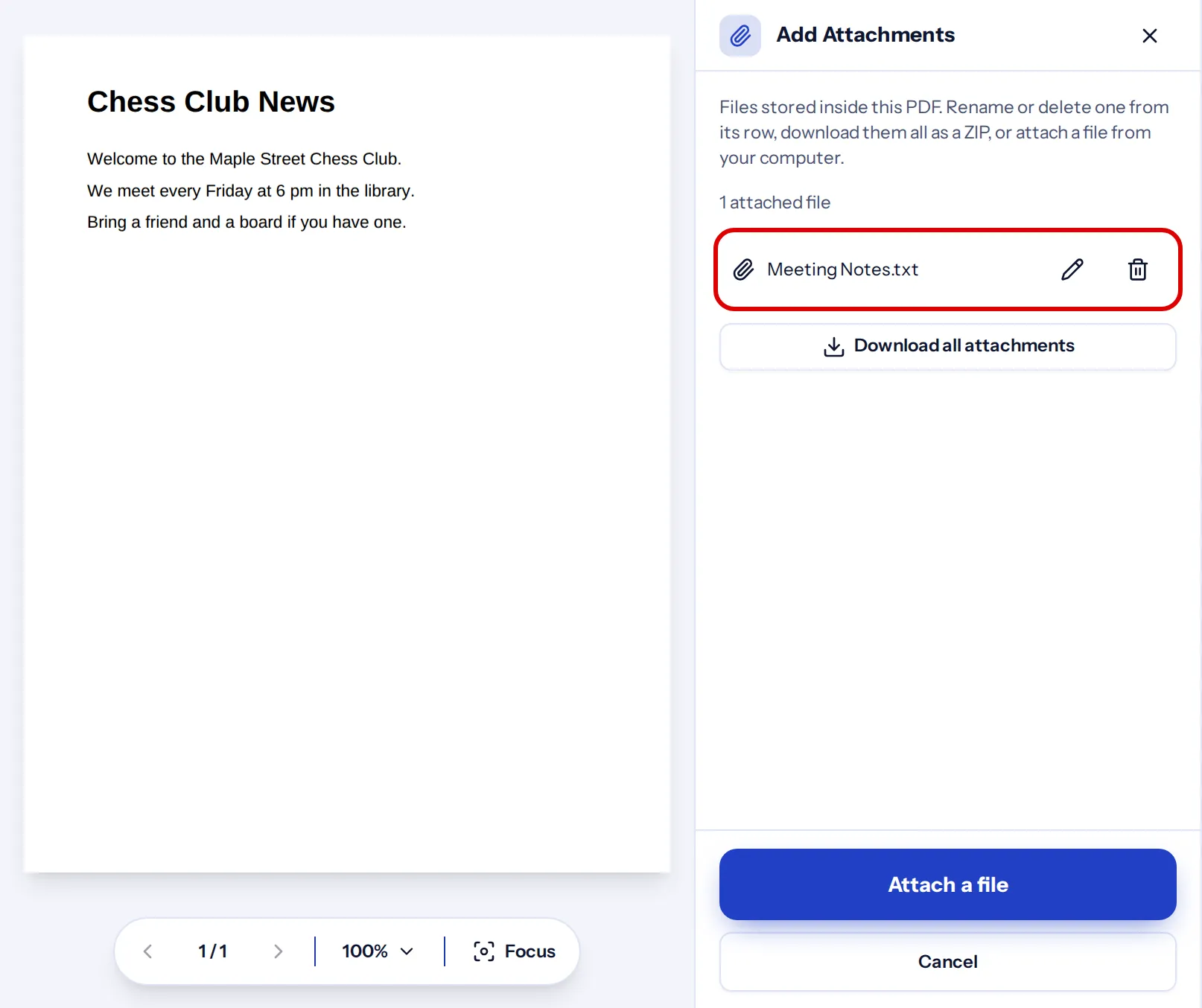
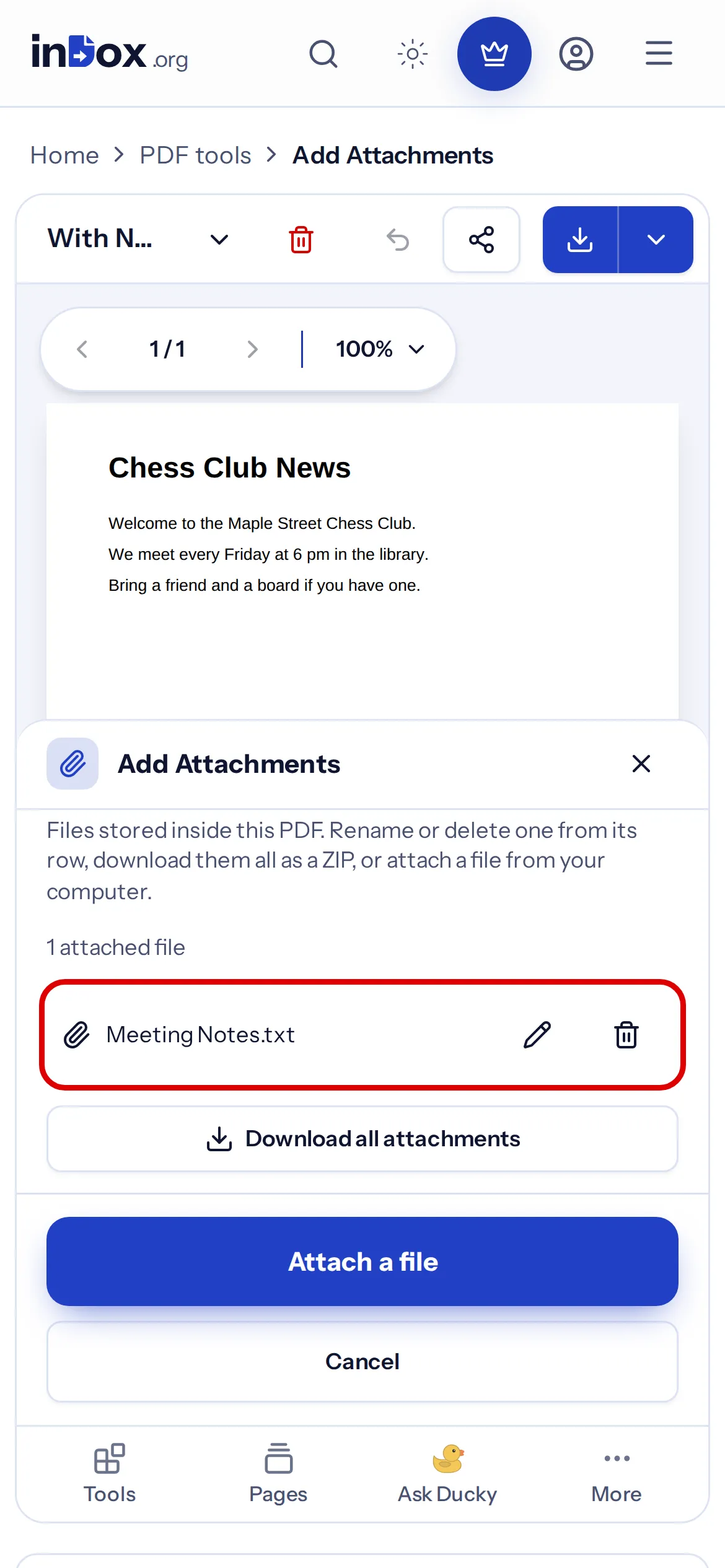
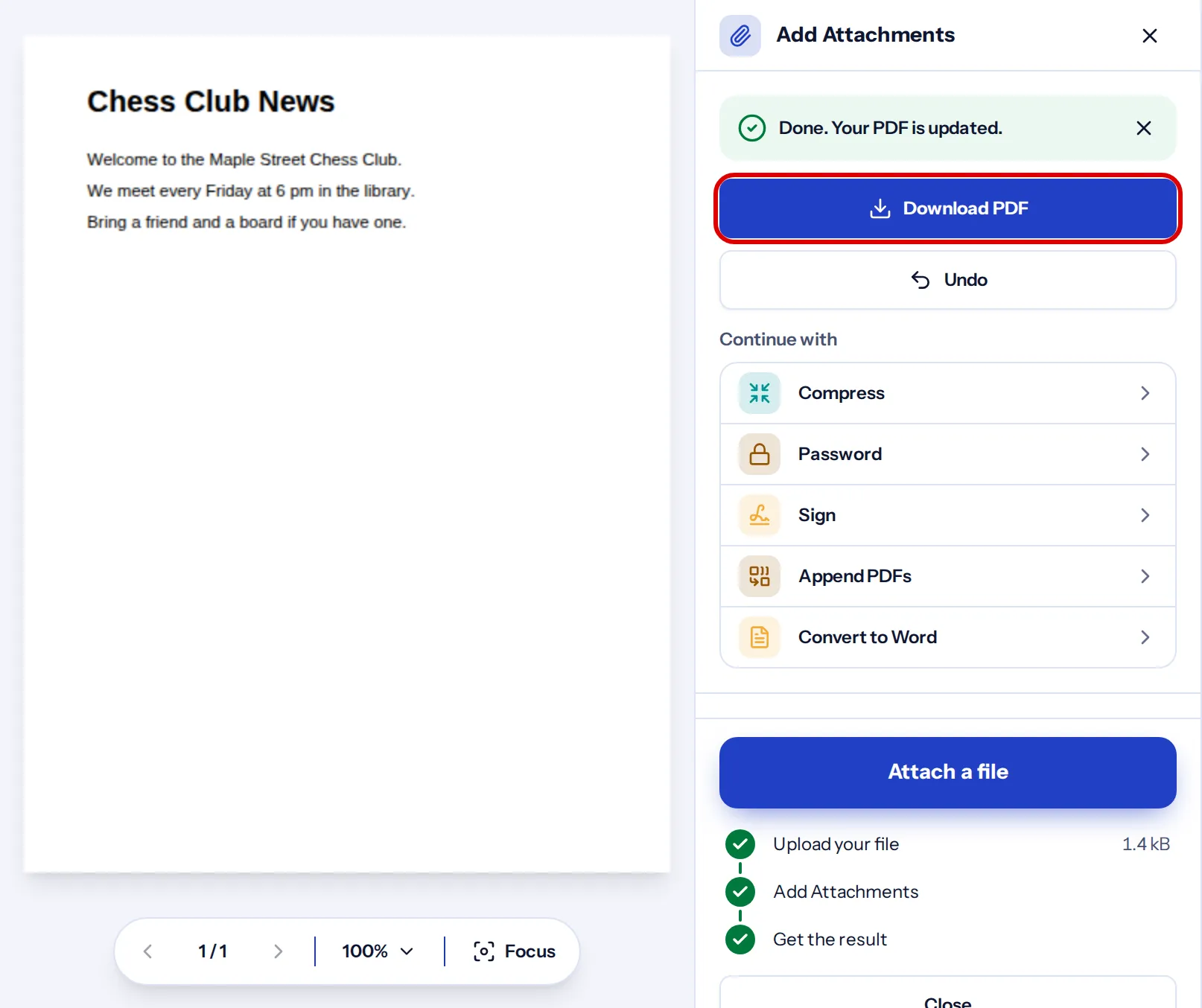
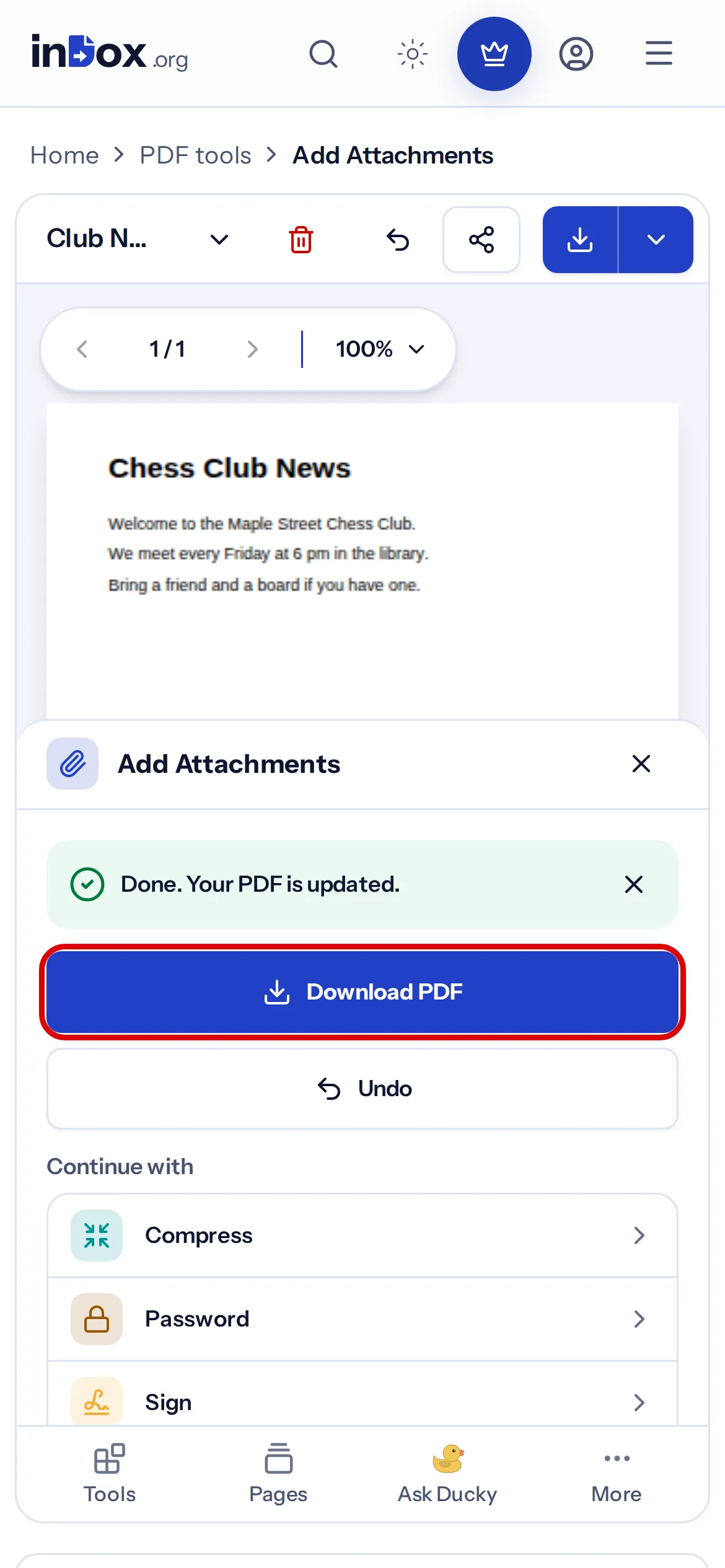
Wait a few seconds. The panel says Done. Your PDF is updated. and a small message says Attachments updated. Scroll down in the panel to the list. It now says 1 attached file and shows your file's name. At first the name can look like a long code. It changes to your file's name after a moment.
Rename or delete a file (optional)
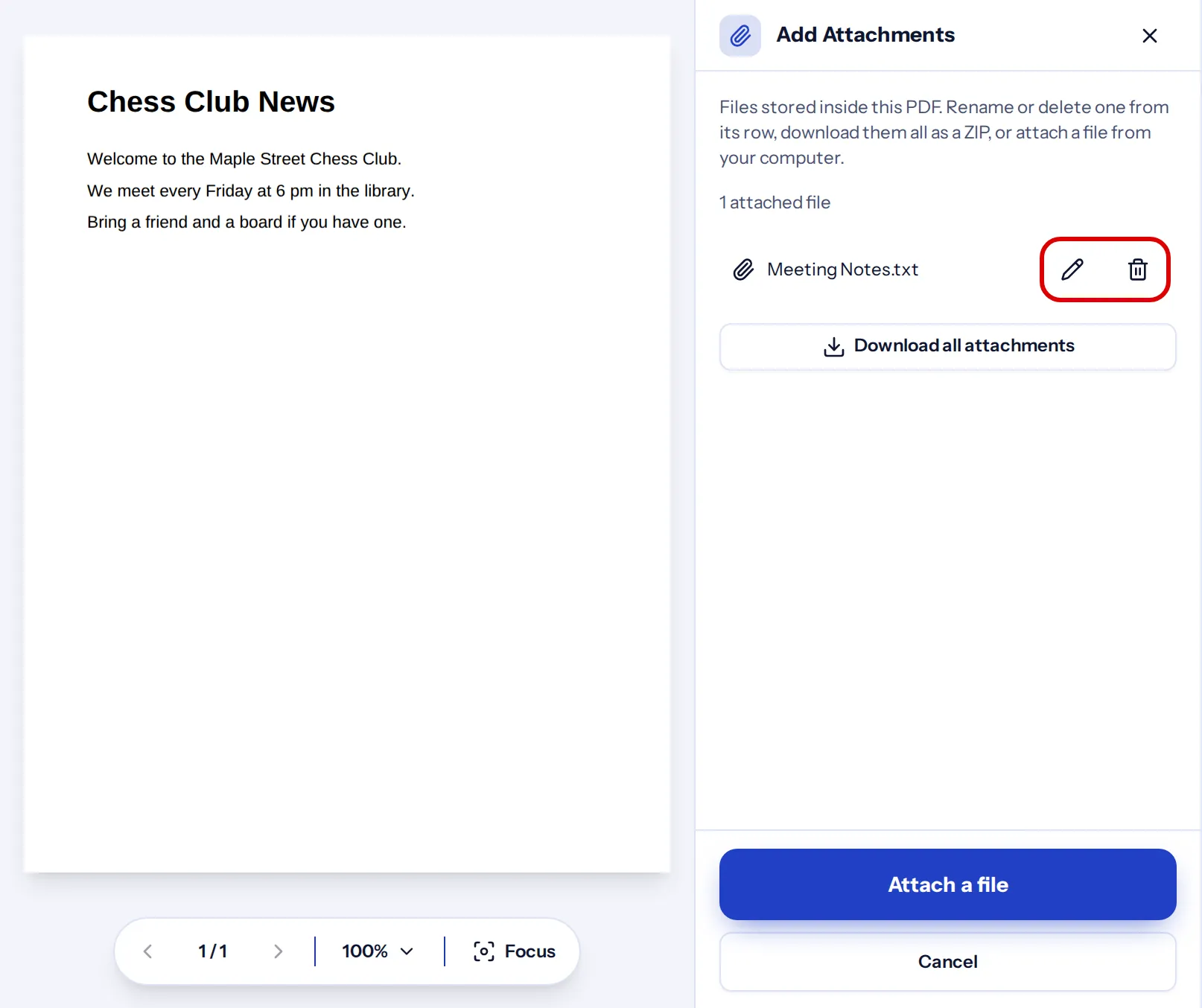
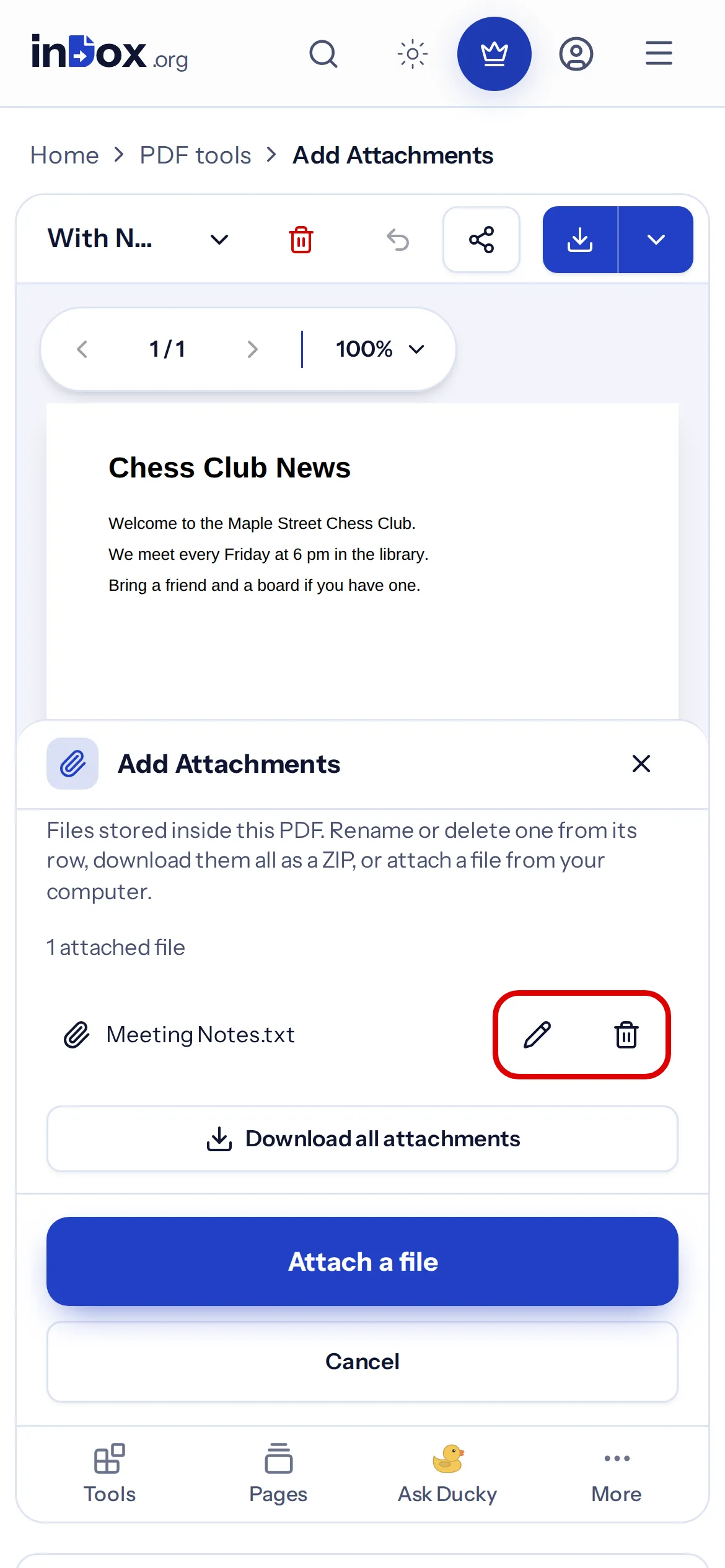
Each file has a pencil and a bin at the end of its row. Select the pencil to change the file's name. Select the bin to take the file out of the PDF.
Save the attachments as a ZIP (optional)
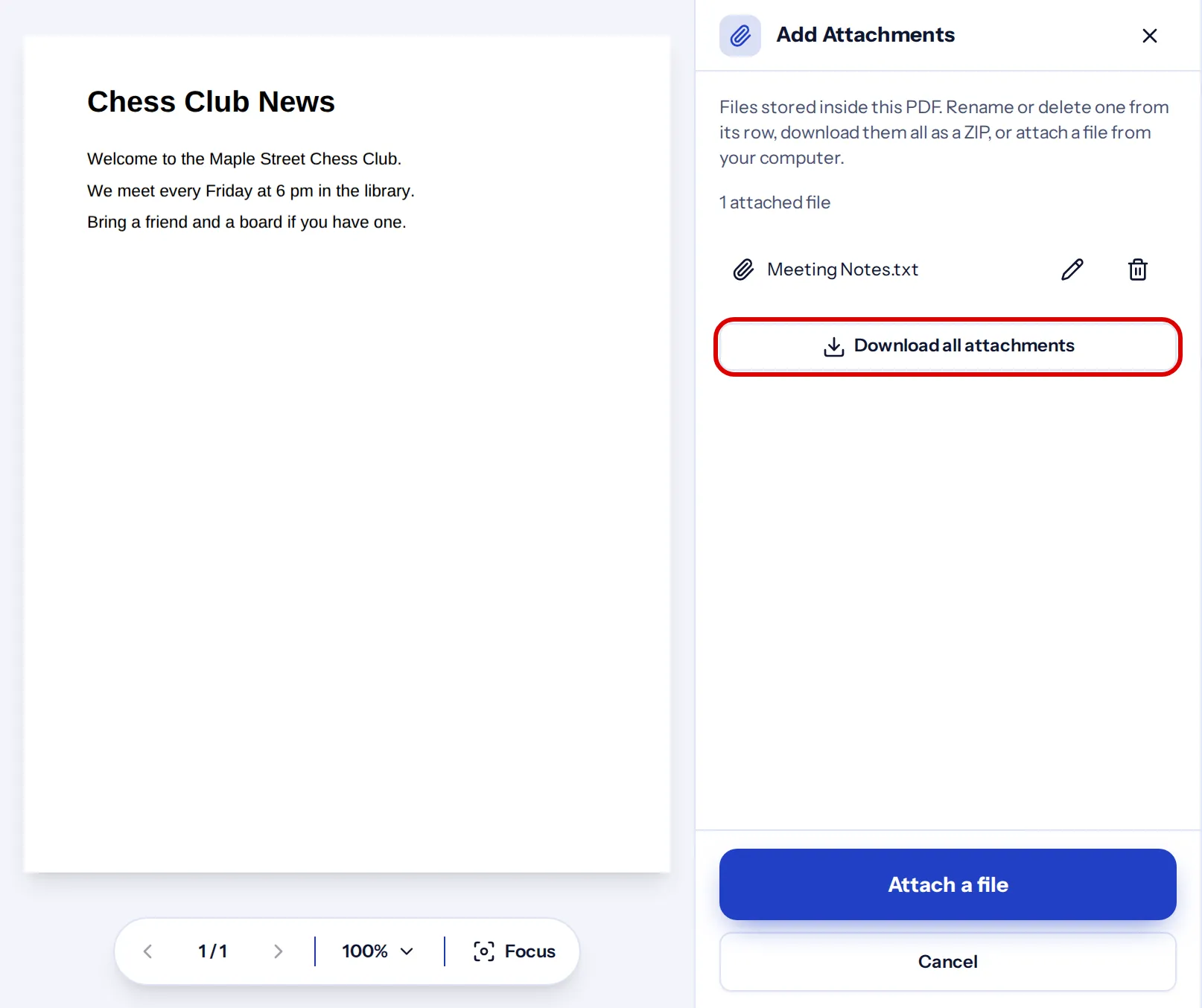
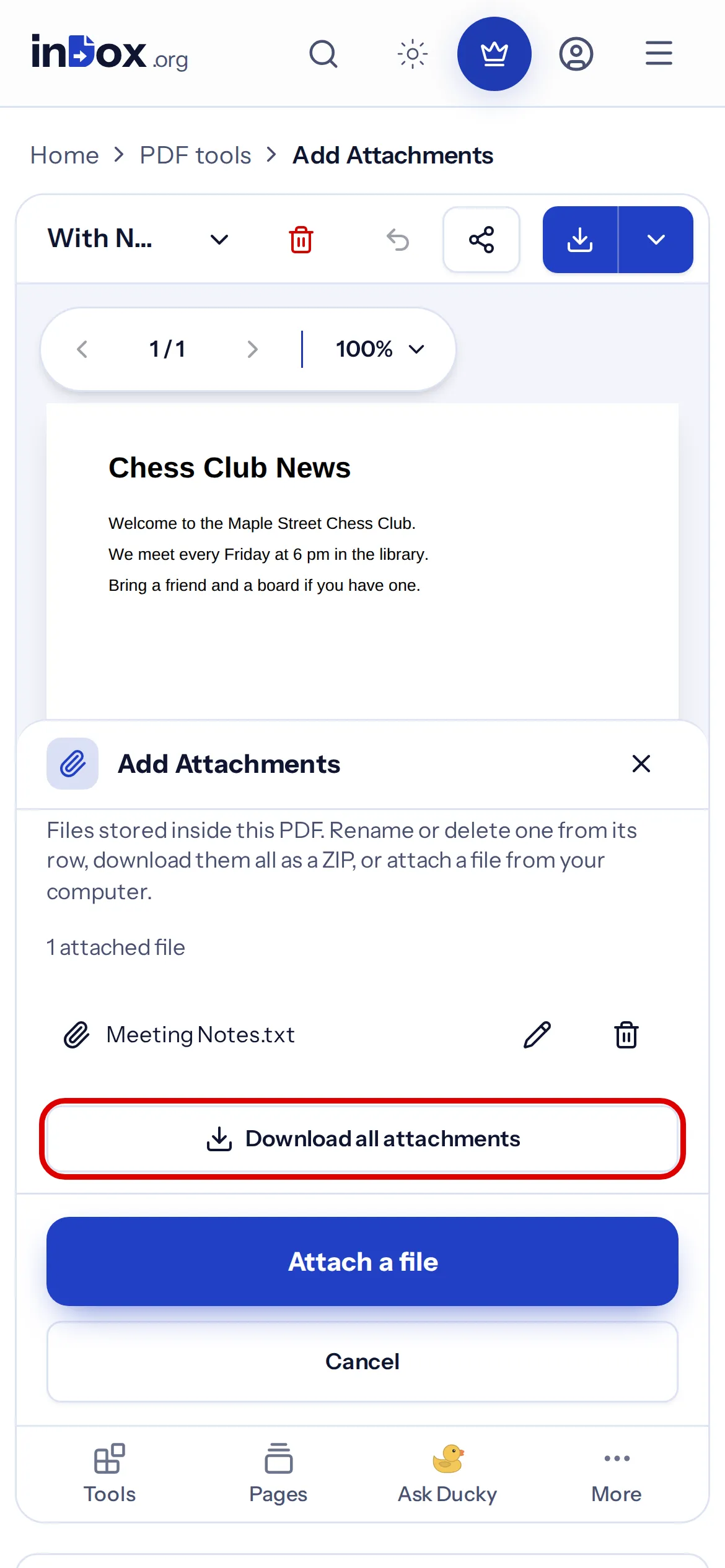
Select Download all attachments. A ZIP is one file that holds many other files. It is saved on your device. Its name ends in -attachments.zip. Open it to get your files out.
Download your PDF
Scroll to the top of the panel. Select the blue Download PDF button. The new file is saved on your device. Its name ends in -edited.
Troubleshooting
| Problem | Cause | Fix |
|---|---|---|
| The panel says An attachment called ... is already in this file. | A file with that name is already inside the PDF | Select the pencil on the old file to rename it, or the bin to delete it, then attach again |
| The new file's name looks like a long code | The name is fixed a moment after the file lands | Wait a few seconds. The list shows your file's name |
| The panel says Couldn't update the attachments. Try again. | The file could not be added | Select Attach a file and try again |
| You want the files out without changing the PDF | The ZIP button only saves copies | Select Download all attachments. The PDF stays as it was |