Last updated
Change the INDOX extension's settings
Before you start
- The INDOX extension added to Chrome on a computer. You don't need an account for the sections in this guide.
- Account, Plan & billing, AI model and Branding ask you to sign in, so this guide leaves them out.
Open the INDOX settings
Right-click the INDOX icon in the toolbar and select Options. A new tab opens with the page INDOX Settings. The toolbar is the row of buttons next to the address bar.
Search for a setting
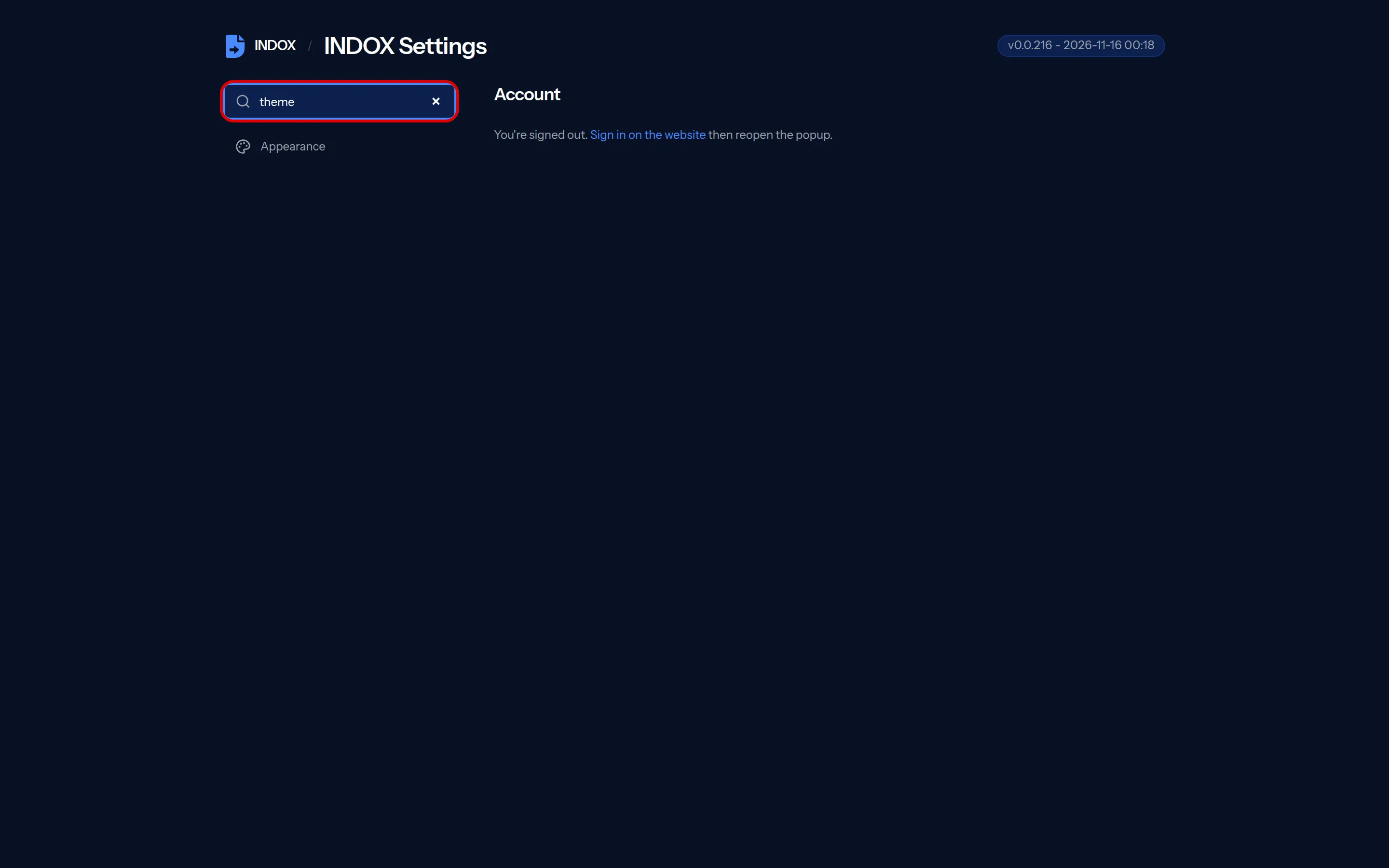
At the top of the list on the left, select Search settings and type a word, such as theme. The list shrinks to the sections that match. Here it keeps only Appearance. If nothing matches, the page says No settings match your search.
Change the theme
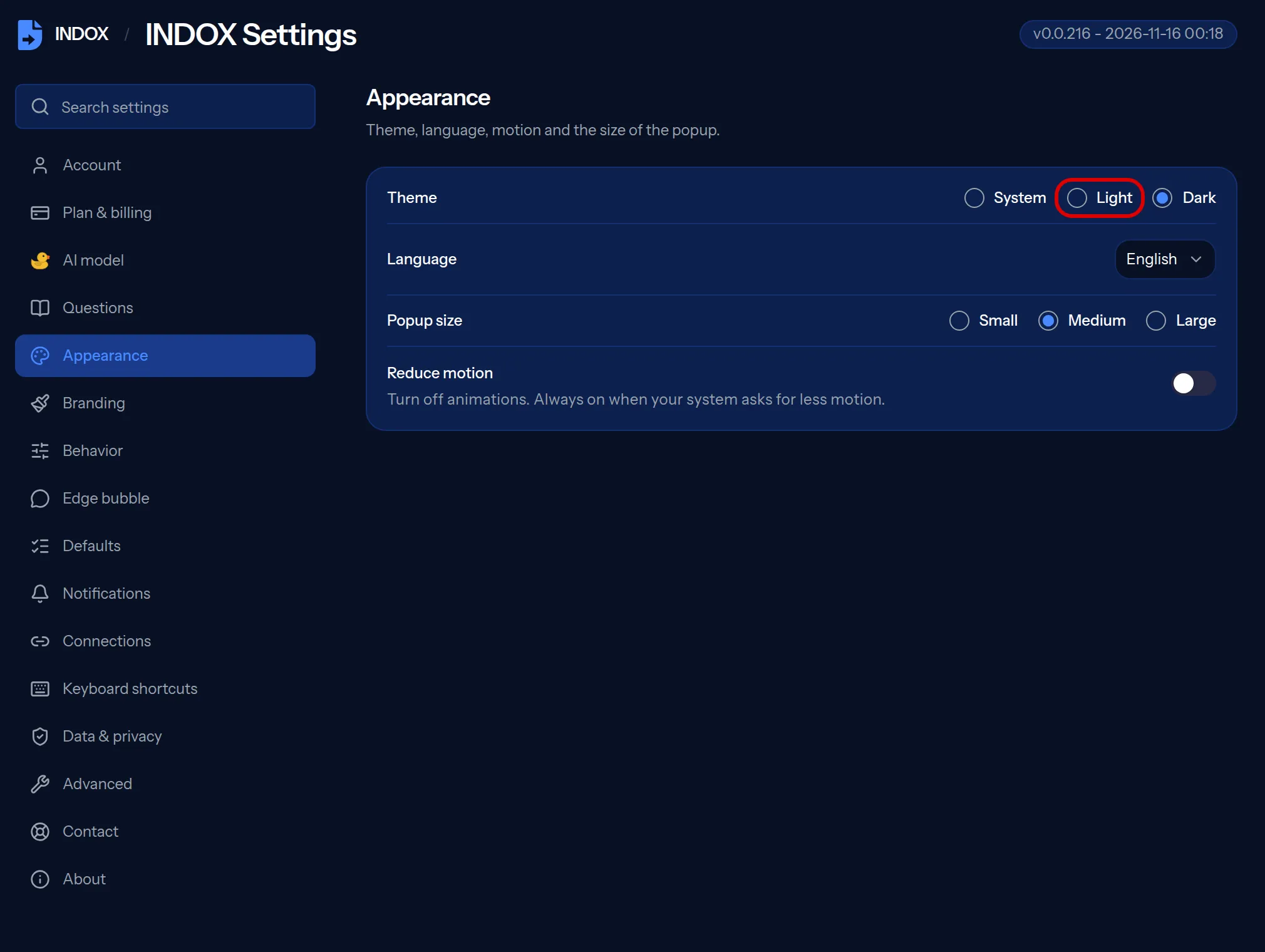
Select Appearance. Next to Theme, pick System, Light or Dark. The page changes colour at once. There is no Save button: a change is saved as soon as you make it, and it is still there the next time you open the settings.
Turn conversion notifications off
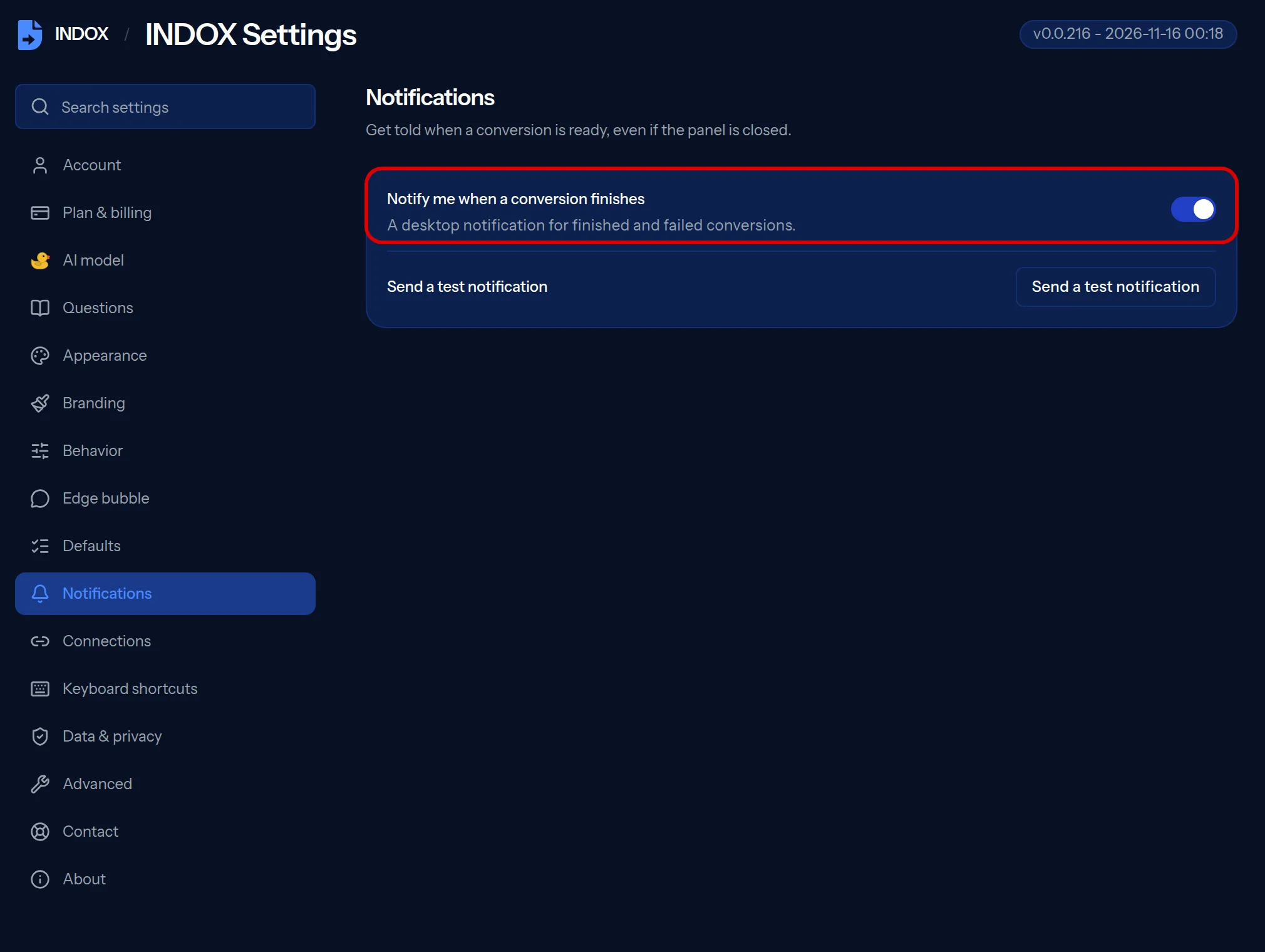
Select Notifications. Turn off Notify me when a conversion finishes. INDOX then stops showing a desktop notification when a conversion finishes or fails. Turn it on again the same way.
Look through the other sections
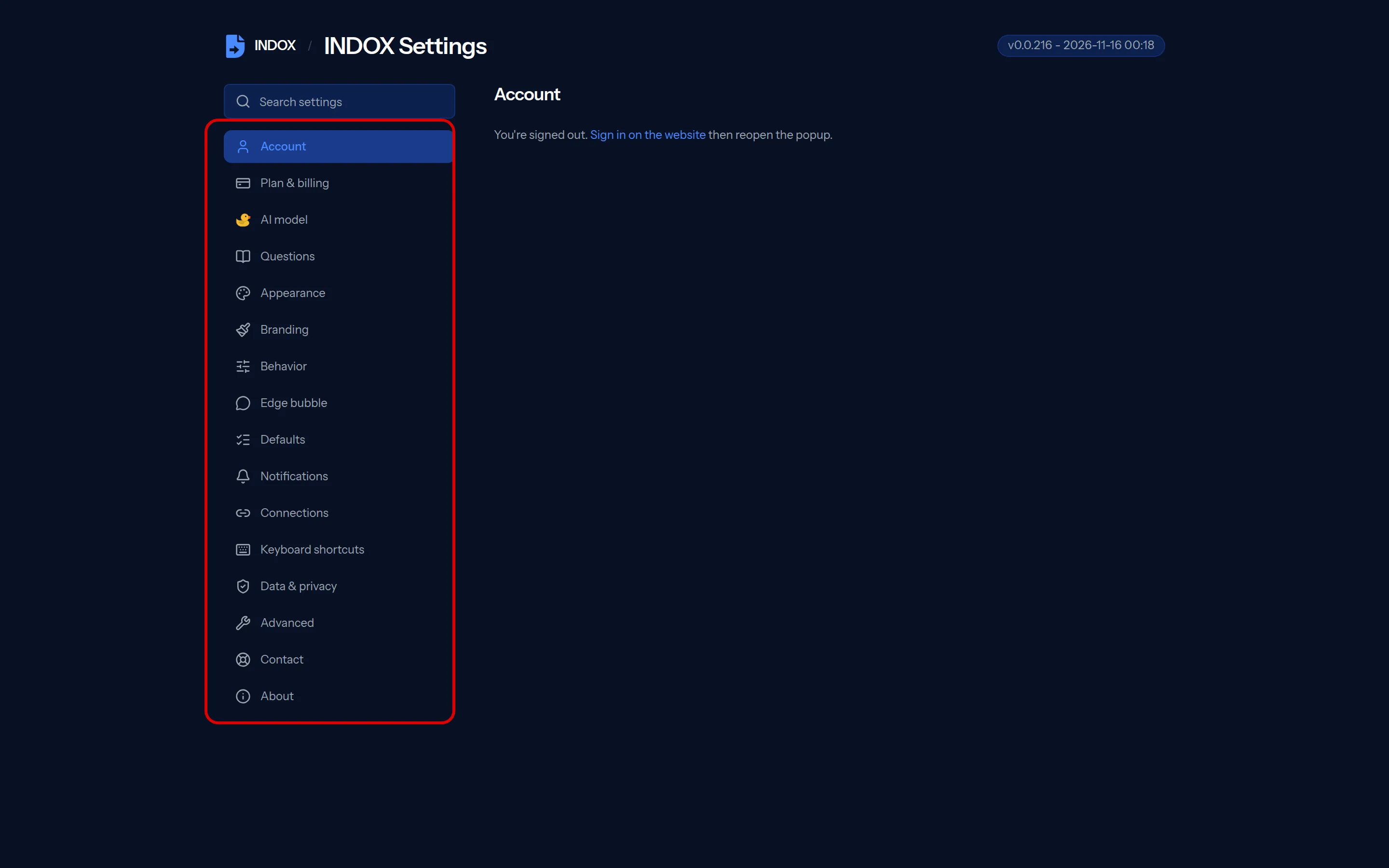
The list on the left has one section for each group of settings. Behavior is for the toolbar icon and PDFs. Edge bubble is for the INDOX button on web pages. Defaults is for the file type INDOX converts to first. Keyboard shortcuts shows the keys and an Edit in Chrome button. Data & privacy clears what the extension keeps on your computer. The guides "Open the INDOX side panel", "Open PDFs in the INDOX reader or turn it off" and "Show, move or hide the INDOX button on web pages" walk through Behavior and Edge bubble step by step.
Put every setting back
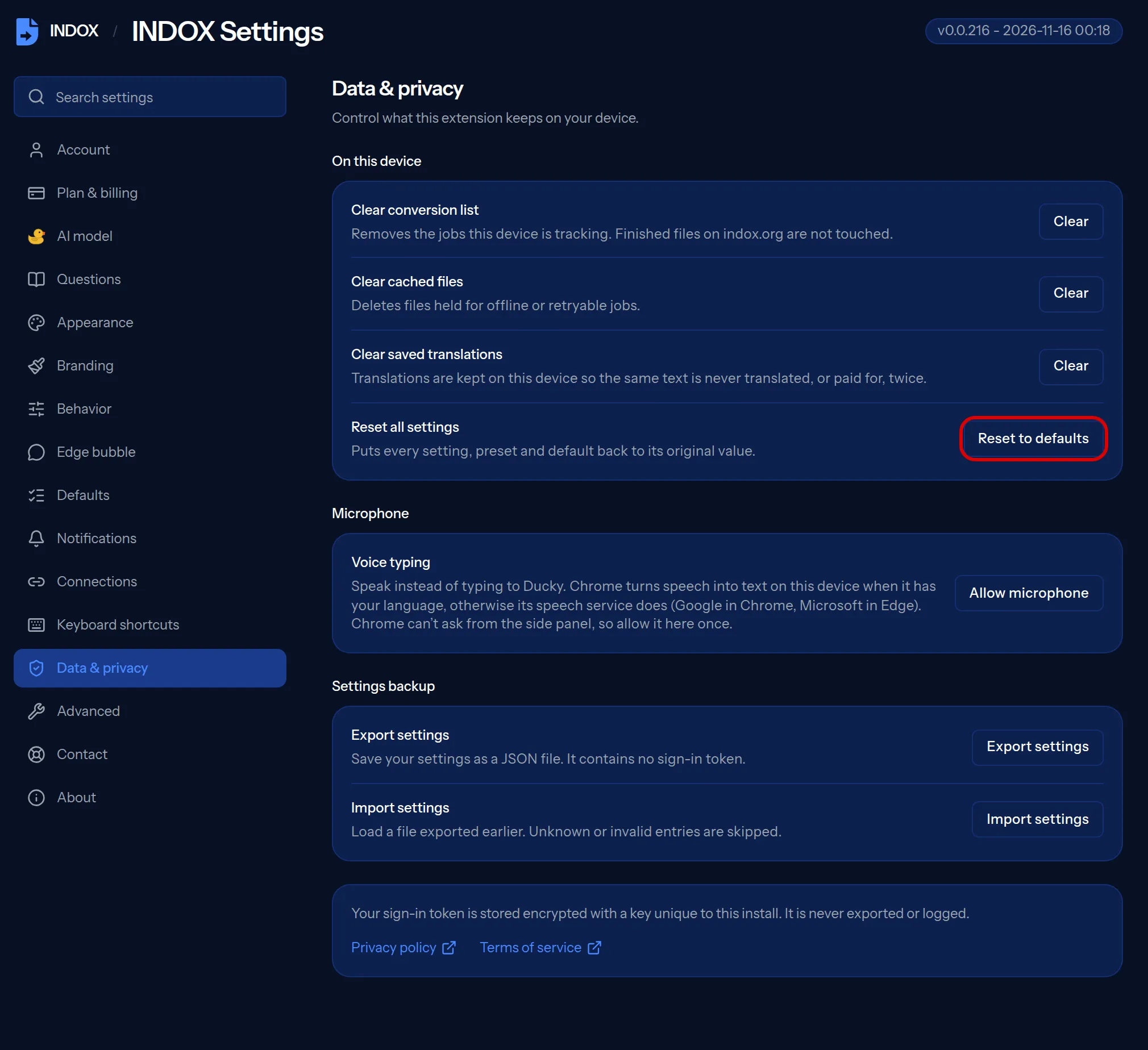
Select Data & privacy. Find Reset all settings and select Reset to defaults. The button changes to Click again to confirm. Select it once more. Every setting goes back to its starting value. To keep a copy first, select Export settings. It saves your settings as a file, and Import settings loads it again.
Troubleshooting
| Problem | Cause | Fix |
|---|---|---|
| The list is empty when you search | No section matches the word you typed | Select the x in the search box, or try a shorter word |
| Reset to defaults did nothing | The first click only asks you to confirm | Select the button again while it says Click again to confirm |
| A section asks you to sign in | Account, Plan & billing, AI model and Branding need an INDOX account | The other sections work without an account |