Last updated
Crop a PDF
Before you start
- To crop a page means to cut off its edges. The margin is the empty space along the edges of a page.
- Have the PDF on your phone or computer. The upload box tells you how big a file can be.
- You don't need an account.
Open your PDF
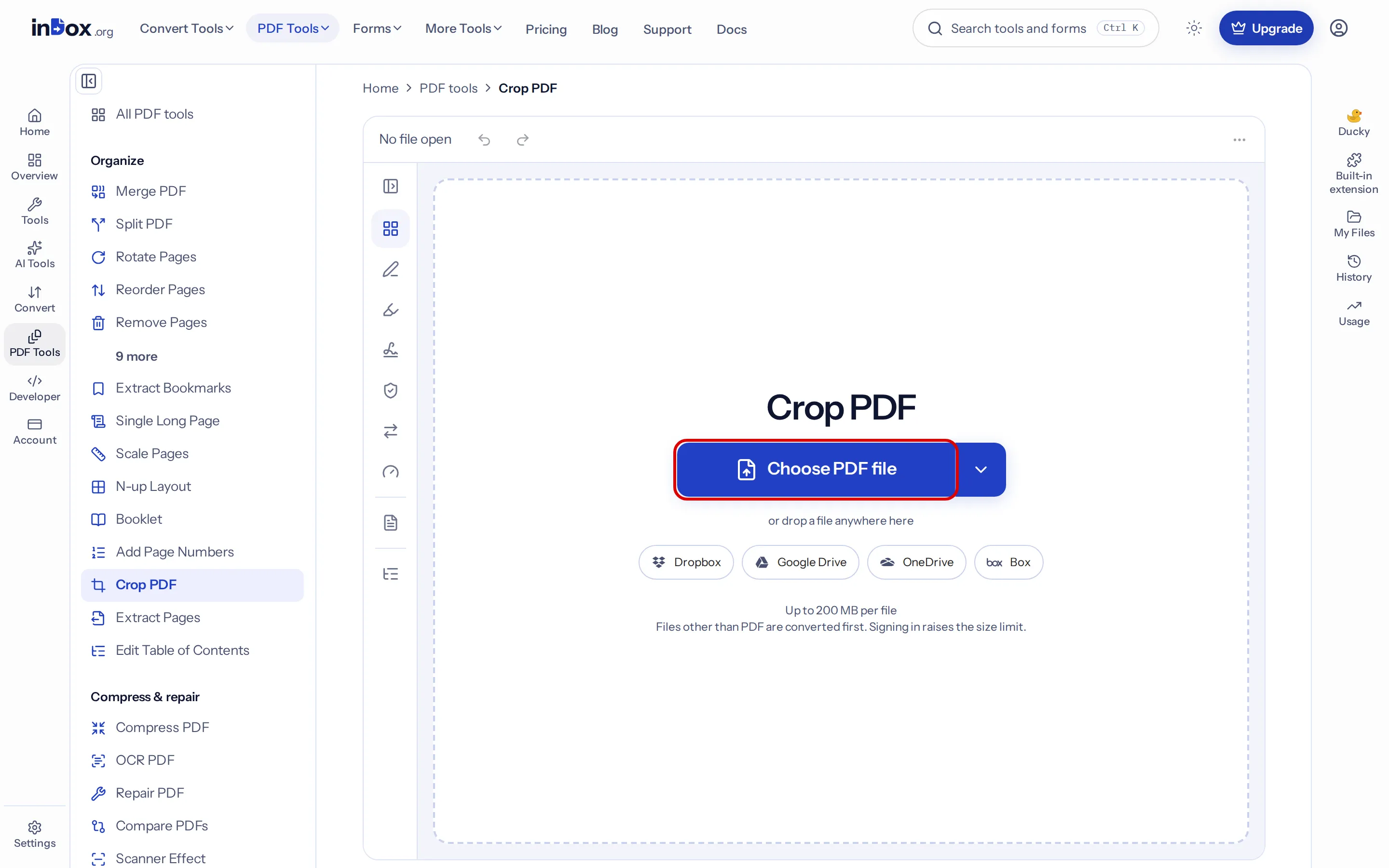
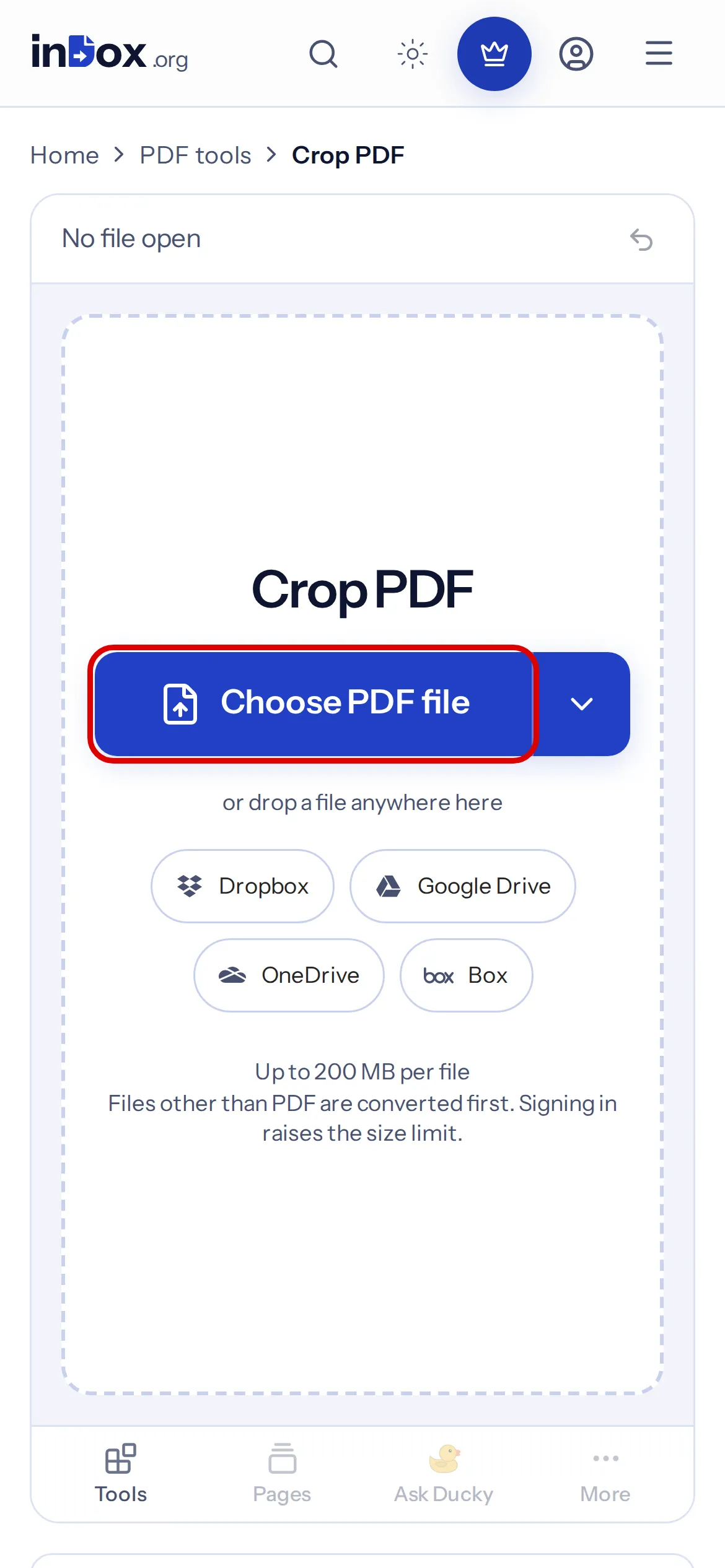
Go to the Crop PDF page. In the middle of the page, select the blue Choose PDF file button. A box opens so you can pick a file from your device. You can also drag a file onto the page. When the file loads, you see its pages and a Crop PDF panel. On a computer the panel is on the right. On a phone it is at the bottom of the screen.
Choose the pages to crop
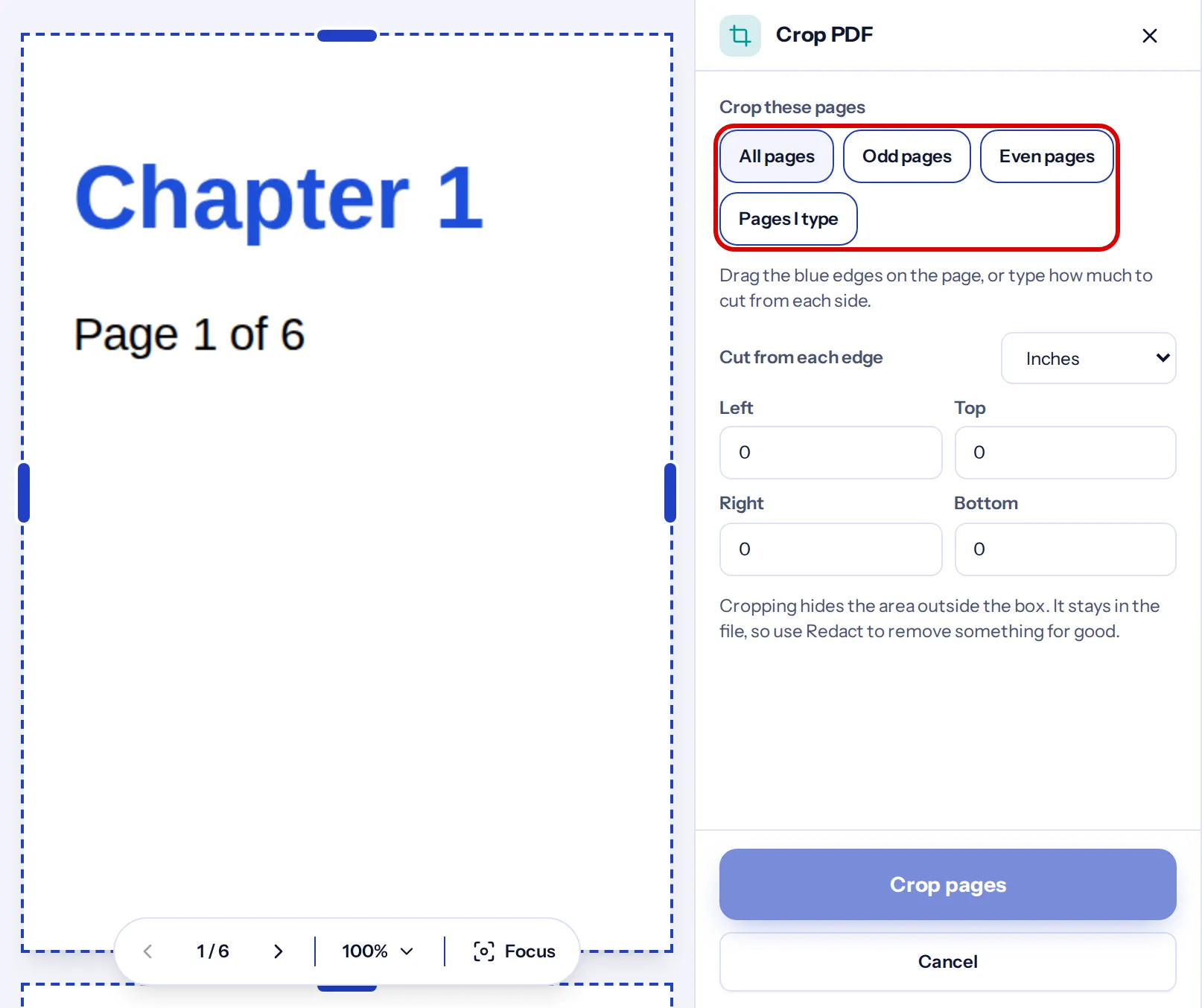
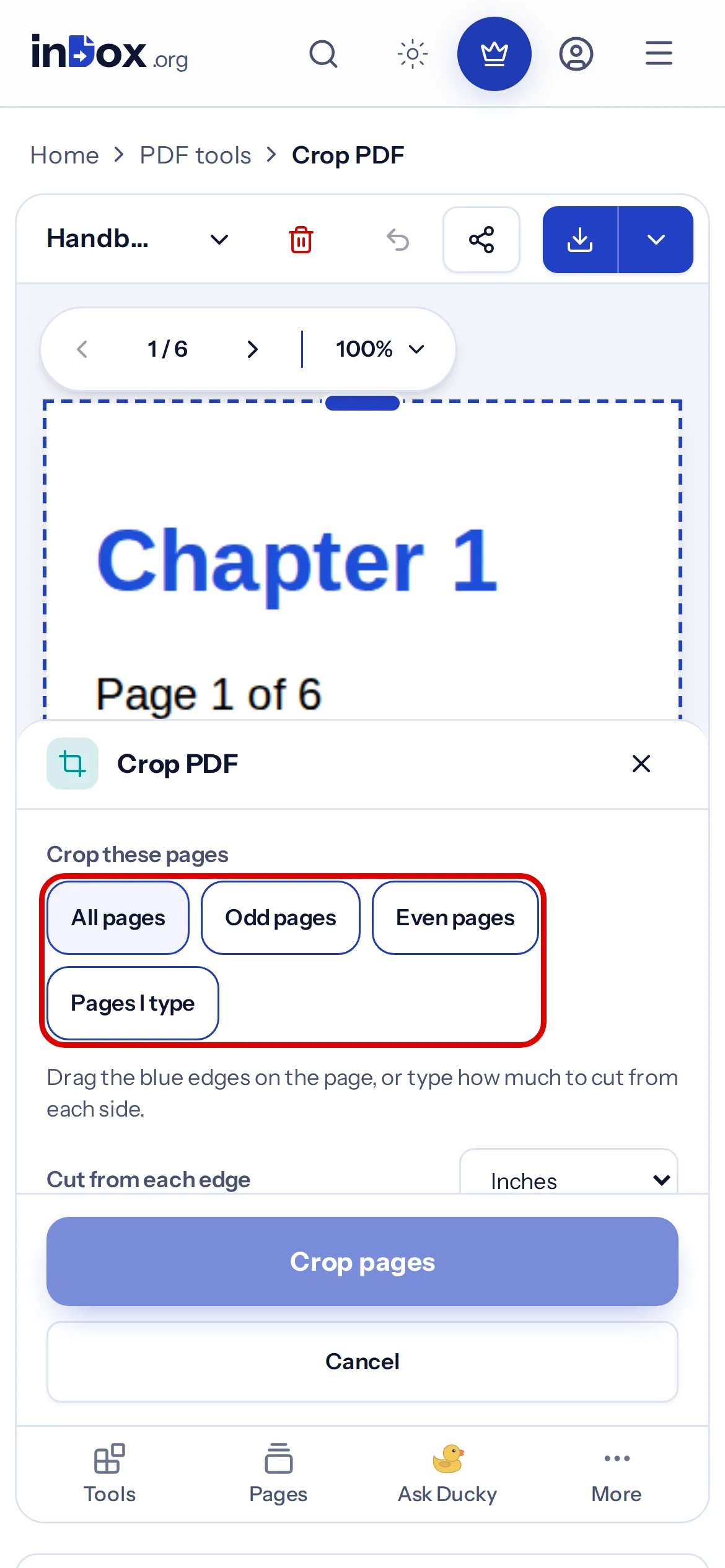
Look at the Crop PDF panel. Under Crop these pages, All pages is already picked. To crop only some pages, select Odd pages, Even pages or Pages I type. If you pick Pages I type, a box named Pages to crop opens. Type the page numbers there, like 1-3, 5.
Set the margins
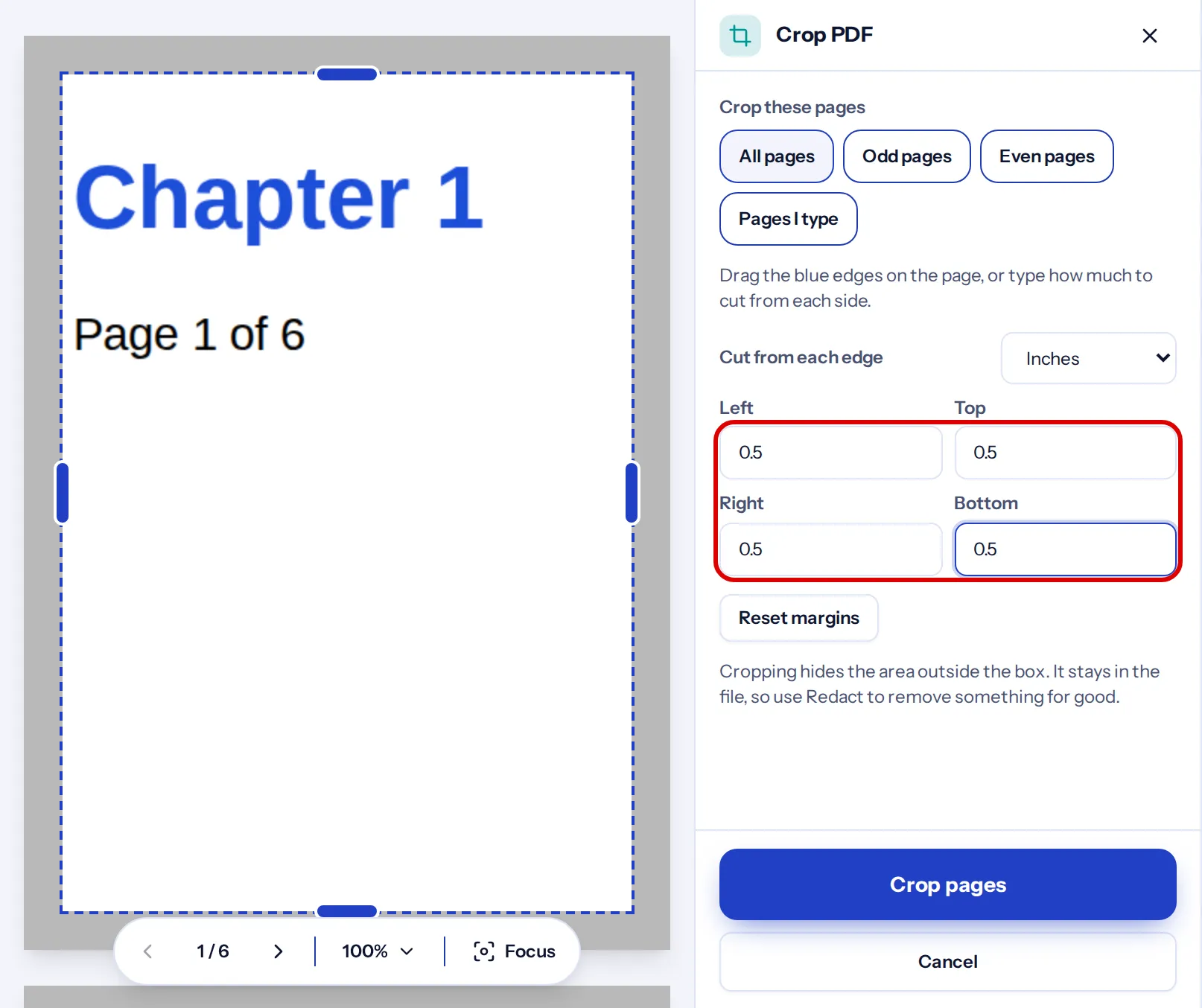
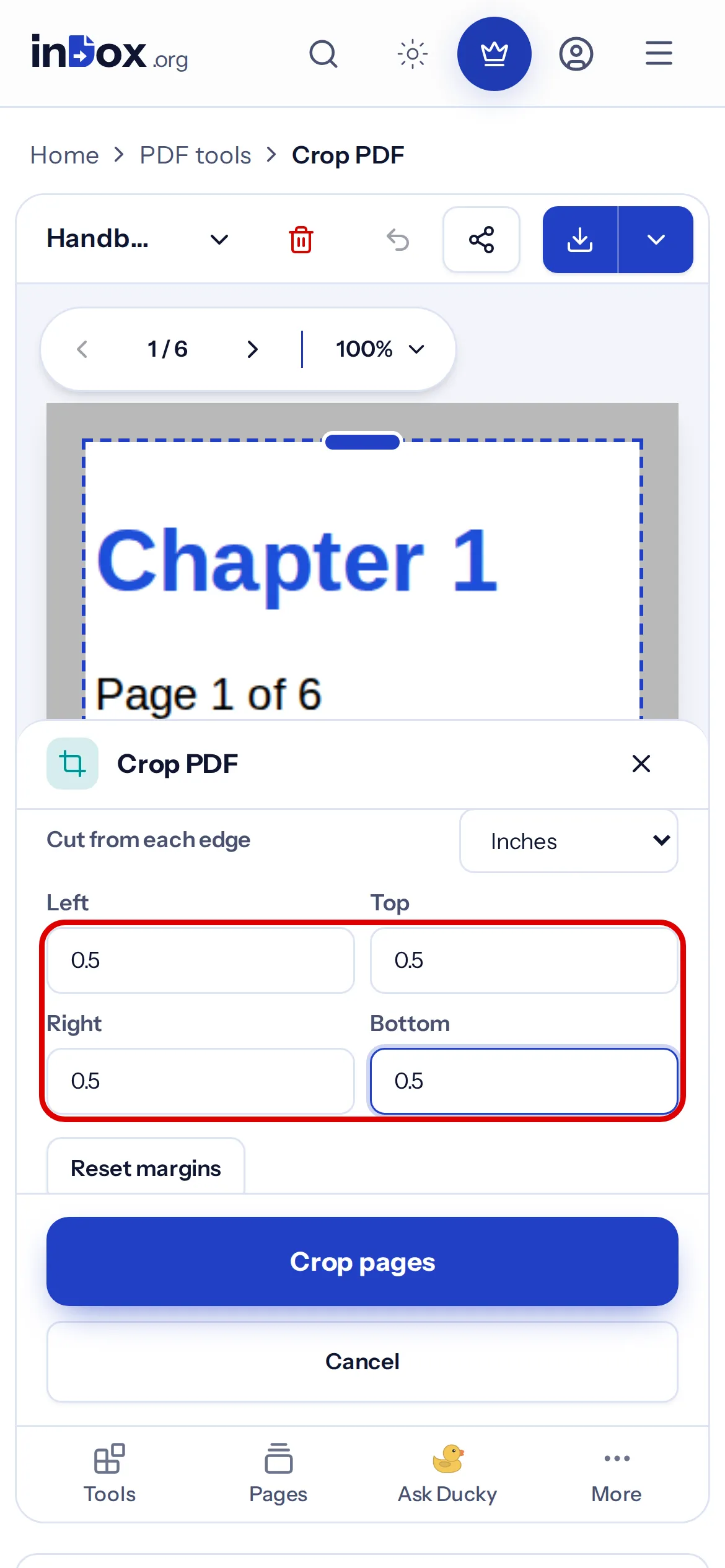
Find Cut from each edge. Type how much to cut in Left, Top, Right and Bottom. For example, type 0.5 in each box. The numbers mean inches. To change that, use the menu next to Cut from each edge and pick Centimetres, Millimetres or Points. As you type, a dashed blue box moves on the page. Everything inside the box stays. The area outside it turns grey and will be cut. You can also drag the blue bars on the box. To start over, select Reset margins.
Crop the pages
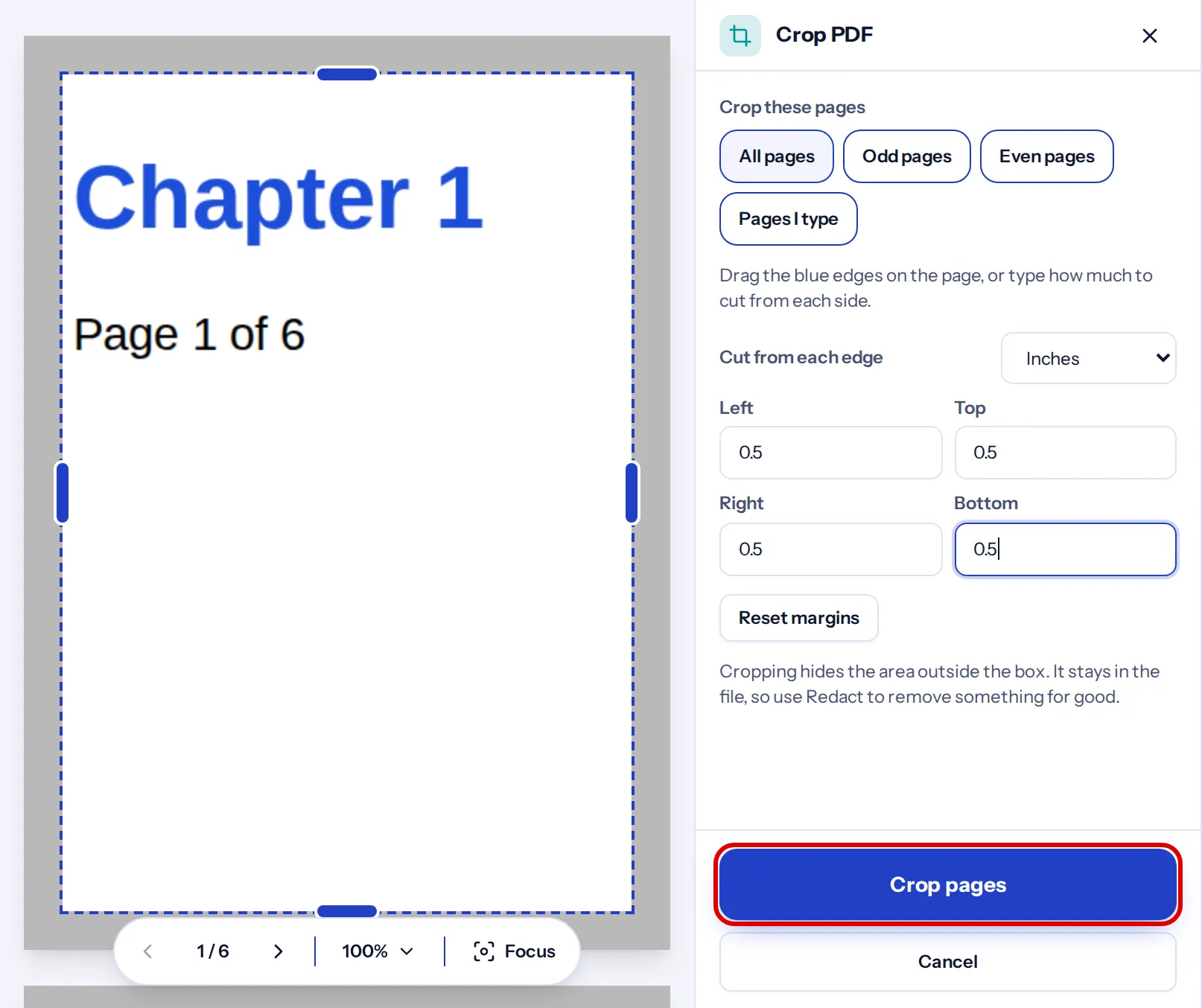
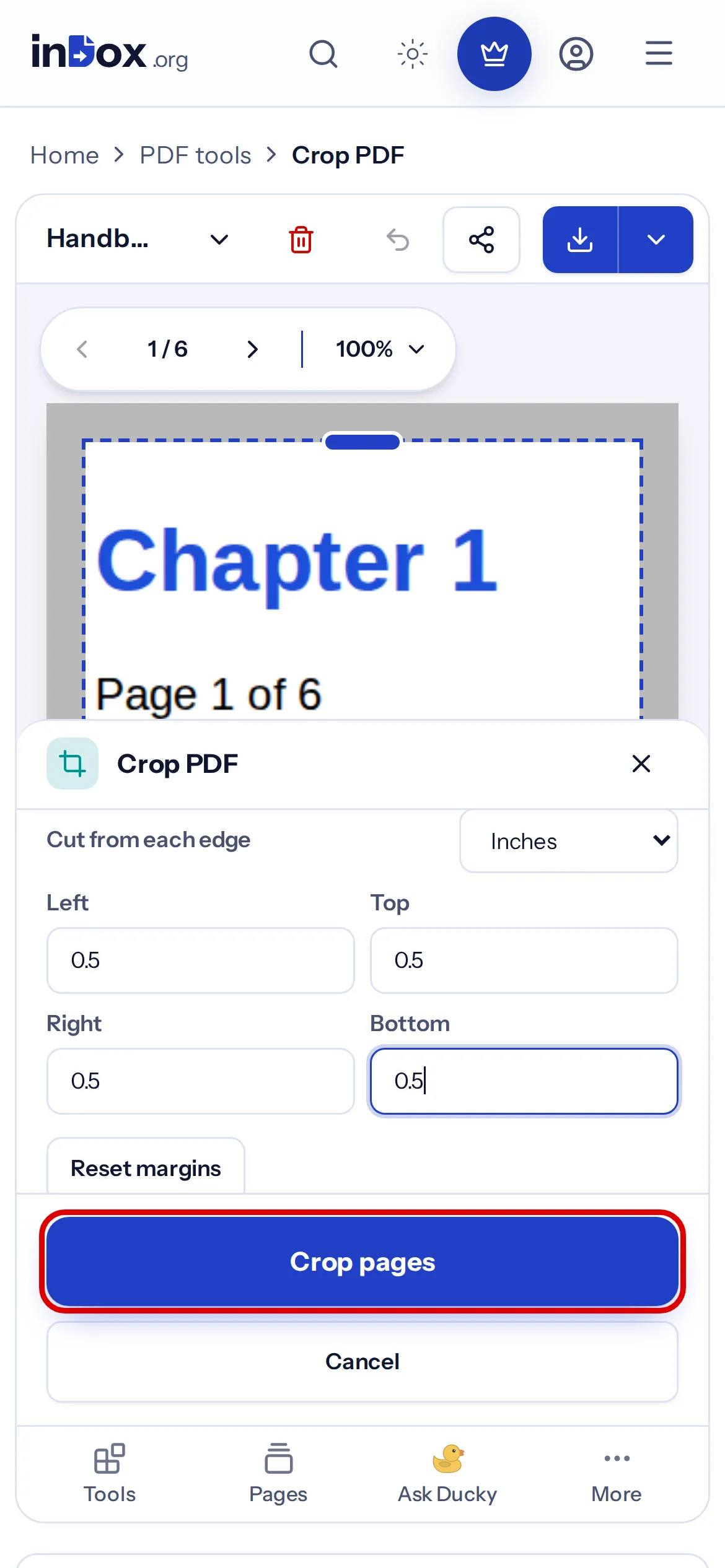
Select the blue Crop pages button at the bottom of the panel. It stays pale until you set a margin. Wait a moment while indox cuts the pages.
Download your PDF
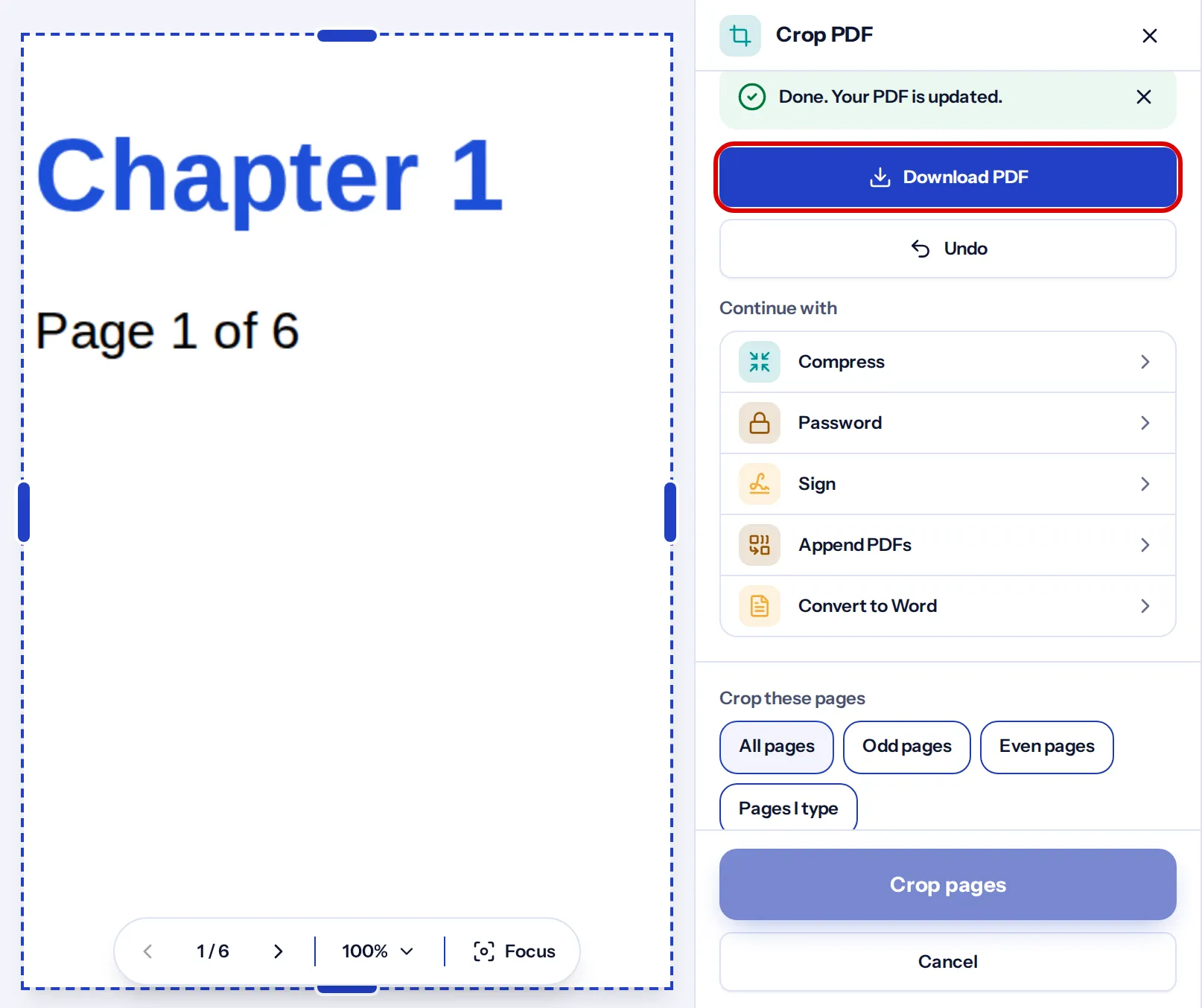
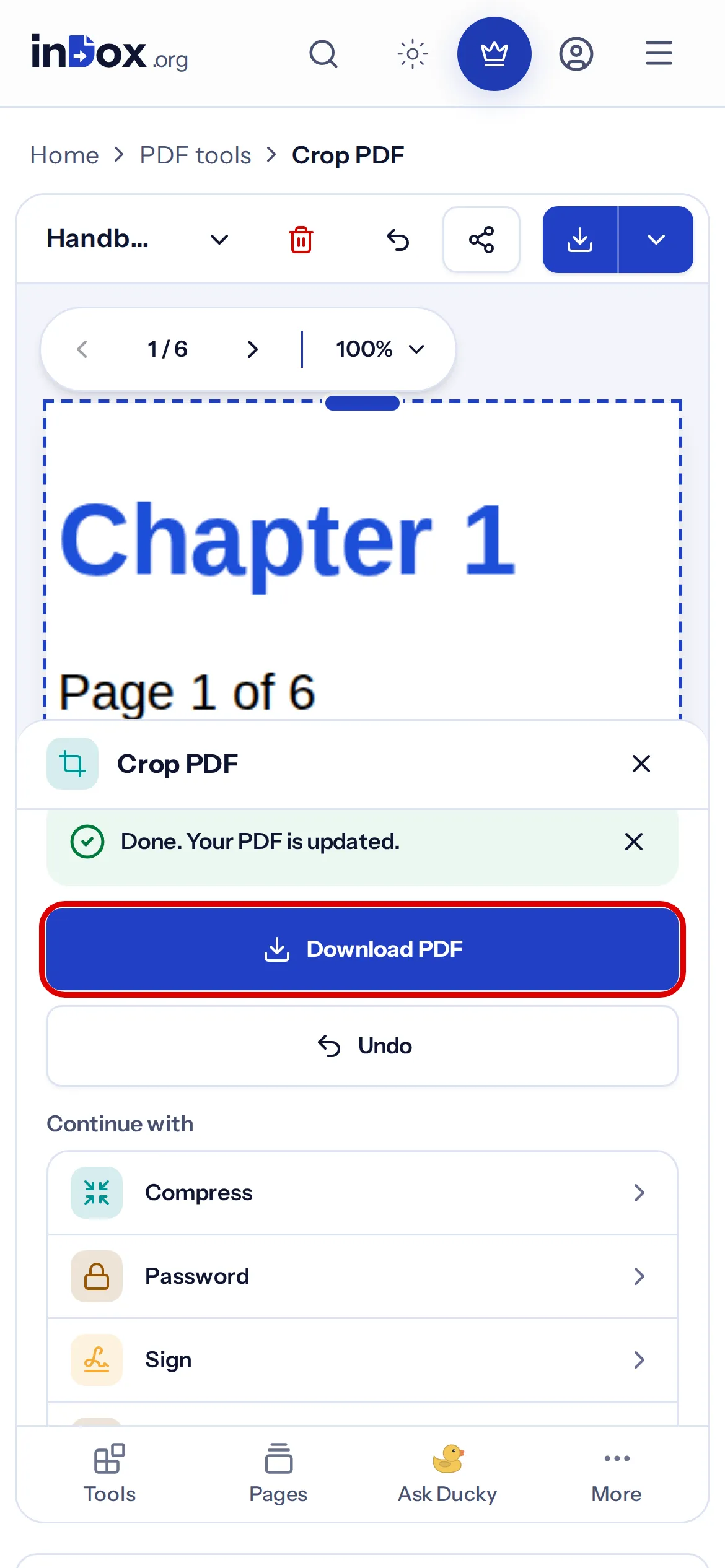
A green message says Done. Your PDF is updated. at the top of the panel. Select Download PDF, just below it. The new file is saved on your device. Not happy with it? Select Undo to get your pages back.
Troubleshooting
| Problem | Cause | Fix |
|---|---|---|
| Crop pages is greyed out | No margin is set yet, so there is nothing to cut | Type an amount in Left, Top, Right or Bottom, or drag an edge of the blue box |
| Only some pages were cropped | Only the pages chosen under Crop these pages are cropped | Select All pages, or type the page numbers after selecting Pages I type |
| The cut-off area is still in the file | Cropping hides the area outside the box and keeps it in the file | To remove something for good, use Redact PDF |
| The margins are too big or too small | The amounts use the unit shown next to Cut from each edge | Check the unit, or select Reset margins and start again |