Last updated
Invert or replace PDF colours
Before you start
- Have the PDF on your phone or computer. The upload box tells you how big a file can be.
- A high-contrast look uses strong colours that are easy to see, such as white text on a black page.
- The colours change on the whole document, not on one page.
- You don't need an account.
Open your PDF
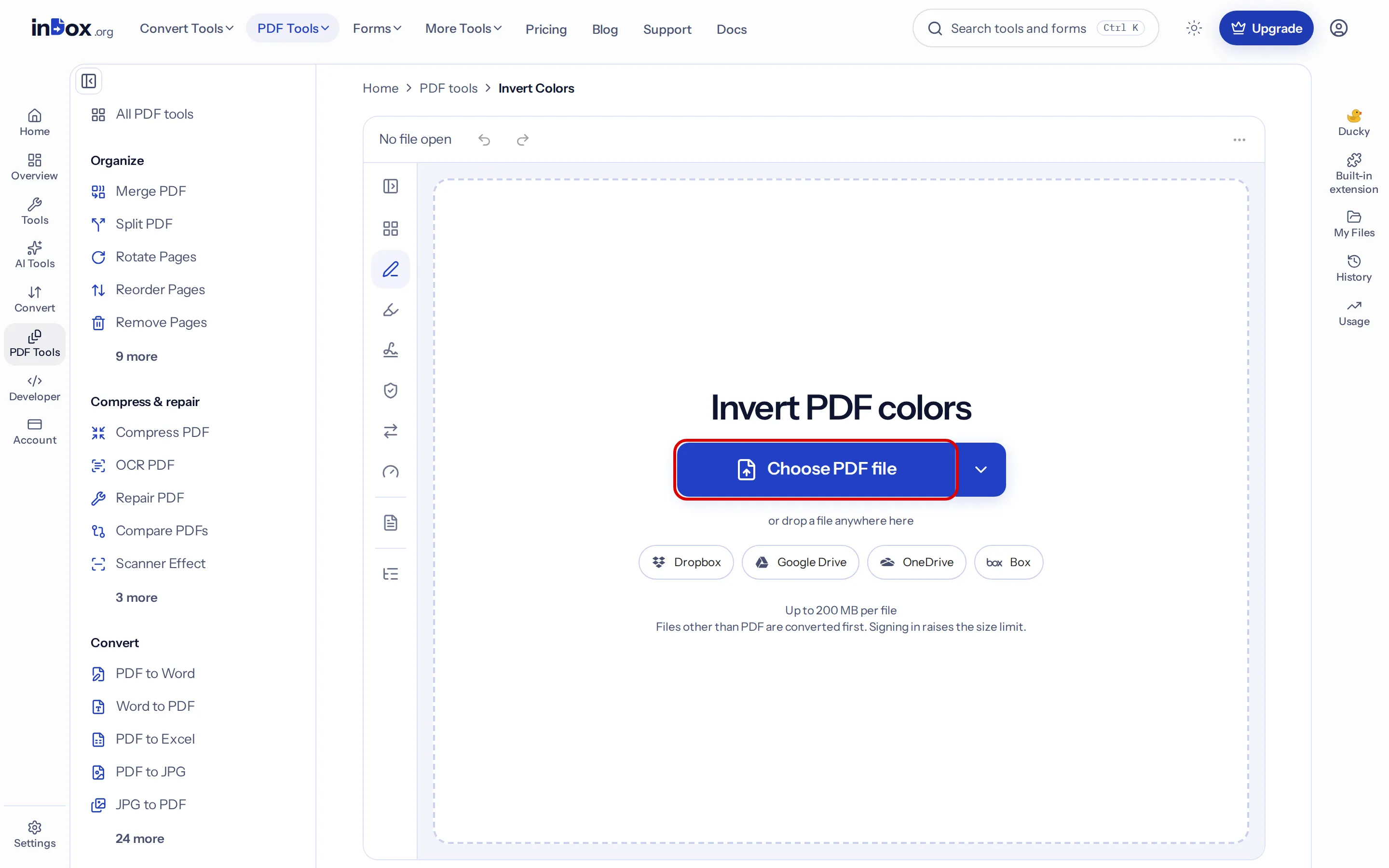
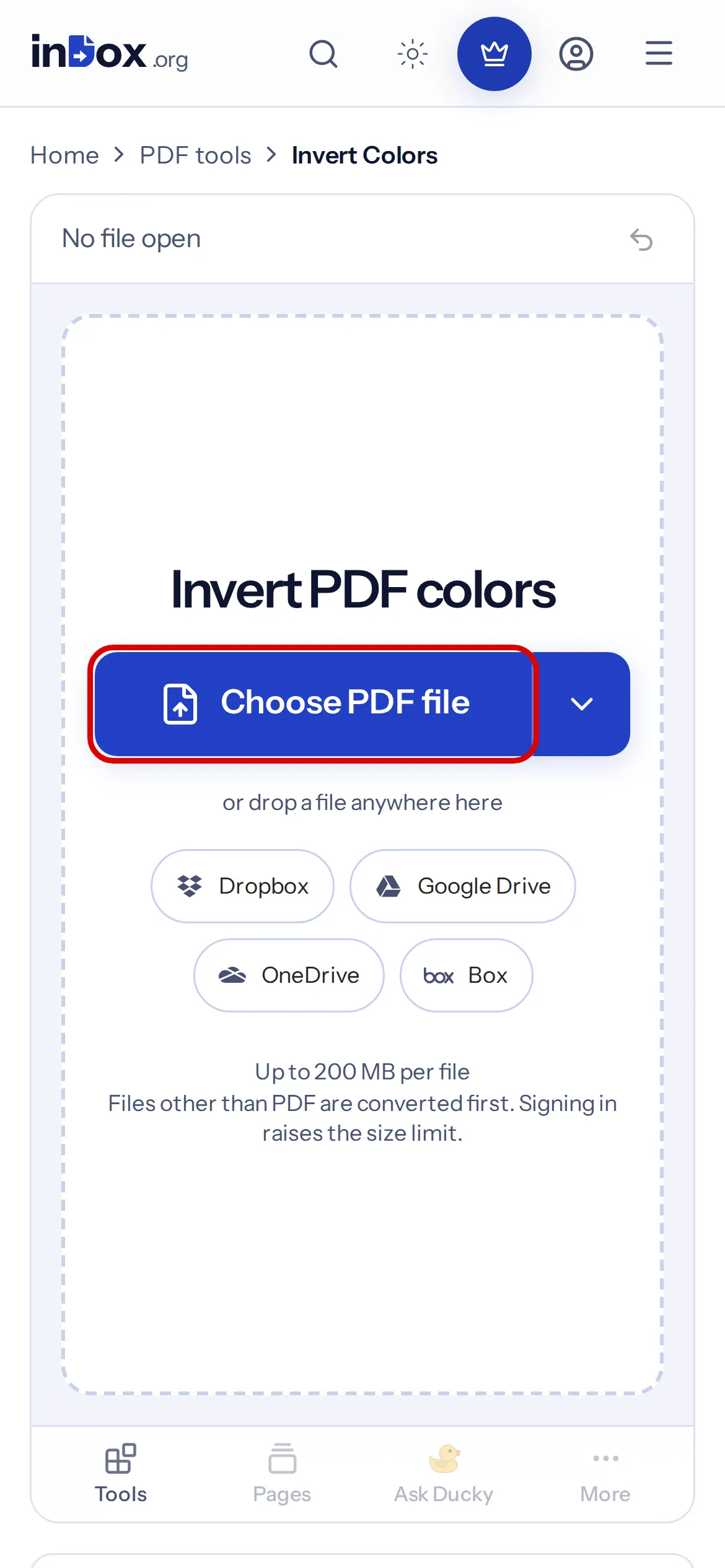
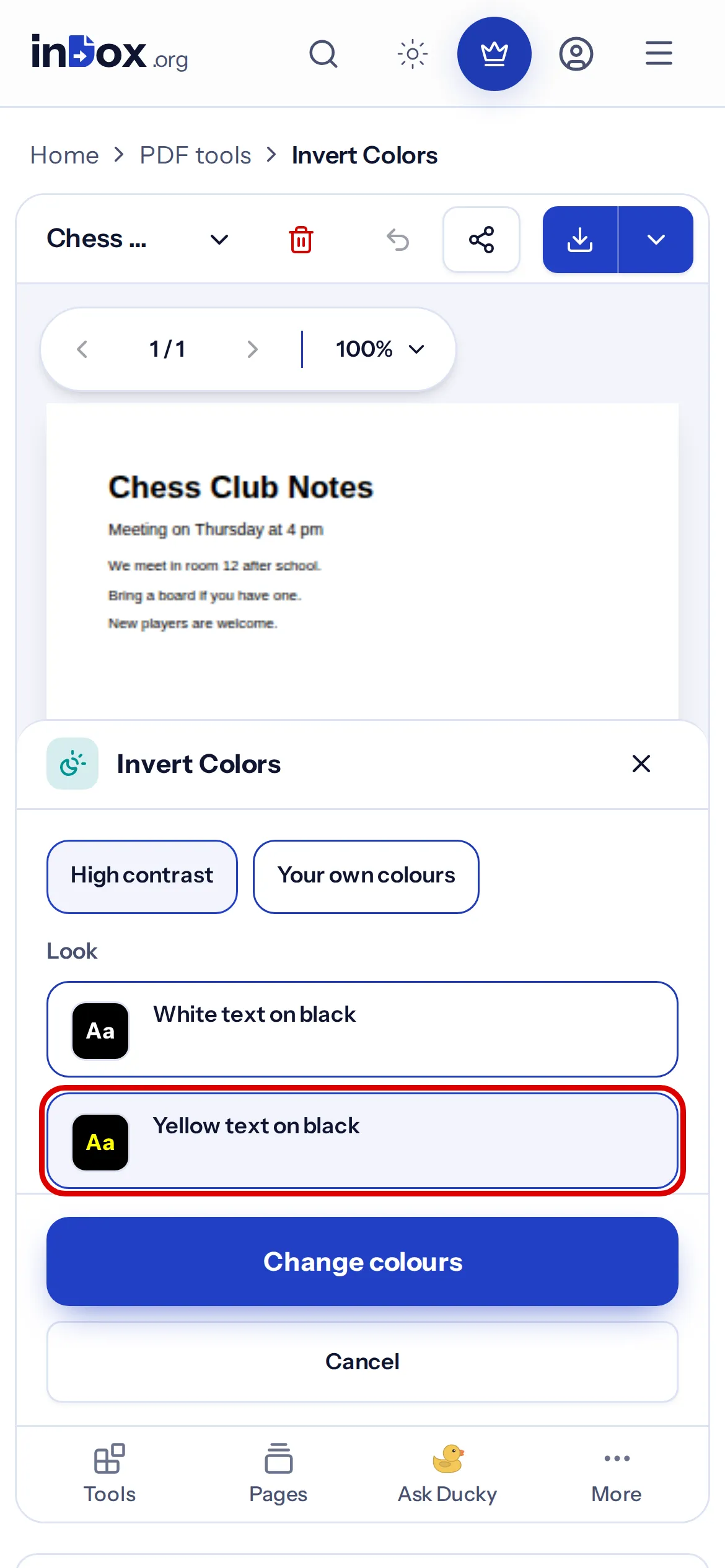
Go to the Invert Colors page. In the middle of the page, select the blue Choose PDF file button. A box opens so you can pick a file from your device. You can also drag a file onto the page. The file opens with a panel called Invert Colors. On a computer the panel is on the right. On a phone it slides up from the bottom.
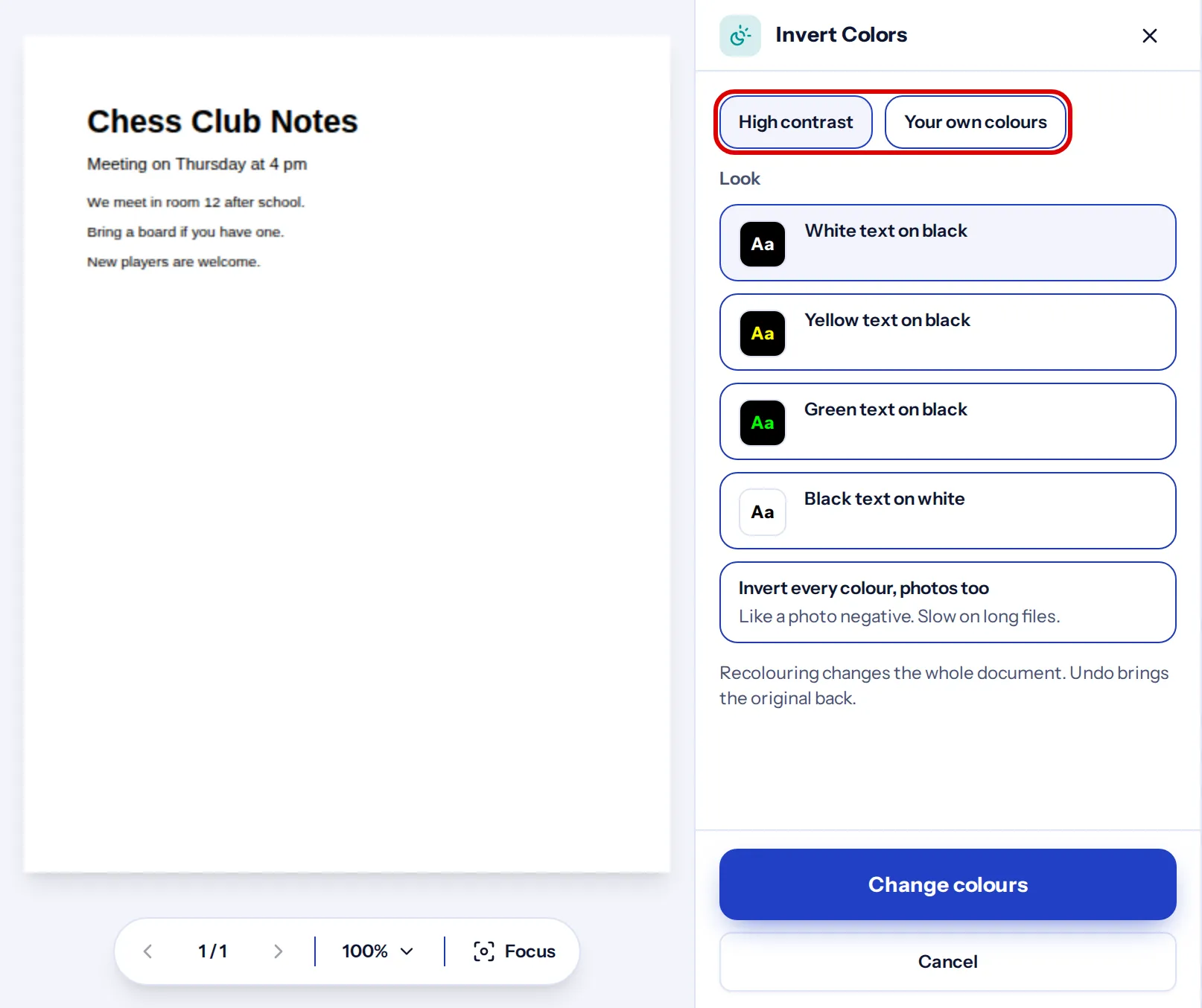
See the two ways to change colours
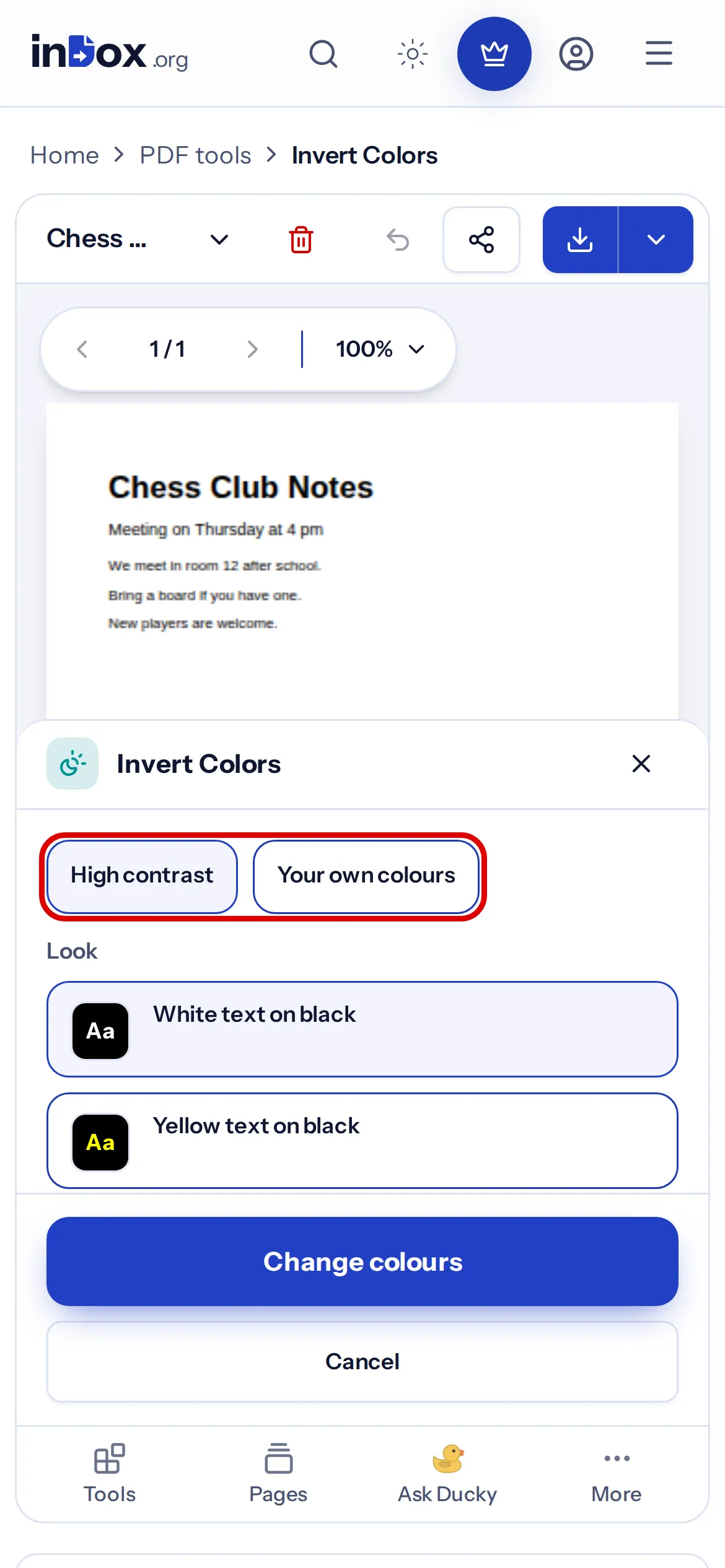
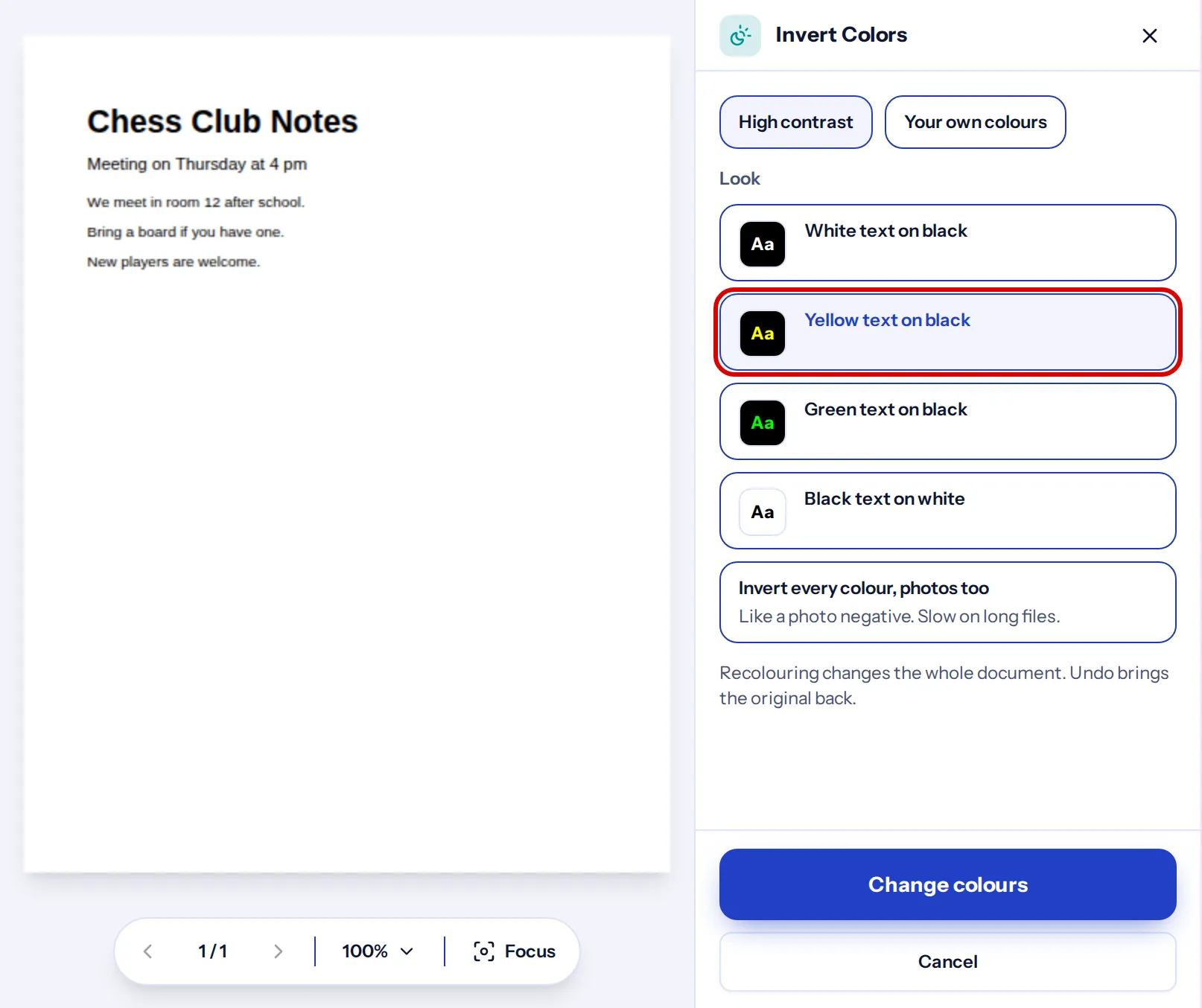
At the top of the panel are two buttons. High contrast gives a ready-made look. Your own colours lets you pick a page colour and a text colour. High contrast is picked on this page.
Pick a look
Under Look, you see a list: White text on black, Yellow text on black, Green text on black, Black text on white, and Invert every colour, photos too. The last one works like a photo negative and is slow on long files. It also turns each page into a picture, so you can't select the text afterwards. Select Yellow text on black.
Change the colours
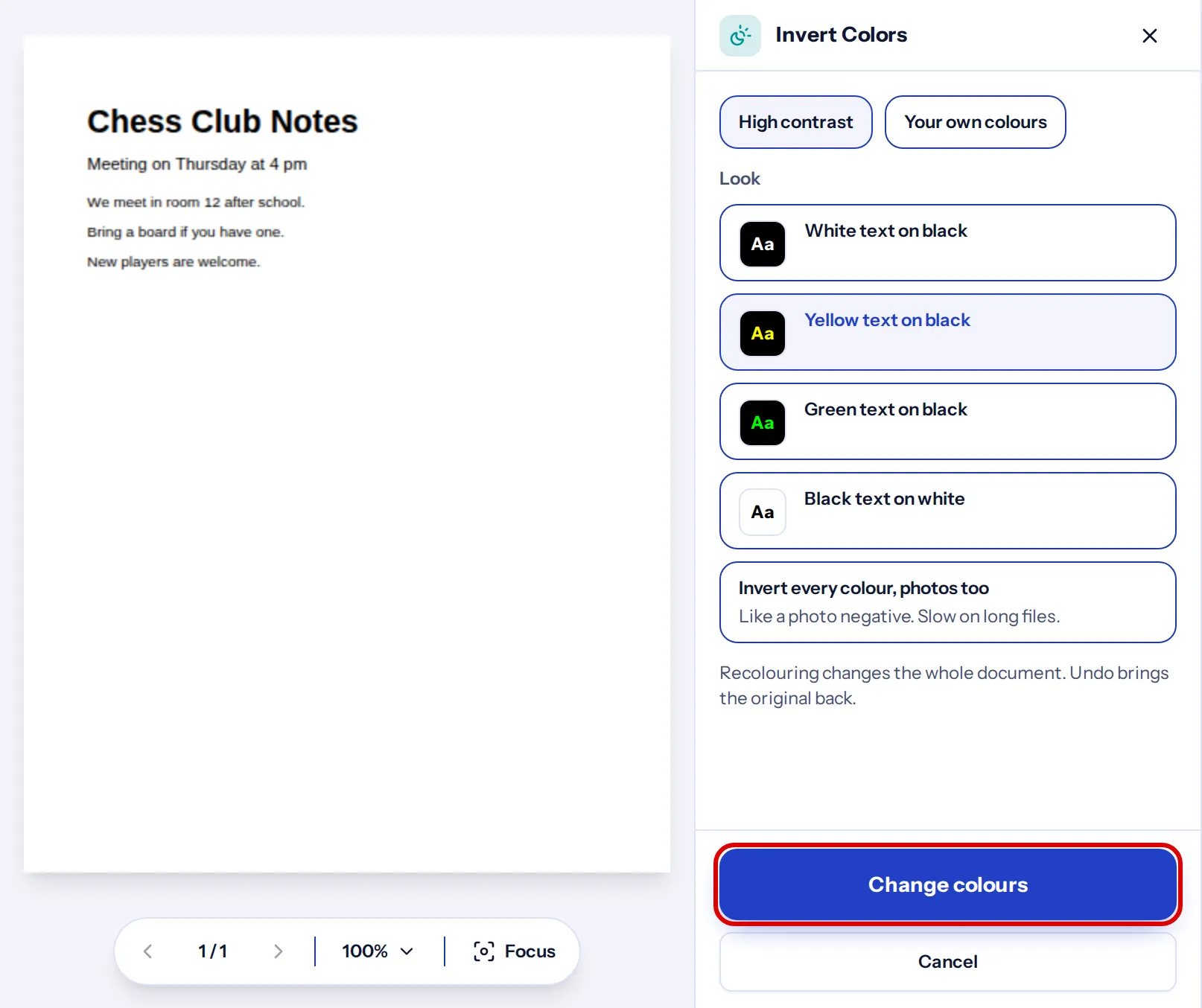
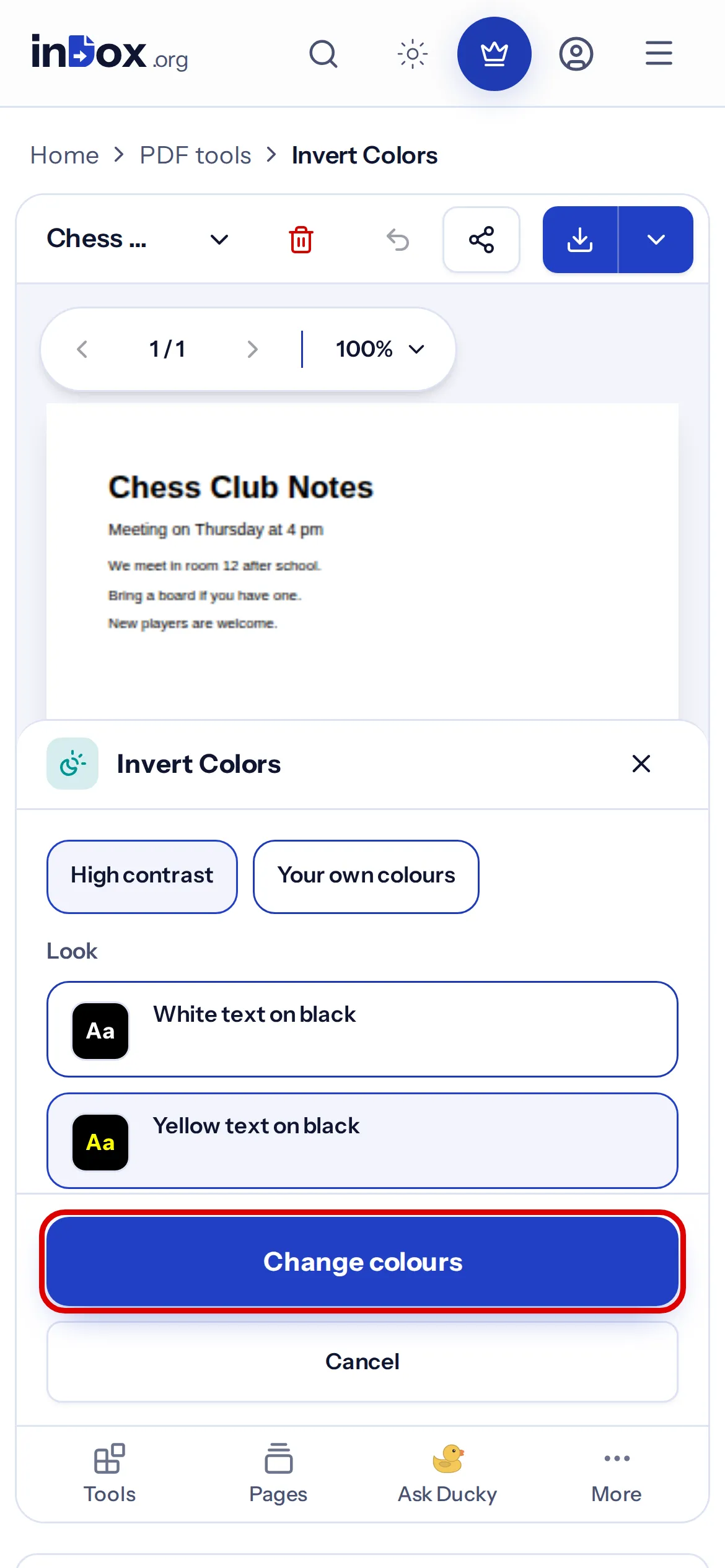
Select the blue Change colours button at the bottom of the panel. Wait a moment.
Download your PDF
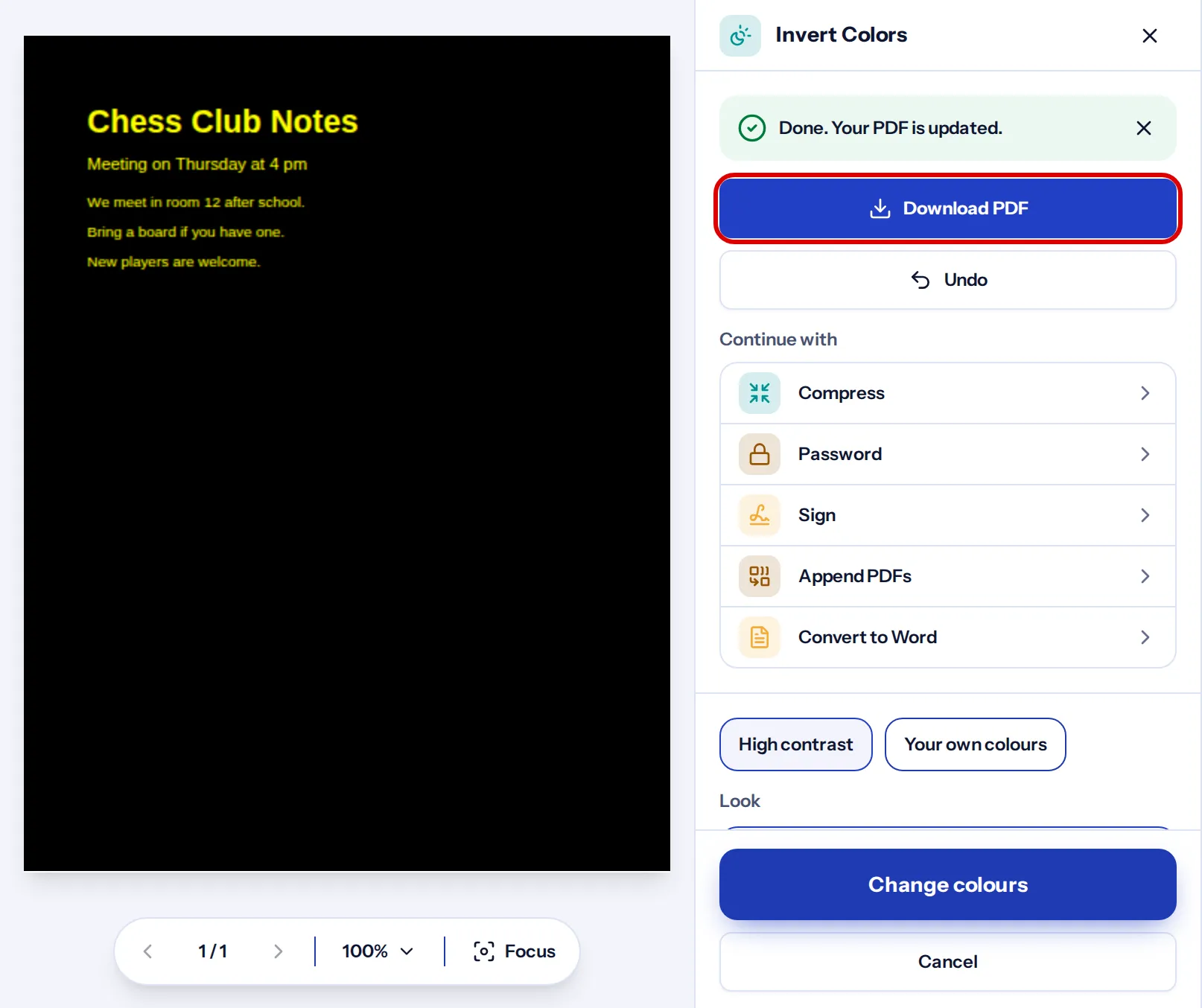
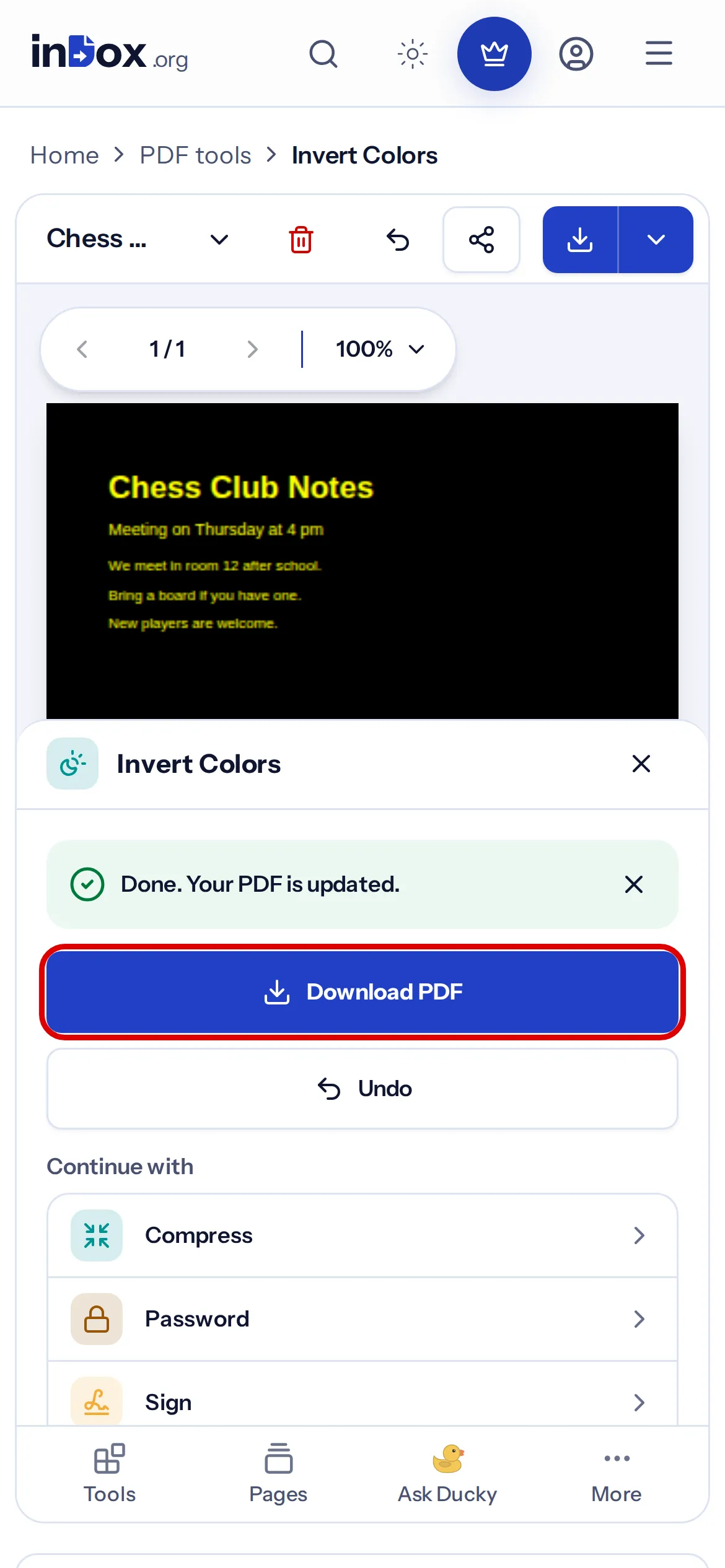
The panel says Done. Your PDF is updated. The page on the left now has a black background with yellow text. Select the blue Download PDF button. The new file is saved on your device. Its name ends in -edited.
Or choose your own colours
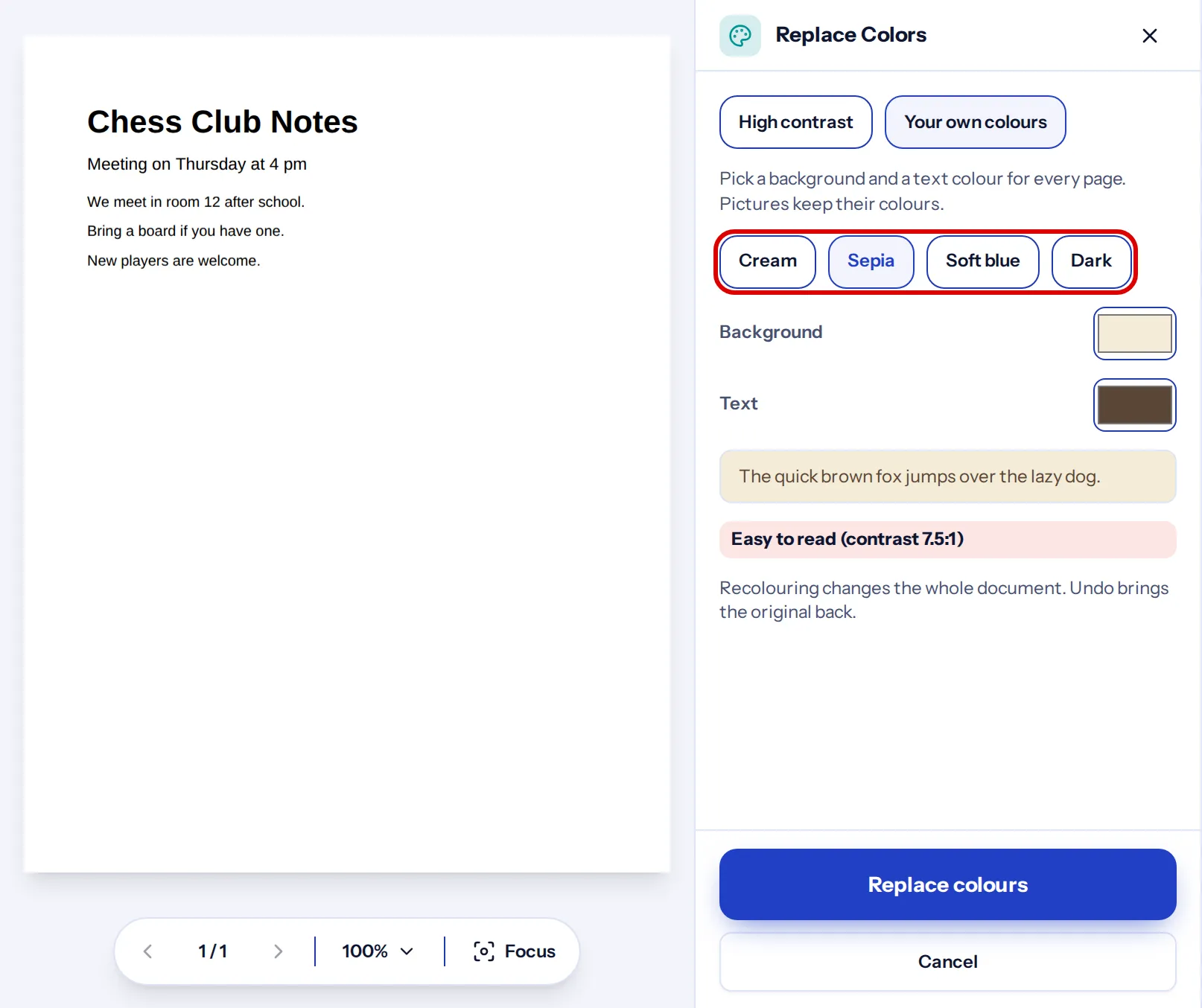
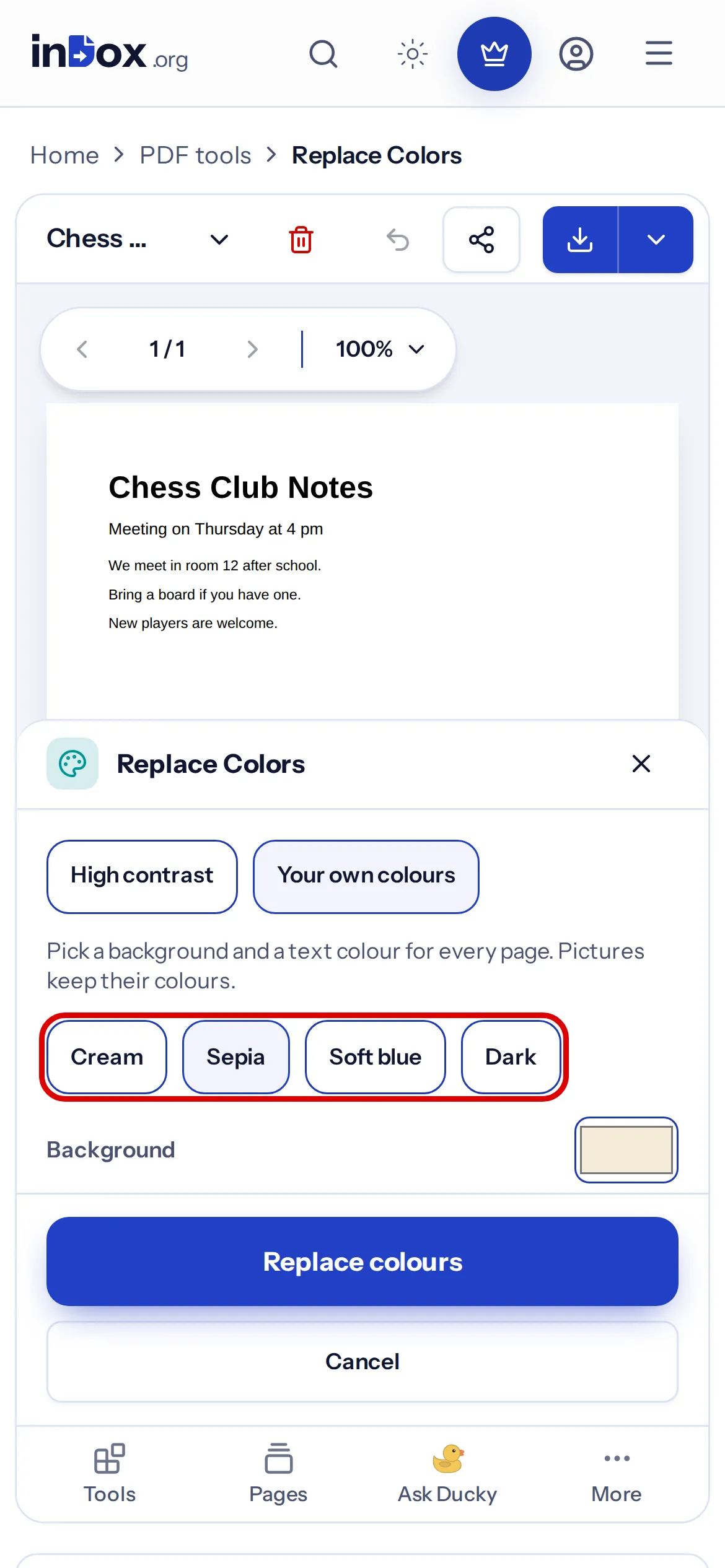
To pick the colours yourself, go to the Replace Colors page and open your PDF. The panel opens on Your own colours. Select a ready-made pair: Cream, Sepia, Soft blue or Dark. You can also set Background and Text with the two colour boxes. A line such as Easy to read (contrast 7.5:1) tells you the colours work together. Then select Replace colours and download the file as before.
Troubleshooting
| Problem | Cause | Fix |
|---|---|---|
| The panel says Hard to read | The background and the text are too close in colour | Pick colours further apart, or choose one of the ready-made pairs. The Replace colours button stays off until they are easy to read |
| You can't select the text any more | Invert every colour, photos too turns each page into a picture | Select Undo and pick one of the other looks instead |
| The picture colours changed too | Invert every colour, photos too changes photos as well | Use Your own colours. Pictures keep their colours there |
| You want the original colours back | Recolouring changes the whole document | Select Undo next to Download PDF |