Last updated
Take a screenshot with the INDOX extension
Before you start
- The INDOX extension added to Chrome on a computer, and a signed-in INDOX account.
- Converting a picture uses credits. The panel shows the cost before you convert.
Point at the INDOX tab
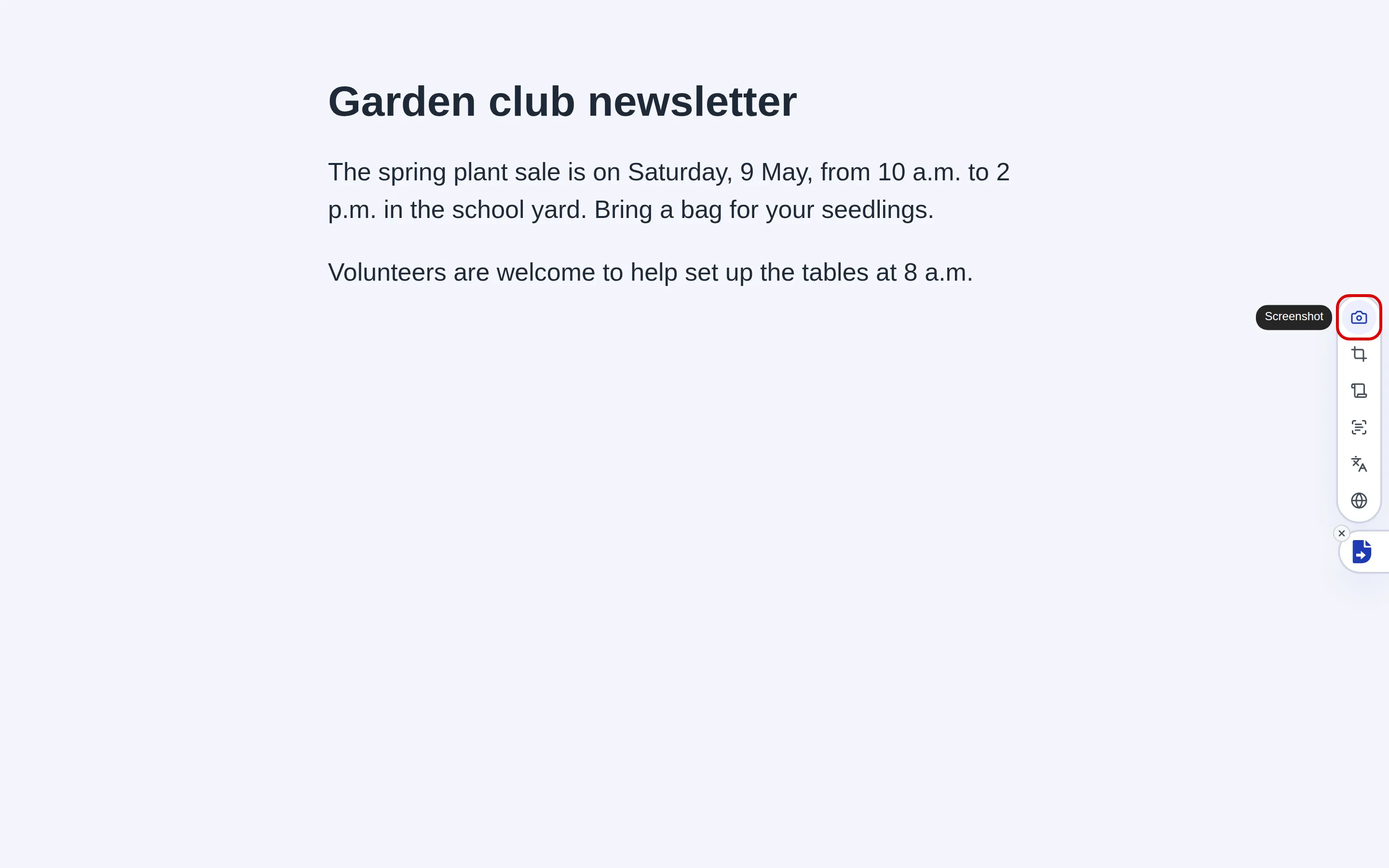
Open the web page you want. Point at the small INDOX tab at the right edge of the page. A column of buttons opens above it. The top button is Screenshot. It takes a picture of the part of the page you can see.
Or draw a box
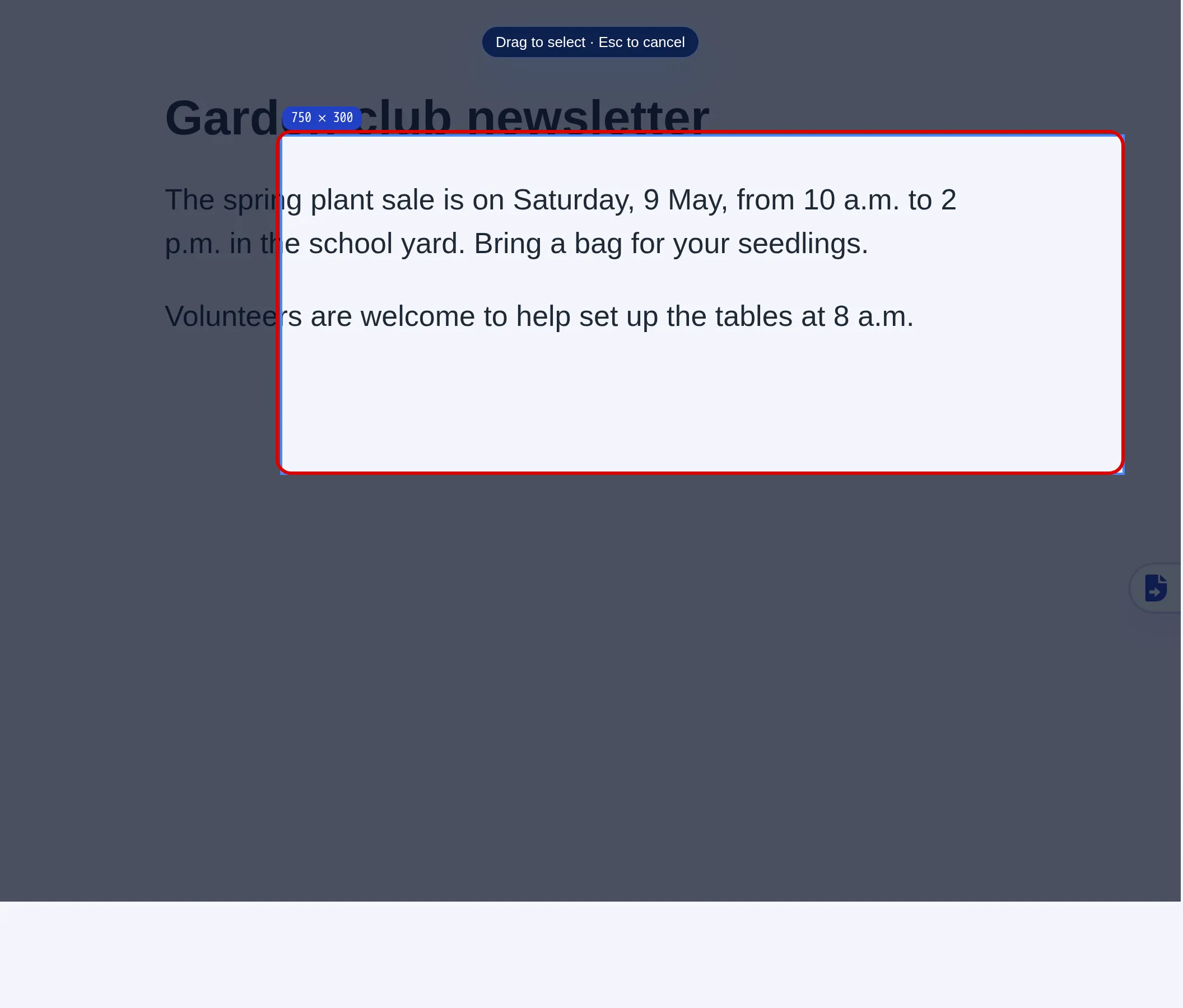
To capture only one area, select Select a region, the button under Screenshot. The page goes dark and says Drag to select · Esc to cancel. Drag a box over the area and let go. For the whole page from top to bottom, select Full page instead.
Look in the side panel
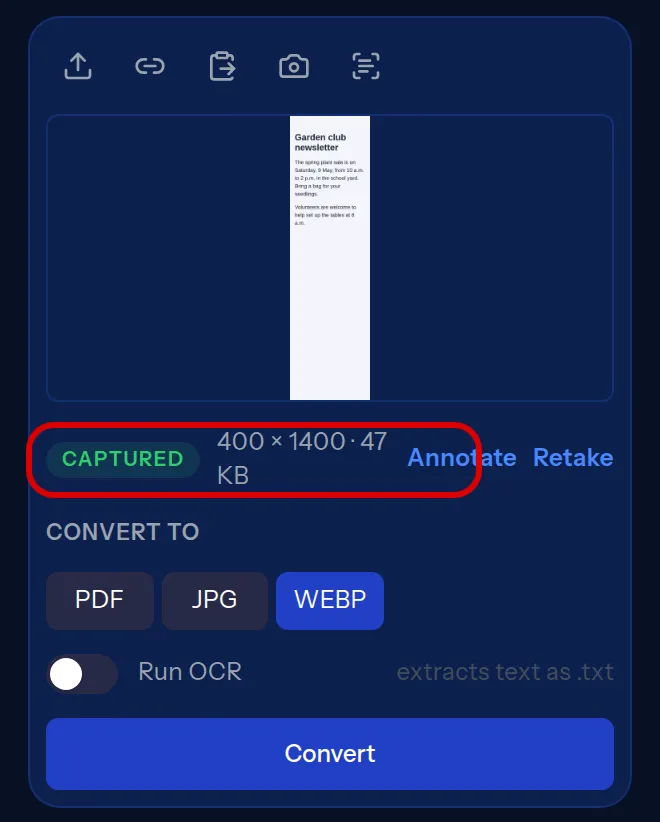
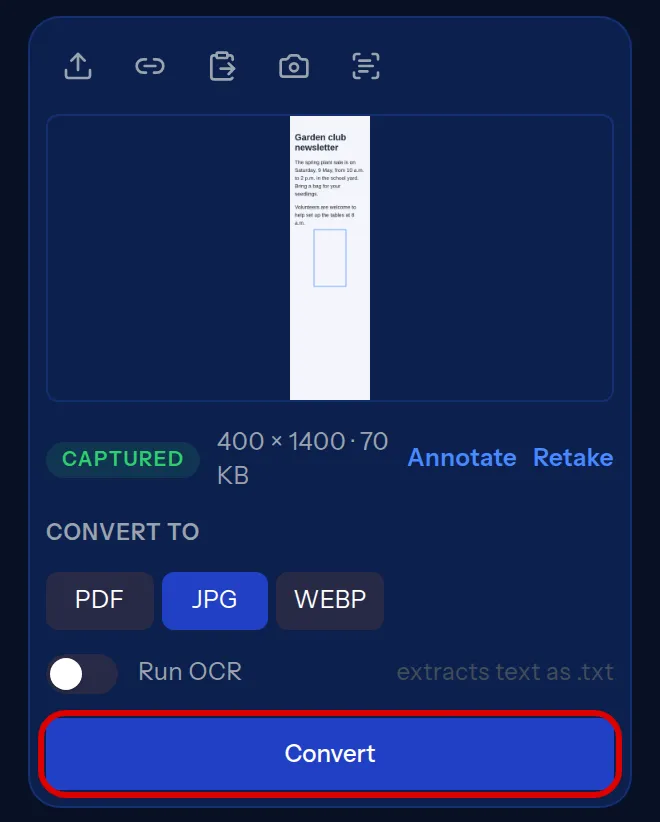
The INDOX side panel shows your picture and the word CAPTURED with its size. You can also start here. Select Visible at the top of the panel to capture the part of the page you can see.
Mark it up
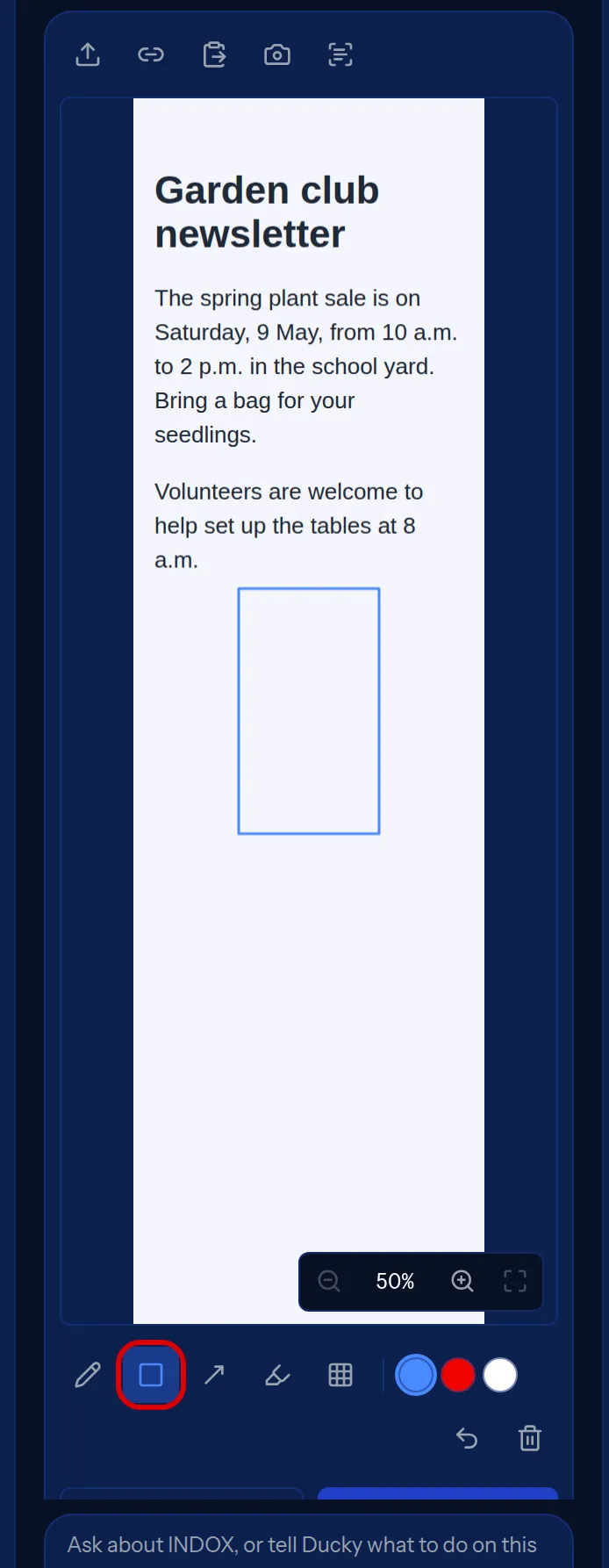
To draw on the picture, select Annotate. The tools are in a row under the picture: Pen, Rectangle, Arrow, Highlighter and Blur / redact. Use Blur / redact to cover private details. Pick a colour, then draw on the picture. Undo removes the last mark. Clear all removes every mark.
Choose a format and convert
Select Done. Your marks are now part of the picture. Under CONVERT TO, select PDF, JPG or WEBP, then select Convert.
Download your file
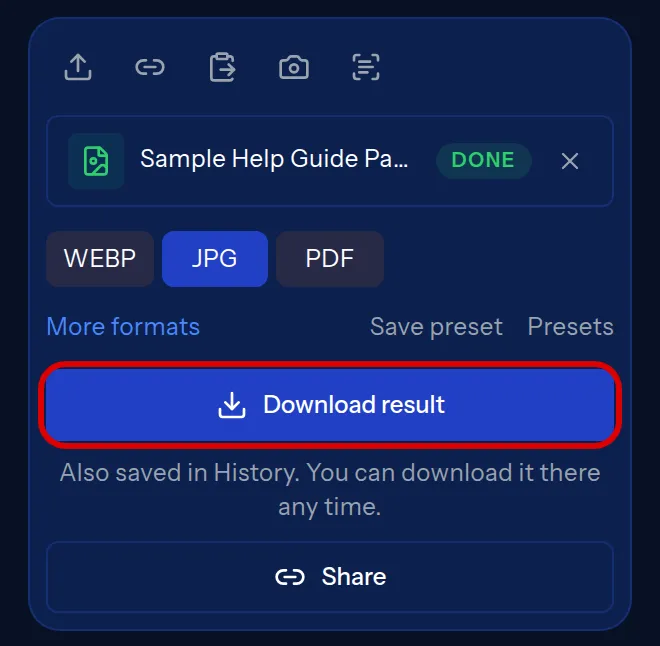
When the file is ready, select Download result. It is also saved in History.
Troubleshooting
| Problem | Cause | Fix |
|---|---|---|
| You want a different picture | The capture is not right | Select Retake, next to Annotate, and capture again. |
| The page went dark and nothing was captured | You did not drag a box | Press and hold on the page, drag across the area, and let go. Press Esc to cancel. |
| You cannot see the INDOX tab | The tab is hidden on this site, or it is turned off | See Show or hide the on-page tab. You can also use the buttons at the top of the side panel. |