Last updated
Reorder PDF pages
Before you start
- To reorder pages means to change the order they come in. The pages themselves stay the same.
- Have the PDF on your phone or computer. The upload box tells you how big a file can be.
- The computer page has an Organize panel where you move pages. The phone page has no such panel. It only has a button that puts the pages in reverse order. The steps below say which is which.
- You don't need an account.
Open your PDF
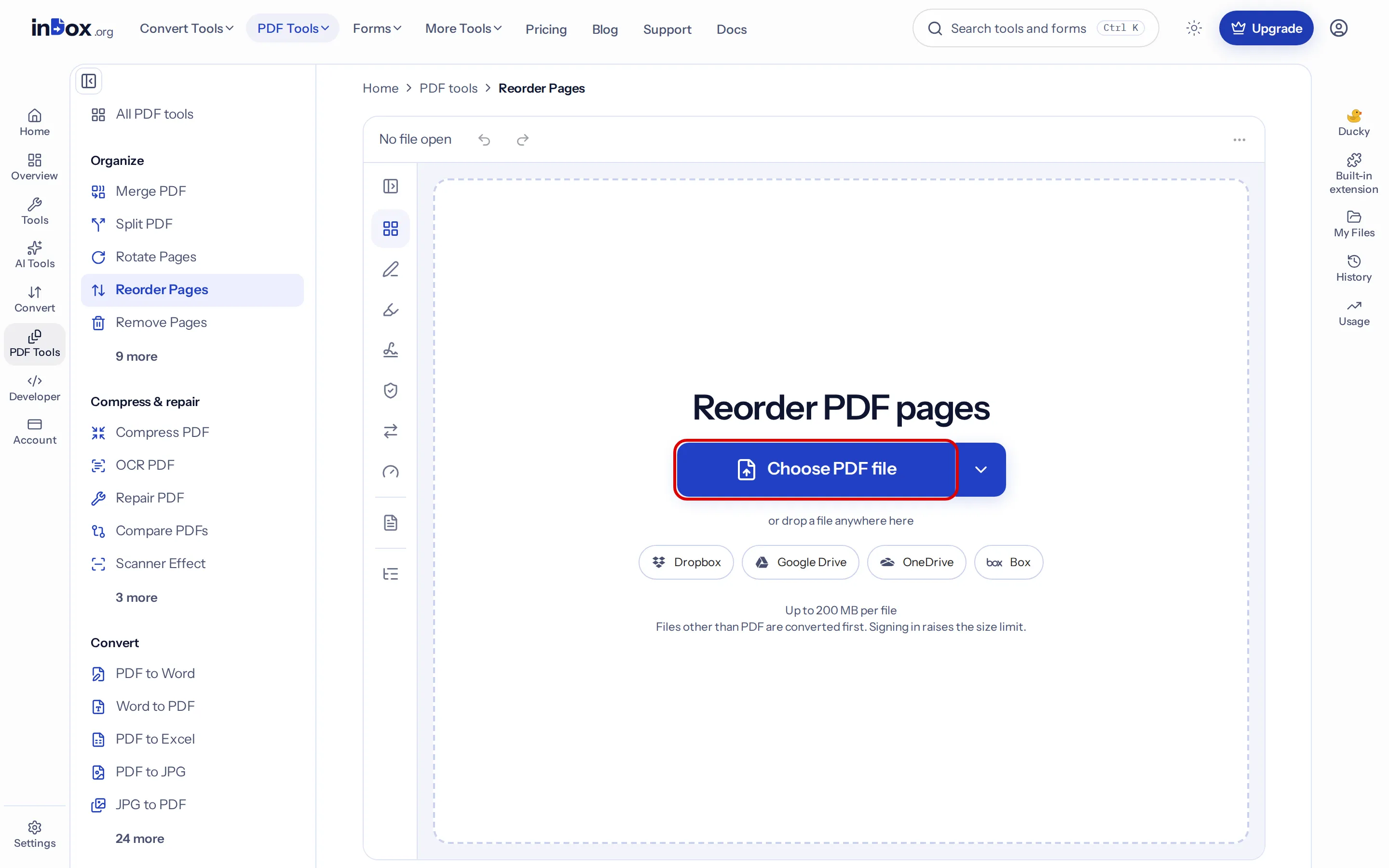
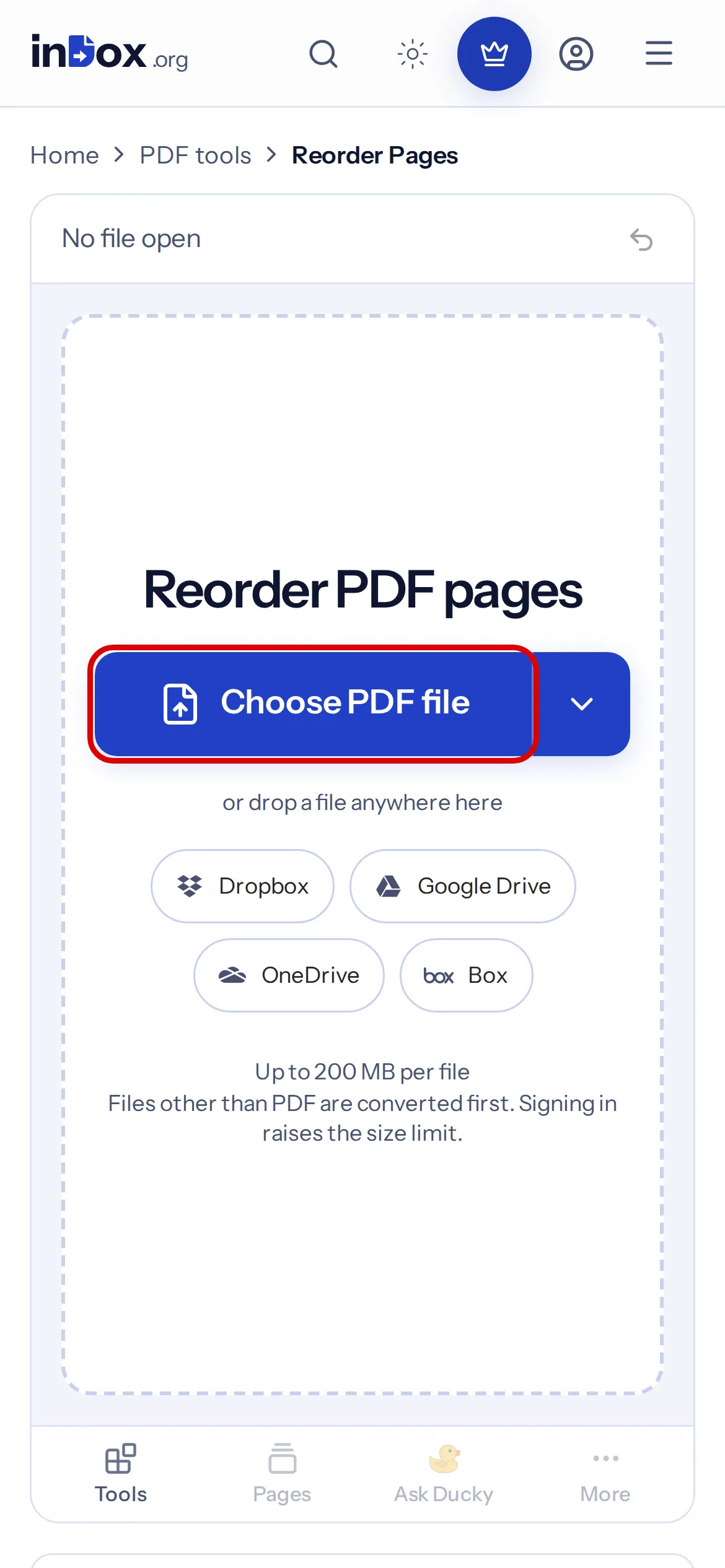
Go to the Reorder Pages page. In the middle of the page, select the blue Choose PDF file button. A box opens so you can pick a file from your device. You can also drag a file onto the page. When the file loads, your pages appear as small pictures in a grid. On a computer, an Organize panel opens on the right.
Move the pages
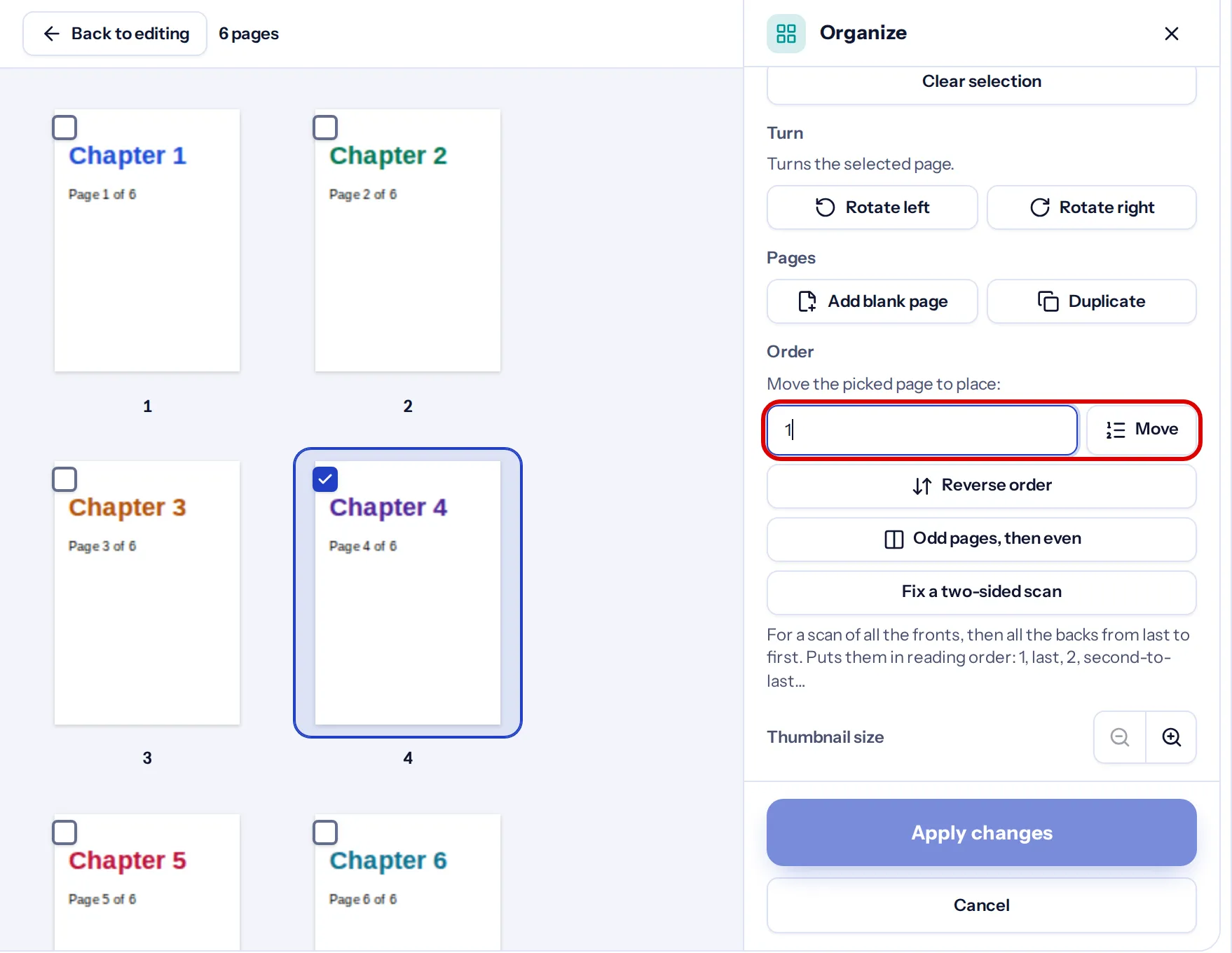
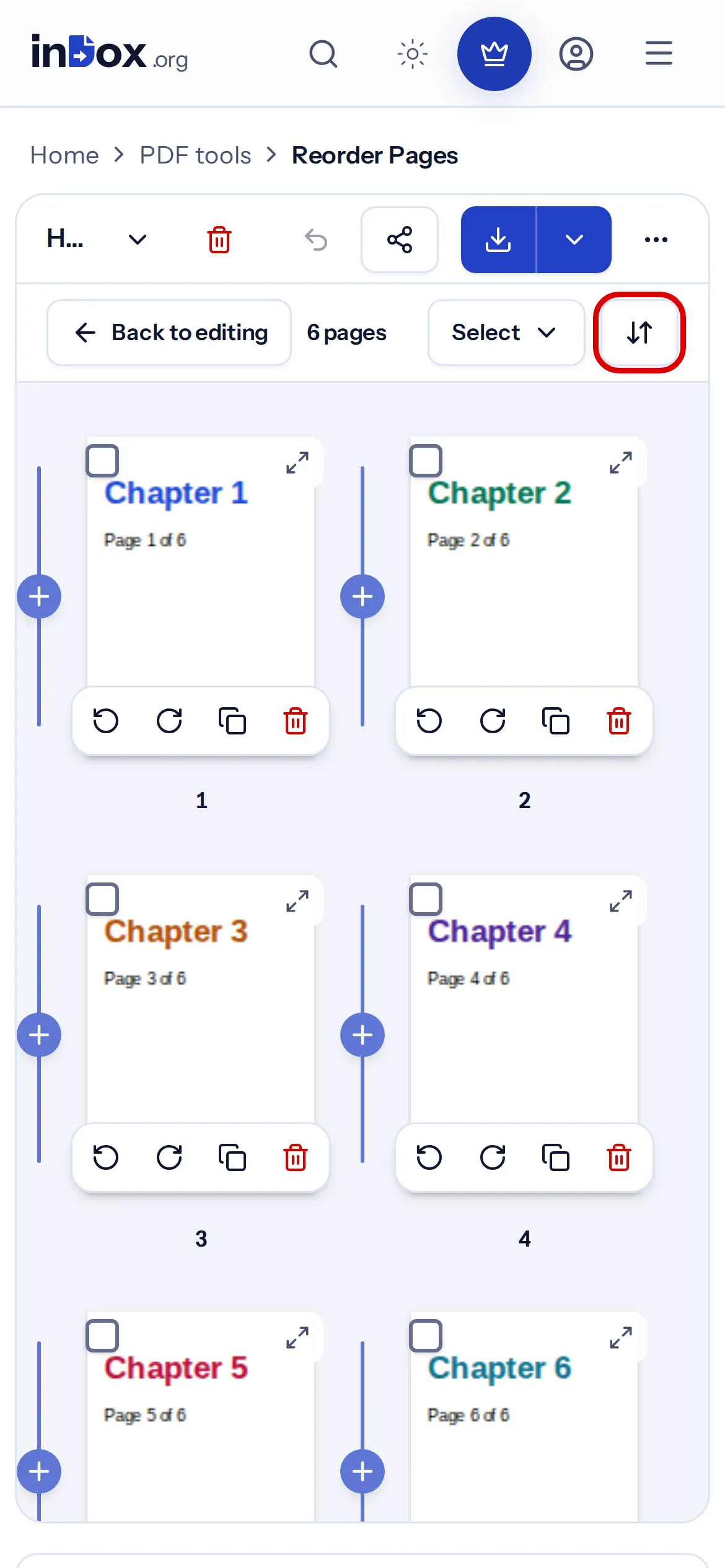
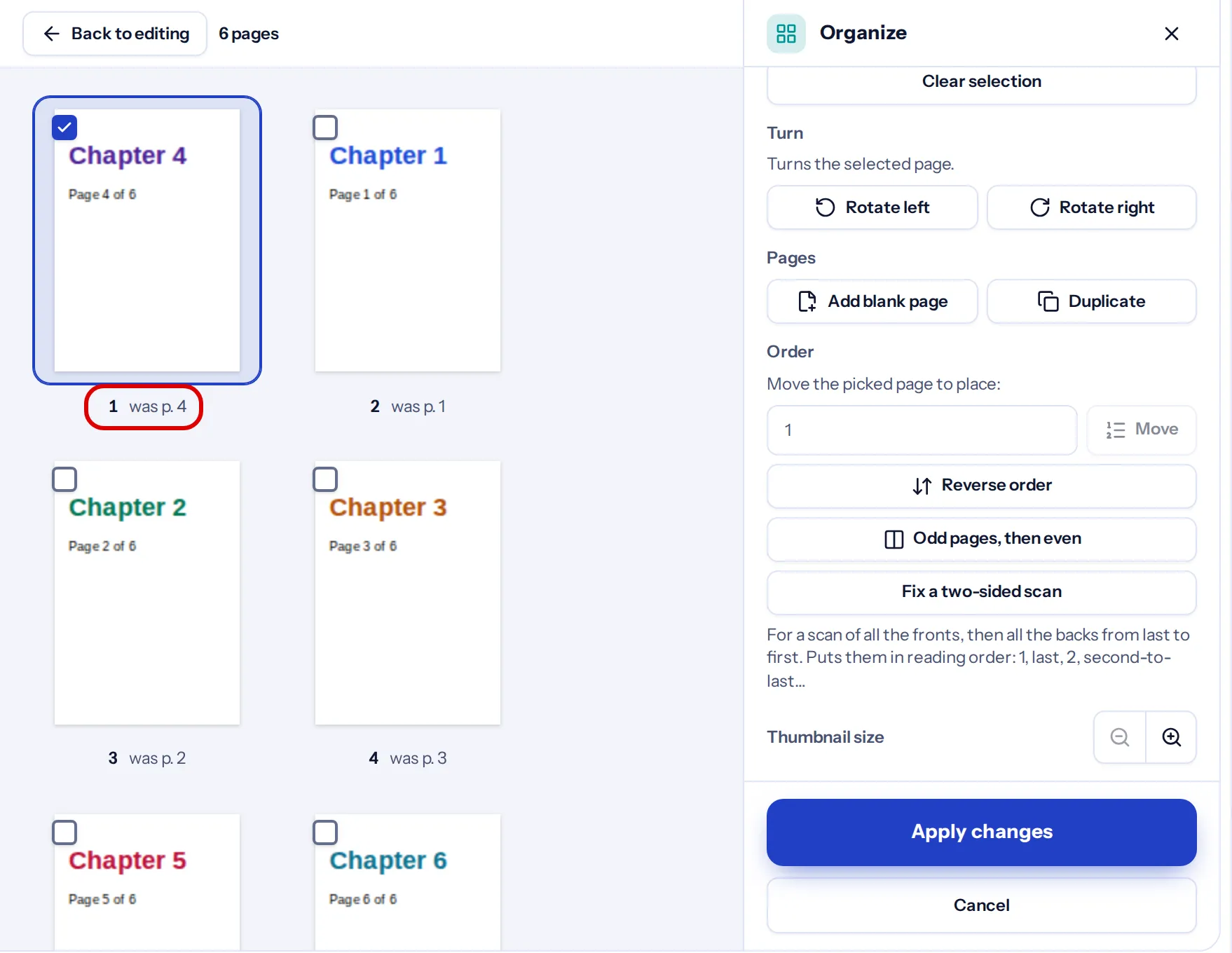
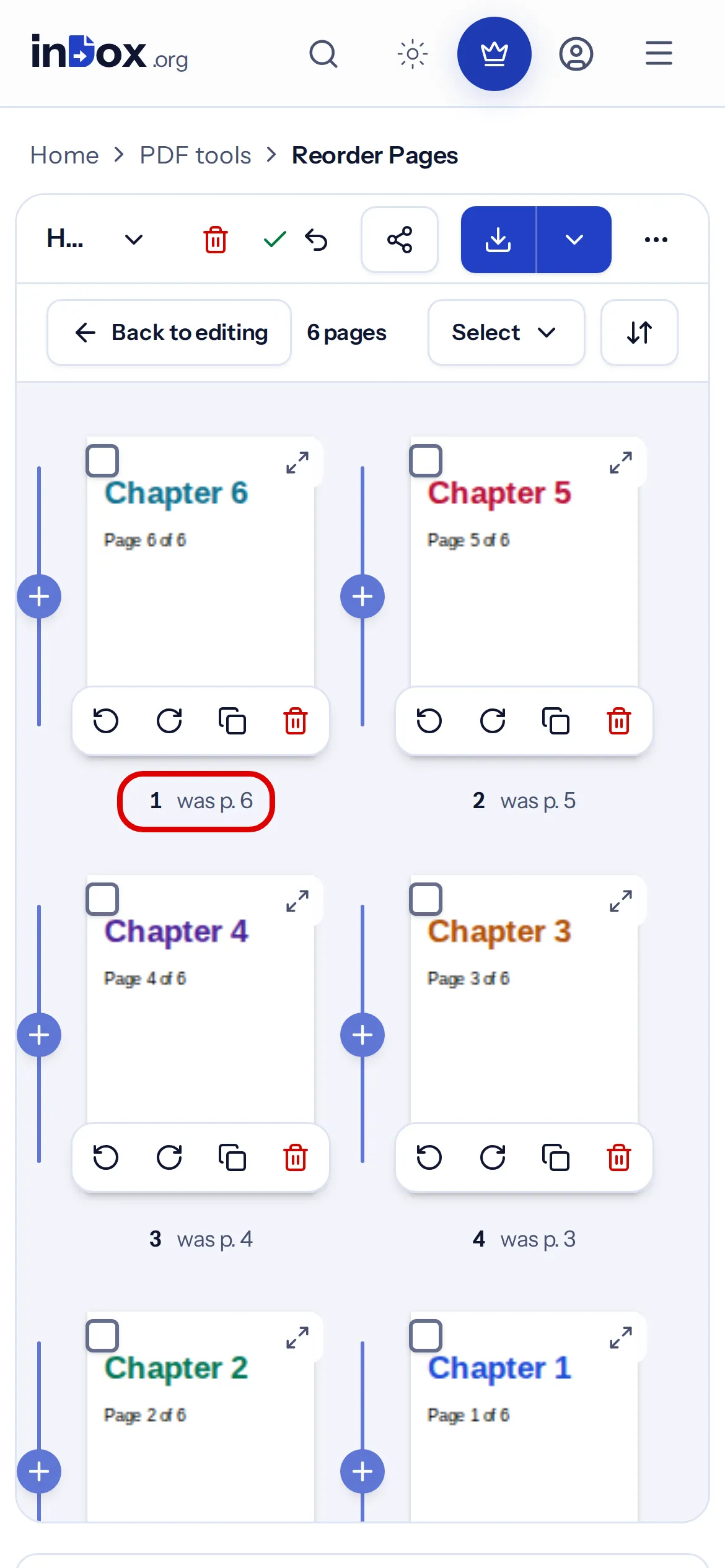
On a computer: select the small box in the top left corner of the page you want to move. A tick shows it is picked. In the Organize panel, scroll down to Order. Type the place the page should go to, for example 1, in the box. Then select Move. To flip the whole file instead, select Reverse order below it. On a phone: select the Reverse order button, the arrows icon at the top right of the page grid. You can also drag a page to a new spot.
Check the new order
The grid now numbers the pages in the new order. Under each page it shows where the page was before. For example, 1 was p. 4 means the first page used to be page 4. Nothing is saved yet. To go back, select Undo, the curved arrow in the bar at the top of the file.
Save the new order
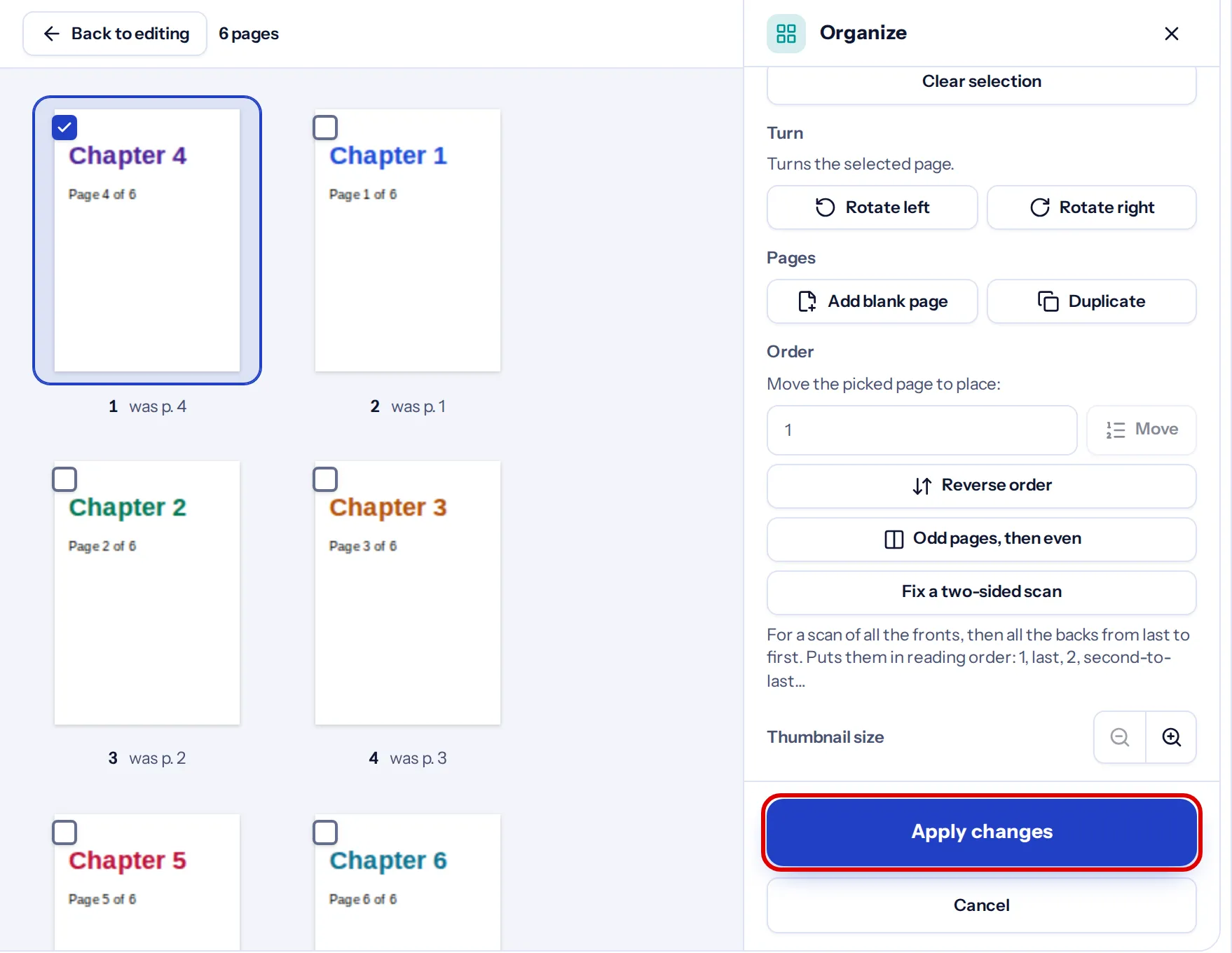
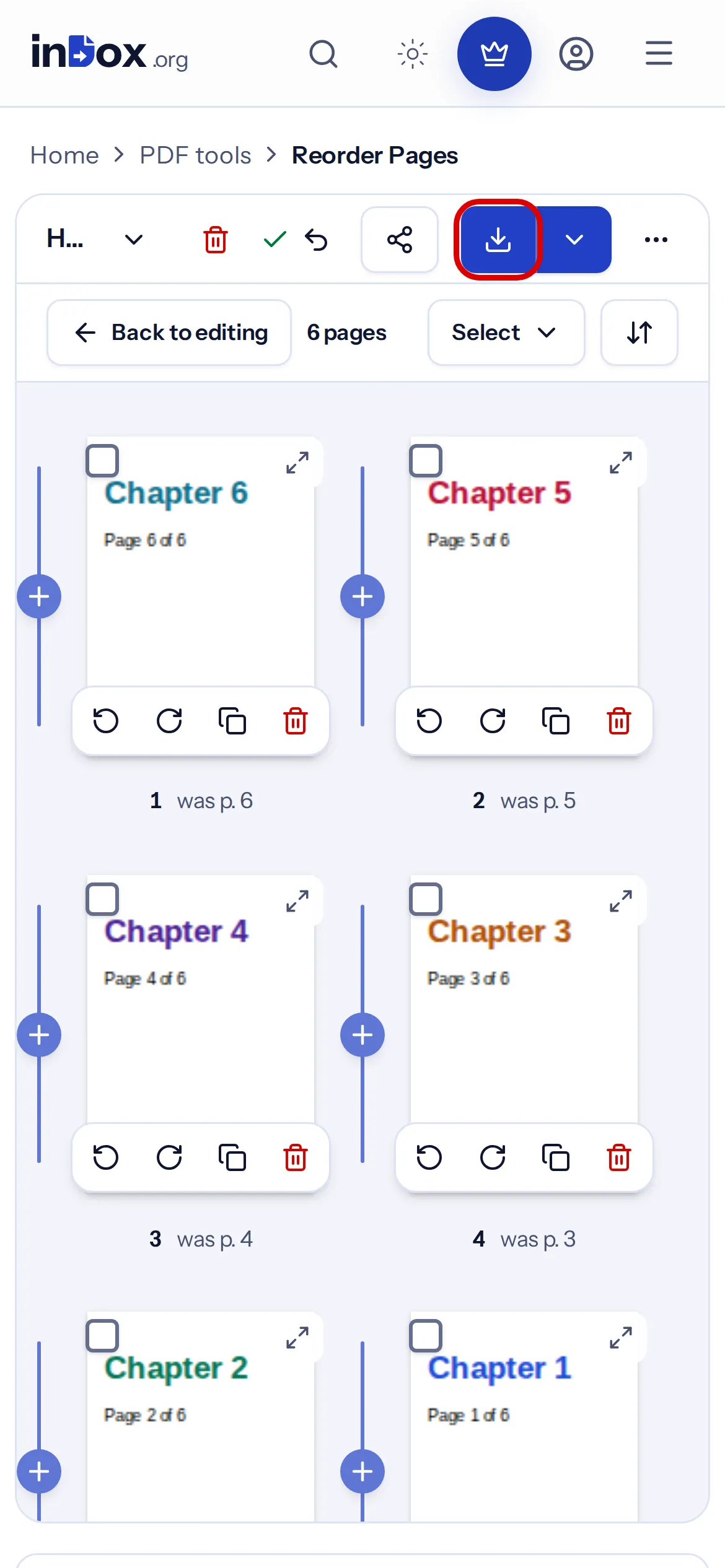
On a computer: select the blue Apply changes button at the bottom of the panel. A green message says Done. Your PDF is updated. Select Download PDF, just below it. On a phone: select the blue download button at the top of the file, next to the share icon. On both, the new file is saved on your device.
Troubleshooting
| Problem | Cause | Fix |
|---|---|---|
| Move is greyed out | No page is picked yet | Select the box in the corner of a page, then type its new place |
| Apply changes is greyed out | You haven't changed the order yet | Move a page or select Reverse order first |
| I can't find Order or Apply changes on my phone | The phone page has no Organize panel, only the Reverse order button | Use Reverse order, drag the pages, or use a computer to type a place |
| The order isn't what you wanted | The page went to a different place than the one you typed, or you picked more than one page | Select Undo at the top of the file and try again. The grid shows where each page was |
| The page numbers printed on the pages look wrong | Reordering moves the pages and doesn't change what is printed on them | Add new numbers with Add Page Numbers |