Last updated
Add a certificate signature to a PDF
Before you start
- Have the PDF on your phone or computer. The upload box tells you how big a file can be.
- A digital signature is a code stored inside the PDF. A PDF reader uses it to tell whether the file changed after it was signed. A certificate is the digital ID that the signature is made with.
- indox signs with its own certificate, not yours. PDF readers show the signature as not trusted, because they don't know indox's certificate. The signature does not prove who you are.
- Do this step last. Any change to the file after signing breaks the signature.
- The file must not have a password. If it has one, remove it first with Unlock PDF .
- You don't need an account.
Open your PDF
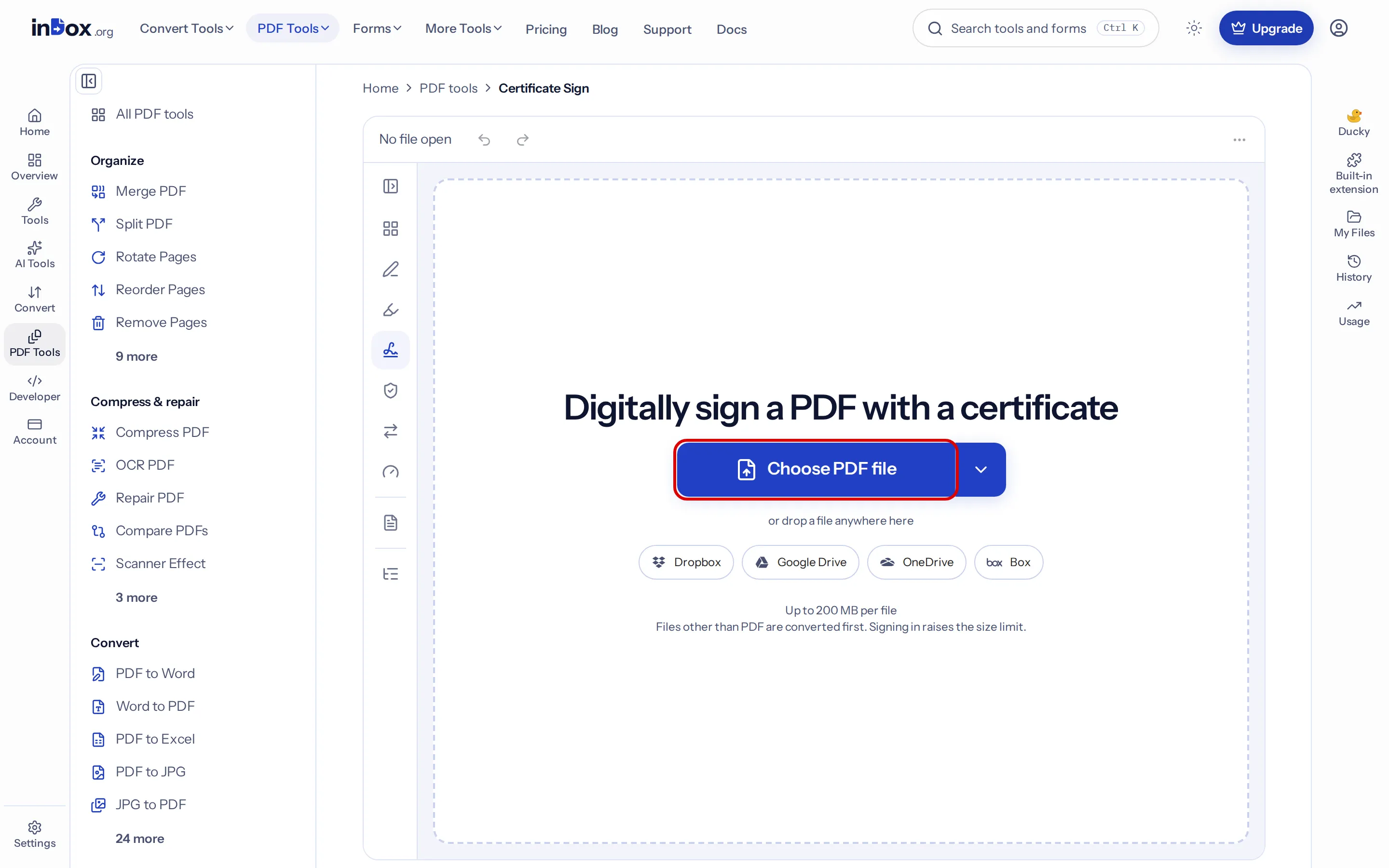
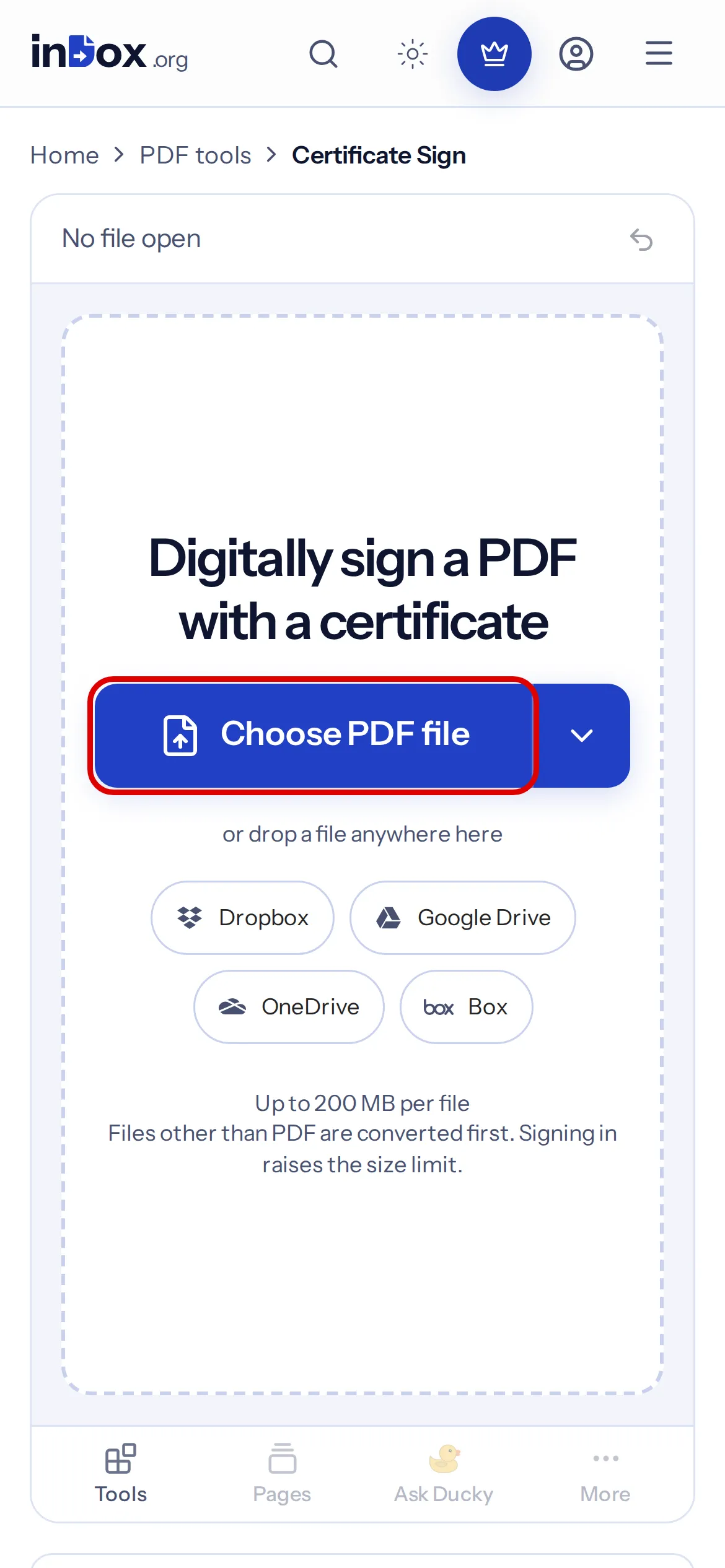
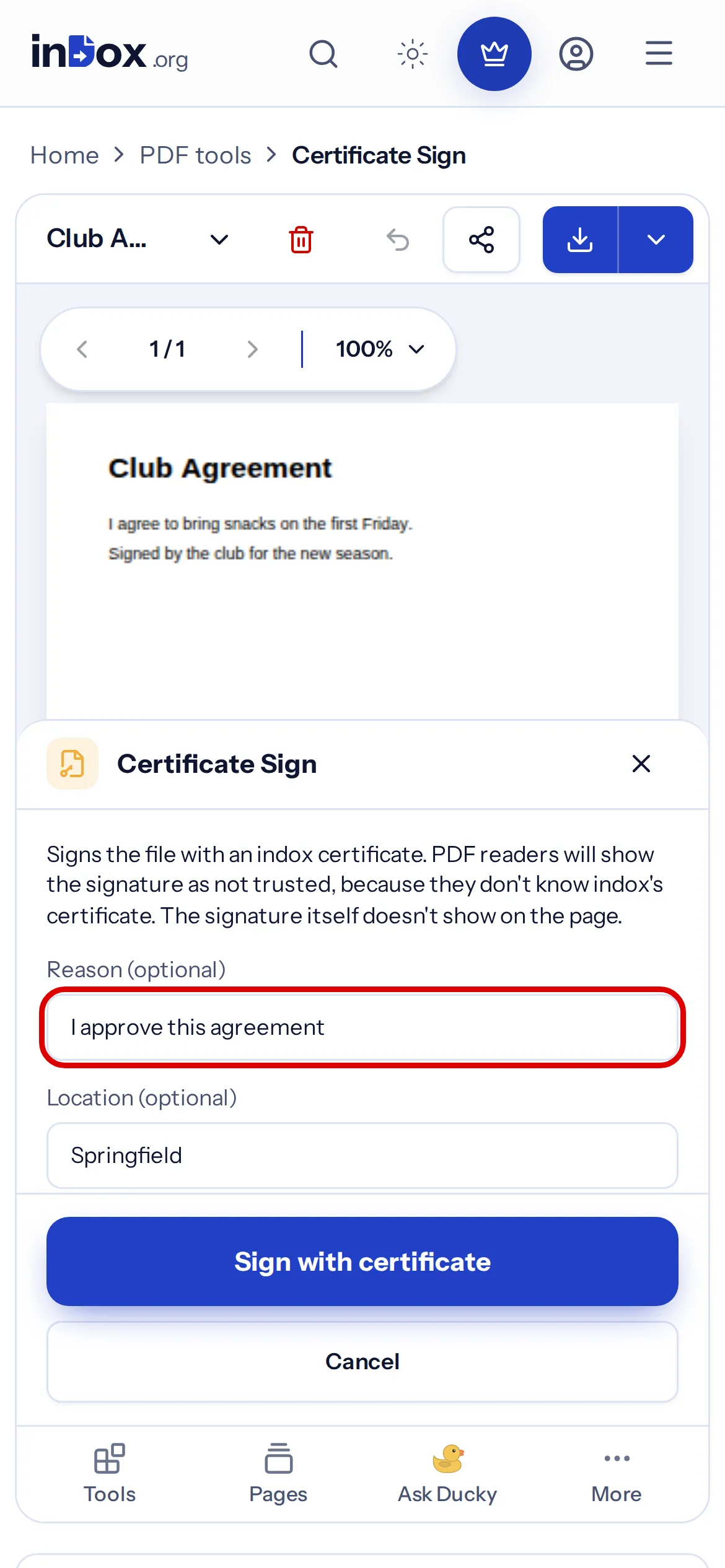
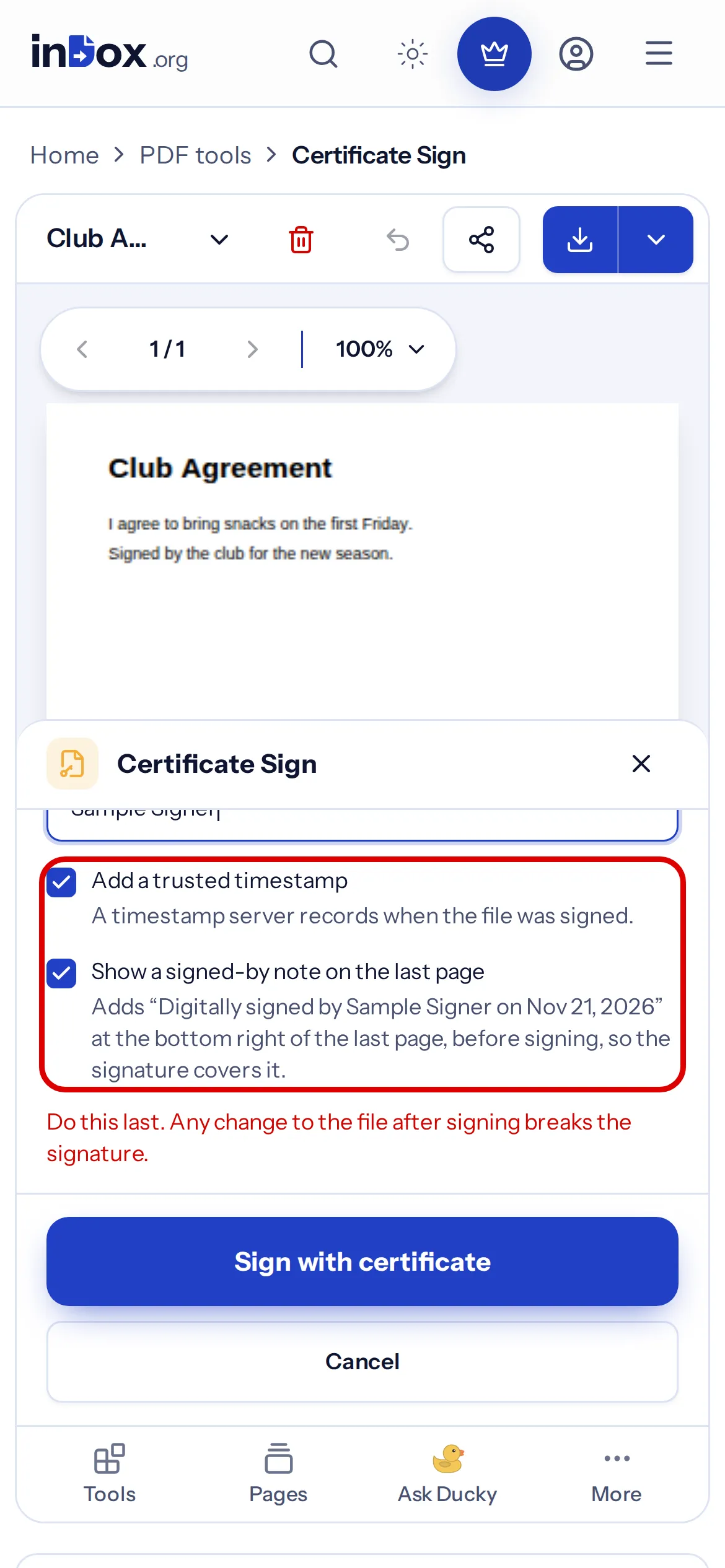
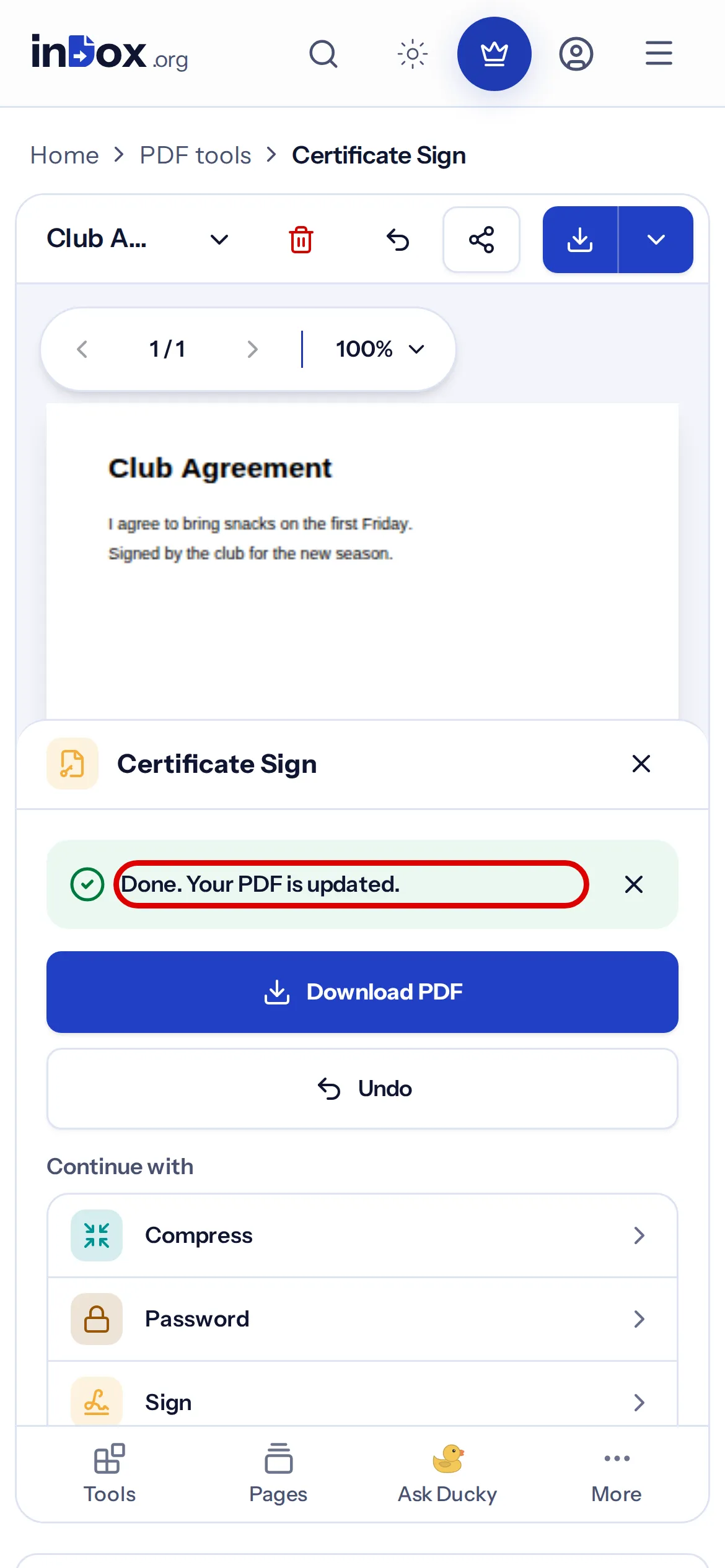
Go to the Certificate Sign page. In the middle of the page, select the blue Choose PDF file button. A box opens so you can pick a file from your device. You can also drag a file onto the page. The file opens with a panel called Certificate Sign. On a computer the panel is on the right. On a phone it slides up from the bottom.
Add your details
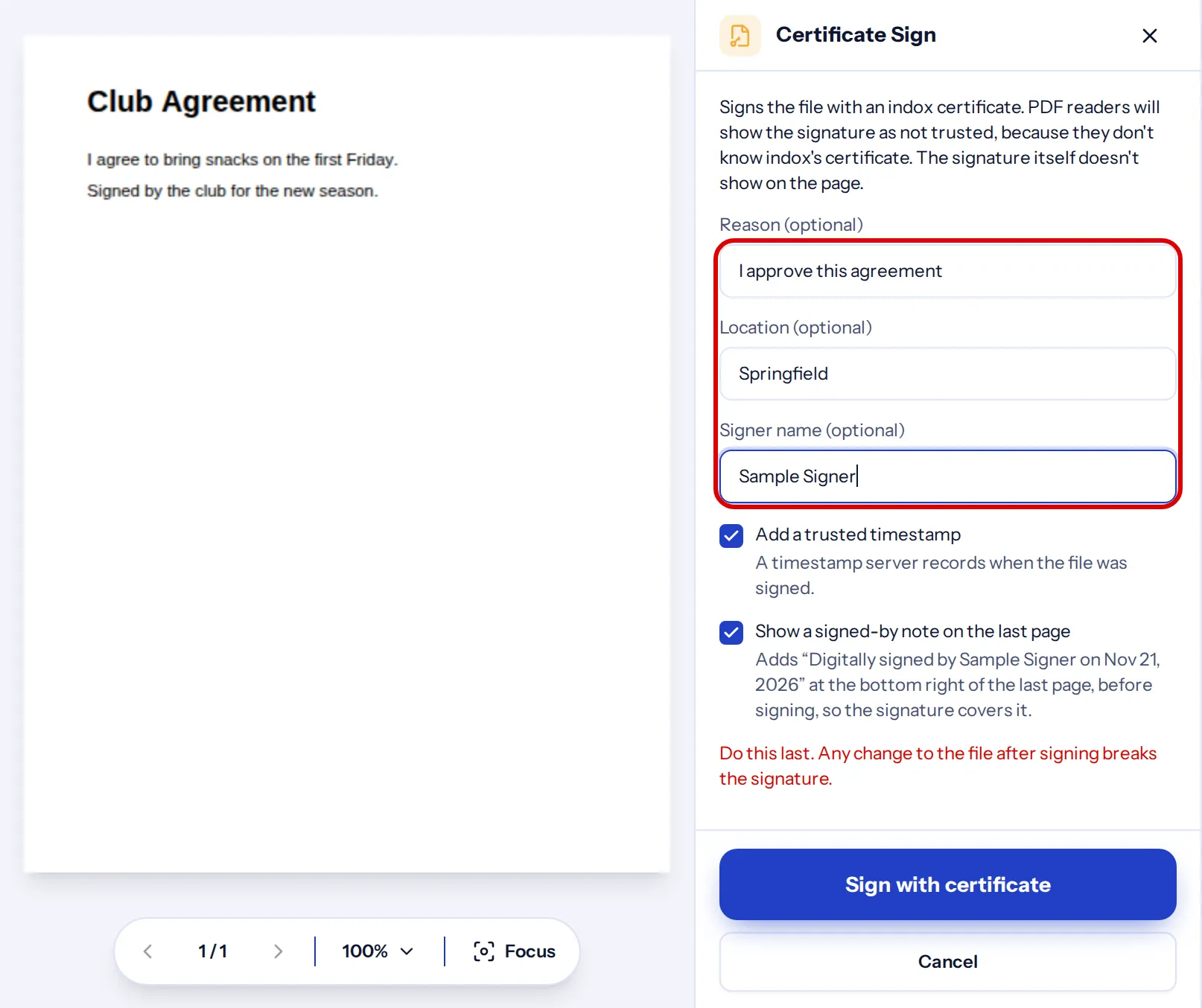
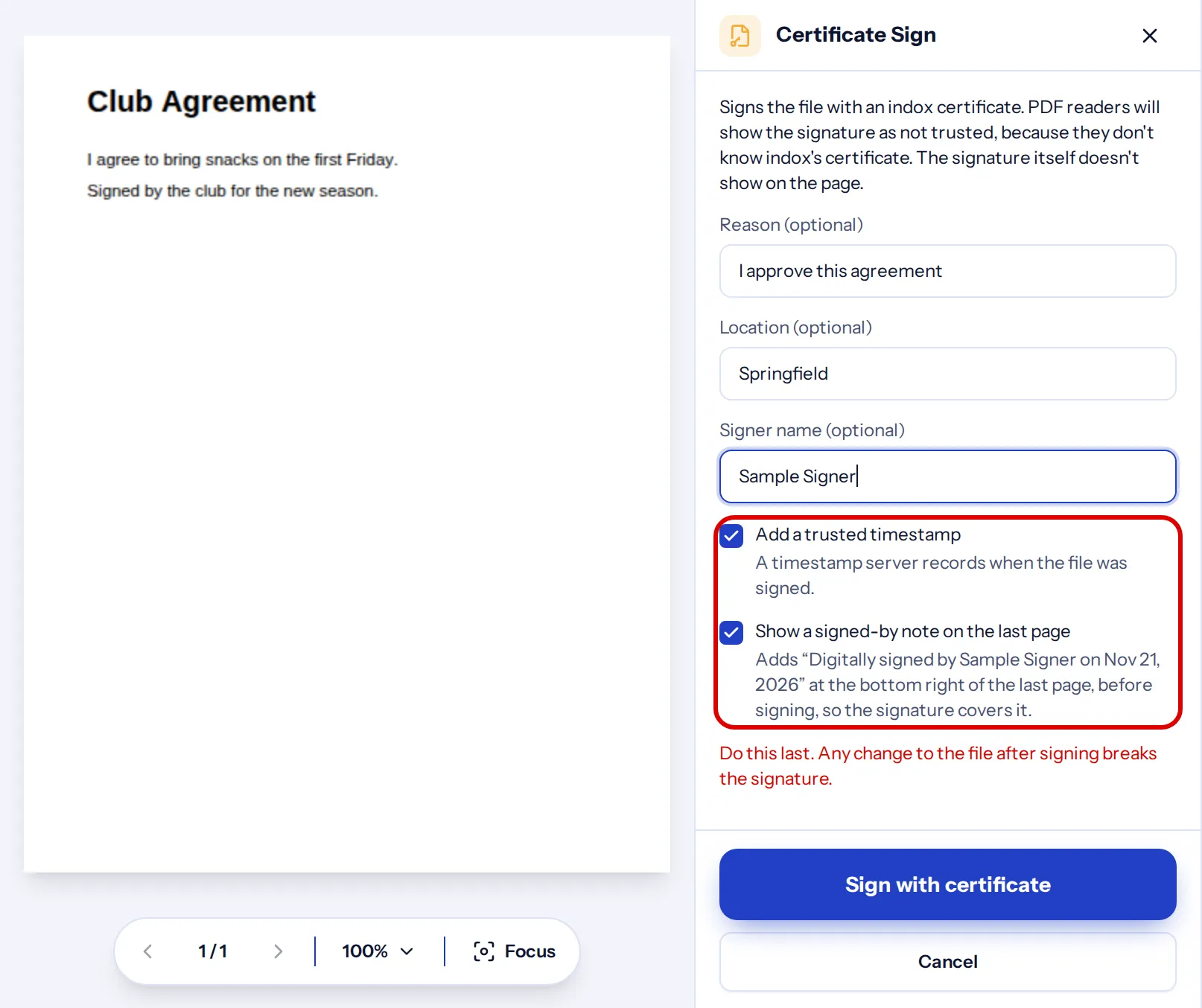
The panel has three boxes, and all three are optional: Reason (optional), Location (optional) and Signer name (optional). Type a few words in each, such as I approve this agreement, Springfield and Sample Signer. They are saved in the signature's details. indox does not check them.
Keep the two boxes ticked
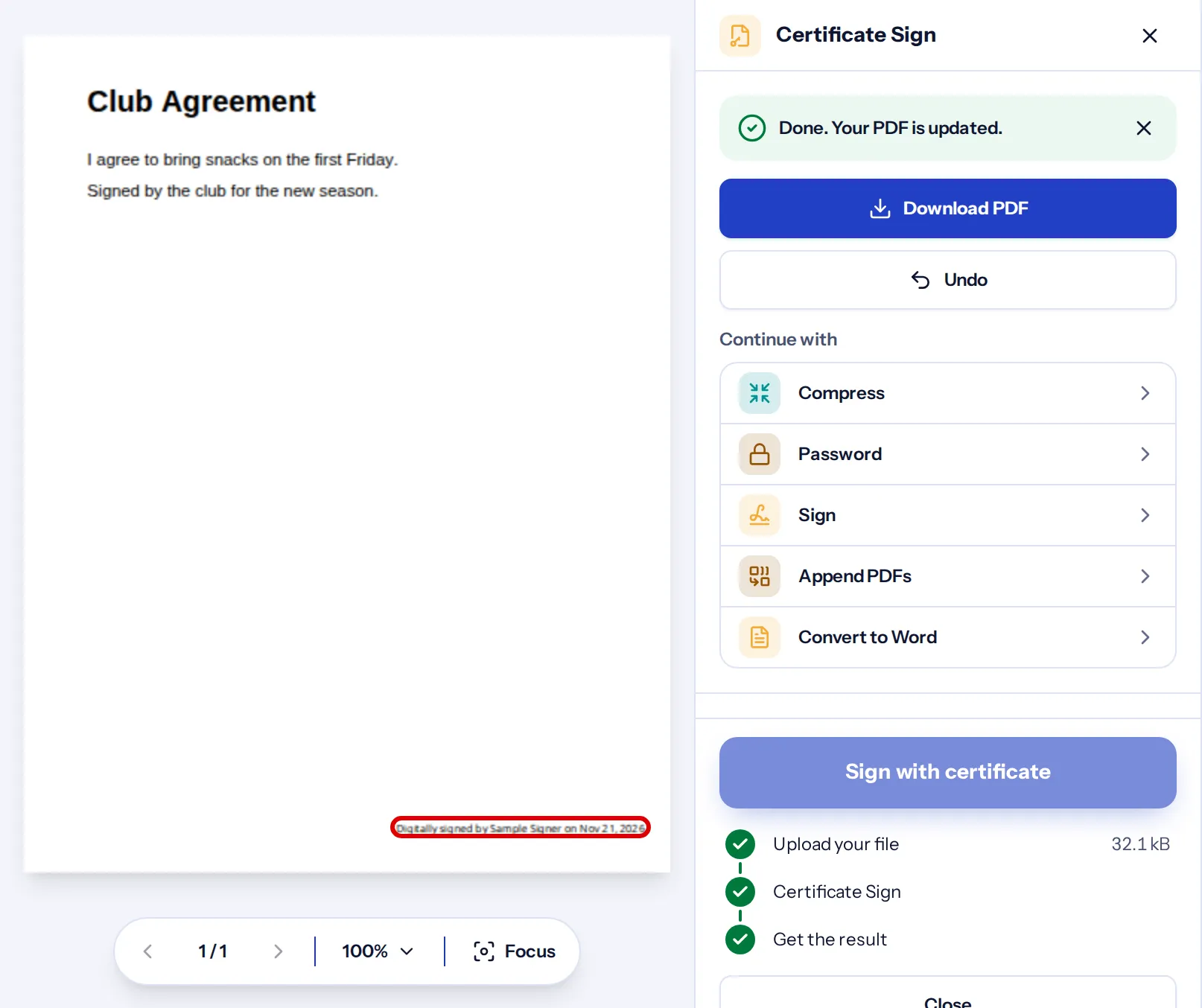
Scroll down the panel. Two boxes are ticked when it opens. Add a trusted timestamp asks a timestamp server to record when the file was signed. Show a signed-by note on the last page adds a line such as Digitally signed by Sample Signer with the date, at the bottom right of the last page. Leave both ticked. Untick one if you don't want it.
Sign the PDF
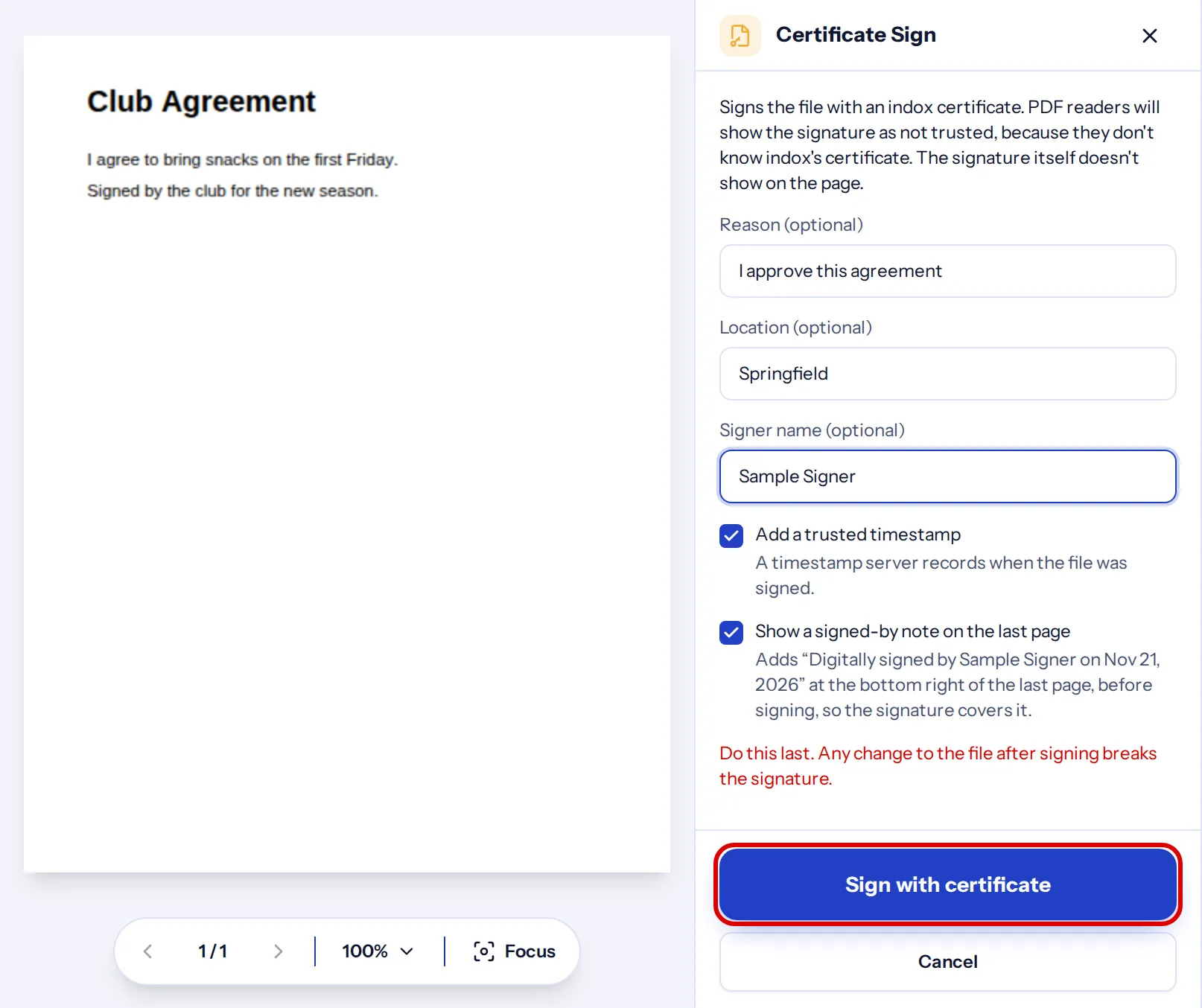
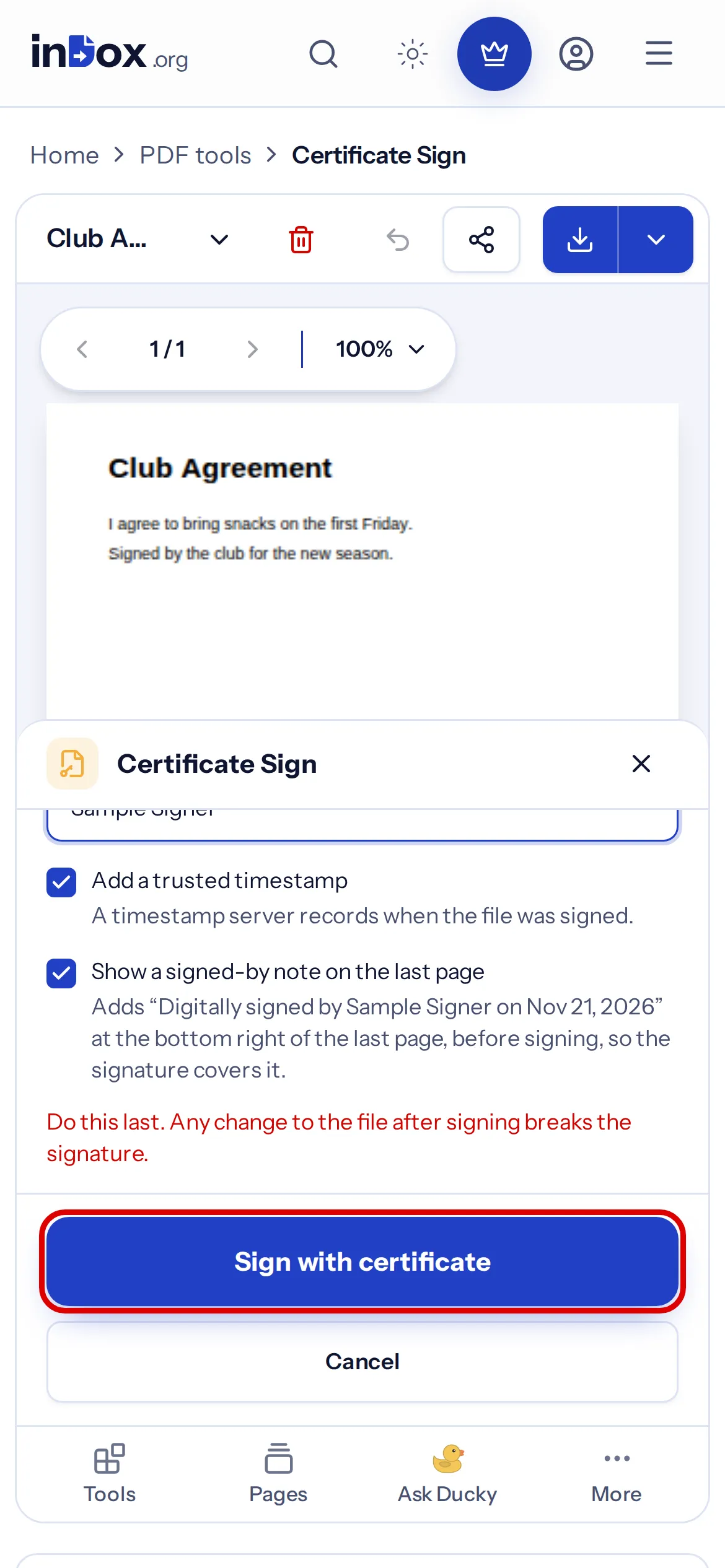
Select the blue Sign with certificate button at the bottom of the panel. Wait a few seconds.
Look at the page
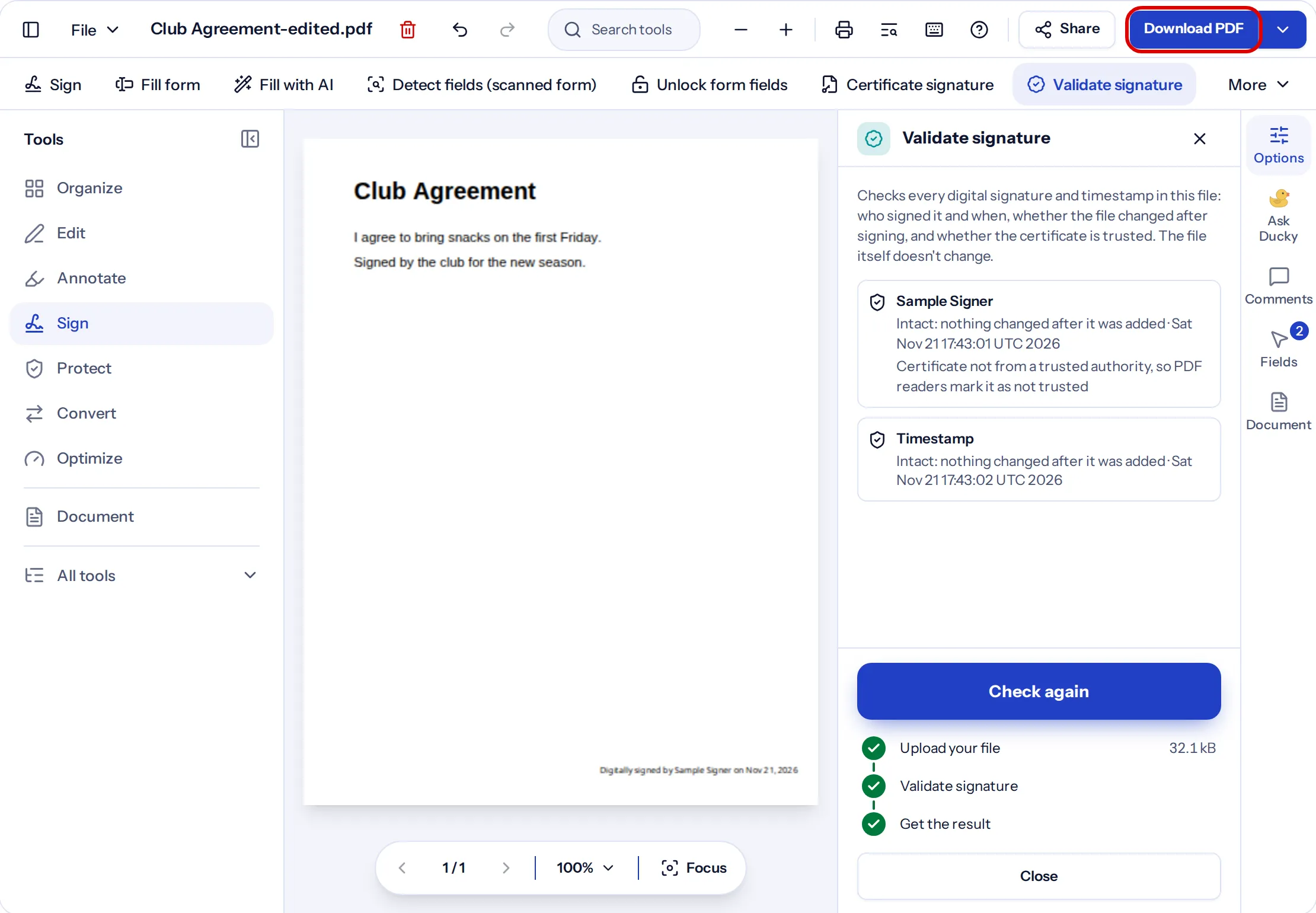
The panel says Done. Your PDF is updated. On a computer, look at the page on the left. A small note now sits at the bottom right. The signature itself is invisible. It is stored inside the file.
See the signature
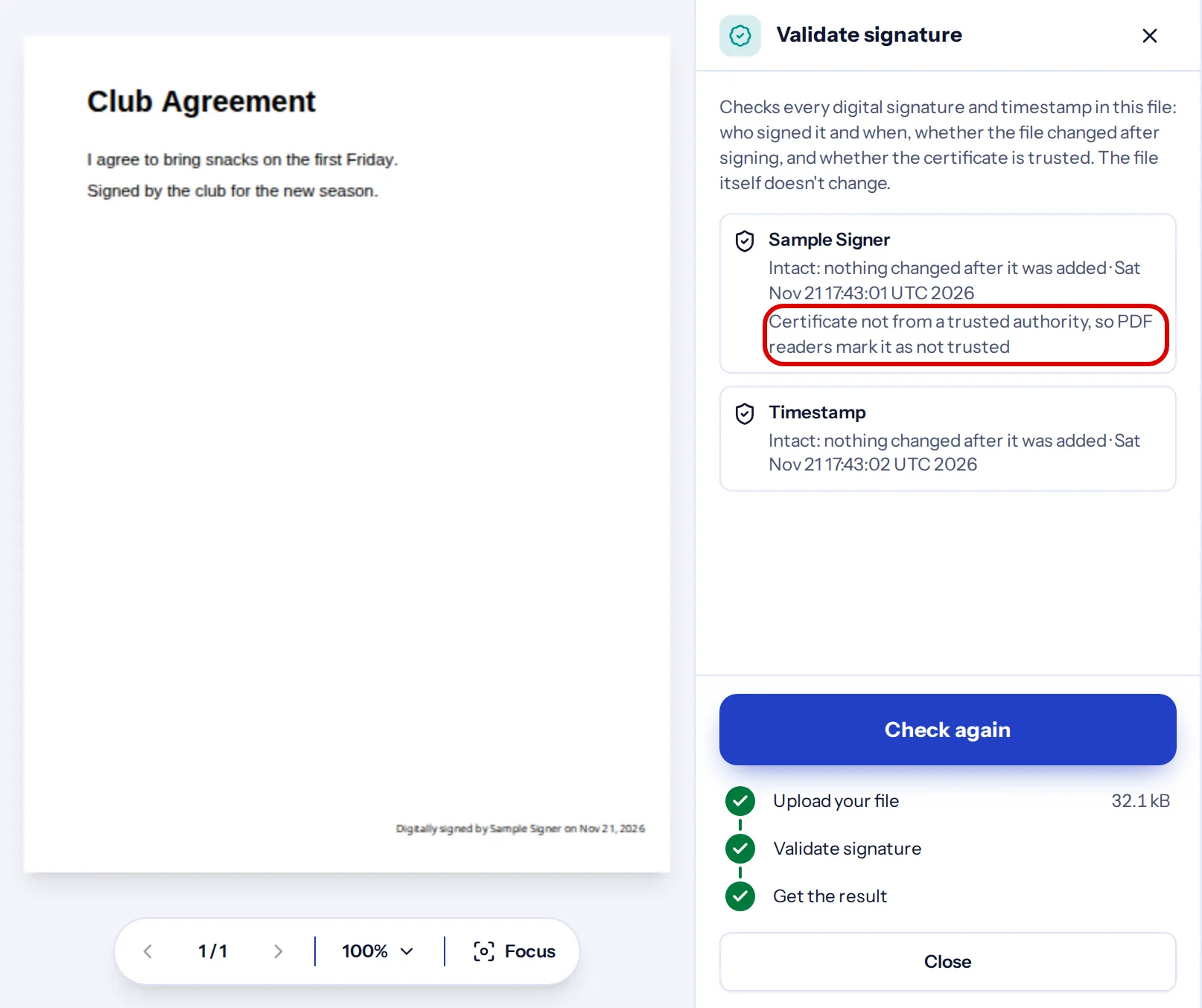
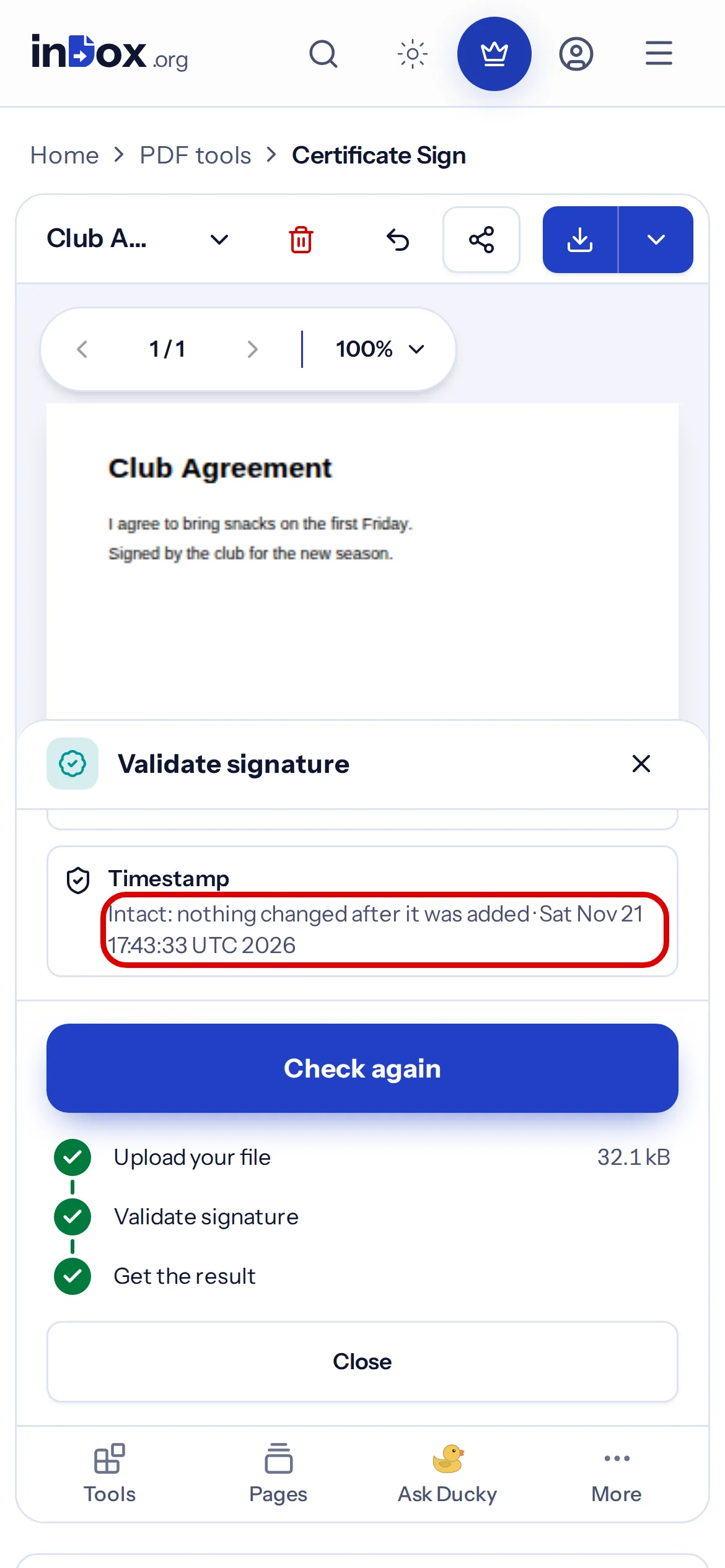
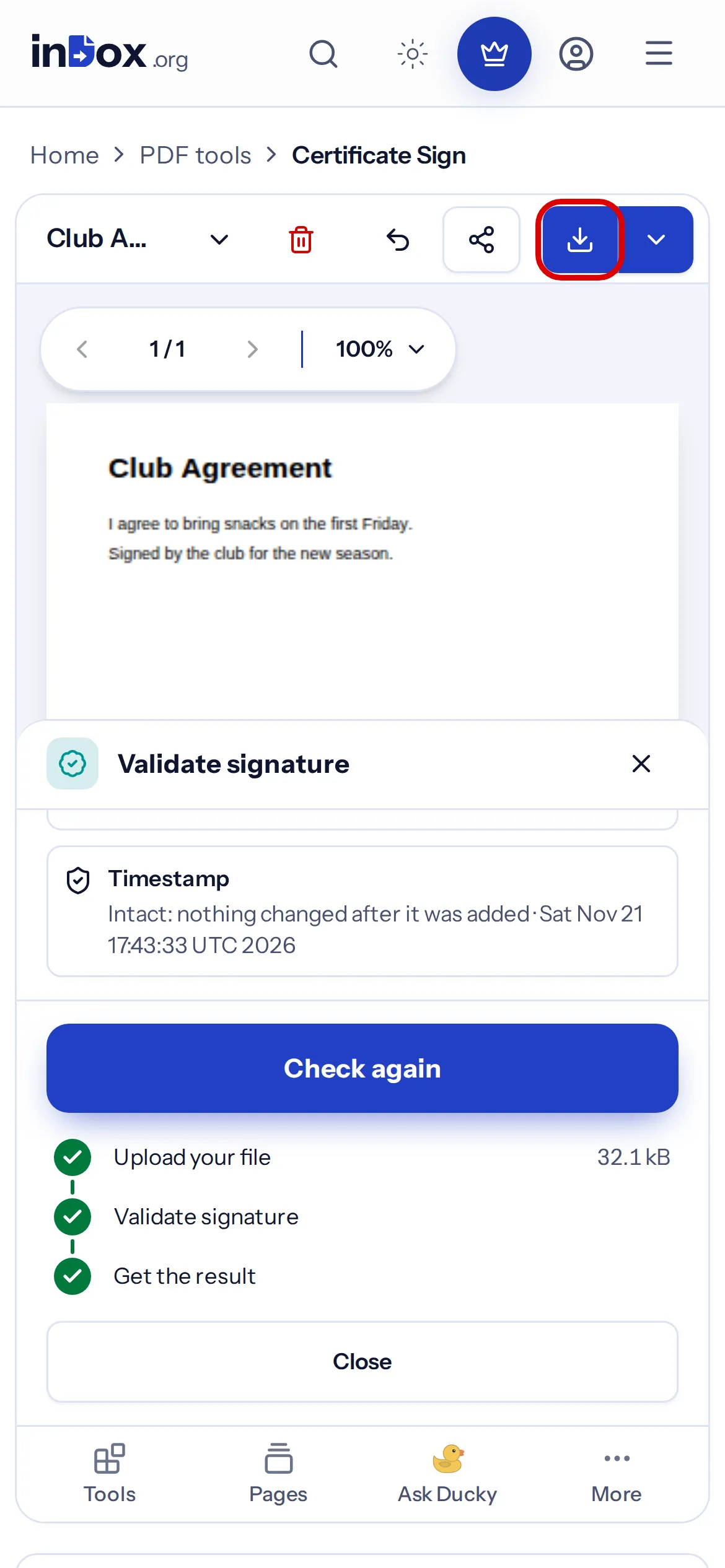
Scroll down the panel and select See the signature. A panel called Validate signature opens. It lists the signer's name, then Intact: nothing changed after it was added. A second line says Certificate not from a trusted authority, so PDF readers mark it as not trusted. That warning is normal here. A second entry, Timestamp, shows the time stamp.
Download your PDF
Select the blue Download PDF button. On a computer it is at the top right. On a phone it is the arrow in the bar above the page. The signed file is saved on your device. Its name ends in -edited. Don't change it after this.
Troubleshooting
| Problem | Cause | Fix |
|---|---|---|
| The panel says This file has a password. Remove it first, then sign. | Signing needs a file with no password | Use Unlock PDF , then sign the new copy |
| Your PDF reader says the signature is not trusted | indox signs with its own certificate, which readers don't know | This is expected. Intact still tells you nothing changed after signing |
| The signature broke after you changed the file | Any change after signing breaks it | Start again from your unsigned file, make your changes first and sign last |
| You can't see the signature on the page | The signature is invisible. Only the signed-by note shows | Keep Show a signed-by note on the last page ticked, or select See the signature |