Last updated
Repair a damaged PDF
Before you start
- Have the PDF on your phone or computer. The upload box tells you how big a file can be.
- A PDF can get damaged when a download stops halfway, a copy fails, or a program closes while it is saving. Then a PDF reader may refuse to open the file. Repair tries to rebuild the file as a new copy. Your original file isn't changed.
- Repair can't save everything. Some content may not survive, so always check the result.
- A file with a password must be unlocked first.
- You don't need an account.
Open your damaged PDF
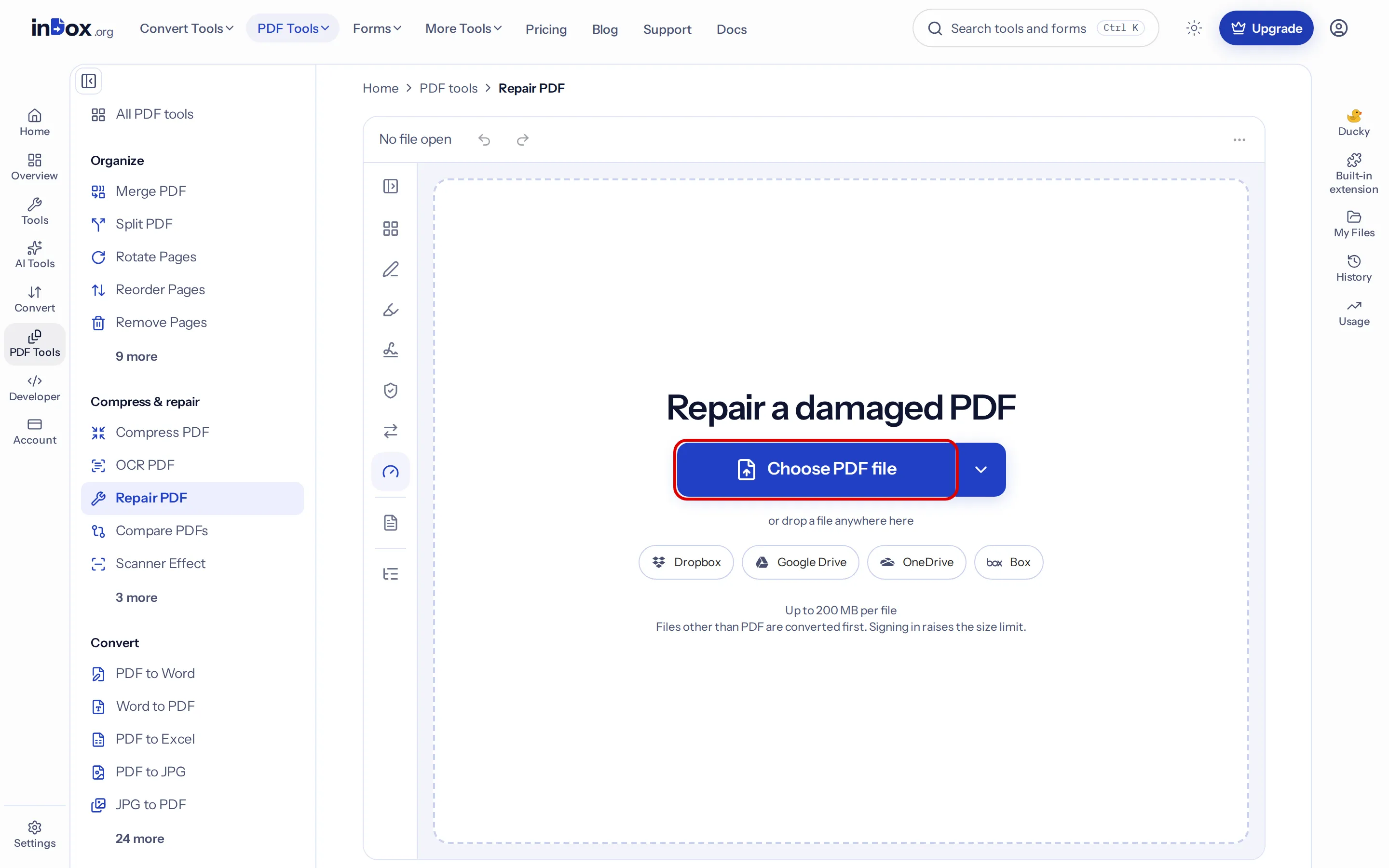
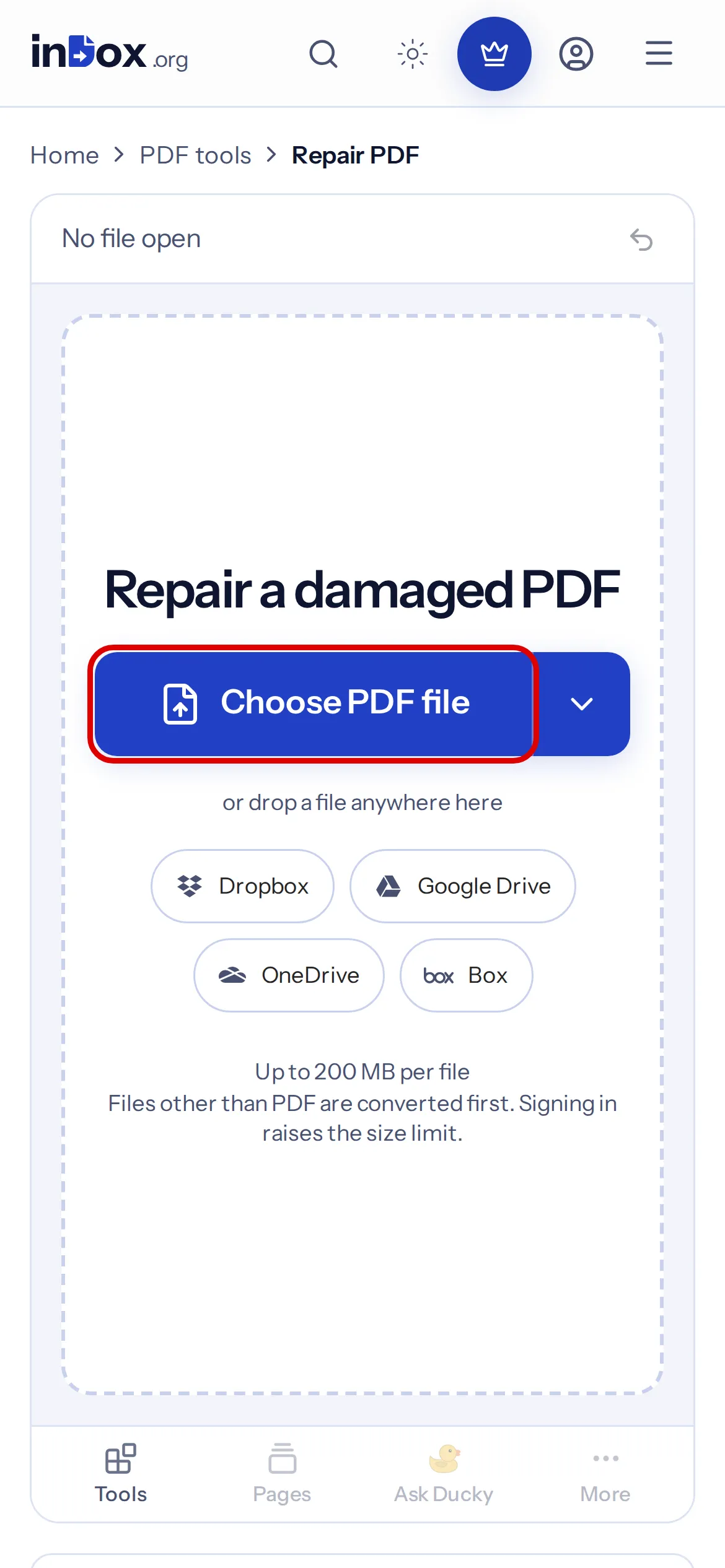
Go to the Repair PDF page. In the middle of the page, select the blue Choose PDF file button. A box opens so you can pick a file from your device. You can also drag a file onto the page.
Select Repair
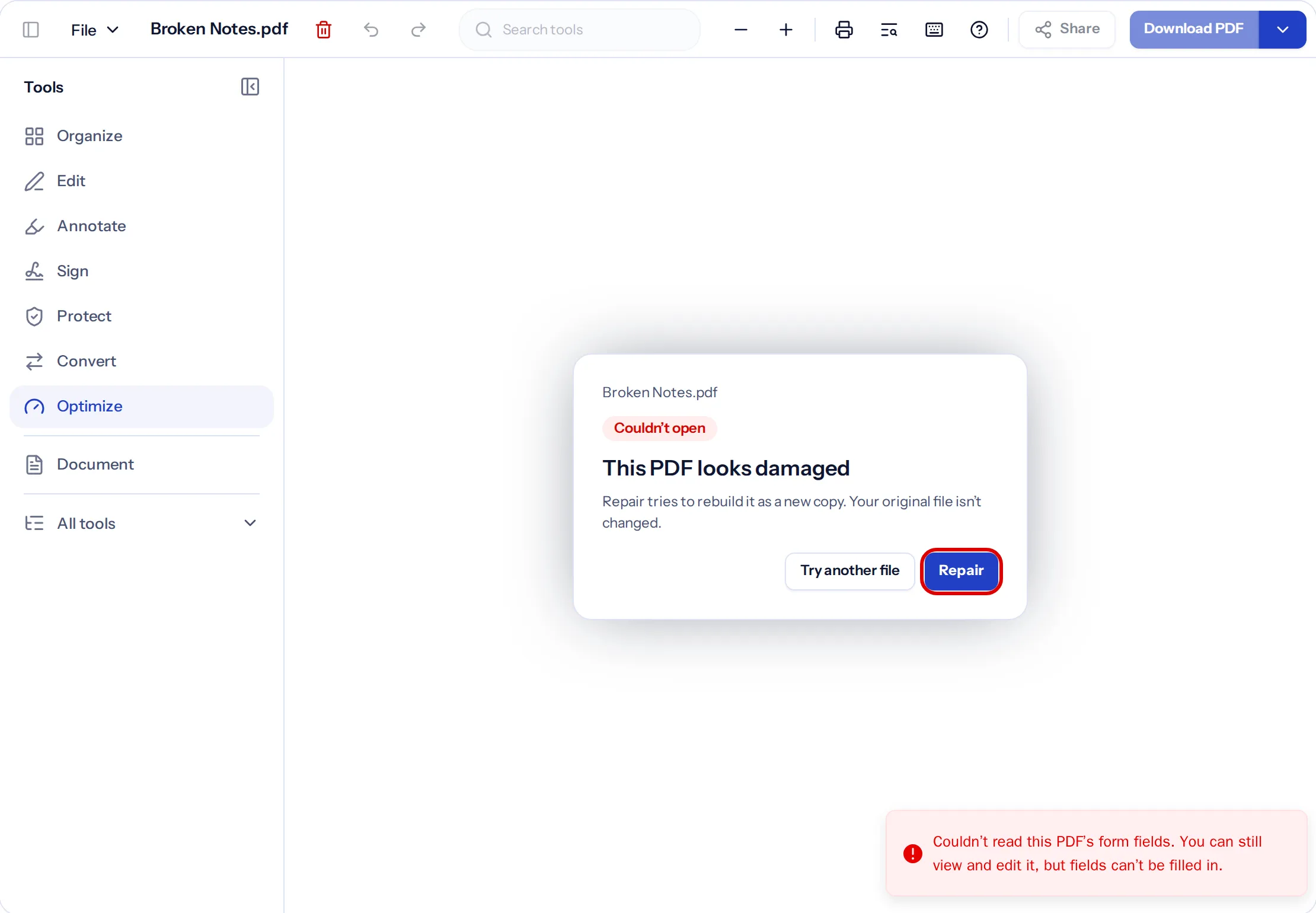
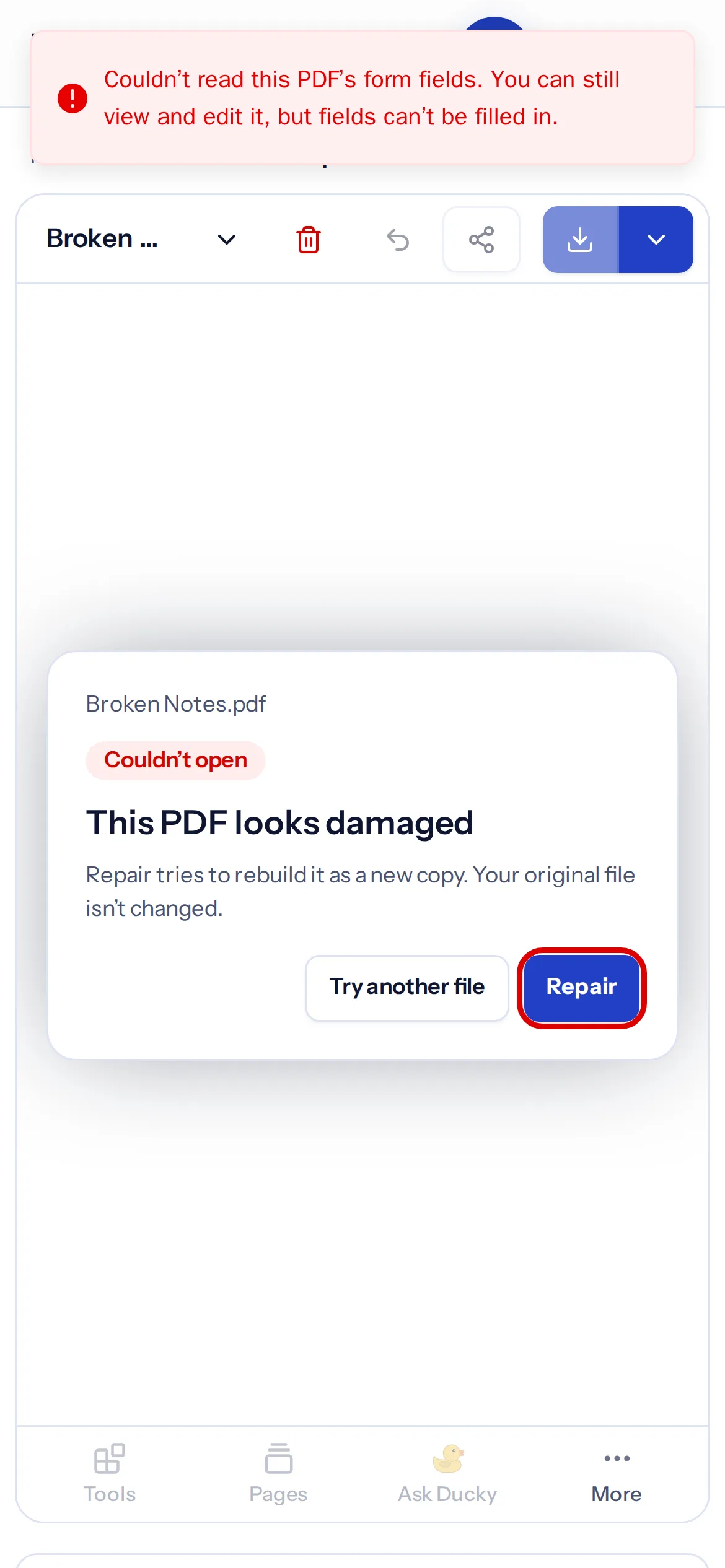
A box opens with a red tag, Couldn't open, and the heading This PDF looks damaged. It says Repair tries to rebuild it as a new copy. Your original file isn't changed. Select the blue Repair button in the box. A red message may also say Couldn't read this PDF's form fields. That only means the form boxes in the file can't be filled in.
Read the message
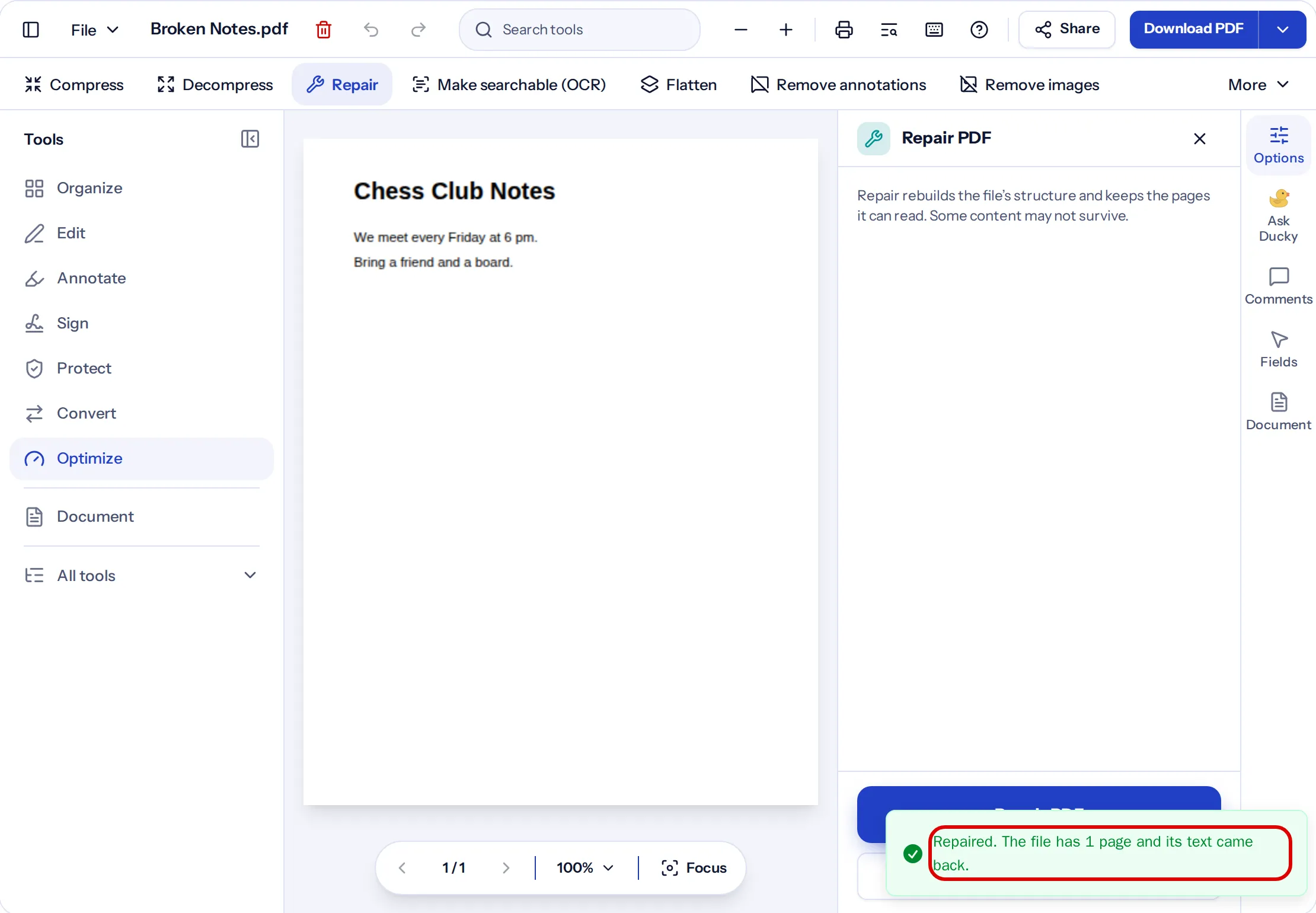
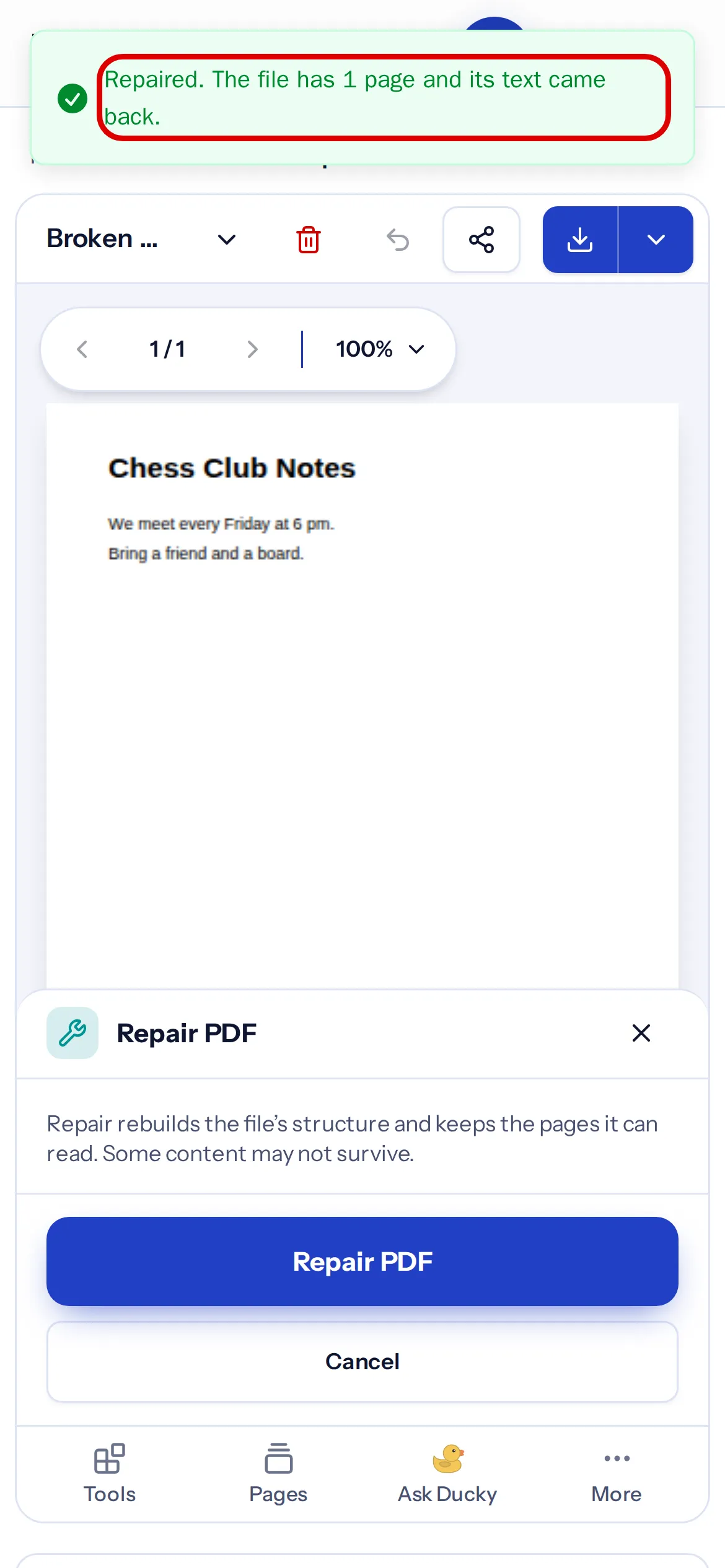
The button says Repairing… for a moment. Then a green message says how it went, such as Repaired. The file has 1 page and its text came back. Your message will be different. It goes away after a few seconds.
Check the page
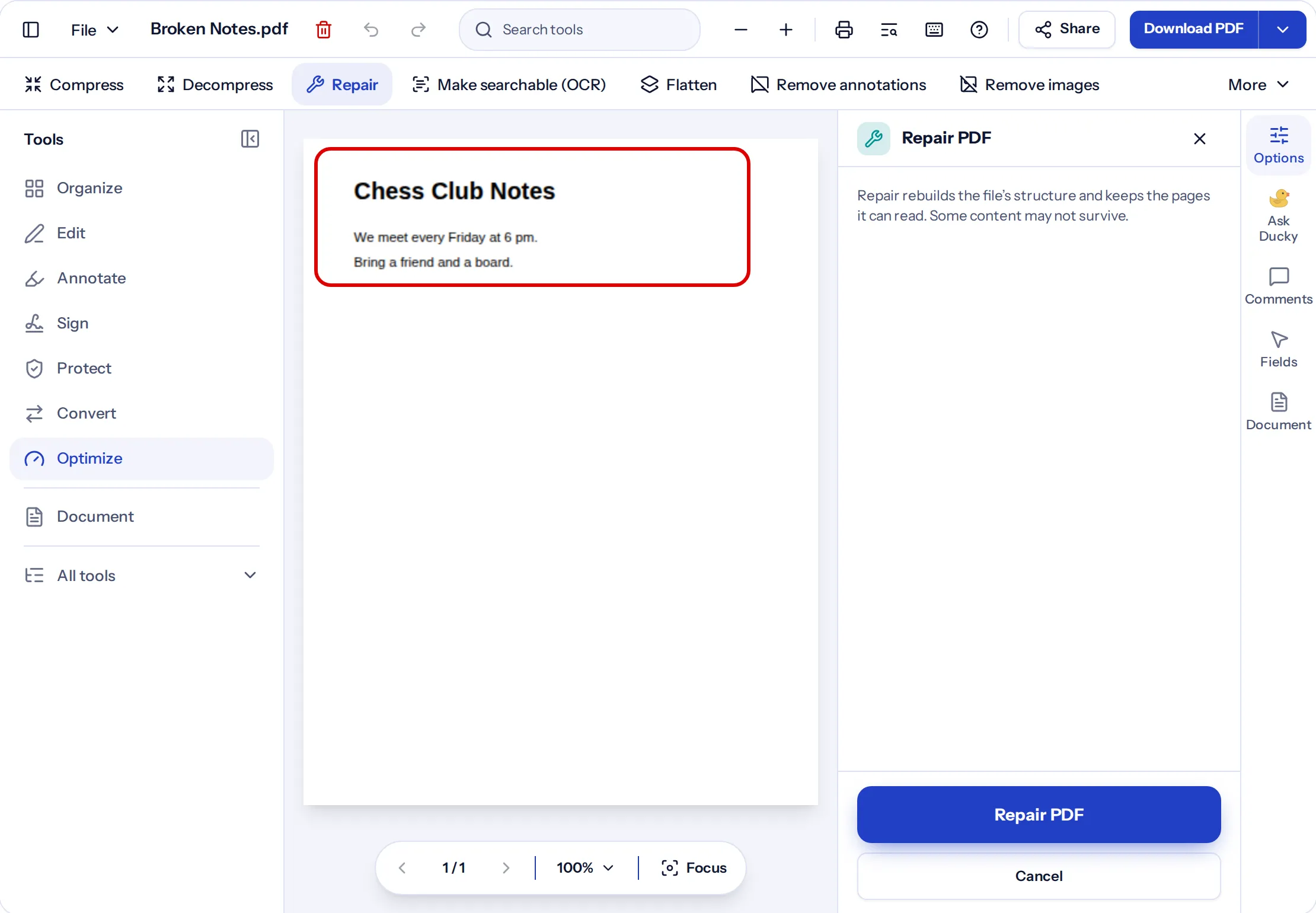
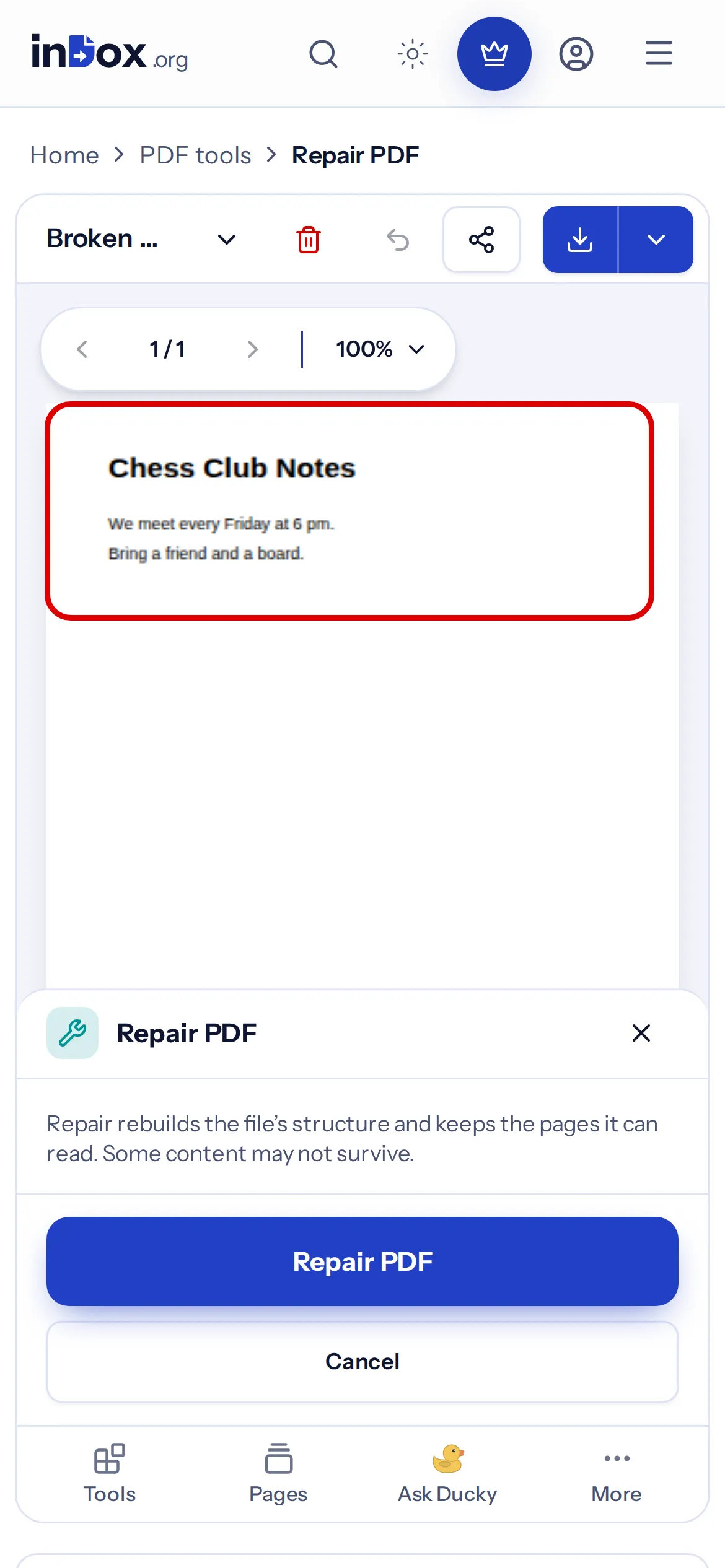
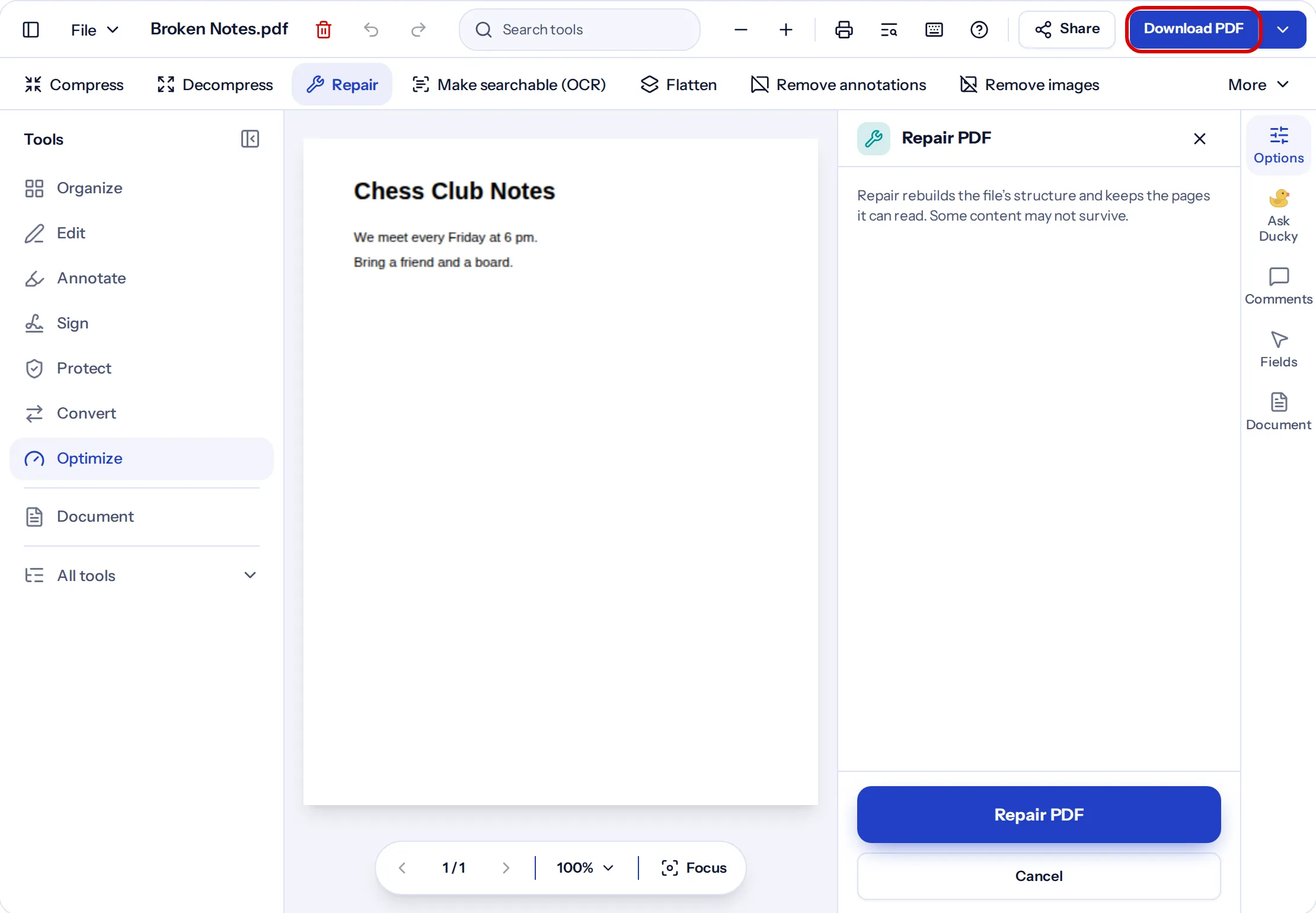
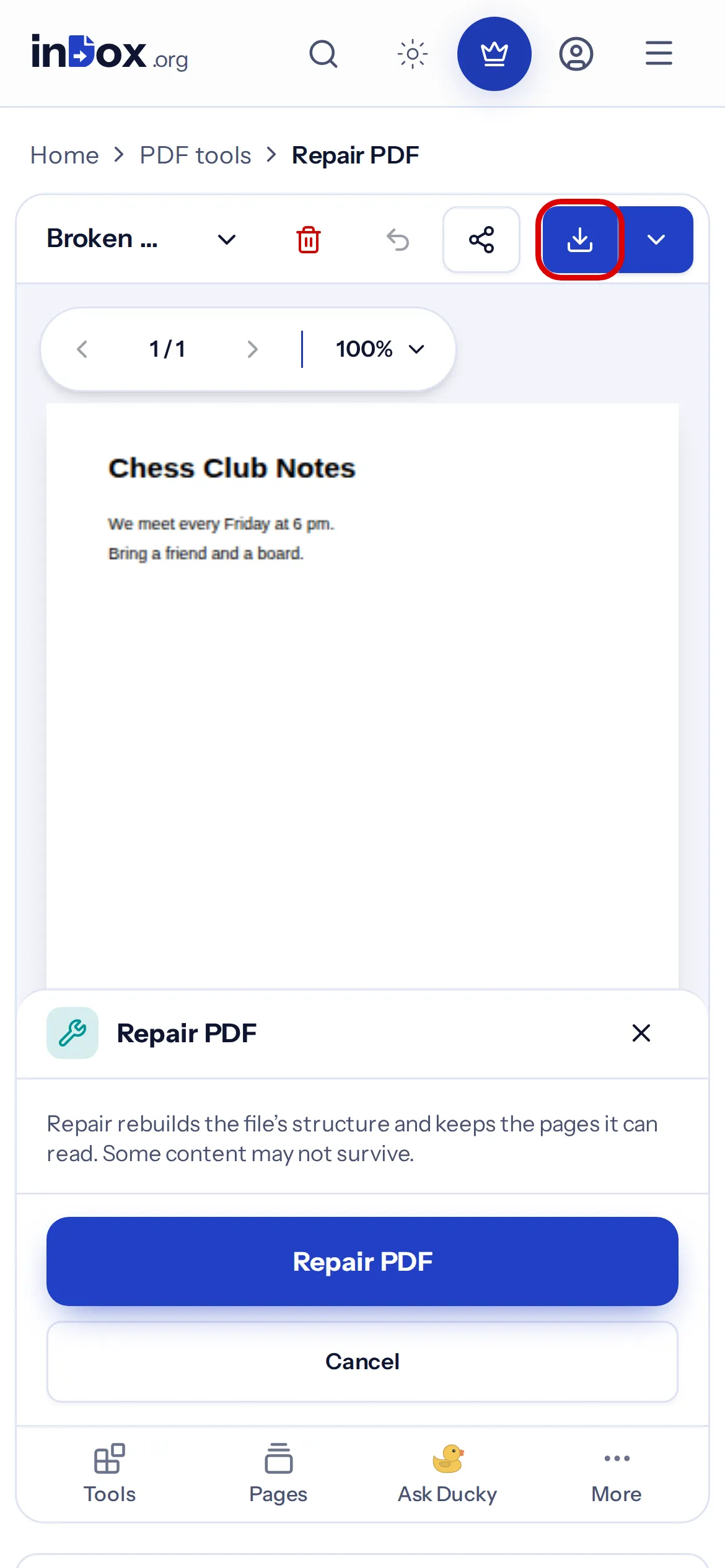
The repaired page now shows in the viewer. Look at every page and check that the words and pictures you need are there.
Download your PDF
Select the blue Download PDF button. On a computer it is at the top right. On a phone it is the arrow in the bar above the page. The new file is saved on your device. Open it in your PDF reader to check it.
Troubleshooting
| Problem | Cause | Fix |
|---|---|---|
| Some pages are blank or words are missing | Repair keeps only the pages it can read. Some content may not survive | Ask the person who sent the file for a new copy |
| The file has a password | A file with a password must be unlocked first | Use Unlock PDF , then repair the new copy |
| A red message says Couldn't read this PDF's form fields. | The form boxes in the file are damaged | You can still view and edit the file, but the boxes can't be filled in |
| You are afraid of losing the original | Repair makes a new copy | The box says your original file isn't changed |