Last updated
Read a PDF in your browser
Before you start
- Have the PDF on your phone or computer.
- The viewer shows the PDF right in your browser. Nothing is uploaded just to open and read it.
- You don't need an account.
Open your PDF
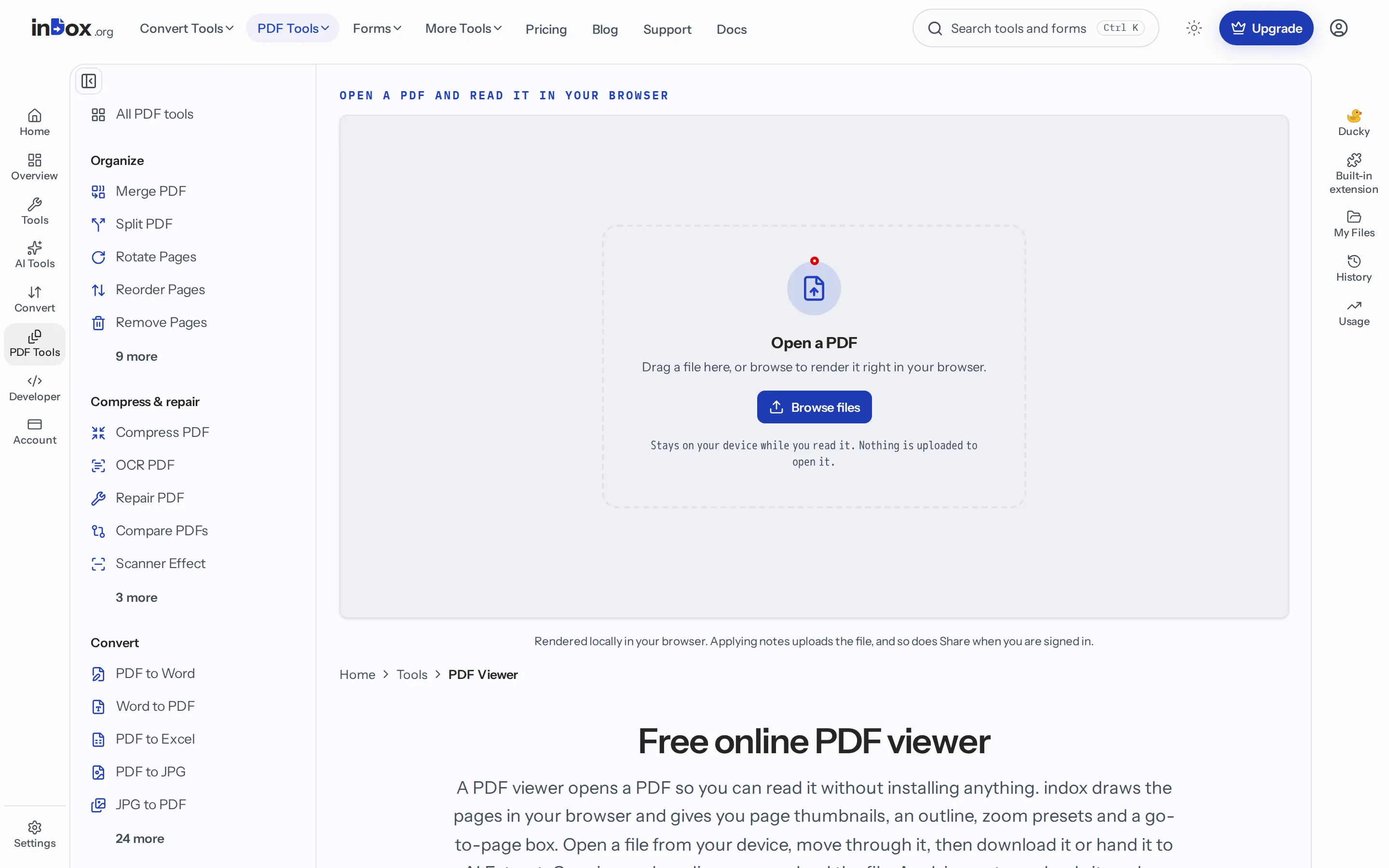
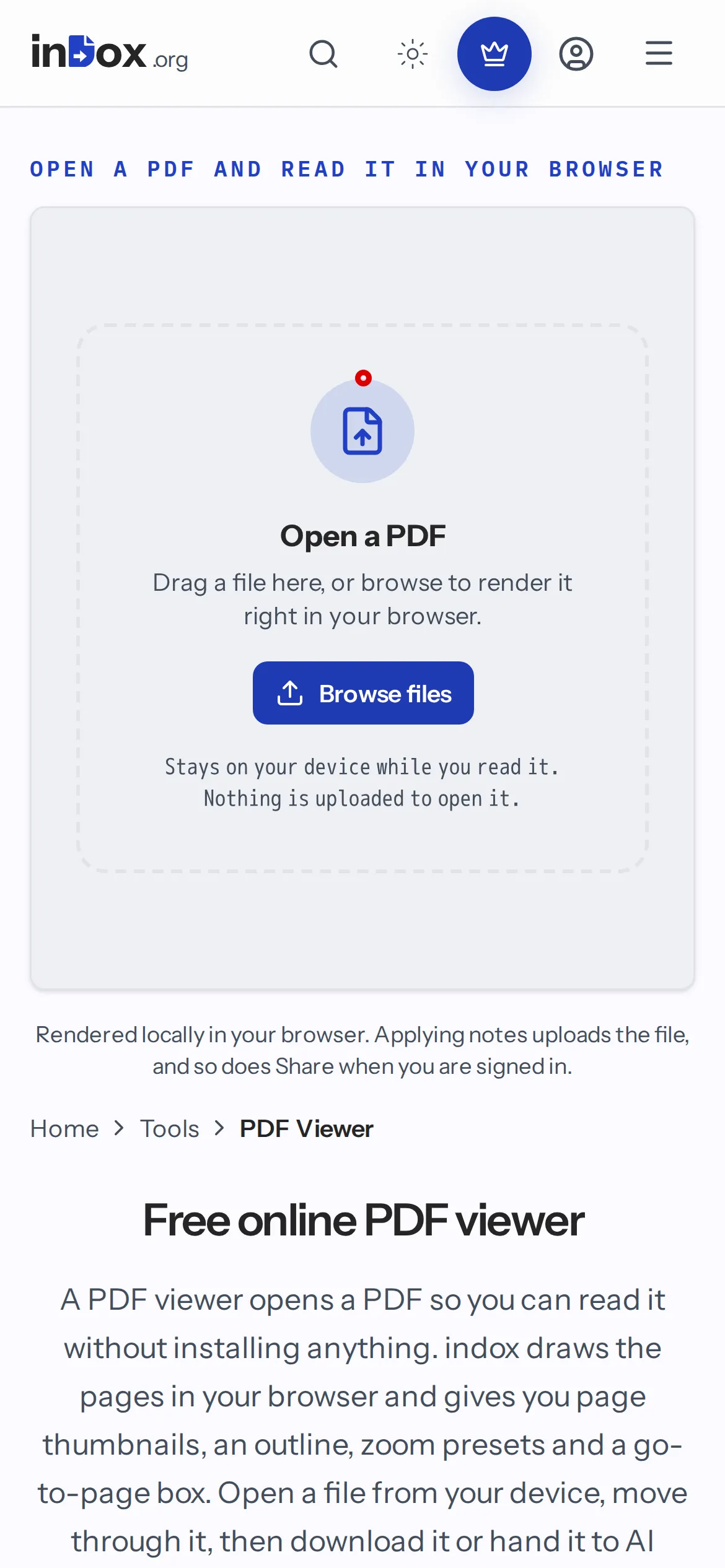
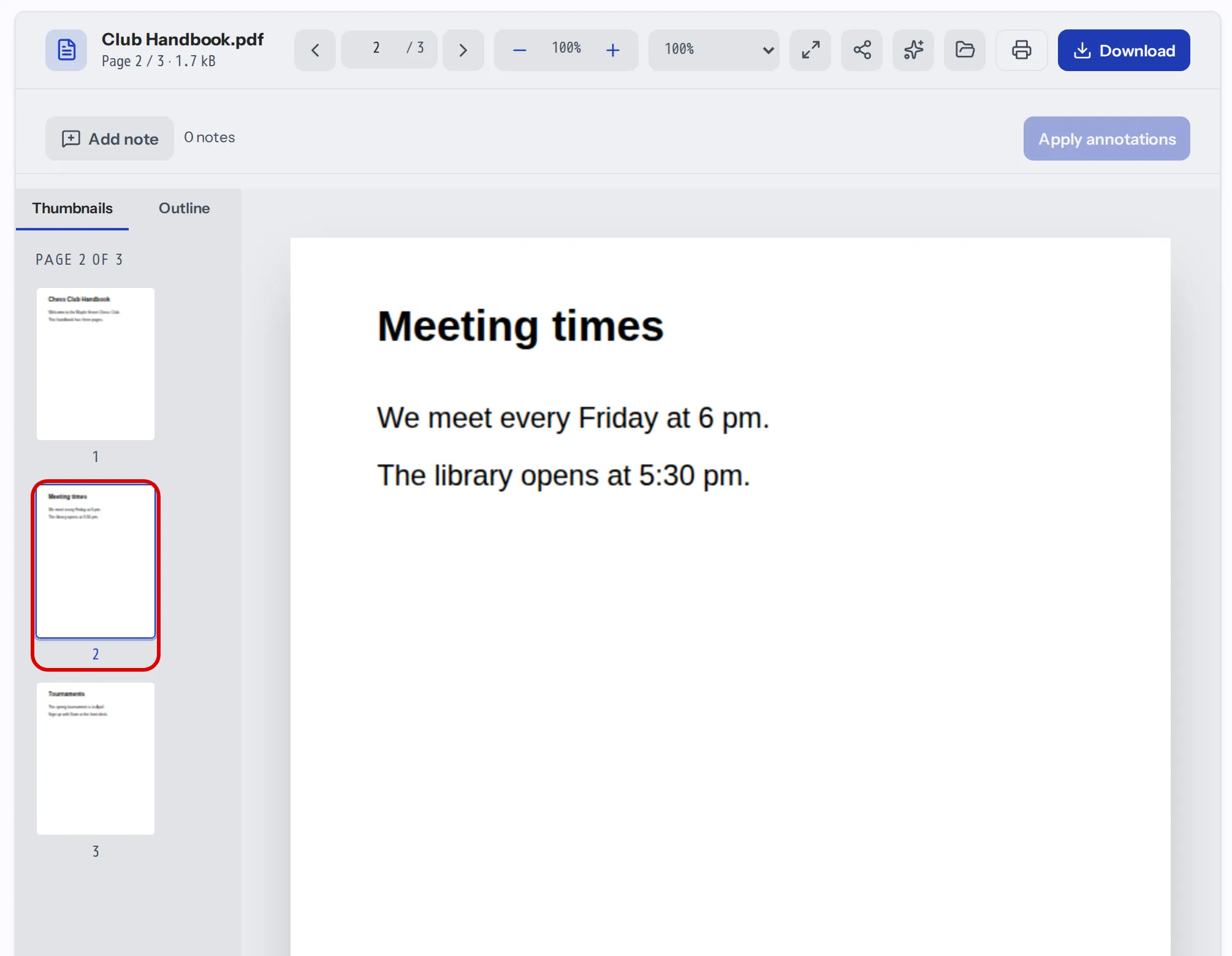
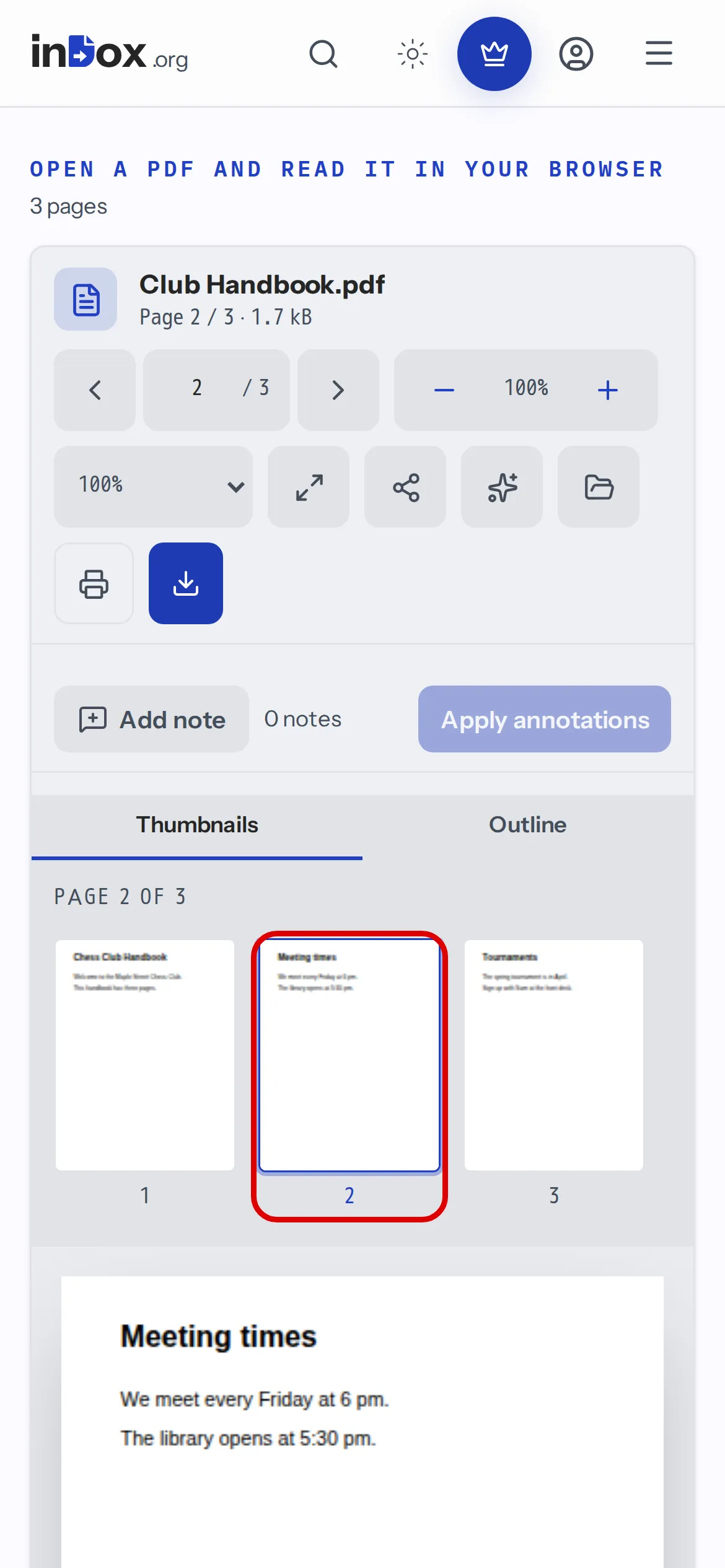
Go to the PDF Viewer page. In the middle of the box that says Open a PDF, select the blue Browse files button. A box opens so you can pick a file from your device. You can also drag a file onto the box. The PDF opens with a bar of buttons at the top. A column of small page pictures, called thumbnails, shows on the left. On a phone the thumbnails sit above the page.
Jump to a page
Select a small page picture under Thumbnails to go to that page. The page number at the top changes to match. You can also use the arrows beside the page number to go to the previous or the next page.
Zoom in or out
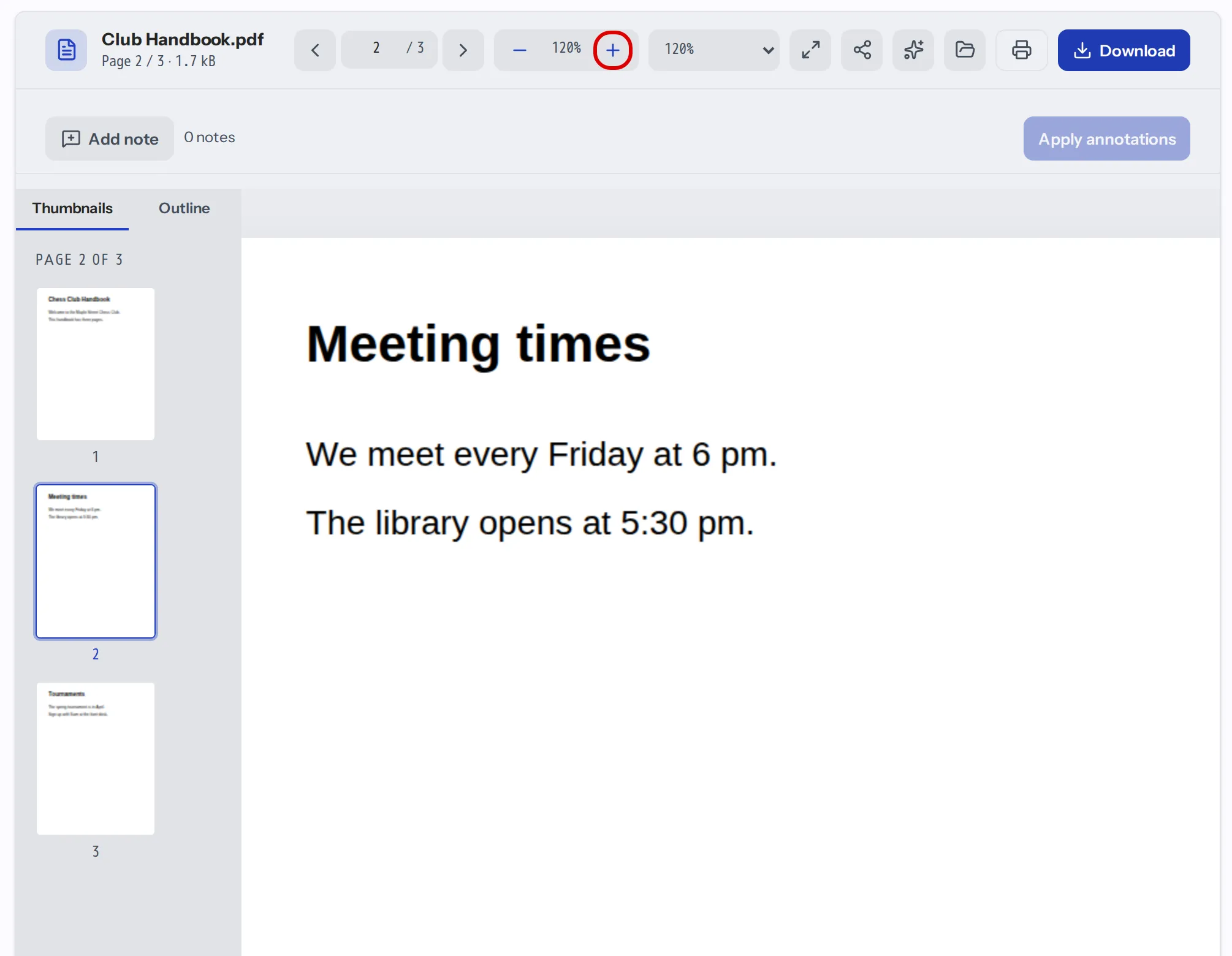
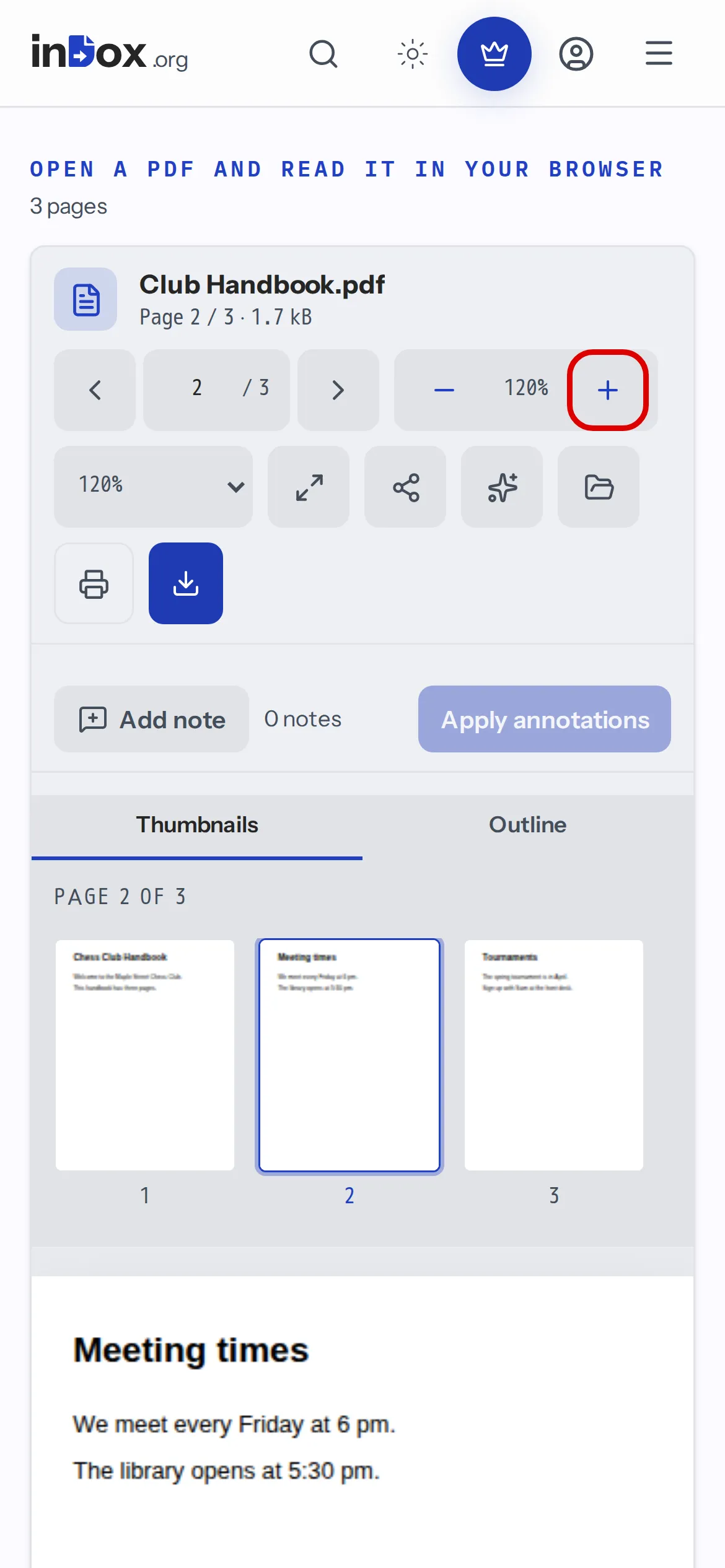
To zoom means to make the page look bigger or smaller. Select the + button to zoom in. Select the - button to zoom out. The number between them shows the size. The list next to it has ready-made sizes: Fit width, 50%, 100%, 120%, 150% and 200%.
Download your PDF
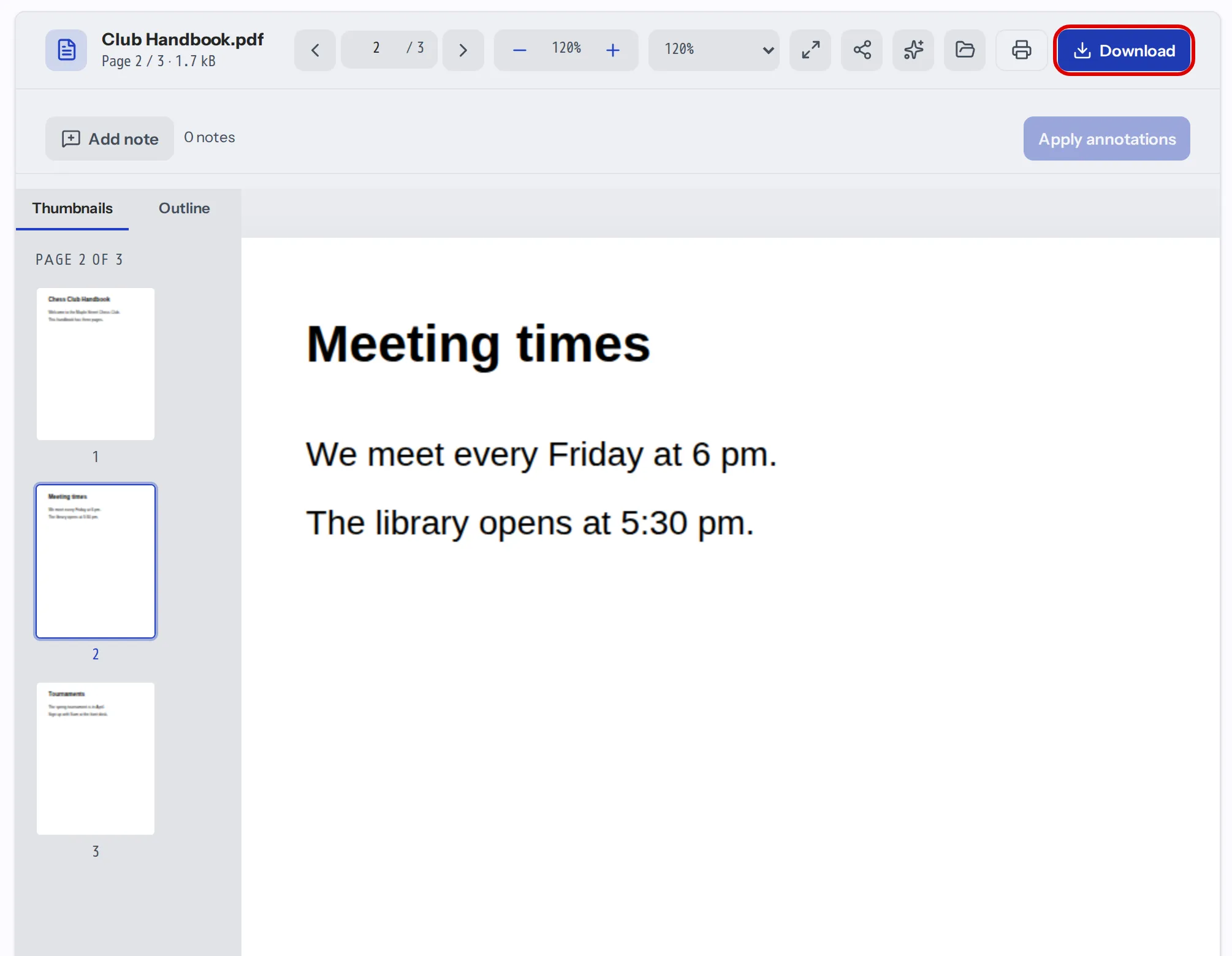
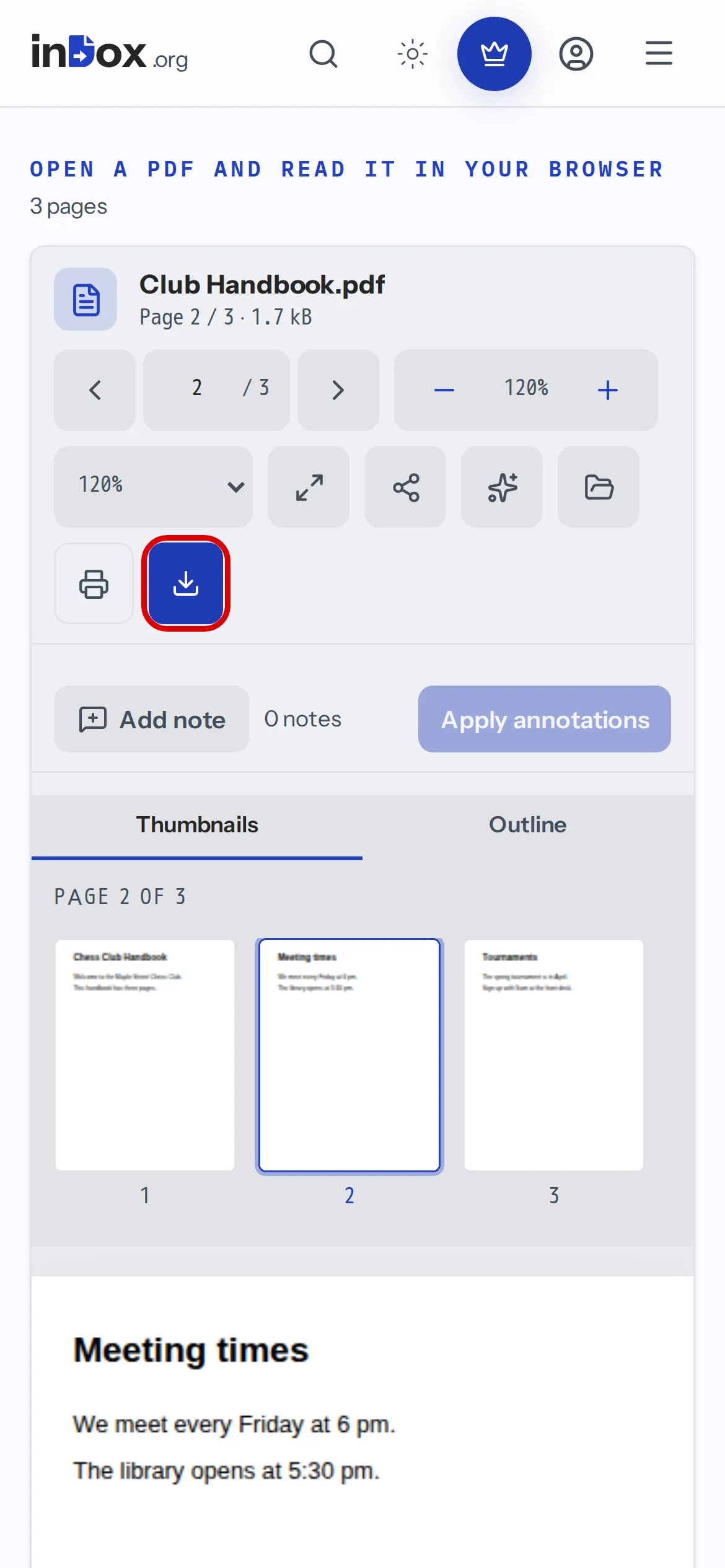
To keep a copy, select the blue Download button. On a phone it is the blue arrow button in the top box. The file is saved on your device with the same name. The button with a printer picture is for printing.
Troubleshooting
| Problem | Cause | Fix |
|---|---|---|
| The Outline tab is empty | Not every PDF has an outline. The tab says This document has no outline. | Use the Thumbnails tab to move between pages |
| You can't find a search box | This viewer has no search box | Use the thumbnails and the page arrows to find your page |
| Apply annotations is greyed out | No notes have been added yet | Select Add note, click the page and type your note. See Read & Annotate for marking up a PDF |