Last updated
Convert several files at once in the INDOX extension
Before you start
- The INDOX extension added to Chrome on a computer, and a signed-in INDOX account. The panel only shows the box for files when you are signed in.
- Two or more files on your computer. Converting uses credits.
Find the drop box
Open the INDOX side panel. Find the box with a dashed border that says Drop file or browse.
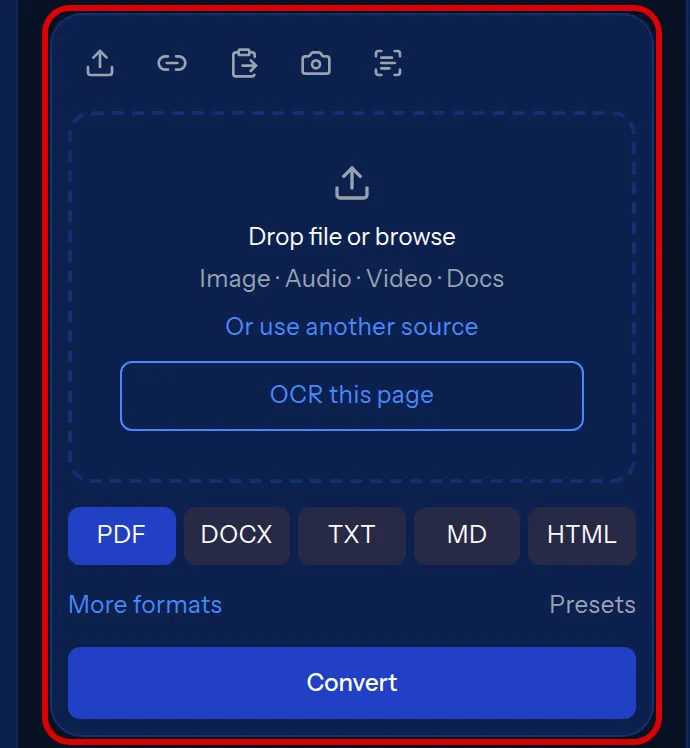
Add your files
Select Drop file or browse. A window opens. Hold Ctrl (Command on a Mac), select each file, and then open them. The box becomes a list headed with the number of files, for example 3 FILES QUEUED. Each row shows a file name and its size. To take a file out, select the × at the end of its row.
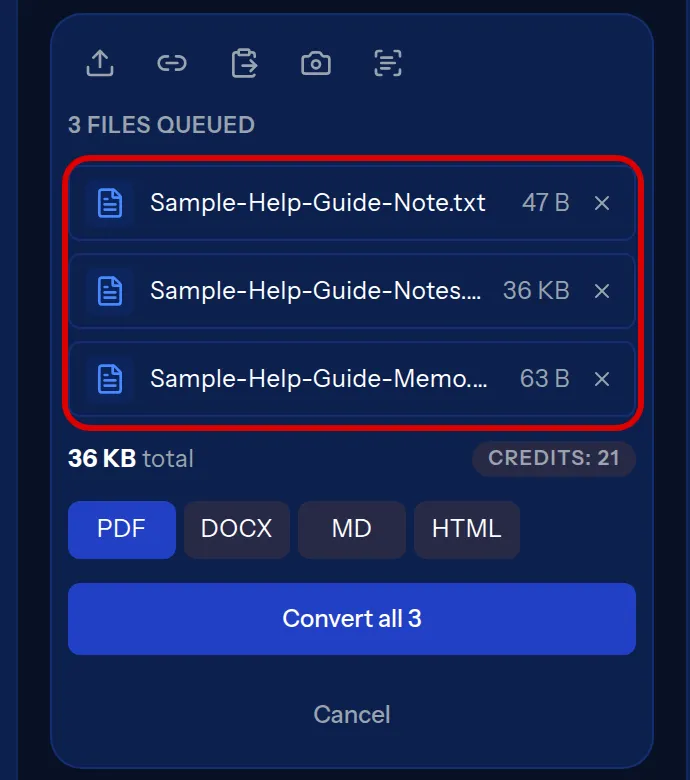
Pick the format
Under the list, select the format you want, for example PDF. One choice applies to every file in the batch.
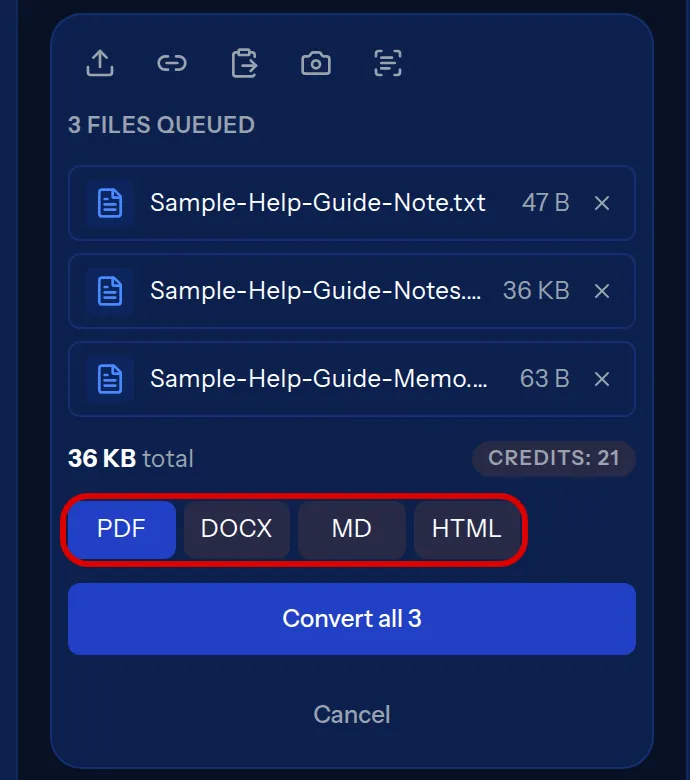
Select Convert all
Select Convert all 3. The number is how many files are in the list.
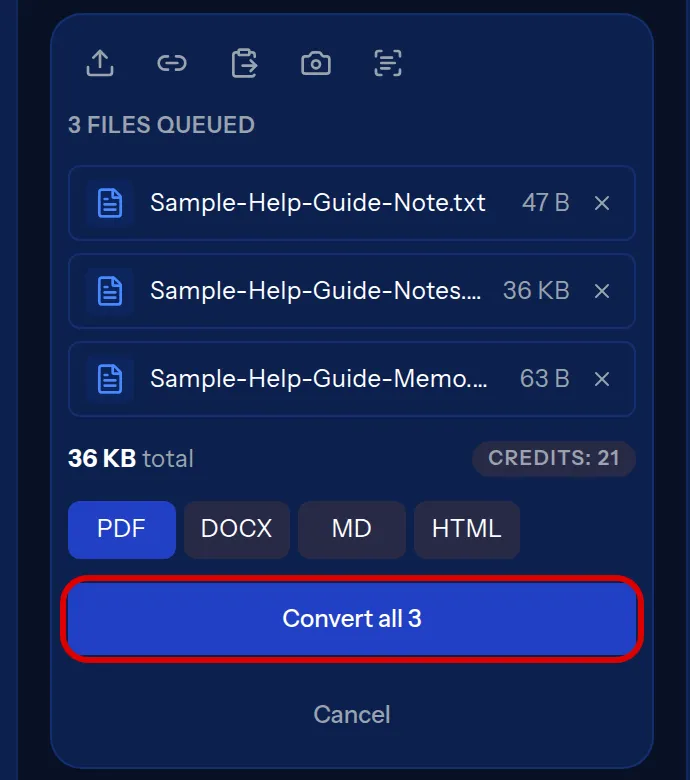
Wait for the conversions to start
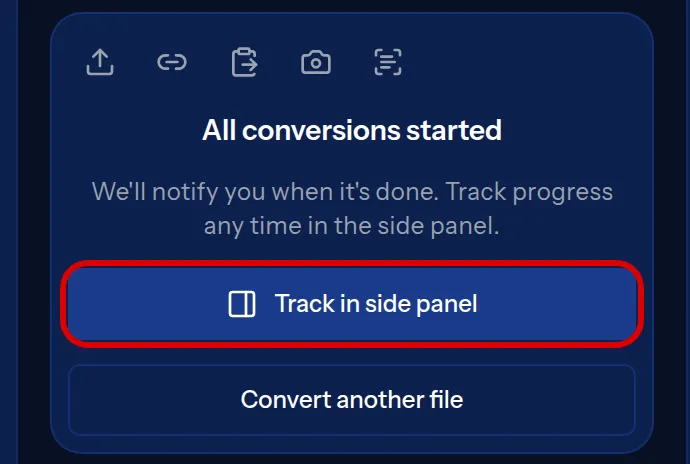
The box says All conversions started and We'll notify you when it's done. To add more files, select Convert another file.
Find your converted files
Go to indox.org and select History in the menu on the left. Each file shows its conversion, for example docx to pdf. A file says Processing while it works and Completed when it is ready.
Troubleshooting
| Problem | Cause | Fix |
|---|---|---|
| You can't see Drop file or browse | You are not signed in | Sign in first. The panel shows Get started and Sign in until you do. |
| A file is in the list by mistake | The wrong file was picked | Select the × at the end of its row. To start over, select Cancel under the Convert all button. |
| A file still says Processing | The conversion is still running | Wait a moment and open the History page again. |