Last updated
Sign in to the INDOX extension
Before you start
- The INDOX extension added to Chrome on a computer, and an INDOX account.
- If you are already signed in to indox.org in this browser, the panel opens signed in and you can skip these steps.
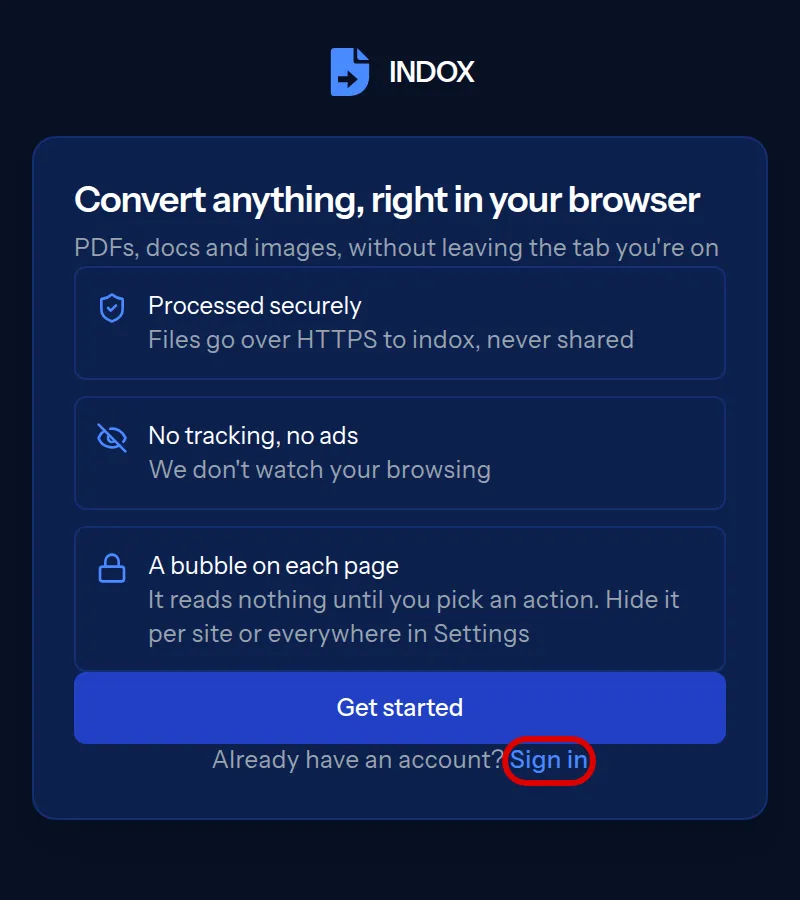
Select Sign in in the side panel
Open the INDOX side panel. If you are not signed in, it says Convert anything, right in your browser. At the bottom, next to Already have an account?, select Sign in. The sign-in form opens in the panel.
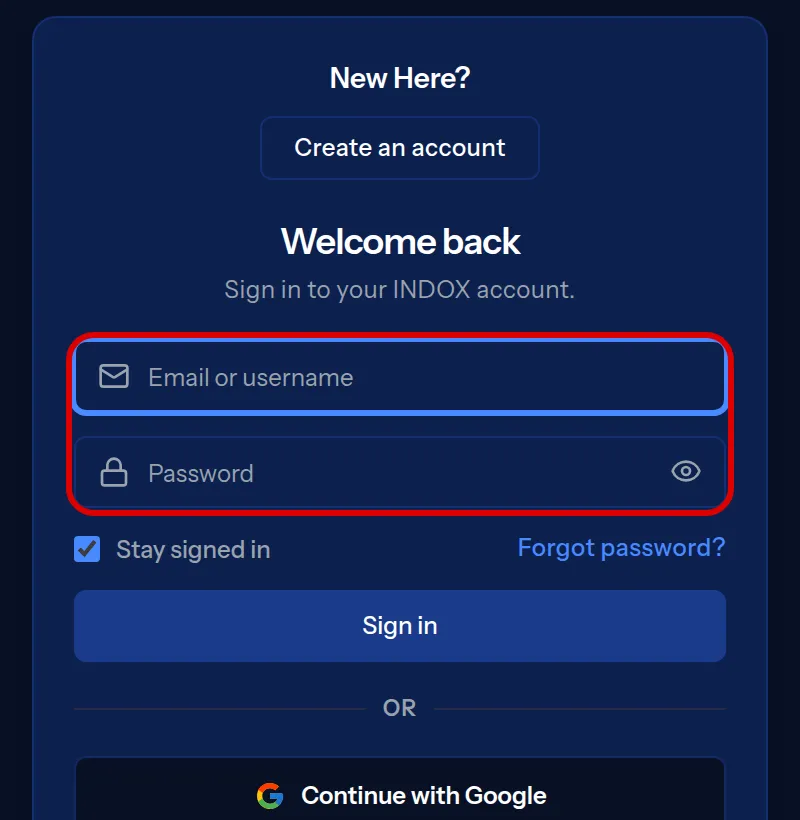
Type your email or username and your password
Select the Email or username box and type it. Then select the Password box and type your password. To check what you typed, select the eye icon at the end of the password box.
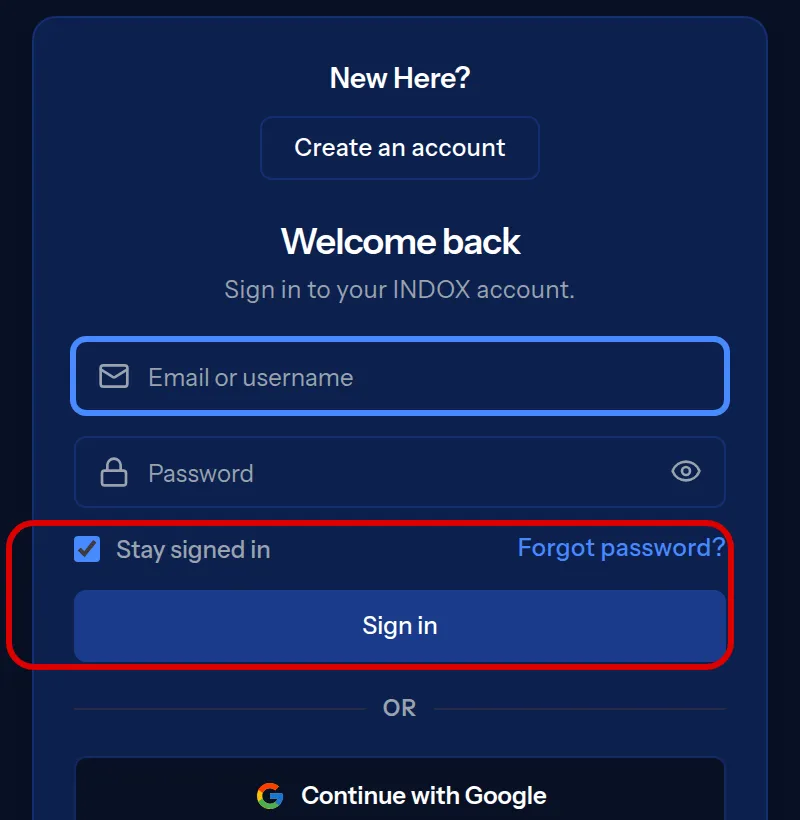
Choose whether to stay signed in, then select Sign in
Stay signed in is ticked when the form opens. Untick it if the computer is shared. Then select Sign in. The panel changes to the home screen.
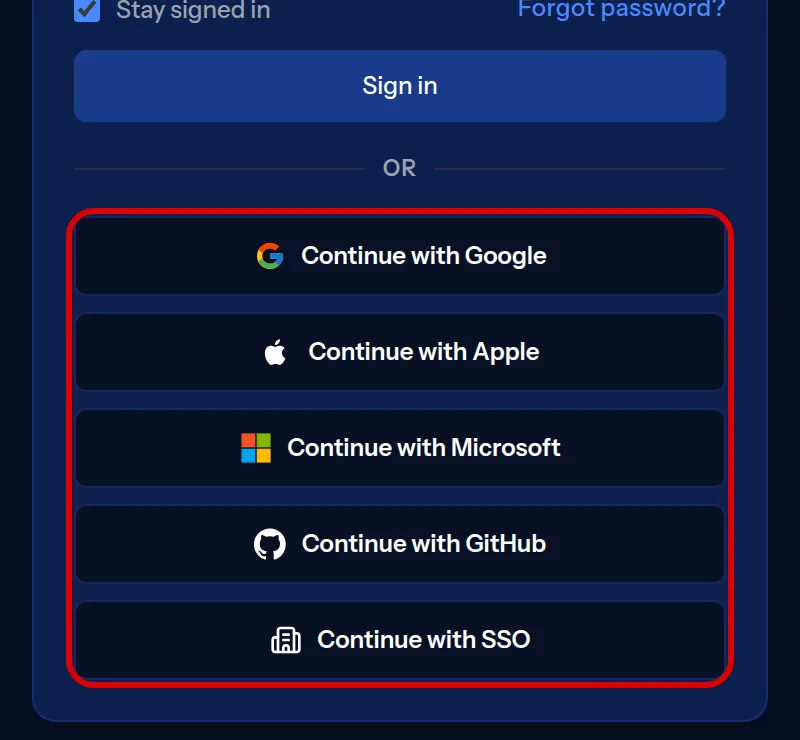
Or sign in with Google, Apple, Microsoft, GitHub or SSO
You do not have to type a password. Under OR, select Continue with Google, Continue with Apple, Continue with Microsoft, Continue with GitHub or Continue with SSO.
Check that you are signed in
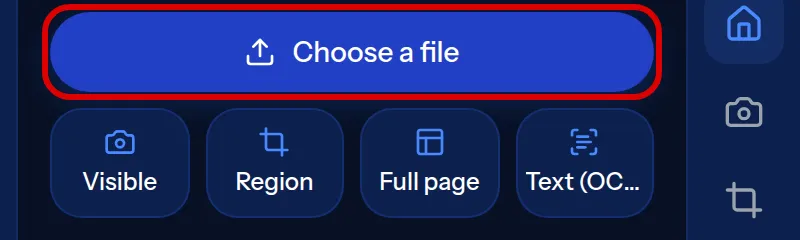
The home screen says Hi, followed by your name. Below it is a big Choose a file button, and under that are the buttons Visible, Region, Full page and Text (OCR).
Troubleshooting
| Problem | Cause | Fix |
|---|---|---|
| A red message says Invalid username or password | The email, username or password has a typo | Type them again. Select the eye icon to see the password. If you forgot it, select Forgot password? A page on indox.org opens in a new tab. |
| You don't have an account yet | The form only signs in to an account that already exists | Select Create an account at the top of the form. |