Last updated
Make a PDF look scanned
Before you start
- Have the PDF on your phone or computer. The upload box says files can be up to 200 MB.
- A scanned look means a page that seems to be printed and fed through a scanner. It is a little soft and often grey. This only changes how the pages look. It does not make the file a real scan of paper.
- Every page is redrawn as a picture. You can't select its text afterwards and the file gets much bigger, so keep your original.
- You don't need an account.
Open your PDF
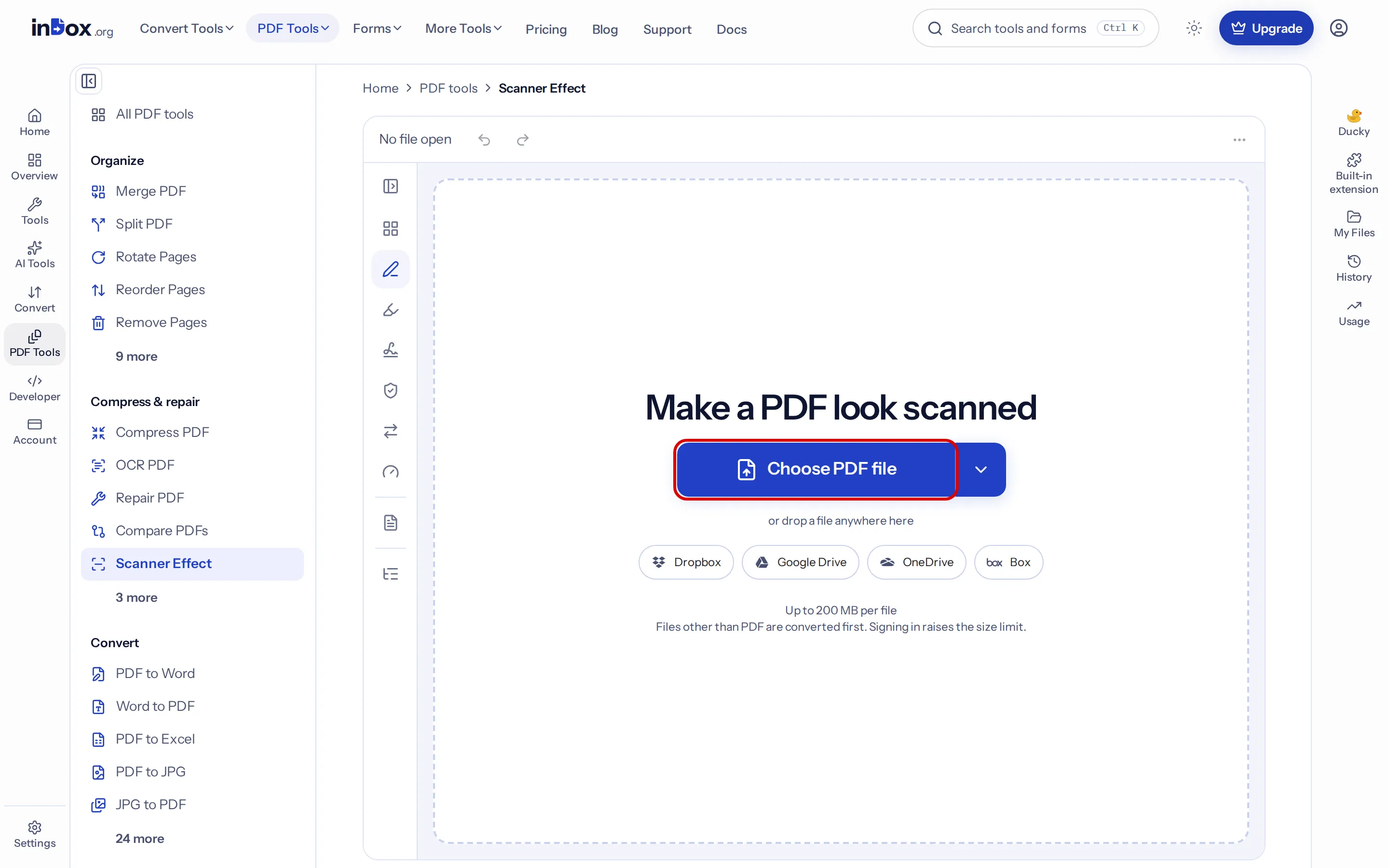
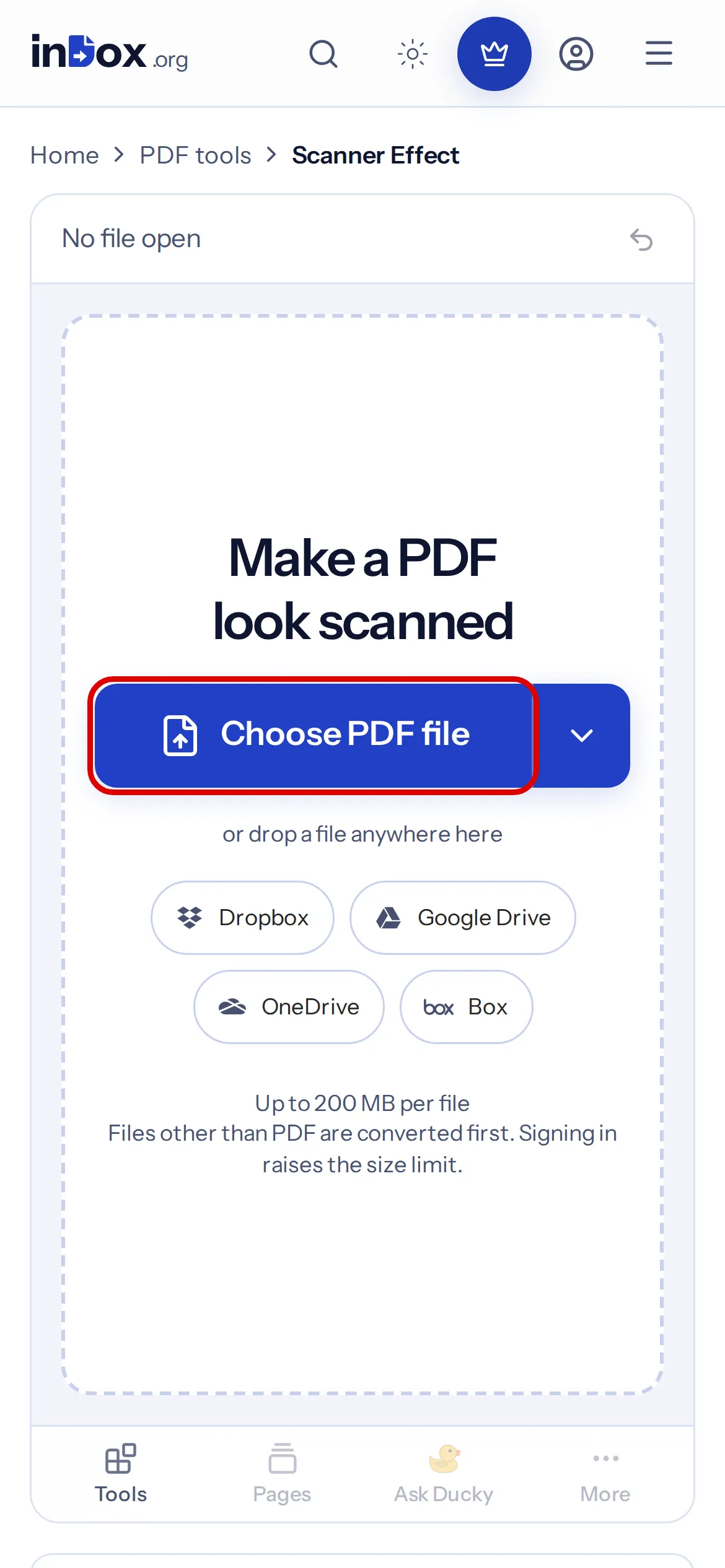
Go to the Scanner Effect page. In the middle of the page, select the blue Choose PDF file button. A box opens so you can pick a file from your device. You can also drag a file onto the page. The file opens with a panel called Scanner Effect. On a computer the panel is on the right. On a phone it slides up from the bottom.
Pick a look
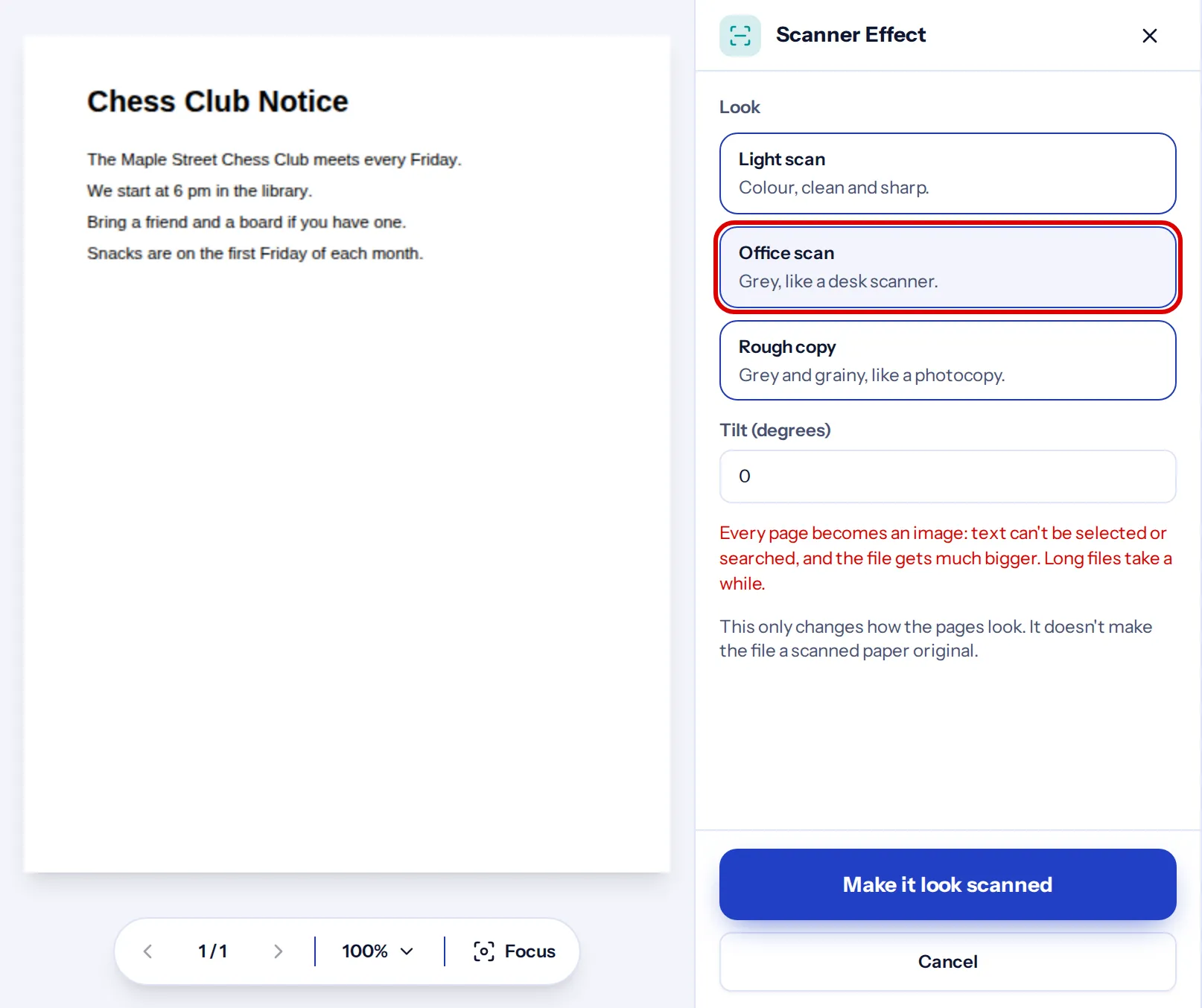
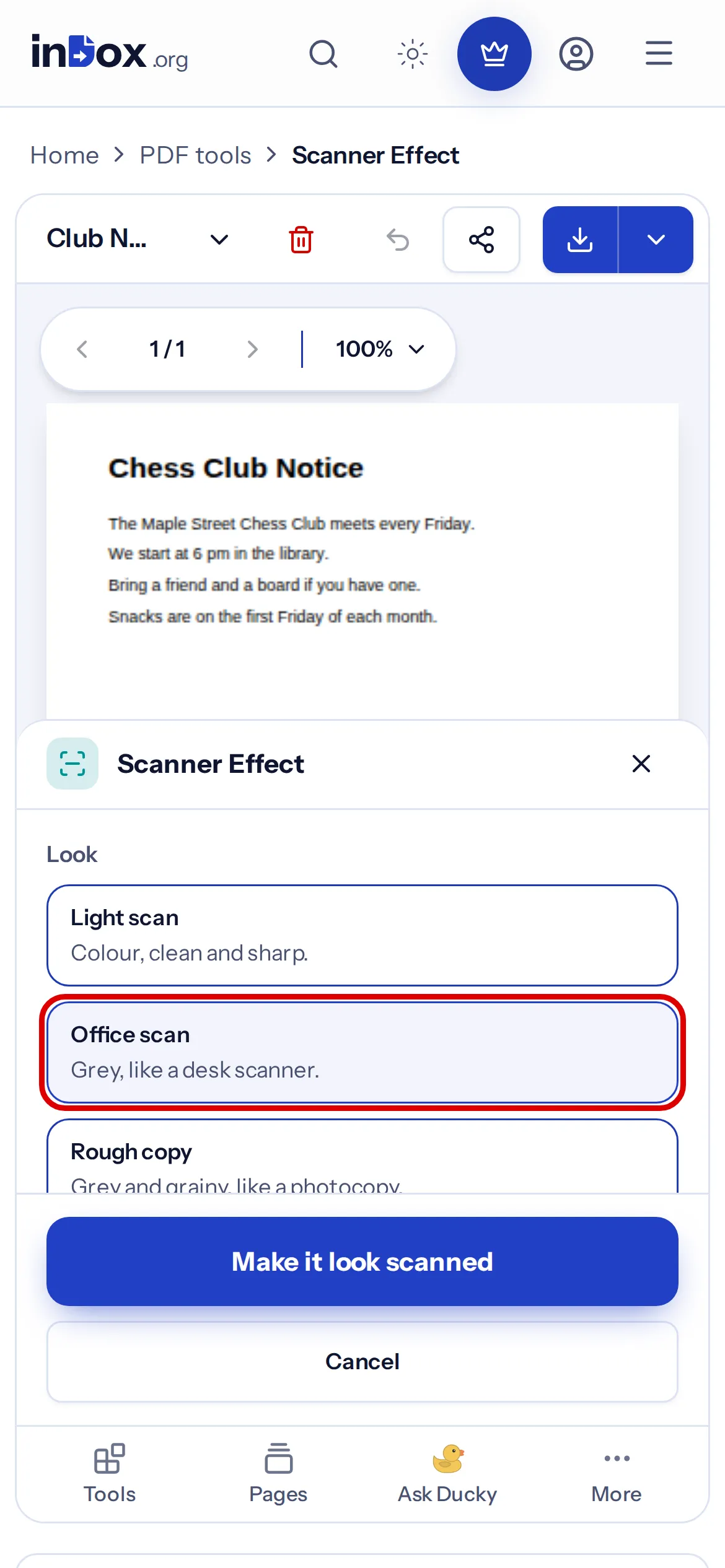
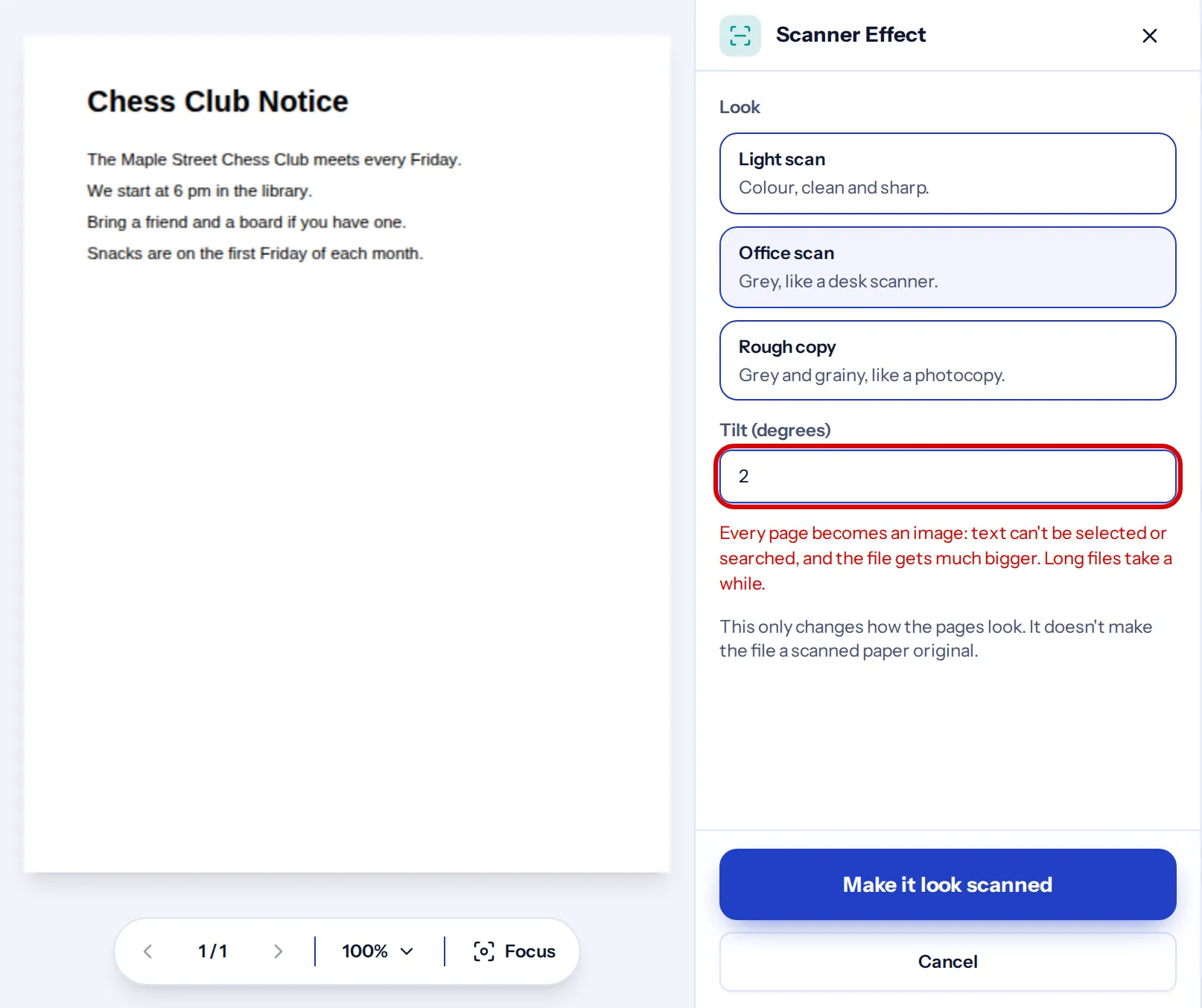
Under Look, you see three choices. Light scan keeps the colour and stays clean and sharp. Office scan is grey, like a desk scanner. Rough copy is grey and grainy, like a photocopy. Office scan is picked when the panel opens. Select the look you want.
Set the tilt
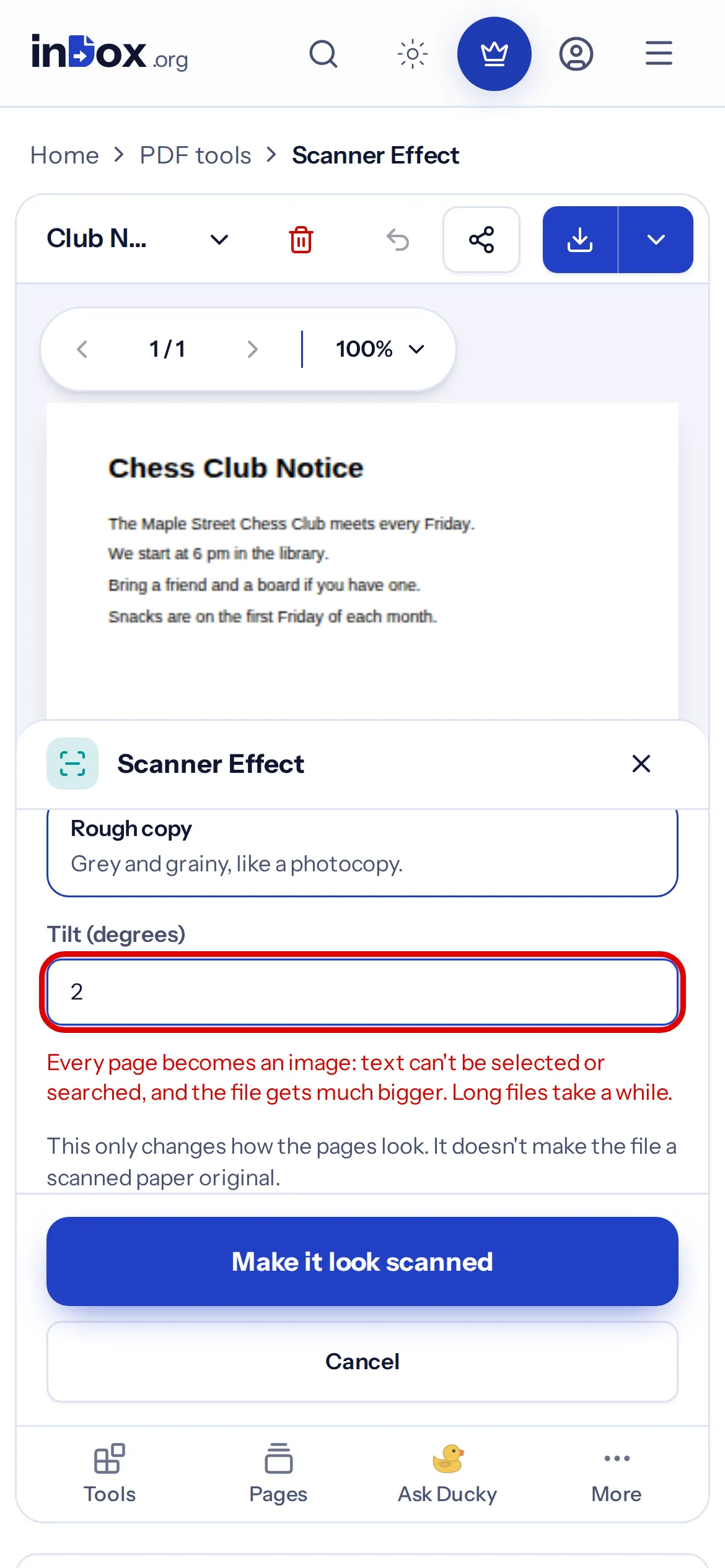
Find Tilt (degrees). Tilt is how much the page leans, like a sheet that went in a little crooked. Type a whole number from -5 to 5. A 0 keeps the page straight. This guide uses 2. On a phone, scroll the panel up to see this box.
Make it look scanned
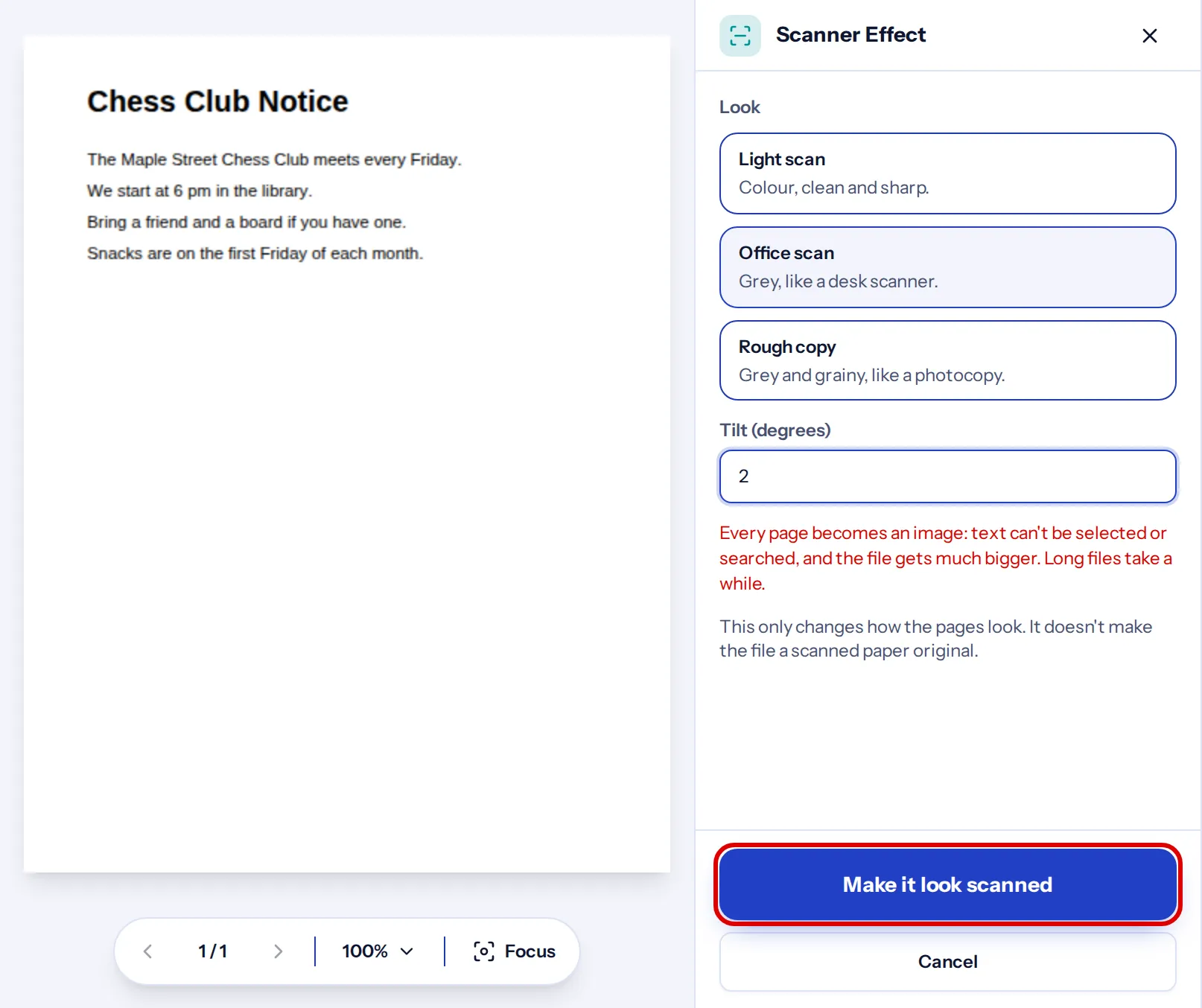
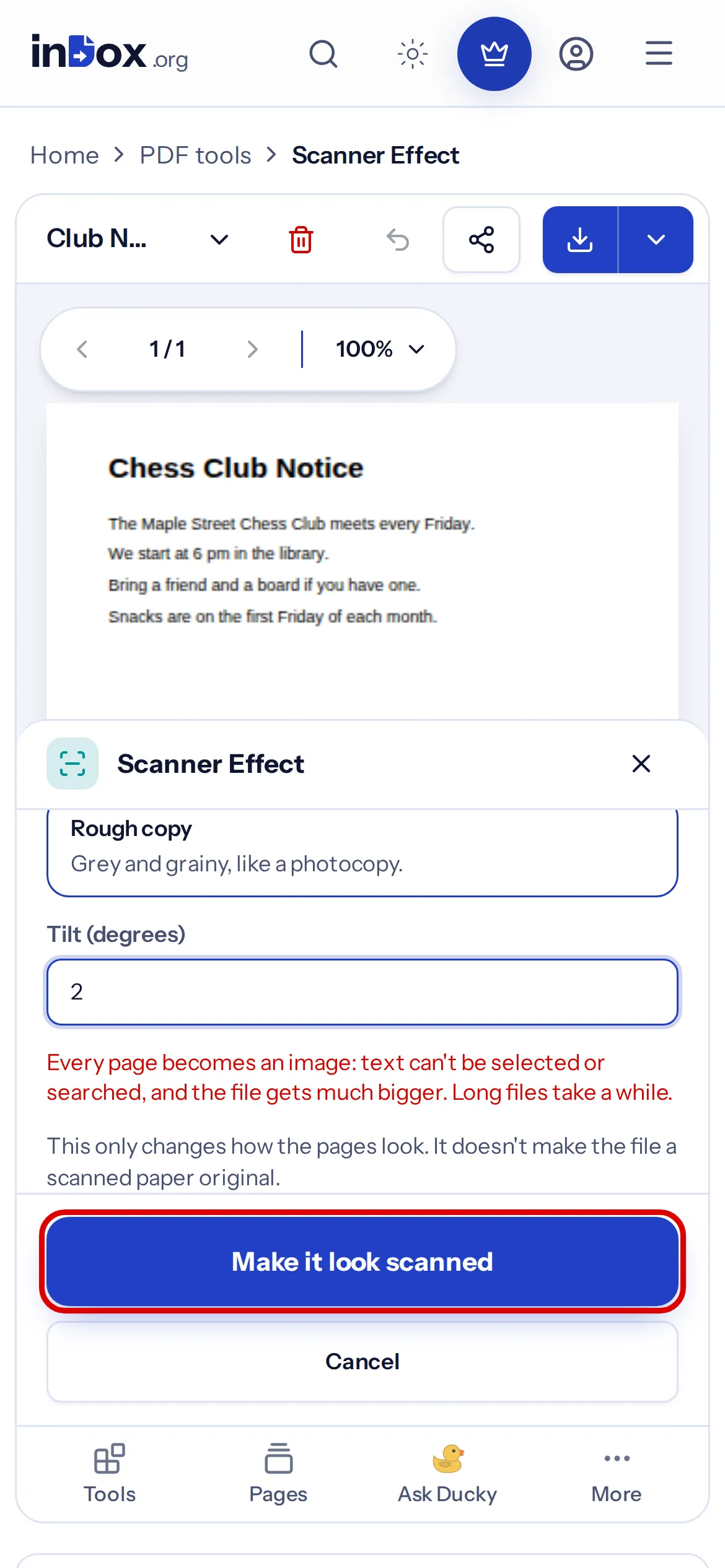
Select the blue Make it look scanned button. The panel warns you in red that every page becomes an image. A long file takes a while, so wait until the progress bar goes away.
Download your PDF
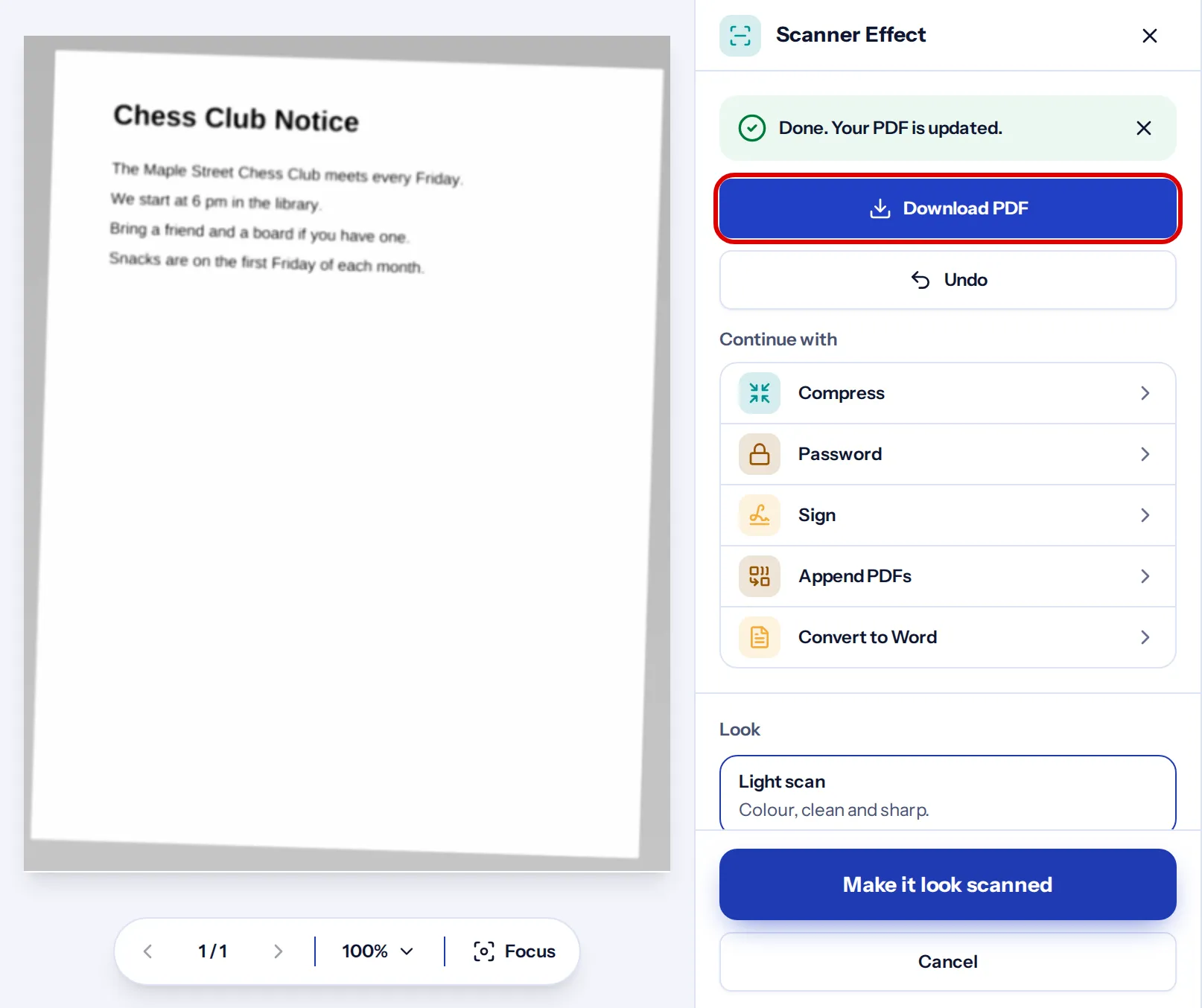
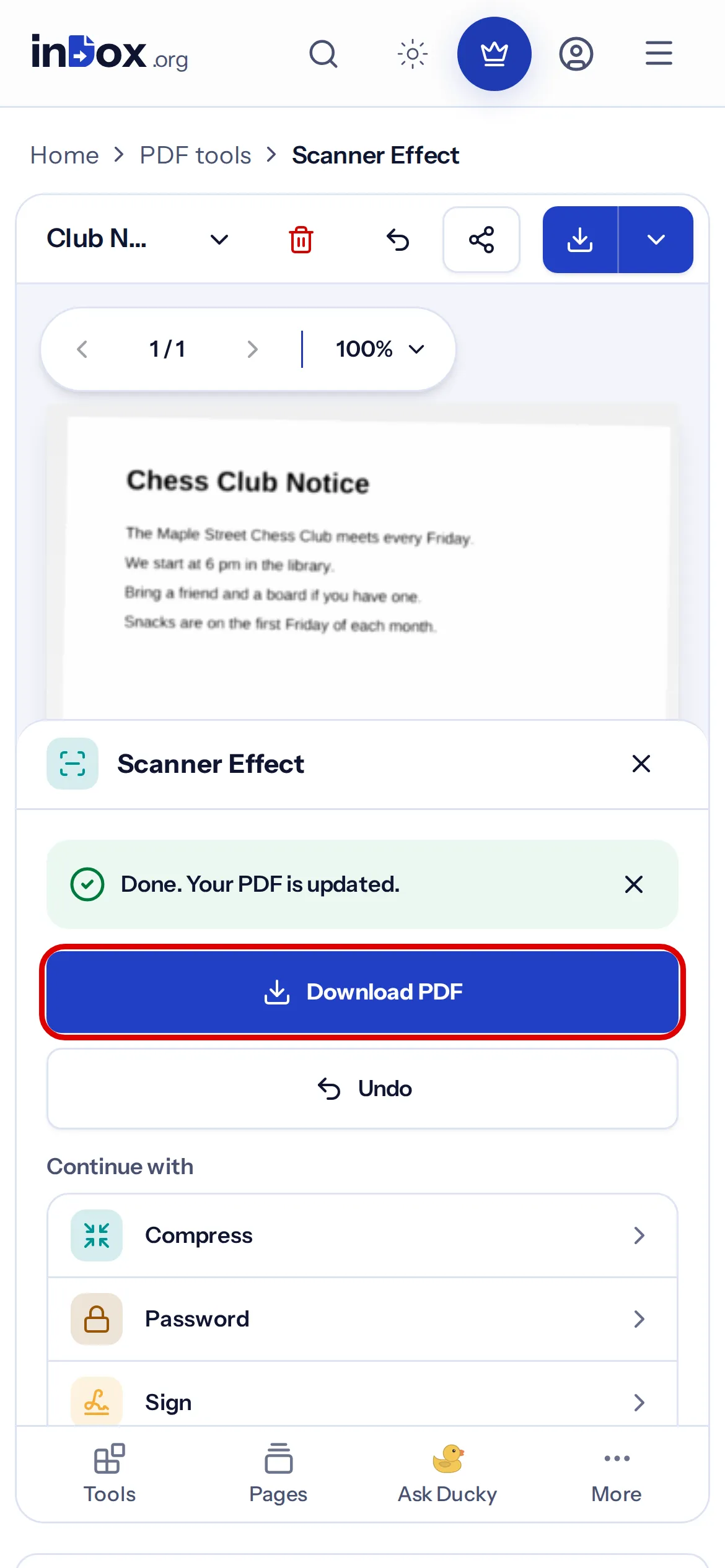
The panel says Done. Your PDF is updated. The page on the left now leans a little and looks like a scan. Select the blue Download PDF button. The new file is saved on your device. Its name ends in -edited.
Troubleshooting
| Problem | Cause | Fix |
|---|---|---|
| You can't select the text any more | Every page was redrawn as a picture | Run Make searchable (OCR) on the new file to get the text back |
| The new file is much bigger | Pictures take more room than text | Keep the original and use the new file only where you need the scanned look |
| The tilt is not what you expected | The tilt takes a whole number from -5 to 5 | Select Undo next to Download PDF, type a new number and run it again |
| You want the original page back | The new PDF replaces the one on screen | Select Undo next to Download PDF |